
Azure Virtual Desktop vs Windows 365: Key Differences Explained


See Venn first in Google Search
Add as a preferred source on Google
Microsoft now offers two distinct paths to a cloud desktop, and the overlap in naming causes real decision paralysis for IT teams. Azure Virtual Desktop and Windows 365 both put a Windows environment in the cloud, both plug into the Microsoft 365 ecosystem, and both get pitched as “the modern alternative to on-prem VDI.” But they’re built for different operating models, and choosing the wrong one means overpaying for capacity you don’t need or under-provisioning a team that needed real flexibility.
This guide breaks down how each product actually works, where the architecture and pricing diverge, and how to decide — including where neither one fully solves the problem, especially for contractors and BYOD users.
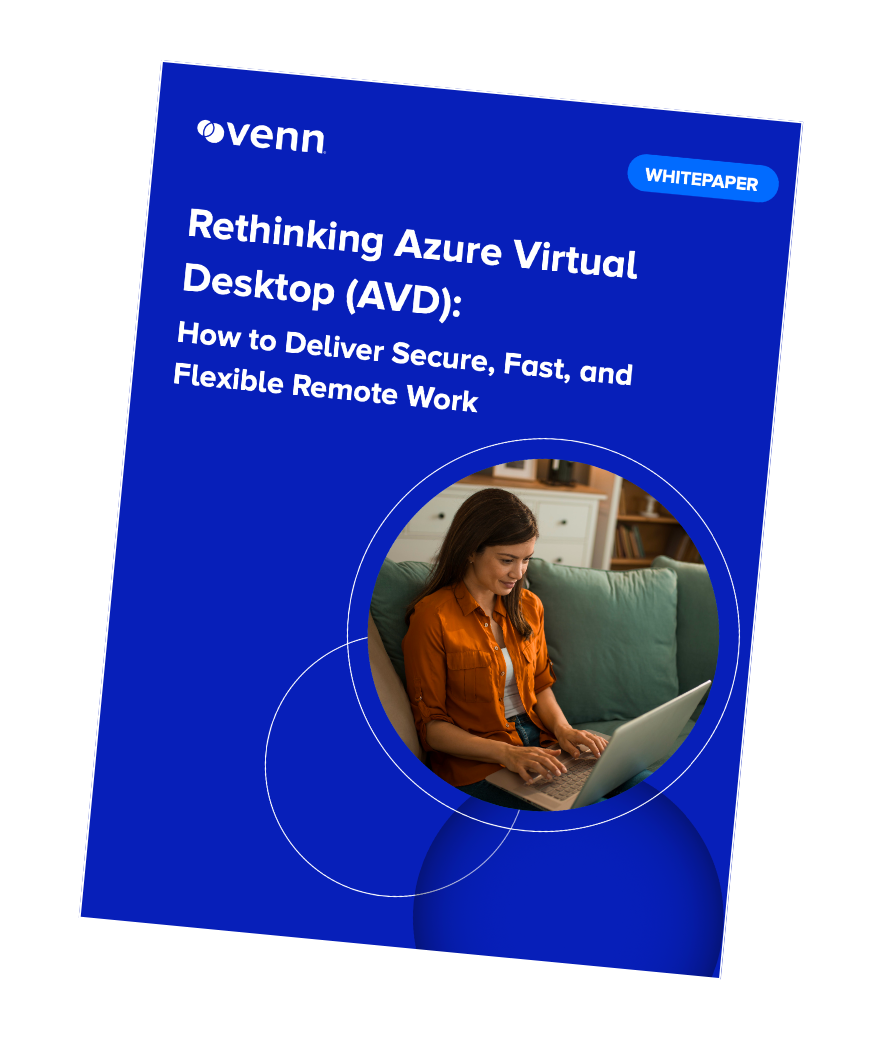
Considering Azure Virtual Desktop?
Discover the top AVD alternatives for enabling seamless and secure remote work on unmanaged laptops – without any latency or lag.
In this article:
- What Is the Difference Between Azure Virtual Desktop and Windows 365?
- How Azure Virtual Desktop Works
- How Windows 365 Works
- Key Architectural and Feature Differences
- Pricing and Cost Models Compared
- Management and Day-to-Day Administration
- Performance and End-User Experience
- Security, Compliance, and Data Governance
- When to Choose Azure Virtual Desktop vs Windows 365
- Alternatives to Azure Virtual Desktop and Windows 365
- Frequently Asked Questions
- Best Practices for Selecting a Cloud Desktop Solution
- Key Takeaways
What Is the Difference Between Azure Virtual Desktop and Windows 365?
The short version: Azure Virtual Desktop (AVD) is infrastructure you configure, and Windows 365 is a finished product you subscribe to. Davenport Group frames it well — AVD provides deep control and flexibility, while Windows 365 is built for simplicity and predictability, handling the infrastructure so IT doesn’t have to manage virtual machines or backend components directly.
That distinction shapes everything downstream; pricing, administration, scalability, and who on your team needs to own it.
How Azure Virtual Desktop Works
AVD is Microsoft’s virtual desktop infrastructure (VDI) service, built on your own Azure subscription. IT configures and manages the virtual machines, storage, and networking that host the desktops, giving significant control at the cost of hands-on setup. For a deeper look at how Azure Virtual Desktop pricing and architecture work, Venn’s AVD guide covers the full breakdown.
Single-session and multi-session desktops
AVD supports both single-session desktops, where one VM serves one user, and multi-session desktops, where multiple users share a single Windows VM. Multi-session is unique to AVD — Windows 365 doesn’t offer it — and it’s the feature that makes AVD meaningfully cheaper at scale when usage patterns allow pooling.
Compute, storage, and networking components
Every AVD deployment requires provisioning VM sizes, storage accounts for user profiles (typically via FSLogix), and networking to connect back to on-prem or cloud resources. None of this is turnkey — it’s a genuine infrastructure build, which is why AVD deployments usually involve someone with Azure administration experience.
How Windows 365 Works
Windows 365 delivers a dedicated, persistent Cloud PC to each user as a fixed monthly subscription. Instead of standing up infrastructure, organizations get a Cloud PC that behaves like a managed corporate device, provisioned through Microsoft Intune. It’s essentially Desktop as a Service (DaaS) — Microsoft hosts the underlying VM, and the user experience stays consistent no matter what physical device they connect from.
The Cloud PC model and fixed provisioning
Each Cloud PC is a 1:1, always-on virtual machine assigned to a single user, with a set vCPU/RAM/storage configuration chosen at purchase. There’s no pooling and no session-sharing — what you buy is what that user gets, every month, whether they log in for eight hours a day or barely at all.
Windows 365 Business and Enterprise editions
Windows 365 Business is capped at 300 users per tenant and requires no other Microsoft licenses — just a credit card to get started. Windows 365 Enterprise removes the user cap but requires each licensed user to also carry Windows 11 Enterprise (or Windows 10 Enterprise), Microsoft Intune, and Microsoft Entra ID P1 — licenses that are often already bundled into Microsoft 365 E3, E5, or Business Premium.
Key Architectural and Feature Differences
Customization and administrative control
AVD integrates deeply with Active Directory and Azure networking, and can be tuned with reserved instances, custom VM sizing, and RemoteApp publishing for specific applications rather than full desktops. TechTarget’s comparison notes that Windows 365 doesn’t support multi-session Windows or Azure AD Domain Services — that flexibility is reserved for AVD. Windows 365 trades that customization for standardized, predictable Cloud PCs with limited backend tuning.
Auto-scaling and pooled desktops vs dedicated Cloud PCs
AVD’s pooled, multi-session model with auto-scaling lets organizations drive per-user infrastructure costs down by matching capacity to actual demand — VMs can scale down or power off outside business hours. Windows 365 has no equivalent lever: every Cloud PC is provisioned and billed the same way regardless of usage, which is exactly the tradeoff that makes it simpler to budget but less efficient for variable workloads.
Pricing and Cost Models Compared
Azure Virtual Desktop’s consumption-based pricing
AVD is billed based on actual Azure resource consumption — VM compute, storage, and networking — rather than a flat subscription. Organizations that already hold qualifying Microsoft 365 licenses (Business Premium, E3, E5) get AVD user access rights included, paying only for the underlying Azure infrastructure they use. That makes AVD cost-effective when usage is variable or users can be pooled onto shared hosts, but harder to predict without careful capacity planning.
Considering Azure Virtual Desktop?
Discover the top AVD alternatives for enabling seamless and secure remote work on unmanaged laptops – without any latency or lag.
Windows 365 fixed per-user pricing
Windows 365 pricing is a flat monthly fee per Cloud PC, scaled by vCPU/RAM/storage tier. Following pricing changes reported by Nerdio in 2026, Windows 365 Business dropped its list price by 20%, making it cheaper than a comparably sized AVD instance on a three-year reserved commitment for dedicated, always-on use. Windows 365 Enterprise, by contrast, remains roughly at parity with reserved AVD pricing at equivalent specs — the real savings show up on the Business side.
Licensing prerequisites and hidden costs
The biggest hidden cost in Windows 365 Enterprise isn’t the Cloud PC itself — it’s the licensing stack behind it. Each user needs Windows 11 Enterprise, Intune, and Entra ID P1, often already bundled into M365 E3/E5 or Business Premium, but a real added cost for anyone buying Windows 365 standalone. Windows 365 Business, by contrast, has no underlying licensing prerequisites — just the per-user subscription — but it’s capped at 300 seats per tenant, and crossing that threshold forces a full migration to Enterprise licensing.
Management and Day-to-Day Administration
Deployment and setup effort
AVD deployment involves configuring host pools, session hosts, storage, and networking before a single user can log in – a project that typically takes real Azure expertise. Windows 365 is provisioned directly from the Windows 365 admin center or Intune, with Cloud PCs available to assign in minutes.
Image, update, and profile management
AVD gives IT full control over golden images, patching cadence, and profile containers – powerful, but ongoing work. Windows 365 Cloud PCs are managed like standard corporate devices through Intune, applying the same patch and policy management IT already uses for physical machines.
Performance and End-User Experience
Both products can deliver a responsive desktop experience, but the failure modes differ. AVD’s pooled model can introduce contention under heavy concurrent load if capacity isn’t sized correctly, and GPU-backed workloads need deliberate VM selection to avoid gaps. Windows 365’s dedicated model avoids that “noisy neighbor” problem entirely – each user gets guaranteed resources – but that consistency comes at the fixed cost discussed above, whether or not the user is logged in.
Security, Compliance, and Data Governance
Identity, access, and network controls
Both products lean on the same Microsoft security stack: Entra ID, Conditional Access, multi-factor authentication, and Microsoft Defender for Endpoint. Microsoft has also been extending purpose-built protections to both platforms — recent updates include keyboard input protection against credential-harvesting malware on the connecting endpoint, alongside customer-managed encryption keys for data protection.
Compliance considerations for regulated industries
Azure carries a broad set of compliance certifications, and organizations in healthcare, financial services, or other regulated industries can generally lean on AVD’s compliance certifications — including HIPAA, SOC 2, and PCI DSS — to support their own compliance posture when configured correctly. The same holds broadly for Windows 365, since it inherits Azure’s underlying compliance framework. Neither product automatically makes an organization compliant; the controls still have to be configured and documented as part of the org’s own program.
The unmanaged-device gap
Here’s where both products share an open question: what happens when the person connecting is a contractor or remote employee on a personal laptop the organization doesn’t own? Both AVD and Windows 365 can technically be accessed from unmanaged devices, but doing so means loosening Conditional Access policies designed around trusted, compliant devices in the first place. For organizations with a heavily contractor- or BYOD-based workforce, this gap often decides whether AVD or Windows 365 is the right foundation, or whether a different approach to securing BYOD access makes more sense.
When to Choose Azure Virtual Desktop vs Windows 365
Best fit for Azure Virtual Desktop
AVD fits organizations with dedicated Azure expertise, variable usage patterns that benefit from pooling and auto-scaling, a need for RemoteApp-style application publishing rather than full desktops, or deep customization with existing Active Directory infrastructure.
Best fit for Windows 365
Windows 365 fits smaller teams without dedicated Azure expertise, organizations that want predictable per-user billing over consumption-based costs, and steady, deskbound knowledge workers who benefit from a persistent, personal desktop they don’t have to think about.
Running both in a hybrid environment
Increasingly, these two products solve different operational problems rather than directly competing with each other, and many organizations run both side by side — Windows 365 for steady, persistent users and AVD for variable, pooled, or specialized workloads. Treating the choice as either/or often costs more than a hybrid deployment matched to actual usage patterns.
Alternatives to Azure Virtual Desktop and Windows 365
Venn (Blue Border®): protecting company data, applications, and AI workflows on any computer – without VDI
For organizations whose core challenge is securing contractors, consultants, or remote employees on personal devices — rather than delivering full virtual desktops to every user — Blue Border approaches the problem differently. Instead of hosting a desktop in the cloud, Blue Border creates a company-controlled secure enclave directly on the user’s own PC or Mac, isolating business apps and data locally without requiring a VDI build-out or issuing company hardware. For a direct look at how Azure Virtual Desktop and Blue Border compare for regulated remote-work environments, Venn’s comparison page walks through the tradeoffs in more detail.
This is exactly the scenario one private wealth management firm ran into. Relying on traditional VDI for a global contractor base across the US and the Philippines, the firm hit ongoing lag and latency, and a steep renewal quote made the cost impossible to justify. Handling sensitive financial data under SOC 2 and state cybersecurity requirements, it needed an approach that kept data locked down without sacrificing performance. After adopting Blue Border by Venn, contractors installed the agent on their own laptops, authenticated with MFA, and worked natively within the secure enclave — no virtual desktop overhead, no compromise on compliance.
Other alternatives: Citrix DaaS, Amazon WorkSpaces, and Nerdio management
Beyond Microsoft’s own products, organizations often also look at Citrix DaaS, which offers similar VDI-style delivery with its own management layer; Amazon WorkSpaces, AWS’s equivalent Cloud PC offering; and Nerdio, which doesn’t replace AVD or Windows 365 but adds a unified management layer on top of either one.
Frequently Asked Questions
Can contractors use Azure Virtual Desktop or Windows 365 on personal devices?
Technically, yes — both products can be accessed from unmanaged devices. In practice, doing so requires loosening Conditional Access policies that assume a compliant, IT-managed endpoint, introducing risk many security teams aren’t willing to accept for contractor populations. Organizations with a heavily contractor- or BYOD-based workforce often find it simpler to secure that population with an approach purpose-built for unmanaged devices, rather than opening virtual desktop access to devices they don’t control.
Is Windows 365 or AVD better for regulated industries like healthcare and finance?
Both inherit Azure’s broad set of compliance certifications, including HIPAA, SOC 2, and PCI DSS, and both can support a regulated organization’s compliance program when configured correctly. Neither product is automatically compliant out of the box — the specific controls, data residency, and access policies still need to be built and documented to match the organization’s regulatory obligations.
Do I need Azure Virtual Desktop and Windows 365, or can I pick one?
Many organizations end up running both, since they solve different problems: Windows 365 for steady, persistent users who want a predictable Cloud PC, and AVD for variable, pooled, or specialized workloads that benefit from auto-scaling and deeper customization. Whether one is enough usually comes down to how uniform your usage patterns are across the organization.
Best Practices for Selecting a Cloud Desktop Solution
Start with actual usage patterns, not assumptions — variable, poolable workloads favor AVD’s consumption model, while steady, persistent users favor Windows 365’s predictability. Confirm what licensing you already own before pricing either option standalone, since existing Microsoft 365 bundles can eliminate most of the “hidden cost” conversation. Map your workforce by device ownership, not just role — a contractor population on personal laptops is a fundamentally different problem than an in-house team on company-issued hardware, and it’s worth evaluating separately rather than forcing every user type through the same virtual desktop model.
Key Takeaways
Azure Virtual Desktop and Windows 365 solve overlapping but distinct problems — AVD trades setup complexity for flexibility and cost efficiency at scale, while Windows 365 trades customization for simplicity and predictable billing. Many organizations don’t have to choose one; they run both, matched to different user populations. For the contractor and BYOD population that neither product cleanly secures without loosening core access controls, it’s worth evaluating whether an approach like Blue Border fits better than forcing that workforce through a model built for company-managed endpoints.
Curious whether Blue Border is a fit for your contractor or remote workforce? Get in touch with the Venn team to see how it compares for your specific environment.

Any worker. Any laptop. Any AI workflow. Fully secured.
Schedule a demo to see how Blue Border® secures company data and apps without shipping laptops, running VDI, or managing personal endpoints.