
Citrix VDI (Citrix DaaS): Key Features, Pros/Cons & Alternatives


See Venn first in Google Search
Add as a preferred source on Google
TL;DR: Citrix VDI, now sold as Citrix DaaS, hosts desktops and applications centrally and streams them to any device. Best for BYOD and contractor workforces: Venn. Best for browser-delivered legacy apps: Cameyo by Google. Best for AWS-native desktops: Amazon WorkSpaces. Best for Microsoft estates: Azure Virtual Desktop.
What Is Citrix VDI (Citrix DaaS)?
Citrix VDI, now part of Citrix DaaS and Citrix Virtual Apps and Desktops, is an enterprise-grade virtualization solution that lets organizations host, manage, and deliver complete desktop environments and applications from a centralized server to any device.
The primary Citrix VDI offering is called Citrix DaaS (formerly Citrix Virtual Apps and Desktops). It is a technology that allows users to access desktop environments and applications from various devices through a centralized server. The Citrix DaaS solution allows users to use a desktop remotely, from PCs, tablets, smartphones, and thin clients.
VDI (Virtual Desktop Infrastructure) or DaaS (Desktop as a Service) involves running desktop operating systems and applications within virtual machines (VMs) on a server. In VDI, this server is deployed on-premises, and in DaaS it is deployed in the cloud. Users connect to these VMs from their devices, accessing their virtual desktops and applications. Increasingly, VDI/DaaS is considered a legacy technology, because of its cost and complexity for organizations, and the challenges users often experience due to remote desktop latency.
Core components of Citrix VDI include:
- Delivery controller: The central management service that handles user authentication, session brokering, and hypervisor communication.
- Virtual Delivery Agent (VDA): Software installed on the virtual or physical machine that manages the direct connection between the user’s device and the hosted resource.
- StoreFront and Citrix Workspace app: The user-facing portal and client where employees securely log in to launch their assigned desktops and applications.
- Web Studio: The administrative console used to configure machine catalogs, policies, and resource provisioning.
- Monitor: A real-time monitoring and troubleshooting console used by IT helpdesks to track performance metrics and active sessions.
Key benefits of Citrix VDI (Citrix DaaS) include:
- Centralized management: IT administrators can manage and update virtual desktops from a central location
- Secure remote access: Because desktops are centrally managed, organizations can ensure they are secure, prevent unsafe activity, and prevent breaches on user devices.
- Centralized security: Sensitive corporate data stays stored in the datacenter rather than on vulnerable local endpoints.
- Cross-platform flexibility: Works across major hypervisors such as VMware vSphere and Microsoft Hyper-V, and across multi-cloud environments including Azure and AWS.
- High-performance HDX protocol: Optimizes audio, video, and data traffic over varying network conditions to keep the session responsive.
- Cost savings: Citrix DaaS is often cheaper than providing corporate workstations to all users. However, it is far more expensive than Bring Your Own Device (BYOD) programs, where users work on their own devices without a central VDI/DaaS system.
- Scalability: Citrix DaaS solutions can be scaled to support thousands of employees. However, this often requires complex implementation and investment in expensive hardware or cloud resources. This is part of an extensive series of guides about IaaS.
The Citrix platform itself has also shifted. Licensing and packaging have been rebuilt around subscription bundles and a cloud-connected activation service, and Citrix has added a persona-based delivery model and an AI operations assistant alongside the traditional DaaS service. These changes affect cost, deployment planning, and day-to-day administration as much as the underlying virtualization technology does.
Considering Citrix? Discover the Top Modern Alternatives
Discover the top Citrix alternatives for enabling seamless and secure remote work on unmanaged laptops. No latency, no complexity.
In this article:
Citrix VDI Alternatives at a Glance
The table below summarizes the key differences between the solutions covered in this guide. We explore each of them in more detail further down.
| Category | Solution | Best for | Key strengths | Things to consider |
|---|---|---|---|---|
| Secure workspace alternatives to VDI | Venn | BYOD Macs and PCs without virtualization | Local secure enclave, per-app VPN, granular DLP | Stability and speed reports on some endpoints |
| Secure workspace alternatives to VDI | Cameyo by Google | Legacy Windows apps in the browser and on ChromeOS | Client apps published as progressive web apps | Limited customization, admin portal gaps |
| Secure workspace alternatives to VDI | Prisma Browser | Browser-based work on managed and unmanaged devices | Built-in DLP, threat and AI controls | Strict controls can disrupt workflows |
| Virtual desktop and application delivery platforms | Amazon WorkSpaces | AWS-native cloud desktops | Wide OS and instance choice, hourly or monthly billing | Latency reports, limited environment tuning |
| Virtual desktop and application delivery platforms | Azure Virtual Desktop | Microsoft-centric estates | Windows multi-session, autoscaling, licence reuse | Setup complexity, cost grows with usage |
| Virtual desktop and application delivery platforms | Omnissa Horizon Cloud | Multi-cloud DaaS | Thin edge architecture, broad infrastructure support | Deployment complexity, documentation gaps |
| Virtual desktop and application delivery platforms | Inuvika OVD Enterprise | Lower-cost Windows and Linux app delivery | Hypervisor agnostic, concurrent-user licensing | Advanced configuration takes effort |
Key Features of Citrix DaaS
Citrix DaaS provides IT teams with tools to centralize, secure, and control desktops and applications from one platform. It supports both cloud and on-premises deployments, allowing organizations to run in hybrid environments.
Key capabilities include:
- Centralized management: Administrators can manage apps and desktops from a single console, reducing the need for distributed infrastructure.
- Security controls: The platform includes features to secure unmanaged endpoints, apply access policies, record sessions, and monitor activity with analytics. These measures help limit data exposure and improve auditing.
- Hybrid and multi-cloud deployment: Citrix DaaS can run workloads in public clouds like Azure, Google Cloud, and AWS, while still integrating with on-premises systems. This lets organizations mix and move workloads as needed.
- User lifecycle management: IT teams can rapidly provision desktops and applications for new employees and revoke access when users leave, supporting smoother onboarding and offboarding.
- AI-assisted operations: Citrix offers an AI operations assistant that gives administrators a conversational way to investigate the environment, surface issues, and link straight into the DaaS management console.
Related content: Read our guide to Citrix VPN
Components and Services Managed by Citrix DaaS
Citrix DaaS hosts and manages key infrastructure components in Citrix Cloud, reducing the need for organizations to deploy and maintain them locally. Core services include:
- Delivery controllers: Handle load balancing, user authentication, and session brokering directly from the cloud, removing the need to install and manage on-premises controllers.
- Databases: Store site configuration, monitoring data, and configuration logs in Citrix Cloud, eliminating the requirement for a customer-managed SQL database.
- Licensing: Manage license allocation and usage tracking centrally.
- Studio: A web-based console for configuring, provisioning, and monitoring DaaS deployments. It supports both full configuration workflows and Quick Deploy for rapid setup across hosting providers such as Azure, AWS, Google Cloud, and Windows 365.
- Monitor: A monitoring console for real-time session data, historical performance metrics, and HDX traffic analysis, helping IT teams troubleshoot and resolve issues proactively.
- Cloud connectors: Act as secure communication bridges between Citrix Cloud and resource locations. These are installed in each location to enable policy enforcement, session brokering, and provisioning, with Citrix managing updates.
Customers are responsible for managing certain components that integrate with Citrix DaaS:
- Citrix Gateway: Provides secure TLS connections for remote access, either through a Citrix-managed service or a customer-deployed virtual appliance.
- Active Directory and identity providers: Authenticate and authorize users. Supported IdPs include on-premises Active Directory, Azure AD, Okta, and Citrix Gateway.
- Virtual delivery agents (VDAs): Installed on physical or virtual machines to deliver desktops and applications. VDAs register through Cloud Connectors and apply session policies.
- Hypervisors and cloud services: Host virtual workloads using platforms such as VMware vSphere, Microsoft Hyper-V, Nutanix AHV, or public clouds.
- StoreFront (optional): Customer-managed StoreFront servers can be deployed for local access or to support resilience during network outages.
- License server registration: On-premises Citrix components in a hybrid deployment need a license server that is registered with Citrix Cloud, because activation now runs through a cloud-connected activation service rather than downloaded license files.
Related content: Read our guide to Citrix enterprise browser
Limitations and Challenges of Citrix DaaS
Citrix DaaS comes with significant limitations that impact both organizations and end users. Performance, integration, and cost considerations are among the most common concerns for organizations evaluating or operating the platform. These limitations were reported by users on the G2 platform:
- Performance issues: Users may experience latency, slow responsiveness, or disconnections, particularly during screen sharing, video conferencing, or high-load periods.
- High dependency on network quality: Requires strong and stable internet connectivity for smooth operation, especially when running high-resolution or resource-intensive applications.
- Integration gaps: Vendor integrations with platforms such as VMware, Azure, and certain Linux-based environments are not always seamless.
- HDX optimization limitations: Audio and video performance in applications like Microsoft Teams can be suboptimal inside the virtual desktop.
- Not ideal for small businesses: Subscription and infrastructure costs can be prohibitive for smaller organizations with limited budgets.
- Higher costs compared to alternatives: Ongoing subscription fees are often higher than on-premises Citrix VDI or VMware Horizon, and capital expenditure can rise significantly for private cloud or on-premises deployments.
- Frequent upgrades: Rapid release cycles can make it challenging for large enterprises to keep up with updates without straining resources.
- Infrastructure and resource scaling challenges: Increasing backend capacity, applying patches, or adjusting resources may require significant effort.
- Client application stability: The thick client may disconnect or produce errors, requiring time-consuming restarts; the thin client generally performs better.
- User experience friction: Changes in product branding and interface over time can cause confusion, and using multiple desktops simultaneously can be cumbersome.
- Storage and session management issues: Occasional storage problems and limitations in session password management have been reported.
Beyond the day-to-day issues users report, the commercial model has become a limitation in its own right. Perpetual licensing is no longer sold for the core virtual apps and desktops products, packaging is built around large subscription bundles, and organizations frequently end up paying for components they never deploy.
Related content: Read our guide to Citrix pricing
Recent Changes to Citrix Licensing and Platform Packaging
Citrix has reworked how the platform is licensed and packaged, and the changes affect anyone planning, renewing, or migrating a deployment. File-based licensing for on-premises components reached end of life, and activation now runs through a cloud-connected activation service that the license server registers with directly.
The practical effect is that on-premises and hybrid deployments need supported product versions and a registered license server before entitlements will validate. Cloud-only DaaS tenants are largely unaffected, because their entitlements were already managed in the cloud.
Packaging has consolidated as well. Perpetual licensing for the core virtual apps and desktops products has been retired, and the current line is sold as term subscriptions inside platform bundles that combine the virtual apps and desktops stack with gateway, environment management, provisioning, and analytics components.
Alongside those bundles, Citrix has introduced a persona-based delivery model that runs desktop and application workloads on cloud infrastructure Citrix operates, billed at a flat per-user rate by persona rather than by consumed infrastructure. It is aimed at organizations that want predictable desktop costs without managing the underlying capacity themselves.
Notable Citrix VDI Alternatives
How we selected these tools: We shortlisted Citrix VDI alternatives based on how they deliver desktops or applications to distributed users, how they secure company data on managed and unmanaged devices, the deployment models they support across on-premises and cloud infrastructure, and the administrative overhead they place on IT teams.
In light of these limitations, many organizations are seeking alternatives to Citrix VDI technology. Here are a few popular options.
Secure Workspace Alternatives to VDI
1. Venn

Best for: Securing work on unmanaged and BYOD Macs and PCs without hosting or virtualization
Strengths: Local secure enclave creating local data isolation from the endpoint, secure network with split tunnel VPN, granular DLP controls
Things to consider: Stability and speed reports on some endpoints
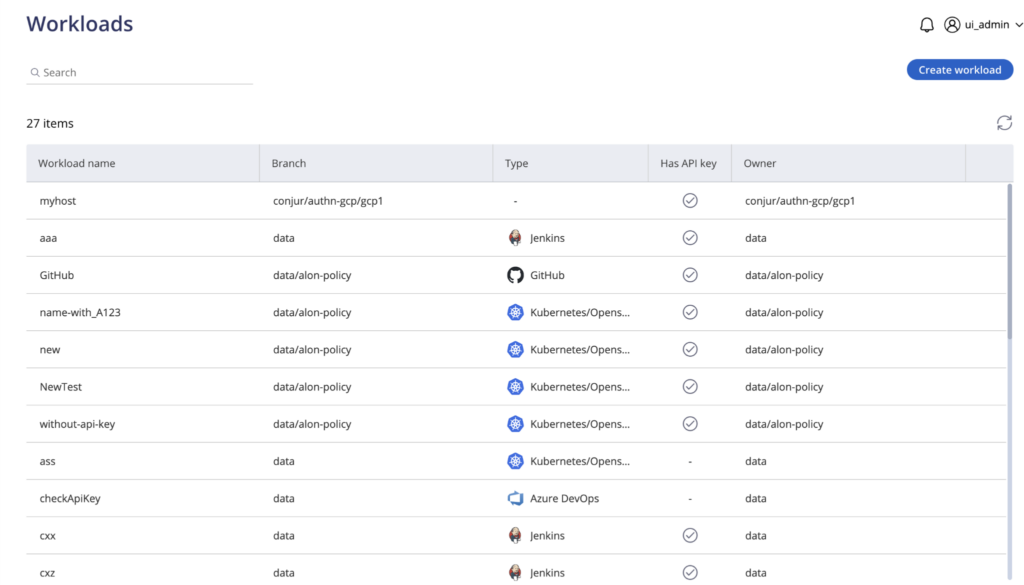
Venn’s Blue Border was purpose-built to protect company data and applications on BYOD computers used by contractors and remote employees without VDI.
Venn’s Blue Border creates a company-controlled secure enclave directly on a user’s PC or Mac. Work applications, storage, networking, and actions such as copy and paste, file transfers, and screenshots are isolated from the rest of the computer. Applications run locally rather than being streamed, with dedicated storage either on the device or in a cloud location the company chooses.
Traffic to enclave applications routes through a split tunnel VPN via private gateway managed from Blue Border, and the enclave integrates with existing IdP, SIEM, VPN, and endpoint protection tooling. The model is closer to an MDM for laptops than to a virtual desktop, in that it secures applications and data without fully enrolling or locking down the device.
Key features include:
- Secure enclave on the endpoint: Installing Blue Border on a Mac or PC creates a company-controlled enclave on that device, where business data, applications, and networking are held separately from anything else running on the same computer.
- Local application execution: Work applications run locally inside the enclave rather than being hosted, streamed, or virtualized, and are marked by a blue line drawn around the application windows so users can see which session they are in.
- Dedicated enclave storage: Enclave applications write to dedicated storage that sits either on the device or in a cloud location the organization selects, which keeps work files out of the user’s personal file system.
- Per-application VPN and gateway: Enclave traffic routes through a per-application VPN to a private gateway configured and managed through Blue Border, so network access is scoped to work applications rather than the whole device.
- Granular data controls: Policies cover copy and paste, file transfers, downloads, uploads, screenshots, and watermarking, and can be set per user to control how data moves in and out of the enclave.
- Existing stack integration: Blue Border connects to SIEM, VPN, and endpoint protection tools already in use, so unmanaged laptops can be brought under the same monitoring and control as managed devices.
- Compliance coverage: The enclave model is used to support HIPAA, FINRA, PCI, SEC, and SOC 2 requirements on computers the organization does not fully manage.
Limitations (as reported by users on G2):
- Performance on some endpoints: Some administrators report that the enclave feels slow on certain machines, including devices that meet the published hardware requirements.
- Application stability: A few reviewers describe intermittent stability problems in the enclave, in some cases affecting specific applications such as Outlook.
- Support turnaround: Reviewers note that while support is generally responsive, complex issues can take longer to resolve and sessions cannot be scheduled with a specific engineer.
Source: Venn

2. Cameyo by Google
Best for: Delivering legacy Windows apps to browsers and ChromeOS
Strengths: Turns client apps into PWAs, no full virtual desktop
Things to consider: Limited customization, admin portal and reporting gaps
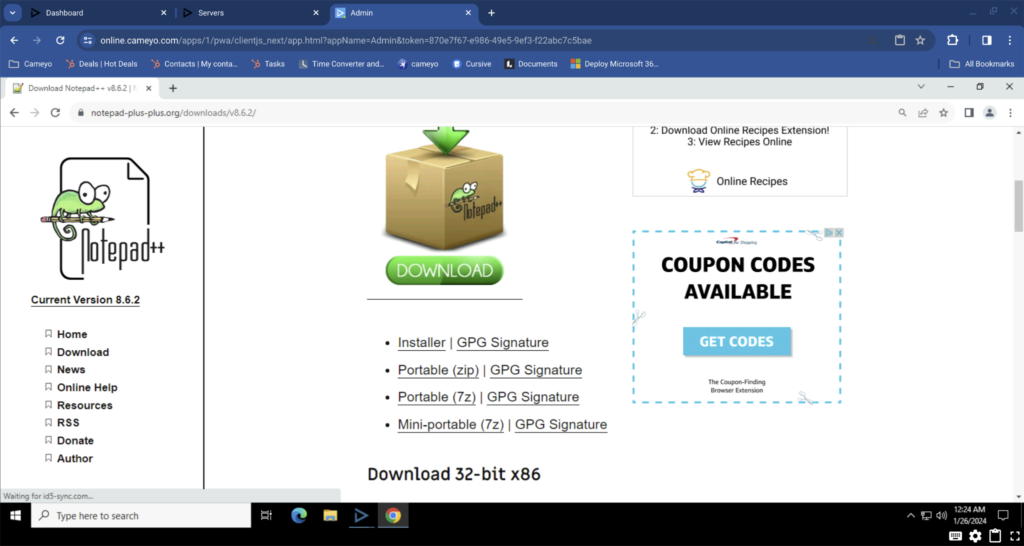
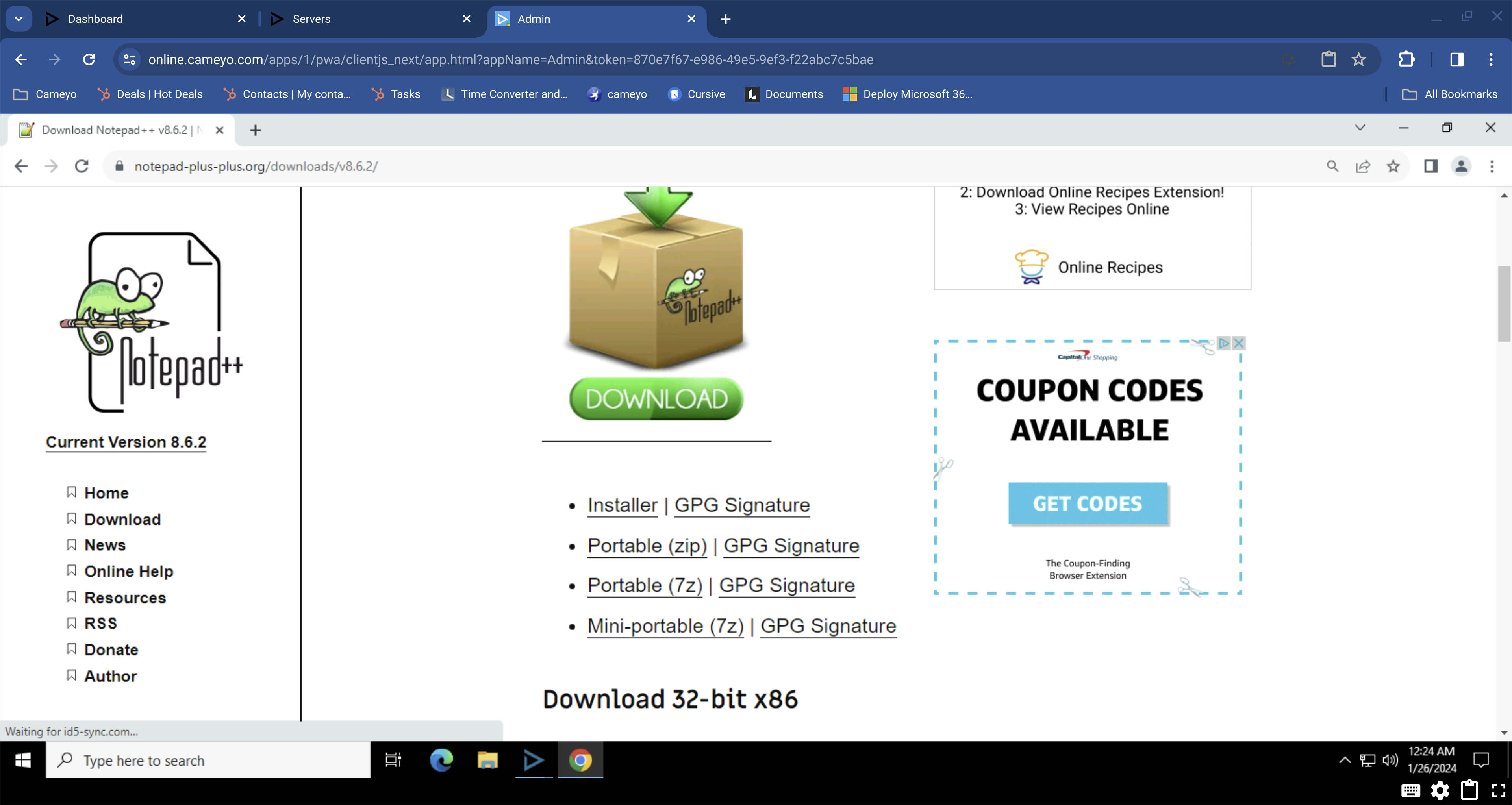
Cameyo by Google is a virtual application delivery platform that publishes individual client-based applications to the browser instead of delivering a full virtual desktop. Each application is presented as a progressive web app that users open from an app shelf, with no VPN or virtual desktop session in between.
Because only the application is published, the infrastructure and licensing needed to run a complete Windows desktop per user is removed from the delivery path. Cameyo separates applications from the device and devices from the network as part of its zero trust architecture, and integrates with Chrome Enterprise, Google Workspace, and ChromeOS.
Key features include:
- Progressive web app delivery: Client-based applications, including ones that were never web-enabled, are converted into progressive web apps that run in any modern browser rather than inside a hosted desktop session.
- Application shelf access: Users reach their published applications from an app shelf and open them directly, without connecting to a VPN or launching a separate virtual desktop first.
- Local and cloud file access: Virtualized applications can reach the device’s local file system or common cloud storage providers, so users open, save, and edit files the way they did with locally installed software, subject to policy.
- Zero trust separation: The architecture separates applications from the device and devices from the network, which narrows what an endpoint can reach and reduces the attack surface exposed by a compromised machine.
- Chrome Enterprise and ChromeOS integration: Published applications can be delivered through Chrome Enterprise as the secure enterprise browser, and run on ChromeOS devices that would not otherwise support client-based Windows software.
- Google Workspace pairing: Organizations running Google Workspace can keep using it as the productivity suite while continuing to reach business-critical client applications through the browser.
Limitations (as reported by users on G2):
- Cloud deployment options: Reviewers describe limits in the available cloud hosting choices compared with platforms that let administrators select or bring their own infrastructure.
- Admin portal and reporting: Users ask for more customizable data in the administration portal, and note that report timestamps cannot be set to local time.
- Session handling: Some reviewers report needing to restart published applications after extended idle periods, such as returning from a break.
- Change communication: Reviewers mention features being removed without notice, and the absence of a status page or changelog for tracking service and product changes.
- Customization depth: Compared with platforms that expose custom virtual machine configuration, reviewers find the level of customization limiting for some requirements.
Source: Cameyo
3. Prisma Browser (Palo Alto Networks)

Best for: Securing browser-based work on managed and unmanaged devices
Strengths: Chromium browser with built-in DLP, threat and AI controls
Things to consider: Strict controls can disrupt workflows, tuning needed
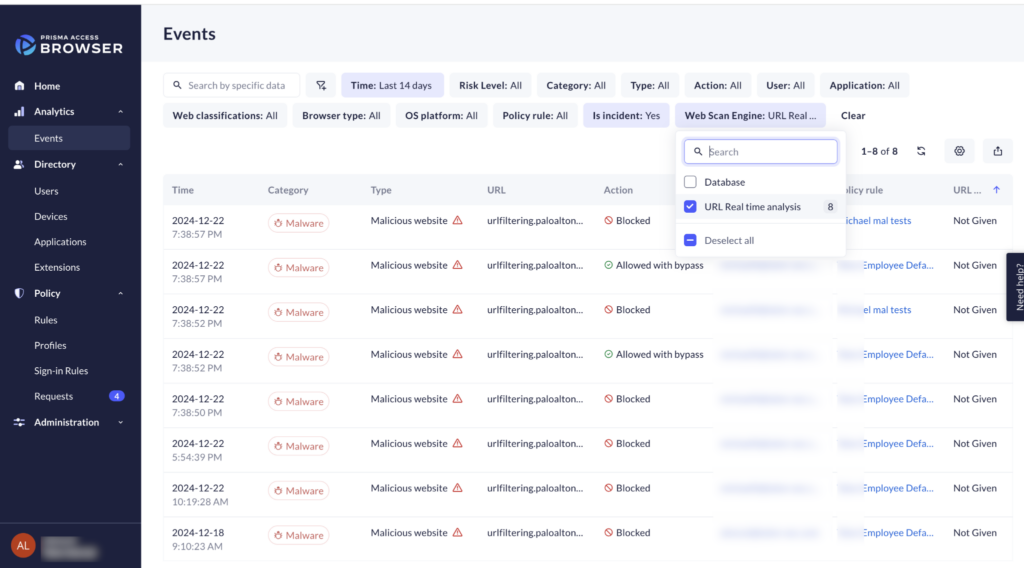
Prisma Browser is an enterprise browser from Palo Alto Networks that places security controls inside the browser itself rather than in a separate agent or network path. It is available as a dedicated Chromium-based desktop browser, an extension for existing consumer browsers, and a mobile application.
For unmanaged devices, the browser isolates enterprise applications from the underlying endpoint and can be deployed through an emailed link without administrator privileges. Palo Alto positions it as a way to reduce dependence on VDI and DaaS for contractor, BYOD, and merger scenarios where the work is browser-based.
Key features include:
- Browser-level enterprise security: Access control, threat prevention, data protection, and AI governance are enforced inside the browser, alongside existing security tooling rather than replacing the network path.
- Last-mile data controls: Native enterprise DLP with more than 1,000 data classifiers and compliance profiles governs copy and paste, printing, screenshots, downloads, uploads, and unauthorized file saving at the point of user action.
- Directional data policy: Transfers between sanctioned corporate applications and personal accounts can be blocked using directional context, which addresses data moving out of the business into personal storage.
- Unmanaged device isolation: Enterprise applications are isolated from the untrusted endpoint, and the browser can be deployed without administrator rights, which is the basis of the VDI reduction use case.
- Threat and extension controls: Web page components are scanned in real time, file downloads are sandboxed before reaching the operating system, and browser extensions are inventoried and blocked when risky or over-permissioned.
- GenAI and agent governance: Usage of generative AI applications is made visible and controllable, including redaction of sensitive data in prompts and restrictions on uploads to unsanctioned AI tools.
- Session forensics: Audit trails and insights across web actions are collected for incident investigation and insider risk work, covering activity that network-level tools do not see.
Limitations (as reported by users on G2):
- Restrictive controls: Reviewers report that blocking copy and paste, limiting downloads, or disabling browser components can interfere with normal workflows and slow users down.
- Device performance: Some users describe the browser making devices feel slow, and attribute it to continuous security checks running during browsing.
- Deployment friction: Reviewers note that setup can be difficult when an organization already runs a different security stack, and that the first weeks require policy tuning.
- Stability: A few reviewers mention the browser becoming unresponsive and needing to be quit or reinstalled to recover.
Source: Palo Alto Networks

2. Amazon WorkSpaces
Best for: AWS-native persistent and non-persistent cloud desktops
Strengths: Wide OS and instance choice, hourly or monthly billing
Things to consider: Latency and lag reports, limited environment tuning
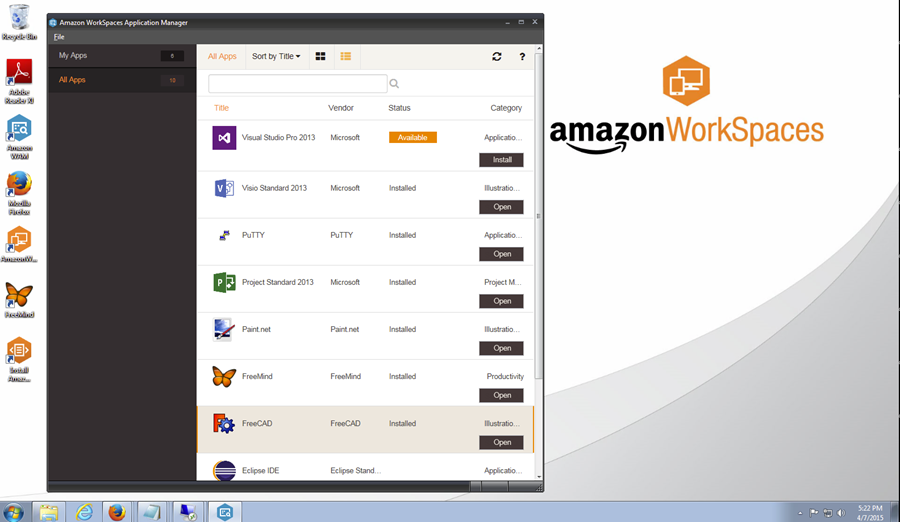
Amazon WorkSpaces is a managed desktop virtualization service that delivers persistent or non-persistent cloud-based desktops to users. It supports multiple operating systems, including Microsoft Windows, Amazon Linux 2, Ubuntu Linux, Rocky Linux, and Red Hat Enterprise Linux. By hosting desktops in AWS, it removes the need to purchase hardware or manage desktop infrastructure.
Amazon WorkSpaces is a managed desktop-as-a-service offering that delivers cloud desktops on Windows or Linux from AWS infrastructure. Desktops are provisioned and administered centrally through the AWS Management Console, which removes the need to buy hardware or run desktop infrastructure locally.
The service covers a range of user profiles, from general purpose instances for contractors through to GPU-enabled graphics families for design work, so hardware can be matched to each workload. Non-persistent desktops are delivered through Amazon WorkSpaces applications, and demand-based scaling policies are used to control cost.
Key features include:
- Two deployment models : WorkSpaces Personal for persistent, user-specific desktops, and WorkSpaces Pool for non-persistent desktops hosted on ephemeral infrastructure.
- Persistent and non-persistent models: Dedicated virtual desktops retain individual settings, data, and file storage per user, while non-persistent desktops are delivered through WorkSpaces applications for shared or temporary use.
- Broad operating system support: Desktops run on Windows or Linux, with a range of compute and storage options, so the same service can cover office workers, contact centre agents, and developer workstations.
- Instance and GPU choice: Configurations run from cost-focused general purpose instances to GPU-enabled graphics families intended for industrial design and other graphics-heavy workloads.
- Flexible billing models: WorkSpaces is billed either as a monthly subscription or with hourly metering based on actual usage, and pool sizing and storage configuration are used to control spend.
- Central administration: All virtual desktops are managed from the AWS Management Console, including provisioning, configuration, and demand-based scaling policies.
- Endpoint reuse and thin clients: Aging hardware can be kept in service by running ChromeOS Flex or IGEL OS to reach Windows 11 desktops, and a WorkSpaces thin client is available for contact centre use.
- Streaming protocol options: Desktop streaming runs over selectable protocols, so the transport can be matched to network conditions and workload type.
Limitations (as reported by users on G2):
- Latency and responsiveness: Reviewers report lag when connecting to and working inside desktops, with performance degrading on slower connections and during periods of heavy concurrent use.
- Resource consumption: Some users describe high CPU utilization on the endpoint and network problems during sessions.
- Regional connectivity: Reviewers note that connectivity to some of the AWS regions hosting their desktops is inconsistent.
- Access steps: Users mention the additional steps required to reach a desktop, including browser-based sign-in with separate credentials, and slow initial logins.
- Environment customization: Reviewers describe limited options for customizing user environments and management compared with platforms built specifically for desktop tuning.
Source: Amazon
3. Azure Virtual Desktop

Best for: Microsoft-centric estates needing Windows multi-session
Strengths: Windows multi-session, autoscaling, existing licence reuse
Things to consider: Setup complexity, cost grows with usage
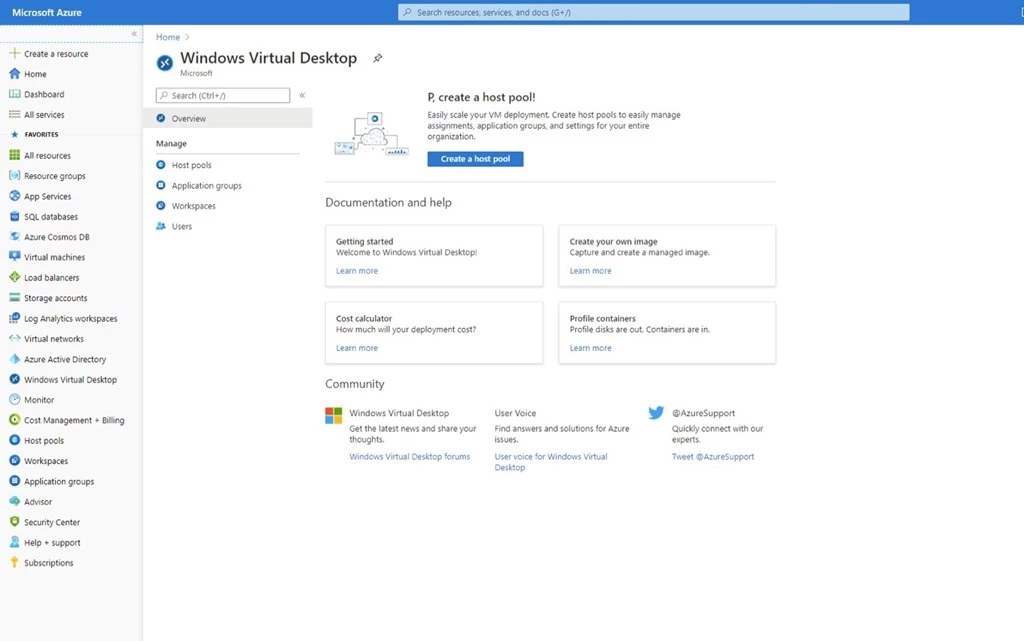
Azure Virtual Desktop (AVD) is Microsoft’s cloud-based service for delivering virtual desktops and applications through Azure. It supports Windows 11, Windows 10, and Windows Server, with single-session and multi-session capabilities. Organizations can provide either full desktop environments or specific applications via RemoteApp.
Azure Virtual Desktop is Microsoft’s virtual desktop infrastructure service for delivering Windows desktops and applications from Azure. Microsoft operates the control plane, including the broker, gateway, load balancer, and diagnostics, while the customer manages the session hosts, applications, and governance policies.
It supports Windows 11, Windows 10, and Windows Server session hosts, and can publish either full desktops or individual applications from a single host pool. Deployment is not limited to Azure: session hosts can also run on on-premises infrastructure through Azure Local.
Key features include:
- Windows multi-session capability : Exclusive to AVD for Windows 11 and Windows 10 Enterprise, enabling multiple users per VM to reduce costs while maintaining performance.
- Windows multi-session: Multiple users share a single virtual machine on Windows 11 and Windows 10 Enterprise, which reduces per-user infrastructure cost relative to one virtual machine per user.
- Desktop and application publishing: A single host pool can deliver either full desktop sessions or individual applications through RemoteApp, so light users do not need a whole desktop provisioned.
- Autoscaling: Session host capacity is adjusted automatically against demand, time, or day of week, so compute is not left running when nobody is signed in.
- Image management: Organizations bring their own virtual machine images or select from the Azure Gallery, and custom image templates are used to manage deployments at scale.
- Networking options: Azure Private Link and RDP Shortpath are available to change how session traffic is routed, which affects both security posture and connection reliability.
- Licence reuse: Existing Windows or Microsoft 365 per-user licences cover client access, and compute is billed by the second with no long-term commitment or upfront payment.
- Hybrid and coexistence: Workloads run in Azure or extend to on-premises infrastructure with Azure Local, and existing Citrix or Omnissa deployments can run Windows multi-session on Azure virtual machines.
Limitations (as reported by users on G2):
- Cost predictability: Reviewers describe pricing as complex and note that it becomes expensive as usage grows, which is a particular problem on smaller budgets.
- Setup and administration: Users report that deployment and ongoing management are complex, and that Azure networking, storage, and compute all need to be understood before a rollout.
- Session performance: Reviewers note slower response than a local machine when network latency is high, along with occasional connectivity problems and delays reaching remote files and applications.
- Browser client gaps: Certain keyboard shortcuts do not work in the browser client, which pushes users toward the installed desktop client.
- Non-persistent maintenance: Updating session hosts, applying patches, and upgrading applications in non-persistent pools is described as cumbersome.
Source: Microsoft
4. Omnissa Horizon Cloud

Best for: Multi-cloud DaaS with a thin edge and central control plane
Strengths: Thin edge architecture, broad infrastructure support, APIs
Things to consider: Deployment complexity, documentation and release gaps
Omnissa Horizon Cloud is a hybrid desktop-as-a-service (DaaS) platform to modernize the delivery of virtual desktops and applications. It uses a cloud-native, pod-less architecture to reduce infrastructure overhead, improve stability, and speed up deployment. It centralizes management in the Horizon Control Plane and supports multi-cloud and hybrid hosting.
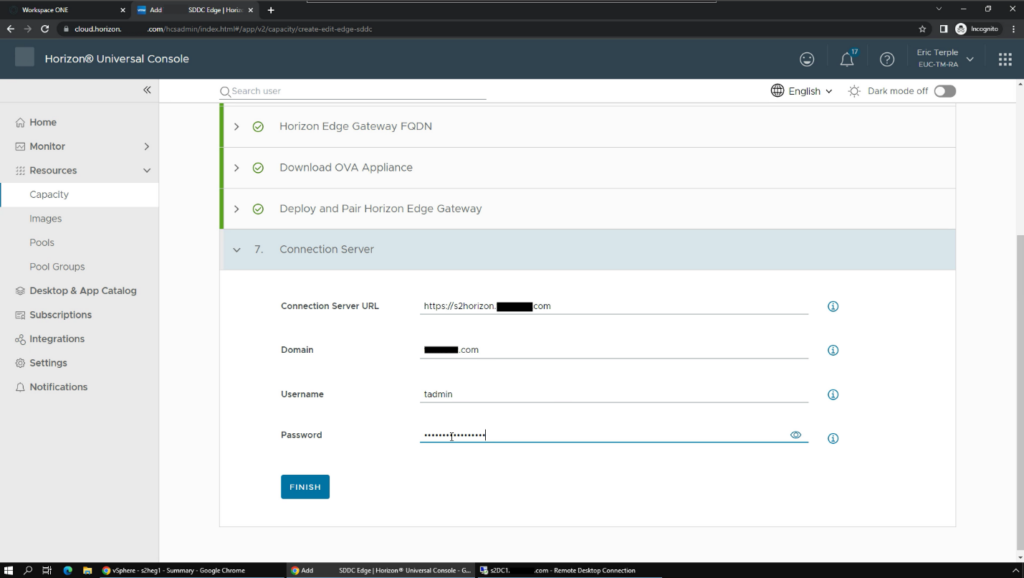
Omnissa Horizon Cloud delivers virtual desktops and hosted applications as a cloud-native desktop-as-a-service, with management centralized in the Horizon Control Plane. It replaces the pod model used by earlier Horizon deployments with a thin edge architecture, in which a single Edge Gateway connects the control plane to whichever infrastructure is hosting the workloads.
Supported hosting environments include Microsoft Azure, Amazon WorkSpaces Core, VMware vSphere, and OpenStack, which allows on-premises, hybrid, and multi-cloud deployments to be administered from one interface. Application layering and user environment management are handled by App Volumes and Dynamic Environment Manager.
Key features include:
- Horizon Edge : Deploys a thin edge gateway instead of full pods, reducing infrastructure footprint and simplifying setup.
- Horizon Control Plane: Desktops, applications, and their lifecycles are managed centrally across every deployment, with one console for monitoring, policy enforcement, and automation.
- Thin edge architecture: A single Edge Gateway replaces full pods as the link between the control plane and infrastructure providers, which reduces the footprint that has to be deployed and maintained per location.
- Multi-cloud hosting: Workloads run on Azure, Amazon WorkSpaces Core, vSphere, or OpenStack, so deployment location can be chosen for regulatory or cost reasons without changing the management model.
- Application and profile layering: App Volumes delivers applications on demand and Dynamic Environment Manager handles user settings, which keeps the number of images to maintain down.
- Secure remote access: Unified Access Gateway provides encrypted, token-based connections to desktops and applications without a traditional VPN, sitting at the network edge rather than inside the estate.
- Identity and conditional access: Integration with existing identity providers supports single sign-on and adaptive access policies based on risk and context.
- Automation and analytics: Open APIs drive provisioning, monitoring, and troubleshooting from external tooling, and Omnissa Intelligence adds usage, performance, and digital employee experience reporting.
Limitations (as reported by users on G2, where reviews cover the wider Omnissa Horizon product family):
- Deployment complexity: Reviewers describe deployment and management as complex, particularly in larger or more intricate environments.
- Initial integration: Users report that integrating the platform with existing systems can be challenging during the first implementation, even where it works well afterwards.
- Documentation quality: Reviewers say the documentation skims some subjects, and that knowledge base articles have contradicted each other.
- Release cadence: Since the business separated from VMware, some reviewers report fewer releases than they were used to, including gaps in support for the newest Windows client versions.
- Client feature gaps: Reviewers note that the client application lacks some capabilities available in the desktop version, such as file sharing.
Source: Omnissa
5. Inuvika OVD Enterprise

Best for: Lower-cost Linux-based Windows and Linux app delivery
Strengths: Hypervisor agnostic, concurrent-user licensing, thin footprint
Things to consider: Advanced configuration and documentation take effort
Inuvika OVD Enterprise is a Linux-based virtual desktop and application delivery platform intended as a cost-effective alternative to Citrix and VMware (Omnissa) Horizon. It delivers Windows and Linux applications, as well as virtual desktops, to devices through the organization’s chosen hypervisor or cloud platform.
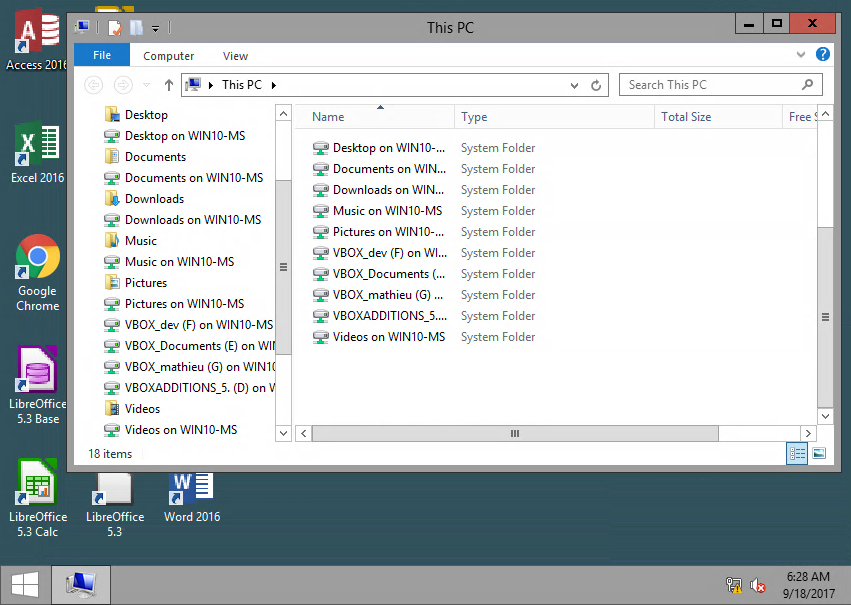
Inuvika OVD Enterprise delivers Windows and Linux applications and virtual desktops from a Linux-based platform, installed either on premises or on any public or private cloud. Because the delivery tier runs on Linux, the deployment needs fewer Microsoft server licences and less infrastructure than comparable Windows-based platforms.
Applications, user data, and processing stay in the data centre, and users reach a shared desktop, an individual application, or a web portal from whichever endpoint they have. Access from outside the corporate network runs through the Enterprise Secure Gateway rather than a VPN or a set of custom security ports.
Key features include:
- Cross-platform delivery : Provide Windows and Linux applications or desktops to any endpoint via web portal, shared desktop, or integrated into the local desktop.
- Windows and Linux delivery: Shared and dedicated desktops and individual applications from both operating systems are delivered from one integrated platform, on premises or as a service through partners.
- Multiple delivery modes: Users work through a web portal, a shared desktop, or applications integrated into their local desktop, so the format can be matched to what each group is used to.
- Broad endpoint support: Clients cover Windows, macOS, Linux, Chromebook, Raspberry Pi, Android, and iOS, along with clientless access from any HTML5 browser and leading thin client devices.
- Enterprise Secure Gateway: Remote access is provided through an integrated gateway, which removes the need for a VPN or custom security ports for external users.
- Hypervisor independence: The platform runs on Proxmox VE, VergeOS, Nutanix AHV, KVM, or vSphere, so it fits into an existing virtualization estate rather than requiring a specific hypervisor.
- Single management console: Configuration, provisioning, and monitoring are handled from one web-based console, and multi-tenant mode connects to shared or dedicated backend resources.
- Backend integration: The platform integrates with any LDAP or Active Directory service, external file storage, and the organization’s chosen hypervisor.
Limitations (as reported by users on G2 and Capterra):
- Advanced configuration: Reviewers report that while the admin console is straightforward, mastering advanced configuration takes time compared with longer-established platforms.
- Documentation depth: Users ask for more detail in the documentation, particularly around troubleshooting and advanced networking scenarios.
- Provisioning automation: Reviewers note the absence of automated provisioning services for flexible infrastructure use, and compare this unfavourably with consumption-based DaaS offerings.
- Support time zones: Customers outside the vendor’s regions describe having to work around time zone differences with the engineering team.
- Subscription model: Reviewers point out that the subscription-only model can be difficult for organizations without visibility into their annual budget.
Source: Inuvika
Conclusion
VDI and DaaS platforms such as Citrix DaaS, Amazon WorkSpaces, and Azure Virtual Desktop were built to centralize desktop delivery, but the model carries persistent flaws. High infrastructure costs, poor user experience under weak network conditions, and complex integrations limit the value for many organizations. Even with managed cloud services, IT teams still face heavy overhead in configuration, monitoring, and troubleshooting.
As a result, many organizations are not only comparing Citrix against direct competitors, but also reevaluating whether VDI/DaaS is the right approach at all. Lightweight endpoint management, secure SaaS adoption, and zero-trust remote access models are increasingly preferred over maintaining large-scale virtual desktop infrastructures. Instead of extending the life of VDI, enterprises are looking for ways to move beyond it.
See Additional Guides on Key IaaS Topics
Together with our content partners, we have authored in-depth guides on several other topics that can also be useful as you explore the world of IaaS.
Load Balancer
Authored by Radware
- [Guide] What is a Load Balancer? History, Key Functions, Pros and Cons
- [Guide] What Is Global Server Load Balancing (GSLB) & Top 3 Benefits
- [Guide] 4 Types of DNS Servers and How to Keep Them Secure
Azure Virtual Desktop
Authored by Venn
- [Guide] Azure Virtual Desktop: Pros/Cons, Pricing & Top 5 Alternatives
- [Guide] Azure Virtual Desktop Pricing in 2025 & 7 Ways to Cut Costs
DaaS
Authored by Venn

Any worker. Any laptop. Any AI workflow. Fully secured.
Schedule a demo to see how Blue Border® secures company data and apps without shipping laptops, running VDI, or managing personal endpoints.