
Desktop as a Service (DaaS): Pros/Cons, Providers & Alternatives


See Venn first in Google Search
Add as a preferred source on Google
| Desktop as a Service (DaaS): Pros/Cons, Providers & Alternatives |
TL;DR: Desktop as a Service delivers virtual desktops from a provider’s cloud on a subscription. Venn is best for securing work locally on unmanaged and BYOD laptops without virtual desktops, Amazon WorkSpaces for AWS-native cloud desktops, Windows 365 for fixed-price Cloud PCs, and Citrix DaaS for complex hybrid application delivery.
What Is Desktop as a Service (DaaS)?
DaaS most commonly stands for Desktop as a Service, a cloud-based service where a third-party provider delivers virtual desktops over the internet. Instead of buying and managing physical hardware, companies pay a monthly fee to let employees access their work desktops, applications, and files from any device, whether a tablet, laptop, or phone.
A helpful way to think about DaaS is like renting a hotel room in the cloud: users get to use the desktop exactly how they want, while the provider handles the maintenance, security, and updates behind the scenes. This model makes remote and hybrid work easy and helps protect company data if a device is lost or stolen, because nothing is stored locally.
DaaS is an acronym for Desktop as a Service (DaaS), which provides virtual desktops to users over the internet. With DaaS, can users access their desktops, applications, and data from different devices and locations.
Instead of managing physical machines, companies can use a provider to host and manage virtual desktops in the cloud. Users can then access their virtual desktop from almost any device. DaaS allows for remote work, simplifies IT management, and reduces on-premises investments compared to traditional on-premises virtual desktop infrastructure (VDI). Users simply log in and work from a tablet, laptop, or phone.
DaaS is often used by IT departments to provision user environments and enforce security policies at scale, avoiding the need to manage hardware and troubleshooting endpoint issues. However, it can be complex to manage, costly, and often provides a poor user experience and reduced productivity compared to working directly on a corporate laptop or user-owned device.
The model itself is also changing. Providers are broadening the range of desktops on offer, from lightweight seats through to GPU-backed configurations for simulation and machine learning, while sovereignty and residency controls have become a distinct part of the buying decision. Virtual desktops are also being provisioned for AI agents rather than only for people, which introduces a new set of governance and capacity questions for IT teams.
This is part of an extensive series of guides about IaaS.
Looking for a DaaS alternative?
Unlock best practices for securing remote access on unmanaged laptops – without any remote hosting or latency.
In this article:
- What Is Desktop as a Service (DaaS)?
- How DaaS Works
- Key Use Cases of DaaS Tools
- DaaS vs. VDI
- DaaS Pros and Cons
- Understanding DaaS Cost Factors
- Modern Alternatives to DaaS
- Notable DaaS Alternatives
- Notable DaaS Solutions
- Best Practices for Successful DaaS Deployment
- Should You Choose DaaS or an Alternative?
- See Additional Guides on Key IaaS Topics
- Citrix VDI
- Load Balancer
- Edge Computing
DaaS Solutions and Alternatives at a Glance
The table below summarizes the key differences between the DaaS solutions and the alternatives covered in this guide. We explore each of them in more detail further down.
| Category | Solution | Best For | Key Strengths | Things to Consider |
|---|---|---|---|---|
| DaaS alternatives | 1. Venn | Securing work on unmanaged and BYOD Macs and PCs | Local app execution in a company-controlled enclave | Limited customization options |
| DaaS alternatives | 2. Kasm Workspaces | Browser-delivered Windows and Linux desktops | Vendor-neutral, containerized, cloud-native | Some changes require vendor input |
| DaaS alternatives | 3. Parallels RAS | Hybrid app and desktop delivery | Single console, concurrent-user licensing | Mac and third-party MFA support lag |
| DaaS solutions | 4. Amazon WorkSpaces | Managed Windows and Linux desktops on AWS | Wide instance, OS and pricing options | Cost climbs with GPU bundles |
| DaaS solutions | 5. V2 Cloud | Small teams and MSPs needing managed desktops | Simple setup, HIPAA and GDPR readiness | Base plan storage is tight |
| DaaS solutions | 6. Microsoft Azure Virtual Desktop | Azure-native VDI with maximum control | Multi-session Windows, per-second billing | Assumes in-house VDI expertise |
| DaaS solutions | 7. Windows 365 | Fixed-price personal Cloud PCs | Predictable pricing, Intune-native management | Idle seats cost the same |
| DaaS solutions | 8. Citrix DaaS | Complex app delivery across hybrid estates | HDX protocol performance, session security | Licensing cost and complexity |
| DaaS solutions | 9. Omnissa Horizon Cloud | Multi-cloud DaaS for existing Horizon estates | Thin edge architecture, unified control plane | Limited connection tuning options |
How DaaS Works
DaaS operates by leveraging virtualization technology to separate the user’s desktop environment from physical hardware. The provider hosts virtual machines in secure data centers, which run operating systems and applications as if they were on a local desktop. Users connect through a secure client or web browser, authenticating to gain access to their personalized workspace.
Administrators can provision, manage, and update desktops through a centralized management console. Updates, patches, and changes are applied remotely, ensuring all users receive consistent experiences and rapid improvements. The underlying infrastructure scales up or down per organizational requirements, offering flexible desktop resources and centralized policy enforcement.
Capacity management is increasingly automated. Rather than administrators sizing pools by hand, platforms analyze usage patterns to adjust allocation and avoid both over-specified and under-specified desktops, and vendors now differentiate on how well this optimization works.
Key Use Cases of DaaS Tools
Remote and Hybrid Work Enablement
DaaS supports remote and hybrid workforces by offering secure, consistent access to desktops and applications from anywhere with an internet connection. Employees can connect using their own devices or company-issued hardware, while IT maintains centralized control over access, data protection, and application deployment. .
DaaS helps ensure business continuity during disruptions that prevent access to physical offices. Employees can switch to remote work without configuring VPNs or managing local software installations. By centralizing desktops in the cloud, organizations can support flexible work arrangements and maintain productivity regardless of location. The end of Windows 10 support has added a further driver. Organizations still running unsupported endpoints can reach a current, patched Windows desktop through a cloud PC or virtual desktop, and virtual machines in these services carry extended security update entitlement at no additional cost, which makes hosted desktops a migration route rather than only a remote access tool.
Related content: Read our guide to DaaS providers
Temporary or Seasonal Workforces
Organizations that rely on temporary or seasonal staff face challenges quickly onboarding new users and scaling back resources when demand subsides. DaaS provides instant desktop provisioning, allowing IT teams to add or remove users as needed without investing in new hardware or spending excessive time on setup. This is especially valuable for sectors like retail, hospitality, or tax preparation, which require rapid scaling during peak periods.
Temporary workers can receive secure, managed desktop environments with pre-configured applications and policies, ensuring consistent user experiences and compliance. When assignments conclude, IT can revoke access immediately, minimizing security risks. This agile model reduces onboarding friction and supports efficient workforce management without straining IT resources.
Highly Regulated Industries
Industries such as healthcare, finance, and government must comply with stringent data privacy and security regulations. DaaS platforms provide controls such as multifactor authentication, encryption, and centralized auditing to protect sensitive information. Providers typically undergo third-party compliance assessments, helping customers meet standards like HIPAA, PCI DSS, or GDPR.
Centralized data storage ensures that data stays within controlled environments, reducing endpoint data loss and leakage risks. Desktop policies can be enforced uniformly, supporting regulatory requirements for access logging, data retention, and disaster recovery. Data sovereignty has become a distinct requirement rather than a subset of compliance. Providers are introducing localized cloud architectures built specifically to guarantee compliance, zero trust security and strict data residency for regulated workforces operating across borders.
Education and Training Environments
Educational institutions and training organizations benefit from DaaS by providing standardized desktops to students, instructors, or trainees without investment in on-premises labs. Students can access learning environments, specialized software, and resources from their own devices, improving engagement and access for remote and hybrid learning scenarios. IT can manage configurations centrally and ensure rapid recovery from technical issues.
DaaS simplifies lab software updates and version control, giving educators the flexibility to deploy new curricula without logistical delays. Whether delivering software engineering, design, or productivity suites, schools and training providers can ensure equitable access to required tools.
Software Development and Testing Labs
Development teams and QA labs often need isolated, easily configurable environments for testing code, running simulations, or evaluating new technologies. DaaS allows for quick provisioning of standardized desktops or unique sandboxed environments for developers and testers. This accelerates onboarding, supports parallel projects, and enables controlled rollbacks or resets after each test cycle.
DaaS solutions often integrate with DevOps pipelines and automation toolchains, supporting infrastructure as code and continuous integration workflows. Security and access controls protect intellectual property and sensitive projects, while resource scaling supports intense workloads without overcommitting infrastructure.
DaaS vs. VDI
DaaS and virtual desktop infrastructure (VDI) both deliver virtual desktops to users, but their delivery models and management responsibilities differ.
With VDI, the organization typically owns and manages the virtualization infrastructure on-premises or in a private data center. IT teams provision, operate, and maintain servers, network configurations, security, and software updates, which require considerable expertise and capital investment.
DaaS shifts most of the operational and infrastructure burden to a third-party provider. Organizations subscribe to virtual desktops hosted in the provider’s data centers and only need to manage user policies and application configurations. DaaS typically offers greater scalability, faster setup, and predictable costs, while simplifying disaster recovery and access from various locations.
DaaS Pros and Cons
As with any IT solution, Desktop as a Service comes with trade-offs. While it offers a scalable approach to desktop management, there are limitations to consider depending on the organization’s needs, infrastructure, and security requirements. One thing that has changed is why organizations adopt it. Cost savings compared with physical PCs were historically not a driver for DaaS, and analyst coverage now identifies cost as a primary adoption motive alongside secure remote access, which puts a sharper focus on how well a provider handles right-sizing and power management.
Pros
- Scalability: Easily scale desktops up or down based on business demand without hardware constraints.
- Reduced IT overhead: Offloads infrastructure management, maintenance, and updates to the provider.
- Access from anywhere: Enables secure remote access from any internet-connected device, supporting hybrid and remote work.
- Cost predictability: Converts desktop infrastructure costs from capital to operational expenses with predictable monthly billing.
- Security and compliance: Centralized data storage and provider-managed security controls help meet regulatory requirements.
- Rapid provisioning: Speeds up user onboarding and environment setup, particularly valuable for temporary or remote teams
- Business continuity: Maintains desktop access during outages or office closures with minimal disruption.
Cons
- Ongoing subscription costs: Unlike traditional desktops that require one-time capital investments, DaaS comes with recurring subscription fees. Over time, especially in large organizations, these costs can add up and potentially exceed the total cost of ownership for in-house virtual desktop infrastructure (VDI).
- Vendor dependency: Using DaaS ties an organization to the service provider’s availability, performance, and support policies. If the vendor experiences outages, performance degradation, or changes in pricing or service levels, customers have limited control. Switching providers can be difficult due to platform-specific configurations.
- Poor performance: DaaS performance is highly sensitive to network quality. Users in regions with poor internet connectivity or mobile workers on variable networks may experience slow input response, lag when switching between windows, or delays in loading applications. Unlike local desktops, responsiveness is tied directly to network reliability
- Inconsistent user experience across devices: Although DaaS supports multi-device access, the experience may differ significantly between endpoints. Peripheral support (e.g., printers, webcams, USB devices) can be limited or unreliable. High-resolution video, real-time collaboration tools, or GPU-intensive applications may perform poorly or behave differently in virtual environments.
- Limited application compatibility: Not all applications are designed for virtualized environments. Software that requires low-level hardware access, license key binding to physical hardware, or specific drivers may not function correctly in a DaaS setup. Legacy applications or those with complex installations may require workarounds.
- Lack of full desktop customization: Some DaaS platforms restrict access to advanced configuration settings, limiting the ability of users or IT teams to customize desktops beyond pre-approved policies. Power users and developers who require deep system-level access may find DaaS environments too restrictive, hindering productivity.
- Data residency and compliance challenges: Global organizations may face compliance issues depending on where data is stored or processed. If the DaaS provider hosts desktops in regions that do not align with a company’s regulatory obligations (e.g., GDPR, HIPAA), legal and audit risks increase.
- Slow logins and session interruptions: Depending on backend configurations and load-balancing policies, users may experience slow session startups or unexpected logouts. Session timeouts, idle disconnects, or failed reconnections can disrupt workflows.
- Limited offline access: Unlike physical desktops or laptops, DaaS desktops generally require an active internet connection. In the event of network outages, travel, or emergency scenarios, users may be unable to access their environment at all.
- Complex licensing and integration overhead: Running third-party software in DaaS environments may involve complex licensing models, especially if software vendors require special cloud-hosting terms. Integration with existing identity providers, device management tools, or on-premises applications can also add complexity.
Understanding DaaS Cost Factors
The total cost of a Desktop as a Service (DaaS) deployment is influenced by several key factors, each affecting pricing in different ways. While providers often present straightforward per-user pricing or tiered plans, the actual cost structure can vary significantly based on usage patterns, performance needs, infrastructure choices, and support requirements.
Number of users
The most direct cost driver is the number of users. Pricing often scales linearly, either through per-user charges or tiered pricing brackets. For small teams, this allows for predictable budgeting. However, as user counts grow, especially in large enterprises, costs can rise sharply, particularly if users have varied or intensive computing needs.
Performance requirements
Desktops used for basic tasks like word processing and web access require minimal resources, leading to lower costs. In contrast, environments supporting video editing, development, or analytics demand higher CPU, RAM, or GPU power, all of which raise the price per user. DaaS plans often offer resource tiers to accommodate different performance levels. This tier structure has widened. Providers now offer GPU-enabled desktops and high-core configurations reaching 32 virtual CPUs with more than 100 GB of memory for simulation, data modelling and machine learning work, and these sit at the top of the price range.
Infrastructure model and location
The underlying cloud model (public, private, or hybrid) affects its cost. Public cloud offerings are typically the most cost-effective due to shared infrastructure. Private clouds offer greater security and customization at a higher cost. Hybrid models can provide flexibility but may incur added complexity and integration expenses. Additionally, geographic deployment matters: global organizations requiring low-latency access across regions may face higher costs due to multi-region infrastructure demands.
Licensing and billing models
DaaS is commonly offered under two licensing models: pay-as-you-go and subscription. Pay-as-you-go suits businesses with fluctuating needs, offering cost-efficiency by billing only for resources used. Subscription models, often structured around annual or multi-year commitments, provide discounts for predictable usage. However, short-term flexibility typically comes at a premium.
Security and compliance requirements
Industries subject to strict regulatory standards, such as healthcare, finance, or legal, often need enhanced security features. These include encryption, multi-factor authentication, continuous backup, and audit logging. Such compliance-driven configurations increase DaaS costs, especially when tied to certifications like HIPAA, GDPR, or SOC2.
Support and service levels
The depth of technical support bundled with a DaaS solution affects pricing. Basic support plans may be limited in coverage and response times. Premium SLAs offering 24/7 access, dedicated support staff, or rapid incident response are significantly more expensive. Backend maintenance like updates, monitoring, and system health checks is usually included, but higher service levels come at a higher cost.
Additional cost considerations
Beyond recurring service fees, organizations must account for implementation costs, particularly during setup and customization. These may include fees for initial environment configuration, application integration, and onboarding support. Complex setups, such as integrating legacy software or customizing access to CRM or ERP systems, can require additional licensing, development effort, and ongoing maintenance.
Storage is another variable expense. While base plans include standard storage, businesses often require more capacity for user files, applications, or backups, which increases monthly costs. Data egress fees (charges for transferring data out of the provider’s environment) can be substantial, especially for data-heavy workflows or organizations considering future migration.
Learn more in our detailed guide to desktop as a service pricing
DaaS for AI Agents and Agentic Workloads
Virtual desktops are no longer provisioned only for people. DaaS platforms are being adapted to host non-human, agentic AI workloads, and analyst coverage of the market now treats agent hosting as part of DaaS architecture rather than an experiment. The driver is practical: many business processes still run on desktop applications such as ERP systems, CRMs, mainframe front ends and proprietary tools that cannot be modernized quickly.
Providers have started shipping managed desktop environments where an AI agent can see the screen and operate these applications the way a person does, without application modernization or custom integrations. Agents inherit the same identity controls, network isolation and compliance boundaries as human users, so automation does not arrive at the cost of governance.
The capabilities being added reflect that requirement. Tool forwarding lets agents interact with applications and the desktop operating system through direct calls rather than screen-driven control, which improves accuracy and reduces latency. Real-time session control gives operators live visibility into agent activity with the ability to revoke access mid-session, and domain-joined fleets let agents operate under existing directory identities so the same access policies and audit attribution apply.
For IT teams this changes how DaaS capacity is planned. Agent sessions are machine-paced rather than human-paced, they can run outside business hours, and they consume licences and compute in patterns that do not match a normal user population. Any organization evaluating DaaS now should ask how a provider meters, isolates and audits non-human sessions.
Modern Alternatives to DaaS
DaaS was designed to give organizations centralized control and secure access, but in many cases, it now creates more problems than it solves. While it moves desktops to the cloud, it still relies on the same architectural model as traditional VDI: centralized infrastructure that depends on constant connectivity. This introduces many of the same performance and management issues that IT teams have long struggled with.
Some modern alternatives take a different approach. Rather than pushing all work into the cloud, they run applications and workspaces locally on the user’s device in a secure, isolated environment. This removes the dependency on constant internet access, eliminates latency issues, and improves reliability. At the same time, IT retains control over work data, enforces policies, and prevents data leaks, even on personal devices.
This local-first model addresses the limitations of DaaS by reducing infrastructure complexity, improving performance, and supporting real BYOD security without invasive device management. For organizations looking to move beyond the constraints of legacy virtual desktops, this represents a more sustainable path forward.
Notable DaaS Alternatives
How we selected these tools: We shortlisted DaaS platforms and DaaS alternatives based on desktop and application delivery models, deployment flexibility across cloud and on-premises infrastructure, session security and data controls, identity and endpoint management integration, and licensing and cost structure.
1. Venn
Strengths: Local application execution inside a company-controlled secure enclave
Things to consider: Limited customization; enclave responsiveness varies for older devices
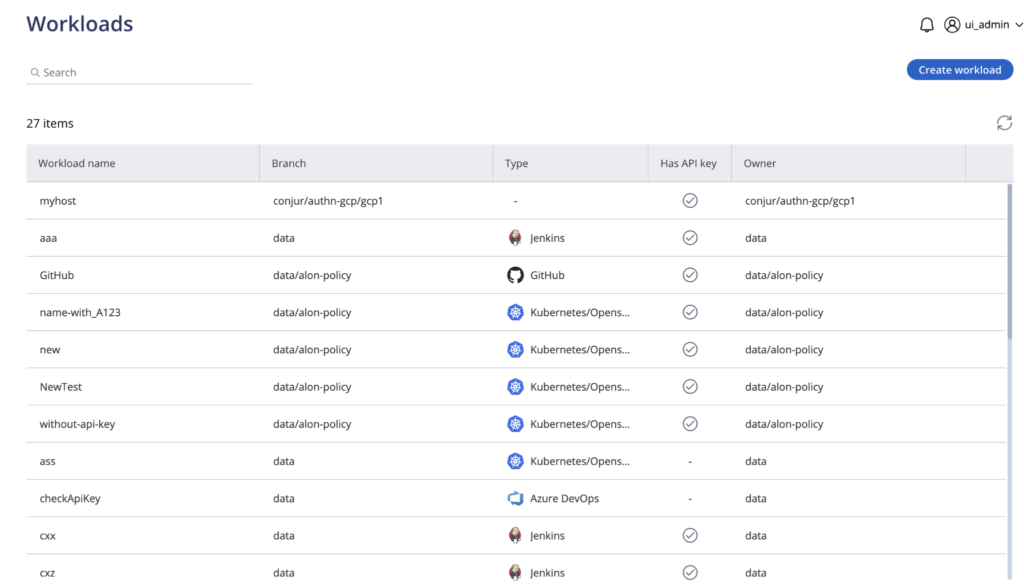
Venn takes a uniquely different approach from DaaS. Instead of hosting a desktop in the cloud, installing Blue Border on a Mac or PC creates a company-controlled secure enclave directly on that device. All business activity inside the enclave, including company data, applications, networking and AI workflows, is isolated from any other use on the same computer. Work applications run locally and are marked by a blue line around those application windows.
Outside the enclave, IT has no visibility or control, so personal activity stays private. Blue Border isolates work apps, storage, networking and actions such as copy/paste, file transfers and screenshots. Apps run locally with dedicated storage, either on the device or in a chosen cloud, and a per-app VPN to a private gateway managed through Blue Border.
Key features include:
- Company-controlled secure enclave: Installing Blue Border on a user’s Mac or PC creates an enclave that isolates company data, applications, networking and AI workflows from everything else on the same computer, with no hosting, streaming or virtualization of any kind.
- Local application execution: Work applications run natively on the device rather than in a remote data center, and are visually marked by a blue line drawn around the application windows so users can tell work sessions from personal ones.
- Work-scoped control instead of device management: Blue Border secures applications and data without enrolling or locking down the whole device, so IT has no visibility outside the enclave and contractors keep personal activity private on their own hardware.
- Data loss prevention policies: Restrictions cover copy/paste, downloads, uploads, printing, screen capture and screen sharing, applied per user, alongside dedicated storage through Venn Disk held either on the device or in a chosen cloud.
- Per-app networking and stack integration: Each application in the enclave can route through a per-app VPN to a private gateway managed in Blue Border, and the product integrates with existing SIEM, VPN and endpoint protection tools.
Limitations (as reported by users on G2):
- Customization scope: Reviewers describe the configuration options as narrower than they would like, while noting that the available policies still cover their core requirements.
- Enclave responsiveness: Some users report the enclave feeling slower when reaching hosted applications than when work runs entirely on the device.
- Older endpoint hardware: A small number of reviewers found that ageing laptops needed refreshing before the enclave ran consistently across the fleet.
Source: Venn

2. Kasm Workspaces
Best for: Browser-delivered Windows and Linux desktops
Strengths: Vendor-neutral, containerized, cloud-native architecture
Things to consider: Some configuration changes require vendor input
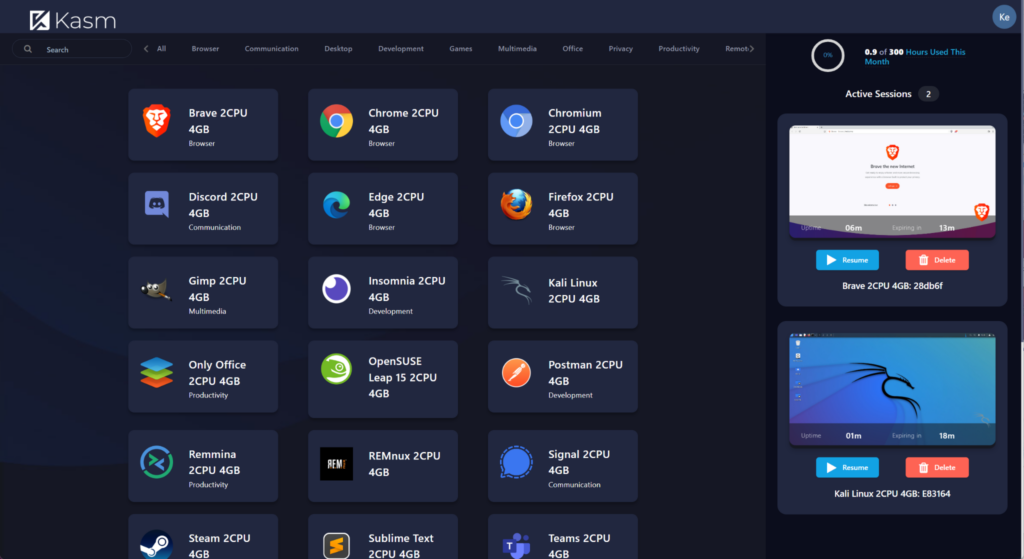
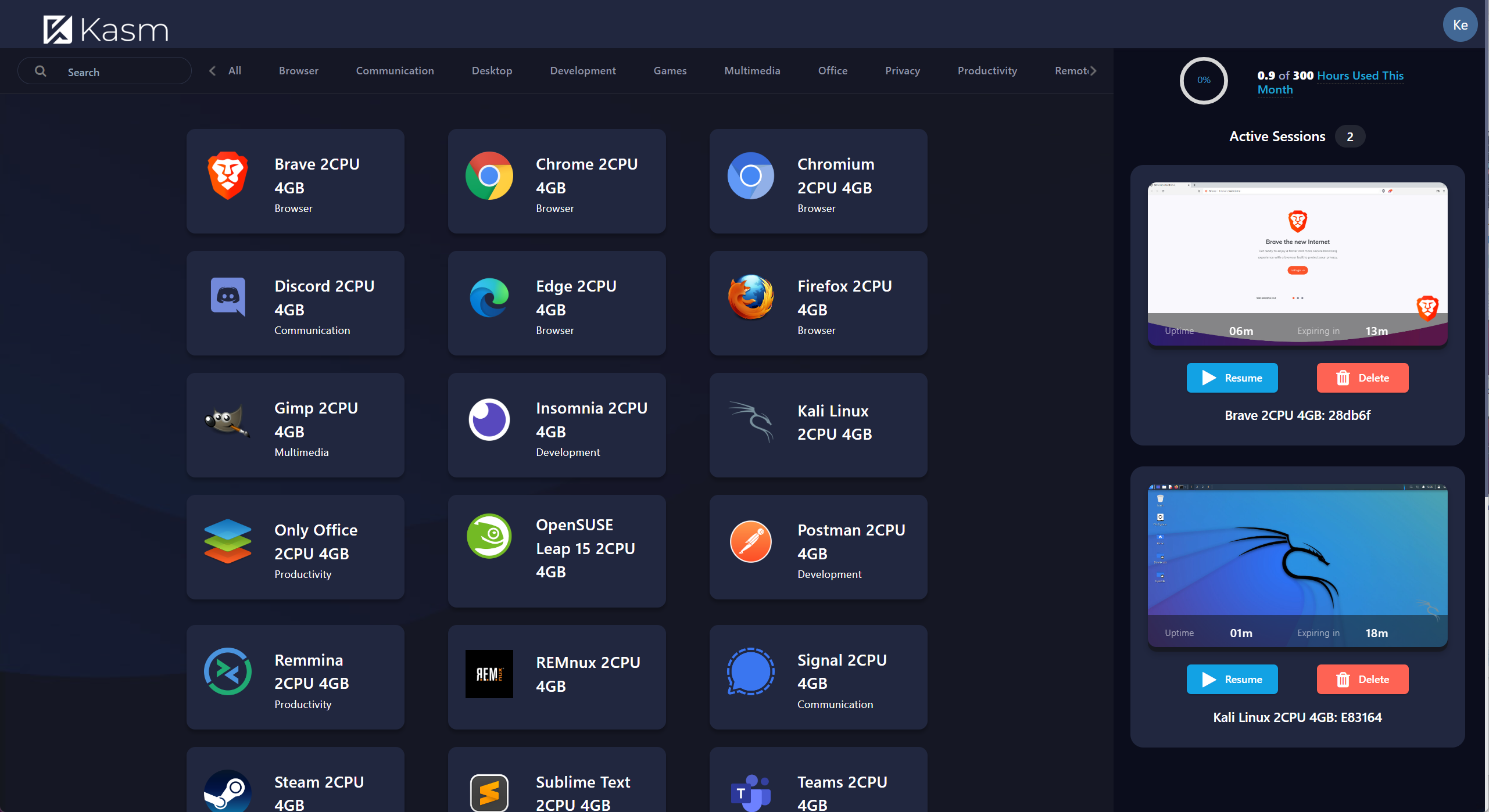
Kasm Workspaces is a vendor-neutral, cloud-native VDI platform that delivers Windows desktops, Linux workspaces and custom development environments through a web browser. It works with existing infrastructure and identity providers, and runs on public cloud, on-premises, air-gapped networks or across several infrastructures at once.
A user launches a Windows, Linux or custom containerized desktop, a secure isolated workspace is provisioned dynamically, and visual output is streamed to the device with no agent installed and no data touching the endpoint. When the session ends, persistent profiles are saved if configured, or the ephemeral container is destroyed.
Key features include:
- Browser-delivered desktops and applications: Users reach full Windows desktops, Linux workspaces and containerized applications through a web browser with no local client or agent to install, and only the rendered output leaves the environment.
- Vendor-neutral infrastructure support: Workspaces run on vSphere, Nutanix, KubeVirt, public clouds or any existing virtualization layer, and Kubernetes deployment is generally available with production Helm charts and Helm-based RDP gateway configuration.
- Windows and Linux side by side: The platform streams traditional RDP desktops for Windows alongside containerized Linux workspaces, backed by microservices, container orchestration and KasmVNC for Linux access.
- Session-level data controls: Administrators apply policies for data loss prevention, uploads and downloads, clipboard use, session timeouts and network restrictions, with policy-controlled egress applied at the workspace layer.
- Auto-scaling and GPU workloads: Workspaces scale up when users log in and down when they leave so compute is paid for only while active, and NVIDIA Multi-Instance GPU support covers AI, machine learning and data science environments.
Limitations (as reported by users on G2):
- Persistent storage setup: Reviewers describe a learning curve when configuring deployments that need persistent user storage rather than purely ephemeral sessions.
- Per-application network modes: An administrator reported that setting network modes on individual applications requires a change from the vendor rather than a console setting.
- Community edition support: Users on the free community edition have no paid support channel, and one reported waiting without a response on a feature request.
- File sharing depth: Comparative review scoring places file sharing below several competing platforms, which matters where document collaboration inside the session is central.
Source: Kasm
3. Parallels RAS
Best for: Hybrid app and desktop delivery across clouds and on-prem
Strengths: Single console with one concurrent-user licensing model
Things to consider: Mac client and third-party MFA support lag Windows
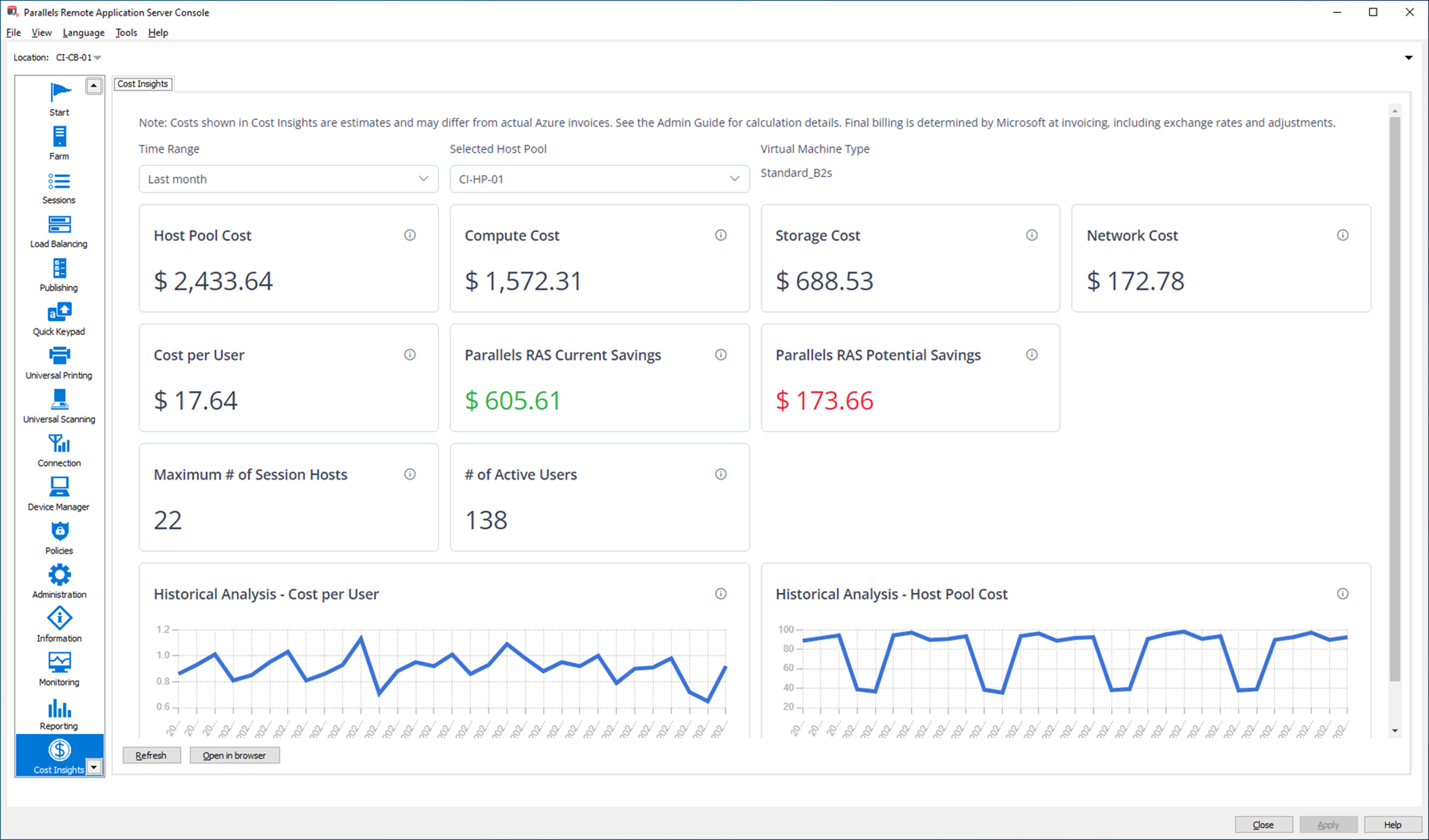
Parallels RAS is a virtual application and desktop delivery platform that lets administrators deploy core components on-premises, in a private cloud, in public cloud including Azure Virtual Desktop and AWS, or across a mix of these. It is compatible with hypervisors including VMware ESX, Microsoft Hyper-V, Scale and Nutanix, and extends beyond native providers through an API-based framework covering Proxmox, Virtuozzo, KVM, Xen and private cloud environments.
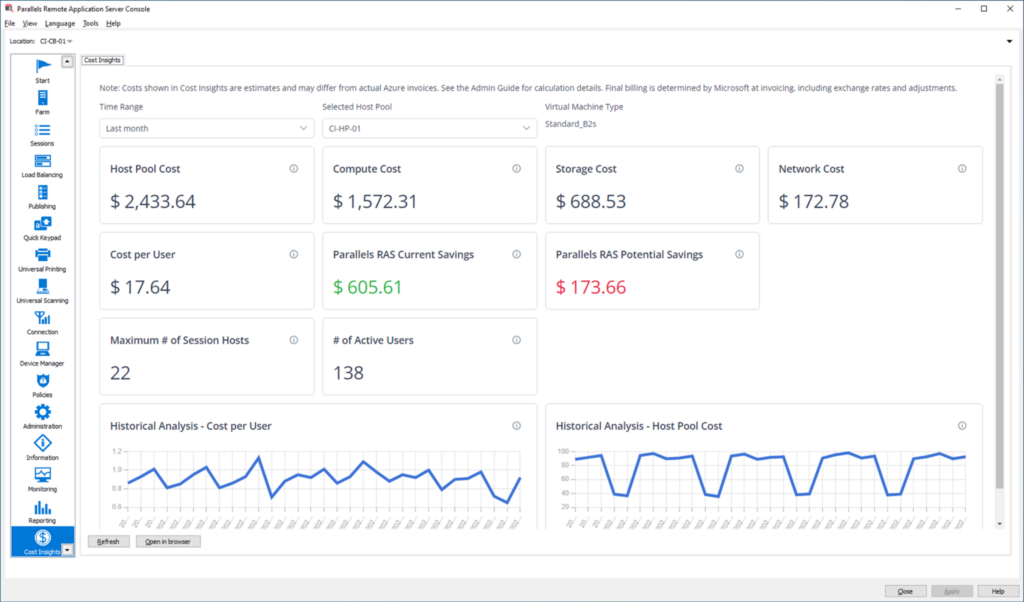
Administration runs through a single console covering app and desktop management, image handling, reporting, gateway, load balancing, access control and authentication, across multiple sites and data centers. Licensing is a single model based on concurrent users, with all features and updates included and no separate charge for the gateway or load balancer.
Key features include:
- Hybrid and multi-hypervisor deployment: Core components and workloads run on-premises, in private cloud, or in public cloud including Azure Virtual Desktop and AWS EC2, with an API-based framework to connect other hypervisors and avoid a single infrastructure vendor.
- Azure Virtual Desktop customization: AVD workloads are configured inside the Parallels RAS console, including Windows 10 and 11 multi-session and Microsoft Teams redirection, alongside direct deployment from the Azure and AWS marketplaces.
- Broad client and peripheral access: Native clients cover Windows, macOS, Linux, iOS and Android with HTML5 browser access, and pass-through supports printers, scanners and smartcards, with the option to restrict peripheral use.
- Built-in security and identity integration: Sessions use TLS 1.3 with FIPS 140-2 support, built-in MFA plus third-party providers, identity provider single sign-on through Okta, Ping Identity and Entra ID, auditing, and integrated Let’s Encrypt certificate management.
- Application delivery automation: MSIX app attach and App-V packaging are built into the console, along with FSLogix profile support, session pre-launch based on user patterns, multi-tenancy, and high-availability load balancing with monitoring and reporting.
Limitations (as reported by users on G2):
- Third-party MFA integration: Reviewers report slow integration with external two-factor solutions, which can delay deployments or force workarounds where a specific method is required.
- Mac feature parity: Support for macOS is described as more limited than Windows, with features and updates arriving later and creating inconsistency in mixed-device estates.
- Native client deployment: One reviewer found the full client difficult to set up in an enterprise with strict network security policies, leaving HTML5 browser access as the practical option.
- Scale of published applications: An administrator publishing a very large number of applications across multiple tenant organizations reported incoming connections eventually being refused.
- Licensing cost history: A long-term customer noted a substantial price increase after Parallels acquired the product from 2X, together with the closure of a regional support office.
Source: Parallels
Notable DaaS Solutions
4. Amazon Workspaces
Best for: Managed Windows and Linux cloud desktops on AWS
Strengths: Wide instance, operating system and pricing options
Things to consider: Cost climbs with GPU bundles; sensitive to latency
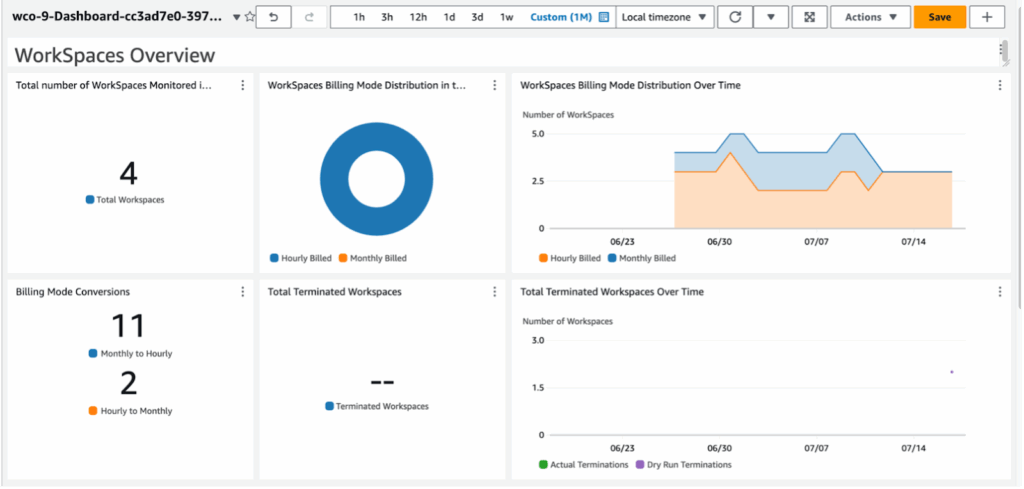
Amazon WorkSpaces is a managed Desktop as a Service platform that provisions virtual desktops in the AWS cloud without on-premises desktop provisioning or maintenance. Organizations choose between persistent WorkSpaces Personal desktops and non-persistent pooled sessions delivered through WorkSpaces applications, then pick hardware and storage configurations ranging from general purpose instances to GPU instance families.
Desktops stream over the Amazon DCV protocol, and each WorkSpace includes persistent SSD user storage sized by bundle with automatic backups. Billing is available as a monthly subscription or hourly metering, and every desktop is managed centrally from the AWS Management Console.
Key features include:
- Persistent and pooled desktop models: WorkSpaces Personal provides dedicated desktops where users keep settings, data and installed applications, while WorkSpaces applications deliver non-persistent sessions on ephemeral infrastructure for shared and training use.
- Operating system breadth: WorkSpaces DaaS runs Microsoft Windows, Red Hat Enterprise Linux, Rocky Linux, Amazon Linux 2 and Ubuntu Desktop, with pooled deployments on Windows Server 2019 and 2022 and multi-session available for Windows configurations.
- Instance and GPU configuration: Administrators select from general purpose, compute optimized and memory optimized families through to Graphics G4, G5 and G6 GPU instances for software development, engineering and 3D modeling workloads.
- Identity and endpoint management integration: Domain-joined and non-domain-joined desktops are both supported, IAM Identity Center brokers identity with providers such as Entra ID, and Intune manages physical and virtual desktops through a single endpoint management system.
- Licence portability and Microsoft 365: Organizations bring Microsoft 365 Apps for enterprise licences onto WorkSpaces DaaS or buy Microsoft Office bundles from AWS, and the wider WorkSpaces family covers secure browsers and third-party VDI management software.
Limitations (as reported by users on G2):
- Network sensitivity: Reviewers repeatedly describe lag, screen freezing and session disconnects when bandwidth drops or latency rises, with performance tied closely to connection quality.
- Cost accumulation: Higher-specification and graphics bundles raise the per-user cost, and several reviewers found usage, storage and bundle charges harder to forecast than expected.
- Microsoft stack integration: One enterprise reviewer reported that Microsoft 365, Teams and directory integration required additional licensing or setup, which added to the total cost.
- Peripheral and audio handling: Reviewers mention audio and echo problems on calls, headset connectivity issues, and printing that had to be completed outside the virtual desktop.
- Customization ceiling: Some users describe the hardware configuration choices and in-session customization as limited compared with a physical machine.
Source: Amazon
5. V2 Cloud

Best for: Small teams and MSPs needing managed Windows desktops
Strengths: Simple setup with HIPAA and GDPR readiness built in
Things to consider: Base plan storage is tight; tiers may over-provision
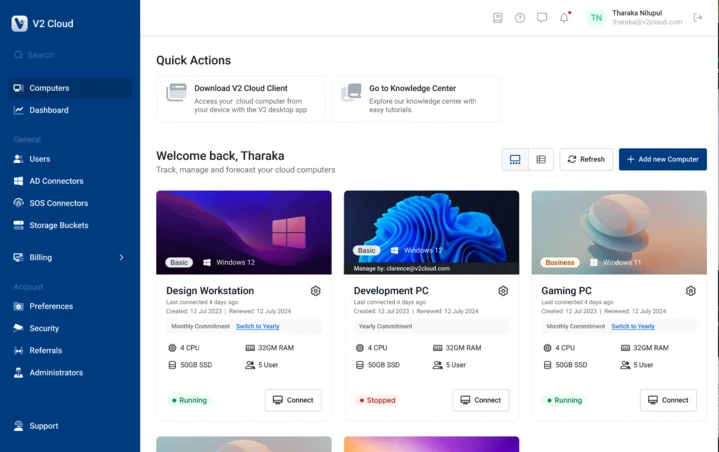
V2 Cloud delivers managed cloud desktops that give each team member a full Windows environment reachable from any browser or through a client app, with nothing stored on the local device. The platform extends beyond desktops to cloud servers, application hosting, GPU workstations, an IT management console and hosted AI agents.
Compliance is positioned as something customers inherit: the service is HIPAA-ready with a business associate agreement on request, and GDPR-compliant with EU data centers, backed by a 99.99% uptime SLA and daily offline snapshots. Add-ons cover SIEM monitoring, dedicated firewalls, private networks, block storage, GPU acceleration and SSO with MFA integrations.
Key features include:
- Browser-accessible Windows desktops: Each user signs in from any computer, tablet or older PC to the same applications and files, with company data remaining in the cloud rather than on the endpoint if the device is lost or stolen.
- Legacy application hosting: Applications that cannot be retired are hosted without code changes or rewrites, covering hundreds of supported programs including QuickBooks, Sage, AutoCAD, Microsoft SQL and industry-specific ERP systems.
- Multi-tenant IT management console: A single console deploys, patches and manages every client environment, aimed at MSPs running many customer estates and at ISVs shipping their application pre-loaded inside a desktop.
- Seasonal capacity changes: Desktop counts can be raised and lowered month to month, so organizations with seasonal headcount pay for the seats they use rather than year-round capacity sized for a peak period.
- Security and compliance add-ons: Encryption, access controls and daily offline snapshots are standard, with SIEM monitoring, dedicated firewalls, private networks and SSO with MFA integrations available as paid additions.
Limitations (as reported by users on G2):
- Base plan storage: A long-term customer reported the entry plan’s storage filling up while hosting only a single accounting file.
- Pricing tier fit: A partner noted that the available tiers did not always match client requirements, leaving customers paying for more infrastructure than they needed.
- Clipboard behavior: One reviewer could not copy and paste text into the session until clipboard sharing was configured, which required a specific keyboard shortcut on some macOS versions.
- Resource overhead: A reviewer found that the programs bundled into the desktop consumed a noticeable share of the available disk space and memory.
- Occasional session glitches: Users describe intermittent slowdowns and blank browser windows at login that required signing in a second time.
Source: V2Cloud
6. Microsoft Azure Virtual Desktop

Best for: Azure-native VDI where IT wants maximum control
Strengths: Multi-session Windows with per-second consumption billing
Things to consider: Assumes in-house VDI and Azure expertise
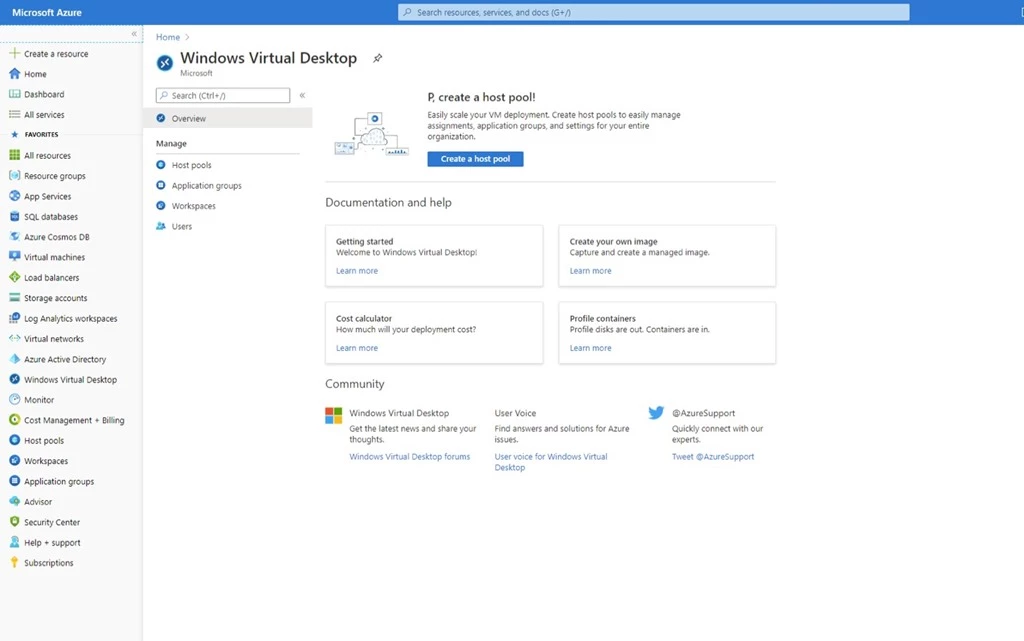
Azure Virtual Desktop is a cloud VDI platform that delivers virtualized Windows 11 and Windows 10 desktops and applications from Azure regions. Microsoft manages the control plane, including the broker, gateway, load balancer and diagnostics, while the organization manages the remote desktops, published applications and governance policies. Microsoft positions it for organizations that already have expertise implementing and managing virtual desktop infrastructure.
Windows 11 and Windows 10 multi-session let several users share one virtual machine, and compute is billed by the second with no long-term commitment or upfront payment. Existing eligible Windows and Microsoft 365 per-user licences can be applied, and Citrix DaaS for Azure or Omnissa Horizon Cloud Service can be deployed into an existing environment.
Key features include:
- Multi-session Windows hosts: Windows 11 and Windows 10 Enterprise multi-session capabilities allow several users on a single virtual machine at the same time, reducing the number of virtual machines needed for a given user population.
- Full desktop or published application delivery: Administrators publish complete desktops or individual applications through RemoteApp from a single host pool, covering Windows 11, Windows 10 and Windows Server 2016, 2019 and 2022 experiences.
- Host pool and image management: Advanced capabilities including custom image templates manage deployments at scale, and environments are administered through the Azure portal, Azure CLI, PowerShell and the REST API.
- Networking and connection options: Azure Private Link and RDP Shortpath add security and reliability to session connections, and connection quality can be analyzed across secured Azure regions worldwide.
- On-premises and app streaming extension: Azure Virtual Desktop for Azure Local runs session hosts on on-premises Azure Local infrastructure, and remote app streaming lets organizations deliver their own applications to customers as a service.
Limitations (as reported by users on G2):
- Pricing complexity: Reviewers describe the cost as hard to predict and capable of climbing as usage grows, which they found difficult to justify on smaller-budget projects.
- Administrative interface: Users report the menu structure as complicated and at times confusing to navigate when moving between management areas.
- Session responsiveness: Reviewers note perceptible lag over the remote protocol compared with a local machine, and slowdowns when many users are allocated to the same host without premium disks and hardware.
- Connectivity dependence: Occasional network problems and delays reaching remote files and applications are described as the main day-to-day constraint.
- Required expertise: Microsoft positions the service for organizations with existing VDI skills, and reviewers report a steep Azure learning curve before a deployment is production-ready.
Source: Microsoft
7. Windows 365

Best for: Fixed-price personal Cloud PCs managed through Intune
Strengths: Predictable per-user pricing and Intune-native management
Things to consider: Idle seats cost the same; licensing prerequisites apply
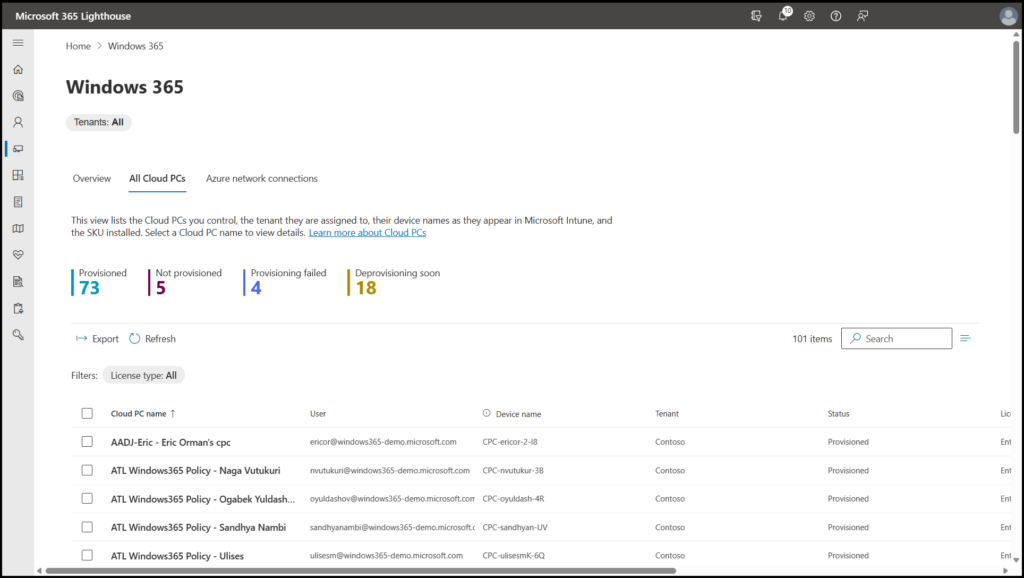
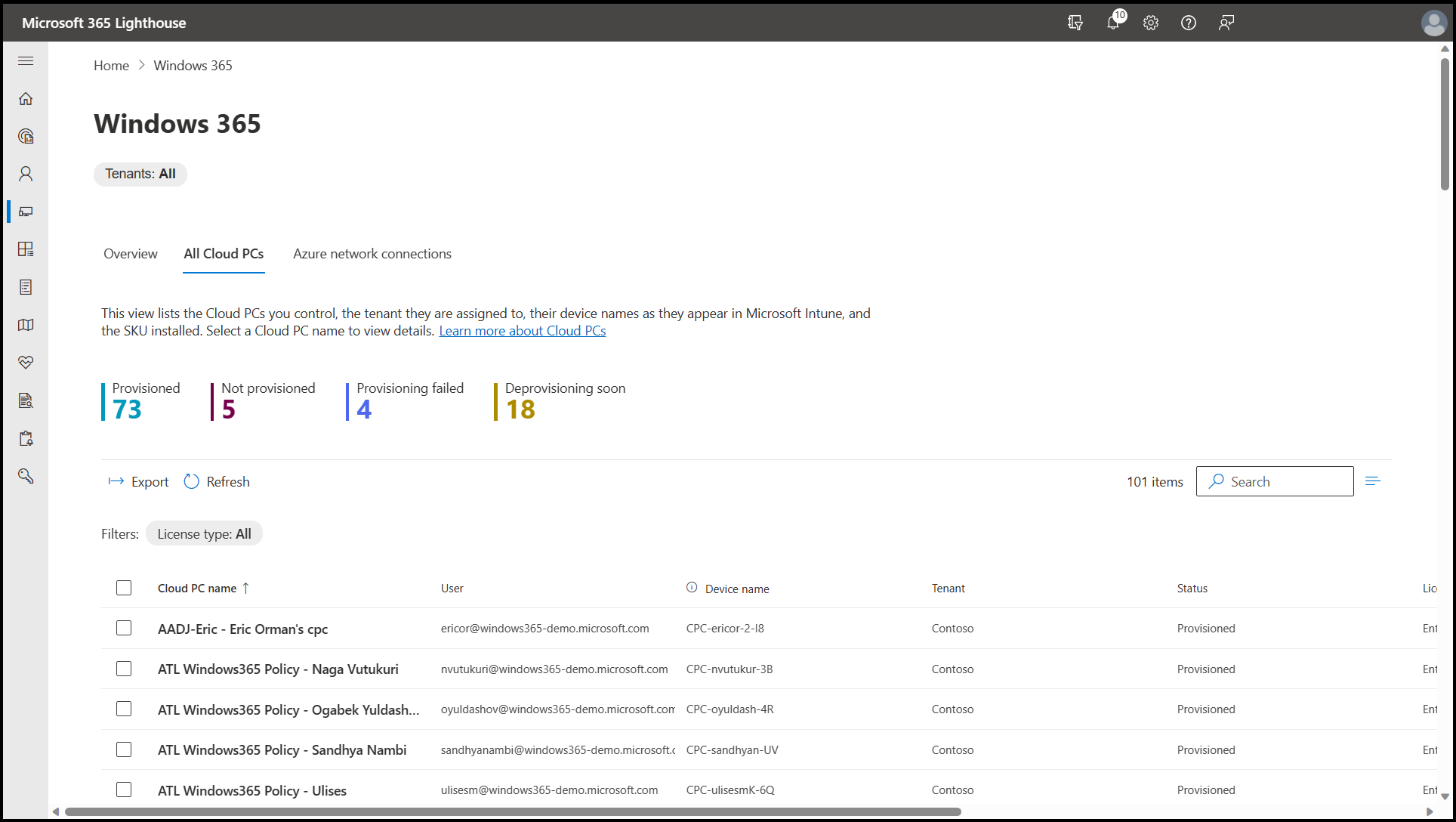
Windows 365 delivers a Cloud PC, a personalized Windows environment streamed from the cloud to Windows, Mac, iOS or Android devices. Cloud PCs are deployed and managed in much the same way as physical PCs, using existing tools and knowledge rather than a separate virtualization skill set.
The line-up covers Windows 365 Business for organizations up to 300 seats with no licensing prerequisites, Enterprise for unlimited users managed with Microsoft Intune, Flex for part-time and shift-based access from a single pooled licence, Government for US public sector requirements, and Reserve for temporary Cloud PCs when a physical device is unavailable.
Key features include:
- Cloud PC editions by organization type: Business covers up to 300 users per tenant with one Cloud PC per licensed user and no licensing prerequisites, while Enterprise removes the user limit and requires Windows Enterprise, Intune and Entra ID.
- Pooled and shift-based access: Windows 365 Flex provisions Cloud PCs that several users share on a single licence, in dedicated mode with up to three Cloud PCs per licence or shared mode with one active user at a time.
- Intune-based management: Enterprise and Flex Cloud PCs are configured, deployed and managed with Microsoft Intune, while Business Cloud PCs can be handled through the Microsoft 365 admin center, the Windows App or Intune.
- High-specification and GPU configurations: Cloud PCs scale to 32 virtual CPUs, 128 GB of memory and 2 TB of storage for compute-intensive work, with GPU Cloud PCs for graphic designers, video editors and 3D modelers and preconfigured developer images.
- Cloud PCs for AI agents: Windows 365 for Agents runs AI agents inside secure Cloud PCs with identity, isolation and Intune policy control, applying the same governance and observability model used for human users.
Limitations (based on publicly available sources):
- Fixed per-seat billing: Pricing is set by Cloud PC size rather than usage, so a seat that sits idle overnight costs the same as one running all day.
- Licensing prerequisites: Each Enterprise Cloud PC user must also hold an eligible Windows and Microsoft 365 licence, so the Cloud PC charge sits on top of an existing per-seat commitment.
- Business edition ceiling: Windows 365 Business is capped at 300 users per tenant and does not include the enterprise management stack, which limits how far a smaller deployment can grow.
- Productivity apps sold separately: The subscription provides the operating system, so organizations that need Outlook, Word, Excel and Teams maintain separate Microsoft 365 licensing alongside it.
- Work and school accounts only: Personal Microsoft accounts are not supported, so the service is confined to organizations running a managed tenant.
Source: Microsoft
8. Citrix DaaS
Best for: Complex app delivery across hybrid and multi-cloud estates
Strengths: HDX protocol performance and granular session security
Things to consider: Licensing cost and complexity; heavy admin skill needs
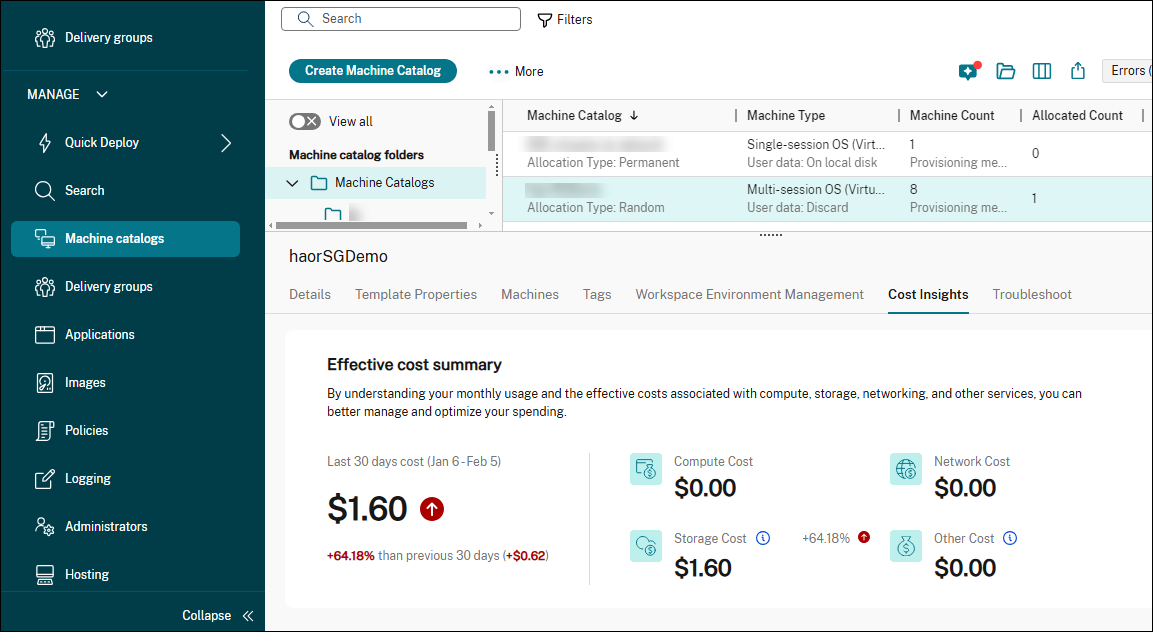
Citrix DaaS delivers virtual desktops and virtual applications from any cloud, on-premises infrastructure, or a hybrid of both, with the Citrix platform providing the management and security layer. The combined Citrix DaaS Cloud and Citrix DaaS Local capabilities let organizations run the control plane as a managed service while choosing where virtual resources sit and how they are secured.
Workloads can be stored in Microsoft Azure, Google Cloud Platform or AWS and managed alongside on-premises resources. Citrix also packages the platform as Citrix Platform Flex, and related products cover endpoint management, zero trust application access, NetScaler, a secure enterprise browser and its own hypervisor.
Key features include:
- Hybrid and multi-cloud workload placement: Virtual desktops and applications run in Microsoft Azure, Google Cloud Platform, AWS or on-premises data centers, all managed alongside each other rather than through a separate console per location.
- HDX protocol optimization: HDX technology targets unified communications tools and graphics-intensive applications so sessions stay usable when available bandwidth is low, which is the capability Citrix is best known for.
- Session and endpoint security controls: A range of security features protect unmanaged endpoints, set granular access controls and record user sessions, with Citrix deviceTRUST adding contextual access based on device posture.
- User environment management: A lightweight user environment management layer accelerates logins, improves server scalability and enhances application response times across published desktops and applications.
- Cost and resource optimization tooling: Citrix positions the platform as a way to reuse existing on-premises resources, endpoints and network consumption, and publishes cost optimization tooling specific to DaaS environments.
Limitations (as reported by users on G2):
- Licensing cost: Multiple reviewers describe subscription and licensing costs as higher than competing VDI and DaaS options, and several say the platform is not a fit for smaller organizations.
- Licensing administration: One reviewer reported difficulty obtaining licences as a smaller organization, and others describe licensing itself as a complex subject to administer.
- Cross-vendor integration: Reviewers ask for better integration with VMware and Azure, and note that HDX optimization for Teams audio and video inside the session still has gaps.
- Analytics depth: The analytics module is described as needing simpler options and more filters to extract the data administrators actually want.
- Upgrade and naming churn: Administrators cite the burden of upgrading large numbers of virtual delivery agents, defects surfacing between cumulative updates, and repeated product renaming causing confusion.
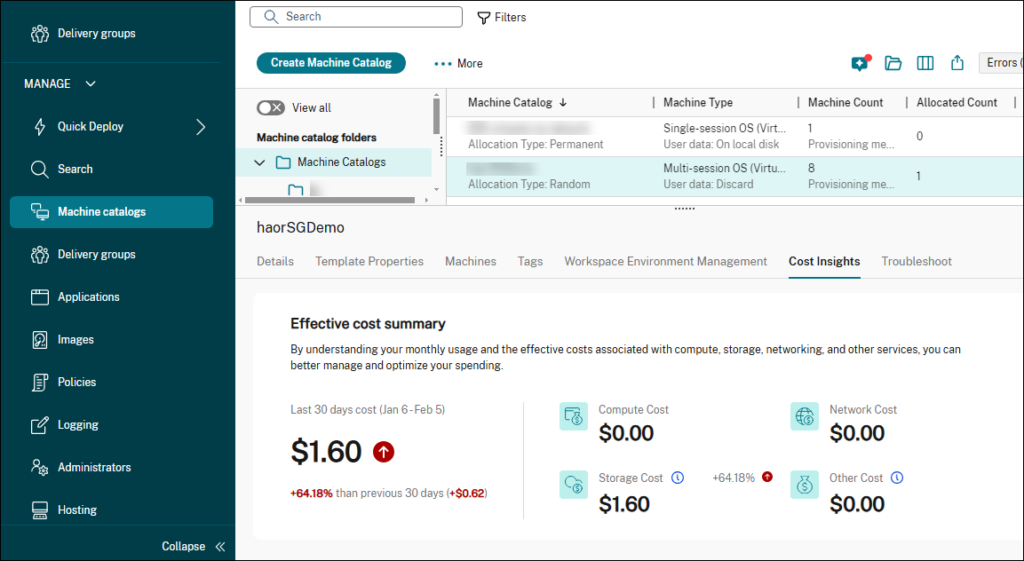
Source: Citrix
9. Omnissa Horizon Cloud
Best for: Multi-cloud DaaS for existing Horizon and vSphere estates
Strengths: Thin edge architecture with a unified cloud control plane
Things to consider: Connection tuning and mobile access options are limited
Omnissa Horizon Cloud delivers virtual desktops and hosted applications as a cloud-native Desktop as a Service, managed from a single cloud control plane. Deployments run on-premises, in public clouds or across hybrid environments, with supported infrastructure including Microsoft Azure, Amazon WorkSpaces Core, VMware vSphere and OpenStack.
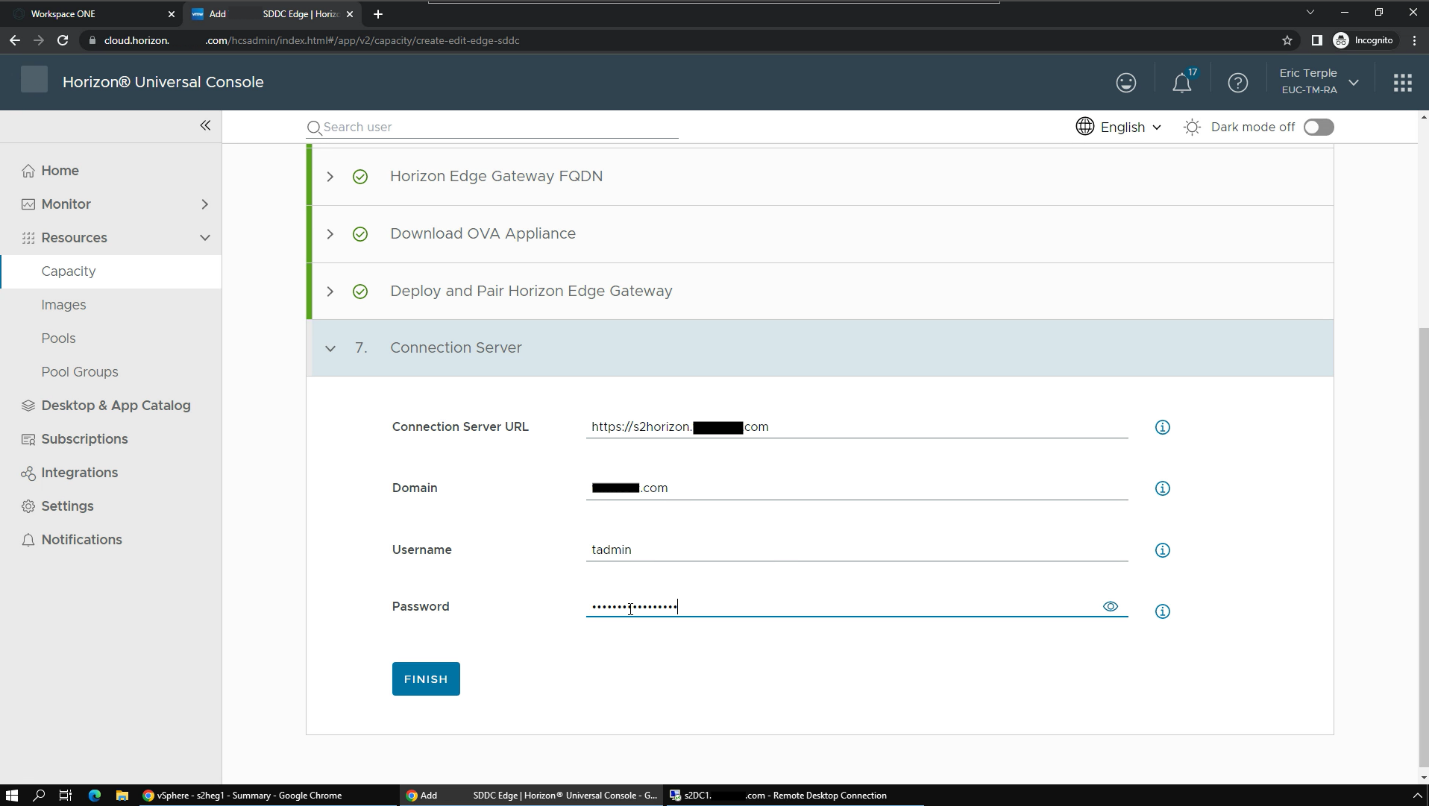
The architecture uses a thin edge design that replaces complex pods with a single Horizon Edge Gateway bridging the control plane and the infrastructure provider. Related components add application layering and user environment management through App Volumes and Dynamic Environment Manager, secure external access through Unified Access Gateway, and analytics through Omnissa Intelligence.
Key features include:
- Multi-cloud and hybrid deployment: Virtual desktops and applications run on Microsoft Azure, Amazon WorkSpaces Core, VMware vSphere and OpenStack, or on-premises, so placement can follow business continuity and regulatory requirements.
- Unified cloud control plane: The Horizon Control Plane centralizes management of desktops, applications and lifecycles across every deployment, providing one console for monitoring, policy enforcement and automation.
- Thin edge gateway architecture: A single Horizon Edge Gateway connects the control plane to each infrastructure provider, replacing the earlier pod model and reducing the infrastructure footprint that has to be maintained.
- Application layering and environment management: App Volumes handles centralized application packaging and lifecycle management to limit image sprawl, while Dynamic Environment Manager applies user settings without increasing the number of images.
- API-driven automation and access control: An API-based architecture automates provisioning, monitoring and troubleshooting with dynamic resource management, and conditional access with single sign-on integrates with leading identity providers.
Limitations (as reported by users on G2):
- Connection variability: A reviewer describes occasional severe lag depending on which server a session lands on, leading to disconnects, visual glitches or black screens.
- Cross-server file operations: The same reviewer reports significant delay when saving files from a local machine into the hosted environment.
- Client connection settings: Another reviewer notes very limited options for adjusting connection quality from the Horizon Client, which matters on variable-speed links.
- Desktop and mobile access: Reviewers ask for more streamlined access across desktop and mobile devices, and note that the client defaults to a full-screen presentation.
- Setup and troubleshooting effort: Reviewers of the wider Horizon line report that setup and profile preparation can take longer than expected and that troubleshooting is difficult.
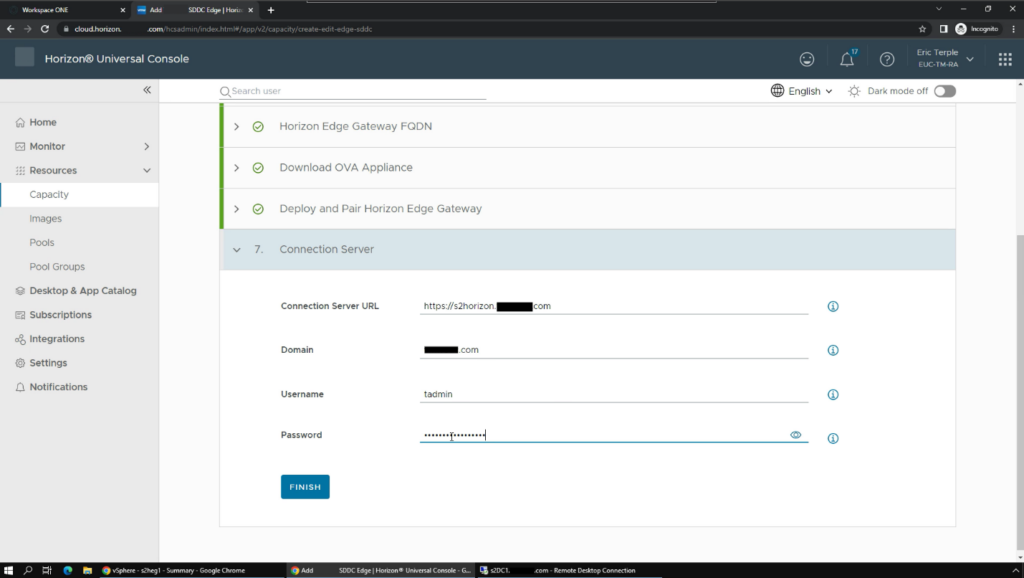
Source: Omnissa
Learn more in our detailed guide to DaaS solutions
Best Practices for Successful DaaS Deployment
If using DaaS, organizations should consider the following DaaS best practices.
1. Define Clear Governance and Ownership
Establishing clear governance is critical for any DaaS deployment. It involves defining who is responsible for policy decisions, daily operations, compliance management, and incident response. Assigning roles and responsibilities helps avoid confusion and ensures critical tasks, such as patch management and licensing reviews, are completed promptly.
Governance frameworks should be documented and periodically reviewed to align with changing business and regulatory needs. Dedicated ownership also ensures centralized decision-making on access, security, and cost controls. Appointing accountable leaders prevents gaps in coverage, clarifies escalation paths for support issues, and enables communication with DaaS vendors.
2. Implement Strong Identity and Access Controls
Implementing robust identity and access management is fundamental to protecting DaaS environments. Use multifactor authentication (MFA), centralized single sign-on (SSO), and granular role-based access control (RBAC) to manage who can access which resources and under what conditions. Integrate with the organization’s existing identity providers to maintain a unified security posture and audit trail.
Regularly review access permissions to ensure only authorized users retain access to critical resources. Quickly revoke entitlements when roles change or employees leave. Monitoring for suspicious access patterns and automating alerts for anomalies further reduces risk, especially when supporting remote users or external contractors.
3. Optimize Resource Allocation and Cost Visibility
DaaS offers significant flexibility, but without disciplined resource allocation, costs can escalate. Use monitoring tools to track resource usage, such as CPU, memory, and storage, and adjust allocations to reflect actual demand. Right-sizing desktops avoids waste while ensuring users have adequate performance for their workloads.
Transparent cost reporting is essential for budgeting and chargeback. Leverage built-in dashboards or third-party tools to visualize spend, forecast usage trends, and identify cost anomalies. Establishing automated, periodic reviews of resource allocation helps organizations optimize their DaaS investments and support financial accountability.
4. Leverage Automation and Infrastructure as Code
Automation simplifies the rollout, update, and management of virtual desktops. By adopting infrastructure as code (IaC), IT teams can define desktop configurations, networking, and policy settings as version-controlled scripts. This supports repeatable deployments, reduces human error, and accelerates onboarding of new users or teams.
Integrate automation with DevOps pipelines and management consoles to quickly deploy security patches, modify access rules, or publish application updates across all users. Automated provisioning and decommissioning of desktops in response to business demands support organizational agility, while reducing manual effort and risk.
5. Continuously Test, Monitor, and Improve
A mature DaaS deployment is an evolving environment that requires ongoing validation. Continuously test end-to-end desktop performance, user experience, and security controls by simulating real user activities and threat scenarios. Systematic monitoring using centralized dashboards enables rapid detection of performance bottlenecks, failures, or attacks.
Gather user feedback regularly to identify usability or productivity issues. Use analytics from monitoring tools, combined with lessons from incident reviews, to drive iterative improvements. Continuous improvement ensures DaaS remains aligned with changing business objectives, technology standards, and threat landscapes.
Learn more in our detailed guide to DaaS best practices
Should You Choose DaaS or an Alternative?
Choosing between DaaS and its modern alternatives depends on a range of technical, operational, and strategic factors. While DaaS can deliver centralized control and support for distributed teams, it often falls short in critical areas like performance, flexibility, and cost-efficiency, especially in today’s hybrid and BYOD-focused environments.
Key considerations include:
- User experience needs If your users need high responsiveness, support for peripherals, or offline access, DaaS may introduce friction. Network latency, session interruptions, and limited hardware access can lead to lower productivity compared to local execution environments.
- Internet dependency: DaaS relies on continuous internet access. If users operate in low-bandwidth areas, travel frequently, or need uninterrupted access, this dependence can become a serious liability.
- Application compatibility: Not all apps perform well in virtualized environments. If your workflows rely on legacy, resource-heavy, or latency-sensitive applications, DaaS may require compromises or workarounds that reduce usability and increase support overhead.
- Infrastructure and operational complexity: While DaaS simplifies endpoint provisioning, it still involves managing user policies, application lifecycles, licensing, identity integration, and monitoring. For many organizations, this complexity negates the perceived simplicity of outsourcing desktop infrastructure.
- Cost predictability vs. cost creep: Although DaaS offers predictable billing, actual costs can escalate due to performance tier upgrades, storage usage, premium support, and regulatory features. Long-term costs may exceed expectations, especially when scaled enterprise-wide.
- Security and compliance requirements: Centralized DaaS environments can support compliance but may not meet strict data residency rules or provide sufficient control over data flow. If your industry has tight security mandates, make sure your DaaS provider aligns with them or consider alternatives that offer local data isolation.
- Flexibility and customization: Many DaaS platforms limit desktop customization, making it hard to support specialized roles or power users. If deep configuration, scripting, or tool integration is required, alternatives may be a better fit.
DaaS is a legacy solution adapted to the cloud, not a ground-up rethinking of secure remote access or hybrid work. If your organization demands consistent performance, local execution, BYOD support, and reduced reliance on connectivity, it’s time to move beyond DaaS.
See Additional Guides on Key IaaS Topics
Together with our content partners, we have authored in-depth guides on several other topics that can also be useful as you explore the world of IaaS.
Citrix VDI
Authored by Venn
- [Guide] Top 10 Citrix Competitors for Secure Remote Work
- [Guide] Citrix VDI (Citrix DaaS): Key Features, Pros/Cons & Alternatives
- [Whitepaper] VDI is Dead: A Eulogy
- [Product] Venn | The Secure Workspace for Remote Work
Load Balancer
Authored by Radware
- [Guide] What is a Load Balancer? History, Key Functions, Pros and Cons
- [Guide] What Is Global Server Load Balancing (GSLB) & Top 3 Benefits
- [Blog] Case Study: Understanding the Impact of Slow Load Times on Shopping Cart Abandonment
- [Product] Radware Alteon | Application Delivery and Security
Edge Computing
Authored by Flolive

Any worker. Any laptop. Any AI workflow. Fully secured.
Schedule a demo to see how Blue Border™ secures company data and apps without shipping laptops, running VDI, or managing personal endpoints.