
Island Browser: Features, Cost, Limitations & Alternatives [2026]


See Venn first in Google Search
Add as a preferred source on Google
TL;DR: Island Enterprise Browser puts security controls inside the browser itself. Best for securing browser and desktop apps on unmanaged laptops: Venn. Best for browser-native controls without switching browsers: CrowdStrike Falcon Seraphic Enterprise Browser. Best for Chrome estates: Chrome Enterprise Premium. Best for Microsoft-centric VDI: Azure Virtual Desktop.
What Is Island Enterprise Browser?
Island Enterprise Browser is a Chromium-based web browser built specifically for corporate environments, prioritizing data protection, security, and IT control over consumer features. It acts as a secure workspace, enabling organizations to manage access, monitor activity, and prevent data loss directly from the browser.
Unlike standard browsers, Island embeds security features directly into the browser, eliminating the need for numerous third-party extensions or workarounds. This architecture allows IT teams to enforce policies such as data loss prevention, conditional access, web filtering, and authentication at the browser level. Island aims to centralize browser security, making it a component of zero trust architectures and remote work enablement.
The category around Island has changed quickly. Industry research now puts enterprise browser adoption at roughly a tenth of organizations, with forecasts of around a quarter by the end of the decade, and browser security is reported as a top-five priority for the large majority of security teams. Platform vendors have moved in as well, acquiring browser security specialists rather than building from scratch.
The other change is what the browser is now being asked to contain. Agentic AI browsers act inside authenticated sessions on a user’s behalf, which introduces prompt injection and autonomous data movement as risks that browser-level controls are expected to address.
Key capabilities of the Island browser include:
- Built-in security: Native data loss prevention (DLP) prevents users from uploading sensitive information like PII or credit card numbers to unauthorized AI platforms or external sites.
- Last-mile control: IT teams can restrict risky actions such as copy-pasting, taking screenshots, or downloading company files, even on personal or unmanaged devices.
- Unified workspace: Wraps SaaS apps and internal portals in an audited, controlled environment, reducing the reliance on extra layers like VPNs or virtual desktop infrastructure (VDI).
- Familiar user experience: Built on the same open-source technology as Google Chrome, offering the intuitive navigation and speed employees already expect.
Island is built for enterprise use, including:
- Businesses and large organizations: Island is an enterprise-to-enterprise product rather than a consumer browser, designed to secure data across distributed teams.
- Third-party contractors: Provides controlled, audited access for external and unmanaged users without handing over full device control.
- Remote and BYOD workforces: Enforces consistent policy on devices the organization does not own or manage.
- Safe AI adoption: Helps organizations embrace generative AI tools while preventing sensitive data from reaching unauthorized AI platforms.
This is part of an extensive series of guides about data security.
Go Beyond the Browser. Secure All Apps.
Learn how Venn secures both browser-based AND locally installed apps on unmanaged devices.

In this article:
- What Is Island Enterprise Browser?
- Island Browser Alternatives at a Glance
- Key Features of the Island Browser
- Island Browser Pricing on AWS Marketplace
- Island Browser Limitations and Challenges
- Alternative Approaches to Island Browser
- Notable Island Browser Alternatives and Competitors
- Conclusion
- See Additional Guides on Key Data Security Topics
- Microsoft Intune
- HIPAA Compliance
- Data Catalog
Island Browser Alternatives at a Glance
The table below summarizes the key differences between the alternatives covered in this guide, grouped by the approach each one takes. Each solution is explored in more detail further down.
| Category | Solution | Best For | Key Strengths | Things to Consider |
|---|---|---|---|---|
| Secure Workspace | Venn | Securing work on unmanaged BYOD Macs and PCs | Local secure enclave covering browser and installed apps | Requires a lightweight software install on each endpoint |
| Secure Workspace | Parallels Secure Workspace | Browser-delivered access to RDP apps, desktops, and file shares | Clientless HTML5 gateway with built-in MFA and auditing | Peripheral and multi-monitor support limited by the browser |
| Secure Workspace | Cameyo by Google | Delivering legacy Windows and Linux apps as web apps | App-level delivery without a full virtual desktop | Windows licensing still applies and peripherals are limited |
| Augmented Browser Security | CrowdStrike Falcon Seraphic Enterprise Browser | Adding enterprise controls to browsers users already run | Runtime protection across Chrome, Edge, Safari, and Firefox | Covers browser sessions rather than all network paths |
| Augmented Browser Security | Chrome Enterprise Premium | Organizations standardized on Chrome that want added controls | Data loss prevention and context-aware access inside Chrome | Controls apply to Chrome rather than any browser |
| Augmented Browser Security | Amazon WorkSpaces Secure Browser | Streaming an isolated browser session from the AWS cloud | No corporate data reaches the local device | Streaming adds latency and costs can be hard to forecast |
| Augmented Browser Security | Prisma Browser | Extending an existing Palo Alto Networks SASE deployment | Deep data classification and agentic browsing controls | Priced at the higher end and complex to implement |
| VDI/DaaS | Citrix DaaS | Established estates needing hybrid multi-cloud desktop delivery | Mature session controls and bandwidth optimization | Licensing costs have risen and desktop delivery stays complex |
| VDI/DaaS | Omnissa Horizon 8 | Existing VMware Horizon estates and air-gapped deployments | Application layering and centralized image management | Stability issues reported with graphics-accelerated workloads |
| VDI/DaaS | Azure Virtual Desktop | Microsoft-centric estates needing multi-session Windows | Microsoft-managed control plane and existing license reuse | Costs are hard to forecast and setup is involved |
| VDI/DaaS | Inuvika OVD Enterprise | Cost-driven estates wanting hypervisor and licensing freedom | Linux-based delivery with concurrent-user licensing | Smaller vendor and a broad console that takes learning |
Key Features of the Island Browser
Island Enterprise Browser integrates capabilities directly into the browser, combining security, access control, and user experience features into a single, manageable platform. Unlike traditional browsers that rely heavily on add-ons or third-party tools, Island delivers these capabilities natively, offering IT and security teams visibility and control across devices and environments.
AI governance has become one of the main reasons organizations evaluate this category. Analyst coverage of secure enterprise browsers now treats controls over generative AI access and data entry as a core requirement rather than an optional extra, alongside data loss prevention and third-party access management.
Here are the key features offered by Island Browser:
- Conditional access controls: Apply fine-grained access rules based on user identity, device posture, network conditions, location, and application. These policies are enforced directly in the browser, ensuring consistent protection across all devices and environments.
- Device management: Monitor and manage the browsers running on endpoints across the organization, allowing IT teams to enforce security configurations and update settings remotely.
- Application automation: Automate repetitive browser tasks and workflows by automating application interactions within the browser.
- Zero trust network access (ZTNA): Provide secure, policy-driven access to internal applications without requiring traditional VPNs, aligning with zero trust principles.
- Web threat defense: Native protections against a wide range of web-based threats, including phishing, malware, session hijacking, and other browser-level exploits.
- Data protection: Controls to prevent data leakage via copy/paste, downloads, screenshots, or printing (customizable based on user role or data sensitivity).
- User behavior analytics: Monitor user activity to detect anomalies and policy violations, providing actionable insights to security teams.
- Privileged access security: Secure and monitor access to sensitive resources by privileged users, helping reduce risk from insider threats or compromised accounts.
- Built-in productivity tools: Enhance user efficiency with integrated features like an AI writing assistant, clipboard management, ad/tracker blocking, and geolocation anonymization.
- Browser customization: Tailor the browser interface and behavior to match organizational needs or user preferences, enabling a familiar and optimized experience.
- Password management: Support for secure credential storage and autofill, reducing friction for users while maintaining control over authentication flows.
- Employee experience optimization: Design browser environments that reduce distractions and support productivity, while ensuring users remain within policy boundaries.
- Cross-platform availability: Island is available on major desktop platforms including Windows, macOS, Linux, and Chromebooks.
- Mobile support: Fully supported on iOS, iPadOS, and Android, enabling consistent policy enforcement on mobile devices.
- Extension compatibility: Compatible with extensions from Chrome, Edge, Safari, and Firefox, giving organizations flexibility to support existing tools.
Island Browser Pricing on AWS Marketplace
Island Enterprise Browser pricing is not publicly available. However, the solution is offered through the Amazon Web Services (AWS) Marketplace, which can give an idea of its cost for enterprises.
On the AWS Marketplace, a 12-month contract, including both the Island browser and the centralized management console, costs $250,000. This fee covers a specific quantity of use, defined by a contract “dimension.” This typically refers to a measurable unit, such as the number of users or allocated storage.
The contract includes a fixed number of these units, and access to the software is tied to these limits. Buyers can customize their contract by adjusting these quantities during purchase. Once the contract expires, so does access to the licensed entitlements unless the agreement is renewed.
This pricing provides entitlement to use the platform for the full contract period. It’s important to note that this fee covers only the software; any infrastructure costs on AWS (such as compute or storage for associated services) are separate and must be estimated using tools like the AWS Pricing Calculator.
Standalone browser security pricing is also under pressure from bundling. Several large security platforms have absorbed browser security vendors and now sell the capability as part of a broader subscription, and the managed browser tiers offered by Google and Microsoft are priced per user per month in the single digits. Buyers increasingly compare a dedicated enterprise browser contract against capability they may already be entitled to.
Learn more in our detailed guide to Island Browser pricing
Island Browser Limitations and Challenges
While Island Enterprise Browser brings control and security to the browser layer, there are some limitations and challenges that organizations should be aware of. These limitations were reported by users on the G2 platform:
- Incomplete RDP feature set: The built-in remote desktop (RDP) client lacks some of the capabilities found in Microsoft’s native desktop RDP client, which may limit its effectiveness in certain enterprise use cases.
- Lag and performance issues: Users have reported occasional sluggishness during tab switching and general browsing, which can negatively impact productivity.
- Limited management console functionality: The admin console’s search capabilities are currently limited, and the user activity map lacks advanced filtering or time-based views, reducing visibility during investigations or audits.
- Opaque policy violation messages: When a user action is blocked due to policy enforcement, the system often gives generic error messages without detailed reasoning, making it harder to troubleshoot or refine policies.
- Strict security frustrates end users: While security is a core strength, some users find the rigid controls intrusive or overly restrictive.
- Extension compatibility tradeoffs: Despite support for major browser extensions, switching entirely to Island can feel like a significant adjustment, particularly for users who rely heavily on Chrome or Firefox in their personal workflows.
- Adoption resistance: Because Island represents a shift from familiar browsers, end-user onboarding can require extra support, training, and communication to drive acceptance.
- Sales and pricing transparency: Some customers have experienced unexpected additional fees post-contract, suggesting a need for greater transparency and collaboration during the sales process.
- Slow troubleshooting and support delays: Although the support team is generally responsive, resolving technical issues can still take longer than expected, particularly for complex environments or policy-related problems.
- Website accessibility and complexity: Community discussions, such as on Reddit’s r/cybersecurity, note that opinions on Island can be mixed. Users point to a learning curve, occasional issues with how some websites render or function in the browser, and the effort required to understand its complex feature set.
Agentic AI Browsers and the New Risk Surface
The most significant change in browser security since Island launched is the arrival of agentic AI browsers. These browsers do not just answer questions about a page; they act, navigating, filling forms, and completing tasks inside sessions the user is already authenticated into. That combination of autonomy and access is what makes them a security problem rather than a productivity feature.
The core weakness is prompt injection. Hostile instructions are hidden inside content the agent reads, such as a web page, an email, or a document, and the agent follows them as though they came from the user. It works because the model processes the user’s instructions and the untrusted page content through the same pipeline and cannot reliably tell them apart. Vendors building these products have stated publicly that the problem is unlikely to ever be fully solved.
Independent testing supports that assessment. Academic research published in mid-2026 tested seven agentic browsers and found that four of them allowed attackers to bypass the same-origin policy, enabling cross-site data exfiltration through prompt injection and memory poisoning. Separate enterprise testing found that a leading AI browser blocked only a low single-digit percentage of malicious pages put in front of it. Researchers have also demonstrated tricking an agentic browser into completing a phishing sequence in a matter of minutes.
For security teams this has changed the question from whether to allow AI browsers to how to govern them. Analyst guidance issued to enterprises has recommended holding off on unrestricted use until protections mature. The practical posture that has settled in looks like this:
- Restrict to approved tools. Permit a defined set of AI browsers and agents and block unsanctioned adoption, which spreads quickly through consumer downloads on work machines.
- Keep sensitive workflows out. Exclude systems holding regulated or high-value data from agentic access entirely, so a successful injection has a smaller blast radius.
- Limit standing access. Constrain what each agent can reach and require confirmation before actions that send data, make payments, or change configuration.
- Watch for shadow adoption. Monitor for AI browsers arriving without IT involvement, and build incident response playbooks for the case where an agent is compromised.
- Govern at the data layer. Control what content can be pasted, uploaded, or typed into an AI tool rather than relying on blocking the tool itself, since agentic capability is being embedded into browsers, coding tools, and productivity suites at the same time.
None of these measures removes the underlying risk. They reduce the damage if an agent is manipulated. This is also why enterprise browser and browser security vendors have moved to position agentic control as a headline capability, and why buyers evaluating Island or its alternatives should ask specifically how each product handles agent activity rather than only human browsing.
Alternative Approaches to Island Browser
While the enterprise browser model introduces centralized security and control, it also creates friction for end users. Switching to a new browser disrupts familiar workflows, reduces productivity, and introduces a learning curve that many employees resist. Not to mention, many employees have workflows that exist beyond the browser, with daily reliance on downloaded apps like Zoom, Slack, Microsoft Outlook, etc. For organizations looking to secure browser activity without forcing behavioral change (which often creates user pushback and shadow IT workarounds), several alternative approaches are gaining traction.
Secure Workspace Solutions
Secure workspace tools isolate business applications and data within a controlled environment on the user’s existing device. Instead of replacing the browser, they create a secure perimeter (or a secure enclave) in which approved apps and websites run, so companies can enforce policies like data loss prevention, session isolation, and access control within a virtual boundary.
This approach enables organizations to implement zero trust principles without interfering with personal usage or requiring endpoint management. It also simplifies BYOD scenarios, since the secure workspace can coexist with personal apps without cross-contamination risks.
Augmented Browser Security
Augmented browser security platforms enhance existing browsers with enterprise-grade controls and monitoring without requiring users to switch browsers. These solutions typically inject policy enforcement, telemetry, and threat prevention directly into browsers like Chrome or Edge through lightweight agents or runtime instrumentation.
This method allows organizations to protect users in their natural workflow, preserving performance and familiarity while enabling IT to enforce granular policies. It reduces friction, accelerates deployment, and supports hybrid work by covering unmanaged or personal devices.
This is where most of the recent market activity has been concentrated. Three browser security specialists were acquired by larger platform vendors in a single year, with CrowdStrike buying Seraphic, Zscaler absorbing SquareX, and Akamai announcing its intent to acquire LayerX. Survey data cited alongside those deals indicates that around half of organizations treat the ability to keep their existing browsers as an important requirement, and that most expect to run browser security alongside their current tooling rather than as a replacement.
Virtual Desktop Infrastructure (VDI) and Desktop-as-a-Service (DaaS)
VDI and DaaS solutions provide secure browser access by hosting user sessions on centrally managed virtual desktops. All web activity occurs within a cloud-based or on-premises virtual environment, isolated from the local machine. This ensures data never leaves the enterprise perimeter and allows for strict policy enforcement.
While VDI/DaaS offers security and centralization, it comes with tradeoffs in cost, complexity, and user experience. Latency, performance variability, and the need for continuous connectivity can hinder productivity, especially for remote or mobile users.
A further approach keeps applications executing locally while isolating them from the rest of the machine, which avoids both the browser-only limitation and the latency inherent in streaming a session from a datacenter. This matters where staff rely on installed software such as conferencing clients, VOIP applications, or line-of-business tools that were never designed to run in a browser tab.
Notable Island Browser Alternatives and Competitors
How we selected these tools: We shortlisted enterprise browser alternatives based on how they isolate work from personal activity, enforce data loss prevention and conditional access, secure unmanaged and BYOD devices, and govern AI and agentic browsing.
Secure Workspace
1. Venn

Best for: Securing work on unmanaged BYOD Macs and PCs
Strengths: Local secure enclave covering browser and installed apps
Things to consider: Requires a lightweight software install on each endpoint
Venn secures company work on computers the organization does not own or manage. Installing Blue Border on a Mac or PC creates a company-controlled secure enclave on that device. Work applications, company data, networking, and AI workflows run inside the enclave and are isolated from everything else on the same computer.
Work applications run locally rather than being streamed, and each protected window is marked with a blue line so the user can see when they are working inside the enclave. Activity outside the enclave stays private to the user, and the company has no visibility into it. Venn requires no backend infrastructure, so accounts can be provisioned and revoked from a central console.
Key features include:
- Secure enclave on the local device: The enclave isolates work apps, storage, networking, and actions such as copy and paste, file transfers, and screenshots from the rest of the computer. Applications run locally with dedicated storage, either on the device or in a customer-selected cloud location, so work data is separated from personal data on the same machine.
- Coverage for installed applications: Protection extends to locally installed software rather than browser sessions alone. Supported applications include Chrome, Adobe tools, Slack, Microsoft Office, conferencing tools such as Zoom and Teams, VOIP clients, CAD and design software, SAP, and internally built business applications, all running at native speed on the endpoint.
- Per-app VPN and gateway routing: Applications inside the enclave connect through a per-app VPN to a private gateway managed through Blue Border. This keeps work traffic separated from personal traffic on a shared device and gives administrators a defined path for business network access without routing all device traffic through corporate infrastructure.
- Data loss prevention controls: Administrators define restrictions on copy and paste, uploads, downloads, screenshots, and printing, applied to activity inside the enclave. The enclave behaves as a boundary that governs what data can move in and out, with policy applied consistently across managed and unmanaged devices.
- AI tool governance: Policy controls which AI tools can be used with company data, which specific tenants can be accessed, and what content can be pasted, uploaded, or typed into an AI tool. Controls are enforced at the application and data layer inside the enclave, while personal AI use outside the enclave remains outside company policy and visibility.
- Compliance controls and audit trails: Venn provides auditable controls mapped to SOC 2 Type II, HIPAA, PCI, SEC, FINRA, NAIC, NYS DFS, Mass 201 CMR 17.00, and CMMC requirements. Administrators get records of where, when, and from which device a user accessed an application or sensitive data, supporting audit and investigation work.
- Integration with existing security tooling: Blue Border connects to tools already in use, including SIEM platforms, VPN infrastructure, and endpoint protection agents, so enclave activity feeds into existing monitoring. Venn Application Delivery handles deployment and updates of sanctioned applications across enrolled devices.
Limitations (as reported by users on TrustRadius):
- Integration breadth: Reviewers have pointed to integration coverage as an area they would like to see expanded as their tool stacks grow.
- Support hours: Live support is not offered around the clock, although reviewers describe response times as timely when support is reached.
- Endpoint install required: The model depends on installing an agent on each computer, so it does not fit scenarios where nothing at all can be placed on the device.
To see Venn in action, book a demo here.
Source: Venn

2. Parallels Secure Workspace

Best for: Browser-delivered access to RDP apps, desktops, and file shares
Strengths: Clientless HTML5 gateway with built-in MFA and auditing
Things to consider: Peripheral and multi-monitor support limited by the browser
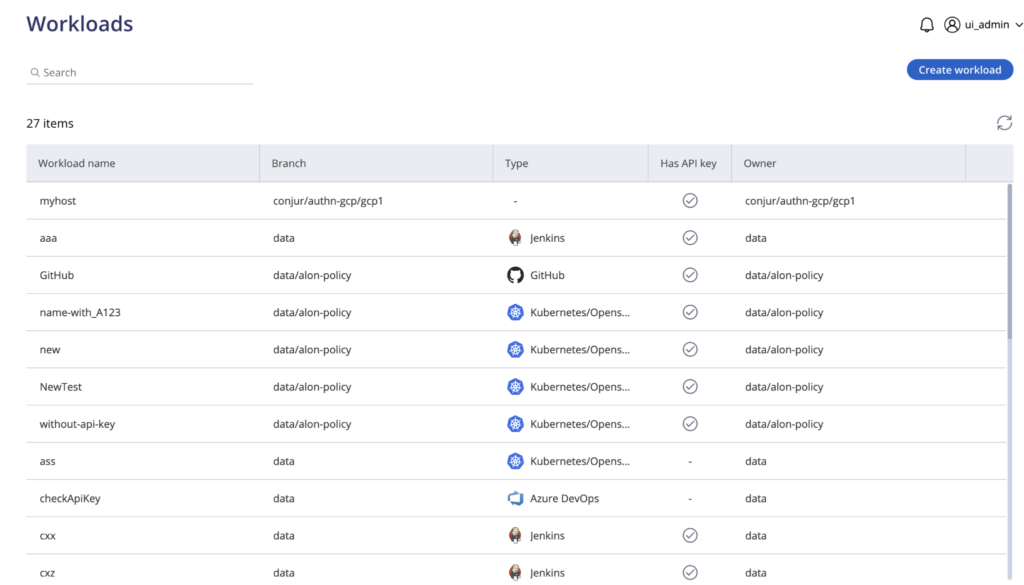
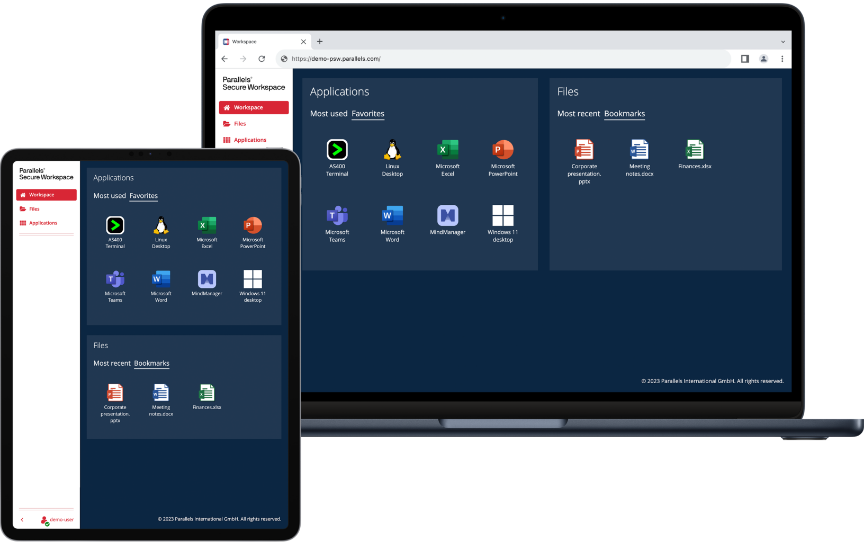
Parallels Secure Workspace, previously sold as Awingu, delivers a browser-based workspace that aggregates Windows and Linux applications and desktops, SaaS applications, internal web applications, and file servers into a single interface. It deploys as a virtual appliance on common hypervisors and connects to existing infrastructure using standard protocols such as RDP and LDAP.
Users reach the workspace from any HTML5 browser with no agents, plug-ins, or client installations on the device. The product is positioned as a VPN replacement and as an intra-network gateway that removes the need for jump servers and complex firewall rules between production and general-purpose networks.
Key features include:
- RDP to HTML5 gateway: The gateway translates RDP and xRDP streams into HTML5 so server-based applications and desktops open in a browser tab. No RDP agent or client is installed on the endpoint, which makes the approach usable on contractor and personally owned machines where software installation is not permitted.
- Built-in multi-factor authentication: Multi-factor authentication supports TOTP and HOTP and works with authenticator apps from Microsoft and Google. Administrators can enforce MFA based on location or establish a browser trust period so repeat logins from a known browser do not prompt for a second factor every session.
- Identity provider integration: The workspace connects to external identity providers including Entra ID, Okta, and Google Identity over SAML or OpenID, inheriting the MFA and geofencing services configured there. After initial authentication, users open connected applications, desktops, and file shares without re-entering credentials.
- Session recording and usage auditing: Administrators can record application sessions and track login activity, application usage, and file interactions. Audit data can be forwarded to SIEM platforms such as Splunk and Elasticsearch for consolidated monitoring, and anomaly detection flags unusual usage patterns for review.
- Granular action controls: Rights are set per user or group to enable or disable printing, downloading, and session sharing. Context-aware rules define geographic or IP-based zones, and access can be blocked or subjected to additional authentication when a session originates outside a defined zone.
- Resource aggregation and file access: The workspace consolidates legacy Windows and Linux applications over RDP, SaaS applications through single sign-on, internal web applications through a reverse proxy, and file servers including SharePoint and OneDrive. A web file manager provides a unified view across drives with common file operations.
- Multi-tenant appliance deployment: The product installs as a virtual appliance across hypervisors and clouds, supports multi-tenancy, and exposes open APIs. Capacity is increased by adding appliances as user counts grow, and an auto-renewing SSL certificate service handles transport encryption.
Limitations (as reported by users on Capterra):
- Peripheral device support: Because the workspace runs entirely in the browser, device support is limited. Card readers and PDF printers work, while scanners and other peripherals reportedly require custom development.
- Multi-monitor experience: Reviewers report that the full-desktop experience does not translate well to multi-monitor setups, and that opening applications in separate browser tabs works better.
- Interface design: The administrative and user interface is described as dated, with icons that reviewers say could be more self-explanatory than in a native RDP session.
- Configuration effort: Initial configuration is described as occasionally fiddly, although reviewers note that the documentation covers the steps well.
Source: Parallels
3. Cameyo by Google

Best for: Delivering legacy Windows and Linux apps as web apps
Strengths: App-level delivery without a full virtual desktop
Things to consider: Windows licensing still applies and peripherals are limited
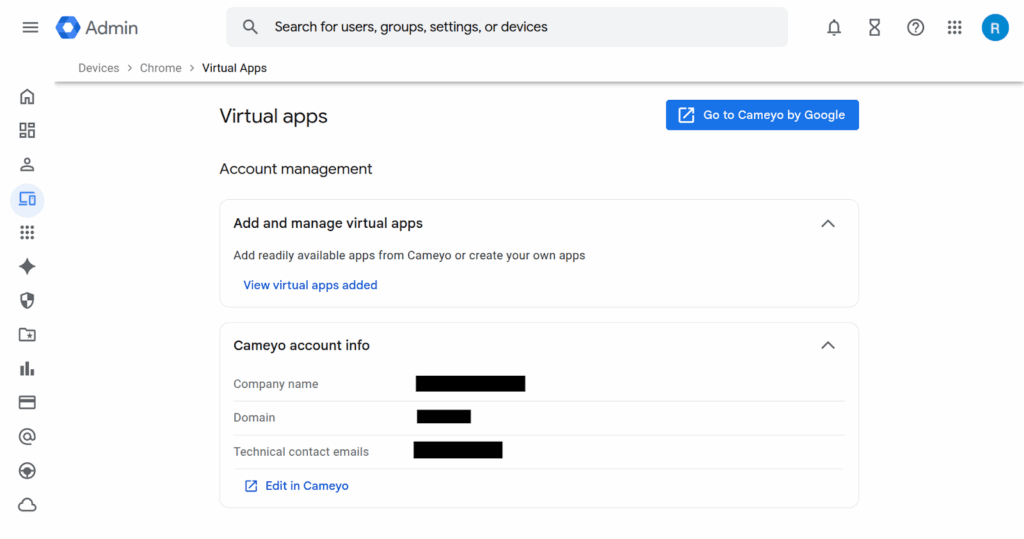
Cameyo by Google is a virtual app delivery platform that publishes individual applications to the browser instead of streaming a full virtual desktop. Legacy Windows and Linux applications are turned into progressive web apps that users open from the app shelf, alongside native web and Android applications.
Applications run from a Windows or Linux host server that Cameyo hosts on Google Cloud or that the organization self-hosts in its own cloud or datacenter. The platform is built around Chrome, ChromeOS, and ChromeOS Flex, and pairs with Chrome Enterprise so browser security controls apply to virtualized applications as well as web applications.
Key features include:
- Virtual app delivery model: Only the applications users need are delivered, rather than an entire virtualized operating system. Sessions open in the browser without a VPN or a virtual desktop client, which removes the golden image management and desktop provisioning work associated with traditional virtual desktop infrastructure.
- Progressive web app packaging: Client-based applications are converted into progressive web apps that users launch from the app shelf. Users get the desktop version of the application through the browser, so the same interface is available across device types without switching between web and client-based tools.
- Zero trust separation model: The architecture separates applications from the device and devices from the network. This limits the exposure created when a full desktop is delivered to an endpoint and keeps application access aligned with browser-level controls rather than network-level access.
- File system and storage access: Virtualized applications can open, save, and edit files using the local device file system or cloud storage providers, subject to administrative policy. This preserves familiar file handling for applications that were written to expect direct disk access.
- Chrome Enterprise integration: Cameyo works with Chrome Enterprise so that virtualized applications sit inside the managed browser. Data protection controls configured in Chrome Enterprise Premium, including data loss prevention rules, then apply to legacy applications and web applications through the same policy set.
- ChromeOS and Workspace enablement: The platform integrates with ChromeOS and ChromeOS Flex so organizations moving to a web-first operating system retain access to required client software. Integration with Google Workspace lets teams use Workspace applications while keeping access to client-based business applications through the browser.
This product is rated highly on review sites, so these points are drawn from the critical sections of otherwise positive reviews.
Limitations (as reported by users on Capterra):
- Peripheral support: Reviewers note that peripherals such as webcams and flash drives are not natively supported in virtualized sessions.
- Microsoft licensing costs: Reviewers point out that Microsoft licensing fees for the underlying Windows hosts still apply and are separate from the platform subscription.
- Graphics-intensive workloads: Reviewers report the model is not a fit for CPU and GPU intensive software such as computer-aided design and drafting tools.
- Implementation effort: Some reviewers describe initial implementation as requiring vendor assistance to match specific environment requirements.
Source: Google
Augmented Browser Security
4. CrowdStrike Falcon Seraphic Enterprise Browser
Best for: Adding enterprise controls to browsers users already run
Strengths: Runtime protection across Chrome, Edge, Safari, and Firefox
Things to consider: Covers browser sessions rather than all network paths
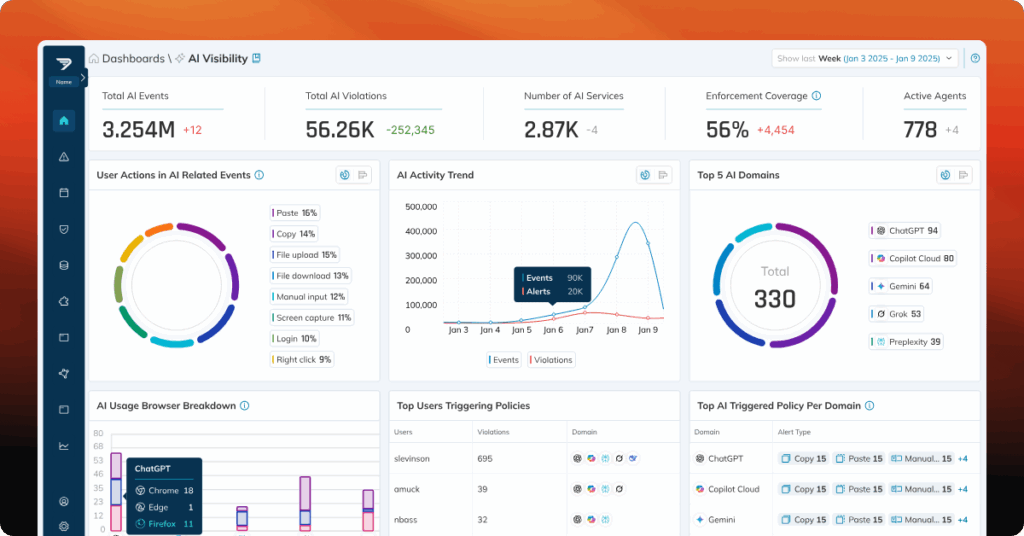
Seraphic Security was acquired by CrowdStrike and the technology is now delivered as Falcon Seraphic Enterprise Browser, part of the Falcon platform. It applies runtime security inside the browser rather than supplying a separate browser, so users keep working in whichever browser they already use.
Controls run on managed and unmanaged devices and cover Chrome, Edge, Safari, Firefox, other Chromium-based browsers, and agentic browsers. Because enforcement happens in the browser runtime, sessions are not redirected through additional network infrastructure, and deployment does not require infrastructure changes or user retraining.
Key features include:
- Browser-agnostic runtime enforcement: Security policy is applied inside the browser session instead of through a dedicated enterprise browser or a network path. The same controls apply across Chrome, Edge, Safari, Firefox, any Chromium-based browser, and agentic browsers, on both corporate and personal devices.
- Session-based threat prevention: The product monitors runtime activity and session behavior to block credential theft, malicious extensions, session hijacking, and browser-based attacks at the point of execution. Extension activity is inventoried and risky extensions can be blocked before they act on session data.
- In-session zero trust controls: Verification continues after login. The product checks identity, behavior, and risk signals throughout a session and can allow, restrict, or block activity as risk changes, applying context-aware policy per tab rather than making a single decision at the point of authentication.
- Web data loss prevention: Controls govern how data moves through the browser, covering uploads, downloads, clipboard use, and screen capture. Content filtering applies at the execution layer, which lets policy distinguish between sanctioned corporate destinations and other endpoints for the same data.
- AI and agent governance: Policy covers how generative AI applications and AI agents are accessed from the browser, with controls intended to prevent unsanctioned AI tools from reading or moving corporate data. The same enforcement position applies to agentic browsers that act on a user’s behalf inside authenticated sessions.
- Falcon platform correlation: Browser session telemetry is combined with endpoint signals and threat intelligence from the Falcon platform, and with the continuous authorization technology CrowdStrike acquired with SGNL. Detections and access decisions therefore draw on device context as well as in-session activity.
Reviews for this product predate the CrowdStrike acquisition and were published under the Seraphic Web Security name on G2 and AWS Marketplace. The points below are drawn from the critical sections of otherwise positive reviews.
Limitations (based on publicly available sources):
- Browser scope only: Reviewers note the product addresses risks inside the browser and does not cover other network attack vectors, so it sits alongside rather than replaces network controls.
- Visibility gaps in mixed stacks: Managed service providers running the product across varied client environments report situations where additional visibility would have helped during investigation.
- Policy message tuning: Reviewers advise budgeting time to customize the messages users see when an action is blocked, since the defaults require configuration work.
- Platform consolidation: Following the acquisition the product is positioned as part of the Falcon platform, which is a consideration for buyers who do not otherwise use CrowdStrike.
Source: Seraphic Security
5. Chrome Enterprise Premium

Best for: Organizations standardized on Chrome that want added controls
Strengths: Data loss prevention and context-aware access inside Chrome
Things to consider: Controls apply to Chrome rather than any browser
Chrome Enterprise Premium adds security controls to Chrome rather than introducing a separate browser. It builds on Chrome Enterprise Core, the no-cost tier that provides cloud-based policy management and reporting, and layers data protection, threat protection, and access controls on top. It is licensed at six dollars per user per month.
Because the controls are delivered through a browser most organizations already run, there is no migration for end users. The trade-off is that coverage applies to Chrome, so environments that deliberately support several browsers need a different approach for the others.
Key features include:
- Data loss prevention policies: Granular rules address both accidental and deliberate exfiltration of company data, including controls that govern what can be entered into unsanctioned AI tools. Policies apply across desktop and mobile devices, covering actions such as content transfers between applications inside the browser.
- Context-aware access: Access to SaaS applications, Google Cloud, and private web applications is restricted based on user identity, location, and device security status. Controls apply when users are outside the corporate network, and page-specific rules can be set according to website category.
- Threat protection and deep scanning: Safe Browsing malware and phishing protection runs in real time rather than against a periodically refreshed list, and unknown or high-risk files are subject to malware deep scanning. URL filtering restricts access by category, and password protections prevent reuse of corporate credentials on other sites.
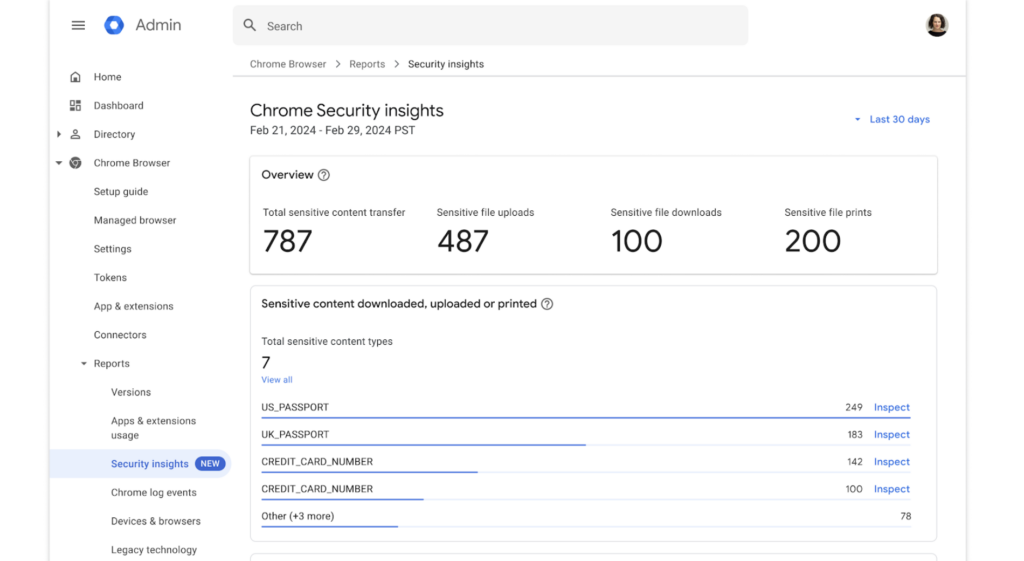
- Security insights and reporting: Administrators get visibility into risky users, sensitive data transfers, shadow AI activity, and other security events, with the ability to act on findings rather than only view reports. An evidence locker stores files and incidents for later investigation.
- Extension and browser management: Extension requests and permissions are managed centrally, and a branded version of the Chrome Web Store can limit which extensions are available. Browser policies, settings, and reporting on apps, extensions, and versions are handled from the cloud across operating systems.
- Generative AI policy controls: Administrators manage the availability of generative AI capabilities in the browser and how company data is used by Google’s models. Controls cover the built-in assistant features as well as data entered into third-party AI services through the browser.
Reviews are published against the parent Google Chrome Enterprise listing rather than the Premium tier specifically.
Limitations (as reported by users on PeerSpot):
- Memory footprint: Reviewers report that the browser consumes significant memory and slows down machines with basic hardware configurations.
- Update cadence: Frequent updates, reported as arriving every few days, require closing and reopening sessions and are described as disruptive.
- Root cause investigation: Reviewers say it is not straightforward to determine the root cause when troubleshooting security issues.
- Client application coverage: Reviewers note limited support for desktop applications, which is the gap the separate Cameyo product is intended to address.
- Site compatibility: Some reviewers report switching to another browser for specific banking and collaboration applications that do not work reliably.
Source: Google
6. Amazon WorkSpaces Secure Browser

Best for: Streaming an isolated browser session from the AWS cloud
Strengths: No corporate data reaches the local device
Things to consider: Streaming adds latency and costs can be hard to forecast
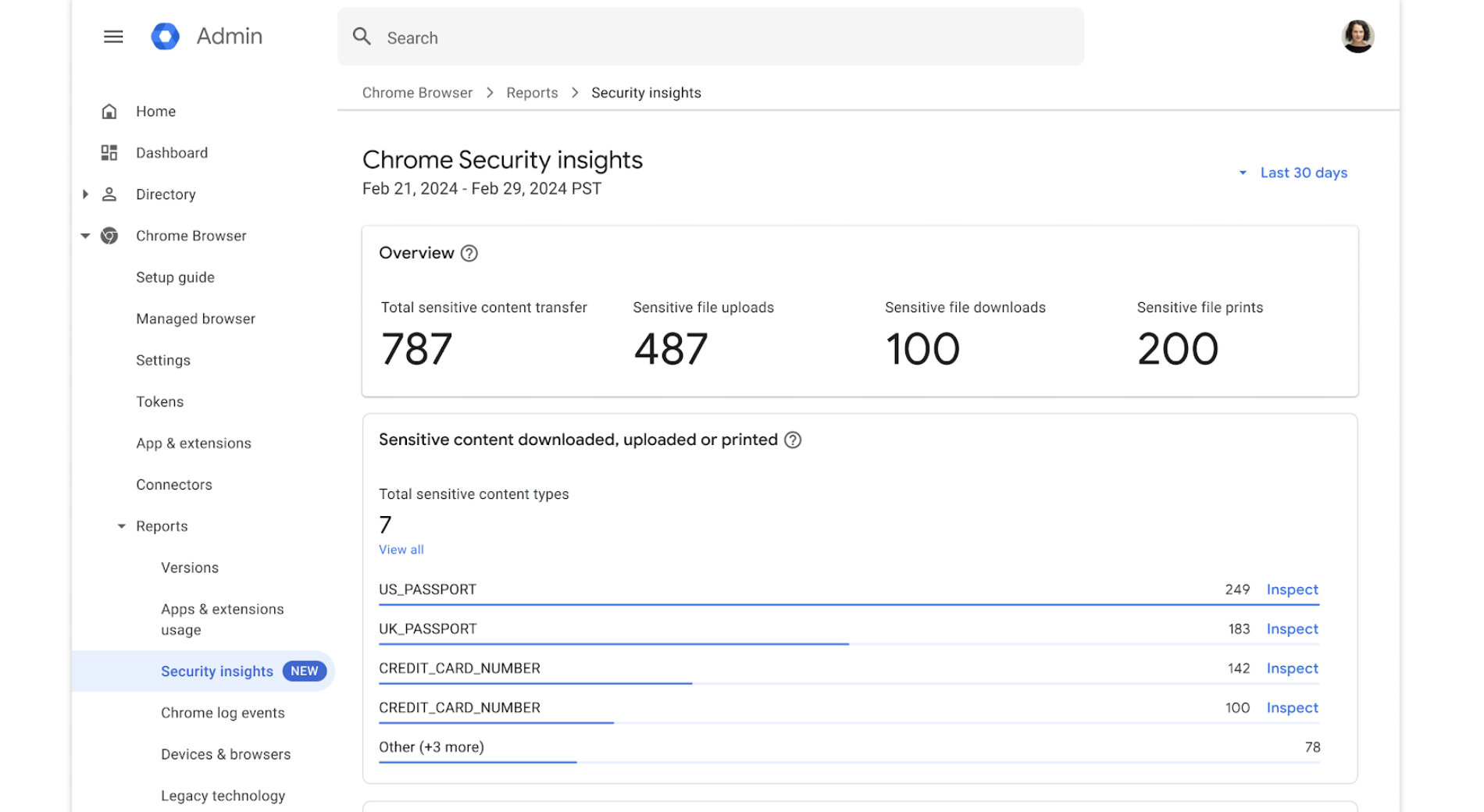
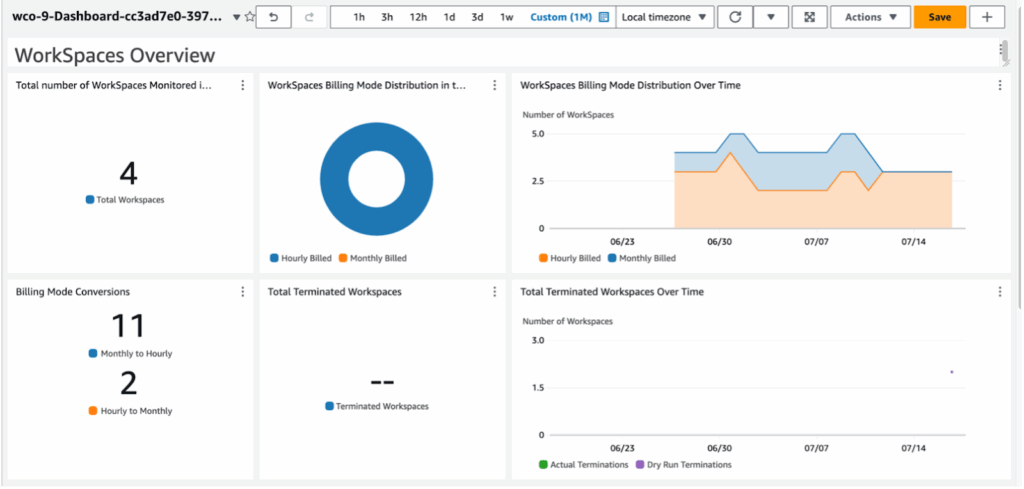
Amazon WorkSpaces Secure Browser is a fully managed remote browser service that starts at seven dollars per user per month. A browser session runs in the AWS cloud and encrypted pixels are streamed to the browser already installed on the user’s device, with policy enforced on the remote session.
Because the session executes in AWS rather than on the endpoint, corporate data does not reach the local machine. The service removes the need to manage client software, supporting infrastructure, or VPN connections, and is used for private websites, SaaS applications, and general internet access.
Key features include:
- Remote browser streaming: An isolated browser session runs in the AWS cloud and streams encrypted pixels to the user’s local browser. Web content is never executed on the endpoint, which prevents local data exposure and keeps browser-borne code away from the operating system on the user’s device.
- Data residency on the service side: Corporate data stays in the remote session rather than reaching the end user’s device. This supports scenarios where regulatory or contractual terms require that information not be stored on machines the organization does not control.
- Centralized policy and access controls: Administrators enforce granular browser policies from a central console, monitor user activity, manage access logs, and control which devices and networks are trusted. Configuration changes, session availability, and performance are tracked for audit and troubleshooting purposes.
- No specialized client software: The service works with the browser already installed on the user’s device, so there is nothing to install, patch, or version-manage on the endpoint. This also removes the VPN client that would otherwise be needed to reach internal web applications.
- Action restrictions for sensitive environments: Clipboard use, printing, and file transfer can be blocked to create tightly controlled environments. This is used for analytics work on sensitive data sets and for providing sandboxed access to generative AI tools without allowing data to leave the session.
- Consumption-based scaling: The service is sized for use cases that need only secure access to web applications and the public internet, and charges for the resources consumed. This is used to right-size spend for contact center staff, back-office employees, and third parties who do not need a full virtual desktop.
Reviews are published against the parent Amazon WorkSpaces listing, which covers the wider WorkSpaces family.
Limitations (as reported by users on PeerSpot):
- Cost predictability: Reviewers report unexpected billing for usage they were not tracking, which makes forecasting difficult across fluctuating user counts.
- Limited diagnostic visibility: Reviewers describe the service as a black box when a session is slow, citing limited insight into client network latency, real-time resource use, and storage bottlenecks.
- Session start latency: Reviewers note that initial session start takes a couple of minutes, long enough that users move on to something else while waiting.
- Microsoft application behavior: Reviewers report intermittent problems with Microsoft 365 and related products inside sessions, along with occasional network health issues.
- Peripheral and patching requests: Reviewers ask for broader USB device options and faster delivery of patches to the managed environment.
Source: Amazon
7. Prisma Browser

Best for: Extending an existing Palo Alto Networks SASE deployment
Strengths: Deep data classification and agentic browsing controls
Things to consider: Priced at the higher end and complex to implement
Prisma Browser, previously sold as Prisma Access Browser and originally built by Talon before Palo Alto Networks acquired it, is a Chromium-based enterprise browser positioned for agentic AI use. It is available as a browser, as an extension, and as a mobile application, so organizations can choose per user group whether to replace the browser or add to it.
The product integrates with the wider Palo Alto Networks platform, which means policy, threat prevention, and data controls are configured alongside existing network security rather than in a separate console. Coverage spans managed and unmanaged devices, including contractor and BYOD scenarios.
Key features include:
- Threat scanning inside the session: Webpage components are scanned in real time to identify phishing and evasive threats that assemble in the browser rather than arriving as a recognizable file. Malware and malicious downloads are passed through sandboxing so they are neutralized before reaching the operating system.
- Application isolation on untrusted devices: Enterprise applications are isolated from the endpoint so work can proceed on managed and unmanaged machines. This is the mechanism used for contractor access, BYOD programs, and merger scenarios where new users need access before their devices are brought under management.
- Extension discovery and control: The product inventories every extension in use, monitors them continuously for threats, and blocks extensions that are risky or hold excessive permissions. This addresses a category of risk that is otherwise difficult to see, since extensions run with access to page content in authenticated sessions.
- Data classification and directional controls: More than a thousand data classifiers are used to identify sensitive content. Directional context blocks transfers between sanctioned corporate applications and personal accounts, and last-mile controls govern actions inside SaaS, generative AI, and private applications.
- Risk-based policy and step-up authentication: Zero trust policies are applied dynamically based on user risk score, location, and the sensitivity of the content being handled. High-risk activities such as printing or data export can require step-up authentication or just-in-time approval instead of being blocked outright.
- Forensics and session replay: The product collects audit trails across web actions and supports investigation through browser forensics and session replay. Real user monitoring tracks how users interact with applications, which is used for performance troubleshooting as well as insider risk review.
- Agentic browsing governance: Controls cover the execution and governance of automated tasks carried out by AI agents in the browser, including visibility into generative AI applications and agentic workflows. This is the capability Palo Alto Networks positions against prompt injection and agent hijacking.
Limitations (as reported by users on PeerSpot):
- Pricing: Reviewers working with prospective buyers report that customers frequently find the solution expensive relative to alternatives.
- Initial usability: Reviewers describe the product as not especially user-friendly at the outset and as complex to work with early in a deployment.
- Implementation complexity: Reviewers point to product maturity and note that implementation is a complex exercise requiring specialist involvement.
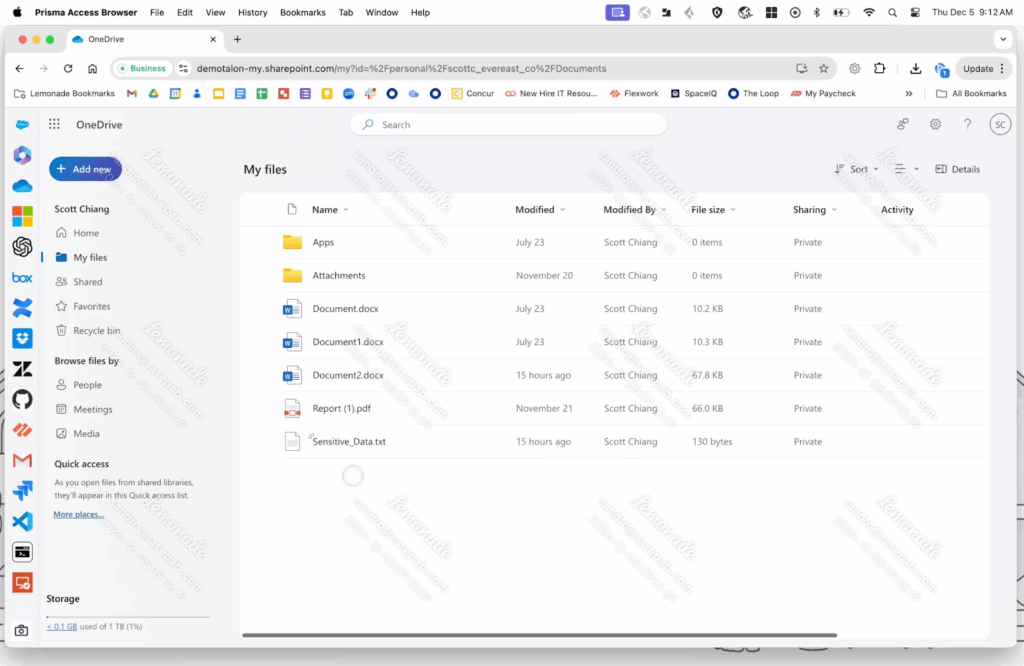
Source: Palo Alto Networks
VDI/DaaS
8. Citrix DaaS

Best for: Established estates needing hybrid multi-cloud desktop delivery
Strengths: Mature session controls and bandwidth optimization
Things to consider: Licensing costs have risen and desktop delivery stays complex
Citrix DaaS delivers virtual applications and desktops through a cloud-managed control plane, available as Citrix DaaS Cloud or Citrix DaaS Local. Citrix operates the delivery controllers, databases, licensing, and access services, which removes most on-premises component setup while brokering, authentication, and load balancing are handled centrally.
Workloads can sit in on-premises datacenters or in public clouds, and are managed alongside each other from the same console. The platform is generally found in organizations that already run Citrix and are extending or migrating an existing estate rather than starting from scratch.
Key features include:
- Hybrid multi-cloud workload placement: Workloads run across on-premises datacenters and public clouds including Azure, AWS, and Google Cloud, and across hypervisors such as XenServer, Hyper-V, Nutanix AHV, and VMware vSphere. Resource locations are managed together, so capacity can be placed according to data residency or cost considerations.
- Cloud-managed control plane: Citrix manages delivery controllers, databases, licensing, and access services in Citrix Cloud. Cloud Connectors provide the communication channel between Citrix Cloud and each resource location, acting as a proxy for delivery controller functions, with redundancy recommended in every location.
- Endpoint and session security controls: A range of controls protect unmanaged endpoints, including granular policy settings and session recording. Because the session executes in the datacenter or cloud rather than on the device, data does not need to reside on the endpoint to be worked on.
- HDX experience optimization: HDX technology targets low-bandwidth conditions with specific optimizations for unified communications tools and graphics-intensive applications. User environment management accelerates logins, improves server scalability, and shortens application response times across the estate.
- Web console and automation: Deployments are configured, managed, and monitored from a web-based console covering machine catalogs, delivery groups, and quick deploy workflows. Service APIs and PowerShell support automation for provisioning and routine administration tasks.
- Monitoring and session analytics: A monitoring console provides real-time and historical session data, including visibility into HDX traffic, used to troubleshoot problems and support users across zones and resource locations.
- Identity options and managed Azure capacity: Identity is supported through Active Directory, Microsoft Entra ID, Citrix Gateway, or Okta, with Gateway providing TLS-secured external access. A Citrix-managed Azure subscription option hosts workloads on curated compute types with persistent or non-persistent machines.
Limitations (as reported by users on PeerSpot):
- Licensing cost increases: Reviewers report that pricing rose following the change of ownership, with one describing costs as having nearly doubled in a single year under the new licensing model.
- Ongoing complexity: Reviewers describe the product as still complex, particularly on the desktop side, which they say affects how easily deployments scale.
- On-premises management overhead: Reviewers ask for simplification in managing the on-premises infrastructure components, specifically the studio tooling used to administer the environment.
- Console organization: Reviewers say the dashboard could be more user-friendly and that tabs are not organized clearly for day-to-day operational work.
- Support and diagnostics: Reviewers report that technical support needs improvement and that isolating whether a fault lies in the network, the workspace, or the environment is difficult.
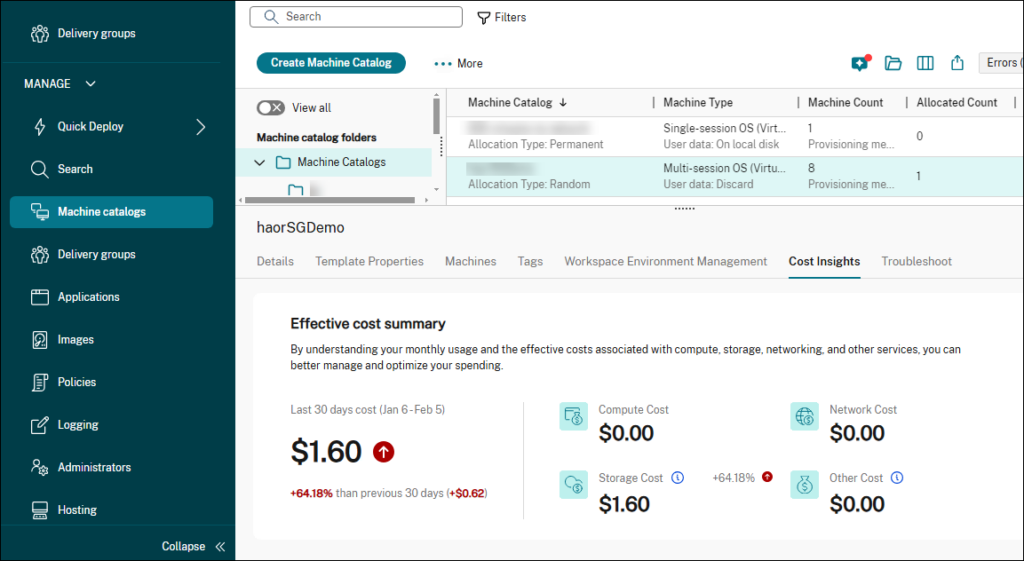
Source: Citrix
9. Omnissa Horizon 8

Best for: Existing VMware Horizon estates and air-gapped deployments
Strengths: Application layering and centralized image management
Things to consider: Stability issues reported with graphics-accelerated workloads
Omnissa Horizon 8 delivers virtual desktops and published applications, with deployment on-premises, in private clouds, or in public cloud environments. Administrators manage desktops, applications, and supporting infrastructure from a single console with consistent policy enforcement across those environments.
The product is the continuation of VMware Horizon under Omnissa and is most often evaluated by organizations that already run it or that are reviewing options after changes at VMware. It pairs with App Volumes for application delivery and with Workspace ONE for device management.
Key features include:
- Flexible deployment footprint: Desktops and applications run on-premises, in hybrid configurations, or in public clouds including Amazon WorkSpaces Core, Microsoft Azure, and Google Cloud, managed through SaaS services. Supported scenarios include air-gapped and isolated environments where cloud management is not permitted.
- Instant Clone provisioning: Instant Clone technology creates desktops from a parent image on demand, and Dynamic Environment Manager applies user settings and policy at login. Together these reduce the number of images that have to be maintained and shorten the work involved in updating a desktop estate.
- Application lifecycle management: App Volumes delivers applications as layers at login or on demand across virtual desktop, published application, and DaaS environments, and ThinApp handles application packaging. Centralized packaging is used to limit image sprawl and to streamline update cycles.
- Experience optimization: The display protocol is optimized for high-definition graphics, voice, and video, including collaboration tools such as Microsoft Teams, Zoom, and Webex, and is intended to hold up across low-bandwidth or variable network conditions.
- Centralized data and policy controls: Data stays centralized and off the endpoint while policy-driven controls are applied to desktops and applications. Peripheral support is broad, with administrative control over which devices are permitted to connect to a virtual session.
- Automation through APIs: Deployment and management tasks are automated using REST APIs and infrastructure as code tooling such as Terraform, which supports repeatable builds and reduces manual configuration work in larger estates.
- Monitoring and workspace integration: Omnissa Intelligence provides monitoring and customizable dashboards for assessing performance and troubleshooting issues. Integration with Workspace ONE UEM, Dynamic Environment Manager, and digital employee experience data covers ongoing operations.
Limitations (as reported by users on PeerSpot):
- Stability with graphics acceleration: Reviewers report crashing applications and desktops, spontaneous logoffs, black screens, and sessions that cannot reconnect, particularly where NVIDIA integration is involved.
- Support responsiveness: Reviewers state that support cases are sometimes resolved very slowly relative to the operational impact of the issue.
- Instant Clone and integration complexity: Reviewers ask for simplification on the Instant Clone side and for easier integration with Workspace ONE during adoption.
- Storage administration: Reviewers describe storage expansion as difficult to manage, particularly when modifying storage requirements for a specific part of the environment.
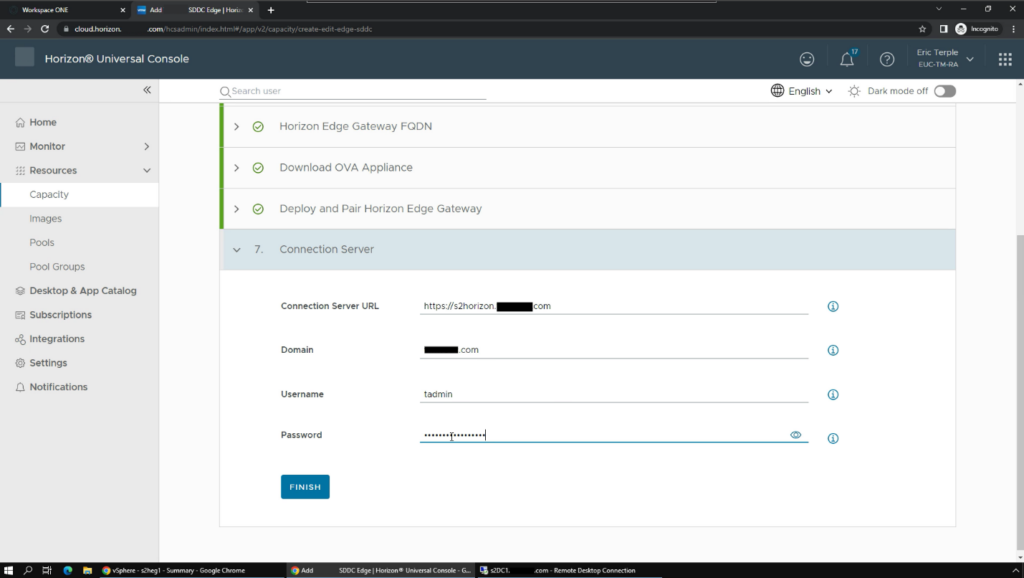
Source: Omnissa
10. Azure Virtual Desktop

Best for: Microsoft-centric estates needing multi-session Windows
Strengths: Microsoft-managed control plane and existing license reuse
Things to consider: Costs are hard to forecast and setup is involved
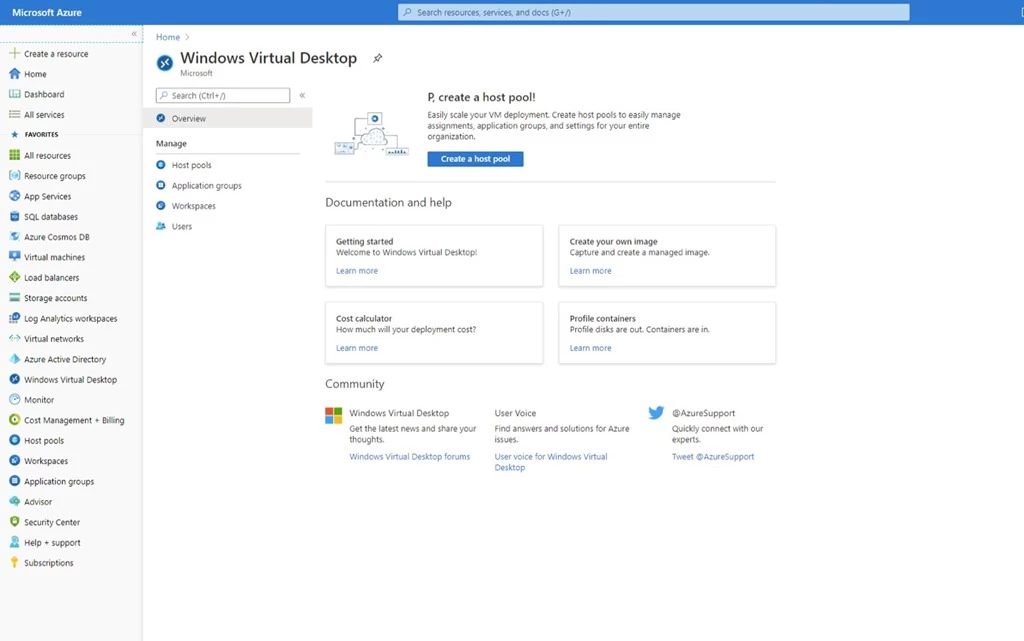
Azure Virtual Desktop delivers Windows 11 and Windows 10 desktops and applications from Azure. Microsoft manages the control plane, including the connection broker, gateway, load balancer, and diagnostics, leaving the organization responsible for the remote desktops, applications, and governance policies.
Multi-session capability allows several users on a single virtual machine, and compute is billed by the second with no upfront commitment. Organizations with existing Windows or Microsoft 365 per-user licenses can apply them, which is a significant part of why the service is evaluated against third-party alternatives.
Key features include:
- Microsoft-managed control plane: The broker, gateway, load balancer, and diagnostics components are operated by Microsoft across a global footprint. Administrators configure and deploy the virtual machines that deliver the desktop and application experiences without building or maintaining the brokering infrastructure themselves.
- Multi-session Windows: Windows 11 and Windows 10 multi-session capability places multiple concurrent users on a single virtual machine. This changes the cost profile compared with one virtual machine per user and is the main mechanism for reducing spend on task-based workloads.
- Host pool and image management: Host pools are managed at scale using capabilities such as custom image templates, which standardize what is deployed. Support extends to Windows Server 2016, 2019, and 2022 experiences alongside client operating systems for published application scenarios.
- Networking options: Azure Private Link and RDP Shortpath are available for connectivity, and virtual infrastructure is deployed in Azure regions worldwide. Connection quality can be analyzed to identify where session performance problems originate.
- Consumption-based cost model: Compute capacity is charged by the second with no long-term commitments or upfront payments, and consumption scales on demand. Existing eligible Windows and Microsoft 365 per-user licenses can be applied against the deployment.
- Coexistence with third-party platforms: Azure Virtual Desktop can be deployed into existing virtualization environments through Citrix DaaS for Azure or Omnissa Horizon Cloud Service on Microsoft Azure, so multi-session Windows can be used without replacing an incumbent management layer.
Limitations (as reported by users on PeerSpot):
- Cost predictability: Reviewers report that costs are difficult to predict in advance, which makes fixed-price proposals hard for consultants and partners to produce.
- Setup complexity: Reviewers describe initial setup as complex, particularly around application optimization and satisfying security requirements.
- Scaling behavior: Reviewers say the service lacks intelligent scaling and that uptime and scaling handling both need improvement.
- Operating system upgrades: Reviewers report problems upgrading from Windows 10 to Windows 11, including black screens encountered during testing.
- Support response times: Reviewers state that response times need to be faster and that waiting for a return call takes too long.
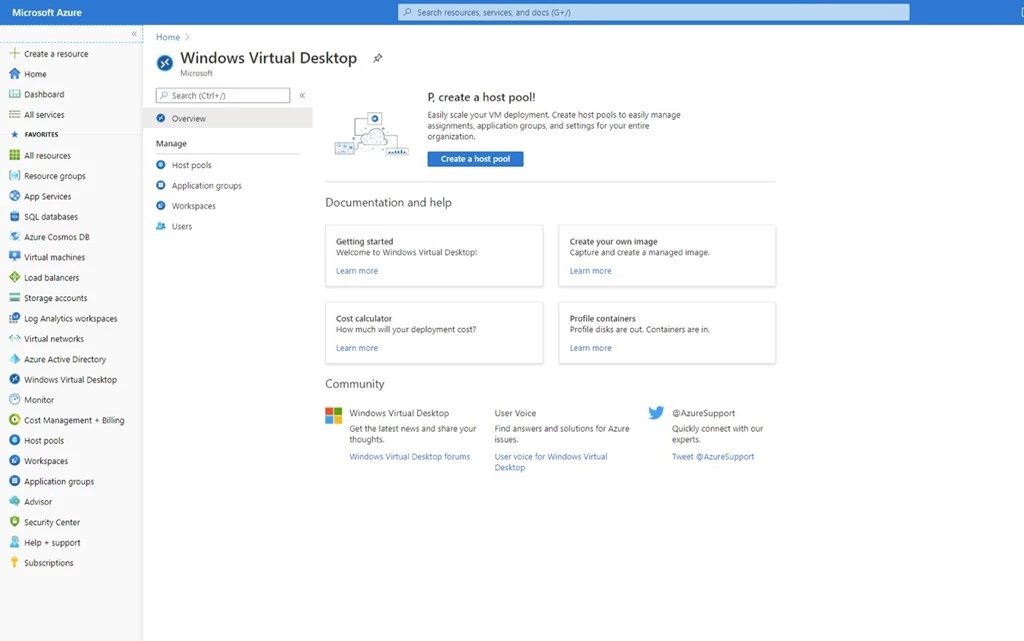
Source: Microsoft
11. Inuvika OVD Enterprise

Best for: Cost-driven estates wanting hypervisor and licensing freedom
Strengths: Linux-based delivery with concurrent-user licensing
Things to consider: Smaller vendor and a broad console that takes learning
Inuvika OVD Enterprise delivers Windows and Linux virtual applications and desktops from a Linux-based platform. It runs on vSphere, KVM, Hyper-V, Proxmox VE, VergeOS, and Nutanix AHV, and deploys on AWS, Google Cloud, Azure, or private infrastructure, which avoids tying the deployment to one hypervisor or cloud.
Licensing is based on concurrent users rather than named users or devices, and the platform does not require Microsoft SQL Server licenses for core operation. An enterprise secure gateway is included, removing the separate gateway appliance that comparable platforms require.
Key features include:
- Cross-hypervisor and cloud support: The platform runs on vSphere, KVM, Nutanix AHV, Hyper-V, Proxmox VE, and VergeOS, and deploys into AWS, Google Cloud, Azure, or other public and private clouds. This includes free and open hypervisors, so infrastructure choices are not constrained by the virtualization layer.
- Concurrent-user licensing: Subscriptions are counted by concurrent users rather than every named user in the directory. For shift-based, seasonal, or part-time workforces this aligns license consumption with simultaneous usage instead of headcount.
- Integrated secure gateway: An enterprise secure gateway is part of the platform rather than a separate product, and core operation does not require Microsoft SQL Server licensing. The underlying infrastructure runs on Linux distributions including RHEL and Ubuntu.
- Access controls and multi-factor authentication: Granular access controls are applied at user, group, or global level. Two-factor authentication is included, with native Duo support and compatibility with any SAML2 identity provider including Okta and Entra ID, and all transferred data is encrypted.
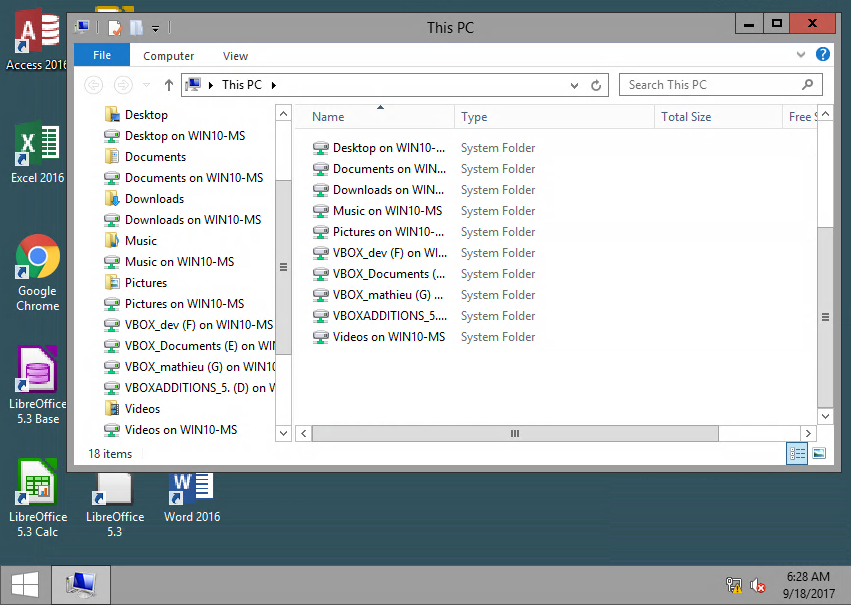
- Delivery options and peripheral handling: Users reach resources through a web portal, a shared or dedicated desktop, or applications integrated into their local desktop. USB device redirection and optimized video streaming are supported, with native handling for Microsoft Teams and Zoom.
- Single console administration: The entire environment is managed from one web-based admin console with no management client to install, reachable from any device. Resource containerization increases user density per application server, and installation and upgrades are designed to complete in hours.
This product is rated highly on review sites, so these points are drawn from the critical sections of otherwise positive reviews.
Limitations (as reported by users on Capterra):
- Administrative learning curve: Reviewers describe the platform as daunting at first from an administrator perspective because of the number of configuration options available.
- Subscription-only licensing: Reviewers note that the subscription model can be a problem for organizations that do not have visibility into their budget from year to year.
- Implementation tasks: Reviewers mention initial implementation work as the main friction point, while noting it is well documented.
- Market presence: Reviewers observe that the platform is not widely known, which affects the availability of independent expertise and community material.
Source: Inuvika
Related content: Read our guide to island browser competitors
Conclusion
Enterprise browsers like Island reflect a shift toward embedding security and compliance directly into the browser itself, rather than relying on external layers of protection. This browser-centric approach supports zero trust initiatives, improves visibility, and reduces the complexity of managing remote or hybrid workforces, especially where sensitive data and cloud applications are involved.
See Additional Guides on Key Data Security Topics
Together with our content partners, we have authored in-depth guides on several other topics that can also be useful as you explore the world of data security.
Microsoft Intune
Authored by Venn
- [Guide] Microsoft Intune Pricing Plans and Licensing Options
- [Guide] Microsoft Intune: Features, Licensing, Limitations & Alternatives
- [Blog] Building the Business Case for BYOD
- [Product) Venn | The Secure Workspace for Remote Work
HIPAA Compliance
Authored by Venn
- [Guide] 12 HIPAA Compliance Software Solutions to Know in 2026
- [Guide] HIPAA Compliance in 2026: Everything You Need to Know
- [Whitepaper] How to Secure Contractor Access on Unmanaged Endpoints
- [Product) Venn | The Secure Workspace for Remote Work
Data Catalog
Authored by Collate

Any worker. Any laptop. Any AI workflow. Fully secured.
Schedule a demo to see how Blue Border® secures company data and apps without shipping laptops, running VDI, or managing personal endpoints.