
Azure Virtual Desktop: Pros/Cons, Pricing & Top 8 Alternatives


See Venn first in Google Search
Add as a preferred source on Google
TL;DR: Azure Virtual Desktop delivers Windows desktops and apps from Azure, but cost, latency, and operational complexity push many teams to look elsewhere. Venn is best for securing unmanaged BYOD and contractor laptops without VDI, Windows 365 for fully managed Cloud PCs, Citrix DaaS for hybrid multi-cloud estates, and Amazon WorkSpaces for AWS-hosted desktops.
What Is Azure Virtual Desktop?
Azure Virtual Desktop (AVD) is a comprehensive cloud-based desktop and app virtualization service hosted on Microsoft Azure. It allows organizations to securely deliver remote Windows environments (Windows 11, Windows 10, and Windows Server) to users on any device from virtually anywhere. It lets users securely access a full Windows 11 or Windows 10 desktop experience and individual apps from almost any device, including Windows, Mac, iOS, Android, and web browsers. Many organizations are now re-evaluating these cloud desktops against fully managed Cloud PCs and local-first security models as they modernize remote work.
However, while AVD is a respected DaaS solution, DaaS and virtual desktop infrastructure (VDI) solutions are widely considered as a legacy technology. They are complex and expensive for organizations to maintain, and introduce latency and other usability challenges for remote users, resulting in a degraded user experience compared to working on a local device.
The way these desktops are delivered and secured has shifted recently, too. Windows 10 has reached the end of its support lifecycle, changing how organizations plan patching and image management on AVD, while Microsoft has moved application delivery toward its newer App attach model. At the same time, growing scrutiny of cloud spend and interest in AI-assisted end-user computing are pushing teams to reassess whether traditional virtual desktops still fit their remote work strategy.
Microsoft has also changed how the platform is run day to day. Session hosts are increasingly defined by a single configuration object rather than maintained individually, autoscaling can now create and delete virtual machines outright, and connection transport has been reworked to survive network degradation. These changes reduce some of the administrative burden that has long been the main argument against running virtual desktops at all, without removing the underlying dependency on a hosted session.
Key features of Azure Virtual Desktop include:
- Hybrid capabilities: Connects to on-premises data centers via Azure Local when entirely cloud-hosted VMs are not an option.
- Multi-session Windows: AVD is the only service to offer multi-session Windows 11 and 10, letting multiple users share a single virtual machine while keeping their own personalized sessions.
- RemoteApp streaming: Publish individual applications rather than a full desktop, streaming line-of-business software to external users.
- Native Microsoft 365 integration: Delivers an optimized experience for Microsoft 365 Apps for enterprise.
- Managed control plane: Microsoft manages foundational infrastructure components like load balancers, gateways, and connection brokers.
- Host pools and workspaces: Resources are organized via host pools (collections of Azure VMs), application groups (packaged software), and workspaces (user presentation layers).
Azure Virtual Desktop pricing has two components:
- User access rights: Organizations with eligible Windows, Microsoft 365, or RDS licenses access AVD at no additional user licensing cost, while external users pay a flat monthly fee ($10 per user for full desktops, $5.50 per user for apps).
- Azure infrastructure: You pay for the underlying compute, storage, and networking resources used to run the virtual machines. In practice this covers running VMs, storage accounts, disk storage, and data egress.
This is part of an extensive series of guides about IaaS.
Considering Azure Virtual Desktop?
Discover the top AVD alternatives for enabling seamless and secure remote work on unmanaged laptops – without any latency or lag.
In this article:
- What Is Azure Virtual Desktop?
- Key Features and Capabilities of Azure Virtual Desktop
- Example of Azure Virtual Desktop Architecture
- Azure Virtual Desktop Access Methods and Clients
- Azure Virtual Desktop Pricing Model
- Azure Virtual Desktop vs. Azure VM vs. Windows 365
- Windows 10 Lifecycle and Extended Security Updates on AVD
- Key Azure Virtual Desktop Limitations
- Notable Azure Virtual Desktop Alternatives
- Conclusion
Azure Virtual Desktop Alternatives at a Glance
The table below summarizes the key differences between the alternatives covered in this article. We explore each of them in more detail further down.
| Category | Solution | Best For | Key Strengths | Things to Consider |
|---|---|---|---|---|
| Securing work without virtual desktops | Venn | Unmanaged, BYOD and contractor laptops without VDI | Local app performance, DLP, AI governance, work/personal isolation | Enclave performance varies on lower-spec hardware |
| Securing work without virtual desktops | Island Enterprise Browser | Browser-based work for contractors and BYOD users | Last-mile controls in a Chromium browser, fast contractor onboarding | Covers browser-based work only, not local apps |
| Securing work without virtual desktops | Prisma Browser | Browser-first security for unmanaged devices and GenAI use | Native DLP with 1,000+ classifiers, threat prevention, AI controls | Security checks can slow heavier pages |
| Cloud and hybrid virtual desktop platforms | Windows 365 | Fully managed persistent Cloud PCs | Predictable monthly cost, Intune management, GPU options | Per-user licensing and prerequisites raise cost per seat |
| Cloud and hybrid virtual desktop platforms | Amazon WorkSpaces | Cloud desktops on AWS with Windows and Linux | Broad OS choice, GPU families, hourly or monthly billing | File transfer to the desktop and support responsiveness |
| Cloud and hybrid virtual desktop platforms | Citrix DaaS | Virtual apps and desktops across any cloud | HDX optimization, hybrid multi-cloud, granular security | Licensing cost is the most common objection |
| Cloud and hybrid virtual desktop platforms | Omnissa Horizon 8 | On-premises and hybrid VDI with central control | Deployment flexibility, App Volumes, session recording | Setup complexity and licensing cost |
| Cloud and hybrid virtual desktop platforms | Parallels RAS | All-in-one app and desktop delivery | Single console, hypervisor independence, simple licensing | Mac parity and third-party MFA integration lag |
Key Features and Capabilities of Azure Virtual Desktop
Key features of Azure Virtual Desktop include:
- Windows experience options: Deliver Windows 11, Windows 10, or Windows Server in single-session or multi-session configurations for different scalability needs. AVD is the only service to offer multi-session Windows 11 and 10, letting multiple users share a single virtual machine while keeping their own personalized sessions.
- Flexible app delivery: Publish full desktops or individual applications using RemoteApp, supporting formats like Win32, MSIX, and Appx. App attach, now generally available as the successor to MSIX app attach, lets IT assign the same application package per user and reuse it across multiple host pools.
- Microsoft 365 optimization: Run Microsoft 365 Apps for enterprise in multi-user virtual environments for better performance and user experience.
- Custom and line-of-business apps: Deploy internal or specialized applications that can be accessed from anywhere.
- SaaS delivery: Provide software-as-a-service applications for external users.
- RDS replacement: Migrate from Microsoft’s older Remote Desktop Services to a cloud-based model without managing gateway or broker servers.
- Unified management: Manage desktops and apps across Windows and Windows Server through a single interface using the Azure portal, CLI, PowerShell, or REST API.
- Managed control plane: Microsoft manages foundational infrastructure components like load balancers, gateways, and connection brokers, so IT never deploys or patches them.
- Host pools, application groups, and workspaces: Resources are organized via host pools (collections of Azure VMs), application groups (packaged software), and workspaces (user presentation layers).
- Hybrid hosting: Host workloads fully in Azure or in hybrid mode using Azure Local. Session hosts can also be deployed on any hypervisor or on bare-metal Windows Server through the Azure Arc extension, letting Arc-enabled servers join host pools and be managed alongside Azure-based resources.
- Scalability and cost control: Use autoscale to adjust capacity based on demand and reduce costs for centralized infrastructure with pooled multi-session resources. Dynamic autoscaling goes further for pooled host pools that use a session host configuration, creating and deleting session host virtual machines on a schedule rather than only powering existing ones on and off. Ephemeral OS disks support fast reset and reimage for stateless workloads.
- User flexibility: Offer persistent desktops for individual ownership or shared resources for multiple users.
- Delegated administration: Assign management roles, gather diagnostics, and monitor performance with Azure Virtual Desktop Insights.
- Secure access: Enable connections from any device via native apps or HTML5 web client, with reverse connections that eliminate the need for inbound ports.
Example of Azure Virtual Desktop Architecture
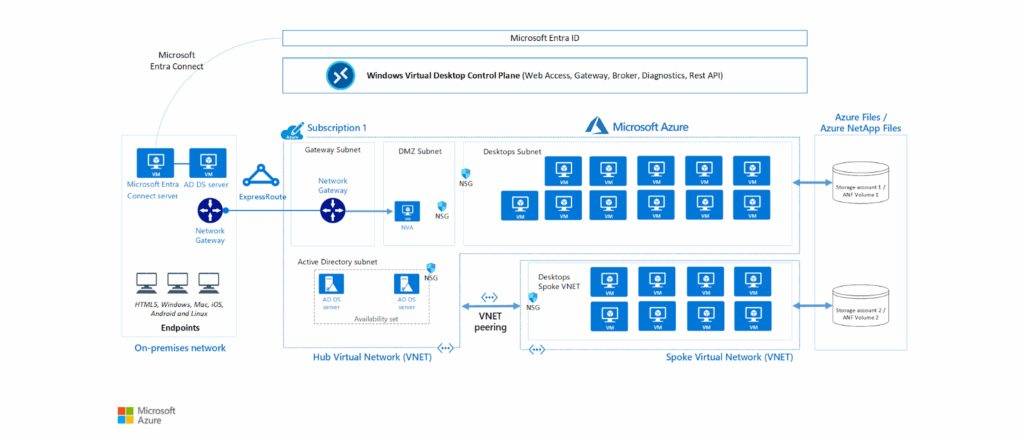
Azure Virtual Desktop shifts the heavy lifting of virtual desktop infrastructure (VDI) to the cloud. Microsoft manages the core infrastructure, including gateways, load balancers, and brokers, while IT administrators only need to manage the desktop images, applications, and security policies.
A typical Azure Virtual Desktop deployment for enterprise use integrates on-premises resources with Azure cloud infrastructure. The environment often includes application endpoints on the corporate network, extended into Azure using Azure ExpressRoute for private connectivity. Identity services are synchronized through Microsoft Entra Connect, linking on-premises Active Directory Domain Services (AD DS) with Microsoft Entra ID.
Source: Azure
The Azure Virtual Desktop control plane, managed by Microsoft, includes web access, gateway, connection broker, diagnostics, and extensibility components such as REST APIs. These services handle tasks like secure browser-based access, connection orchestration, session load balancing, event logging, and integration with management tools.
Customers are responsible for managing virtual networks, subscriptions, storage (Azure Files or Azure NetApp Files), host pools, and workspaces. A hub-and-spoke network topology is common for scaling, where multiple Azure subscriptions are connected via virtual network peering to increase capacity.
Profile storage has become less restrictive for organizations that do not run hybrid identity. FSLogix profile containers are now supported for cloud-only and external identities, so contractors and other guest users on a pooled host pool can get the same profile experience that was previously limited to hybrid users. The capability is built into existing FSLogix versions and configured against Azure Files and Microsoft Entra ID.
Session hosts (Azure virtual machines running supported Windows versions) deliver desktops and apps to users and can be customized with required software or GPU resources.
The workspace serves as the logical container for managing and publishing host pool resources, enabling administrators to organize, assign, and monitor access to virtualized desktops and applications. This architecture allows organizations to run secure, scalable virtual desktop infrastructure while offloading key broker and gateway functions to Microsoft.
Azure Virtual Desktop Access Methods and Clients
The choice of access client depends on operational scope. Windows App is now the single client for connecting to Azure Virtual Desktop, Windows 365, Microsoft Dev Box, and Remote Desktop Services, and it replaces the older Remote Desktop clients across Windows, macOS, iOS, iPadOS, Android, and the browser.
- Windows App desktop client: Recommended for full functionality, optimal performance, hardware acceleration, and multi-monitor setups, along with device redirection, Microsoft Teams optimizations, and single sign-on.
- Windows App in a web browser: Best for quick, zero-install, or occasional browser-based access from any device, available at windows.cloud.microsoft. Certain keyboard shortcuts and peripheral redirection options remain limited compared with the installed client.
Organizations still standardized on the legacy clients need a migration plan. The Remote Desktop app from the Microsoft Store lost support in September 2025, and both the Remote Desktop client for Windows (MSI) and the Remote Desktop web client reached end of support for public cloud environments on March 27, 2026. Support for the MSI client was extended to September 28, 2026 for Azure Government, Azure operated by 21Vianet, and AVD Classic.
The wider platform deadline matters here too. Azure Virtual Desktop (classic) has been blocked from accepting new tenants for some time and support for it ends in September 2026, so any environment still running the classic release needs a migration plan alongside the client migration.
Connection reliability has also been reworked. RDP Multipath with redundant TCP transport paths is generally available, letting Azure Virtual Desktop maintain multiple standby TCP paths and switch between them automatically when it detects network degradation, with no extra configuration once prerequisites are met. A Modern Auto-Reconnect capability built on the same foundation preserves session state through brief interruptions and restores connectivity faster than the traditional reconnect model. Screen capture protection now also covers connections made from supported web browsers.
Azure Virtual Desktop Pricing Model
Azure Virtual Desktop pricing is split into two main components: user access rights and Azure infrastructure charges.
User access rights
If an organization has eligible Microsoft 365 or Windows Enterprise licenses, it can access Windows 11 or Windows 10 Enterprise desktops without extra user licensing costs. Supported licenses include Microsoft 365 E3/E5, Business Premium, F3, and certain Education editions.
Access to Windows Server–based desktops is also included for customers with active Remote Desktop Services (RDS) licenses, such as RDS CAL with Software Assurance or RDS User Subscription License.
External user access is also available for a flat monthly fee, currently $10 per user for full desktops and $5.50 per user for apps. Each billing cycle, you are charged only for external users who connect at least once during that month.
Per-user access pricing is not automatic. The Azure subscription has to be enrolled in per-user access pricing before external users can connect, and charges are determined each billing cycle by the type of application group a user connected to. Organizations planning contractor or partner access should confirm enrollment as part of the deployment rather than after it.
Azure infrastructure costs
Infrastructure expenses cover the virtual machines, storage, and networking used to run Azure Virtual Desktop. You pay for the underlying Azure compute infrastructure, which means the running VMs, storage accounts, data egress, and disk storage consumed by the deployment. These costs follow standard Azure compute and storage pricing and can be billed in several ways:
- Pay-as-you-go: Compute capacity billed per second with no commitment.
- Azure savings plan for compute: Lower hourly rates in exchange for a one- or three-year hourly spend commitment, offering flexibility for changing workloads.
- Reserved Instances: Deep discounts (up to ~72%) by committing to virtual machine configurations for one or three years, suitable for predictable usage.
Learn more in our detailed guide to Azure Virtual Desktop pricing.
Azure Virtual Desktop vs. Azure VM vs. Windows 365
While Azure Virtual Desktop, Azure Virtual Machines, and Windows 365 all provide ways to run Windows workloads in the cloud, they differ in architecture, management model, and intended use cases. Increasingly, teams also compare these options against lighter-weight approaches that secure work directly on employee-owned devices without provisioning virtual machines at all.
Azure Virtual Desktop (AVD)
AVD is a platform service that delivers pooled or personal virtual desktops and remote apps, managed through the Azure portal. It supports multi-session Windows 10/11 Enterprise, allowing multiple users per VM to reduce costs. Microsoft manages the control plane, but organizations are responsible for provisioning and managing session hosts, images, scaling rules, and networking.
Best for: AVD is suited for scenarios needing high customization, complex app hosting, or tight integration with existing Azure infrastructure.
Azure Virtual Machine (VM)
Azure VMs are Infrastructure as a Service (IaaS) resources providing full control over the OS, configuration, and installed software. Each VM runs a single-user desktop or server instance unless combined with Remote Desktop Services or similar tools. Azure VMs offer maximum flexibility and custom OS support but require full management of patching, scaling, and connectivity.
Best for: Azure VMs are suitable for workloads needing complete administrative control or non-Windows OS environments.
Windows 365
Windows 365 is a fully managed Cloud PC service. Microsoft handles provisioning, updates, and scaling, and each user gets a dedicated, persistent desktop with fixed resources. It’s billed per-user, per-month, like SaaS, with minimal IT management required.
Best for: Windows 365 is suitable for organizations wanting predictable pricing, quick deployment, and minimal infrastructure management, but it lacks multi-session capability and the same degree of customization as AVD.
The Windows 365 line has also broadened beyond full-time Cloud PCs. Windows 365 Flex shares licenses across multiple workers by shift or by active user count and can publish individual Cloud Apps instead of whole desktops, Windows 365 Reserve supplies a temporary Cloud PC when a physical device is unavailable, and separate offerings cover government tenants, shared-space devices, and Cloud PCs for running AI agents. This narrows the gap on the flexible and part-time scenarios that previously pointed toward AVD.
Windows 10 Lifecycle and Extended Security Updates on AVD
Windows 10 reached the end of support in October 2025, a milestone that directly affects organizations still delivering Windows 10 desktops through AVD. On Azure Virtual Desktop, existing session hosts running Windows 10, version 22H2 are automatically entitled to Extended Security Updates (ESU) at no additional cost, so they keep receiving critical and important security patches without any admin action.
The entitlement is applied automatically when Windows Update or Autopatch runs, and free ESU coverage for eligible AVD and Windows 365 session hosts currently extends through 2028. The Windows 10 multi-session image without Microsoft 365 Apps remains in the Azure Marketplace during this window, while the bundled Microsoft 365 Apps image has been retired. Microsoft still recommends moving new deployments to Windows 11 for a more secure experience.
Azure Virtual Desktop’s Move to Automated, Cloud-Native Operations
Microsoft has reworked how Azure Virtual Desktop session hosts are provisioned and scaled, shifting the platform away from individually maintained virtual machines toward a configuration-driven model. Three capabilities reached general availability together, and they are designed to work as a set rather than in isolation.
- Automated host pools: A single Session Host Configuration defines the standard for every session host in a pool. Administrators change that configuration instead of updating each session host by hand, and Azure Virtual Desktop enforces it across the pool.
- Dynamic autoscaling: Pooled host pools using a session host configuration can create and delete session host virtual machines on schedules built around usage patterns, rather than only powering existing machines on and off.
- Ephemeral OS disks: Session hosts can hold the operating system on the virtual machine’s local storage, giving lower-latency read and write operations plus fast reset and reimage back to the original boot state. These suit stateless, non-persistent workloads.
Because user profiles live outside the session host through FSLogix, the virtual machine itself becomes disposable, which is what lets autoscaling delete and recreate hosts cleanly. The tradeoffs are real: ephemeral OS disks do not fit personal desktops where operating system changes need to survive a reboot, and not every virtual machine size supports them.
Taken together these changes address the update and scaling complaints that have followed Azure Virtual Desktop for years. They do not change the underlying model. Administrators still own images, applications, scaling rules, and networking, users still reach a desktop over a network connection, and the infrastructure bill still tracks compute and storage consumption rather than a predictable per-seat figure.
Key Azure Virtual Desktop Limitations
Azure Virtual Desktop presents several practical challenges that organizations, both during deployment and day-to-day use. These issues can affect performance, usability, administration, and cost efficiency. These limitations were reported by users on the G2 platform:
- Performance lag over RDP: Users may notice slower response times compared to a local PC or laptop, especially when network latency is high. This can reduce the “native” desktop experience. RDP Multipath with redundant TCP transport paths and Modern Auto-Reconnect reduce disconnections and speed up recovery on unstable networks, but they do not remove the round trip between the user and the session host that causes the lag in the first place.
- Browser client limitations: Certain keyboard shortcuts, such as Ctrl+Tab for switching between applications, may not work in the browser client, making the installed desktop client a better option in some cases.
- Complex non-persistent VDI updates: Updating session hosts, applying patches, or upgrading applications can be cumbersome. In some cases, hosts need to be deleted and recreated, complicating setups using MSIX App Attach with Azure file shares and NTFS permissions. Microsoft has since retired MSIX app attach in favor of App attach, which lets applications be upgraded to a new disk image without deleting and recreating hosts or scheduling a maintenance window. Automated host pools reduce this further by rolling changes out from a single session host configuration, though the pool still has to be rebuilt for the new configuration to apply.
- High resource usage: Running multiple virtual desktops or resource-heavy applications like Chrome can consume significant RAM, potentially leading to instability or crashes.
- Scalability restrictions: VM scaling is one-way; resources can be increased but not reduced without creating a new VM and migrating data. Dynamic autoscaling now creates and deletes session hosts on a schedule for pooled host pools that use a session host configuration, but resizing an existing virtual machine in place is still not supported.
- Higher costs compared to alternatives: Premium hardware and storage may be needed for acceptable performance, which can push costs above those of certain competitors.
- Connectivity dependency: Loss of internet or local network connectivity results in immediate disconnection from the desktop. Physical intervention may be needed to power session hosts back on in some scenarios.
- Learning curve and user friendliness: Although manageable, the interface and workflow may feel less intuitive compared to other solutions, requiring some adjustment time.
Notable Azure Virtual Desktop Alternatives
How we selected these tools: We shortlisted Azure Virtual Desktop alternatives based on their ability to deliver secure access to company applications and data on devices IT does not fully manage, looking at data protection and DLP controls, deployment and infrastructure requirements, endpoint and operating system coverage, identity integration, and end-user performance.
1. Venn

Best for: Securing work on unmanaged, BYOD and contractor laptops without VDI
Strengths: Local app performance with no latency, DLP, AI governance, work/personal isolation, no hosting or virtualization
Things to consider: Enclave performance varies on lower-spec or older hardware
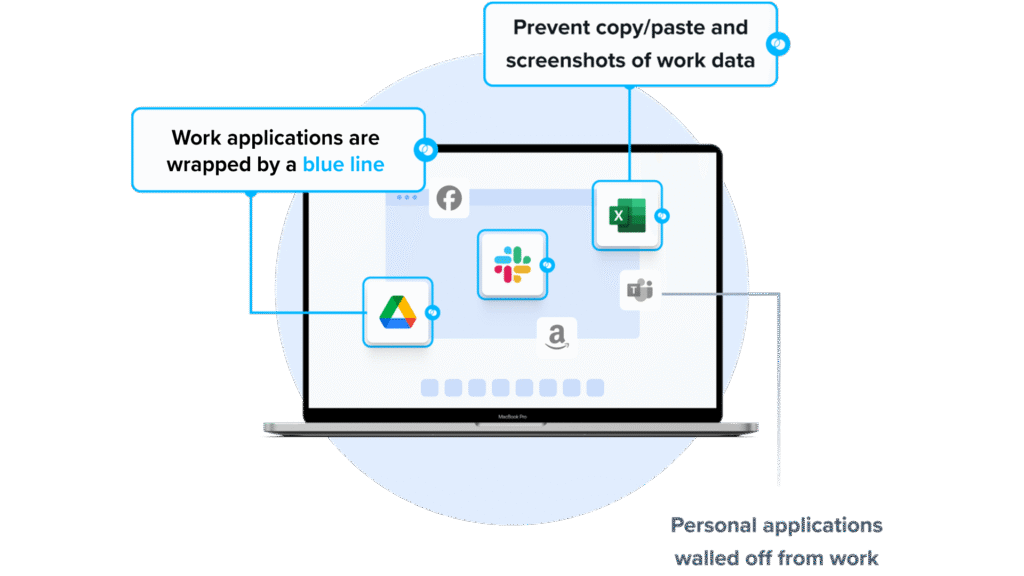
Venn’s Blue Border® installs a company-controlled secure enclave on any PC or Mac. Work data, applications, networking, and AI workflows run inside the enclave where IT governs them, while personal activity outside the enclave stays private and is not tracked. Applications run locally rather than streaming from a remote host, so there is no virtual desktop to provision or maintain.
The enclave covers both browser-based and locally installed applications, which includes desktop AI tools. IT sets policy once and applies it across every worker’s device, whether company-issued, third-party, or personal. Venn is used by more than 700 organizations to support HIPAA, PCI, SOC 2, SEC, FINRA, NAIC, and GDPR requirements on devices the company does not own.
Key features include:
- Secure enclave on unmanaged devices: Blue Border creates a company-controlled secure enclave directly on a user’s PC or Mac, encrypting company data and managing access inside it. Work application windows are marked with a blue line so users can see which session is governed. Everything outside the enclave remains personal and is not visible to the company.
- AI governance at the application and data layer: Venn controls which AI tools can reach company data, covering both browser-based assistants and locally installed AI applications. Policy is defined once and enforced consistently across managed and unmanaged devices. Personal AI tools outside the enclave keep working without IT visibility.
- Granular DLP and clipboard control: IT teams define restrictions on copy and paste, downloads, uploads, printing, screenshots, screen sharing, and watermarks, applied per user. Audit logs record activity inside the enclave. These controls operate on devices the organization does not manage.
- Native local performance: Locally installed applications run at full device speed inside the enclave instead of being streamed from a remote session host. There is no display protocol between the user and their applications, so there is no streaming latency. This removes the performance tradeoffs that come with hosting desktops remotely.
- Rapid onboarding and instant remote wipe: Workers are onboarded on any PC or Mac in minutes without shipping hardware or provisioning a virtual desktop. Offboarding removes all company data from the device immediately through remote wipe. Employees, contractors, consultants, and BPO users follow the same workflow.
- Integration with the existing security stack: Venn extends current tooling to unmanaged laptops rather than replacing it, with documented integrations for identity and storage services. Organizations can apply controls they already run to devices outside their management scope. The enclave sits alongside network-level tools rather than instead of them.
Limitations (as reported by users on G2):
- Performance on lower-spec hardware: Some IT teams report the enclave feels slower on older model laptops.
- Support scheduling: Support is reached through a ticket queue rather than by booking time with a named engineer.
- Customization scope: A few reviewers note that configuration options are narrower than they would like, while still describing the product as meeting their needs.
2. Island Enterprise Browser
Best for: Browser-based work for contractors and BYOD users
Strengths: Last-mile controls in a Chromium browser, fast contractor onboarding
Things to consider: Covers browser-based work only, not locally installed apps
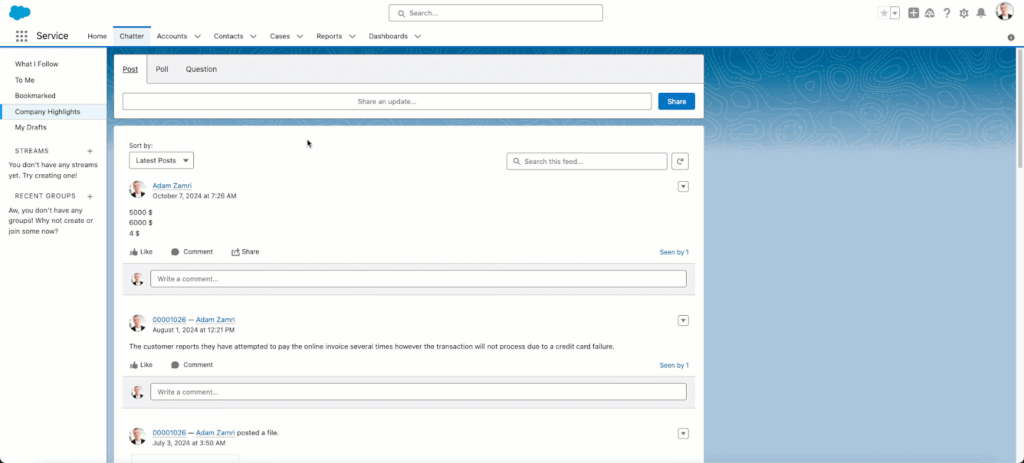
Island delivers enterprise work through a browser rather than a virtual desktop. IT, security, and access controls are built into the browser itself, so users sign in and start working without additional endpoint software. Island presents the product across three areas: the Enterprise Browser, Enterprise AI, and an Enterprise Network layer built on what the company calls a Perfect Packet architecture.
The documented use cases include third-party contractor access, BYOD workforces, M&A onboarding, privileged access management, SaaS and web application access, safe browsing, AI enablement, VDI reduction, and zero trust. Island cites a Forrester Total Economic Impact figure of 344% return on investment, attributed to productivity gains, reduced spend on legacy technology, and reduced risk.
Key features include:
- Controls built into the browser: IT, security, and productivity controls are embedded in the browsing environment rather than layered on through separate agents or gateways. Users log in and work in a familiar interface. This removes the need to route traffic through additional infrastructure before policy can be applied.
- Third-party contractor onboarding: Island treats contractor and third-party access as a primary use case, describing onboarding in minutes rather than months. Contractors work in the browser without receiving a managed device or a provisioned desktop. This is the same population organizations typically serve with VDI.
- Visibility into work activity: The platform provides organization-wide visibility into work activity performed in the browser, so security teams can review what users do inside applications. This is the audit surface Island offers in place of session-level monitoring on a hosted desktop. Personal browsing is kept separate from logged work activity.
- Automatic threat and data-leakage protection: Island blocks phishing attempts, malware, and data leakage in the browsing environment without separate configuration per application. Protection applies across the applications users reach through the browser. This consolidates controls that would otherwise come from several distinct products.
- Enterprise AI enablement: A dedicated Enterprise AI capability makes the AI tools users already work with available under organizational control and at scale. The stated aim is to allow AI use rather than block it. It ships as part of the same platform rather than as a separate deployment.
- Network layer for application access: Island’s Enterprise Network component provides SASE-style connectivity intended for direct application access without traffic detours. It is offered alongside the browser in the same platform. Organizations can use it to reach internal applications instead of backhauling traffic to secure it.
Limitations (as reported by users on G2):
- Remote desktop client gaps: Users comparing Island’s built-in RDP client with Microsoft’s desktop client report capabilities missing from the Island version.
- Management console depth: Reviewers ask for broader search in the management console and for time-based filtering on the user activity map.
- Policy troubleshooting detail: When an action is blocked the system reports a policy violation without explaining which condition triggered it, which slows investigation.
- Browser migration friction: Moving users onto a Chromium-based browser can meet resistance from those attached to a different browser.
- Responsiveness on heavier sessions: Some users report lag and slower tab switching, along with occasional application compatibility issues.
Source: Island

3. Prisma Browser

Best for: Browser-first security for unmanaged devices and GenAI use
Strengths: Native DLP with 1,000+ classifiers, threat prevention, AI controls
Things to consider: Security checks can slow the browser on heavier pages
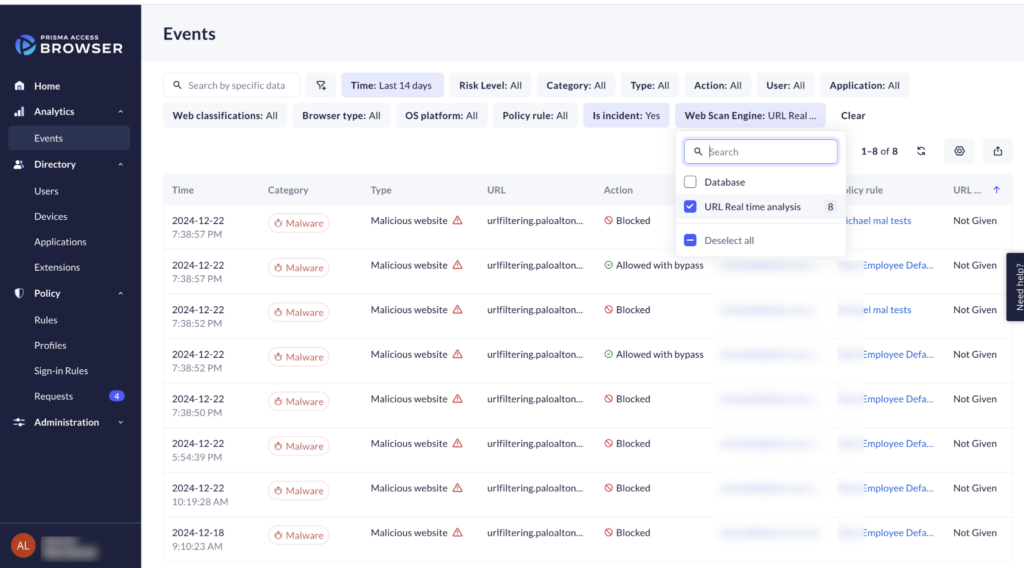
Prisma Browser is Palo Alto Networks’ enterprise browser, built on Chromium and wired into the company’s security engines. It comes three ways: a dedicated browser for desktop environments, an extension that adds controls to an existing consumer browser, and a mobile application. Palo Alto Networks positions it as an alternative to VDI and DaaS for delivering secure application access.
The browser isolates corporate work from the underlying endpoint, which is how it supports unmanaged and BYOD devices. It can be deployed through an email link without administrator privileges on the device. Palo Alto Networks notes that extension-based deployment is not recommended for unmanaged devices, since extensions can be bypassed more easily than the browser itself.
Key features include:
- Native enterprise DLP: Data loss prevention runs in the browser with more than 1,000 AI-driven classifiers and 22 or more compliance profiles covering frameworks such as HIPAA and GDPR. Controls extend to operating-system-level actions including screenshots, printing, and unauthorized file saving. Directional policies block transfers from sanctioned corporate applications into personal accounts.
- GenAI and agentic controls: Prisma Browser gives visibility into GenAI application use and can redact sensitive data from prompts before they leave the environment. It blocks uploads and copy-paste into unsanctioned AI applications and identifies malicious extensions. Palo Alto Networks also describes governance over automated agentic browsing tasks.
- Threat prevention at the page level: The browser scans webpage components in real time to catch evasive threats and AI-generated phishing, and routes file downloads through sandboxing before they reach the operating system. Extension security identifies and blocks risky or over-permissioned extensions. Palo Alto Networks cites blocking up to 8.95 million new and unique threats daily.
- Encrypted traffic coverage without decryption: Because security is enforced inside the browser, encrypted channels are covered without traditional traffic decryption. This closes visibility gaps in applications that stay encrypted for privacy or compliance reasons. Palo Alto Networks states that all web traffic is secured this way.
- Dynamic zero-trust policy: Policies apply based on user risk score, location, and content sensitivity, and can require step-up authentication or just-in-time approval for higher-risk actions such as printing or data export. Coverage spans SaaS, GenAI, and private applications, including those using SSL certificate pinning. Administrators tune policy per business role.
- Forensics and session visibility: The browser collects audit trails across web actions and supports session replay for incident investigation and insider-risk work. Real User Monitoring tracks how users interact with applications. Management runs through a unified console and policy engine.
Limitations (as reported by users on G2):
- Performance overhead: Users report the browser can slow the device and take longer to load heavier sites, which they attribute to continuous security checks.
- Setup alongside existing tooling: Deployment is described as harder when an organization already runs a different security stack.
- Strict controls affecting work: Blocks on copy and paste and on file transfers are sometimes described as too restrictive for day-to-day tasks.
- Occasional unresponsiveness: Some reviewers report the browser stops responding and has to be quit or reinstalled.
- Support quality: Reviewer scores place quality of support below several competing enterprise browser products.
Source: Palo Alto Networks

Cloud and Hybrid Virtual Desktop Platforms
4. Windows 365

Best for: Fully managed persistent Cloud PCs with per-user pricing
Strengths: Predictable monthly cost, Intune management, GPU options
Things to consider: Per-user licensing and prerequisites raise cost per seat
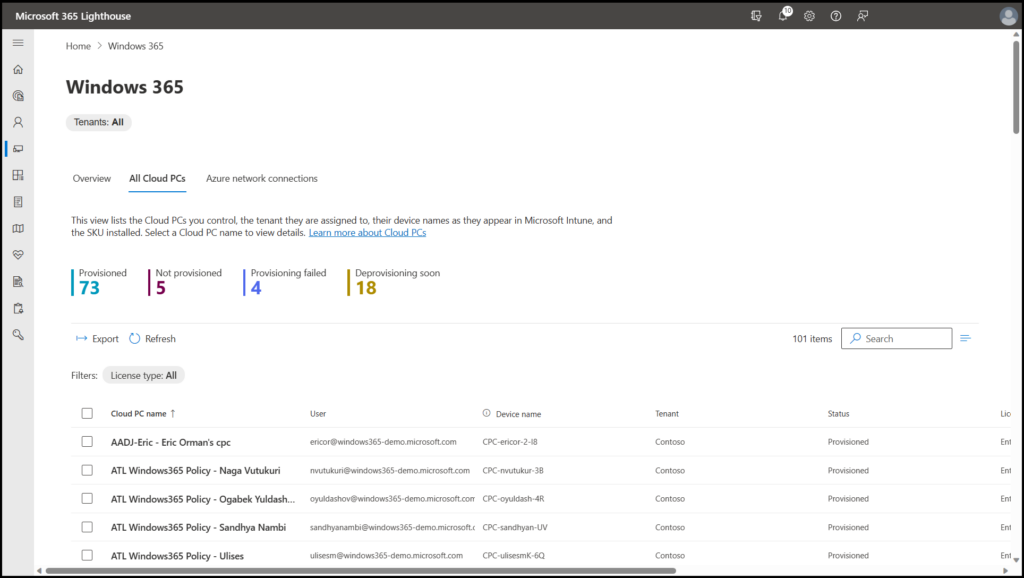
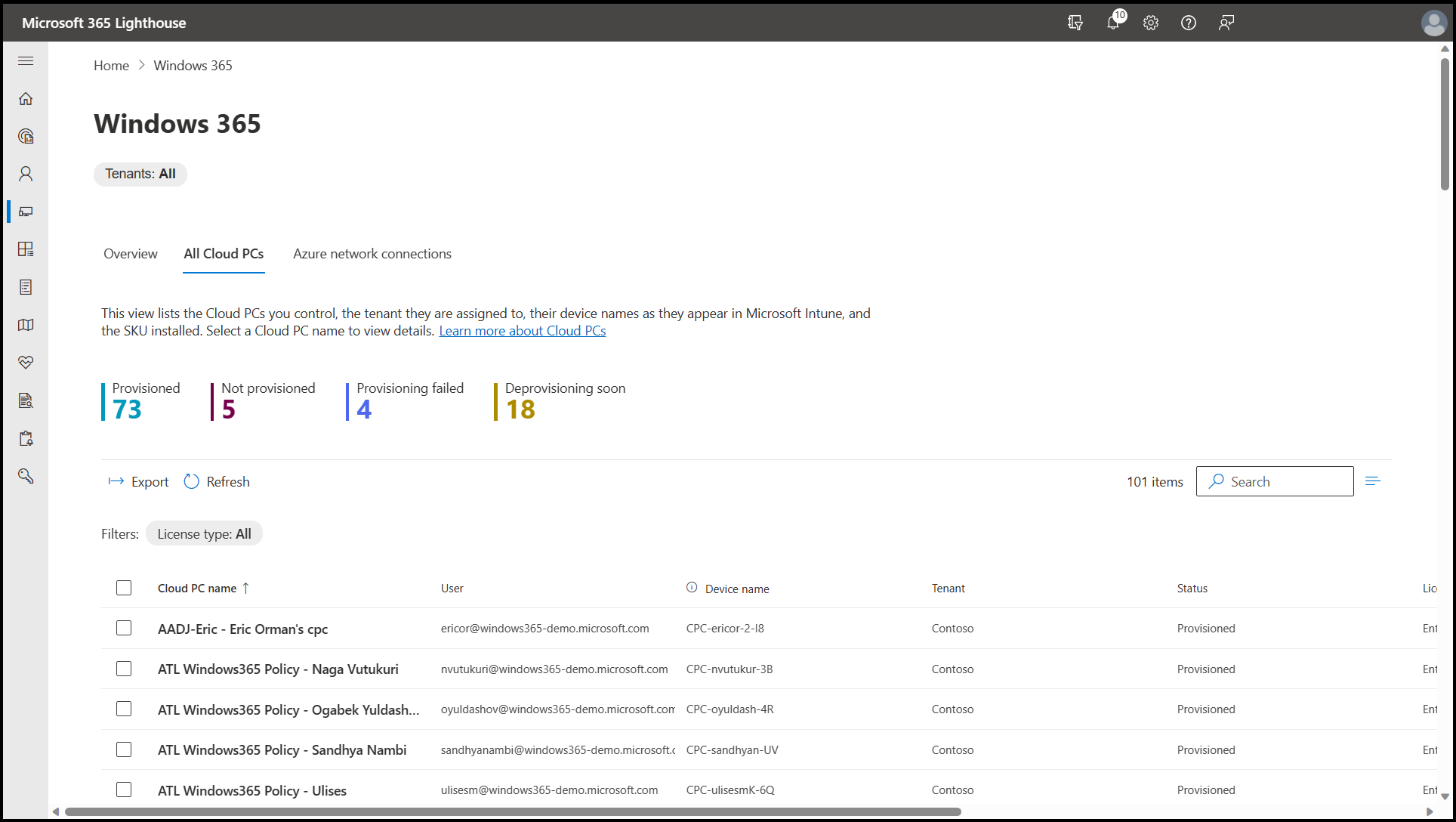
Windows 365 streams a personalized Windows desktop from the Microsoft Cloud to any device. Each Cloud PC is assigned to an individual user and is persistent, so files, applications, and settings stay in place between sessions. Unlike Azure Virtual Desktop there are no session hosts, host pools, or scaling rules to design, and billing is a fixed monthly amount per user.
Windows 365 Enterprise has no license limit and is managed with Microsoft Intune alongside physical endpoints. Each user needs Windows 11 or Windows 10 Enterprise, Microsoft Intune, and Microsoft Entra ID P1, all of which are included in Microsoft 365 F3, E3, E5, A3, A5, and Business Premium. The wider family also covers Government, Flex, Reserve, Link, and a variant for running AI agents.
Key features include:
- Persistent per-user Cloud PCs: Each user gets a dedicated Windows desktop running in the Microsoft Cloud and reachable from any device. The desktop retains personal files, applications, and settings between sessions without separate profile management tooling. Configurable personalization controls let IT balance user customization against central policy, with optional reset on logoff.
- Unified management with Intune: Cloud PCs are managed in the same console as physical endpoints through Microsoft Intune. Administrators use existing tools and team structures rather than learning a separate virtualization stack. Security policies are set by default in line with Zero Trust principles.
- Predictable per-user pricing: Cost is a fixed monthly charge per user rather than consumption of underlying compute and storage. Organizations pick a configuration and assign it without capacity planning or a pricing calculator. This makes budgeting more straightforward than infrastructure-billed models.
- Compute options including GPU: Configurations run from general productivity workloads through to GPU-enabled Cloud PCs for graphics-intensive work. IT selects the level of compute appropriate to each role. The same platform covers developers, engineers, content creators, and market researchers.
- Shared and part-time licensing models: Windows 365 Flex shares Cloud PC licenses across multiple workers, either by shift or by number of active users, and can deliver individual Cloud Apps instead of full desktops. Windows 365 Reserve provides a temporary Cloud PC when a physical device is unavailable. These options extend access to task-based and intermittent roles.
- Government and regulated deployments: Windows 365 Government GCC supports FedRAMP High, DFARS, and DISA Level 2 requirements and complies with CJIS and IRS 1075. GCC High adds ITAR coverage. A FedRAMP offering is available in continental US locations with a FedRAMP High agency authorization.
Limitations (based on publicly available sources):
- Per-seat cost accumulation: Every user needs their own Cloud PC license, so part-time staff, contractors, and shift workers each carry a full seat charge.
- Stacked licensing prerequisites: Enterprise plans require Windows Enterprise, Intune, and Entra ID P1 entitlements on top of the Cloud PC subscription itself.
- No multi-session density: Cloud PCs are assigned one user each, so the shared-VM density available on Azure Virtual Desktop does not apply.
- Trial constraints: Published accounts note the absence of a true free tier, with the trial requiring a business account and a payment method.
- Regional performance variation: Some users report input lag during peak hours in certain regions.
Source: Microsoft
5. Amazon WorkSpaces
Best for: Cloud desktops on AWS with Windows and Linux options
Strengths: Broad OS choice, GPU families, hourly or monthly billing
Things to consider: File transfer to the desktop and support responsiveness
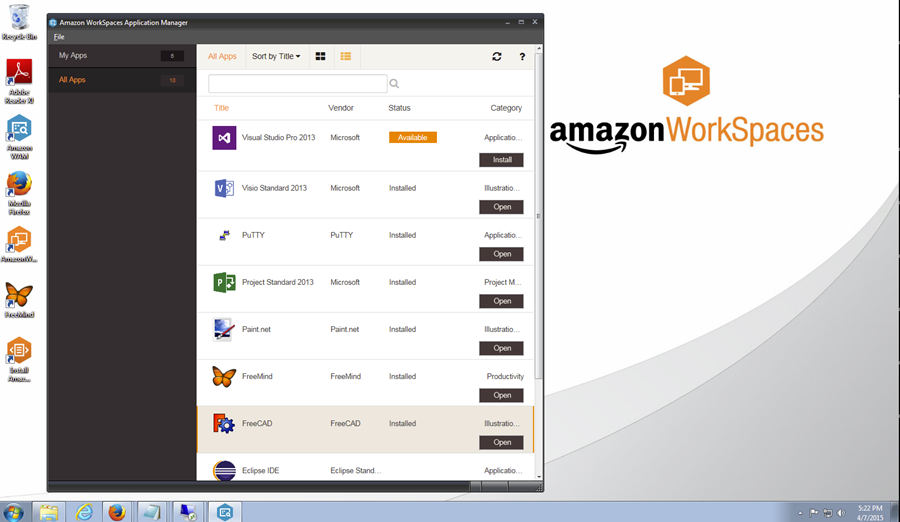
Amazon WorkSpaces delivers managed virtual desktops from AWS on Windows or Linux. It supports persistent desktops, where users keep their own settings and file storage, and non-persistent shared environments delivered through WorkSpaces applications. Desktops are managed centrally from the AWS Management Console.
Operating system support covers Microsoft Windows, Red Hat Enterprise Linux, Rocky Linux, Amazon Linux 2, and Ubuntu Desktop, with WorkSpaces pools running Windows Server 2019 and 2022. Streaming uses Amazon DCV. WorkSpaces also supports VDI management software from Citrix, Dizzion, Leostream, Omnissa, and Workspot for organizations that want to keep an existing broker in place.
Key features include:
- Wide operating system and instance choice: WorkSpaces runs Windows and several Linux distributions, with instance families spanning General Purpose, Compute Optimized, Memory Optimized, and Graphics G4, G5, and G6. Teams can match hardware to workload, from contractor productivity desktops through to 3D modeling. Each WorkSpace includes persistent SSD user storage sized by bundle, with automatic backups.
- Multi-session capability: WorkSpaces applications multi-session lets several users share the compute, memory, storage, and system software of one instance while still auto-scaling on actual usage. Administrators adjust sessions per instance to match user requirements rather than over-provisioning. Multi-session is supported for Windows Always-On and On-Demand fleets and is billed hourly regardless of session count.
- Application management through image builder: WorkSpaces applications installs, tests, and updates applications using an image builder, supporting anything that runs on Windows 11, Windows Server 2016 through 2025, Rocky Linux 8, or Red Hat Enterprise Linux 8 without modification. Administrators set launch configurations and default user settings before publishing an image. Managed image updates keep operating system, driver, and agent software current.
- Identity and endpoint integration: WorkSpaces supports both AD and non-AD domain-joined desktops. AWS IAM Identity Center brokers identity with cloud providers such as Entra ID, and Intune support allows physical and virtual desktops to be managed from one endpoint management system. Microsoft 365 Apps for enterprise licenses can be brought over or purchased from AWS.
- Flexible billing and cost controls: WorkSpaces offers monthly subscriptions and hourly metering, with demand-based scaling policies and configurable storage and desktop sizing. Managed Instances integrate with EC2 Reserved Instances and Savings Plans. Non-persistent desktops through WorkSpaces applications cut cost where personalization is not needed.
- Secure browser option: WorkSpaces secure browsers run web content in AWS and stream only encrypted pixels to the user, with no endpoint installation. Controls cover file transfers, printing, copy and paste, and inline redaction of sensitive fields. Activity is logged with CloudWatch metrics to support HIPAA and SOC 2 audit requirements.
Limitations (as reported by users on G2):
- Network-dependent responsiveness: Reviewers report slow performance tied to network conditions and to the software installed on the desktop.
- File transfer between local device and desktop: Several users describe moving files into the WorkSpace as awkward, falling back on email or cloud storage as an intermediary.
- Support responsiveness: Multiple reviewers report difficulty reaching support by phone or chat, with email replies taking up to a day.
- Right-sizing difficulty: Teams report trouble picking an appropriate WorkSpace size when members run software with very different resource demands.
- Billing management overhead: Hourly billing requires monitoring so idle sessions are not left running, and pricing for persistent sessions is described as inflexible.
- Password self-service gaps: Reviewers note the absence of self-service password change and of forced password change at login on expiry.
6. Citrix DaaS
Best for: Virtual apps and desktops across any cloud or on-premises
Strengths: HDX optimization, hybrid multi-cloud hosting, granular security
Things to consider: Licensing cost is the most frequently raised objection
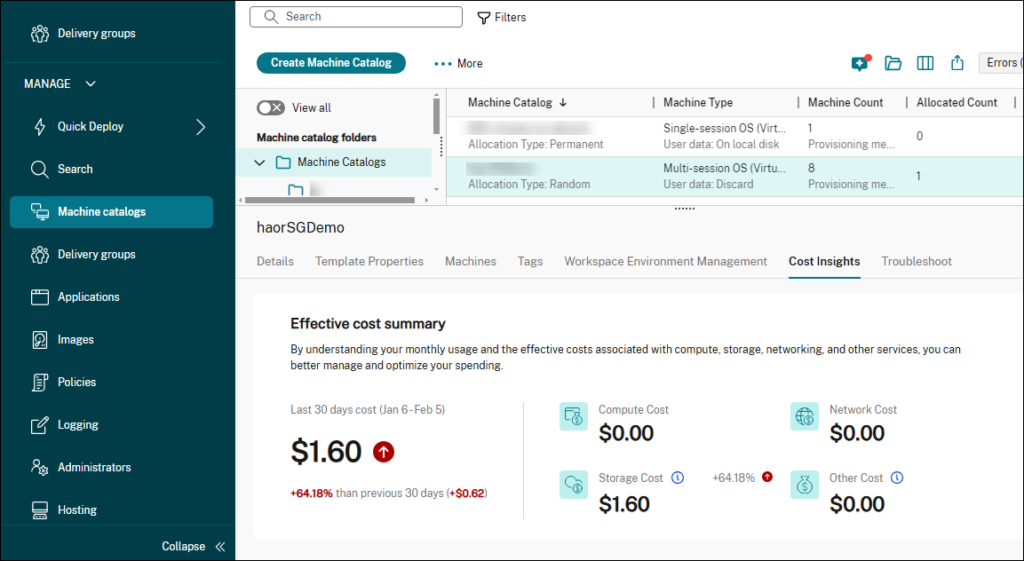
Citrix DaaS delivers VDI, virtual applications, and desktop-as-a-service from any cloud, on-premises infrastructure, or a combination of both. It is made up of Citrix DaaS Cloud and Citrix DaaS Local, which together let organizations choose where virtual resources are managed, monitored, and secured. Workloads can sit in Microsoft Azure, Google Cloud, or AWS and be managed alongside on-premises resources.
Citrix positions the platform for centralizing application and desktop management across distributed workforces, controlling onboarding and offboarding, and protecting unmanaged endpoints. Citrix cites savings of 70% over three years for organizations moving from on-premises deployments, and $98 per user per year from consolidating onto a single DaaS solution.
Key features include:
- HDX display optimization: Citrix’s HDX technology targets session performance over constrained networks, with specific optimizations for unified communications tools and graphics-intensive applications. This addresses the low-bandwidth conditions remote users encounter. It is the capability Citrix leads with on user experience.
- Hybrid and multi-cloud workload placement: Workloads can be stored in Microsoft Azure, Google Cloud Platform, or AWS and managed next to on-premises resources from the same platform. Organizations are not required to consolidate onto one hosting provider. This supports staged migration rather than a single cutover.
- Security controls for unmanaged endpoints: Citrix provides a range of features to protect unmanaged endpoints, set granular policy controls, and record user sessions. Session recording supports audit and investigation requirements. Content and environment protection is paired with analytics intelligence.
- Centralized app and desktop management: Application and desktop management is centralized so resources reach any device from one place. Onboarding provisions IT resources quickly and offboarding revokes access as needed. A lightweight user environment management component accelerates logins, improves server scalability, and speeds application response.
- Resource efficiency and sustainability: Citrix presents the platform as a way to reduce data center and cloud resource consumption, endpoint replacement, and network usage. Existing on-premises and cloud resources are maximized rather than replaced. Citrix frames this in terms of lower emissions and reduced e-waste.
- Adjacent platform components: Citrix DaaS sits inside a broader platform that includes Citrix Experience Insights for visibility across physical and virtual endpoints and Citrix SecurAccess ZTNA for zero trust application access without a VPN. Citrix Platform Flex packages DaaS Flex, Experience Insights Flex, and SecurSpaces Flex. Access is delivered through the Citrix Workspace app.
Limitations (as reported by users on G2):
- Licensing cost: Higher licensing and subscription cost relative to competing VDI platforms is the most repeated criticism, and several reviewers describe it as hard to justify for smaller organizations.
- Bandwidth sensitivity: Users report latency and slowness when network bandwidth is insufficient, along with occasional disconnections.
- Teams audio and video in session: Reviewers single out HDX handling of Teams audio and video calls inside VDI as an area needing work.
- Third-party integration depth: Integration with other vendors’ platforms, and the depth of Citrix Analytics filtering, are described as needing improvement.
- Upgrade and patching effort: Enterprises with large numbers of VDAs report that frequent version releases and upgrades are time-consuming, with some defects surfacing only after upgrade.
- Product naming churn: Repeated renaming of the product line is a recurring complaint from administrators tracking documentation and internal references.
7. Omnissa Horizon

Best for: On-premises and hybrid VDI with centralized policy control
Strengths: Deployment flexibility, App Volumes, session recording
Things to consider: Setup complexity and licensing cost draw consistent criticism
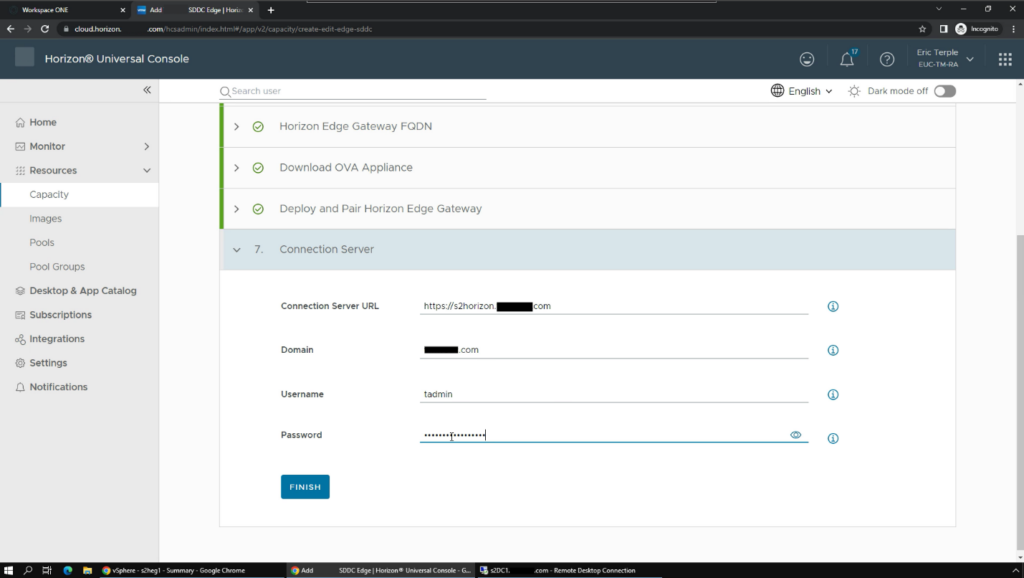
Omnissa Horizon 8 delivers virtual desktops and applications across on-premises and hybrid cloud environments while keeping performance, policy, and infrastructure centrally controlled. Data stays in the data center or cloud rather than on the endpoint, and users reach full desktops or individual applications through secure sessions. Omnissa positions Horizon 8 as a replacement for legacy VDI platforms including Citrix.
The architecture uses a Connection Server to broker and authenticate connections, a Horizon Client on the user device, a Horizon Agent on desktops or RDSH servers, and a Unified Access Gateway at the network edge for external access without exposing internal systems. Active Directory provides identity and authentication. Horizon 8 no longer requires VMware vSphere and also runs on Nutanix, OpenStack, and Red Hat OpenShift.
Key features include:
- Deployment across infrastructure platforms: Horizon 8 runs on VMware vSphere, Nutanix AHV, OpenStack, and Red Hat OpenShift on-premises, and extends to Microsoft Azure, AWS, Google Cloud, Oracle Cloud, and Alibaba Cloud. Hybrid scenarios cover data center expansion, burst capacity, business continuity, and disaster recovery. Organizations are not locked into a single deployment model.
- Application lifecycle management with App Volumes: Omnissa App Volumes delivers applications on demand with centralized packaging and lifecycle management. This reduces the number of images to maintain and streamlines updates. It is the mechanism Horizon uses to limit image sprawl as application catalogs grow.
- Granular session policy control: Administrators enforce policies on clipboard use, device redirection, printing, and session actions, customized by user, group, or context through Dynamic Environment Manager. Data does not persist on endpoints, which limits exposure from device loss or theft. Policies accommodate varied use cases without loosening controls globally.
- Session recording for audit: Horizon 8 records and replays virtual desktop and application sessions to support compliance requirements, security investigations, and troubleshooting. This provides visibility beyond connection logs. It targets regulated environments where deeper evidence is required.
- Automation through APIs and infrastructure as code: Deployment and management tasks can be automated with REST APIs and infrastructure-as-code tooling including Terraform. This reduces manual configuration effort across large estates. Desktop provisioning can be folded into existing pipelines.
- Peripheral support with administrative control: Horizon 8 supports a broad range of peripherals while letting IT define which devices may connect to virtual desktops and applications. The experience is optimized for high-definition graphics, voice, and video, including Microsoft Teams, Zoom, and Webex, across variable network conditions. Strong authentication and True SSO come through Active Directory and Omnissa Access.
Limitations (as reported by users on G2):
- Initial setup complexity: Reviewers describe setup and profile preparation taking longer than expected, with troubleshooting called out as painful.
- Licensing cost: Cost is repeatedly described as high relative to competitors and difficult for smaller organizations and some regions to absorb.
- Patching and antivirus handling: Administrators report that patching the guest operating system is cumbersome and that antivirus software is awkward to manage.
- Upgrade side effects: Users report Unified Access Gateway settings being lost after upgrade, blocking desktop access, and manual cleanup being needed after failed deployments.
- Client resource use: The client is reported to consume substantial CPU on Mac hardware, making it hard to run alongside other demanding applications.
- Legacy OS compatibility: Reviewers note incompatibility with some legacy operating systems and difficulty applying updates in those environments.
Source: Omnissa
8. Parallels RAS

Best for: All-in-one app and desktop delivery with concurrent licensing
Strengths: Single console, hypervisor independence, simple licensing
Things to consider: Mac feature parity and third-party MFA integration lag
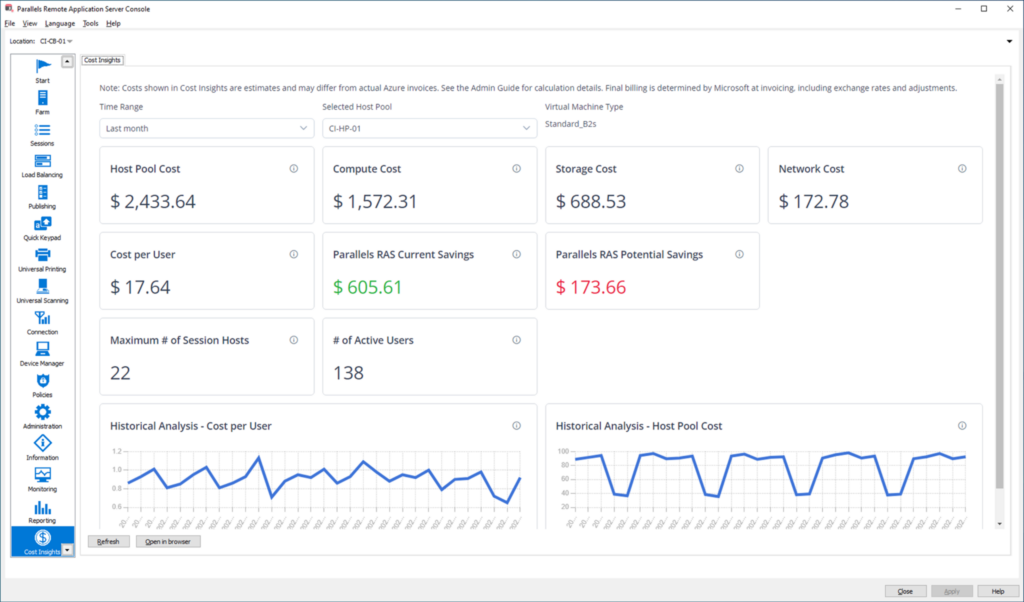
Parallels RAS delivers virtual applications and desktops from hybrid, on-premises, private cloud, or public cloud infrastructure, including Azure Virtual Desktop and AWS EC2. Administration runs from a single console covering application and desktop management, image handling, reporting, gateway, load balancing, access control, and authentication. Licensing is one model based on concurrent users.
Parallels RAS can customize AVD workloads directly inside its own console, using AVD-specific capabilities such as Windows 10 and 11 multi-session and Microsoft Teams redirection. A Custom Provider Framework connects it to virtually any hypervisor or cloud platform through an API-driven connector, covering Proxmox, Virtuozzo, VergeIO, KVM, and Xen-based environments.
Key features include:
- Single console administration: One console covers application and desktop management, image handling, reporting, gateway, load balancing, access control, authentication, and authorization. Users and workloads across multiple sites and data centers are managed without switching consoles. The Secure Gateway and High Availability Load Balancer are included rather than licensed separately.
- Hypervisor and cloud independence: Parallels RAS integrates with VMware ESX, Microsoft Hyper-V, Scale, and Nutanix, plus Azure, Azure Virtual Desktop, and AWS EC2. The Custom Provider Framework extends this to other platforms through an API-driven connector, covering Proxmox, Virtuozzo, VergeIO, KVM, Xen, and edge infrastructure. This is how Parallels avoids infrastructure lock-in.
- Concurrent-user licensing: A single license model counts only users connected at the same time, with all features and updates included from the start. An organization running two shifts of 100 users can license 100 concurrent connections rather than 200 named users. SPLA and sublicensing options exist for service providers and multi-tenant deployments.
- Client and peripheral coverage: Clients are available for Windows, macOS, Linux, iOS, Android, and HTML5 browsers, with pass-through support for printers, scanners, and smartcards. Administrators can restrict peripheral access where required. Users can select which monitors a session uses, and the workspace can carry company branding.
- Session pre-launch and local data access: Session pre-launch allocates resources ahead of use based on time or on Parallels’ patented usage-pattern data. Files can be dragged and dropped from the local device into the session, and local folders shared into it. These features target the responsiveness gap users notice in hosted sessions.
- Built-in security and identity integration: Sessions use SSL/TLS 1.3 with FIPS 140-2 support. MFA is built in and integrates with third-party providers including Microsoft Authenticator and Google Authenticator, and SSO works with Okta, Ping Identity, and Entra ID. Rule-based filters gate access on specific conditions, and a self-contained logging system records administrator and user actions with IP addresses and timestamps.
- Profile and application delivery integration: FSLogix user profiles are enabled from the Parallels RAS console without manual configuration steps. MSIX App Attach and App-V are integrated for application deployment, automating packaging and delivery to session hosts. Let’s Encrypt certificate management is built in for connection encryption.
Limitations (as reported by users on G2 and PeerSpot):
- Third-party MFA integration speed: Reviewers report that integrating third-party two-factor authentication is slow, which can delay deployments or force workarounds.
- Mac feature parity: Features and updates for macOS are described as lagging behind Windows, creating inconsistency in mixed-device environments.
- Application stability: Users report the application hanging and needing to be closed and reopened, and at least one reviewer rates overall stability as a weak point.
- Scale limits with large application catalogs: An administrator publishing a very large number of applications across multiple organizations reported incoming connections being denied until they moved to another product.
- Reporting and hypervisor gaps: Reviewers note that reporting does not use SQL and that some hypervisors supported by Citrix are not covered.
- Support quality: Technical support is described as needing improvement by several PeerSpot reviewers, though others rate it well.
Source: Parallels
Conclusion
While Azure Virtual Desktop provides centralized management and integration with Microsoft services, its complexity, high infrastructure costs, and performance trade-offs make it less appealing in practice. Organizations often struggle with hidden expenses such as outbound bandwidth, idle VM charges, and monitoring overhead, while users face latency and usability limitations compared to local devices.
These challenges highlight the broader weaknesses of legacy DaaS models, which remain resource-intensive and difficult to optimize at scale. As a result, many organizations are moving toward modern alternatives like Venn, which avoid the heavy infrastructure burden of traditional DaaS and deliver simpler, more cost-predictable virtual work environments.
Related content: Read our guide to Azure Virtual Desktop vs Blue Border
See Additional Guides on Key IaaS Topics
Together with our content partners, we have authored in-depth guides on several other topics that can also be useful as you explore the world of IaaS.
Authored by Venn
- [Guide] Top 10 Citrix Competitors for Secure Remote Work
- [Guide] Citrix VDI (Citrix DaaS): Key Features, Pros/Cons & Alternatives
- [Guide] Citrix Enterprise Browser: Pros/Cons & Top 8 Alternatives in 2025
Authored by Radware
- [Guide] What is a Load Balancer? History, Key Functions, Pros and Cons
- [Guide] What Is Global Server Load Balancing (GSLB) & Top 3 Benefits
- [Guide] 4 Types of DNS Servers and How to Keep Them Secure
Authored by Finout

Any worker. Any laptop. Any AI workflow. Fully secured.
Schedule a demo to see how Blue Border® secures company data and apps without shipping laptops, running VDI, or managing personal endpoints.