
Prisma Browser Extension: Basics, Tutorial, Pros and Cons


See Venn first in Google Search
Add as a preferred source on Google
What Is the Prisma Access Browser Extension?
The Prisma Browser Extension (formerly known as Prisma Access Browser Extension) is a security tool for Chromium-based consumer browsers such as Google Chrome, Microsoft Edge, Brave, and Arc. It runs on Windows, macOS, and ChromeOS. The extension lets organizations improve browser security without shifting immediately to a managed enterprise browser.
By deploying the extension, IT and security teams gain visibility and control over browser activity where users rely on familiar browsers. It detects and reduces shadow IT risks, applies enterprise security policies consistently, and supports real-time phishing protection. The Prisma Browser Extension also acts as a transitional layer, allowing organizations to adopt the full Prisma Browser gradually when needed.
How the Prisma Browser Extension works:
- It gives IT and security teams visibility and control over browser activity in familiar browsers.
- It enforces access and data control policies with block, allow, and warning prompts.
- It provides real-time phishing protection and detects shadow IT risk.
- It integrates with identity providers such as Okta, Azure, and Google for login enforcement.
- It maintains an extension directory in Strata Cloud Manager to assess and manage extension risk.
Key capabilities of the extension:
- Cross-platform compatibility across Chromium browsers and major operating systems.
- Security policy enforcement similar to the full Prisma Browser.
- Real-time protection with phishing defense and activity visibility.
- Identity provider integration and configurable login enforcement.
- Device posture support and traffic redirection to the full Prisma Browser.
Browser extensions have also become one of the most exploited entry points into enterprise environments, with attackers using them to steal session cookies, hijack accounts, and bypass network-layer defenses that cannot see inside the browser. This makes lightweight, browser-native controls like the Prisma Browser Extension increasingly relevant for teams that want visibility and enforcement without a full browser migration.
Ultimate Guide to Browser Security: Threats and Solutions
Secure both browser-based AND locally installed apps on unmanaged devices.

In this article:
Key Features of Prisma Browser Extension
Here are the main capabilities of the Prisma Browser Extension that support browser security while maintaining user flexibility:
- Cross-platform compatibility: Supports Chromium-based browsers on Windows, macOS, and ChromeOS.
- Security policy enforcement: Enforces access and data control policies similar to those in the full Prisma Browser. Features include block, allow, and warning prompts; advanced options such as MFA enforcement are not currently supported.
- Real-time protection: Provides phishing protection and visibility into user activity.
- Login enforcement: Offers configurable login requirements to ensure users are authenticated before accessing sensitive web applications. Enforces user identification through identity providers (IdPs).
- Integration with identity providers: Supports automatic login detection and integration with major IdPs including Okta, Azure, and Google.
- Posture attribute support: Allows configuration of device posture requirements aligned with organizational security standards.
- Traffic redirection to Prisma Browser: Can redirect users to the enterprise-managed Prisma Browser for specific applications.
Related content: Read our guide to secure enterprise browser
Prisma Browser Extension vs. Prisma Browser: Key Differences
Both the Prisma Browser Extension and the full Prisma Browser aim to secure web access, but they differ significantly in deployment, control, and feature depth. The extension is designed as a lightweight, transitional tool, whereas the full browser provides a hardened, enterprise-managed browsing environment.
Key differences include:
- Deployment scope: The extension installs on existing Chromium-based browsers like Chrome and Edge. The Prisma Browser is a standalone, managed browser deployed by the organization.
- Security enforcement: The extension supports basic security policies such as access control and login enforcement. The full browser includes advanced controls like file restrictions, copy/paste blocking, and watermarking.
- User experience: The extension allows users to keep using their preferred browser. The full browser requires switching to a new application with enforced settings.
- Visibility and monitoring: The extension provides visibility into web activity and installed browser extensions. The Prisma Browser offers full session logging and deeper inspection capabilities.
- Application support: The extension is optimized for securing access to specific web apps. The full browser is designed for sensitive workflows that need strong isolation and control.
- Offline functionality: The extension depends on internet connectivity for enforcement and telemetry. The full browser supports limited offline access using cached policies.
- Transition path: The extension serves as a lightweight, low-friction entry point. The full browser represents the long-term solution for comprehensive browser security.
Related content: Read our guide to browser security software
Managing Prisma Browser Extensions
Organizations can manage installed extensions using the Prisma Browser Extension directory in Strata Cloud Manager. The directory provides visibility into all extensions users have installed, helping teams enforce policy and assess risk. During onboarding, the directory can also collect history data from the 30 days preceding installation, so teams gain immediate visibility into risky sites and downloads rather than waiting for new activity to accumulate.
Each entry includes the extension name, number of users and devices, extension ID, and a risk score. The risk score is based on extension permissions, publisher reputation, and review credibility. Extensions are categorized as low (1–2), medium (3), or high risk (4–5). If an extension is malicious, Prisma Browser removes it, while Prisma Browser Extension disables it.
Teams can search by name or ID and apply filters based on source, status, and installation data. Selecting an extension opens a drawer with details such as installation source, manifest version, risk breakdown (likelihood and impact), global statistics including download count and rating, and a list of granted permissions. Extensions with web access are flagged, showing specific URLs or “All URLs” if access is broad.
Activity Logging and Forensics
The Prisma Browser Extension collects detailed user activity logs and security events, giving teams insights for forensic investigations and compliance audits. These events are retained for 30 days, so organizations can analyze incidents, identify risky behavior patterns, and respond to threats more effectively.
Because the extension records browser-level activity that network tools often miss, it helps reconstruct what happened before and during a security incident. Teams can review events chronologically per user and per device to speed up investigations and support regulatory reporting.
Tutorial: Deploy the Prisma Browser Extension
To deploy the Prisma Browser Extension, organizations can use methods based on their device management infrastructure and operating system. These include MDM platforms such as Intune, Jamf, and Google Workspace, as well as manual installation for proof-of-concept or specific use cases.
Download the Extension
Start by downloading the extension files from Strata Cloud Manager:
- Open Strata Cloud Manager.
- Navigate to: Workflows → Prisma Access Setup → Prisma Access Browser Configuration → Onboarding
- In the Onboard Users section, locate Prisma Browser and click View
- Go to Step 5: Download and Distribute
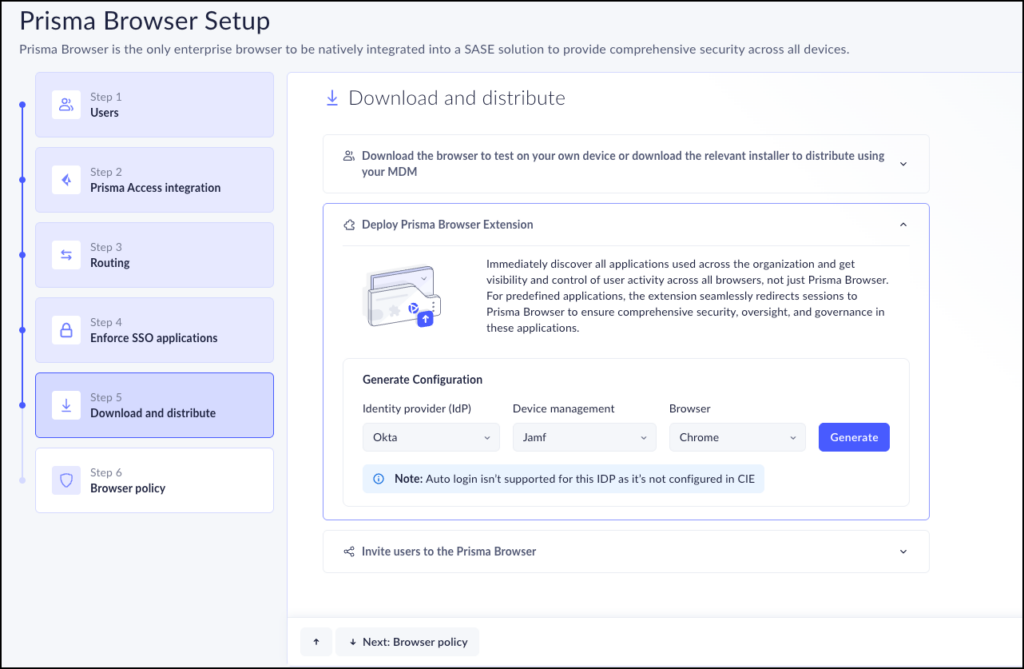
Source: Palo Alto Networks
- Click Deploy PABX (Prisma Browser Extension) for visibility and enforcement. In the Generate Configuration section, choose:
- Identity provider (IdP): Okta, Azure, or Google
- Device management: Intune, Jamf, Google Workspace, Windows Registry, or Manual
- Browser: Chrome, Edge, Brave, Arc, or supported AI browsers such as Comet, Dia, and ChatGPT Atlas
- Click Generate to create the deployment package.
Deploy Using PowerShell
For Windows environments managed with scripts:
- Set IdP to Azure
- Choose Windows MDM as the device management method
- Select the target browser(s)
- Click Generate, then download the .ps1 file
- Click Done
- Set hostname details in Step 2 and run the script on target machines
Deploy Using Intune
For Intune-managed devices:
- Select parameters such as:
- IdP: Okta
- Device management: Windows Registry
- Browsers: Chrome, Edge
- Click Generate and download the .reg file
- Run the file through Intune and complete hostname identification
- Verify device appearance in the Device Management page
Generate a new script if configuration parameters change.
Manual Deployment
Manual deployment is used for testing or unmanaged devices.
macOS:
- Download the PAB-install-locally.mobile.config file
- Open System Settings → Profiles and approve the profile
- Right-click the config file → Open with Profile Installer
- Follow prompts and restart the browser
- Connect through the extension UI in the browser
Windows:
- Download the generated .reg file
- Double-click the file to import it into the Windows Registry
- Accept UAC prompts and confirm the operation
- Distribute the file through email, shared network, or login scripts
- Restart the browser after import
Browser Extensions as an Emerging Attack Surface
Browser extensions have moved from a productivity convenience to one of the most overlooked attack surfaces in the enterprise. They run inside the browser session, where they can read page content, capture form inputs, and access cookies and tokens, often over ordinary HTTPS that traditional DLP, CASB, and EDR tools cannot inspect without breaking encryption.
Recent campaigns have shown how quickly this risk scales. Coordinated groups of malicious extensions have impersonated legitimate productivity and HR or ERP tools, exfiltrating session cookies and even complete AI chat histories from tens of thousands of enterprise tenants before removal. Industry research indicates a significant portion of installed extensions carry high or critical permission scopes.
This is where a browser-native control layer helps. By maintaining an extension directory, scoring extension risk, and disabling or redirecting risky activity, the Prisma Browser Extension gives security teams visibility into the extension attack surface without forcing a full migration to a dedicated enterprise browser.
Key Limitations of Prisma Browser
The following limitations were reported by users on the G2 platform:
- Initial setup complexity: Configuration and policy tuning can be time-consuming, especially with legacy apps or non-standard workflows.
- Performance overhead: Some complex web apps may experience slower performance due to cloud-based inspection and rendering.
- Limited compatibility with legacy systems: Certain older web applications and custom workflows may require manual policy adjustments or exceptions.
- Restrictive user experience: Blocking copy/paste, limiting file downloads, or disabling browser components such as WebGL or WebAssembly can disrupt workflows.
- Dependency on internet connectivity: The extension requires a stable internet connection; offline functionality is limited compared to native browsers.
- Learning curve and documentation gaps: Admins may face challenges when configuring advanced policies or integrating with legacy systems; some documentation lacks clarity.
- Higher total cost of ownership: Costs may include licensing, support, maintenance, and operational overhead. Blocking known-bad extensions is increasingly important because recent research shows a large share of enterprise users run extensions with high or critical permission scopes, and Manifest V3 has not eliminated data-exfiltration and DOM-scraping techniques.
Venn: Ultimate Prisma Browser Alternative for BYOD Environments
Venn is a notable prisma browser alternative for organizations that need to secure company data on unmanaged or BYOD computers. Unlike Prisma Browser, Venn protects both browser-based and locally installed apps within a company-controlled secure enclave on the user’s device, delivering native browser and application performance without lag or latency. Blue Border® visually distinguishes work from personal use, helping users stay productive while ensuring IT maintains control over business activity. Venn supports turnkey compliance with HIPAA, PCI, SOC, SEC, and FINRA, making it ideal for regulated industries with remote or contract-based workforces.
Key features include:
- Supports turnkey compliance: Using Venn helps companies maintain compliance with a range of regulatory mandates, including HIPAA, PCI, SOC, SEC, FINRA and more.
- Granular, customizable restrictions: IT teams can define restrictions for copy/paste, download, upload, screenshots, watermarks, and DLP per user.
- Secure Enclave technology: Encrypts and isolates work data on personal devices, both for browser-based and local applications.
- Zero trust architecture: Uses a zero trust approach to secure company data, limiting access based on validation of devices and users.
- Visual separation via Blue Border: Visual cue that distinguishes work vs. personal sessions for users.
If you want to see Venn in action, book a demo here.

Any worker. Any laptop. Any AI workflow. Fully secured.
Schedule a demo to see how Blue Border® secures company data and apps without shipping laptops, running VDI, or managing personal endpoints.