
Best BYOD Software: Top 10 Platforms in 2026


See Venn first in Google Search
Add as a preferred source on Google
TL;DR: BYOD software secures company data on employee-owned devices. Best for secure BYO-PC without VDI: Venn; browser-based access: Parallels Secure Workspace; Apple fleets: Jamf Pro; AI-driven UEM: IBM MaaS360.
What Is BYOD Software?
BYOD software secures and manages employee-owned devices while allowing staff to access corporate data. It typically takes the form of a Secure Remote Work, Unified Endpoint Management (UEM), or Mobile Device Management (MDM) solution, and works by separating work data from personal data so organizations can protect information without controlling the entire device.
By deploying BYOD software, businesses can enforce data security standards, maintain compliance requirements, and mitigate risks associated with sensitive data exposure. The software balances protecting enterprise information with respecting employee privacy, making it possible for organizations to provide flexibility without compromising security.
Core capabilities of BYOD software:
- Containerization and separation: Isolates work apps and data in a secure container, keeping them apart from personal content.
- Data encryption: Encrypts corporate data at rest and in transit on the personal device.
- Conditional and zero trust access: Grants access only after verifying device health, identity, and context on each request.
- Selective wipe: Removes only company data if a device is lost, stolen, or an employee leaves.
- Compliance monitoring: Flags risks and helps meet regulations such as GDPR and HIPAA.
Main types of BYOD platforms:
- Secure remote work platforms: Use virtualization or browser-based access to isolate corporate activity from personal use.
- Unified endpoint management (UEM): Manage laptops, desktops, smartphones, and tablets from a single console across operating systems.
- Mobile device management (MDM): Focus on securing and managing mobile devices with enrollment, remote lock, and policy enforcement.
In this article:
- What Is BYOD Software?
- Key features of BYOD software include:
- BYOD Software at a Glance
- Types of BYOD Platforms
- Core Functions of BYOD Tools
- Key Benefits of BYOD Software
- Integrating BYOD Tools with Enterprise Systems
- Notable BYOD Software
- Considerations for Choosing BYOD Software
- AI and Zero Trust in Modern BYOD Software
- Conclusion
Key features of BYOD software include:
- Security policies: Enforce strong password requirements, data encryption, and other security configurations.
- Conditional and zero trust access: Verifies device health, identity, and context before granting access, and re-checks continuously during the session.
- Separation of work and personal environments: Creates a secure, isolated digital workspace for work-related apps and data on the personal device.
- Remote wipe: Allows for the selective or complete erasure of company data from a device if it’s lost or stolen.
- App and content management: Manages the installation of approved work apps and secure access to company files.
- Compliance monitoring: Helps ensure adherence to industry regulations like GDPR or HIPAA by flagging security risks.
- Seamless user experience: Ensures security measures don’t hinder productivity, allowing for background operation and easy use.
As BYOD adoption approaches near-universal levels, the software behind it is evolving fast, with AI-driven threat detection, zero trust access, and cloud-first management now central to how organizations secure personal devices.
BYOD Software at a Glance
The table below summarizes the key differences between the BYOD software covered in this article. We explore each one in more detail in the sections that follow.
| Category | Solution | Best For | Key Strengths | Things to Consider |
| Remote Work Platforms | Blue Border | Securing work on unmanaged or BYOD PCs and Macs without VDI | Local eecure enclave isolating work data with native app performance | Reporting depth and mobile access could be broader |
| Remote Work Platforms | Parallels Secure Workspace | Browser-based access to RDP apps, desktops, and files | Clientless HTML5 access with built-in MFA and auditing | Browser model limits USB peripherals and multi-monitor use |
| Remote Work Platforms | Azure Virtual Desktop | Cloud VDI delivering Windows 11/10 desktops and apps | Windows multi-session and pay-per-use Azure scaling | Complex setup and costs that are hard to predict |
| Remote Work Platforms | Citrix DaaS | Enterprise VDI and DaaS across cloud, on-prem, or hybrid | HDX optimization and broad multi-cloud deployment | Complex setup and high, layered licensing costs |
| UEM Tools | ManageEngine Mobile Device Manager Plus | Cross-platform management of corporate and BYOD fleets | Containerization, app control, and cloud or on-prem options | Dated UI and thinner controls on Apple devices |
| UEM Tools | IBM MaaS360 | AI-driven UEM across all major device types | Watson AI insights, containerization, broad OS coverage | Dated interface and higher-priced tiers |
| UEM Tools | LogMeIn Resolve | All-in-one UEM with remote support for IT teams and MSPs | RMM, remote access, MDM, and ticketing in one console | MDM and mobile support are paid add-ons |
| MDM Tools | Moki | Single-purpose iOS, Android, and BrightSign device fleets | Fast kiosk deployment, lockdown, and remote control | Centered on customer-facing single-purpose devices |
| MDM Tools | Jamf Pro | Apple device management for business and education | Zero-touch Apple deployment and same-day OS support | Apple-only, with premium pricing and a learning curve |
| MDM Tools | Scalefusion | Multi-OS device management with kiosk and BYOD support | Broad OS coverage, kiosk lockdown, and remote control | One profile per device and a setup learning curve |
Types of BYOD Platforms
Remote Work Platforms
Remote work platforms designed for BYOD environments provide secure access to corporate resources such as desktops, applications, and data without requiring full device control. These solutions often rely on virtualization or browser-based access to isolate corporate activity from personal usage. They allow users to work from any location using their own devices while minimizing data residency on the endpoint.
Key features include zero trust access, encrypted communication, and device posture checks before granting access. Because these platforms do not require heavy device management, they are well-suited for contractors, freelancers, and hybrid workers. They help reduce IT overhead while enforcing session-level controls and visibility, making them a lightweight yet secure solution for BYOD support.
The newest platforms move beyond a single login toward continuous authorization, re-evaluating each action against real-time risk, identity, and device posture. This action-level approach helps close gaps created by AI-powered attacks that increasingly target unmanaged personal devices.
The newest platforms move beyond a single login toward continuous authorization, re-evaluating each action against real-time risk, identity, and device posture. This action-level approach helps close gaps created by AI-powered attacks that increasingly target unmanaged personal devices.
To satisfy privacy rules like GDPR, current BYOD tools lean on application-level protection that isolates corporate data in encrypted sandboxes without collecting personal telemetry, with selective wipe erasing only business information at off-boarding. Some platforms also scan for malicious activity locally using on-device AI, which limits how much data ever leaves the endpoint.
UEM
Unified endpoint management (UEM) solutions unify the management of all device types, whether corporate-owned or personally owned, across operating systems like Windows, macOS, iOS, and Android. For BYOD scenarios, UEM allows IT teams to apply consistent policies while recognizing the device as non-corporate. This helps enforce data protection measures without overstepping user privacy.
UEM platforms combine MDM and traditional endpoint management capabilities into a single interface, making it easier to monitor security posture, deploy applications, and manage compliance across devices. They often include features like patch management, VPN configurations, and identity-based access control, ensuring comprehensive protection even when users operate outside the corporate network.
MDM
Mobile device management (MDM) focuses specifically on managing and securing mobile devices such as smartphones and tablets. In a BYOD context, MDM enables IT teams to register devices, enforce security settings, push approved applications, and selectively wipe business data without affecting the user’s personal information. MDM platforms commonly integrate with enterprise mobility and identity systems.
Typical MDM tools provide GPS tracking, remote lock, jailbreak detection, and app usage monitoring. They are especially effective for field workers, sales teams, and mobile-first employees where corporate apps must be accessible but controlled. MDM’s fine-grained control helps balance mobile access convenience with enterprise security standards.
Core Functions of BYOD Tools
Application Management and Sandboxing
BYOD tools enable IT teams to control which applications can be installed, accessed, and executed on a user’s device while connected to corporate networks. Application management frequently utilizes blacklisting and whitelisting to ensure only approved software runs during work sessions. Features like mobile application management (MAM) isolate work apps from personal ones, reducing risk from malicious or vulnerable third-party apps.
Sandboxing takes application management a step further by confining the operation of work applications to a secure, controlled environment on the device. This separation restricts data flow between corporate and personal apps, ensuring sensitive information remains protected even if a user’s device becomes infected with malware.
Data Protection and Encryption
A central pillar of BYOD security is protecting organizational data through encryption at rest, in transit, and in use. BYOD tools enforce encryption policies for files, emails, and app data, even when these reside on a user’s personal device. File containers, secure mail clients, and managed app workspaces shield business information from exposure.
Beyond encryption, capabilities like data loss prevention (DLP) limit users’ ability to copy, share, or upload work information outside approved channels. Automated data wiping can quickly remove corporate data if a device is lost or an employee leaves the company. These protective features ensure sensitive data does not leak due to loss, theft, or improper use of personal devices.
To satisfy privacy rules like GDPR, current BYOD tools lean on application-level protection that isolates corporate data in encrypted sandboxes without collecting personal telemetry, with selective wipe erasing only business information at off-boarding. Some platforms also scan for malicious activity locally using on-device AI, which limits how much data ever leaves the endpoint.
Remote Monitoring and Device Lifecycle Management
Remote monitoring functionality allows IT administrators to track device compliance, location, installed apps, and health in real time. Continuous monitoring is vital for early detection of suspicious behavior, policy violations, or emerging security threats. BYOD tools present this data through dashboards and automated alerts, simplifying risk management across a dynamic fleet of devices.
Device lifecycle management extends from initial enrollment to decommissioning, ensuring proper onboarding, policy enforcement, and secure data removal at the end of employment or device use. By automating processes such as software updates, access revocation, and remote wipe, organizations can maintain security standards while reducing administrative overhead.
Device Enrollment and Authentication
Device enrollment is the process by which a personal device is registered and approved for access to corporate resources. During enrollment, the device’s identity, operating system, and security posture are vetted, and appropriate policies are enforced. Authentication mechanisms, such as certificates or multifactor authentication, ensure only authorized devices and users are granted access. This foundational function creates a trust boundary between the user’s device and organizational networks.
A robust enrollment process also involves periodic checks to ensure continued compliance, automatically revoking access if a device becomes compromised or fails to meet policy guidelines. Secure authentication helps protect against credential theft, unauthorized usage, and lateral attacks within the network.
Secure Network Access Control
Secure network access control limits device access based on predefined criteria, such as user roles, device compliance status, or geographic location. BYOD tools can integrate with network security systems to limit what enrolled personal devices can see and do on the corporate network. This reduces risk exposure by segmenting traffic and restricting access to only the resources necessary for a user’s job function.
Network access control also employs dynamic policy enforcement, adapting access permissions in real time based on device health or detected threats. Features like network quarantining, guest VLANs, and contextual access reviews minimize the attack surface presented by personal devices.
Related content: Read our guide to Device Provisioning
Key Benefits of BYOD Software
Implementing BYOD software provides organizations with a structured and secure way to support personal device use while maintaining control over corporate assets. It enables flexibility for employees without increasing exposure to security threats or compliance risks. The following are key benefits of adopting BYOD software.
Adoption is now near universal: industry surveys show the large majority of organizations run some form of BYOD program, and analysts value the BYOD security market well into the hundreds of billions of dollars with strong double-digit annual growth. This scale is pushing more capability into BYOD software rather than into company-issued hardware.
- Enhanced security posture: BYOD platforms apply consistent security policies across diverse personal devices, reducing the risk of data breaches, unauthorized access, and malware infections. Features like encryption, MFA, and containerization ensure corporate data remains protected even outside the enterprise network.
- Improved employee productivity: Allowing employees to use familiar devices can boost efficiency and comfort. BYOD software supports access to corporate applications and data without requiring IT-managed hardware.
- Reduced hardware and maintenance costs: By leveraging employee-owned devices, organizations can cut expenses on device procurement, provisioning, and lifecycle management. IT teams can focus resources on managing security and compliance rather than maintaining physical assets.
- Simplified compliance management: Integrated DLP, auditing, and policy enforcement tools help organizations meet regulatory requirements such as GDPR, HIPAA, or ISO standards. BYOD software ensures sensitive data is handled according to compliance frameworks, even on personal hardware.
- Improved privacy and trust: Data separation and selective control allow IT to secure business data without intruding into personal content. This balance increases employee trust and acceptance of security measures.
- Operational flexibility and scalability: As organizations scale, BYOD solutions make it easy to onboard or offboard users without large hardware investments. Policies can be applied dynamically across new devices or user groups, keeping management efficient and consistent.
- Business continuity and remote work support: BYOD environments are resilient during disruptions, allowing employees to stay connected and productive using their own devices. Centralized management ensures secure access to resources regardless of location or network.
Related content: Read our guide to BYOD Security
This is part of a series of articles about BYOD-VN
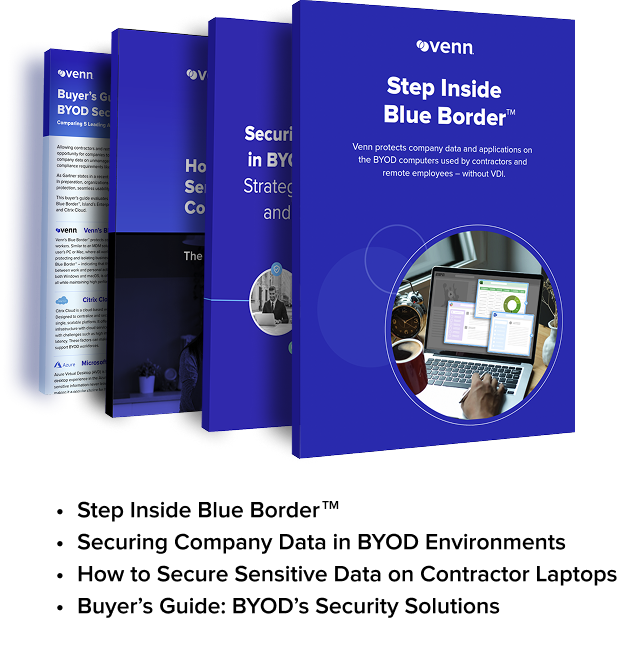
Get Your BYOD Security Toolkit
Unlock the 4 essential assets you need to secure company data on unmanaged laptops – without VDI
Integrating BYOD Tools with Enterprise Systems
Here are a few ways BYOD tools work together with other parts of the enterprise IT stack.
Integration with Active Directory and SSO
Integrating BYOD tools with Active Directory (AD) enables centralized user identity management and access control across all devices. By linking device enrollment and authentication to AD, IT can automate permissions, enforce group policies, and onboard users efficiently. Connecting BYOD solutions with single sign-on (SSO) further simplifies authentication, letting users access multiple work applications with a unified set of credentials.
This integration produces stronger security and improved user experience, reducing password fatigue and simplifying account lifecycle management. With AD and SSO integration, organizations can also use conditional access rules, ensuring only compliant devices and users gain entry to sensitive resources.
Cloud-Based Management and Scalability
Cloud-based BYOD management platforms allow IT teams to oversee device security and compliance remotely, regardless of user location. Moving management to the cloud reduces reliance on internal infrastructure, enabling faster onboarding, centralized policy updates, and real-time visibility. This approach supports organizations with distributed workforces or those adopting remote and hybrid work models.
Scalability is inherent to cloud solutions, letting enterprises add or remove devices and users seamlessly as needs change. Updates, patches, and feature rollouts occur automatically, minimizing manual intervention and downtime. Cloud-based management also improves disaster recovery and business continuity by ensuring continuous access to administrative functions offsite.
Cloud has become the default control plane for BYOD, accounting for roughly two-thirds of deployments and continuing to grow at a healthy double-digit rate. Running management in the cloud is also what makes AI-powered analytics and automated policy enforcement practical to roll out at scale.
API and Automation Capabilities
Modern BYOD solutions offer extensive APIs that let organizations automate tasks, integrate with IT service management (ITSM) tools, and orchestrate complex workflows. APIs enable custom integrations with ticketing systems, incident response platforms, and business apps, aligning BYOD tool operations with broader enterprise processes. This interoperability is critical for supporting scalable and agile IT operations.
Automation simplifies repetitive processes, such as user onboarding, policy enforcement, compliance audits, and remediation of non-compliant devices. By leveraging APIs and automation, organizations can reduce human error, accelerate response times, and lower support costs.
Cross-Platform Compatibility
BYOD environments feature a broad array of operating systems, device models, and form factors. Cross-platform compatibility ensures BYOD tools can enforce consistent policies and deliver unified user experiences regardless of whether employees use Windows, iOS, Android, or macOS devices. This is vital for organizations with diverse technology stacks and variable employee preferences.
Supporting multiple platforms helps minimize application compatibility issues, reduces IT support queries, and future-proofs investments as new devices emerge. Cross-platform BYOD tools ensure consistent security, reporting, and compliance across the enterprise.
Notable BYOD Software
How we selected these tools: We shortlisted BYOD software based on how they secure and manage employee-owned devices, separate work and personal data, enforce security and compliance policies, and support remote access across operating systems.
Remote Work Platforms
1. Blue Border

Best for: Securing work on unmanaged or BYOD PCs and Macs without VDI
Strengths: A company-controlled secure enclave that isolates work data while apps run at native speed
Things to consider: Reporting depth and mobile access could be broader
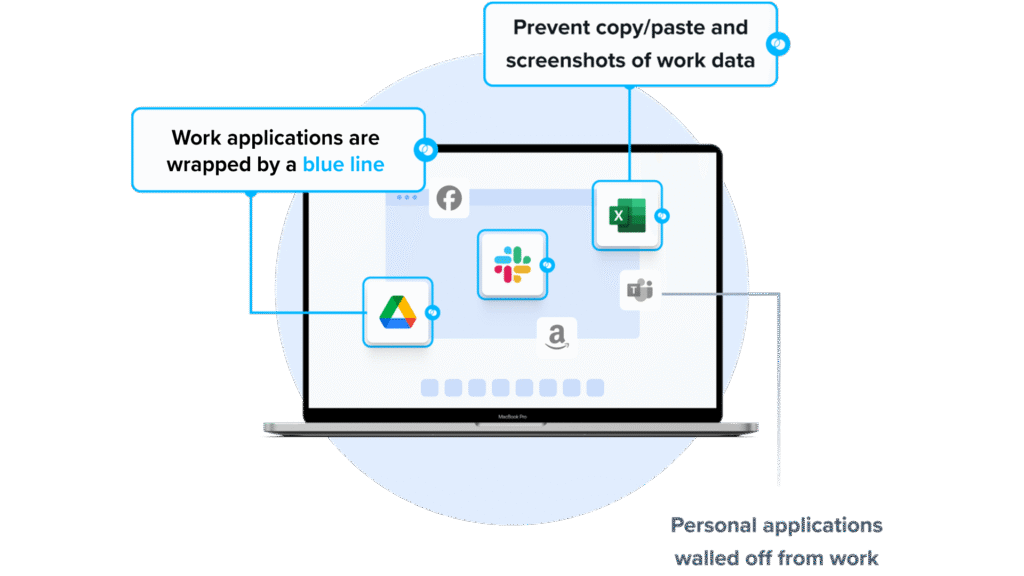
Blue Border secures remote work by installing a company-controlled secure enclave directly on a user’s PC or Mac. Work applications run locally inside the enclave, each visually marked by a blue line around the window, which Venn calls the Blue Border. Company data inside the enclave is encrypted and governed by IT policy.
Everything outside the enclave stays private and outside company visibility. Venn works for employees, contractors, consultants, and BPO users on company-issued, third-party, or personal devices, and it requires no backend infrastructure to run.
Key features include:
- Secure Enclave on the device: Work apps and data run inside a company-controlled enclave on the local Mac or PC, encrypted and isolated from any personal use on the same computer.
- Local application performance: Installed apps such as Chrome, Microsoft Office, Adobe, Slack, Zoom, and Teams run locally rather than being streamed from a remote server.
- Data loss prevention and clipboard controls: IT sets DLP rules covering copy and paste, printing, downloading, screen capture, and screen sharing within the enclave.
- Remote wipe and onboarding: Companies onboard and offboard remote workers without backend infrastructure and can remove company data instantly when a worker leaves.
- AI tool governance: IT defines which AI tools may interact with company data inside the enclave and blocks unapproved AI tools from reaching protected information.
- User privacy separation: Activity outside the Blue Border is not tracked or visible to the company, keeping personal use private on the same device.
- Compliance support: Enforces controls that are auditable for SOC 2 Type II, HIPAA, FINRA, SEC, PCI, and CMMC, among others.
2. Parallels

Best for: Browser-based access to RDP apps, desktops, and files
Strengths: Clientless HTML5 access with built-in MFA and auditing
Things to consider: The browser model limits USB peripherals and multi-monitor use
Parallels Secure Workspace provides browser-based access to server-based Windows and Linux apps, desktops, internal web apps, SaaS, and file shares. It is deployed as a virtual appliance on common hypervisors or public clouds and connects to existing IT assets over standard protocols such as RDP, CIFS, and LDAP.
Users reach everything through any HTML5 browser without installing agents or plug-ins. It integrates with existing Active Directory or LDAP and can run from a single Linux virtual machine, scaling by adding more virtual machines as users grow.
Key features include:
- RDP to HTML5 gateway: Translates RDP and xRDP streams into HTML5 so apps and desktops open in any browser without local agents.
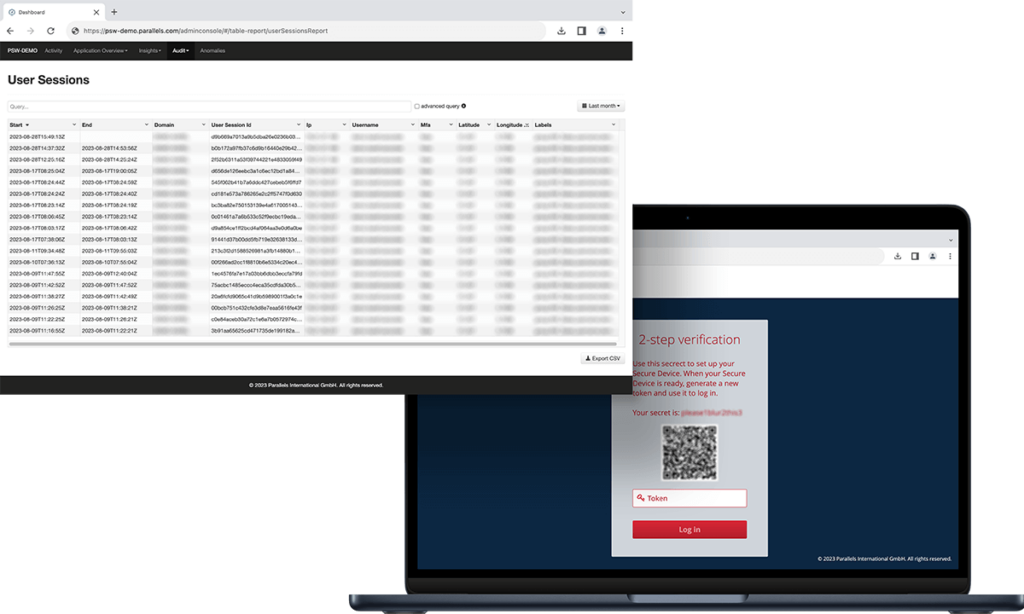
- Built-in MFA and identity provider support: Includes TOTP and HOTP MFA and connects to external identity providers such as Azure AD, Okta, or Google Identity via SAML or OpenID.
- Aggregated access: Brings legacy Windows and Linux apps, SaaS via single sign-on, internal web apps via reverse proxy, and file servers including OneDrive and SharePoint into one workspace.
- Session recording and usage auditing: Records application sessions and tracks logins, application usage, and file interactions for auditing.
- Granular usage controls: Administrators enable or disable printing, downloading, and session sharing per user or group and set IP or geographic access zones.
- File and app sharing: Users share documents by URL with set permissions and expiration and can co-work in live application sessions.
- SIEM integration: Forwards usage audit data to platforms such as Splunk or Elastic Search.
Limitations (as reported by users on Capterra):
- Limited peripheral support: Because access is browser-based, many USB devices such as scanners and readers beyond card readers and PDF printers are not supported.
- Multi-monitor experience: The full-desktop experience across multiple monitors is limited, so app-based access across browser tabs works better.
- Troubleshooting resources: Some users find the knowledge base and troubleshooting guidance thin for browser-workspace issues.
- Initial configuration: Setup and configuration can be involved at times, though the documentation is well regarded.
Source: Parallels
3. Azure Virtual Desktop

Best for: Cloud VDI delivering Windows 11 and Windows 10 desktops and apps
Strengths: Windows multi-session and pay-per-use Azure scaling
Things to consider: Complex setup and costs that are hard to predict
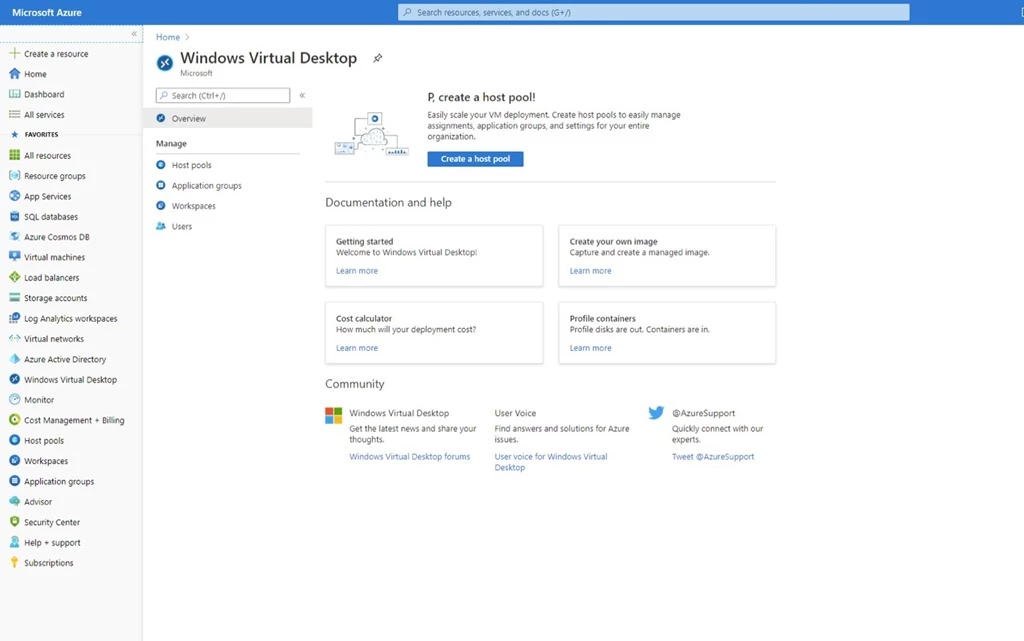
Azure Virtual Desktop is a cloud VDI platform that delivers virtualized Windows 11, Windows 10, and Windows Server desktops and apps from Azure. Microsoft manages the control plane, including the broker, gateway, load balancer, and diagnostics, while IT manages the desktops, apps, and governance policies.
It supports single-session assignment to one user or multi-session, where several users share one virtual machine. Users connect through the Windows App or Remote Desktop client, and the service is available across Azure regions worldwide.
Key features include:
- Windows multi-session: Windows 11 and Windows 10 multi-session let multiple users share a single virtual machine at the same time.
- Managed control plane: Microsoft runs the gateway, broker, load balancer, and diagnostics across a global footprint.
- RemoteApp and full desktops: Publish full desktops or individual apps in Win32, MSIX, and Appx formats to users.
- Flexible networking: Options such as Azure Private Link and RDP Shortpath support connectivity and reliability.
- Host pool management: Custom image templates and autoscale manage deployments and adjust capacity by time or demand.
- Pay-per-use pricing: Compute is billed by the second with no upfront commitment, and eligible Windows or Microsoft 365 licenses cover user access rights.
- Microsoft 365 optimization: Runs Microsoft 365 Apps in multi-user virtual environments.
Limitations (as reported by users on G2):
- Setup complexity: Users report the initial setup and configuration, including app optimization and security requirements, is complex.
- Cost predictability: Consumption-based pricing can be hard to forecast and grows as usage increases.
- Performance over the network: Sessions can lag with network latency, and access depends on a stable internet connection.
- Scaling and OS upgrades: Users cite limited native intelligent scaling and issues during Windows 10 to Windows 11 upgrades.
- Support response: Some users report slow response times when contacting support.
Source: Microsoft
4. Citrix DaaS
Best for: Enterprise VDI and DaaS across cloud, on-premises, or hybrid
Strengths: HDX optimization and broad multi-cloud deployment
Things to consider: Complex setup and high, layered licensing costs
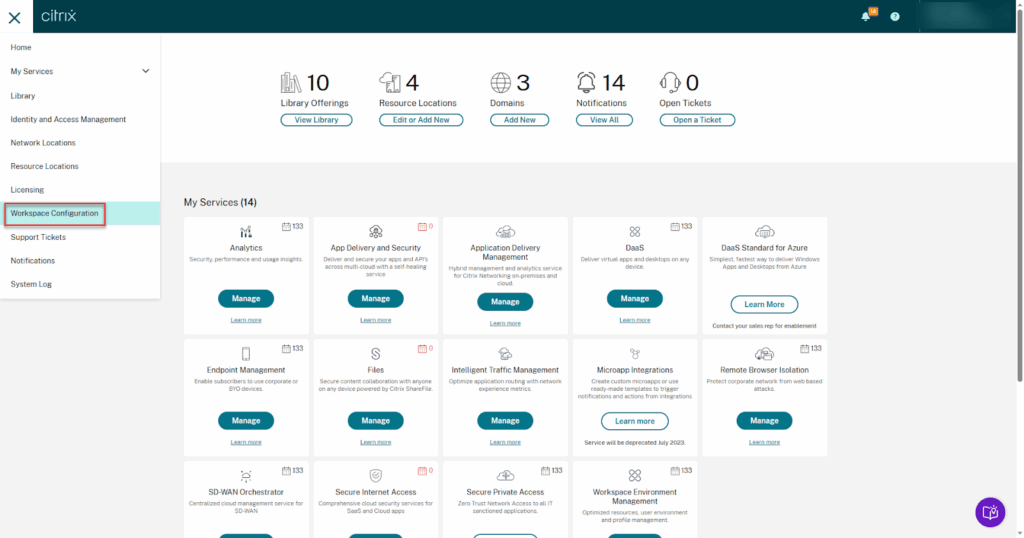
Citrix DaaS delivers virtual apps and desktops from any cloud, on-premises, or hybrid infrastructure, with Citrix hosting the management plane while customers control apps, policies, and users. It supports Windows, Linux, and web applications as well as full virtual desktops.
Workloads can run in Microsoft Azure, Google Cloud, AWS, or on-premises and be managed alongside each other. The platform pairs cloud-based Citrix DaaS with on-premises Citrix DaaS to deliver access across devices from one management layer.
Key features include:
- Cloud, on-prem, and hybrid delivery: Deliver apps and desktops from Citrix DaaS Cloud and Citrix DaaS Local across mixed infrastructure.
- HDX optimization: Adaptive technology tunes the experience for unified communications and graphic-intensive apps, including on low bandwidth.
- Multi-cloud workload placement: Run and manage workloads across Azure, Google Cloud, AWS, and on-premises from one platform.
- Security controls: Protect unmanaged endpoints, set granular controls, and record user sessions.
- Environment management: A lightweight user environment management tool speeds logins and improves server scalability and app response times.
- Centralized management and analytics: A central console with performance and security analytics covers the environment.
Limitations (as reported by users on G2):
- Setup and administration complexity: Initial configuration and ongoing management can require deep Citrix expertise, particularly on the desktop side.
- Cost and licensing: Users report high and rising costs and complex licensing that sometimes requires additional Microsoft RDS licenses.
- Network dependency and latency: Performance depends on strong connectivity, with lag reported for large files and video work.
- Support and troubleshooting: Diagnosing issues across components can be difficult, and support response can be slow.
- Compatibility: Some users cite issues with newer operating systems and apps that stop responding after Windows updates.
Source: Citrix
UEM Tools
5. ManageEngine Mobile Device Manager Plus

Best for: Cross-platform management of corporate and BYOD fleets
Strengths: Containerization, app control, and cloud or on-prem options
Things to consider: A dated UI and thinner controls on Apple devices
ManageEngine Mobile Device Manager Plus manages smartphones, tablets, laptops, desktops, TVs, and rugged devices across Android, iOS, iPadOS, tvOS, macOS, Windows, and Chrome OS from a single console. It covers the device lifecycle from enrollment to retirement.
It is available as a cloud service or on-premises and sits within the broader Endpoint Central platform. For BYOD, it separates corporate and personal profiles so company policies apply only to work data.
Key features include:
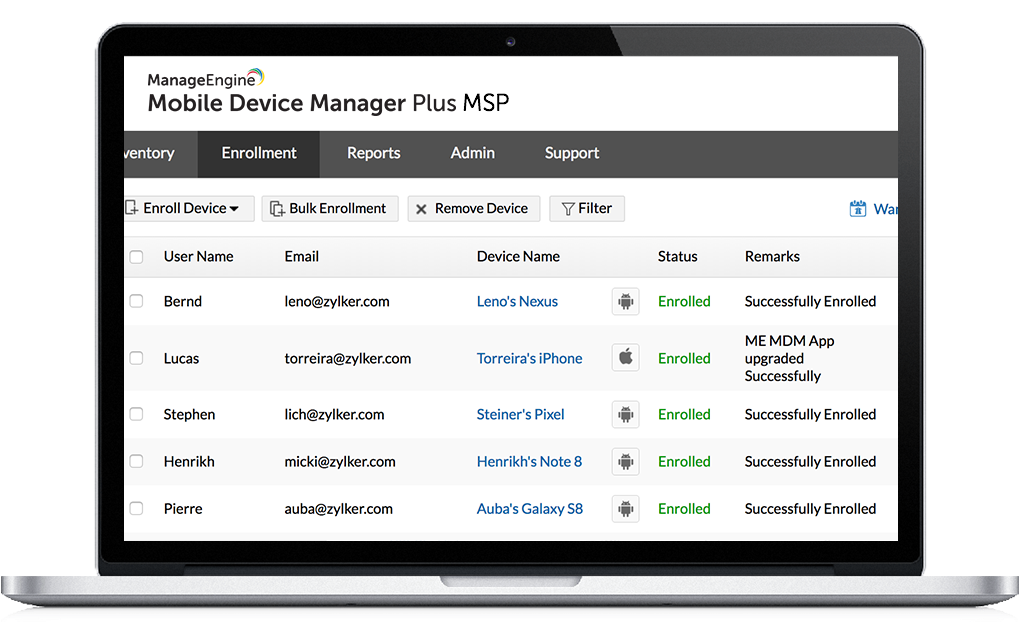
- Device enrollment: Enroll BYOD and corporate devices with straightforward authentication and an overview dashboard of the device ecosystem.
- App management: Distribute in-house and store apps across platforms and lock devices to one app or a set of apps with Kiosk Mode.
- Security management: Enforce passcode and encryption policies, run remote lock and wipe from the console or admin app, and detect jailbroken or rooted devices.
- Containerization: Separate corporate and personal profiles and store enterprise data in an encrypted container.
- Email management: Provide secure email access with Conditional Exchange Access and restrict attachments to managed apps.
- Content management: Distribute documents to devices with automatic updates and restrict third-party cloud backup.
- Profiles and configuration: Configure Wi-Fi, VPN, and other parameters and apply them to device groups.
Limitations (as reported by users on G2):
- Dated interface: Users describe the UI as dated and sometimes cluttered, with a learning curve on tablets.
- Apple support gaps: Reviewers note more limited controls for macOS and iOS and Apple enrollment that can fail at times.
- Client reliability: Some report the MDM client can be buggy on managed networks, and iOS commands can be slow due to APNs.
- Update rollout controls: A user noted that updates were pushed to all devices without the option to test on a subset first.
- Support consistency: Some users report slower or less helpful support on certain issues.
Source: ManageEngine
6. IBM MaaS360
Best for: AI-driven UEM across all major device types
Strengths: Watson AI insights, containerization, and broad OS coverage
Things to consider: A dated interface and higher-priced tiers
IBM MaaS360 is a cloud UEM platform that manages and secures laptops, desktops, smartphones, tablets, wearables, IoT, and purpose-built devices from one console. It combines MDM foundations with threat management, identity, and Watson AI analytics.
It supports iOS, iPadOS, Android, ChromeOS, Windows, and macOS, and can coexist with existing client management tools before a full migration to unified management. Security policies can follow predefined baselines or be built to an organization’s own requirements.
Key features include:
- Cross-platform management: Manage Windows, Android, and Apple devices with MDM policy, compliance rules, and app distribution from one console.
- BYOD containerization: Secure containers separate work and personal data, with remote wipe of corporate content only.
- Watson AI insights: AI-driven risk analytics and policy recommendations flag threats and guide configuration.
- Mobile threat defense: Native malware detection and threat response across network, device, app, and data levels.
- Identity and access: Single sign-on and multi-factor authentication with risk-based conditional access through MaaS360 Identity.
- Patch and app management: An app catalog, patch distribution, and client management functions for endpoints.
- Cloud Extender: Connects to on-premises resources such as Active Directory and Exchange when needed.
Limitations (as reported by users on G2):
- Dated interface: Many users describe the admin UI as outdated and clunky, with a learning curve for new admins.
- Performance: Reviewers report slow syncs, configuration delays, and a portal that limits work to one window at a time.
- Cost: Advanced features sit in higher-priced tiers, which some find expensive relative to alternatives.
- Reporting flexibility: Reporting is seen as functional but limited in customization.
- Support and OS lag: Some cite slow support responses and delayed support for the newest OS features.

Source: IBM
7. LogMeIn Resolve

Best for: All-in-one UEM with remote support for IT teams and MSPs
Strengths: RMM, remote access, MDM, and ticketing in one console
Things to consider: MDM and mobile support come as paid add-ons
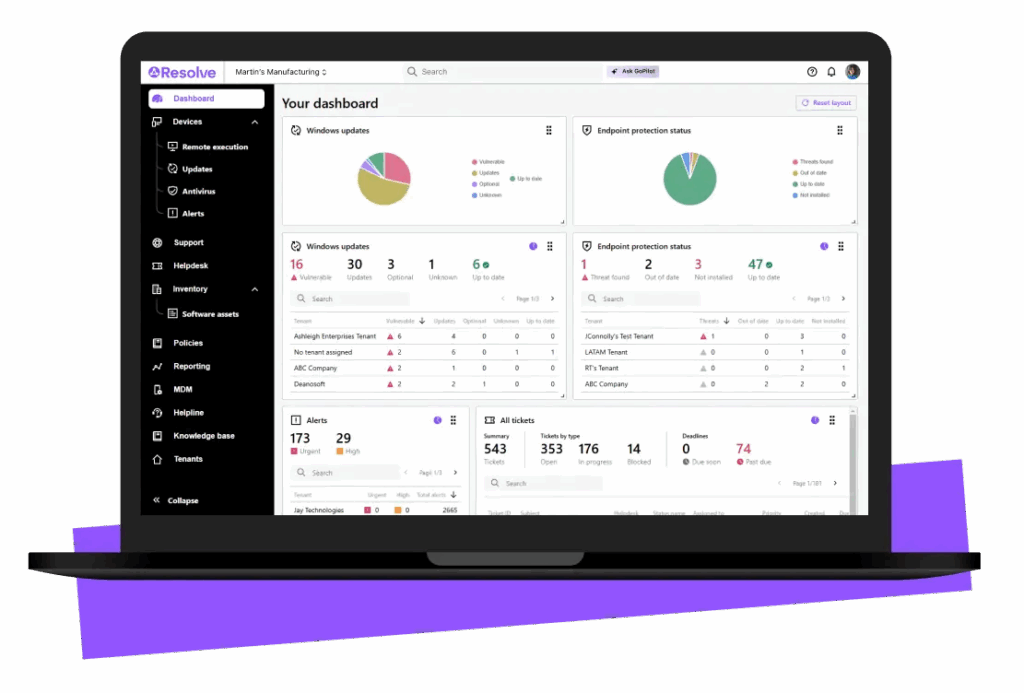
LogMeIn Resolve, formerly GoTo Resolve, is a UEM platform that combines remote monitoring and management, remote access and support, mobile device management, ticketing, and automation in one console. It is built on a zero-trust security architecture.
It targets IT teams and managed service providers and supports Windows, Mac, and Android devices. Management runs from a single web-based console, with AI features layered across reporting and automation.
Key features include:
- Mobile device management: Enforce security policies, application controls, and remote lock or wipe across iOS, Android, and BYOD devices.
- Remote monitoring and management: Patch management, alerting, antivirus, and remote execution from a central console.
- Unattended remote access: Access and update Windows, Mac, and Android devices even when users are offline.
- IT asset management: Track hardware and software inventory, license compliance, and usage.
- Service management: Built-in helpdesk, knowledge base, and problem management for ticketing.
- Zero-trust architecture: Verifies identity, device, and action before granting access.
- AI automation: AI-generated scripts in PowerShell, Shell, JavaScript, or Python, plus reporting and an AI virtual technician.
Limitations (as reported by users on G2):
- Add-on costs: MDM, mobile support, and camera share are paid add-ons, and some users find pricing high.
- Resource use: The client can be resource-heavy and slow on older machines during remote support.
- Client reliability: Reviewers report the client can crash or need manual restarts, and preinstalled sessions do not always launch.
- Reporting: Some users say the reporting tool needs further development.
- Session controls: A user noted the absence of options such as taking over or resetting an agent’s session.
Source: Resolve
MDM Tools
8. Moki

Best for: Single-purpose iOS, Android, and BrightSign device fleets
Strengths: Fast kiosk deployment, lockdown, and remote control
Things to consider: Centered on customer-facing single-purpose devices
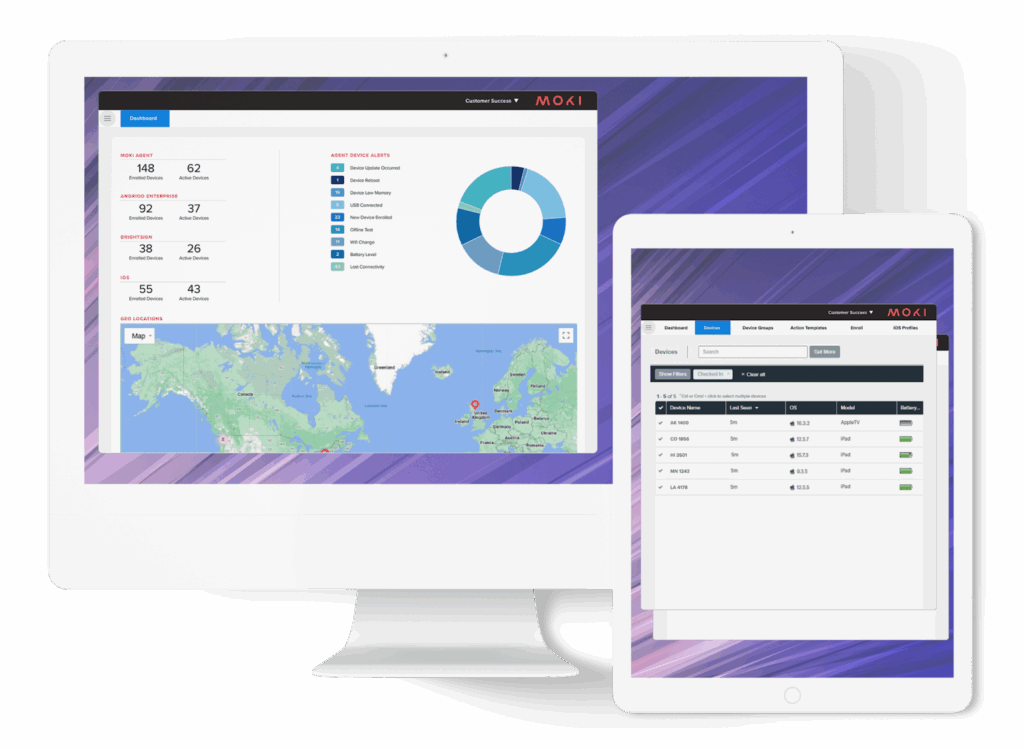
Moki is a cloud MDM for customer-facing, single-purpose devices such as kiosks, POS stations, and digital signage across iOS, Android, and BrightSign. It handles bulk enrollment, lockdown, monitoring, and remote management from one dashboard.
It also offers a managed service option in which Moki’s team handles monitoring, updates, and troubleshooting. Device platforms covered include an Android Agent for company-owned Android devices, Android Enterprise, iOS with Apple Business Manager, and BrightSign signage players.
Key features include:
- Kiosk and lockdown: Lock devices to a single app or a set of apps and restrict them to approved URLs, images, and videos.
- Rapid deployment: Bulk device enrollment with a deployment process the vendor states takes 15 minutes or less.
- Remote management and control: Monitor and control devices, push updates, and troubleshoot remotely across the fleet.
- Device visibility and alerts: Track charge status, location, storage, and connectivity, with customizable alerts.
- Platform coverage: Android Agent for company-owned Android, Android Enterprise, iOS with Apple Business Manager, and BrightSign signage.
- SDK and API: Customize applications and automate management through an SDK and API.
- Managed service: An optional managed service covers monitoring, updates, and troubleshooting.
Limitations (as reported by users on G2):
Note: Moki has no low-rated reviews on G2, so the following are drawbacks raised within otherwise positive reviews.
- Documentation: Some reviewers find the support documentation out of date and confusing for non-technical users.
- Occasional stability: A reviewer reported occasional freezes during use.
- Scope: The platform centers on mobile single-purpose devices, so a separate tool may be needed for desktops.
- Pricing: Some note the premium edition sits at the higher end.
Source: Moki
9. Jamf Pro
Best for: Apple device management for business and education
Strengths: Zero-touch Apple deployment and same-day OS support
Things to consider: Apple-only, with premium pricing and a learning curve
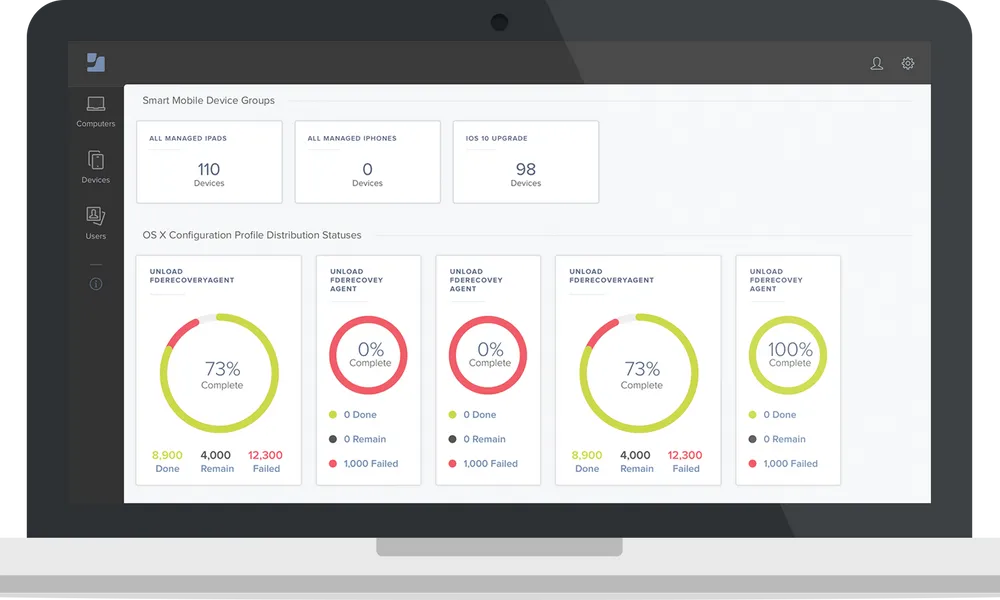
Jamf Pro manages and secures Apple devices, including Mac, iPhone, iPad, and Apple TV, using native Apple frameworks. It automates deployment, configuration, app management, and security, and it provides same-day support for new Apple OS releases.
It fits into Windows-centric environments and integrates with identity and security tools. Configuration can be handled through the interface or as code, and a large admin community and documentation support the platform.
Key features include:
- Zero-touch deployment: Provision Mac, iPhone, iPad, and Apple TV hands-free, including BYOD, through Apple deployment programs.
- Smart Groups: Build dynamic device and user groups that trigger real-time alerts and actions from inventory data.
- Blueprints: Manage settings, commands, app installations, and restrictions across Apple devices using Declarative Device Management.
- Inventory management: Automatically collect hardware, software, and security configuration details from devices.
- App lifecycle management: Automate app deployment and let users self-serve installs and updates through Self Service+.
- Security and compliance: Apply security baselines based on industry benchmarks and push remote security commands and patches.
- Integrations: Works with Microsoft Entra, Google Workspace, and Okta for identity and security.
Limitations (as reported by users on G2):
- Apple-only scope: Managing non-Apple devices requires a separate, more expensive product.
- Learning curve and complexity: Advanced workflows can be complex and often depend on scripting.
- Interface: Some users find parts of the UI dated or inconsistent between older and newer areas.
- Patch and update handling: Native patch management and OS update completion can lag, pushing users to third-party tools.
- Cost and support: Reviewers cite premium pricing and variable support response times.
Source: Jamf
10. Scalefusion

Best for: Multi-OS device management with kiosk and BYOD support
Strengths: Broad OS coverage, kiosk lockdown, and remote control
Things to consider: One profile per device and a setup learning curve
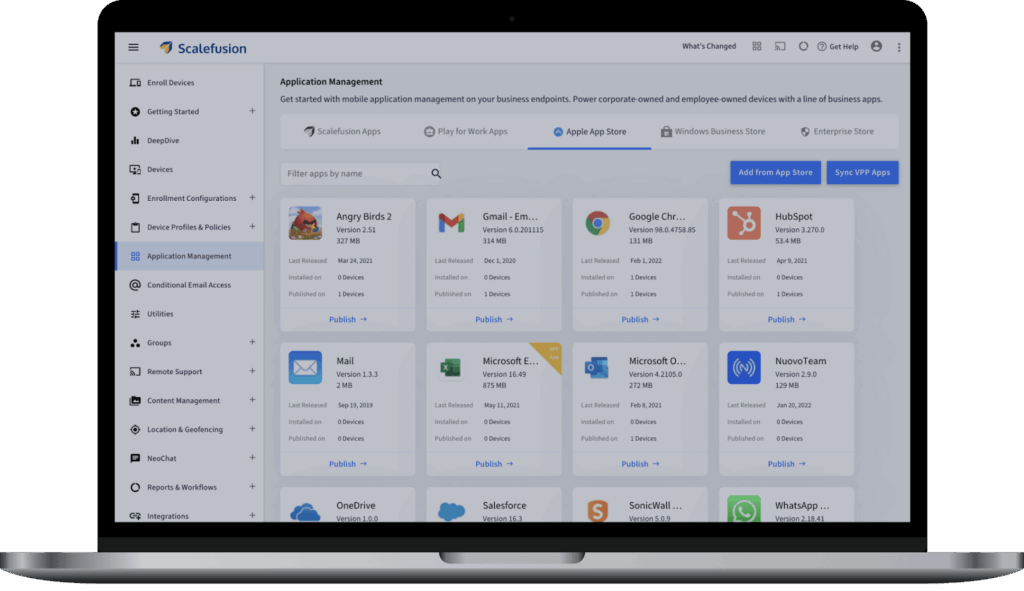
Scalefusion is a multi-OS device management platform for smartphones, tablets, laptops, desktops, rugged devices, POS systems, and kiosks across Android, iOS, macOS, Windows, Linux, and ChromeOS. It covers enrollment, policy enforcement, app and content management, security, and remote support from one dashboard.
For BYOD, it applies policies to both personal and corporate-owned devices and pairs with the OneIdP suite for identity and conditional access. Endpoint security and compliance are extended through its Veltar module.
Key features include:
- Multi-OS management: Manage Windows, macOS, Android, iOS, Linux, and ChromeOS endpoints from one console.
- Device enrollment: Zero-touch and low-intervention enrollment across out-of-box protocols.
- Kiosk mode: Single-app and multi-app kiosk lockdown, a kiosk browser, and website allow or block lists.
- Security enforcement: Passcode policies, factory reset protection, remote wipe, screen-capture control, and automated compliance.
- Application and content management: Push public, private, and native apps and distribute content across devices.
- Remote control: Screen mirroring and control, with ticket creation to integrated ITSM platforms.
- Location tracking and geofencing: Live tracking, geofence alerts, and location-based policy switching.
Limitations (as reported by users on G2):
- One profile per device: Reviewers note that only one profile can be assigned per device in MDM.
- Setup learning curve: Complex or multi-profile setups can be time-consuming, with documentation that can overwhelm new users.
- Compatibility gaps: Some cite limits around Linux, ChromeOS, or certain older devices.
- Dashboard performance: The dashboard can slow with large device counts or bulk policy updates.
- Pricing and billing: Some find pricing less competitive and note minimum-license constraints.
Source: Scalefusion
Considerations for Choosing BYOD Software
AI and Zero Trust in Modern BYOD Software
BYOD software is being reshaped by artificial intelligence and zero trust architecture. Leading UEM and endpoint platforms now embed machine learning that analyzes device and user behavior to detect malware, phishing, and anomalous access in real time, often processing signals on the device to limit how much data leaves the endpoint.
Zero trust has become the default design principle: every access request is verified continuously based on identity, device health, and context rather than a one-time login. Industry research shows that a majority of organizations have now adopted a full or partial zero trust strategy, and identity-centric access control is one of the fastest-growing priorities for securing personal devices.
A newer challenge is agentic AI. As autonomous AI assistants and tools run on employee-owned devices and act on a user’s behalf, they need their own governed identities and least-privilege permissions. Modern BYOD strategies increasingly extend containerization and conditional access to cover these AI workloads alongside human users.
Choosing the right BYOD software depends on your organization’s goals, security requirements, and workforce structure. Each category, remote work platforms, unified endpoint management (UEM), and mobile device management (MDM), offers distinct advantages, but they differ significantly in complexity, user experience, and IT control.
Here’s how to evaluate which is best for your environment:
- Scope of device management vs. data access: If your goal is to control entire devices, including operating system settings, installed apps, and hardware-level access, UEM and MDM are appropriate. However, this level of control may raise privacy concerns in BYOD environments. Remote work platforms like Venn focus instead on securing the workspace, not the whole device, offering a lightweight alternative that protects corporate data without taking over personal hardware.
- Deployment complexity and IT overhead: UEM and MDM platforms often require detailed policy setup, device enrollment processes, and ongoing updates across multiple device types. This can create administrative burdens, especially in mixed-device fleets. Remote work platforms are simpler to deploy and manage, as they typically do not require full device registration or system-level controls,reducing time to value and IT workload.
- User privacy and experience: Privacy-sensitive employees may resist traditional MDM/UEM solutions that monitor device usage or apply restrictions outside of work apps. Remote work platforms isolate corporate activity within secure environments, leaving personal apps and data untouched. This separation fosters higher employee trust and smoother adoption, especially in flexible or hybrid work models.
- Flexibility across use cases: UEM is suitable for managing both BYOD and corporate-owned devices across large organizations. MDM works well for managing mobile-heavy workforces or dedicated-use devices. However, remote work platforms like Venn are best for scenarios where you need to provide secure access to apps and data without owning or managing the endpoint. This includes contractors, freelancers, and remote employees using personal devices.
- Security and zero trust readiness: All three options can support security goals, but remote work platforms are designed around modern zero trust principles: assume no device is trusted by default, validate continuously, and limit access to only the necessary resources. They integrate more easily with identity providers and enforce application-level access rather than full device trust, aligning better with modern threat models.
- Performance and offline access: MDM/UEM solutions depend on frequent device connectivity to enforce policies and push updates. Remote work platforms are designed to function even with intermittent access, and often use virtualization or local workspace models that preserve performance while maintaining data security. This makes them suitable for mobile or bandwidth-constrained users.
Conclusion
BYOD software plays a critical role in enabling secure and scalable personal device use within modern organizations. By combining data separation, device control, secure access, and compliance enforcement, it allows businesses to extend enterprise resources to employee-owned devices without sacrificing visibility or increasing security risk.
A well-implemented BYOD solution supports flexible work policies, streamlines device management, and ensures that sensitive information remains protected across diverse endpoints and use cases.

Any worker. Any laptop. Any AI workflow. Fully secured.
Schedule a demo to see how Blue Border™ secures company data and apps without shipping laptops, running VDI, or managing personal endpoints.