
Virtual Desktop Solutions: Types, Benefits & 12 Top Platforms


See Venn first in Google Search
Add as a preferred source on Google
TL;DR: Virtual desktop solutions deliver work environments through VDI, DaaS, session-based remote desktops, or secure local workspaces. Best for BYOD and contractors: Venn Blue Border; for enterprise hybrid VDI: Citrix DaaS; for cloud VDI on Azure: Azure Virtual Desktop; for managed desktops on AWS: Amazon WorkSpaces.
What Are Virtual Desktop Solutions?
Virtual desktop solutions decouple operating systems and applications from physical hardware, allowing users to access secure, centralized workspaces from any device. Instead of running everything directly on a physical computer, virtual desktops can be hosted on centralized servers, in private or public clouds, or delivered through isolated environments on endpoint devices. Users can access their workspaces from laptops, desktops, thin clients, and other supported devices.
Core types of virtual desktops:
- VDI (Virtual Desktop Infrastructure): Full virtual machines hosted on centralized local or cloud servers, giving each user a dedicated, persistent environment.
- DaaS (Desktop as a Service): Fully managed cloud-native desktop solutions paid for on a subscription or pay-as-you-go basis.
- RDS (Remote Desktop Services): Shared session-based environments where multiple users run apps on a single Windows Server instance.
Looking for a VDI alternative?
Unlock best practices for securing remote access on unmanaged laptops – without any remote hosting or latency.
In this article:
- What Are Virtual Desktop Solutions?
- Virtual Desktop Solutions at a Glance
- Types of Virtual Desktop Solutions
- Benefits of Virtual Desktop Solutions
- Challenges and Limitations of Virtual Desktop Solutions
- Notable Virtual Desktop Solutions
- Best Practices for Choosing and Deploying a Virtual Desktop Solution
- Conclusion
Virtual Desktop Solutions at a Glance
The table below summarizes the key differences between the virtual desktop solutions covered in this article. We explore each of them in more detail in the sections that follow.
| Category | Solution | Best For | Key Strengths | Things to Consider |
| Secure Workspace and App Delivery Alternatives | 1. Venn Blue Border | Securing BYOD and contractor work on unmanaged PCs and Macs | Local app performance inside an isolated, encrypted work enclave | Enclave can feel slower with some hosted applications |
| Secure Workspace and App Delivery Alternatives | 2. Kasm Workspaces | Browser-delivered container and VM workspaces you host yourself | Containerized sessions, granular DLP, and multi-protocol access | No native mobile app; file uploads go through a control panel |
| Secure Workspace and App Delivery Alternatives | 3. Cameyo by Google | Delivering legacy Windows apps to browsers and ChromeOS devices | App-level delivery as PWAs without a full virtual desktop | Delivers individual apps, not full desktop environments |
| VDI and Remote Desktop Platforms | 4. Citrix DaaS | Enterprise app and desktop delivery across cloud and on-premises | HDX optimization and hybrid multi-cloud workload placement | Steep admin learning curve; slower over low bandwidth |
| VDI and Remote Desktop Platforms | 5. Omnissa Horizon 8 | VDI and published apps across on-premises and hybrid cloud | App Volumes, unified console, and automation through REST APIs | Users report higher pricing since the move to Omnissa |
| VDI and Remote Desktop Platforms | 6. Parallels RAS | Publishing apps and desktops across on-prem, hybrid, and cloud | Single console, broad hypervisor support, concurrent-user licensing | Some releases reported buggy; HA setup can take effort |
| VDI and Remote Desktop Platforms | 7. TSplus Remote Access | Publishing Windows apps and desktops for small and midsize teams | HTML5 web portal, RemoteApp, and perpetual license options | Advanced security and 2FA are separate add-on products |
| Desktop as a Service (DaaS) Solutions | 8. Azure Virtual Desktop | Cloud VDI for Windows desktops and apps on Microsoft Azure | Windows multi-session and a Microsoft-managed control plane | Built for teams with VDI expertise; lag on slow connections |
| Desktop as a Service (DaaS) Solutions | 9. Windows 365 | Personal Cloud PCs managed alongside physical PCs in Intune | Editions for full-time, shift-based, temporary, and agent use | Per-user subscription costs can add up across many seats |
| Desktop as a Service (DaaS) Solutions | 10. Amazon WorkSpaces | Managed cloud desktops for task, knowledge, and contact center staff | Pay-for-use billing across 19 regions with a 99.9% uptime SLA | Needs a stable connection; some users report disconnects |
| Desktop as a Service (DaaS) Solutions | 11. OCI Secure Desktops | Managed Oracle Linux and Windows desktops inside OCI regions | Flexible VM shapes, hibernation, and in-region data residency | Minimum of 10 desktops; Windows requires bring-your-own license |
| Desktop as a Service (DaaS) Solutions | 12. Workspot | Moving on-prem VDI to cloud desktops on AWS, GCP, Azure, or Akamai | Multi-cloud, multi-region desktops with built-in DEX monitoring | Image management rated less comprehensive than some peers |
Types of Virtual Desktop Solutions
On-Premises Virtual Desktop Infrastructure (VDI)
On-premises Virtual Desktop Infrastructure (VDI) hosts virtual desktop environments on servers located in an organization’s own data center or private infrastructure. Each user typically receives a dedicated virtual machine running a desktop operating system, with computing resources allocated from a shared pool of physical servers. Users connect to their virtual desktops remotely through a client application or web browser, while applications and data remain within the organization’s infrastructure.
The main advantage of on-premises VDI is infrastructure control. IT teams manage the servers, storage, networking, operating system images, and security configurations. This allows organizations to implement customized security policies, maintain control over data residency, and integrate virtual desktops with existing enterprise systems. VDI can also support persistent desktops, where users retain their settings and applications, or non-persistent desktops that reset to a standardized image after each session.
However, on-premises VDI requires substantial upfront investment in hardware, virtualization software, licensing, and IT expertise. Organizations must also handle capacity planning, maintenance, patching, and disaster recovery. Scaling the environment to accommodate additional users may require purchasing and deploying more physical infrastructure.
Related content: Read our guide to the top VDI solutions
Desktop as a Service (DaaS)
Desktop as a Service (DaaS) delivers virtual desktops from cloud-hosted infrastructure managed by a third-party provider. Instead of purchasing and maintaining physical servers, organizations provision virtual desktop environments through a cloud platform. Employees access these desktops remotely using supported devices, while applications, operating systems, and data are processed in the cloud.
DaaS reduces the infrastructure management burden by allowing organizations to scale desktop capacity based on workforce requirements. IT administrators can provision desktops for new employees or contractors, adjust computing resources, and support geographically distributed teams without deploying physical hardware. Depending on the service, providers may handle infrastructure availability and maintenance, while customers remain responsible for desktop images, applications, identity management, and security policies.
The primary limitations of DaaS include ongoing subscription and cloud consumption costs, dependence on network connectivity, and potential latency when users are far from hosting regions. Organizations must also evaluate data residency, provider security responsibilities, and integration with existing applications before adopting a cloud-hosted desktop model.
Session-Based Remote Desktops (RDS)
Session-based remote desktop solutions allow multiple users to connect to separate desktop sessions hosted on a shared server operating system. Unlike traditional VDI, where users typically receive individual virtual machines, Remote Desktop Services (RDS) environments allow users to share the same underlying operating system instance while maintaining separate user sessions, applications, and profiles.
The primary benefit of RDS is resource efficiency. Because multiple users share server resources, organizations can support relatively large numbers of users with less compute and memory overhead than deploying a separate virtual machine for each person. RDS is particularly suitable for task workers, call centers, administrative teams, and other environments where employees use a standardized set of business applications.
However, shared infrastructure introduces limitations around application compatibility, customization, and resource contention. Some applications are not designed for multi-user server environments, and resource-intensive workloads can affect performance for other connected users. Organizations must also configure session isolation, access controls, and resource allocation carefully to prevent unauthorized access and maintain consistent performance.
Benefits of Virtual Desktop Solutions
Virtual desktop solutions provide organizations with a centralized way to deliver and manage employee workspaces. Depending on the deployment model, they can simplify IT operations, improve security, and support flexible working arrangements. Key benefits include:
- Centralized desktop management: IT teams can deploy applications, update operating systems, configure security policies, and troubleshoot user environments from a central management platform instead of maintaining individual workstations.
- Improved data security: Applications and sensitive information can remain within controlled data centers or cloud environments rather than being stored on endpoint devices. Administrators can also enforce authentication requirements, access restrictions, and data transfer policies.
- Remote and hybrid work support: Employees can access their work environments from different locations and supported devices, making it easier to maintain productivity when working remotely or moving between offices.
- Faster employee and contractor onboarding: IT administrators can provision standardized desktop environments without purchasing, configuring, and shipping physical computers to every user.
- Consistent user environments: Standardized desktop images help ensure that employees have access to the correct applications, configurations, and security settings, reducing compatibility issues and support requirements.
- Simplified business continuity: Centralized desktop environments can help organizations restore user access after device failures or disruptions, provided the hosting infrastructure and recovery systems remain available.
- Support for BYOD environments: Virtual desktops can allow employees and contractors to access corporate resources from personal devices while limiting how much business data is stored locally.
Challenges and Limitations of Virtual Desktop Solutions
Latency and User Experience Problems
Virtual desktop performance depends heavily on network quality, available bandwidth, and the distance between users and the hosting infrastructure. When network connections are slow or unstable, employees may experience delayed keyboard input, cursor lag, screen freezing, and interruptions during everyday tasks. These problems can become more noticeable when users work with graphics-intensive applications, video conferencing tools, or large files.
Peripheral compatibility can also create difficulties. Printers, webcams, microphones, USB devices, and specialized hardware may require additional configuration or may not function consistently across different virtual desktop platforms. Audio and video redirection can consume additional bandwidth and create performance bottlenecks, particularly for remote employees using unreliable internet connections.
How to address: Organizations can reduce these issues by selecting hosting locations close to users, implementing traffic optimization, and allocating sufficient computing resources. However, virtual desktops remain dependent on network connectivity, making them less suitable for employees who frequently work offline or in areas with limited internet access.
Infrastructure, Storage, and Licensing Costs
Virtual desktop solutions can introduce significant costs, particularly when organizations deploy and maintain their own VDI infrastructure. On-premises deployments require investment in physical servers, storage systems, networking equipment, virtualization software, and supporting infrastructure. High-performance storage is especially important because simultaneous user logins, application launches, and profile loading can generate substantial input/output workloads.
Cloud-hosted virtual desktops eliminate much of the upfront hardware investment but introduce recurring operational expenses. Organizations may pay for virtual machine compute capacity, storage, network traffic, operating system licenses, and desktop management services. Persistent desktops that remain active outside working hours can increase costs if resources are not automatically scaled down.
Licensing requirements can further complicate cost planning. Organizations may need separate licenses for operating systems, productivity applications, remote access services, and virtualization platforms. Before deployment, IT teams should evaluate the total cost of ownership, including ongoing support, backup, disaster recovery, and infrastructure expansion.
Deployment and Ongoing Management Complexity
Deploying virtual desktop infrastructure requires careful planning across computing resources, networking, identity management, storage, and application delivery. IT teams must determine how many users each host can support, configure desktop images, establish secure authentication, and ensure that applications function correctly in virtualized environments.
Ongoing management introduces additional complexity. Administrators need to maintain operating system images, deploy security patches, manage user profiles, troubleshoot connection problems, and monitor infrastructure performance. Application compatibility can also become an issue when legacy software requires specific hardware configurations or conflicts with shared desktop environments.
Scaling virtual desktops is not always straightforward. Sudden increases in user demand can overwhelm available resources, while poorly configured profile storage or login processes can create performance bottlenecks. Organizations may need specialized virtualization expertise and monitoring tools to maintain reliable operations, increasing the workload for internal IT teams.
Notable Virtual Desktop Solutions
How we selected these solutions: We shortlisted virtual desktop solutions based on secure desktop and application delivery, deployment flexibility across on-premises and cloud environments, data protection and access controls, and centralized management at scale.
Secure Workspace and App Delivery Alternatives
1. Venn Blue Border

Best for: Securing BYOD and contractor work on unmanaged PCs and Macs
Strengths: Local app performance inside an isolated, encrypted work enclave
Things to consider: Enclave can feel slower with some hosted applications
Blue Border is a secure workspace from Venn that protects company data, applications, and AI workflows on Mac and Windows computers without VDI or full management of the endpoint. Installing it creates a company-controlled secure enclave on the device that isolates work apps, storage, networking, and actions such as copy and paste, file transfers, and screenshots from the rest of the computer.
Work applications run locally inside the enclave and are marked with a blue line around their windows, while activity outside the enclave stays private and is not tracked. Work traffic routes through a built-in VPN gateway or an existing private network, and IT onboards a user with a single install and offboards them with one remote wipe.
Key features include:
- Local secure enclave: Creates a company-controlled enclave on managed or unmanaged Macs and PCs, isolating work apps, data, and networking from personal use on the same device.
- Native application execution: Runs browser-based and locally installed applications on the endpoint, without hosting, streaming, or virtualizing the desktop.
- App-level DLP controls: Enforces data loss prevention for each work app, including copy and paste, file transfers, and screenshots inside the enclave.
- Venn Disk storage: Limits saving to work-sanctioned file systems that are isolated, encrypted, and remote wipeable, either on the device or in a chosen cloud.
- AI governance: Controls which browser-based and desktop AI tools can reach company data inside the enclave, while personal AI use outside it is left untouched.
- Network isolation: Applies per-app VPN to a private gateway managed through Blue Border, or routes work traffic through an existing private network.
- Onboarding and remote wipe: Deploys through a lightweight install in minutes, and a single remote wipe removes the enclave and all company data and apps.
- Integrations and compliance controls: Integrates with SIEM, VPN, and endpoint protection tools, and provides encryption, DLP, and audit logs that support HIPAA, PCI, SOC 2, SEC, FINRA, and GDPR requirements.
Limitations (as reported by users on G2):
- Performance with some hosted apps: A few users note the enclave can feel slower when accessing certain hosted applications.
- Reporting depth: Some users would like more detailed reporting options in the management console.
- Mobile coverage: Some users would like broader support for mobile devices.
2. Kasm Workspaces
Best for: Browser-delivered container and VM workspaces you host yourself
Strengths: Containerized sessions, granular DLP, and multi-protocol access
Things to consider: No native mobile app; file uploads go through a control panel
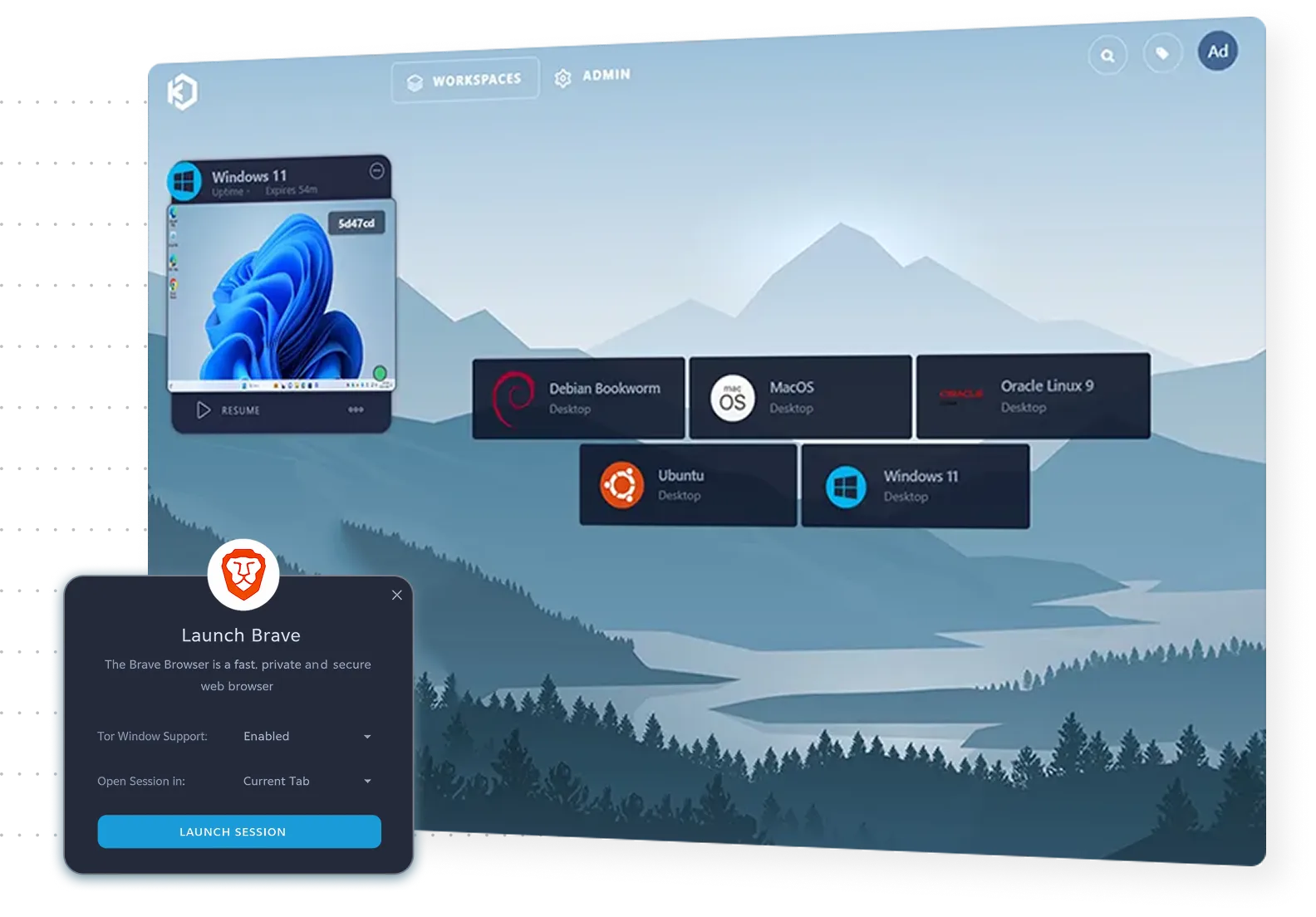
Kasm Workspaces is a workspace orchestration platform that streams Windows, Linux, and browser-based applications and desktops to users through a web browser. It supports both containerized sessions and virtual machine workspaces, and runs on premises, in disconnected or air-gapped environments, across multiple clouds, or in hybrid architectures.
Users connect through any modern browser without plugins, agents, or client installs, or through existing RDP clients and thin clients. Administrators manage users, security policies, and workloads from the Kasm UI, which applies zero trust policy enforcement to every workspace.
Key features include:
- Container and VM workspaces: Delivers lightweight, ephemeral container sessions for browser-based apps and task workflows, and VM workspaces for persistent or resource-intensive desktops.
- Browser-native access: Streams workspaces to any modern web browser with no plugins or client installs, and also supports traditional RDP clients and thin clients.
- Granular policy and DLP: Controls clipboard, uploads, downloads, and printing by user, group, app, or desktop, with session watermarks and automatic timeouts.
- Multi-protocol connectivity: Connects to containers, VMs, and external systems over KasmVNC, VNC, SSH, and RDP, with centralized authentication and session controls.
- Workspace registry: Provides a catalog of pre-built container workspace images that can be deployed as-is or customized.
- Autoscaling: Adjusts capacity to match demand across on-premises and cloud resources.
- Monitoring and auditing: Logs sessions, events, and optional screen activity, and integrates with SIEM, SSO, and storage systems.
- APIs and infrastructure as code: Manages workspaces programmatically and integrates with CI/CD pipelines.
Limitations (as reported by users on Capterra):
- No native mobile app: Some users note there is no dedicated mobile app for accessing workspaces.
- File upload workflow: Users report that file uploads go through the control panel rather than drag and drop into the session.
- Server installation options: Some users would like the option to install the Kasm server directly on Windows machines.
Source: Kasm
3. Cameyo by Google

Best for: Delivering legacy Windows apps to browsers and ChromeOS devices
Strengths: App-level delivery as PWAs without a full virtual desktop
Things to consider: Delivers individual apps, not full desktop environments
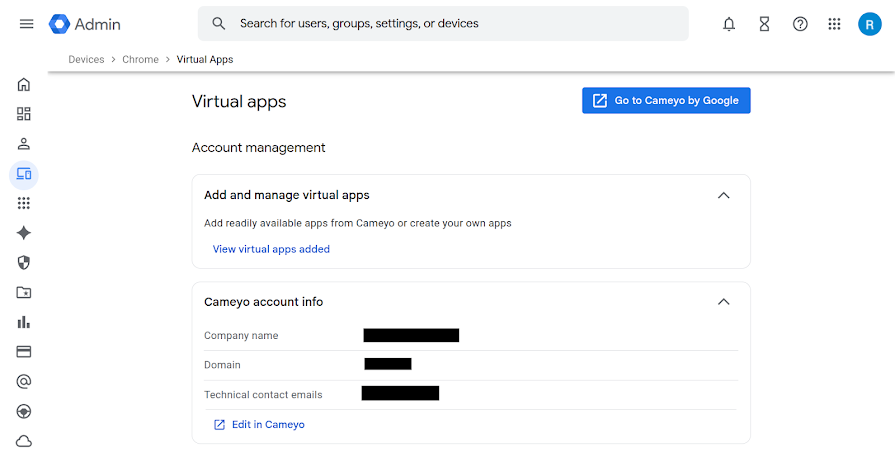
Cameyo by Google is a Virtual App Delivery (VAD) solution that brings client-based applications, including legacy apps that are not web-enabled, to the web. Instead of streaming a full virtual Windows desktop, it delivers individual applications that users open from an app shelf, without a VPN or a virtual desktop.
Cameyo converts legacy applications into progressive web apps (PWAs) that run side by side with web apps. It integrates with Chrome Enterprise, Google Workspace, and ChromeOS, and uses a zero trust architecture that separates apps from the device and devices from the network.
Key features include:
- Virtual App Delivery: Publishes individual client-based applications to users through the browser instead of delivering a full virtual Windows desktop.
- Progressive web app conversion: Converts legacy applications into PWAs that users launch from an app shelf alongside their web apps.
- Zero trust architecture: Separates applications from the device and devices from the network to reduce exposure to ransomware, brute force attacks, and other threats.
- Local and cloud file access: Gives virtualized apps access to the device’s local file system or cloud storage providers, as IT allows.
- Chrome Enterprise integration: Builds virtual app access into the enterprise browser so users can reach all their apps from any device.
- Google Workspace and ChromeOS integration: Makes client-based apps available within Google Workspace and on ChromeOS devices.
Limitations (based on publicly available sources):
- App-level delivery only: Delivers individual applications rather than full desktops, so use cases that need a complete Windows environment require another approach.
- Smart card redirection: Encrypted USB redirection, such as smart cards used for authentication, was described as a roadmap item in an April 2026 Google community Q&A.
- Startup and setup effort: Aggregated review analyses mention occasional startup slowness or lag, and some setup or integration work before rollout.
Source: Cameyo (Google)
VDI and Remote Desktop Platforms
4. Citrix DaaS
Best for: Enterprise app and desktop delivery across cloud and on-premises
Strengths: HDX optimization and hybrid multi-cloud workload placement
Things to consider: Steep admin learning curve; slower over low bandwidth
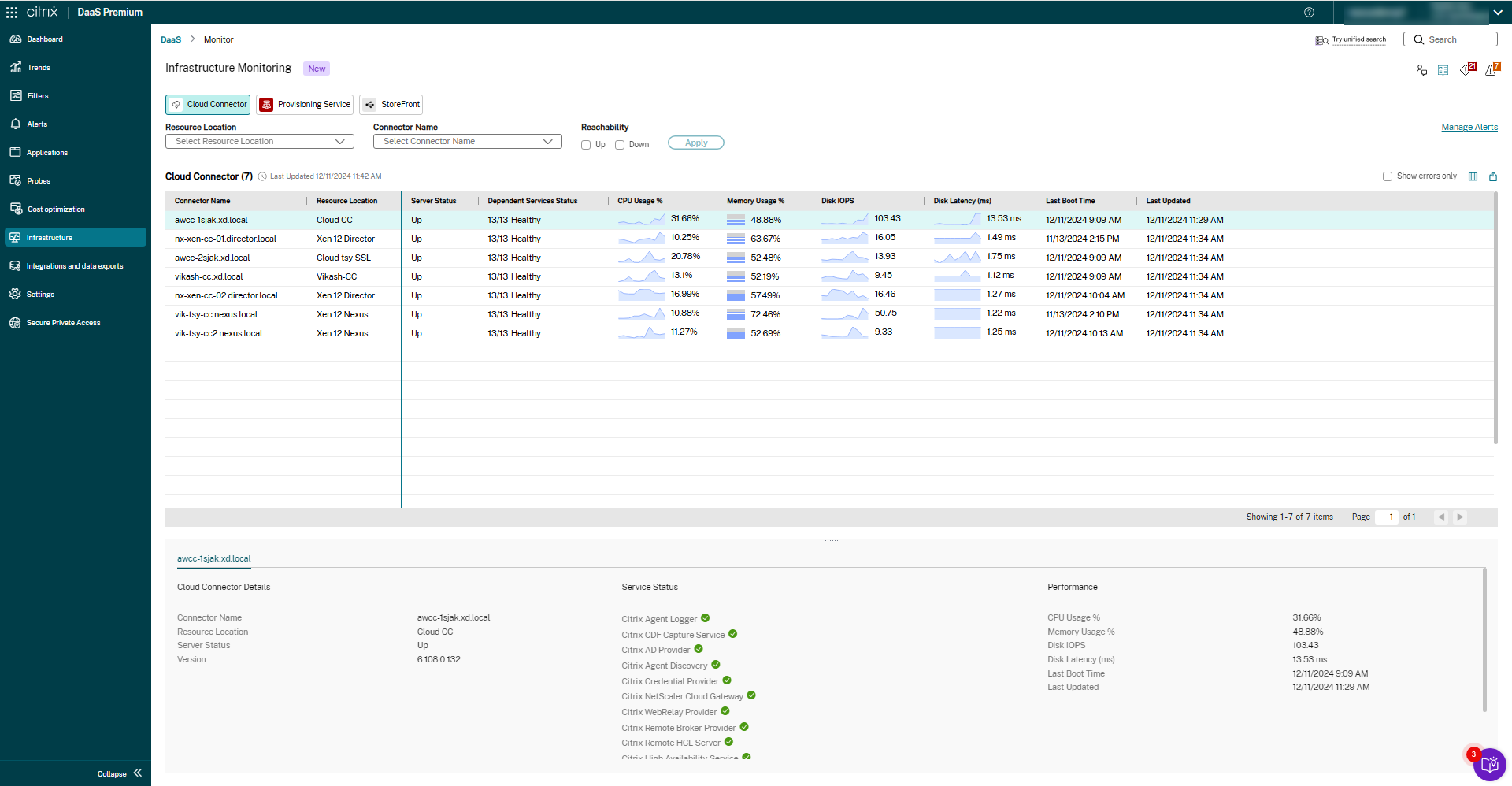
Citrix DaaS delivers VDI, virtual applications, and desktop as a service from any cloud, on-premises, or hybrid infrastructure. It is offered as Citrix DaaS Cloud, which Citrix manages, and Citrix DaaS Local, the customer-managed deployment formerly known as Citrix Virtual Apps and Desktops.
Workloads can run in Microsoft Azure, Google Cloud Platform, AWS, or on-premises resources and be managed together. The platform includes HDX optimization for low-bandwidth conditions, security controls for unmanaged endpoints, and user environment management for logins and app response times.
Key features include:
- Cloud and local deployment: Combines Citrix DaaS Cloud and Citrix DaaS Local so organizations choose where to manage, monitor, and secure virtual resources.
- HDX optimization: Optimizes delivery for low-bandwidth connections, unified communications tools, and graphic-intensive applications.
- Hybrid multi-cloud placement: Runs workloads in Azure, Google Cloud, or AWS and manages them alongside on-premises resources.
- Endpoint and session security: Protects unmanaged endpoints, applies granular controls, and records user sessions.
- User environment management: Accelerates logins, improves server scalability, and speeds application response times through a lightweight management component.
- Onboarding and offboarding: Deploys IT resources to new users quickly and revokes employee access as needed.
- Related Citrix products: Works with Citrix Experience Insights for performance visibility across endpoints and Citrix SecurAccess ZTNA for app access without a VPN.
Limitations (as reported by users on Capterra):
- Bandwidth sensitivity: Users report performance issues and occasional lag when connections are slow or applications are large.
- Sign-in steps: Some users find the login process involves many steps.
- Administrator learning curve: Users note a steep learning curve for engineers who build and maintain the environment.
- Licensing clarity: Some users find the licensing model difficult to understand.
Source: Citrix
5. Omnissa Horizon 8
Best for: VDI and published apps across on-premises and hybrid cloud
Strengths: App Volumes, unified console, and automation through REST APIs
Things to consider: Users report higher pricing since the move to Omnissa
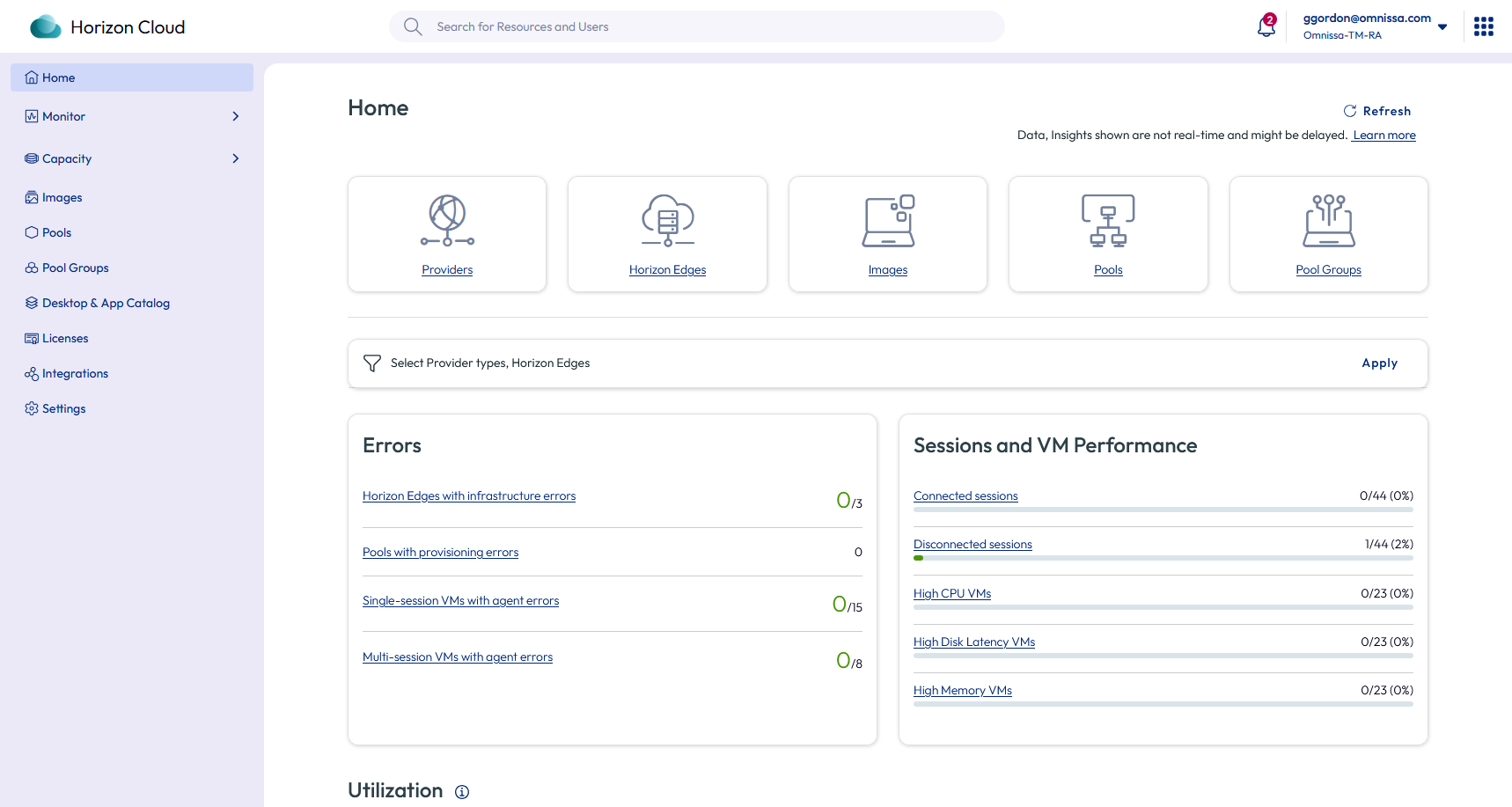
Omnissa Horizon 8, formerly VMware Horizon, is a VDI and app solution that gives users secure access to full desktops or individual apps on any device. It runs on-premises, in private clouds, or in public cloud environments, with on-premises support for VMware vSphere, Nutanix AHV, OpenStack, and Red Hat OpenShift.
The Horizon Connection Server brokers connections and validates entitlements through Active Directory, the Horizon Agent delivers sessions from desktops, RDSH servers, or physical systems, and the Unified Access Gateway handles secure external access without exposing internal systems.
Key features include:
- Desktop and app delivery: Delivers full virtual desktops or individual applications from on-premises, private cloud, or public cloud environments.
- Media optimization: Optimizes high-definition graphics, voice, and video, including Microsoft Teams, Zoom, and Webex, over low-bandwidth or variable networks.
- App Volumes: Packages and delivers applications on demand with centralized lifecycle management to reduce image sprawl.
- Centralized management: Administers desktops, applications, and infrastructure from a unified console with consistent policy enforcement.
- Automation: Automates deployment and management tasks with REST APIs and infrastructure as code tools such as Terraform.
- Granular policy control: Controls clipboard, device redirection, printing, and session actions by user, group, or context through Dynamic Environment Manager.
- Session recording and authentication: Records and replays sessions for audits and investigations, and integrates with Active Directory and Omnissa Access for MFA and True SSO.
- Monitoring: Uses Omnissa Monitor for visibility into operations, infrastructure health, and baseline session performance.
Limitations (as reported by users on Capterra, TrustRadius, and SoftwareReviews):
- Pricing after the ownership change: Some users report a higher overall price since the product moved from VMware to Omnissa.
- Documentation links: Some users note documentation that still contains links pointing to legacy VMware sites.
- Client connection settings: Users mention limited options for adjusting connection quality from the Horizon Client interface.
Source: Omnissa
6. Parallels RAS
Best for: Publishing apps and desktops across on-prem, hybrid, and cloud
Strengths: Single console, broad hypervisor support, concurrent-user licensing
Things to consider: Some releases reported buggy; HA setup can take effort
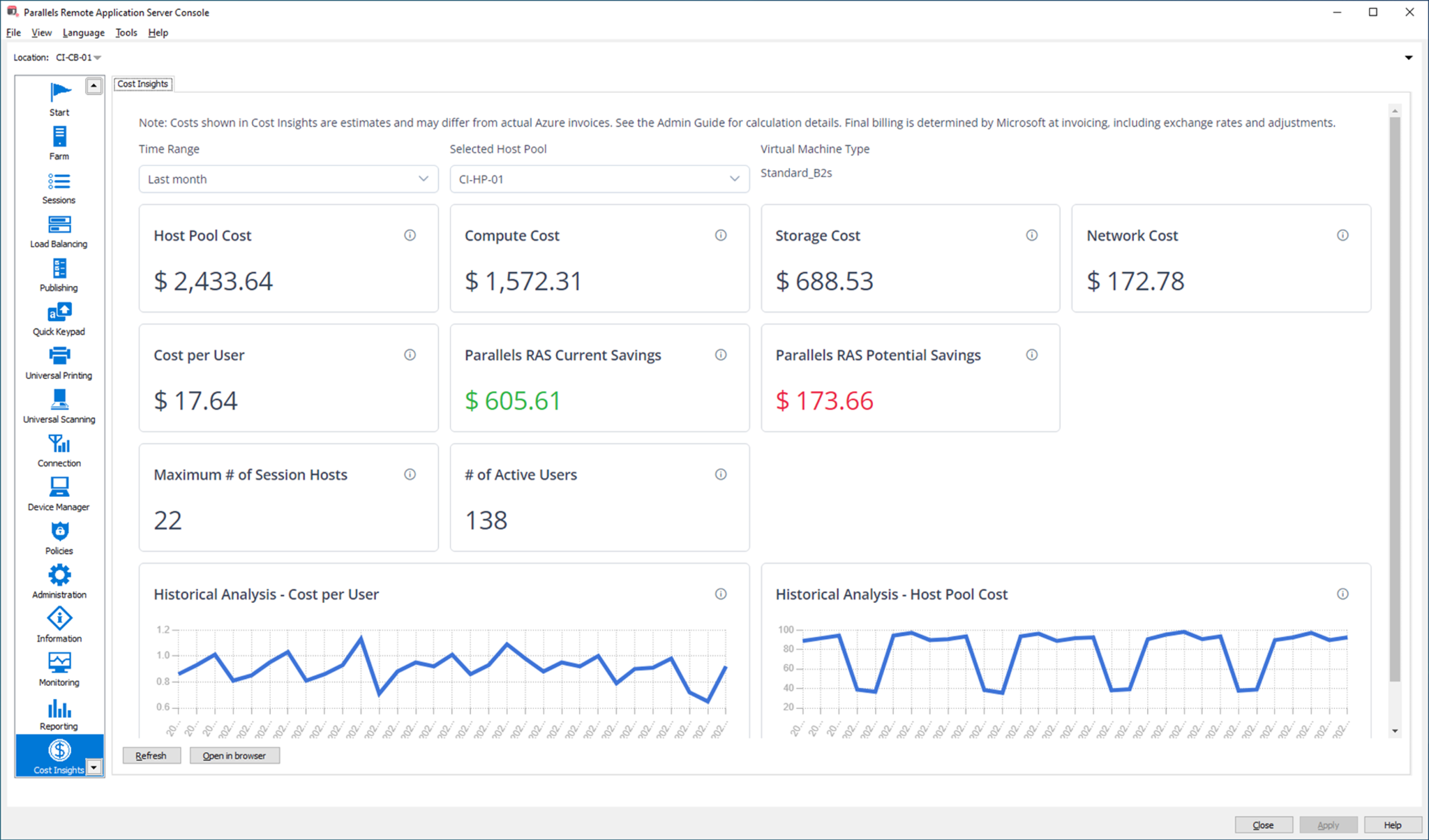
Parallels RAS (Remote Application Server) is a virtual application and desktop delivery solution that centralizes apps and desktops on server or cloud infrastructure. It supports RDSH, VDI, and remote PC delivery, and its components and workloads can run on-premises, in private cloud, or in public cloud, including Azure Virtual Desktop and AWS.
Administration runs from a single console that covers apps, desktops, images, reporting, gateway, load balancing, and authentication. Licensing is based on concurrent users and includes all features, the Secure Gateway, and the High Availability Load Balancer.
Key features include:
- Hybrid deployment: Deploys core components and workloads on-premises, in private cloud, or in public cloud, and mixes them across sites and data centers.
- Hypervisor and cloud support: Works with VMware ESX, Hyper-V, Scale, and Nutanix, and connects to Proxmox, Virtuozzo, VergeIO, KVM, and Xen through an API-based Custom Provider Framework.
- Azure Virtual Desktop integration: Manages AVD workloads from the RAS console, including Windows 10 and 11 multi-session and Microsoft Teams redirection.
- Client access: Provides clients for Windows, macOS, Linux, iOS, Android, and HTML5 browsers, with session pre-launch based on user habits.
- Peripheral and display support: Passes through printers, scanners, and smart cards with optional restrictions, and lets users select which monitors to use.
- App deployment automation: Enables FSLogix profiles and integrates MSIX App Attach and App-V to package and deploy apps to session hosts.
- Security controls: Provides SSL/TLS 1.3 with FIPS 140-2 support, built-in and third-party MFA, SSO through Okta, Ping Identity, and Azure AD, rule-based access filters, and audit logs.
- Multi-tenancy and scaling: Includes built-in multi-tenancy for MSPs and segregated environments, and stops and deallocates unused VMs to manage costs.
Limitations (as reported by users on TrustRadius):
- Release stability: Some users report that certain versions have been buggy, although fixes tend to arrive quickly.
- High availability setup: Users mention challenges implementing the high availability options.
- Non-standard printers and displays: Managing large-format printers, plotters, and non-standard display sizes can require extra configuration.
- Upgrades and directory dependency: Users note interface changes between upgrades and a reliance on Active Directory for certain features.
Source: Parallels
Related content: Read our guide to Azure Virtual Desktop
7. TSplus Remote Access
Best for: Publishing Windows apps and desktops for small and midsize teams
Strengths: HTML5 web portal, RemoteApp, and perpetual license options
Things to consider: Advanced security and 2FA are separate add-on products
TSplus Remote Access is remote desktop and application delivery software that provides full remote desktops or published Windows applications from a centralized server. It can be deployed in the cloud or on-premises and is promoted as an alternative to Citrix and Microsoft RDS.
Users connect through any RDP client, a RemoteApp client that shows hosted apps on the local desktop, or an HTML5 web portal in a browser. Licensing is available as a one-time purchase or a subscription, and farm features such as a gateway portal and load balancing support multi-server environments.
Key features include:
- Remote desktop access: Gives remote and local users full desktops on a centralized server, with concurrent RDS connections through HTML5 or RDP-compatible clients.
- Application publishing and assignment: Publishes Windows applications and assigns them to users or groups based on Active Directory, local accounts, Azure, or AWS.
- Connection modes: Supports RDP clients, RemoteApp floating and application panels, and HTML5 access, including single-app launch and a progressive web app mode.
- Session capacity: Enables from 3 to more than 50 concurrent sessions per server, with farms that scale to thousands of users.
- Remote printing: Uses a Universal Printer that converts documents to PDF on the user’s device, and a Virtual Printer for advanced printer configurations.
- Admin tools: Provides a customizable web portal, user and application management, and a client generator for one-click connections.
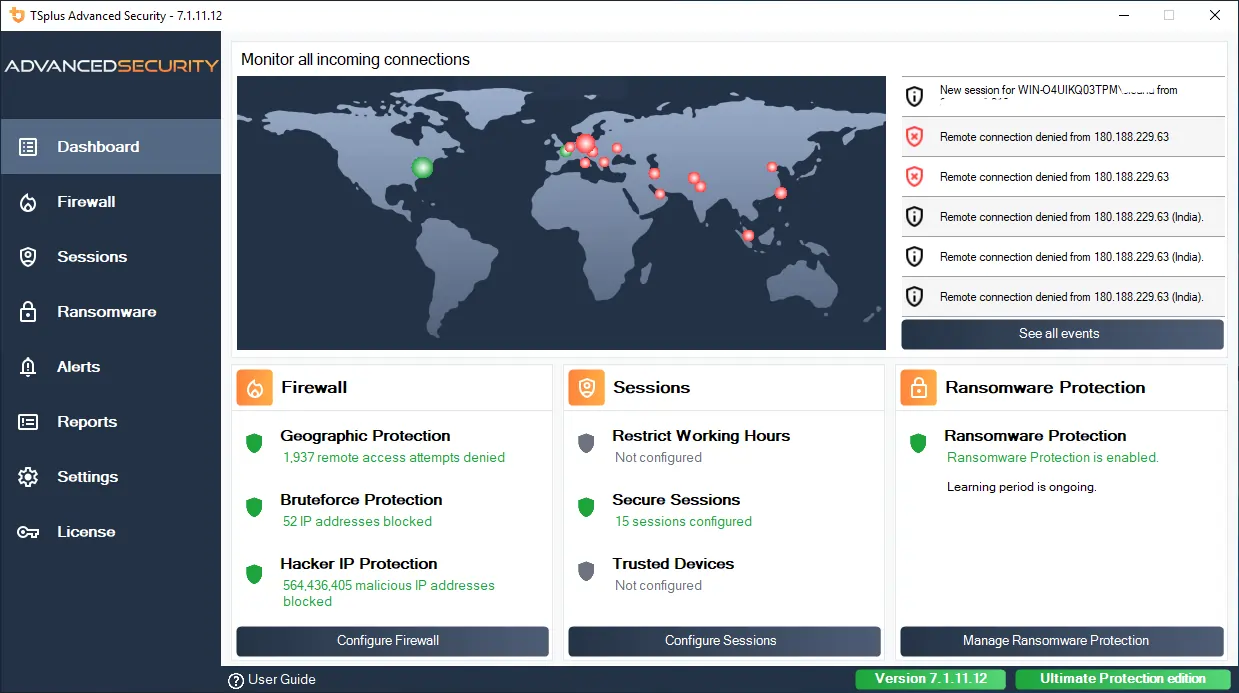
- Security: Encrypts connections with TLS, integrates Let’s Encrypt certificates, and locks out credentials after repeated failed logins, with Advanced Security and 2FA available as add-ons.
- Farm management: Includes a Gateway Portal for single sign-in across servers, load balancing with failover, and a reverse proxy.
Limitations (as reported by users on Capterra):
- Integrations: Some users point to integration with other systems as an area for improvement.
- Pricing structure: Some users find the pricing a little confusing.
- Support: Some users mention support as an area that could be improved.
Source: TSplus
Desktop as a Service (DaaS) Solutions
8. Azure Virtual Desktop
Best for: Cloud VDI for Windows desktops and apps on Microsoft Azure
Strengths: Windows multi-session and a Microsoft-managed control plane
Things to consider: Built for teams with VDI expertise; lag on slow connections
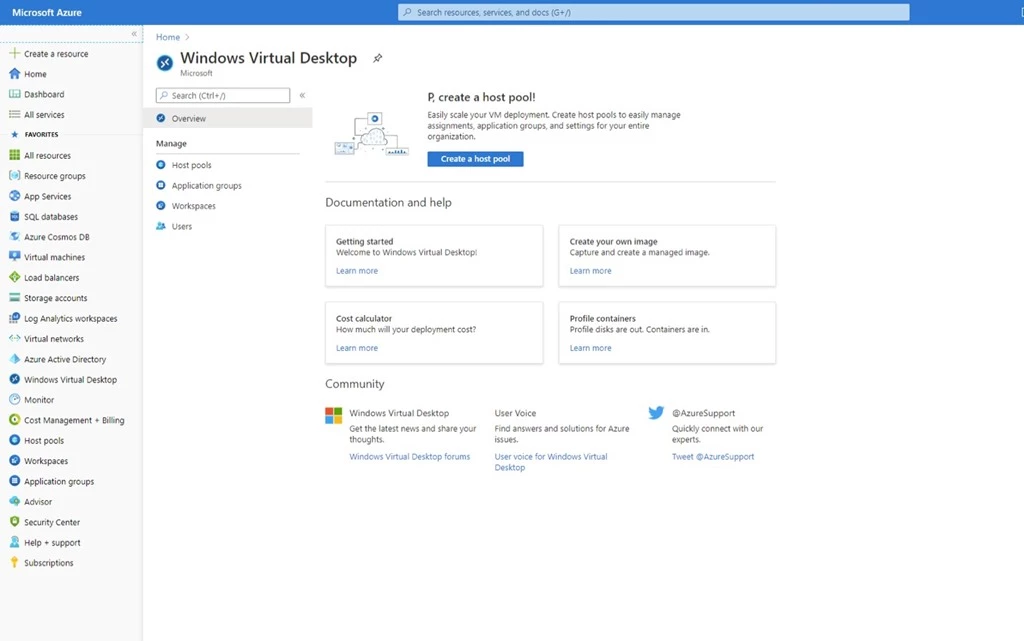
Azure Virtual Desktop is a desktop and app virtualization service on Microsoft Azure that delivers Windows 11, Windows 10, and Windows Server experiences. Microsoft manages the virtual desktop infrastructure, including the broker, gateway, load balancer, and diagnostics, while IT manages the desktops, apps, and governance policies.
The service is designed for organizations with VDI implementation expertise. It supports Windows multi-session, per-second compute billing, and Azure Virtual Desktop Hybrid, which extends the service to existing on-premises infrastructure while Microsoft manages the control plane.
Key features include:
- Windows desktops and apps: Delivers Windows 11, Windows 10, and Windows Server 2022, 2019, and 2016 desktop and application experiences from secured Azure virtual machines.
- Multi-session capabilities: Lets multiple users share a single Windows 11 or Windows 10 virtual machine at the same time.
- Managed control plane: Has Microsoft operate the broker, gateway, load balancer, and diagnostics across a global footprint.
- Host pool management: Uses custom image templates to configure and manage deployments at scale.
- Networking options: Supports Azure Private Link and RDP Shortpath for connectivity and reliability.
- Hybrid and on-premises options: Runs session hosts on existing infrastructure through Azure Virtual Desktop Hybrid and on Azure Local, with access through the Windows App.
- Pay-per-use billing: Bills compute capacity by the second with no long-term commitment, and lets eligible Windows or Microsoft 365 licenses cover access rights.
- Partner integration: Works with Citrix DaaS for Azure and Omnissa Horizon Cloud Service on Microsoft Azure for organizations extending existing deployments.
Limitations (as reported by users on TrustRadius):
- Connection sensitivity: Users report screen lag when the client connection is slow or unstable.
- Profile caching: Some users mention issues with user profile caching.
- Monitoring: Users note that built-in monitoring capabilities could be improved.
- Portal usability: Some users would like a more interactive and usable management portal.
Source: Microsoft
9. Windows 365

Best for: Personal Cloud PCs managed alongside physical PCs in Intune
Strengths: Editions for full-time, shift-based, temporary, and agent use
Things to consider: Per-user subscription costs can add up across many seats
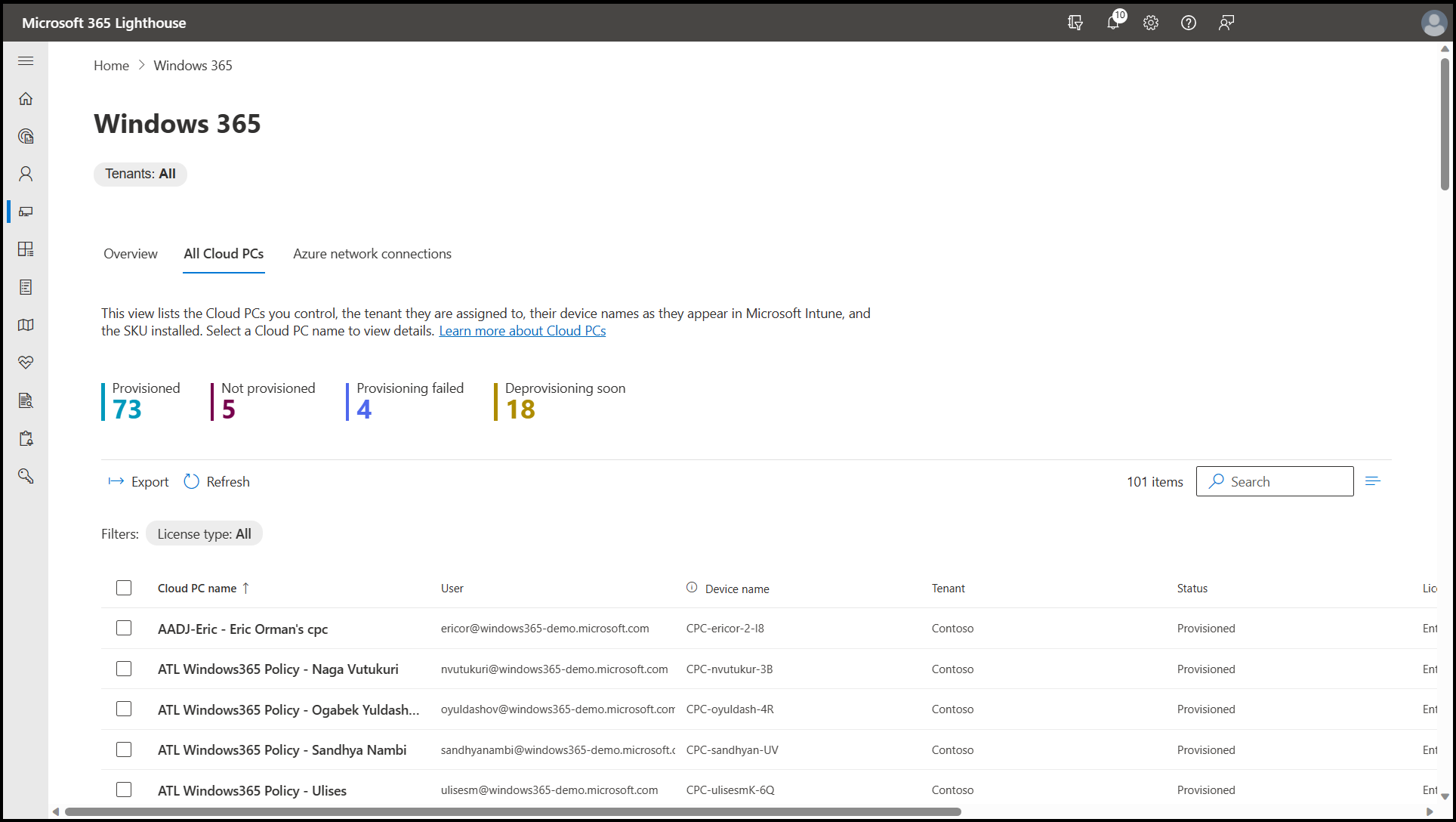
Windows 365 is a Microsoft service that delivers Windows Cloud PCs to users on Windows, Mac, iOS, or Android devices. Cloud PCs are deployed and managed like physical PCs, through Microsoft Intune, the Microsoft 365 admin center, or the Windows App, depending on the edition.
Editions include Windows 365 Business for up to 300 users, Windows 365 Enterprise for larger organizations using Intune, Windows 365 Flex for part-time or shift-based use, Windows 365 Reserve for temporary Cloud PCs, Windows 365 Government, and Windows 365 for Agents, which runs AI agents in Cloud PCs.
Key features include:
- Cloud PC editions: Provides dedicated Cloud PCs for full-time use, pooled Cloud PCs for occasional use, and temporary Cloud PCs when a physical device is unavailable.
- Cloud PC sizes and GPUs: Offers Cloud PCs with up to 32 vCPUs, 128 GB RAM, and 2 TB storage in Enterprise and Flex, plus GPU Cloud PCs for graphics-intensive work.
- Flexible licensing: Lets Windows 365 Flex licenses cover up to three dedicated Cloud PCs with one active at a time, or one shared Cloud PC used by one person at a time.
- Intune-based management: Configures, deploys, and manages Enterprise and Flex Cloud PCs with Microsoft Intune, using the same tools as physical devices.
- Security: Stores data in the cloud rather than on the device and follows Zero Trust principles for Cloud PC access.
- Windows 365 Link: Supports a Microsoft-built Cloud PC device that connects directly to Windows 365 for shared and desk-based workspaces.
- Windows 365 for Agents: Runs AI agents in Cloud PCs with identity, isolation, and Intune policy control.
Limitations (as reported by users on Gartner Peer Insights):
- Occasional glitches: Some reviewers report glitches during day-to-day use.
- Interface clutter: Some users find the interface cluttered.
- Subscription costs: Reviewers note that per-user subscription costs can add up.
Source: Microsoft
10. Amazon WorkSpaces
Best for: Managed cloud desktops for task, knowledge, and contact center staff
Strengths: Pay-for-use billing across 19 regions with a 99.9% uptime SLA
Things to consider: Needs a stable connection; some users report disconnects
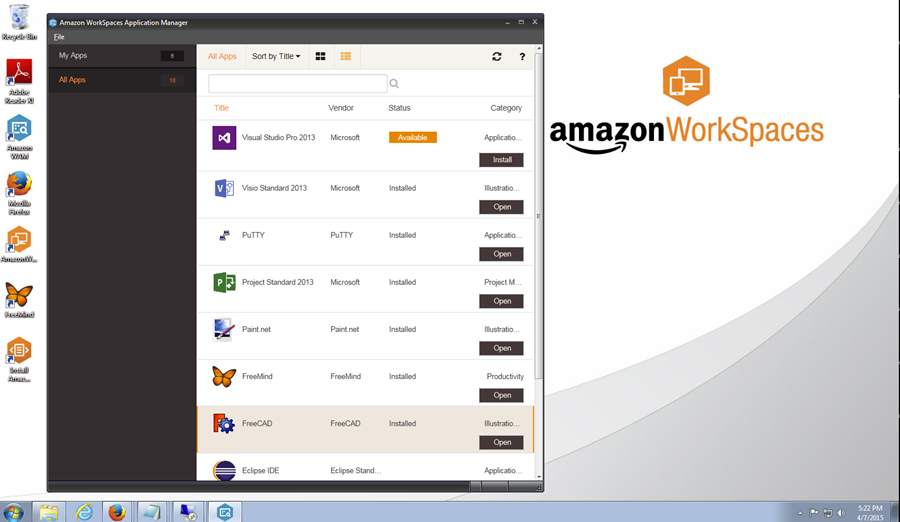
Amazon WorkSpaces is a fully managed cloud VDI service from AWS that delivers desktops and applications to remote and hybrid users. It covers use cases that range from task workers, contact center agents, and back-office staff to developers, engineers, and data scientists, with central management through the AWS Console.
The WorkSpaces family includes desktop as a service, application streaming to any device, a cloud-native secure browser, and infrastructure and APIs for third-party VDI software. Organizations pay for what they use with no contracts, under a financially backed SLA.
Key features include:
- Managed cloud desktops: Provides fully managed virtual desktops that deploy in minutes without infrastructure refreshes or capacity planning.
- Application streaming: Streams individual applications to any device as an alternative to a full desktop.
- Secure browser: Includes a cloud-native remote enterprise browser for web-based work.
- Third-party VDI support: Offers virtual desktop infrastructure and APIs for third-party VDI software, such as running Omnissa Horizon 8 on WorkSpaces.
- Configuration choices: Lets teams choose instance size and configuration, security and authentication options, API integrations, and scaling policies.
- Pay-for-use pricing: Bills for the resources in use with no contracts required.
- Global availability: Runs in 19 regions with a 99.9% monthly uptime SLA.
- Builder and ISV tools: Connects AI agents to desktop applications through a managed MCP server and helps convert desktop apps into SaaS or web-based delivery.
Limitations (as reported by users on Capterra):
- Connection dependency: Users note that a stable internet connection is required for a consistent experience.
- Disconnects and slowdowns: Some users report random disconnects or slower performance at certain times of day.
- Technical support: Some users describe technical support as lacking.
- Client setup: Some users report difficulty getting the client to work on their systems.
Source: Amazon
11. OCI Secure Desktops

Best for: Managed Oracle Linux and Windows desktops inside OCI regions
Strengths: Flexible VM shapes, hibernation, and in-region data residency
Things to consider: Minimum of 10 desktops; Windows requires bring-your-own license
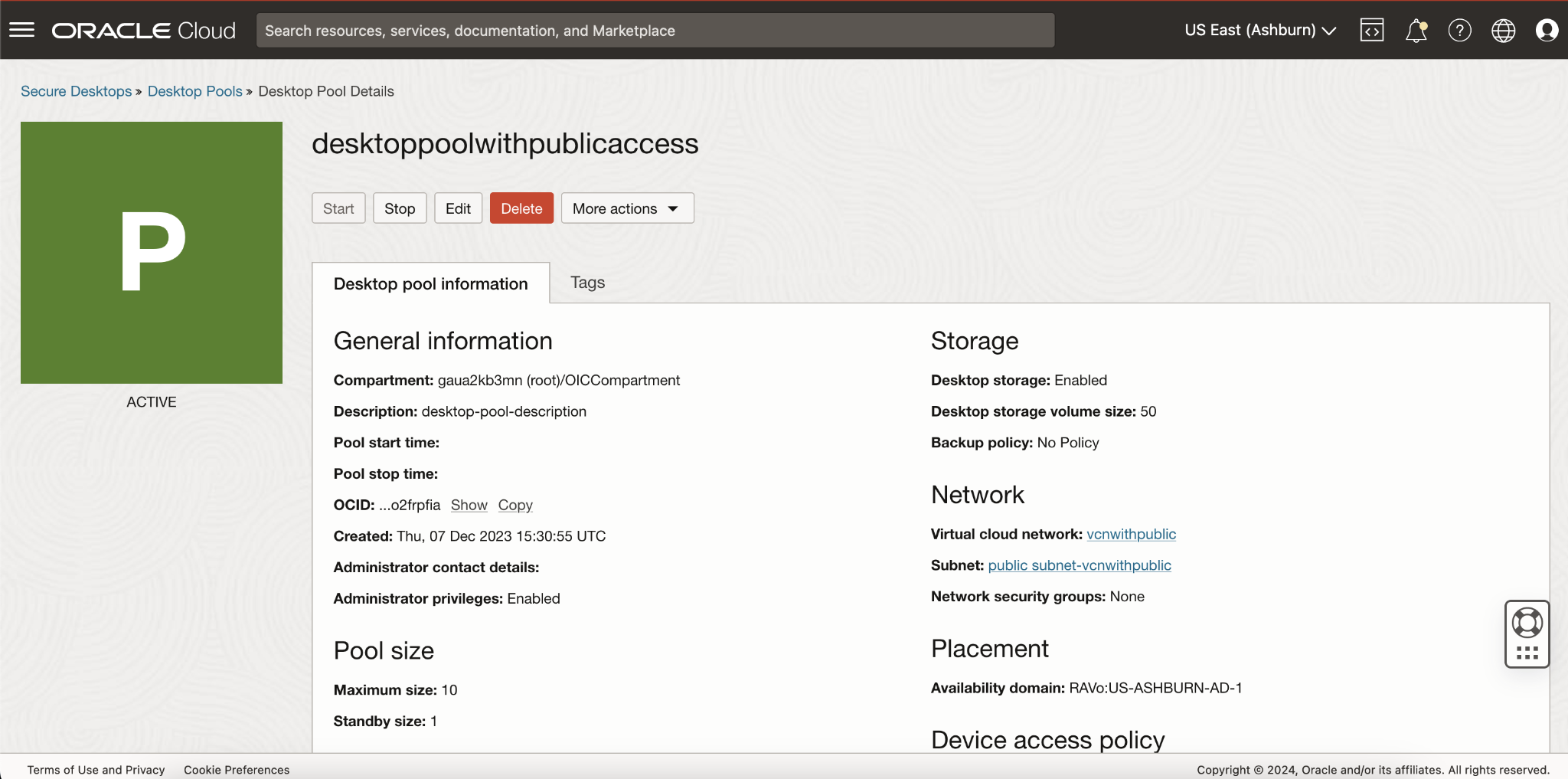
OCI Secure Desktops is a managed desktop as a service offering on Oracle Cloud Infrastructure that provides centrally controlled virtual desktops running Oracle Linux or Microsoft Windows. Data and applications stay inside the chosen OCI region, and only a view of the desktop is transmitted to users over a proprietary protocol.
Desktops are deployed from golden images into pools that range from 10 to thousands of desktops, using virtual machines or dedicated virtual hosts. Users connect through a supported web browser or a lightweight client for Windows, macOS, and Linux, and no VPN is needed.
Key features include:
- Managed desktop pools: Deploys desktops from golden images into pools of 10 or more and provisions them automatically regardless of the endpoint device.
- Flexible VM shapes: Supports AMD- and Intel-based shapes from 1 to 80 cores and 1 to 64 GB of memory per core, including burstable shapes and dedicated virtual hosts.
- Hibernation: Stops desktops automatically after inactivity and resumes their state when the user reconnects.
- Regional data residency: Keeps data and applications in a selected OCI region while users connect from any location.
- Display-only connection: Transmits only a view of the desktop, so no data is stored on the endpoint device.
- Endpoint access options: Provides access through a supported browser or a client for Windows, macOS, and Linux, with multi-monitor support and private endpoint access.
- Per-desktop pricing: Charges a monthly fee per desktop, with compute, storage, network, and Windows licensing billed separately.
Limitations (based on publicly available sources):
- Minimum pool size: Desktop pools require a minimum of 10 desktops, and the service is not available in Oracle Cloud Free Tier.
- Windows licensing: Windows desktops require participation in Microsoft’s bring-your-own-license program and default to dedicated virtual hosts.
- Operating system coverage: Oracle Linux 7 and 8 and Windows 10 and 11 are supported, with Oracle Linux 9 support listed as in progress.
Source: Oracle
12. Workspot

Best for: Moving on-prem VDI to cloud desktops on AWS, GCP, Azure, or Akamai
Strengths: Multi-cloud, multi-region desktops with built-in DEX monitoring
Things to consider: Image management rated less comprehensive than some peers
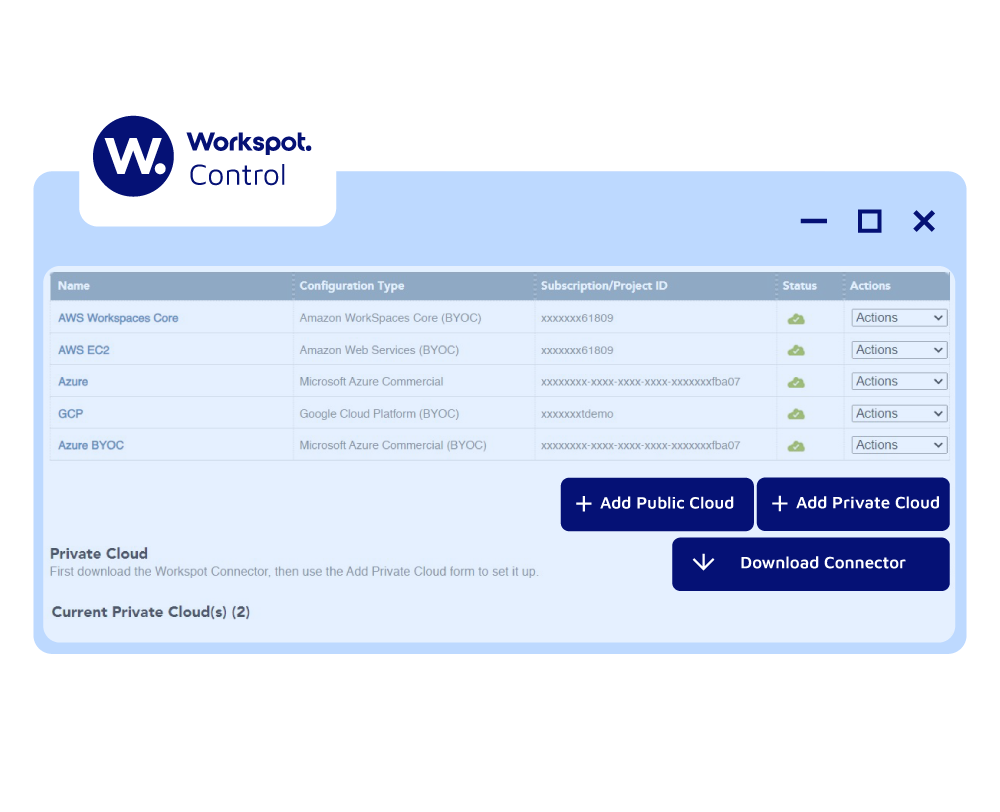
Workspot is a DaaS platform for moving on-premises VDI to a cloud of choice, including AWS, Google Cloud, Azure, and Akamai. Virtual desktops and apps can be deployed in one or many regions, and the global environment is managed from a single interface in Workspot Control.
The platform uses just-in-time and just-enough provisioning to manage cloud costs, includes an embedded enterprise browser for access to Teams, Outlook, and OneDrive, and provides digital employee experience (DEX) tools for real-time and historical monitoring.
Key features include:
- Workspot Control: Manages and scales virtual desktops and apps across clouds and regions from a single pane of glass.
- Workspot Client: Provides access to virtual desktops and apps from a range of devices.
- Workspot Watch: Collects real-time data with global tracing and analytics for end-user observability.
- Workspot Trends: Tracks user satisfaction over time and identifies root causes of recurring issues.
- Global Desktops: Provides failover across regions with a 99.99% uptime target for virtual desktops and apps.
- SIEM and ITSM integration: Sends VDI session insights to SIEM and ITSM systems for security operations and compliance.
- FinOps provisioning: Uses just-in-time and just-enough provisioning, with virtual desktop pricing quoted from 20 cents per hour.
- Embedded enterprise browser: Gives users browser-based access to Teams, Outlook, and OneDrive without additional desktop infrastructure.
Limitations (based on publicly available sources):
- Image management: G2 comparison data rates Workspot’s image management capabilities lower than some alternatives.
- Cross-region recovery: Aggregated review analyses note that backup and restore is limited to the same cloud region.
- Per-cloud configuration: Review analyses mention that vendor-specific setup and configuration is still required for each cloud.
Source: Workspot
Best Practices for Choosing and Deploying a Virtual Desktop Solution
Organizations should consider the following measures before selecting a virtual desktop solution.
1. Map User Groups and Device Ownership Before Choosing a Model
Start by identifying the different types of users who need virtual desktop access and the applications they use. Full-time employees, contractors, temporary workers, and third-party partners may have different requirements for computing resources, security, and application access. For example, employees running resource-intensive applications may require dedicated virtual machines, while administrative staff using standard productivity tools may be better suited to shared desktop environments.
Device ownership is equally important. Organizations issuing company-managed laptops have greater control over endpoint security, while BYOD and contractor-owned devices introduce additional risks. Traditional VDI and DaaS can provide centralized desktop environments, but they may introduce unnecessary complexity for users who only need secure access to a few corporate applications.
Match the deployment model to the user group’s actual requirements. Consider whether users need a complete remote desktop or whether a secure, isolated workspace running locally on an unmanaged device could provide the necessary protection with less infrastructure overhead.
2. Calculate Total Cost of Ownership, Including Licenses, Storage, and Support
Compare virtual desktop solutions based on their total cost of ownership (TCO) rather than focusing exclusively on subscription prices or initial deployment expenses. On-premises VDI requires investment in servers, storage, networking, and virtualization software, while DaaS typically involves recurring charges for cloud infrastructure and desktop services.
Include operating system and application licenses, user profile storage, backup systems, security tools, network bandwidth, and IT support in your calculations. Organizations should also account for indirect costs, such as employee downtime, performance troubleshooting, and the administrative effort required to maintain desktop images and user environments.
Evaluate costs across different user populations and usage patterns. A full virtual desktop may be justified for employees who require dedicated computing environments, but it could be unnecessarily expensive for contractors who only need browser-based applications. Comparing VDI, DaaS, and local secure workspace approaches can help organizations avoid paying for infrastructure that individual users do not need.
3. Pilot with Real Workloads to Measure Latency and Performance
Before deploying virtual desktops across the organization, conduct a pilot involving representative users, devices, applications, and network conditions. Testing should include employees working from different geographic locations, users with varying internet connection quality, and teams running resource-intensive applications.
Measure login times, application launch speeds, input latency, network bandwidth consumption, and overall desktop responsiveness. Pay particular attention to video conferencing, large file transfers, multiple-monitor configurations, and peripheral redirection, as these activities can expose performance issues that are not apparent during basic desktop testing.
Use measurable performance thresholds to determine whether the solution is suitable for production. Gather user feedback alongside technical metrics, identify bottlenecks, and adjust infrastructure sizing or hosting locations before expanding deployment. Where network latency is a persistent problem, consider alternatives that process applications locally while maintaining corporate data isolation.
4. Enforce Zero Trust Access Controls and Multi-Factor Authentication
Virtual desktop environments should follow Zero Trust principles, requiring users and devices to satisfy access policies rather than assuming that connections from trusted networks are inherently secure. Implement multi-factor authentication (MFA), preferably using phishing-resistant methods, and integrate virtual desktop access with a centralized identity provider.
Apply role-based access controls and least-privilege permissions to limit which applications, files, and systems each user can access. Organizations should also evaluate device posture, user identity, geographic location, and other contextual signals when making access decisions. Privileged users and administrators should receive additional protections, including stronger authentication and restricted administrative sessions.
Extend security controls beyond the initial login. Configure session timeouts, restrict clipboard sharing and file downloads where necessary, and monitor access to sensitive resources. For BYOD environments, consider solutions that isolate company applications and data without requiring unrestricted administrative control over employees’ personal devices.
5. Plan Onboarding and Offboarding for Contractors and BYOD Users
Contractors and BYOD users require simplified access provisioning and reliable offboarding processes. Establish standardized workflows that allow IT teams to grant access based on job responsibilities, project duration, and device ownership. Integrating these workflows with identity and access management systems can reduce manual administration and help prevent excessive permissions.
For onboarding, assign time-limited access rights, require appropriate authentication, and configure policies that separate corporate information from personal applications and files. When contractors use their own computers, consider secure workspace technologies that isolate company data without enrolling the entire device in a corporate management system. This can reduce privacy concerns while preserving organizational control over business resources.
Design offboarding processes that immediately revoke access and remove corporate data when an engagement ends. Automate account deactivation, terminate active sessions where supported, revoke authentication tokens, and remove access to connected applications. Where supported, use selective data wiping to delete company information from isolated workspaces without affecting personal files or applications.
6. Control Which AI Tools Can Access Company Data
Employees increasingly use generative AI assistants and AI-powered applications to complete everyday tasks. In virtual desktop environments, these tools can introduce data exposure risks if users paste confidential information into unauthorized services, upload sensitive documents, or allow AI applications to access corporate resources without appropriate controls.
Establish policies defining which AI tools are approved, what information users can share, and which applications can connect to internal systems. Apply data loss prevention (DLP) controls to restrict sensitive uploads, clipboard transfers, and unauthorized file sharing. Organizations should also monitor the use of AI browser extensions and connected applications that request access to company data.
Enforce AI usage policies at the application and workspace level rather than relying exclusively on employee training. Where supported, restrict unapproved AI services, limit access to sensitive files, and maintain audit records of relevant data transfers. For employees working on personal devices, isolated corporate workspaces can help prevent company information from being exposed to personal AI tools, browser extensions, and other applications outside organizational control.
Conclusion
Choosing the right virtual desktop solution requires balancing security, performance, management complexity, and cost against the needs of different user groups. Organizations should evaluate whether employees need full virtual desktops, shared remote sessions, cloud-hosted environments, or isolated local workspaces. Key considerations include device ownership, application compatibility, network reliability, access controls, and total cost of ownership. Testing solutions with real workloads and planning secure onboarding, offboarding, and data protection policies can help IT teams deliver reliable work environments while reducing infrastructure overhead and protecting corporate information.

Any worker. Any laptop. Any AI workflow. Fully secured.
Schedule a demo to see how Blue Border® secures company data and apps without shipping laptops, running VDI, or managing personal endpoints.