
Trusted BYOD Monitoring and Control Tools: Top 8 in 2026


See Venn first in Google Search
Add as a preferred source on Google
TL;DR: BYOD monitoring and control tools give IT visibility into personal devices and enforce access and data policies on them. Best for: Venn for isolating work on unmanaged Macs and PCs, Island for browser-based BYOD access, Microsoft Intune for Microsoft-centric device compliance, and Zscaler Private Access for app-level zero trust access.
What Are BYOD Monitoring and Control Tools?
Trusted Bring Your Own Device (BYOD) monitoring and control tools balance corporate data security with employee privacy by separating work profiles from personal data. They help organizations manage personal devices that employees use for work. These tools give IT teams visibility into devices that access company applications, networks, and data. They can identify device types, operating system versions, security settings, and compliance status.
Key monitoring and control features to look for:
- Identity and access monitoring: Tracks authentication activity, device context, and access to corporate resources.
- Device posture assessment: Checks OS versions, patch levels, encryption, endpoint protection, and root or jailbreak status.
- Conditional access controls: Allows, blocks, or challenges access based on identity, device compliance, application, network, and risk.
- Data loss prevention: Detects and restricts sensitive corporate data from leaving approved applications and services.
- Clipboard, download, upload, and printing controls: Limits the ways users can transfer corporate information from personal devices.
- Session monitoring and logging: Records access, file operations, policy violations, and other activity within corporate sessions.
- Application access restrictions: Limits corporate resources to approved applications, browsers, or managed environments.
- Remote access revocation: Revokes sessions, tokens, certificates, or corporate access when a device is lost, compromised, or no longer authorized.
- Threat and anomaly detection: Identifies suspicious device, identity, network, and application activity and can trigger protective actions.
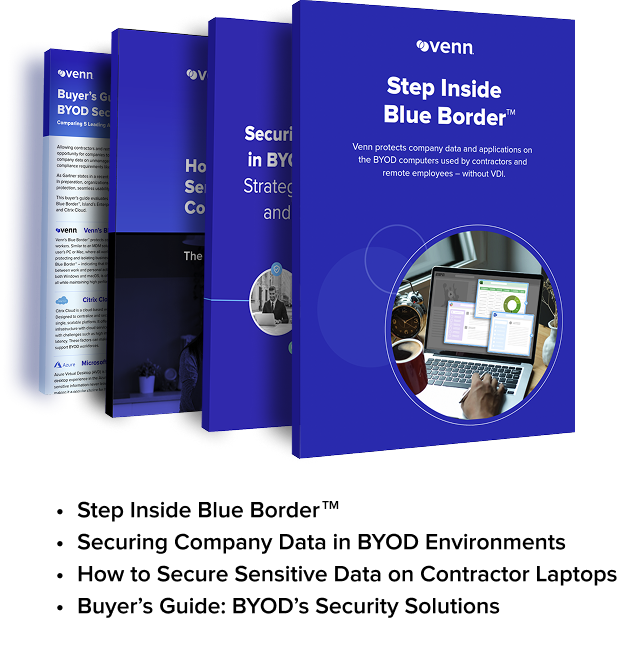
Get Your BYOD Security Toolkit
Unlock the 4 essential assets you need to secure company data on unmanaged laptops – without VDI
In this article:
BYOD Monitoring and Control Tools at a Glance
The table below summarizes the key differences between the BYOD monitoring and control tools covered in this guide. We explore each tool in more detail in the sections that follow.
| Category | Solution | Best For | Key Strengths | Ratings |
| Secure workspace and access control | Venn | Securing work apps and data on unmanaged Macs and PCs | Local secure enclave with DLP, encryption, and remote wipe | 4.3/5 on G2 (14 reviews) |
| Secure workspace and access control | Island Enterprise Browser | Browser-based BYOD access to web and SaaS apps | Last-mile browser controls, posture checks, activity logging | 5.0/5 on Gartner Peer Insights (331 reviews) |
| Secure workspace and access control | Cisco Duo Device Trust | Verifying device health before users sign in to apps | Agentless health checks across managed and BYOD devices | 4.5/5 on G2 (495 reviews) |
| Secure workspace and access control | Zscaler Private Access | App-level zero trust access to private apps from any device | User-to-app segmentation, inline inspection, and DLP | 4.4/5 on G2 (153 reviews) |
| UEM and MDM platforms | Microsoft Intune | Device compliance and access control in Microsoft environments | Cross-platform endpoint management tied to Entra ID access | 4.5/5 on G2 (258 reviews) |
| UEM and MDM platforms | Omnissa Workspace ONE UEM | Multi-platform endpoint management with conditional access | Posture checks, compliance policies, and per-app VPN | 4.0/5 on G2 (39 reviews) |
| UEM and MDM platforms | ManageEngine Mobile Device Manager Plus | Containerized MDM for personal phones and tablets | Work container, DLP restrictions, and selective wipe | 4.5/5 on G2 (253 reviews) |
| UEM and MDM platforms | Hexnode UEM | Mobile-first BYOD enrollment and containerization | iOS and Android work containers with remote container wipe | 4.5/5 on G2 (226 reviews) |
What Can BYOD Monitoring Tools Track?
Device and Operating System Information
BYOD monitoring tools can collect basic device details such as:
- Device type
- Manufacturer
- Model
- Operating system
- OS version
- Device identifier
This information helps IT teams maintain an inventory of personal devices that connect to corporate resources and identify devices running unsupported software. These tools may also detect whether encryption is enabled, required security updates are installed, or a device has been rooted or jailbroken.
Depending on the management approach, they can check configuration settings such as screen-lock requirements and security certificates. Administrators can use these signals to determine whether a device meets company security policies before allowing access.
User Identity and Authentication Activity
Monitoring tools can record:
- Which user accesses corporate resources
- When authentication occurs
- Which account or identity provider is involved
They may capture successful and failed login attempts, multifactor authentication status, authentication methods, and session information. Identity platforms can also evaluate contextual signals such as the device, IP address, network, and approximate sign-in location.
These signals help identify unusual authentication behavior, such as repeated failed attempts or access from an unfamiliar device. Conditional access policies can require additional authentication or block a session when predefined risk conditions are met.
Application and SaaS Access
Organizations can monitor access to managed applications and SaaS platforms such as:
- Corporate email
- File storage
- Collaboration tools
- Business applications
Monitoring may show which service was accessed, which account was used, when access occurred, and whether the device or application complied with company policies. Application management tools can also distinguish between managed and unmanaged applications.
For example, a policy might allow a corporate document to open in an approved business application while preventing it from opening in a personal application. This provides control over business data without requiring visibility into every application installed on the device.
Corporate Data Access and Transfers
BYOD monitoring tools can track how users interact with:
- Corporate files
- Databases
- Cloud storage
Depending on the system, logs may record file downloads, uploads, sharing actions, synchronization events, and attempts to access restricted information. Data loss prevention policies can add controls around sensitive data.
They may prevent users from copying corporate content into personal applications, uploading files to unapproved cloud services, printing protected documents, or sharing information outside the organization. The available visibility depends on whether the data is accessed through managed applications, browsers, networks, or cloud services.
Security Posture and Device Risk
Security posture monitoring evaluates whether a personal device meets defined security requirements. Common signals include:
- Encryption status
- Operating system version
- Missing patches
- Malware detections
- Insecure configurations
- Expired certificates
- Root or jailbreak status
Endpoint and identity platforms can combine these signals to determine whether a device is compliant or presents elevated risk. Organizations can connect this assessment to access controls. For example, a device missing critical updates might be allowed to access low-risk services but prevented from opening sensitive corporate applications until it is updated.
Related content: Read our guide to BYOD security risks
Session and Browser Activity
Organizations may monitor browser and session activity when employees access corporate resources through:
- Managed browsers
- Secure web gateways
- VPNs
- Proxies
- Cloud security services
Recorded information can include corporate URLs, connection times, IP addresses, session duration, downloads, uploads, and security events. The scope of monitoring depends on the technical setup. A managed browser may provide visibility only into activity performed inside that browser, while a VPN or secure web gateway may inspect a broader set of routed traffic.
BYOD monitoring does not inherently give an organization visibility into all personal browsing activity; the available data depends on device configuration, installed management components, network routing, and organizational policy.
Key BYOD Monitoring and Control Capabilities
Identity and Access Monitoring
Identity and access monitoring tracks who connects to corporate resources and how they authenticate. It can record:
- Successful and failed sign-ins
- Multifactor authentication events
- Device information
- IP addresses
- Session details
These signals help security teams detect unauthorized access and investigate suspicious account activity. Integration with identity providers also makes it possible to apply different access policies based on the user, device, application, and authentication method.
Device Posture Assessment
Device posture assessment checks whether a personal device meets defined security requirements before or during access. Common checks include:
- OS version
- Patch level
- Encryption status
- Screen-lock configuration
- Endpoint protection
- Root or jailbreak status
The assessment can produce a compliance or risk state that other security controls use when making access decisions. Organizations can require users to update or reconfigure noncompliant devices before they regain access to sensitive resources.
Related content: Read our article about device trust
Conditional Access Controls
Conditional access determines whether a user or device can access a resource based on predefined conditions. Policies can consider:
- Identity
- Device compliance
- Application
- Network
- Authentication strength
- Location signals
- Detected risk
Controls can allow access, block it, or require additional verification. For example, an organization might require multifactor authentication for an unmanaged device while completely blocking that device from a sensitive administrative application.
Data Loss Prevention
Data loss prevention (DLP) controls help prevent sensitive corporate information from leaving approved environments. Policies can identify data based on:
- Classification labels
- File properties
- Patterns such as payment card numbers
- Other content rules
When protected data is detected, DLP can warn the user, log the action, or block it. On BYOD endpoints, enforcement often focuses on managed applications, corporate cloud services, and browser sessions rather than unrelated personal data.
Clipboard, Download, Upload, and Printing Controls
Granular controls can limit the ways users move corporate information. Organizations may prevent:
- Copying data from a managed application to a personal application
- Downloading files to local storage
- Uploading them to unapproved services
- Printing protected documents
These restrictions reduce opportunities for accidental or intentional data leakage while still allowing users to work from personal devices. Available controls depend on the operating system, application management model, and method used to access corporate resources.
Session Monitoring and Logging
Session monitoring records activity while a user interacts with corporate applications and services. Logs can include:
- Authentication events
- Session start and end times
- Accessed resources
- IP addresses
- File operations
- Security policy violations
Security teams can use these records for incident investigation, compliance reporting, and auditing. Some systems also evaluate sessions continuously, allowing access to be challenged or terminated when risk changes after the initial login.
Application Access Restrictions
Application access restrictions control which applications can connect to corporate data and services. Policies may permit approved managed applications while blocking:
- Personal email clients
- Unapproved browsers
- Other applications that cannot enforce required security controls
Restrictions can also vary by resource. An unmanaged device might receive browser-only access to email while access to sensitive databases or administrative tools requires a managed application or compliant corporate device.
Remote Access Revocation
Remote access revocation allows an organization to remove a personal device’s ability to connect to corporate resources. When necessary, administrators can revoke:
- Sessions
- Authentication tokens
- Certificates
- Application access
- Device registrations
This capability is useful when a device is lost, compromised, replaced, or no longer used for work. In BYOD environments, selective wipe features may also remove managed corporate applications and data without erasing the employee’s personal content.
Threat and Anomaly Detection
Threat and anomaly detection analyzes device, identity, network, and application signals for potentially malicious behavior. Examples include:
- Malware detections
- Unusual login patterns
- Impossible or unexpected access patterns
- Repeated authentication failures
- Connections from devices with elevated risk
Detected threats can trigger automated responses such as requiring stronger authentication, blocking access, revoking an active session, or alerting the security team. Combining multiple signals helps organizations respond to risks that may not be apparent from a single device or login event.
Notable Trusted BYOD Monitoring and Control Tools
How we selected these tools: We shortlisted BYOD monitoring and control tools based on device posture assessment, conditional access, data loss prevention on personal devices, activity logging, and the ability to revoke access or remove corporate data without affecting personal content.
Secure Workspace and Access Control Solutions
1. Venn

Best for: Securing work apps and data on unmanaged Macs and PCs
Strengths: Local secure enclave with DLP, encryption, and remote wipe
Things to consider: Support calls route to the next available agent
Venn’s Blue Border installs a company-controlled secure enclave on an employee’s or contractor’s personal Mac or PC. Work applications, files, networking, and AI tools run locally inside the enclave, and each work app is marked with a blue border so users can see which activity is governed by company policy.
Inside the enclave, company data is encrypted and IT controls access and data movement. Outside it, the user’s personal browsing, apps, and files stay private with no company visibility. Venn does not require VDI, a hosted desktop, or full MDM enrollment of the device, and offboarding is handled with a remote wipe of the enclave.
G2 rating: 4.1/5
Key features include:
- Secure enclave on personal devices: Creates an isolated workspace on any personal or unmanaged Mac or PC, where work apps run locally at native performance instead of streaming from a data center.
- App-level DLP controls: Enforces policies on copy/paste, downloads, uploads, screenshots, printing, and AI usage for every app inside the enclave, including installed, browser-based, and AI applications.
- Isolated file storage: Restricts users to saving work files in Venn Disk, a work-sanctioned file system that is isolated, encrypted, and remotely wipeable.
- Controlled network access: Routes work traffic through Venn’s built-in VPN gateway or the organization’s existing private network, separating it from personal traffic on the same device.
- Privacy boundary: Limits IT visibility and control to activity inside the enclave, so personal apps, files, and browsing on the device are not monitored.
- Remote wipe for offboarding: Removes the enclave and all company data from a personal device with a single action, without touching the user’s personal files or requiring device return.
- Contractor and extended workforce support: Provides the same secure workspace for employees, contractors, and third parties through a single lightweight install on devices they already own.
Limitations (as reported by users on G2):
- Support routing: Support requests are handled by the next available team member, so users cannot schedule time with a specific support contact.
- Customization options: Some users would like more customization options beyond the current configuration settings.
- Occasional login retries: A few users noted that MFA sometimes required more than one attempt before sign-in completed.
2. Island Enterprise Browser

Best for: Browser-based BYOD access to web and SaaS apps
Strengths: Last-mile browser controls, posture checks, activity logging
Things to consider: Policy ordering and RDP client can add admin friction
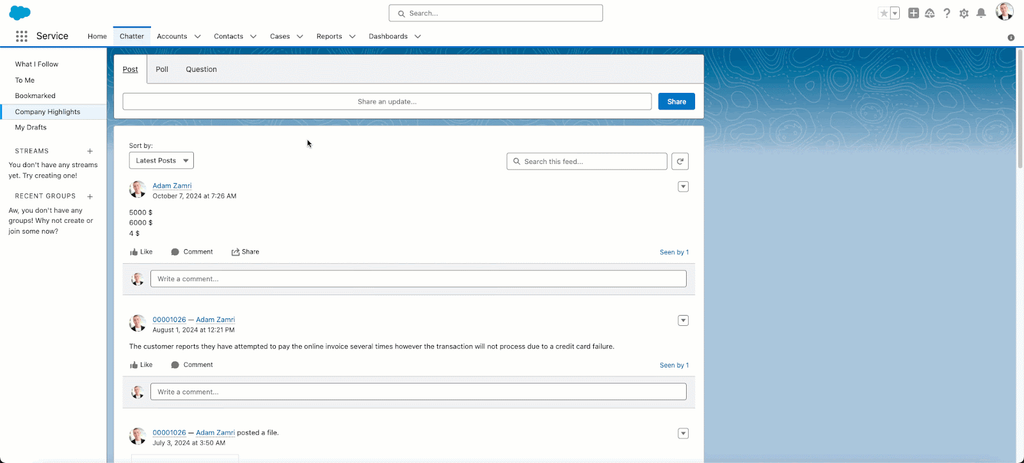
Island is a Chromium-based enterprise browser that places security controls inside the browser. Employees and contractors install it on a personal device, authenticate, and access the corporate web and SaaS applications assigned to their role. It installs without agents, kernel extensions, proxies, or OS-level configuration.
Island integrates with identity providers so that corporate applications can only be reached through the authenticated Island browser. Administrators apply policies to corporate apps and data, while personal browsing remains unmonitored and users see indicators showing when work policies apply.
G2 rating: 4.7/5
Key features include:
- Cross-platform installation: Runs on macOS, Windows, Linux, Android, iOS, and iPadOS without agents or OS-level changes on the personal device.
- Last-mile data controls: Prevents copy/paste from sensitive apps, blocks downloads or redirects them to secure cloud storage, disables screenshots, applies watermarks, and redacts sensitive data on screen.
- Device posture assessment: Evaluates device posture, location, network conditions, and user behavior to make access decisions and block unsafe devices from sensitive data.
- Identity provider enforcement: Works with providers such as Azure AD and Okta so that corporate apps require the Island browser, preventing access through other browsers.
- Activity logging with privacy separation: Logs work application activity, user actions, and screenshots of critical actions, while anonymizing personal app usage. Logs can be sent to SIEM systems.
- Extension management: Allows personal browser extensions while disabling untrusted extensions when users work in critical applications.
- Role- and context-based policies: Applies different policies by role, contractor status, location, or time of day, such as broader access during business hours.
- Browser-level threat protection: Blocks malware, phishing, session hijacking, and man-in-the-browser attacks within the browser environment.
Limitations (as reported by users on G2):
- Policy management complexity: Policies are prioritized by order, which can make it hard to manage rules that look similar but differ in one key setting.
- RDP client gaps: Several users reported that the built-in RDP client lacks features available in Microsoft’s desktop RDP client.
- Restrictive user experience: Some users find strict controls on copy/paste, screen sharing, and data transfers slow down routine work, and would like more flexible role-based options.
- Performance and extensions: A few users mentioned lag, slow tab switching, and fewer supported extensions compared to Chrome or Edge.
- Console visibility: Users noted limited search and filtering in the management console and generic policy violation messages that do not explain why an action was blocked.
Source: Island

3. Cisco Duo Device Trust
Best for: Verifying device health before users sign in to apps
Strengths: Agentless health checks across managed and BYOD devices
Things to consider: Push delays and higher-tier pricing for advanced policies
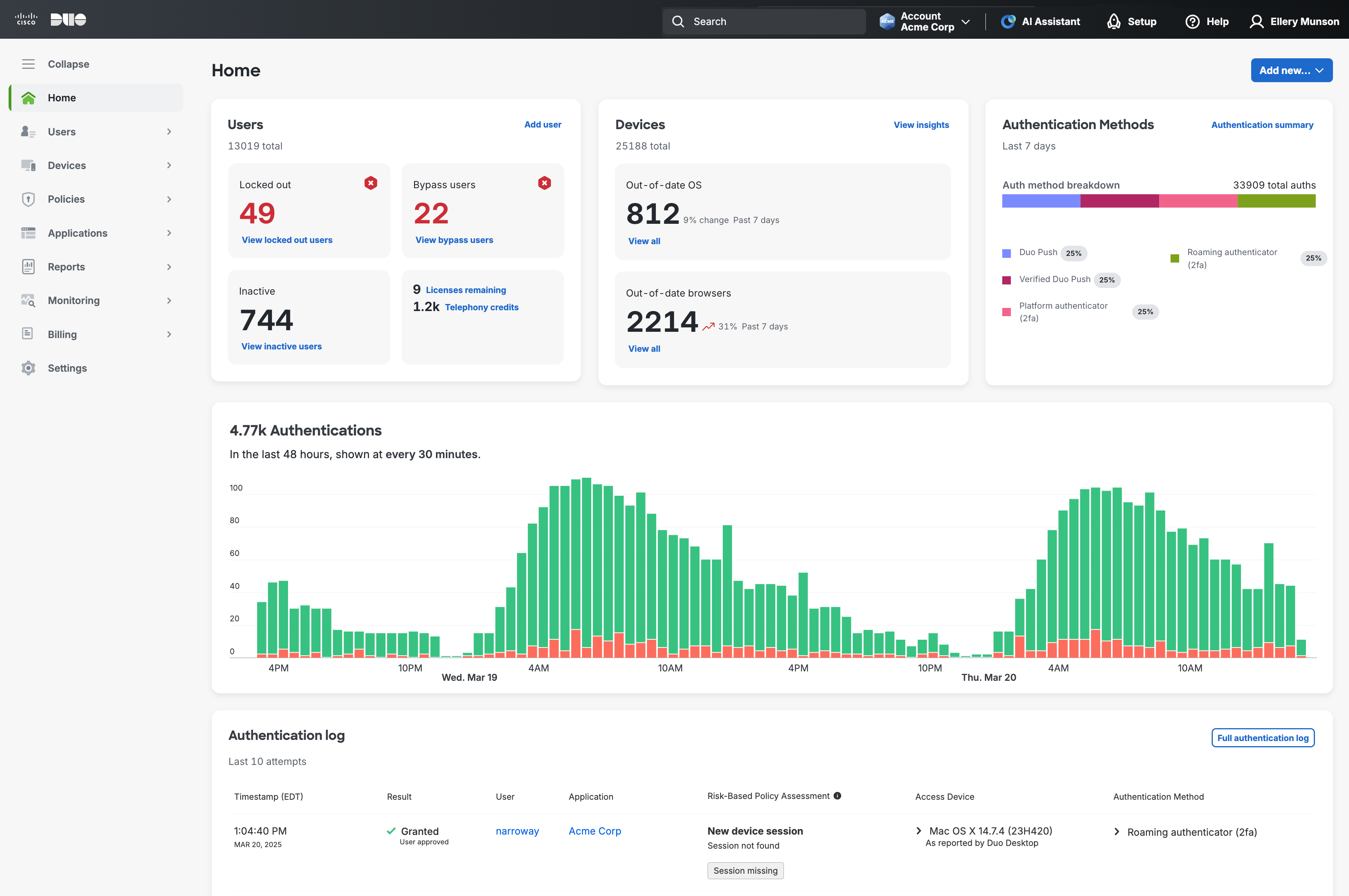
Cisco Duo Device Trust verifies the security posture of devices that request access to corporate applications. It works as part of Duo’s identity and access management platform and checks device health at login without requiring a management agent on the device.
Administrators define policies that allow, restrict, or block access based on device health, and users can fix issues themselves through Duo Desktop and Duo Mobile. Duo is offered in Essentials, Advantage, and Premier editions priced per user, with a free tier for teams of up to 10 users.
G2 rating: 4.5/5
Key features include:
- Agentless device verification: Checks every device requesting access to corporate applications without installing a management agent, covering employees, contractors, and vendors.
- Device visibility: Provides visibility into managed, unmanaged, and BYOD devices, including devices running outdated OS versions or devices that are jailbroken or rooted.
- Health checks: Enforces requirements for OS versions, browsers, patches, and plugins before allowing access to protected applications.
- Adaptive access policies: Blocks or restricts non-compliant devices based on custom policies that are evaluated with each login attempt.
- User self-remediation: Lets users update software and browsers through Duo Desktop and Duo Mobile to regain access without opening a support ticket.
- Admin Panel reporting: Displays device risks, compliance status, and policy results in the Duo Admin Panel, where administrators adjust access policies.
- Continuous verification: Rechecks endpoint trust over time rather than only at initial enrollment.
Limitations (as reported by users on G2):
- Push notification delays: Many users report that push notifications sometimes arrive late or not at all, requiring a resend or opening the app manually.
- Pricing for advanced features: Users note that advanced policy controls require higher-priced editions, and costs can rise quickly as user counts grow.
- Setup and policy complexity: Some reviewers describe the initial setup and detailed policy configuration as complex, with settings spread across several menus.
- Reporting depth: A few users find reporting and analytics limited for audit and compliance needs, leading them to export data to other tools.
- Offline access: Users mention limited offline authentication options and difficulties with offline codes when a phone or internet connection is unavailable.

Source: CISCO Duo
4. Zscaler Private Access

Best for: App-level zero trust access to private apps from any device
Strengths: User-to-app segmentation, inline inspection, and DLP
Things to consider: Troubleshooting and policy setup have a learning curve
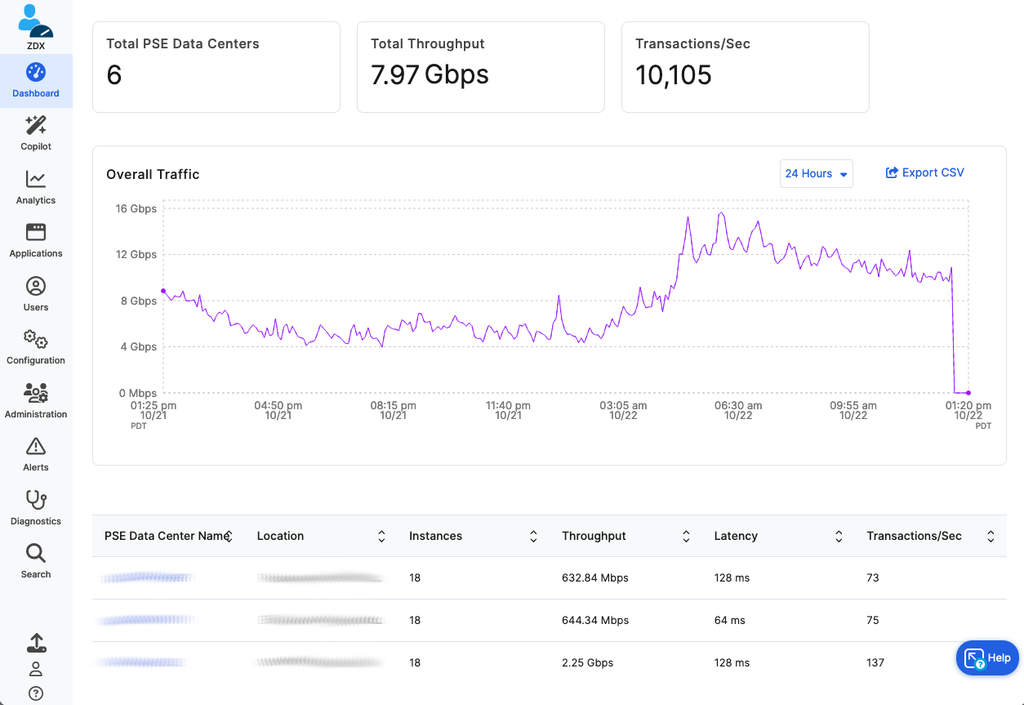
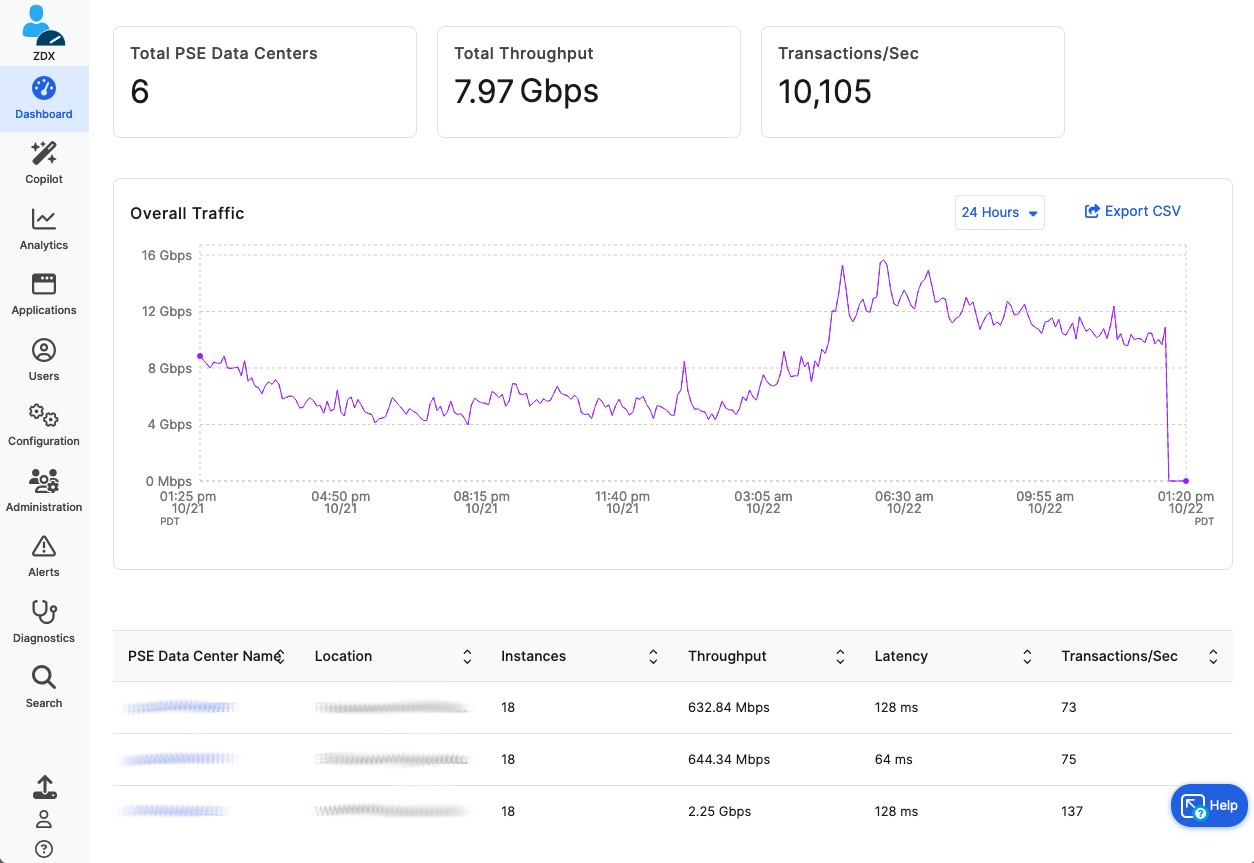
Zscaler Private Access (ZPA) is a zero trust network access (ZTNA) service that connects authorized users directly to private applications. Users never join the corporate network, and applications are not exposed to the public internet, which limits lateral movement from compromised devices.
For BYOD and third-party users, ZPA supports agentless browser access to private apps. It is part of the Zscaler Zero Trust Exchange and can be combined with inline inspection, data loss prevention, and browser isolation to control what happens to data during a session.
G2 rating: 4.5/5
Key features include:
- One-to-one app connections: Brokers direct connections between authorized users and individual applications instead of granting network-level access.
- AI-powered app segmentation: Discovers applications automatically and generates recommendations for app segments and access policies.
- Browser access for unmanaged devices: Enables user-to-app connections through a browser, supporting BYOD and third-party users without installing a client.
- Browser isolation: Delivers private applications in isolated, near-native web sessions to reduce data loss through compromised endpoints.
- Data loss prevention: Inspects data in motion with Exact Data Match, Indexed Data Match, and machine learning, and offers endpoint DLP that addresses BYOD data loss.
- Privileged remote access: Provides clientless access to RDP, SSH, and VNC systems for remote workers and third parties.
- Inline inspection and threat protection: Inspects private app traffic and applies Layer 7 protection against web and identity attacks.
- Digital experience monitoring: Detects app, network, and device issues that affect user connectivity.
Limitations (as reported by users on G2):
- Connection stability: Many users report random disconnections, especially when switching networks or waking a device from sleep, sometimes requiring manual reconnection.
- Troubleshooting difficulty: Users find it hard to tell whether issues stem from policies, identity provider integration, connectors, or the network, and describe error messages as unclear.
- Setup and learning curve: Initial configuration, policy definition, and application segmentation take time, particularly for teams moving from traditional VPNs.
- Performance variability: Some users experience latency or reduced internet speed depending on region, network conditions, and peak usage.
- Cost: Several reviewers consider pricing high for smaller organizations, and some features require additional subscriptions.
Source: Zscaler
Unified Endpoint and Mobile Device Management Platforms
5. Microsoft Intune
Best for: Device compliance and access control in Microsoft environments
Strengths: Cross-platform endpoint management tied to Entra ID access
Things to consider: App protection is strongest for Microsoft apps
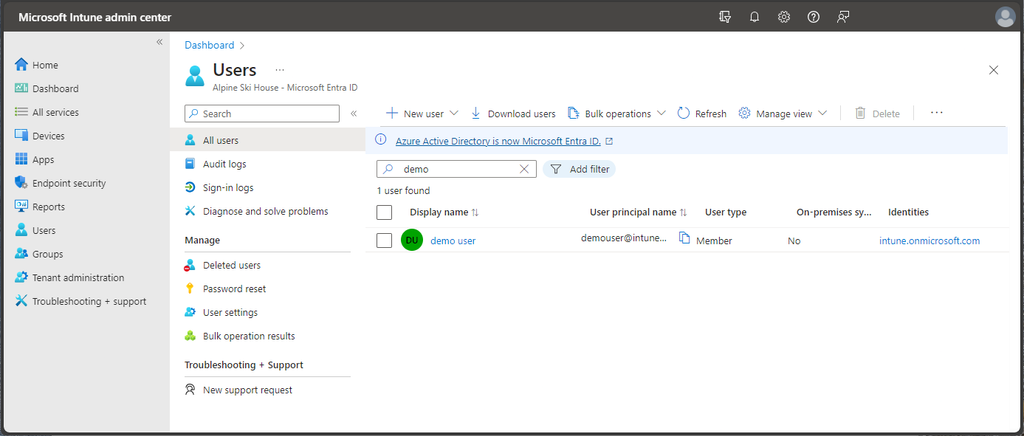
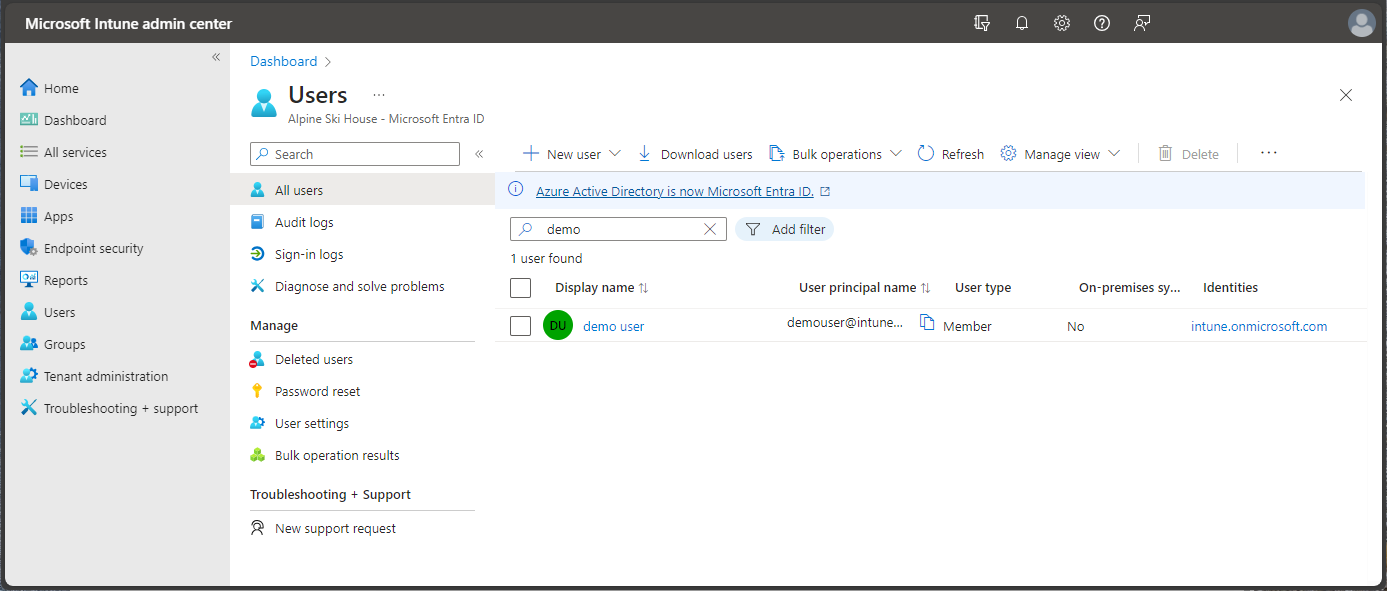
Microsoft Intune is a cloud-based unified endpoint management (UEM) platform for managing and protecting devices, apps, and access from one console. It supports Windows, Android, macOS, iOS, and Linux, and verifies device compliance before users access company resources.
Intune relies on Microsoft Entra ID for identity and conditional access. Intune Plan 1 is included in Microsoft 365 E3 and E5, and add-on capabilities such as Remote Help, Advanced Analytics, and Endpoint Privilege Management are available individually or as part of the Intune Suite.
G2 rating: 4.5/5
Key features include:
- Cross-platform endpoint management: Manages and protects cloud-connected endpoints across Windows, Android, macOS, iOS, and Linux from a single cloud console.
- Compliance verification: Continuously checks device compliance as part of a Zero Trust approach, supporting conditional access decisions through Entra ID.
- App-based VPN access controls: Advanced mobility management adds app-based VPN access controls, firmware over-the-air updates, and specialty device management.
- Advanced Analytics: Provides device query capabilities for visibility into endpoint health across the fleet.
- Remote Help: Establishes secure, cloud-based helpdesk-to-user connections for troubleshooting.
- Endpoint Privilege Management: Allows standard users to perform only IT-approved tasks that require elevated permissions.
- Enterprise Application Management and patching: Deploys and updates apps and patches vulnerabilities to keep endpoints current.
- Microsoft Cloud PKI: Automates cloud certificate management for device and user authentication.
Limitations (as reported by users on G2):
- Limited protection for third-party apps: Users report that app protection policies work mainly with Microsoft apps and a limited set of third-party apps, and app wrapping adds complexity.
- Troubleshooting visibility: Reviewers describe fragmented logs, vague error messages, and delayed or inaccurate status reporting for some app deployments.
- Learning curve: Organizations without Intune or Entra experience find app protection, conditional access, and role-based access configuration difficult to set up.
- Compliance reporting accuracy: Some users mention occasional false positives in device compliance status.
- Non-Windows compatibility: A few users report compatibility issues with macOS and Linux devices.
Source: Microsoft
6. Omnissa Workspace ONE UEM

Best for: Multi-platform endpoint management with conditional access
Strengths: Posture checks, compliance policies, and per-app VPN
Things to consider: Admin UI and support quality draw user complaints
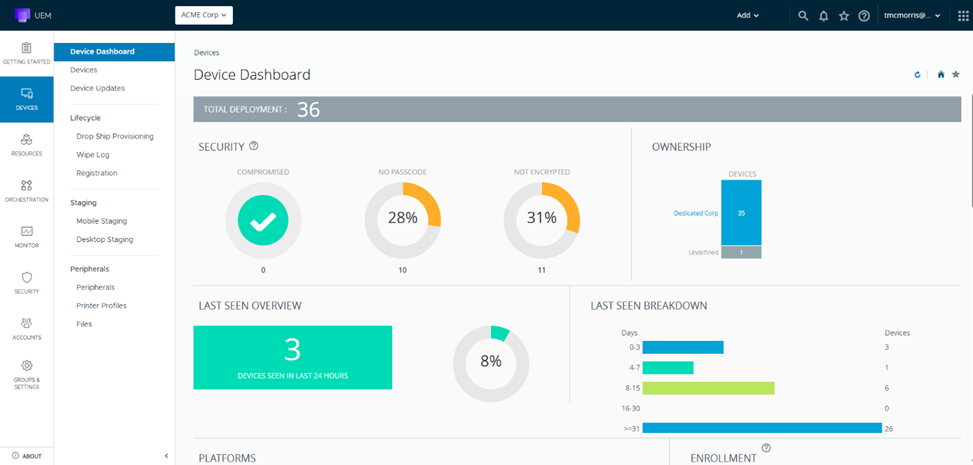
Omnissa Workspace ONE UEM is a cloud-native unified endpoint management platform that manages desktops, mobile, rugged, server, and specialty devices across Windows, macOS, iOS, Android, Linux, and ChromeOS. It supports bring-your-own, corporate-owned, and shared devices from a single console.
The platform combines device posture checks, compliance policies, and conditional access with per-app VPN through Workspace ONE Tunnel and single sign-on through Omnissa Access. Subscription editions range from Mobile Essentials at $3.00 per device per month to Platinum Edition at $15.63 per device per month.
G2 rating: 4.0/5
Key features include:
- Posture checks at onboarding: Integrates device posture checks and policy enforcement from the first connection so only compliant devices reach corporate resources.
- Conditional access and compliance policies: Defines access controls based on device state, user role, and risk signals, blocking noncompliant endpoints and triggering remediation actions.
- Per-app VPN: Workspace ONE Tunnel restricts access to internal systems to approved apps and encrypts data in transit.
- Self-enrollment: Lets employees enroll devices themselves and receive configurations remotely, without in-person setup.
- Role-based access control: Grants administrative permissions by user or group, with multi-tenant organization groups for business units or regions.
- Automated patch management: Deploys OS and app updates across Windows, macOS, and mobile platforms with visibility into update status.
- Security integrations: Connects with partners such as CrowdStrike and Lookout, plus Workspace ONE Mobile Threat Defense, for endpoint risk signals.
- IT orchestration: Freestyle Orchestrator automates onboarding, app deployment, compliance checks, and remediation with low-code or no-code workflows.
Limitations (as reported by users on G2):
- Support quality: Several users report weaker technical support and slower product development following the platform’s ownership changes.
- Admin interface: Reviewers describe the UI as cluttered and confusing to navigate, with a significant learning curve for new administrators.
- App installation visibility: Some users report software installs stuck in a pending queue with no way to see the underlying errors.
- Stability and performance: Users mention glitches, slow performance, and configuration loops in some deployments.
- Cost for smaller organizations: A few reviewers consider pricing prohibitive for small businesses.
Source: Omnissa
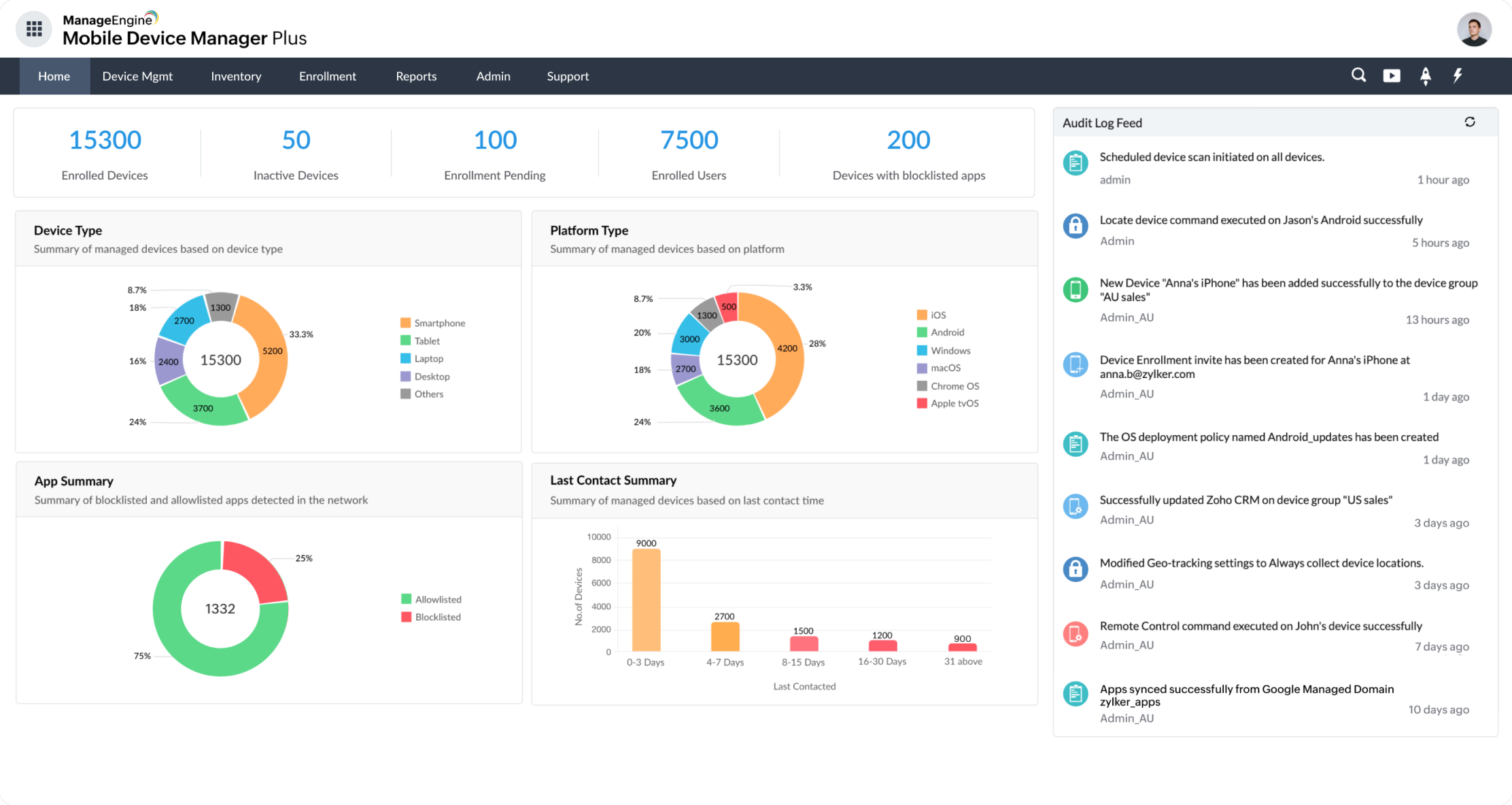
7. ManageEngine Mobile Device Manager Plus

Best for: Containerized MDM for personal phones and tablets
Strengths: Work container, DLP restrictions, and selective wipe
Things to consider: UI has a learning curve; Apple features are limited
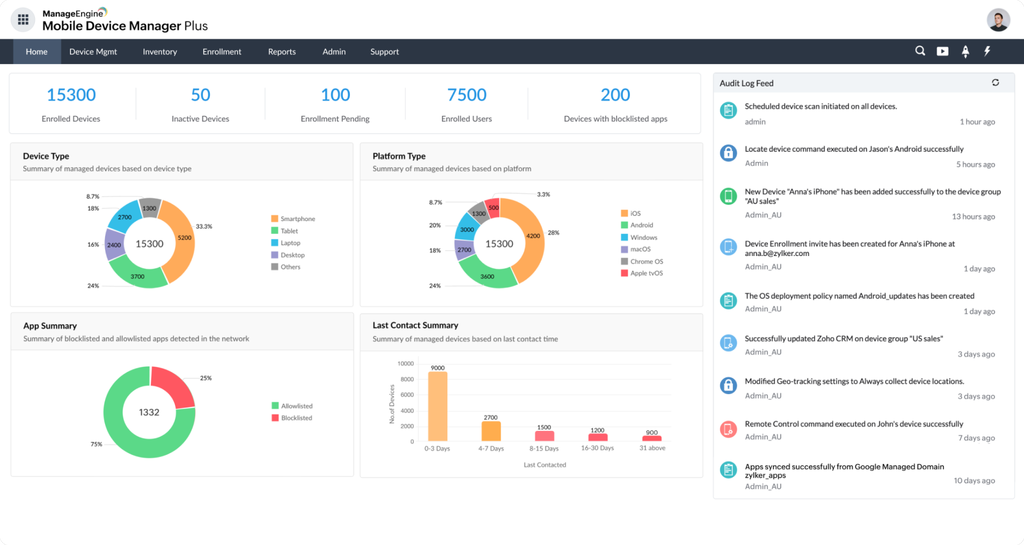
ManageEngine Mobile Device Manager Plus (MDM Plus) manages personal and corporate devices from one console, with BYOD support for iOS/iPadOS, Android, macOS, Windows, and Chrome. For BYOD, it containerizes corporate data so administrators manage only the work container, leaving personal apps and settings untouched.
MDM Plus is available in cloud and on-premises editions. The Standard edition covers enrollment, provisioning, app management, and basic security commands, while the Professional edition adds conditional access, app-only management, and OS update management. A free edition supports up to 25 devices.
G2 rating: 4.5/5
Key features include:
- Self-enrollment with identity verification: Employees enroll their own devices using OTP, directory credentials, or Managed Apple IDs, and Android Enterprise devices can be enrolled without a client app.
- Containerization: Separates and encrypts work data in a managed container and restricts sharing between the work and personal spaces.
- Data loss prevention policies: Restricts sharing of corporate data through clipboards, screenshots, cloud backups, unmanaged apps, USB, and wireless protocols.
- Conditional access: Audits and revokes access to business apps on unmanaged devices, granting access to compliant devices and withholding it from noncompliant ones.
- Compliance monitoring: Runs scheduled scans for policy violations, deactivates the workspace on noncompliant devices, and runs Google Play Protect scans for malware.
- Configurable privacy policy: Customizes collection of data such as phone numbers and location, communicates the policy during enrollment, and hides work notifications after hours.
- Per-app VPN and SSO: Sets up VPN connections only for work apps and websites, with mobile single sign-on and certificate-based authentication.
- Selective wipe and jailbreak detection: Wipes only corporate data on exit or loss, locks lost devices, and removes jailbroken or rooted devices from management.
Limitations (as reported by users on G2):
- Interface learning curve: Users find the UI less intuitive for first-time administrators, with multiple places to perform the same task.
- Limited Apple functionality: Some reviewers report that management capabilities for the Apple ecosystem are more limited than for other platforms.
- Setup documentation: A few users found the online setup instructions unclear and needed support to complete basic configuration.
- Tablet experience: Users mention that the interface on tablets does not perform as well as on phones.
- Integrations and load times: Some reviewers would like better third-party app integration and faster application loading.
Source: ManageEngine
8. Hexnode UEM
Best for: Mobile-first BYOD enrollment and containerization
Strengths: iOS and Android work containers with remote container wipe
Things to consider: Desktop features and reporting are less developed
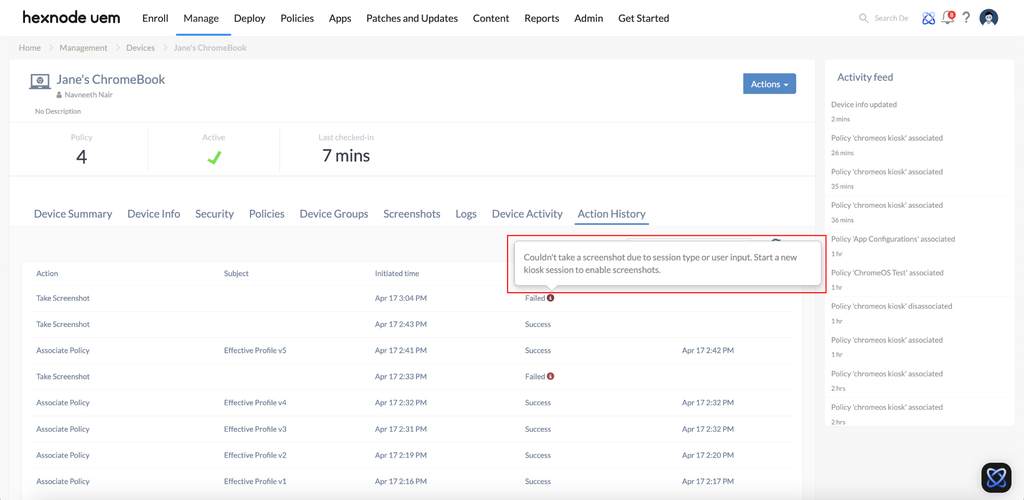
Hexnode UEM manages personally owned devices by separating work apps and data from personal content. It supports iOS user enrollment, Android Enterprise, Samsung Knox enrollment, and account-driven enrollment with Managed Apple IDs that coexist with the user’s personal Apple ID.
Hexnode applies policies, app management, and compliance checks to the managed container rather than the entire device. Only managed documents and apps are removed during a wipe, and IT can restrict data sharing outside the work profile.
G2 rating: 4.5/5
Key features include:
- BYOD enrollment options: Enrolls personal devices through iOS user enrollment, Android Enterprise, Samsung Knox, the Hexnode for work app, or directory credentials from AD, Azure AD, Okta, and Google.
- Work containers: Deploys containers on iOS devices through the iOS Business Container and on Android devices enrolled in Android Enterprise to separate work and personal data.
- Container-level control: Installs and uninstalls apps, modifies settings, and pushes managed app configurations only within the work container.
- Data sharing restrictions: Enforces copy/paste restrictions and DLP policies to prevent sensitive information from leaving the work profile.
- Policy-based access control: Controls access to apps and networks through policies, with device-specific policies that group and restrict devices automatically.
- Automatic compliance checks: Identifies noncompliant devices and sends instant notifications to administrators.
- Selective remote wipe: Remotely wipes the container on lost or stolen devices, removing only managed documents and apps.
- App lifecycle management: Distributes apps through Apple VPP, the App Store, Google Play, and Microsoft Store, and pushes user- or group-specific app catalogs.
Limitations (as reported by users on G2):
- Desktop management depth: Users report that macOS and Windows management features are less developed than mobile features.
- Basic reporting: Reviewers note that built-in reports lack the customization and depth found in larger UEM platforms.
- Command execution delays: Some users mention remote commands and app installations taking longer than expected to execute.
- Tiered licensing: A few reviewers say features are split across license tiers, which can push organizations toward the highest tier.
- Bulk action friction: Users report that MFA prompts for each device removal slow down bulk administrative actions.
Source: Hexnode
Conclusion
BYOD monitoring and control requires a balance between protecting corporate resources and limiting visibility into employees’ personal activity. Organizations should evaluate tools based on device posture checks, conditional access, data loss prevention, session logging, application restrictions, and the ability to revoke access or selectively remove corporate data. The appropriate approach depends on whether the organization needs an isolated work environment, browser-based access, zero trust application access, or broader device and application management across personal endpoints.

Any worker. Any laptop. Any AI workflow. Fully secured.
Schedule a demo to see how Blue Border™ secures company data and apps without shipping laptops, running VDI, or managing personal endpoints.