
Top 8 Virtual Desktop Services for Remote Teams In 2027


See Venn first in Google Search
Add as a preferred source on Google
TL;DR: Virtual desktop services give remote teams secure access to work apps and data from any device, through hosted desktops or local secure workspaces. Venn Blue Border is best for BYOD and contractor work without VDI, Windows 365 is best for Microsoft Cloud PCs, Amazon WorkSpaces is best for AWS shops, and Citrix DaaS is best for hybrid enterprise delivery.
What Are Virtual Desktop Services for Remote Teams?
Virtual desktop services allow remote employees to access work applications, files, and desktop environments from different devices and locations. Instead of relying entirely on software installed on individual computers, organizations can deliver desktops through centralized infrastructure or cloud-based platforms. This enables employees to work from home, shared workspaces, or personal devices while maintaining access to corporate resources.
Traditional virtual desktop services typically use Virtual Desktop Infrastructure (VDI) or Desktop as a Service (DaaS) to host desktop environments remotely. Users connect through a client application or web browser, while applications and data are processed and stored in the hosted environment. IT teams manage access, configurations, updates, and security policies centrally.
Modern alternatives also include secure workspace solutions that isolate corporate applications and data on employee-owned devices without requiring a fully hosted desktop. These approaches can provide similar security and management benefits while preserving the performance and user experience of a local computer.
Looking for a VDI alternative?
Unlock best practices for securing remote access on unmanaged laptops – without any remote hosting or latency.
In this article:
- What Are Virtual Desktop Services for Remote Teams?
- Virtual Desktop Services and Alternatives for Remote Teams: Top Solutions Compared
- Benefits of Virtual Desktop Services for Remote Teams
- Common Challenges of Virtual Desktop Services
- Virtual Desktop Services vs. Secure Local Workspace
- Notable Virtual Desktop Services and Alternatives for Remote Teams
- How to Choose Virtual Desktop Services for Remote Teams
- Conclusion
Virtual Desktop Services and Alternatives for Remote Teams: Top Solutions Compared
The table below summarizes the key differences between the virtual desktop services covered in this article. We explore each solution in more detail in the sections that follow.
| Category | Solution | Best For | Key Strengths | Things to Consider |
| Secure Workspace and Application Delivery | Venn Blue Border | BYOD and contractor work on any Mac or PC without VDI | Local secure enclave, app-level DLP, no backend | Limited customization; install on each device |
| Secure Workspace and Application Delivery | Cameyo by Google | Legacy Windows apps through the browser | Apps as PWAs, zero-trust design, Chrome integration | Hosted streaming; launch speed may need tuning |
| Secure Workspace and Application Delivery | Parallels RAS | Windows apps and desktops across hybrid infrastructure | Single console, built-in gateway and MFA | Hosted sessions; Mac client features lag |
| DaaS and VDI Platforms | Windows 365 | Persistent Cloud PCs for Microsoft-centric teams | Full Windows on any device, Intune management | Sign-in prompts; Enterprise needs Intune and Entra ID |
| DaaS and VDI Platforms | Azure Virtual Desktop | Customizable cloud VDI for Azure-skilled teams | Multi-session, per-second billing | Requires VDI skills; premium costs |
| DaaS and VDI Platforms | Amazon WorkSpaces | Managed cloud desktops on AWS | Desktops, app streaming, secure browser | Costs add up; graphics workloads may lag |
| DaaS and VDI Platforms | Citrix DaaS | Enterprise delivery across clouds and on-premises | HDX optimization, hybrid multi-cloud | Complex admin; higher licensing costs |
| DaaS and VDI Platforms | Omnissa Horizon | Hybrid VDI and published apps | Blast protocol, centralized app delivery | Complex configuration; trained staff needed |
Benefits of Virtual Desktop Services for Remote Teams
Virtual desktop services help organizations support distributed workforces while maintaining control over corporate applications and sensitive information. They can reduce IT complexity, improve access to business resources, and support secure work arrangements across different locations and devices.
Key benefits include:
- Secure access to corporate resources: Employees can access business applications and data through controlled environments. Depending on the architecture, organizations can enforce encryption, authentication, access restrictions, and data protection policies without exposing sensitive information directly to unmanaged endpoints.
- Support for BYOD environments: Virtual desktops and secure workspaces allow employees to use personal laptops and computers for work. Organizations can separate business activities from personal environments, reducing the need to issue and manage dedicated corporate devices.
- Centralized IT management: IT teams can configure applications, manage permissions, deploy updates, and enforce security policies from a central platform. This reduces administrative overhead and helps maintain consistent configurations across distributed teams.
- Faster employee onboarding and offboarding: New employees and contractors can receive access to approved applications and work environments without lengthy device provisioning processes. When employees leave, administrators can revoke access and, depending on the solution, remove corporate data without affecting personal files.
- Improved business continuity: Employees can continue accessing business resources from alternative devices or locations when their primary computers become unavailable. Centrally hosted environments can also simplify desktop recovery and restoration.
- Reduced endpoint management costs: Organizations can potentially reduce spending on corporate hardware, shipping, maintenance, and device replacements by supporting personal devices. Cloud-hosted desktops may also offer flexible resource allocation, although infrastructure and licensing costs must be considered.
- Consistent remote work experience: Employees can access familiar applications and work environments regardless of their physical location. Solutions that run business applications locally within an isolated workspace can also minimize latency and performance issues associated with streaming an entire remote desktop.
Common Challenges of Virtual Desktop Services
Security Risks From Unmanaged and Personal Devices
Employees accessing virtual desktops from personal or unmanaged devices may introduce security risks that organizations cannot fully control. These endpoints may lack updated operating systems, endpoint protection, or secure configurations, increasing exposure to malware, credential theft, and unauthorized access.
Although traditional VDI and DaaS solutions keep much of the corporate data within centralized infrastructure, compromised endpoints can still expose sensitive information through keylogging, screen capture, session hijacking, or insecure file transfers. Organizations must implement additional protections, such as multi-factor authentication (MFA), conditional access, endpoint security assessments, and restrictions on copying or downloading corporate data.
Related content: Read our guide to VDI security risks and best practices.
Limited Support for Resource-Intensive and Locally Installed Applications
Traditional virtual desktop services can struggle with applications that require substantial processing power, dedicated graphics resources, or direct access to local hardware. Video editing, engineering software, 3D modeling, and other resource-intensive workloads may experience latency or reduced responsiveness when running on remote infrastructure.
Application compatibility can also become challenging when employees need locally installed software, specialized peripherals, or tools that depend on specific hardware configurations. Although GPU-enabled virtual desktops can support demanding workloads, they often introduce additional infrastructure and licensing costs.
Organizations can address these limitations by adopting hybrid approaches that combine centralized management with local application execution. Secure workspace solutions, for example, allow employees to run approved applications directly on their devices while keeping corporate data isolated from personal activities.
User Privacy Concerns and Restrictions on Personal Devices
Virtual desktop solutions may create privacy concerns when organizations require employees to install monitoring agents or mobile device management (MDM) software on personal computers. Employees may be uncomfortable granting IT administrators visibility into device configurations, installed applications, or activities unrelated to work.
Some management solutions also impose restrictions on personal devices, including mandatory security configurations, application controls, and remote wipe capabilities. These requirements can create friction in BYOD programs, particularly when employees worry that corporate policies could interfere with personal applications or lead to the deletion of private data.
Organizations can reduce these concerns by separating corporate and personal environments instead of managing the entire endpoint. Workspace isolation technologies enable IT teams to enforce security policies, control corporate data, and revoke business access without monitoring personal activities or modifying the employee’s broader device environment.
Virtual Desktop Services vs. Secure Local Workspace
Virtual desktop services and secure local workspaces both enable employees to access corporate resources remotely while helping organizations protect sensitive data. However, they differ significantly in how applications are delivered, where data is processed, and how IT teams enforce security policies.
Traditional virtual desktop services, such as Virtual Desktop Infrastructure (VDI) and Desktop as a Service (DaaS), host desktop environments on centralized servers or cloud infrastructure. Employees connect to these environments remotely, with most application processing occurring on the hosted system. This approach gives IT teams centralized control but can introduce latency, connectivity dependencies, and infrastructure costs.
A secure local workspace takes a different approach by creating an isolated corporate environment directly on the employee’s device. Business applications run locally, while corporate data and activities remain separated from personal applications and files. This model is particularly useful for BYOD environments because organizations can enforce security policies without taking control of the entire device.
The following table compares the two approaches:
| Aspect | Virtual Desktop Services (VDI/DaaS) | Secure Local Workspace |
| Application execution | Applications run on remote servers or cloud infrastructure. | Applications run locally within an isolated corporate workspace. |
| Performance | Depends on network latency, bandwidth, and hosted computing resources. | Uses local device resources, reducing dependence on network performance for application execution. |
| Internet connectivity | Typically requires a continuous connection to access the desktop. | Some applications can operate offline, depending on their requirements and security policies. |
| BYOD support | Supports personal devices but may require remote access clients and endpoint controls. | Designed to separate corporate and personal activities on employee-owned devices. |
| Data security | Primarily protects data by keeping it within centralized infrastructure. | Protects corporate data through local isolation, access controls, and data transfer restrictions. |
| Employee privacy | Endpoint management and monitoring requirements vary by deployment. | Can enforce corporate security policies without monitoring personal applications or activities. |
| Application compatibility | May face limitations with specialized hardware, peripherals, or resource-intensive applications. | Generally supports compatible locally installed applications and direct access to device hardware. |
| IT management | Requires management of virtual desktops, infrastructure, user sessions, and application delivery. | Focuses on managing corporate workspace policies, applications, and data access. |
| Costs | May involve recurring infrastructure, cloud computing, licensing, and storage expenses. | Can reduce hosted desktop infrastructure costs while still requiring workspace licensing and endpoint resources. |
Notable Virtual Desktop Services and Alternatives for Remote Teams
How we selected these services: We shortlisted virtual desktop services and secure workspace solutions based on secure remote access, application delivery and performance, support for BYOD and unmanaged devices, centralized management, and data protection controls.
Secure Workspace and Application Delivery Solutions
1. Venn Blue Border

Best for: Securing contractor and BYOD work on any Mac or PC without VDI
Strengths: Local secure enclave, app-level DLP, no backend infrastructure
Things to consider: Limited customization options; requires an install on each device
Venn’s Blue Border creates a company-controlled secure enclave directly on a user’s Mac or PC through a lightweight software install. Work data, applications, networking, and AI tools run locally inside the enclave, isolated from personal activity on the same device, without hosting a desktop or managing the full endpoint.
Because there are no brokers, gateways, host pools, or images to build, IT teams deploy the workspace with a single install per user and remove it with one remote wipe. Blue Border works on managed and unmanaged devices running Windows or macOS.
Key features include:
- Local secure enclave: Creates an isolated, encrypted work environment on the device. Installed, browser-based, and AI applications run natively inside it using local device resources rather than a hosted session.
- Blue Border visual indicator: Wraps every work application in a blue line that marks it as part of the company workspace and acts as a virtual firewall between work and personal activity.
- App-level DLP: Enforces data loss prevention controls across every work application inside the enclave, including installed desktop apps and browser-based apps.
- Venn Disk: Limits saving to work-sanctioned file systems that are isolated, encrypted, and remote-wipeable, so company data does not remain on the personal side of the device.
- Network routing: Routes work traffic through Venn’s built-in VPN gateway or through the organization’s existing private network.
- AI governance: Lets IT sanction approved AI tools for use inside the workspace and block others from accessing company applications and data.
- Single-step offboarding: One remote wipe removes the enclave and all company data and applications, with no session to deprovision or licenses to reclaim.
- User privacy: IT controls only what happens inside Blue Border. Activity outside the enclave is not monitored.
Limitations (as reported by users on G2):
- Customization options: Some users mention that customization options are more limited than they would like, though the product covers their core requirements.
- Occasional performance slowdowns: A few reviewers report that the secure enclave can occasionally feel slower when accessing hosted applications.
- Compatibility with specific apps: Some users note occasional stability issues with certain desktop applications, such as Microsoft Outlook, that required support involvement.
2. Cameyo by Google
Best for: Delivering legacy Windows apps through the browser without desktops
Strengths: Apps delivered as PWAs, zero-trust design, Chrome integration
Things to consider: Hosted app streaming; app launch speed may need tuning
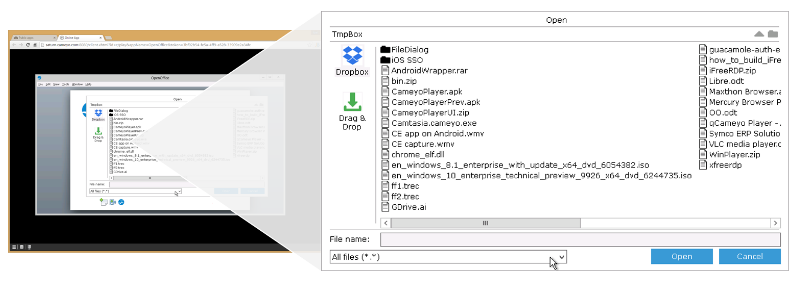
Cameyo by Google is a Virtual App Delivery (VAD) solution that brings client-based applications to the web. Instead of streaming a full virtual Windows desktop, it delivers individual applications and turns them into progressive web apps (PWAs) that users open from the app shelf without a VPN or virtual desktop.
Cameyo integrates with Chrome Enterprise, Google Workspace, and ChromeOS. Its architecture separates applications from the device and devices from the network.
Key features include:
- Virtual app delivery: Delivers only the applications users need, rather than a complete Windows desktop, which reduces the infrastructure and licensing involved in hosting full desktops.
- PWA conversion: Turns legacy applications, including apps that are not web-enabled, into progressive web apps that users launch from the app shelf alongside other web apps.
- Zero-trust architecture: Separates apps from the device and devices from the network to reduce the attack surface against threats such as ransomware and brute force attacks.
- File system access: Gives virtualized apps access to the device’s local file system or cloud storage providers, so users can open, save, and edit files as IT policies allow.
- Chrome Enterprise integration: Builds virtualization into the Chrome Enterprise browser so users access all their apps from any device through the browser.
- Google Workspace and ChromeOS support: Keeps client-based apps available for organizations moving to Google Workspace or ChromeOS devices.
Limitations (as reported by users on G2):
- App launch tuning: Some users report that fine-tuning is needed to get Windows applications to start quickly for end users.
- Implementation time: Reviewers mention that implementing the system took time before it was fully up and running.
- Change communication: Some users note that features were removed without advance notice and that there was no status page or downtime notifications.
Source: Google
3. Parallels RAS
Best for: Publishing Windows apps and desktops across hybrid infrastructure
Strengths: Single console, built-in gateway and MFA, concurrent-user licensing
Things to consider: Hosted sessions; Mac client features can lag behind Windows
Parallels Remote Application Server (RAS) is a virtual application and desktop delivery solution that centralizes apps and desktops on server or cloud infrastructure for access from various devices. Organizations can deploy components on-premises, in private cloud, or in public cloud, including Azure Virtual Desktop and AWS.
Administration runs through a single console covering app and desktop management, images, gateway, load balancing, and access control. Licensing is based on concurrent users and includes all features.
Key features include:
- Hybrid deployment: Deploys core components and workloads on-premises, in private cloud, or in public cloud, and mixes them across a single environment.
- Hypervisor and cloud integrations: Works with VMware ESX, Microsoft Hyper-V, Scale, and Nutanix, and connects to Proxmox, KVM, Xen, and other platforms through an API-based Custom Provider Framework.
- Azure Virtual Desktop and AWS integration: Manages AVD workloads, including Windows multi-session and Teams redirection, from the RAS console, and deploys directly from the AWS and Azure marketplaces.
- Cross-platform clients: Provides clients for Windows, macOS, Linux, iOS, Android, and HTML5 browsers.
- Secure Gateway and load balancing: Includes a Secure Gateway for external access and a High Availability Load Balancer at no additional licensing cost.
- Authentication and access controls: Supports built-in MFA, third-party MFA providers, SSO with Okta, Ping Identity, and Azure Active Directory, and rule-based filters for contextual access.
- Auditing and monitoring: Logs administrator and user actions with IP addresses and timestamps, and provides reporting for troubleshooting and compliance.
- App and profile management: Supports FSLogix profiles, MSIX App Attach, and App-V for packaging and deploying apps to session hosts.
Limitations (as reported by users on G2):
- Third-party 2FA integration: Users report that integrating some third-party 2FA solutions can be slow, which may delay deployments or require workarounds.
- Mac support: Reviewers note that Mac client features and updates tend to lag behind Windows, creating inconsistencies in mixed-device environments.
- Client stability: Some users mention that the client occasionally hangs and needs to be closed and reopened.
- Setup in restricted networks: Reviewers describe client setup as complicated in enterprises with strict network security policies, sometimes leaving only HTML5 access.
- Large-scale publishing: One reviewer reports connection problems when publishing a very large number of applications to many organizations.
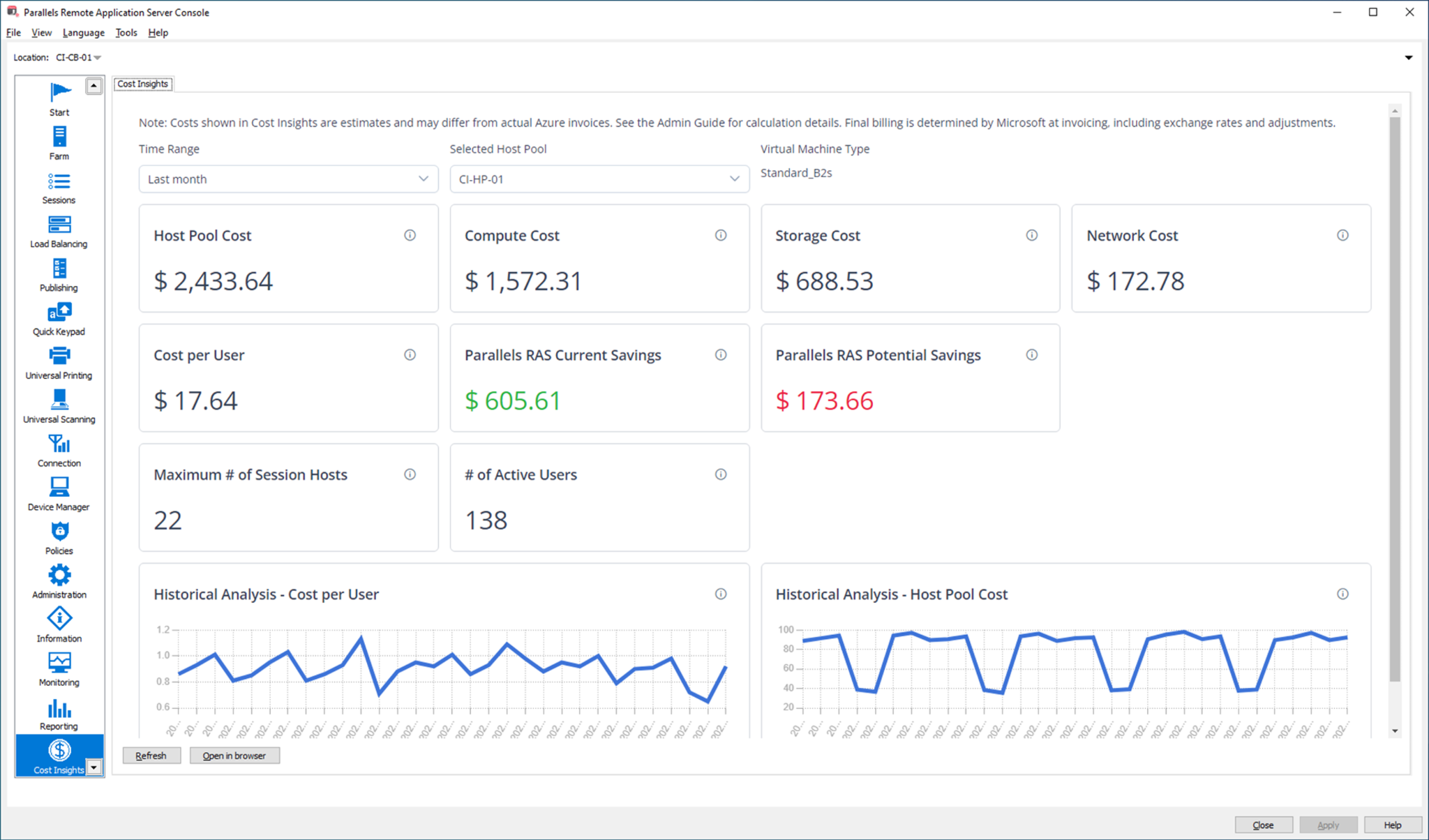
Source: Parallels
Desktop-as-a-Service (DaaS) and VDI Platforms
4. Windows 365

Best for: Persistent Windows Cloud PCs for Microsoft-centric organizations
Strengths: Full Windows on any device, Intune management, flexible editions
Things to consider: Frequent sign-in prompts; Enterprise needs Intune and Entra ID
Windows 365 delivers Windows desktops as Cloud PCs that users access from Windows, Mac, iOS, or Android devices. IT teams deploy and manage Cloud PCs with the same tools they use for physical PCs, such as Microsoft Intune, the Microsoft 365 admin center, or the Windows App.
Editions cover different use cases. Business supports up to 300 users with no licensing prerequisites, Enterprise requires Intune and has no user limit, Flex covers part-time or shift work, and Reserve provides temporary Cloud PCs when a physical device is unavailable.
Key features include:
- Cloud PCs: Provides a full Windows experience streamed from the cloud, with one Cloud PC per licensed user in Business and Enterprise editions.
- Shared and part-time access: Windows 365 Flex lets multiple users share Cloud PCs under a single license, with one active user at a time.
- Configurable sizes: Offers Cloud PCs with up to 32 vCPUs, 128 GB RAM, and 2 TB storage, plus GPU-enabled Cloud PCs for graphics-intensive work in Enterprise and Flex.
- Centralized management: Enterprise and Flex Cloud PCs are configured, deployed, and managed in Microsoft Intune, with prerequisites for Windows Enterprise and Microsoft Entra ID.
- Contractor onboarding: Provides secure Cloud PCs to temporary workers and contractors without issuing new hardware.
- Windows 365 Reserve: Gives employees a temporary Cloud PC when their physical device is unavailable.
- Windows 365 Link: Offers a dedicated Microsoft device that connects directly to Windows 365 for shared workspaces.
Limitations (as reported by users on Gartner Peer Insights):
- Re-authentication prompts: Users report being prompted to sign in again too often during regular use.
- Organization capabilities: Reviewers would like more organization features, both for individual users and for collaboration across the company.
- Integrations: Some users mention limited integrations with the rest of their technology stack.
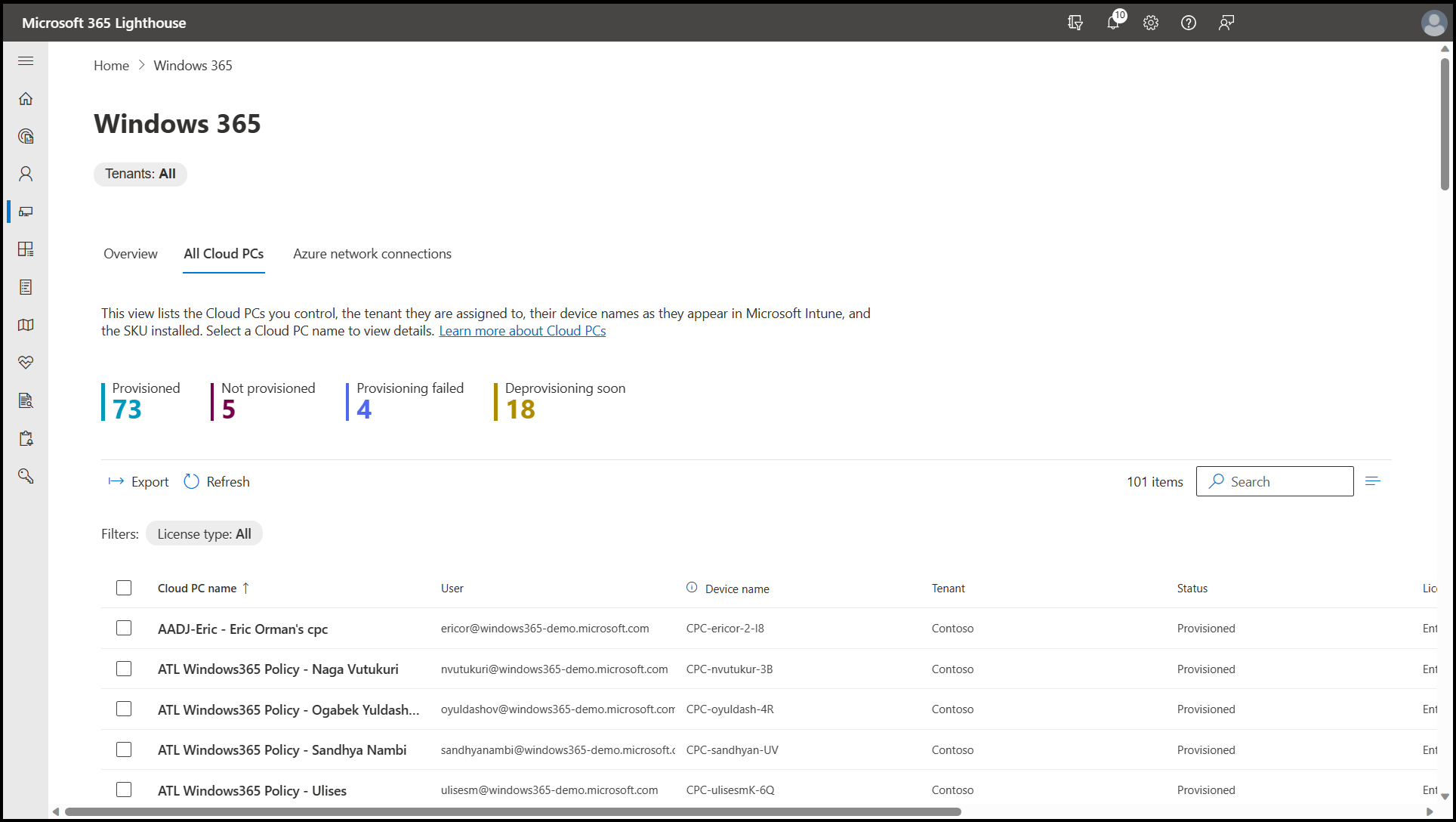
Source: Microsoft
5. Azure Virtual Desktop
Best for: Customizable cloud VDI for teams with VDI and Azure expertise
Strengths: Multi-session Windows, per-second billing, managed control plane
Things to consider: Requires VDI skills; costs rise with premium features and hardware
Azure Virtual Desktop (AVD) is a cloud VDI platform on Microsoft Azure that delivers Windows 11, Windows 10, and Windows Server desktops and apps. Microsoft manages the broker, gateway, load balancer, and diagnostics, while IT manages the desktops, apps, and governance policies.
Multi-session capabilities let several users share one virtual machine, and compute is billed by the second. Azure Virtual Desktop Hybrid extends the service to on-premises infrastructure while Microsoft manages the control plane.
Key features include:
- Windows multi-session: Allows multiple users on a single Windows 11 or Windows 10 virtual machine at the same time.
- Host pool management: Uses custom image templates and other host pool capabilities to manage deployments at scale.
- Networking options: Supports Azure Private Link and RDP Shortpath for connection security and reliability, plus connection quality analysis.
- Pay-per-use pricing: Charges for compute by the second with no long-term commitments, and allows use of eligible Windows or Microsoft 365 licenses.
- Azure Virtual Desktop Hybrid: Runs desktops and apps on existing on-premises infrastructure, including Azure Local, with management through Azure.
- Windows App access: Provides access to desktops and apps from any device through the Windows App.
- Partner deployments: Integrates with Citrix DaaS for Azure and Omnissa Horizon Cloud Service on Microsoft Azure.
- Remote app streaming: Lets organizations deliver their own apps to customers as SaaS over a secure network.
Limitations (as reported by users on G2):
- Costs with advanced features: Reviewers note that AVD can become expensive with advanced features or more processing power.
- Performance under load: Some users report lag when many users share a single session host, and compared to physical desktops.
- Non-persistent updates: Reviewers mention that updating non-persistent VDI environments can be cumbersome.
- Setup: Some users say setup is not as straightforward as it could be, especially without Microsoft experience.
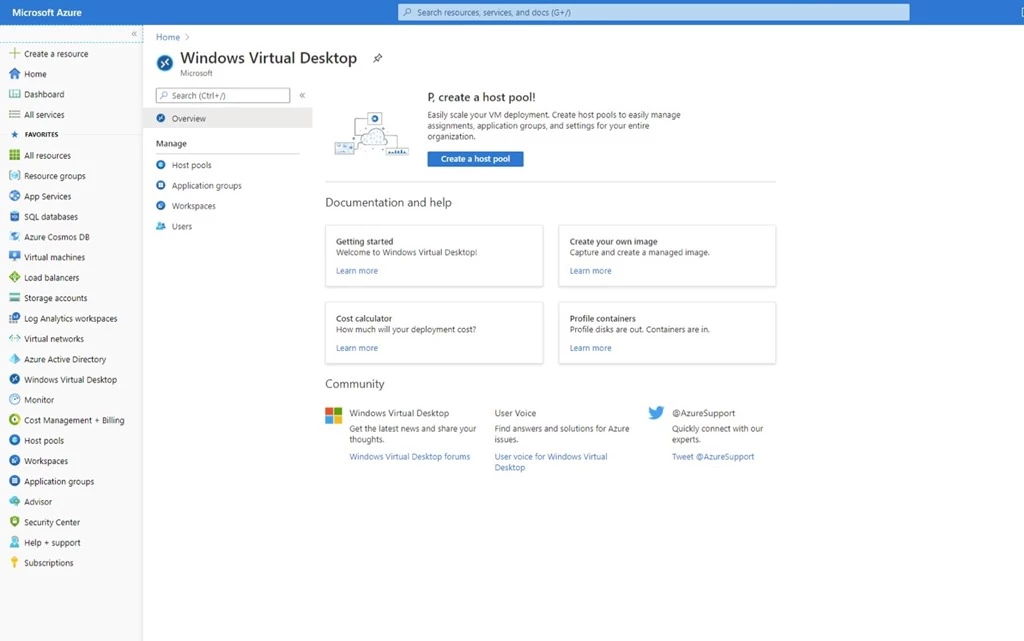
Source: Microsoft
6. Amazon WorkSpaces
Best for: Fully managed cloud desktops for organizations running on AWS
Strengths: Desktops, app streaming, and secure browser in one AWS service
Things to consider: Costs can add up at scale; graphics-heavy workloads may lag
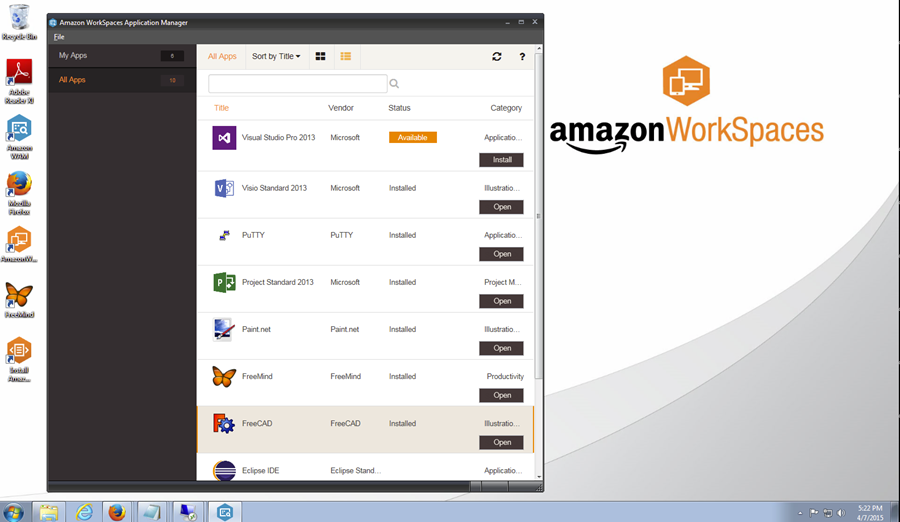
Amazon WorkSpaces is a fully managed cloud VDI service that delivers desktops and applications from AWS infrastructure. Organizations choose instance sizes, configurations, authentication methods, API integrations, and scaling policies, and manage the environment centrally through the AWS Console.
The WorkSpaces family includes DaaS, application streaming, a secure browser, and VDI infrastructure for third-party software. It runs in 19 regions with a 99.9% uptime SLA and pay-as-you-go pricing.
Key features include:
- Desktop as a Service: Provides fully managed virtual desktops for task workers, contact center agents, back-office staff, developers, and engineers.
- Application streaming: Streams individual applications to any device without delivering a full desktop.
- Secure browser: Offers a cloud-native, remote enterprise browser for web-based applications.
- VDI partner infrastructure: Provides infrastructure and APIs for third-party VDI software, such as Omnissa Horizon.
- Data stays off the endpoint: Keeps data off end-user devices, allowing contractors and temporary staff to use personal devices for work.
- AI agent access: Connects AI agents to desktop applications through a managed MCP server.
- Streaming protocols: Uses high-performance display compression for remote visualization workloads.
Limitations (as reported by users on G2):
- Performance for demanding workloads: Reviewers note that performance can lag on high-latency networks or with graphics-intensive applications.
- Cost at scale: Users report that costs can add up quickly for large deployments or high-spec bundles.
- Initial configuration: Some reviewers find initial setup complex for teams unfamiliar with AWS.
- Pricing transparency: Users would like more predictable and transparent pricing options.
- Support response times: A few reviewers mention delays in support responses and want better documentation and onboarding.
Source: Amazon
7. Citrix DaaS
Best for: Enterprise app and desktop delivery across clouds and on-premises
Strengths: HDX optimization, unmanaged endpoint controls, hybrid multi-cloud
Things to consider: Complex setup and admin; higher licensing costs for smaller teams
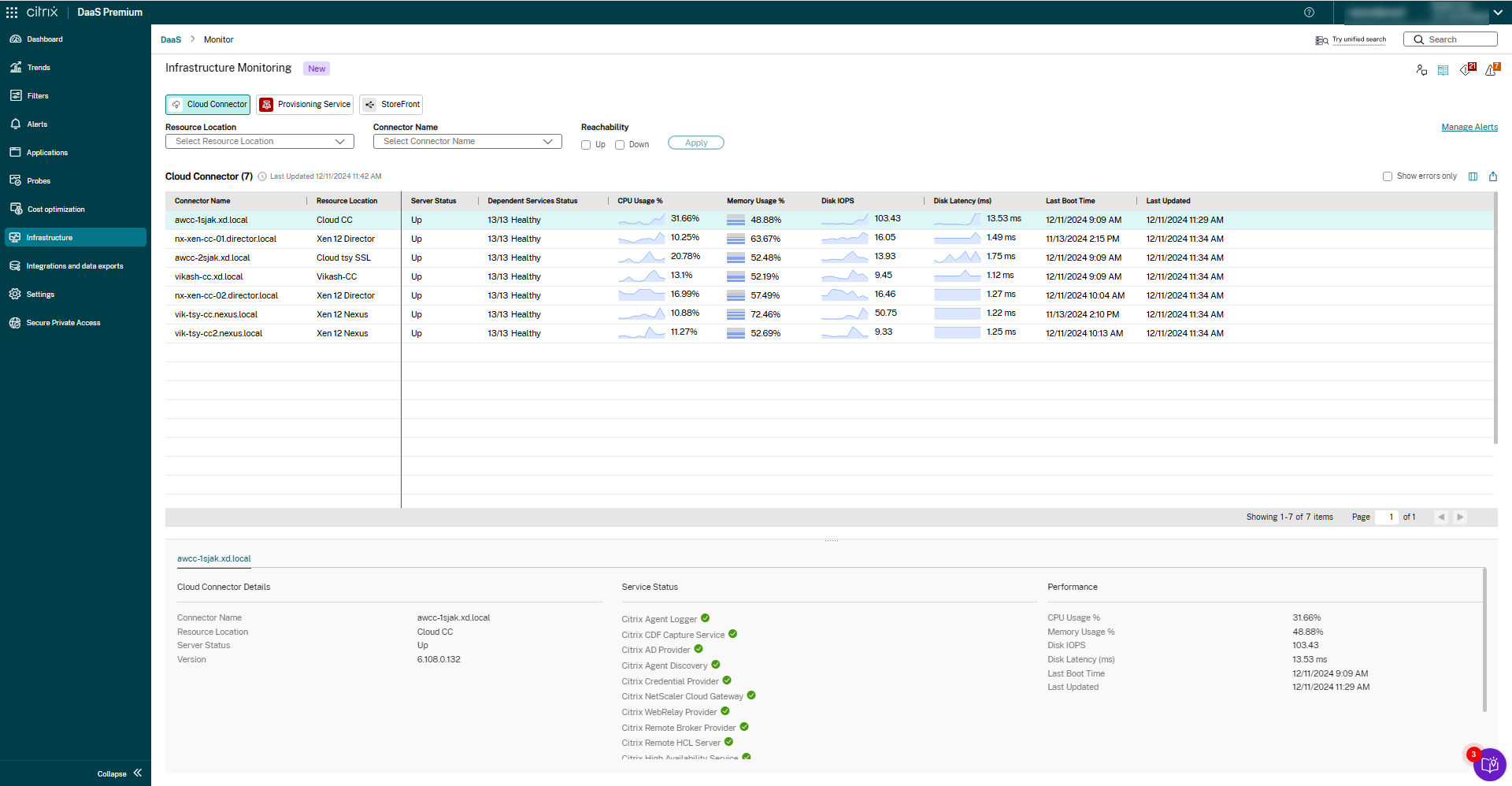
Citrix DaaS delivers VDI, virtual applications, and desktop as a service from any cloud, on-premises, or hybrid infrastructure. It combines Citrix DaaS Cloud and Citrix DaaS Local, letting IT choose where to manage, monitor, and secure virtual resources.
Workloads can run in Microsoft Azure, Google Cloud Platform, and AWS, and are managed alongside on-premises resources. The platform includes security controls for unmanaged endpoints and session recording.
Key features include:
- Hybrid multi-cloud: Stores workloads in Azure, Google Cloud, or AWS and manages them together with on-premises resources.
- Unmanaged endpoint security: Provides security features to protect unmanaged endpoints, set granular controls, and record user sessions.
- HDX optimization: Applies targeted optimizations for unified communications tools and graphics-intensive apps, including in low-bandwidth conditions.
- User environment management: Uses a lightweight management component to accelerate logins, improve server scalability, and speed up app response times.
- Centralized app management: Manages apps and desktops centrally and delivers them to any device for distributed workforces.
- Onboarding and offboarding: Deploys IT resources to employees quickly and revokes access when needed.
Limitations (as reported by users on G2):
- Connection stability: Users report latency, slow launches, and unexpected disconnects.
- Administration complexity: Reviewers ask for simpler setup, troubleshooting, and administration, with clearer visibility into changes and issues.
- File handling: Users mention that moving files and copying and pasting between local and virtual desktops is inconvenient.
- Licensing costs: Reviewers cite higher licensing costs and say the platform is less suited to small businesses.
Source: Citrix
8. Omnissa Horizon
Best for: Hybrid VDI and published apps managed on-premises or in the cloud
Strengths: Blast protocol, centralized app delivery, broad partner integrations
Things to consider: Complex configuration; requires trained staff and infrastructure
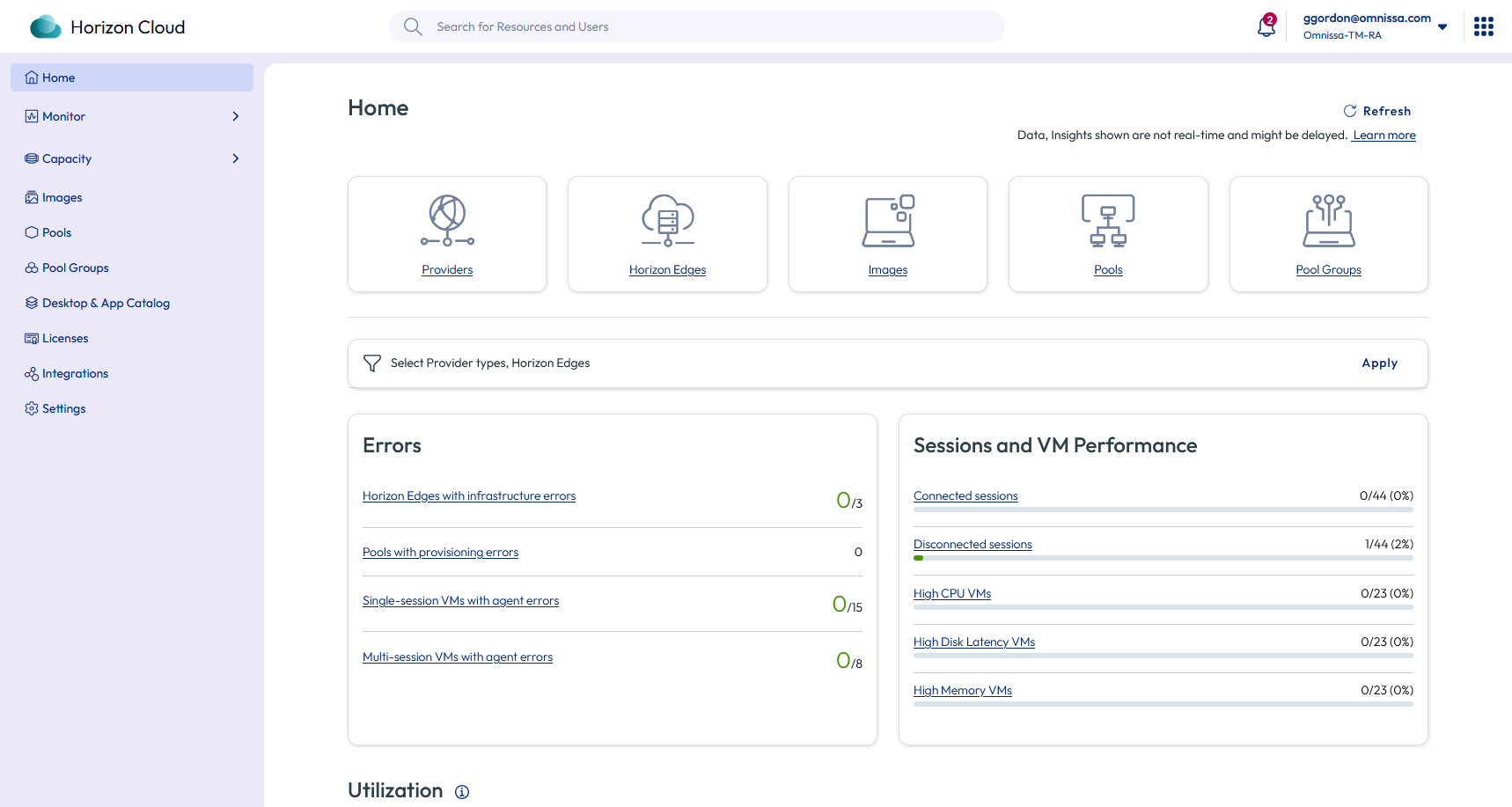
Omnissa Horizon delivers virtual desktops and published applications across on-premises and cloud environments, offered as Horizon 8 and Horizon Cloud. IT teams can manage workloads through cloud-based management services or keep management fully on-premises.
Horizon supports VDI, DaaS on on-premises or hyperscaler capacity, and app lifecycle management. It integrates with Nutanix, IGEL, NVIDIA, Amazon WorkSpaces Core, and Microsoft Azure.
Key features include:
- Flexible management: Manages on-premises and cloud workloads through a single pane of glass using cloud-based services, or fully on-premises.
- Blast protocol: Adapts automatically to changing network conditions to deliver consistent sessions across devices, locations, and connections.
- App lifecycle management: Captures apps once and delivers them to VDI and DaaS desktops and RDSH servers, including legacy apps.
- Horizon Cloud DaaS: Provides automated dynamic scaling and resource optimization for desktops running on on-premises or hyperscaler capacity.
- Centralized security: Streamlines patching, applies centralized access control, and delivers trusted images, with security across endpoint, cloud, identity, and workload.
- GPU-powered desktops: Supports NVIDIA vGPU-enabled virtual desktops for graphics and AI workloads.
- Partner integrations: Works with Nutanix AHV, IGEL endpoints, Amazon WorkSpaces Core, and Microsoft Azure.
Limitations (as reported by users on TrustRadius):
- Configuration complexity: Reviewers without much VDI experience find configuration difficult.
- Settings in multiple places: Users note that some settings are controlled by Group Policy, others by configuration files, and others only within the software.
- Agent disconnections: Some users report random disconnections from the Horizon agent that require restarting the virtual machine.
- Licensing and staffing: Reviewers describe licensing as confusing and costly for smaller organizations, and note that managing VDI requires trained IT staff.
- Mobile functionality: Users mention that the mobile experience needs improvement.
Source: Omnissa
Related content: Read our guide to the top VDI solutions.
How to Choose Virtual Desktop Services for Remote Teams
Choosing virtual desktop services requires evaluating how well each solution supports remote access, application performance, endpoint security, and IT management. Organizations should also consider whether traditional VDI or DaaS infrastructure is necessary or whether a secure local workspace can deliver the required protections with less complexity.
Key considerations include:
- Deployment architecture: Determine whether your organization needs fully hosted virtual desktops or can use a secure local workspace. Traditional VDI and DaaS centralize application execution, while local workspace solutions isolate corporate applications and data directly on employee devices without requiring desktop streaming.
- BYOD and unmanaged device support: Evaluate whether employees and contractors can securely access corporate resources from personal Windows and macOS devices. Look for solutions that enforce security policies without requiring full device enrollment or administrative control over personal computers.
- Application compatibility and performance: Verify support for browser-based applications, locally installed software, video conferencing tools, and resource-intensive workloads. Consider whether applications can run natively or depend on remote infrastructure, network bandwidth, and latency.
- Data loss prevention (DLP) capabilities: Prioritize solutions that protect sensitive information through encryption, application isolation, and granular controls over copy/paste, file downloads, printing, screenshots, and data transfers between corporate and personal environments.
- Employee privacy: Assess whether the platform separates work and personal activities without monitoring private files, browsing, or applications. Solutions that manage only an isolated corporate workspace can help preserve employee privacy while maintaining organizational security.
- Centralized management and access controls: Look for administrative tools that support policy enforcement, role-based permissions, device compliance checks, and centralized visibility into corporate activities. IT teams should be able to provision access, revoke permissions, and remove corporate data remotely without disrupting personal information.
- Deployment and scalability: Consider how quickly IT teams can onboard remote employees, contractors, and temporary workers. Evaluate infrastructure requirements, integration with existing identity providers, and the ability to expand access without provisioning additional virtual machines or dedicated devices.
- Total cost of ownership: Compare licensing, cloud infrastructure, computing resources, storage, maintenance, and IT administration costs. Secure local workspace solutions may reduce expenses associated with hosted desktops by using existing endpoint hardware, although licensing and endpoint management costs still apply.
- Compliance and audit requirements: Verify support for relevant regulatory frameworks, access logging, encryption, and audit trails. Organizations handling sensitive information should also evaluate how effectively the solution enforces data residency, retention, and access policies.
Conclusion
Selecting the right approach for remote desktop services depends on your organization’s specific security requirements, application needs, and budget. Whether deploying full virtual desktop infrastructure or leveraging local secure workspace solutions, establishing clear access controls and data protection policies is essential for supporting distributed teams effectively while keeping corporate data secure.

Any worker. Any laptop. Any AI workflow. Fully secured.
Schedule a demo to see how Blue Border® secures company data and apps without shipping laptops, running VDI, or managing personal endpoints.