Best Secure Remote Access Tools: Top 14 Solutions in 2026


See Venn first in Google Search
Add as a preferred source on Google
What Are Secure Remote Access Tools?
Secure remote access tools let workers and IT teams connect to computers, company networks, and resources from anywhere. These tools protect your data using encryption, which scrambles data so hackers cannot read it, and multi-factor authentication (MFA), which requires more than just a password to log in.
Secure remote access tools enable users to access organizational systems, networks, and resources from remote locations, such as home offices or while traveling, without compromising security. These tools provide a controlled gateway for users to access files, applications, and internal services as if they were physically present in the office. The primary goal is to facilitate productivity and flexibility while ensuring the protection of sensitive data against unauthorized access.
These tools address modern work requirements, including hybrid and fully remote environments with bring your own device (BYOD) policies. They implement security controls that monitor, authenticate, and authorize every connection attempt. By using encryption, access control mechanisms, and threat detection capabilities, secure remote access tools reduce organizational risk while allowing employees to work securely from anywhere, on any device.
As remote and hybrid work matures, the threat landscape has shifted decisively toward identity. Attackers increasingly log in with stolen credentials rather than break through the perimeter, and AI is accelerating both sides of this race. Modern secure remote access now emphasizes continuous verification, phishing-resistant authentication, and defenses tuned for AI-driven attacks, alongside a broad move away from legacy VPNs toward zero trust and post-quantum-ready encryption.
Core security features to look for:
- Zero trust network access (ZTNA): Instead of logging into a full corporate network like older VPNs, you only connect to the exact app you need.
- Role-based access control (RBAC): Ensures employees can only access the files and tools required for their specific jobs.
- Session logging: Keeps a full, traceable record of all actions taken during a remote session to ensure accountability.
Secure Remote Access Platforms at a Glance
The table below summarizes the key differences between the tools covered in this article. We explore each of them in more detail in the sections that follow.
| Category | Solution | Best For | Key Strengths | Things to Consider |
| Remote Access & Secure Workspace | Blue Border | Securing work on unmanaged and BYOD PCs and Macs | Local secure enclave, DLP, and AI access controls | Performance depends on the user’s device |
| Remote Access & Secure Workspace | Parallels RAS | Delivering virtual apps and desktops across devices | Single-console management with built-in gateway and MFA | Reporting and hypervisor support have gaps |
| Remote Access & Secure Workspace | Fortinet Workspace Security | Protecting email, browsers, and collaboration apps | AI threat detection with managed incident response | Reporting and policy options could be deeper |
| Remote Access & Secure Workspace | Oracle Secure Global Desktop | Browser-based access to datacenter and legacy apps | Broad OS support with a built-in secure gateway | Dated clients and Oracle-centric integration |
| Remote Access & Secure Workspace | Citrix Secure Private Access | Zero trust access to apps without a full VPN | Identity- and context-aware access, agent or agentless | Setup complexity and possible login latency |
| Remote Access & Secure Workspace | Ericom Connect | Browser-based access to apps and remote desktops | Clientless HTML5 access with MFA and SSL | Occasional connection issues reported |
| Remote Access & Secure Workspace | NinjaOne Remote | IT-initiated remote support of managed endpoints | Fast encrypted sessions across Windows, Mac, Linux | Only sold within the NinjaOne platform |
| Remote Access & Secure Workspace | Apache Guacamole | Clientless browser access to remote desktops | Open source, protocol-agnostic (RDP, VNC, SSH) | Self-hosted setup and no official support |
| Secure Communication | Wire | End-to-end encrypted team messaging and calls | MLS encryption, guest access, flexible deployment | Limited third-party integrations |
| Secure Communication | Slack | Channel-based team and external collaboration | Broad integrations with enterprise-grade controls | Notification overload and paid-tier gating |
| Secure Communication | Microsoft Teams | Meetings, calling, and chat within Microsoft 365 | Integrated collaboration with meeting encryption | Can feel heavy; features gated to Premium |
| Secure Cloud Document & File Collaboration | Google Workspace | Cloud collaboration with admin security controls | Real-time apps with zero trust and DLP controls | Advanced security gated to higher tiers |
| Secure Cloud Document & File Collaboration | Proton Drive | End-to-end encrypted file storage and sharing | Zero-access encryption under Swiss/EU privacy law | Slower transfers and lighter collaboration |
| Secure Cloud Document & File Collaboration | ShareFile | Secure document workflows with client portals | Encryption, permissions, e-signature, compliance | Permissions setup and pricing draw complaints |
Free eBook:
Secure Remote Access that Doesn’t Drive Users Crazy!
Secure your entire extended workforce without issuing devices or VDI. Keep your organization agile, compliant, and secure.
In this article:
- What Are Secure Remote Access Tools?
- Secure Remote Access Platforms at a Glance
- Key Components and Capabilities of Secure Remote Access Solutions
- How AI Is Reshaping Secure Remote Access
- Features to Look For in Secure Remote Access Providers
- Use Cases for Secure Remote Collaboration Platforms
- Notable Secure Remote Access Tools
- Considerations for Choosing Secure Remote Access Providers
- Conclusion
Key Components and Capabilities of Secure Remote Access Solutions
Separation Between Work and Personal Data on Endpoints
With the rise of bring your own device (BYOD) policies, employees and contractors often use personal laptops for work. This creates a key challenge: traditional device management tools like MDM or UEM were built for full control of the device, often intruding on the user’s personal apps, data, and settings. These tools are best suited for company-owned hardware, not personally owned endpoints.
To address this, modern remote access strategies now emphasize isolating business activity from the personal side of a device. Instead of managing the entire system, a lightweight agent or isolated compute layer is installed locally. This allows organizations to monitor device posture, enforce access policies, and secure work-related apps and data without touching personal files or settings.
This form of endpoint access isolation ensures compliance and protection of corporate resources on unmanaged Windows and macOS devices. It enables security teams to apply granular, business-only controls while preserving user privacy and autonomy. For organizations with remote or contract-based workforces, this approach offers an effective balance between security, usability, and trust.
Zero Trust Network Access (ZTNA)
Zero trust network access (ZTNA) represents a modern approach to remote access, based on the “never trust, always verify” principle. ZTNA solutions grant users access to specific applications and resources, instead of the entire corporate network, by continuously evaluating authentication and authorization parameters. This limits the attack surface and ensures that even if a device or user is compromised, the impact remains contained.
ZTNA has gained traction as organizations move beyond traditional network boundaries. It emphasizes identity, device health, and context, making access decisions on a case-by-case basis. ZTNA can also adapt dynamically to changing risk factors, such as user location or unusual behavior, providing continuous protection and granular control for remote workforces. In practice, this means that instead of logging into a full corporate network like older VPNs, users only connect to the exact application they need. This shift is now mainstream: industry surveys show the vast majority of organizations favor a zero trust approach and plan to implement it within the year, with most enterprises intending to replace their legacy VPN services as ZTNA becomes the preferred model for new remote access deployments.
Multi-Factor Authentication (MFA)
Multi-factor authentication (MFA) requires users to verify their identity using two or more independent credentials, typically something they know (password), something they have (smartphone or token), and something they are (biometric). This greatly reduces the effectiveness of password-based attacks, including phishing and credential stuffing, because an attacker must compromise multiple factors to gain access.
MFA is often built into secure remote access tools or integrated via third-party solutions. Its implementation significantly enhances the security of remote connections, especially when paired with other controls like VPNs or ZTNA. Organizations should prioritize user-friendly MFA methods to minimize friction, as complex authentication processes can hinder adoption and productivity. Increasingly, teams are moving toward phishing-resistant, passwordless methods such as passkeys built on FIDO2 and WebAuthn, which are now formally recognized as meeting higher assurance levels and defend against phishing and credential-stuffing attacks that legacy one-time-passcode MFA cannot stop.
Encryption
Encryption is essential in secure remote access, ensuring that data transmitted between endpoints and corporate resources cannot be read by unauthorized parties. Transport layer security (TLS) is a commonly used protocol for encrypting data in transit, while strong encryption algorithms safeguard sensitive information against interception and tampering during remote sessions.
Encryption is not limited to data in transit; securing stored or cached data on remote endpoints is also critical. Some remote access solutions employ full-disk encryption or encrypted containers to prevent local data leakage if a device is lost or stolen. Implementing encryption strategies across all endpoints and communication channels is a foundational best practice for remote security. Forward-looking teams are also beginning a post-quantum transition: newly finalized standards for quantum-resistant key encapsulation and digital signatures are being layered into protocols like TLS through hybrid schemes, guarding against “harvest now, decrypt later” attacks in which encrypted data captured today is stored for decryption once quantum computers mature.
Role-Based Access Control (RBAC)
Role-based access control (RBAC) allows administrators to define who can access specific resources based on their role within the organization. Rather than granting broad access, RBAC enforces the principle of least privilege, minimizing the potential impact if an account is compromised. This approach restricts each user’s connections to only what is necessary to perform their job functions.
RBAC simplifies access management by grouping permissions according to organizational roles, which is particularly useful when dealing with employees, contractors, or temporary staff. Combined with logging and audit capabilities, RBAC facilitates compliance with regulatory requirements and enables efficient response to security incidents by providing clear records of who accessed what and when.
Session Logging
Session logging keeps a full, traceable record of all actions taken during a remote session to ensure accountability. By capturing connection timestamps, session durations, and the specific resources accessed, session logs give security teams the visibility needed to investigate incidents and demonstrate compliance. Combined with session recording, this creates a complete audit trail of who accessed what and when during each remote connection.
How AI Is Reshaping Secure Remote Access
Artificial intelligence has become a defining force in secure remote access, reshaping both how organizations are attacked and how they defend distributed workforces. Recent industry threat reports describe AI as a force multiplier for adversaries, compressing the time from initial access to impact and raising the success rate of familiar techniques like phishing and social engineering.
The clearest trend is the surge in identity-centric attacks. Rather than breaching the perimeter, attackers increasingly exploit legitimate access, using stolen credentials and session tokens to move laterally across cloud and SaaS environments. Analyses of real-world investigations attribute identity weaknesses to the overwhelming majority of incidents, with credential abuse a leading entry point for breaches.
AI is amplifying these techniques through hyper-personalized social engineering, deepfake-enabled impersonation, and automated reconnaissance, while the explosive growth of non-human and machine identities widens the attack surface further. For remote access specifically, this makes continuous verification of user and device posture, least-privilege access, and strong session monitoring essential rather than optional.
The same technology also strengthens defense. Secure remote access platforms are embedding AI-driven anomaly detection that learns normal user and device behavior, flags unusual sessions in real time, and adapts access decisions to changing risk. As adversaries operate at machine speed, pairing zero trust controls with AI-powered monitoring is becoming a baseline expectation for protecting a borderless workforce.
Features to Look For in Secure Remote Access Providers
End-to-End Encryption
End-to-end encryption ensures that data transferred between a remote user and organizational resources cannot be intercepted or tampered with at any point in transit. With this security feature, information is encrypted before leaving the user’s device and only decrypted upon reaching the intended endpoint, making it unintelligible to intermediaries, even to the platform provider in many configurations.
This protects sensitive data such as credentials, files, or screen content, guarding against man-in-the-middle attacks and eavesdropping. For remote work and IT support scenarios, strong end-to-end encryption is crucial for compliance with privacy laws and industry standards. Many platforms implement protocols like TLS 1.3 or support quantum-resistant ciphers. Leading providers are adopting hybrid post-quantum key exchange that pairs a classical algorithm with a quantum-resistant one, so sessions stay protected even as cryptographic standards evolve
Granular Access Controls
Granular access controls allow administrators to define precise policies for who can access which resources, when, and how. These controls go beyond broad, binary access to enable role-based, attribute-based, or just-in-time permissions, often at the user, device, account, or application level.
Policies can restrict remote sessions by user group, device health, location, or even time of day, reducing risk by following the principle of least privilege. Granular access is essential for environments with sensitive data, regulatory requirements, or third-party contractors. With fine-tuned control, organizations can prevent unauthorized lateral movement, limit the potential impact of compromised credentials, and audit detailed logs for suspicious activity.
Session Recording and Auditing
Session recording and auditing features enable organizations to monitor and review user activity during remote access sessions. By capturing video, keystrokes, or command histories, these tools help detect policy violations, troubleshoot technical issues, and maintain accountability for access to sensitive systems.
Detailed logs and recordings can be analyzed in real-time or archived for compliance with regulatory requirements, incident investigations, or internal audits. Regular auditing supports stronger security postures, especially in industries where privileged access and remote administration are common targets for attack. A platform makes it easy to review sessions by user, device, application, or time frame, and flags anomalies automatically.
Multi-Platform Support
Multi-platform support ensures that users can securely access resources from a wide variety of operating systems, including Windows, macOS, Linux, iOS, and Android. With modern workforces using diverse devices (personal or corporate-issued) remote access platforms must provide consistent functionality and security across all supported environments. This includes installing lightweight agents, accessing web portals, or using mobile applications.
Multi-platform support reduces IT friction and improves productivity, allowing users to work from anywhere with minimal compatibility issues. Platforms should ensure feature parity, such as encryption, MFA, and connection stability, regardless of device type. This capability is vital for organizations implementing BYOD (bring your own device) policies.
Unattended Access Capabilities
Unattended access allows administrators or support staff to connect to remote systems without requiring the physical presence or intervention of the end user. This is essential for IT maintenance, patching, troubleshooting, or server management tasks that occur outside standard working hours.
Secure remote access platforms typically provide mechanisms to enable, restrict, or temporarily elevate unattended access, balancing operational flexibility with security concerns. Proper safeguards are necessary to prevent misuse of unattended access, such as robust logging, granular permissions, and strict authentication requirements.
Learn more in our detailed guide to remote work security best practices
Integration with Other Security Tools
Integration with other security tools expands the effectiveness of secure remote access platforms by coordinating with identity providers, SIEM solutions, antivirus programs, endpoint detection and response (EDR) tools, and more. Good integration enables unified policy enforcement, automated threat detection, and instant remediation actions in response to suspicious activity.
For example, integration with directory services like Active Directory or Azure AD ensures consistent user management and privilege assignment. High-quality platforms typically offer APIs or out-of-the-box connectors for leading security ecosystems, promoting automation and visibility across the IT landscape.
Use Cases for Secure Remote Collaboration Platforms
Remote Onboarding and Training
Remote onboarding and training have become standard for organizations supporting distributed workforces. Secure collaboration platforms facilitate the seamless integration of new hires, allowing HR and team leaders to deliver orientation materials, conduct training sessions, and share policy documents without risking data exposure.
Features such as secure file sharing, video conferencing, and access-controlled resource libraries protect sensitive details related to employee identity and proprietary training content. These platforms also empower interactive learning by enabling knowledge assessments, feedback collection, and real-time communication between trainers and trainees.
Hybrid Workforce Enablement
Hybrid workforce models combine on-site and remote workers, requiring platforms that deliver consistent security and user experiences regardless of location. Secure remote work solutions bridge the gap by providing uniform access to company tools, communication channels, and data, irrespective of whether an employee is in an office or at home.
Identity verification, device monitoring, and encrypted channels keep workflows running safely while mitigating risks of unauthorized access. These platforms also support adaptive access policies, dynamically adjusting permissions based on context such as location, time, or device compliance. Collaboration features, from virtual meeting rooms to shared cloud drives, are tightly integrated with monitoring tools to catch and respond to suspicious behavior.
Related content: Read our guide to secure remote workforce
Distributed Team Communication
Distributed teams, often spanning multiple time zones or regions, require reliable, secure platforms to maintain effective communication. Secure chat, video calls, and threaded discussions reduce the risks of eavesdropping and information leakage through the use of encryption and strict user authentication.
Beyond simple messaging, distributed teams benefit from integrated features like file versioning, task assignments, and persistent chat histories, all protected by enterprise-grade security protocols. These tools enable asynchronous and real-time collaboration, ensuring every team member has secure access to the context and materials needed to perform their work.
Client and Partner Collaboration
Collaboration with clients and partners often involves sharing sensitive information such as proposals, intellectual property, and personally identifiable data. Secure remote work platforms provide external guests with controlled access to shared resources, using authentication layers and expiring permissions to ensure only authorized parties can view or interact with specific documents and conversations.
Activity tracking and audit logs allow organizations to monitor external access and quickly identify unusual behavior or potential breaches. These platforms also simplify external workflows by supporting branded portals, e-signatures, and integrated messaging channels, which keep client communication organized and compliant with data handling policies.
Notable Secure Remote Access Tools
How we selected these tools: We shortlisted secure remote access tools based on how they provide protected access to company applications, desktops, data, and communications for distributed, contractor, and BYOD workforces.
Remote Access and Secure Workspace Solutions
1. Blue Border™

Best for: Securing work on unmanaged and BYOD PCs and Macs
Strengths: Local secure enclave, DLP, and AI access controls
Things to consider: Performance depends on the user’s device
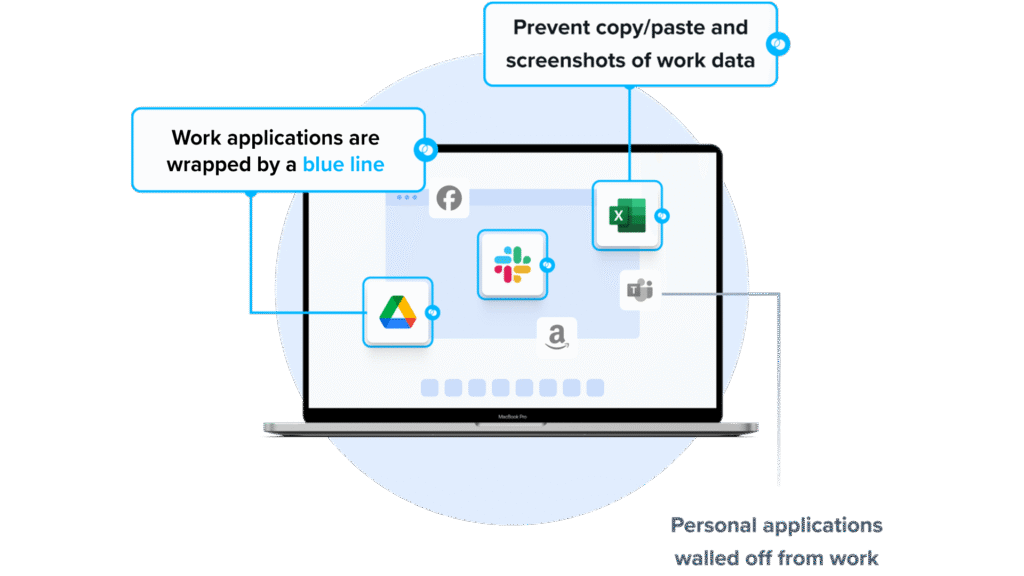
Venn secures remote work through Blue Border, a company-controlled secure enclave installed directly on a user’s PC or Mac. Work applications run locally inside the enclave, where company data is encrypted, access is governed by IT, and activity is isolated from any personal use on the same device.
A blue line around application windows shows which apps are running inside the enclave. Venn does not require any backend infrastructure, so employees and contractors can be onboarded and offboarded without provisioning virtual desktops. Personal activity outside the enclave stays private and is not visible to the company.
Key Features include:
Key features include:
- Secure enclave: Installs a company-controlled enclave on a Mac or PC where work applications run locally and company data is encrypted and isolated from personal use.
- Data loss prevention and clipboard control: Enforces DLP policies that govern copy and paste, screen sharing, downloads, and clipboard use within the enclave.
- AI access governance: Lets IT define which AI tools, including Claude, ChatGPT, Gemini, and Copilot, can interact with company data inside the enclave, and blocks unapproved AI tools from reaching protected information.
- Activity visibility and audit logs: Provides real-time insight into where, when, and from what device a user accessed an app or data, with audit logs across all devices.
- Native application performance: Runs installed work applications such as Chrome, Adobe, Microsoft Office, Zoom, Teams, VOIP tools, CAD software, and SAP locally, without virtual-desktop latency.
- Compliance controls: Applies and audits policies mapped to SOC 2 Type II, HIPAA, SEC, FINRA, PCI, CMMC, and other standards.
- User privacy preservation: Keeps personal activity outside Blue Border unmonitored through Venn Privacy Shield.
Limitations (based on publicly available sources):
- Device-dependent performance: Because work runs locally on the endpoint, users on older or underpowered laptops may notice reduced responsiveness.
- Device compatibility: Organizations with a wide range of device brands and models may need to confirm compatibility during rollout.
- Onboarding effort: Standardizing the secure workspace across a varied device fleet can require some initial planning.
2. Parallels RAS
Best for: Delivering virtual apps and desktops across devices
Strengths: Single-console management with built-in gateway and MFA
Things to consider: Reporting and hypervisor support have gaps
Parallels RAS (Remote Application Server) is a virtual application and desktop delivery solution that publishes Windows applications and desktops to end-user devices. It can deploy across on-premises, private cloud, and public cloud, including Azure Virtual Desktop and AWS.
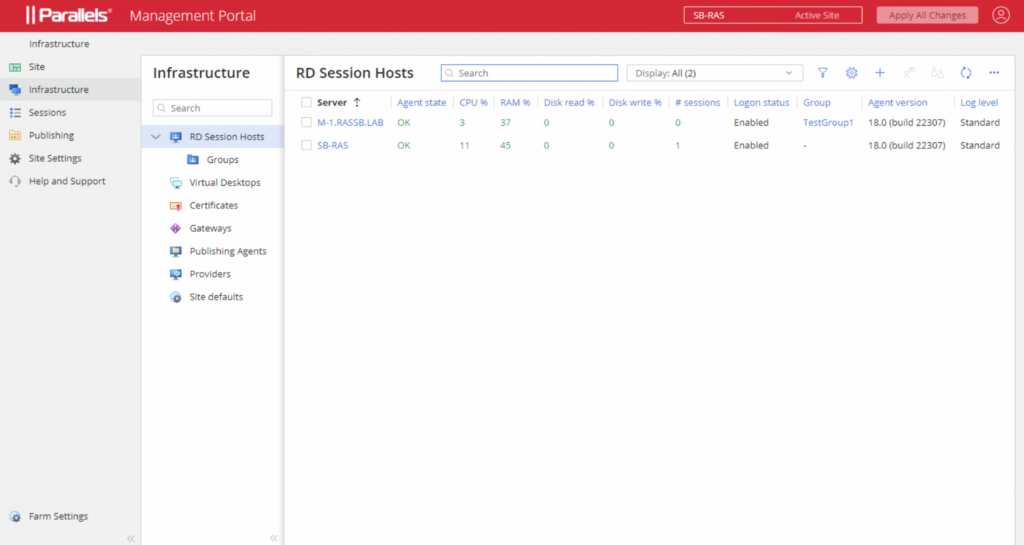
Users access published resources from Windows, macOS, Linux, iOS, Android, and HTML5 browsers through the Parallels Client. Application and desktop management, image handling, load balancing, the gateway, and access control are handled from a single administration console.
Key features include:
- Application and desktop publishing: Publishes Windows applications and full desktops through VDI, RDSH, and remote PC, deployable on-premises, hybrid, or in public cloud.
- Azure Virtual Desktop and AWS integration: Manages AVD workloads from the RAS console, supports Windows multi-session and Teams redirection, and deploys from the Azure and AWS marketplaces.
- Multi-device client access: Provides clients for Windows, macOS, Linux, iOS, Android, and HTML5 browsers, with session pre-launch that allocates resources based on user patterns.
- Secure Gateway and load balancing: Includes a Secure Gateway and a High Availability Load Balancer at no additional licensing cost.
- Encryption and MFA: Supports SSL/TLS 1.3 with FIPS 140-2, built-in and third-party MFA such as Microsoft and Google Authenticator, and external identity providers including Okta, Ping, and Azure AD.
- Contextual access and auditing: Applies rule-based filtering for access and logs administrator and user actions with IP addresses and timestamps.
- FSLogix and certificate management: Enables FSLogix profiles from the console and integrates Let’s Encrypt certificate management.
Limitations (as reported by users on G2):
- Reporting constraints: Some users report the product does not use SQL for reporting and would like more robust reporting options.
- Hypervisor support: Reviewers note it does not support some hypervisors that competing products cover.
- Stability at scale: A few users describe occasional stability issues in larger deployments.
- Support responsiveness: Several reviewers say technical support could be improved.
Source: Parallels
3. Fortinet Workspace Security
Best for: Protecting email, browsers, and collaboration apps
Strengths: AI threat detection with managed incident response
Things to consider: Reporting and policy options could be deeper
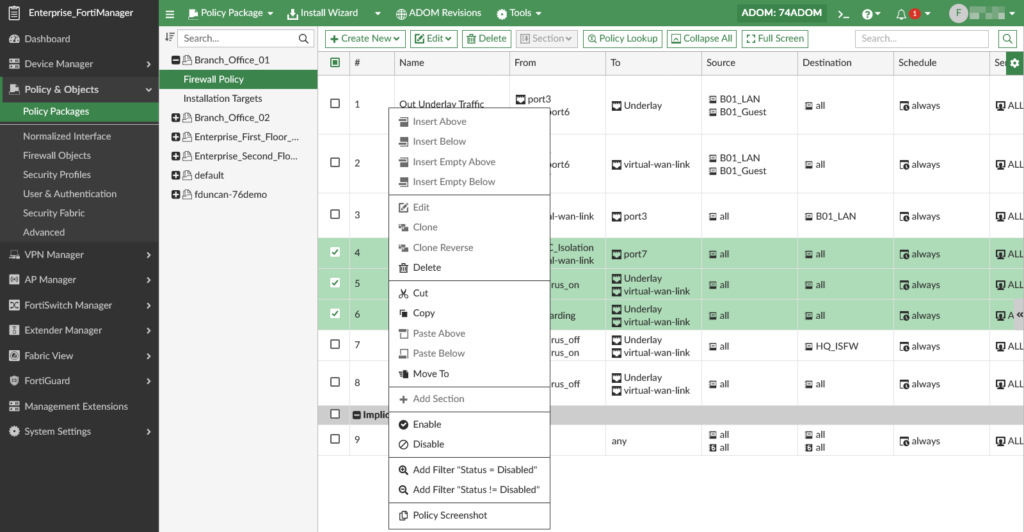
Fortinet Workspace Security is a suite of AI-powered solutions that protect the productivity tools employees use, including email, web browsers, collaboration apps, and cloud storage. It combines FortiMail Cloud SaaS for email, Browser Security, Collaboration Security, and FortiDLP for data loss prevention and insider risk.
The suite scans content across Microsoft 365, Google Workspace, Slack, Teams, and Zoom to detect phishing, malware, and account takeover. It also includes a fully managed 24/7 incident response service that triages and remediates flagged activity.
Key features include:
- Email threat protection: FortiMail Cloud SaaS scans traffic across Microsoft 365, Google Workspace, and other services to detect phishing, business email compromise, malware, and account takeover.
- Collaboration security: Scans files and messages across collaboration apps such as Teams, Slack, Google Workspace, and Zoom to block content-borne threats.
- Browser security: A lightweight browser extension applies real-time protection and web governance against web-borne attacks and data exfiltration.
- Data loss prevention and insider risk: FortiDLP monitors data flows and user interactions to prevent leaks and detect behavior-related insider risk.
- Managed incident response: A 24/7 service monitors, triages, and remediates flagged activity across email, browsers, and collaboration apps.
- SaaS visibility and access control: Surfaces sanctioned and unsanctioned SaaS usage and applies access controls to reduce account takeover.
Limitations (based on publicly available sources):
- Reporting depth: Reviewers of the underlying platform want improved reporting.
- Policy configuration: Some note that console options for creating and customizing policies could be broader.
- End-user interaction: Reviewers note that end users cannot always send information back to the platform, unlike some competing tools.
- Cost: The platform is described as relatively expensive by some users.
Source: Fortinet Workspace Security
4. Oracle Secure Global Desktop

Best for: Browser-based access to datacenter and legacy apps
Strengths: Broad OS support with a built-in secure gateway
Things to consider: Dated clients and Oracle-centric integration
Oracle Secure Global Desktop (SGD) is a secure remote access solution that delivers server-hosted applications and desktops running on Windows, Linux, Oracle Solaris, UNIX, and mainframe systems. Users reach published resources through a web browser, with no client software to pre-install.
Applications and data remain in the data center, and only a view is transmitted to the client. SGD includes a secure gateway that enables access through firewalls without a separate VPN. Administrators publish applications to users and groups and can control functions such as copy and paste, printing, and drive mapping.
Key features include:
- Browser-based application publishing: Delivers Windows, Linux, UNIX, Solaris, and mainframe applications and full desktops through a web browser using HTML5.
- Broad client support: Supports Windows PCs, Macs, Linux PCs, Chromebooks, and iPad and Android tablets.
- Secure gateway: Includes a gateway that enables access through firewalls without maintaining separate VPN infrastructure, with IPv6 support.
- Session mobility: Lets users suspend and resume sessions across different devices and locations.
- Authentication and access control: Supports LDAP, Active Directory, RSA SecurID, and PAM, and single sign-on through Oracle Access Manager, with admin control over copy and paste, printing, and drive mapping.
- Centralized administration: Publishes applications to user groups through the Administration Console and monitors multi-server deployments with Oracle Enterprise Manager.
Limitations (as reported by users on TrustRadius):
- Limited Apple and mobile experience: One reviewer notes it is not supported on Apple desktops and that the Android experience feels less user-friendly than the desktop.
- Occasional errors: Some users reported random error messages, though these improved over time.
- Support cost: Reviewers point to the high cost of specialized support and occasional support delays.
- Oracle-centric integration: Integration is strongest within Oracle’s stack and may be limited with non-Oracle virtualization technologies.
5. Citrix Secure Private Access
Best for: Zero trust access to apps without a full VPN
Strengths: Identity- and context-aware access, agent or agentless
Things to consider: Setup complexity and possible login latency
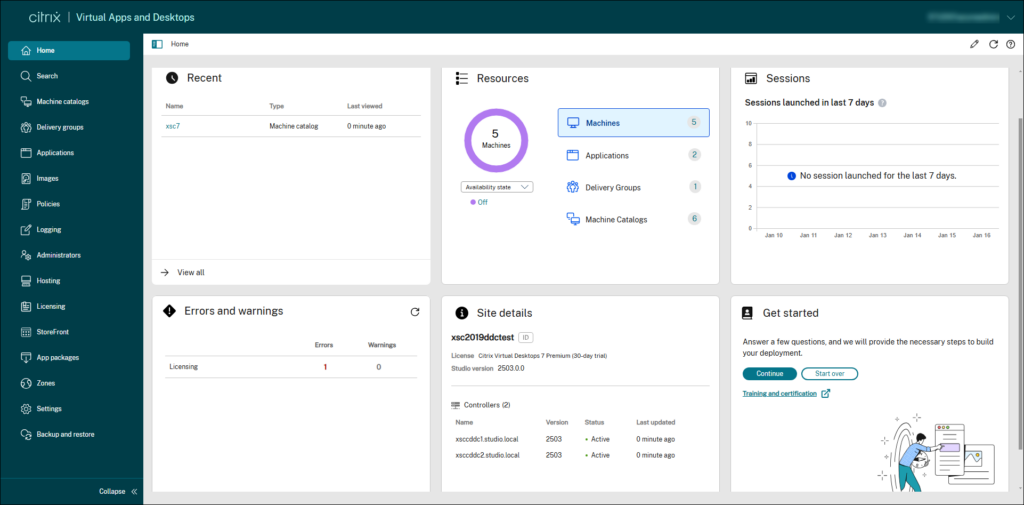
Citrix Secure Private Access, now offered as Citrix SecurAccess ZTNA, is a zero trust network access solution that provides application-level access instead of broad network access. It connects users to authorized private, web, SaaS, and hybrid applications based on identity, device posture, and context, without exposing the wider network.
Access is authenticated through multi-factor and adaptive authentication before a session is established, then delivered with single sign-on through Citrix StoreFront. It supports both agent-based access for managed devices and agentless browser access for unmanaged or BYOD devices.
Key features include:
- Application-level zero trust access: Connects users to specific approved applications rather than the whole network, reducing lateral movement.
- Adaptive authentication and SSO: Uses MFA and adaptive authentication based on user context, with single sign-on through Citrix StoreFront.
- Device posture assessment: Checks endpoint security posture, including antivirus status, OS updates, and compliance, before granting access.
- Contextual policies: Continuously evaluates location, network trust, and device status, restricting or revoking access when conditions change.
- Agent-based and agentless options: Offers an agent for managed devices and browser-based access for unmanaged or BYOD devices.
- Identity integration: Integrates with identity providers such as Entra ID, Okta, Cisco Duo, and Ping, with role-based access control.
Limitations (as reported by users on G2):
- Setup complexity: Reviewers describe configuration and policy setup as complex.
- Login latency: Some users report slow logins or load times, and disconnections when bandwidth is limited.
- Cost: Reviewers note licensing can be higher than a traditional VPN, with advanced features in premium tiers.
- Network dependency: Performance depends on a stable connection and can degrade on weak networks.
Source: Citrix

6. Ericom Connect
Best for: Browser-based access to apps and remote desktops
Strengths: Clientless HTML5 access with MFA and SSL
Things to consider: Occasional connection issues reported
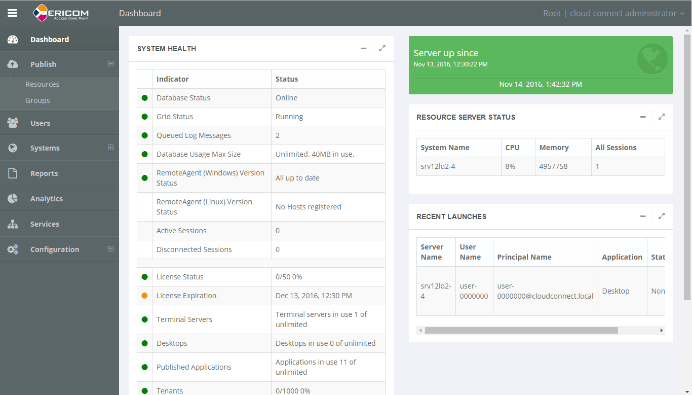
Ericom Connect is an application and remote desktop access solution available as on-premises software or a cloud service. It gives users browser-based access from any device and operating system, with no client to install or maintain.
Administrators publish apps and desktops and set granular access policies from a centralized web-based console. The solution integrates with existing VPNs and supports multi-factor authentication, or it can offload VPN traffic through built-in SSL that encrypts traffic between clients and terminal servers. Its HTML5 access technology can also make Windows and legacy applications available in a browser.
Key features include:
- Clientless browser access: Provides HTML5 browser-based access to published apps and desktops from any device or operating system, with no client to install.
- Centralized administration: Publishes apps and desktops and sets granular access policies from a web-based console.
- Deployment flexibility: Available as on-premises connection broker software or as a cloud service.
- VPN integration and SSL: Integrates with existing VPNs and supports MFA, or offloads VPN traffic using built-in SSL encryption to terminal servers.
- Legacy application delivery: Transforms Windows and legacy applications into browser-accessible software through its HTML5 access technology.
- AccessNow subset: Offers Ericom AccessNow, a subset of Connect’s functionality, for simpler use cases.
Limitations (as reported by users on G2):
- Connection stability: Some users report occasional system connection issues.
- Mobile experience: Browser-based access is generally geared toward standard desktop use.
- Vendor transition: The product now sits under Ericom Security by Cradlepoint, so buyers should confirm current packaging and roadmap.
Source: Ericom
7. NinjaOne Remote
Best for: IT-initiated remote support of managed endpoints
Strengths: Fast encrypted sessions across Windows, Mac, Linux
Things to consider: Only sold within the NinjaOne platform
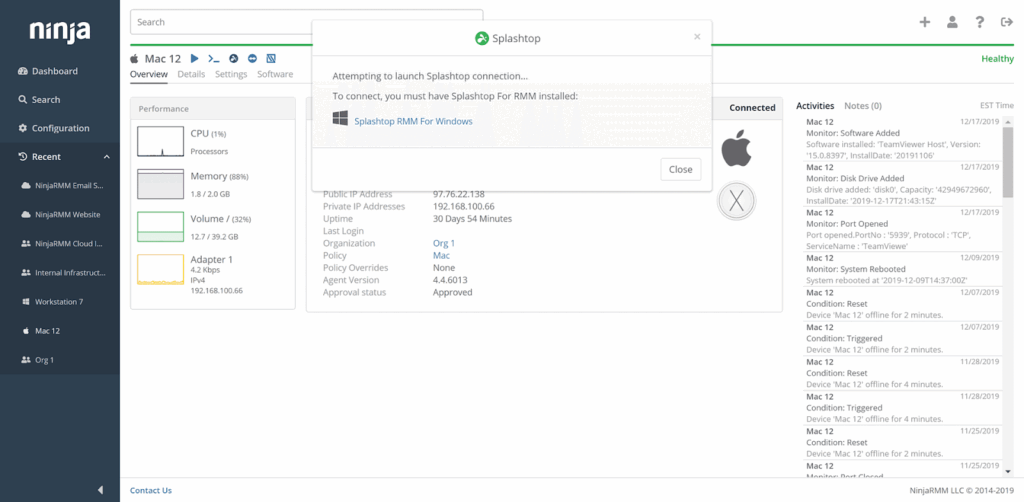
NinjaOne Remote is a remote access tool built into the NinjaOne platform that lets technicians connect to managed endpoints from the console. It supports Windows, macOS, Linux, Android, and iOS, and sessions launch directly from a device page or a support ticket.
For off-network or BYOD devices, a separate Quick Connect add-on provides invitation-based access without installing the full agent. Sessions are encrypted, logged, and optionally recorded for visibility and compliance.
Key features include:
- Console-based remote access: Launches sessions to managed endpoints directly from the NinjaOne device page or a ticket.
- Cross-platform support: Controls Windows, macOS, and Linux devices and views iOS and Android screens from one tool.
- Encrypted, logged sessions: Encrypts sessions with x25519+XSalsa20+Poly1305 and logs and optionally records them.
- Privacy and clipboard controls: Offers clipboard-sync toggles, a Paste as Keystrokes feature, screen blanking, and role-based access.
- Background mode and tools: Works behind the scenes without interrupting users, with file transfer, one-click reboots, and terminal launching.
- Quick Connect for unmanaged devices: A separate add-on provides invitation-based access to devices without the agent installed.
- Mobile support: Technicians can start sessions and chat with users from the NinjaOne mobile app.
Limitations (as reported by users on G2):
- No standalone purchase: NinjaOne Remote is only available as part of the NinjaOne platform.
- Reporting customization: Reviewers cite limited reporting and dashboard customization.
- Mobile and scripting gaps: Users note the mobile app and scripting are more basic than the desktop experience.
- Mac feature parity: Some report fewer features on macOS than on Windows.
Source: NinjaOne
8. Apache Guacamole

Best for: Clientless browser access to remote desktops
Strengths: Open source, protocol-agnostic (RDP, VNC, SSH)
Things to consider: Self-hosted setup and no official support
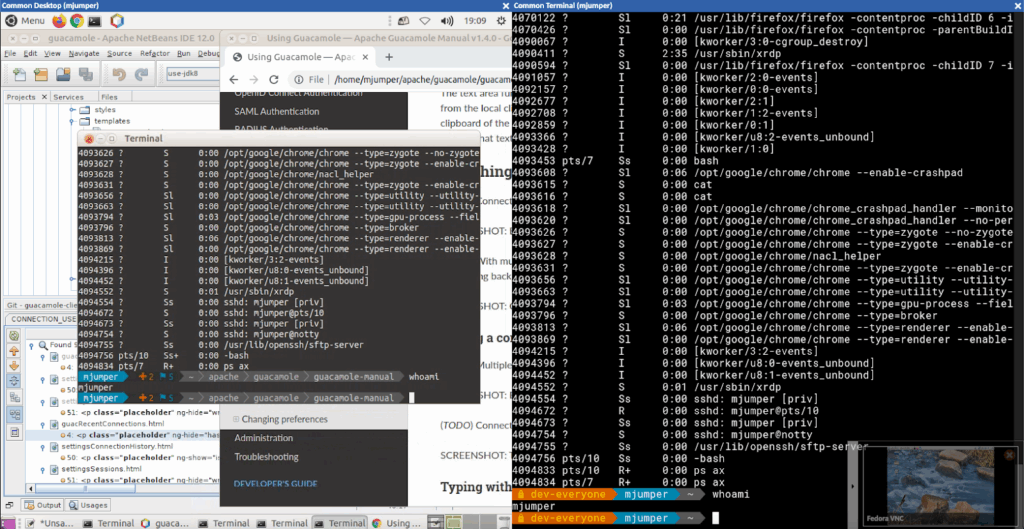
Apache Guacamole is a free, open-source clientless remote desktop gateway maintained by the Apache Software Foundation. It supports standard protocols including RDP, VNC, and SSH, and because it is built on HTML5, users reach remote machines through a web browser with no plugins or client software.
Once installed on a server, it can provide access to desktops and servers hosted on-premises or in the cloud. It uses a guacd daemon to translate remote desktop protocols and a Java web application for the interface, authentication, and authorization.
Key features include:
- Clientless HTML5 access: Provides browser-based access to remote desktops and servers with no client software or plugins.
- Multi-protocol support: Connects using RDP, VNC, and SSH through the guacd proxy daemon.
- Extensible authentication: Supports an extensible authentication and authorization system, including multi-factor authentication and directory integration.
- Centralized connection management: Lets administrators organize machines into groups and control user access and permissions from one interface.
- Documented API: Built on documented core APIs that allow integration into other open-source or proprietary applications.
- Open-source licensing: Licensed under Apache License 2.0 and maintained by a community of developers.
Limitations (as reported by users on G2):
- Complex initial setup: Reviewers describe the initial installation and configuration as complex.
- No official support: There is no formal vendor support, and help comes from community forums.
- Limited advanced features: Some note missing session recording, clipboard, and USB redirection features found in commercial tools.
- Performance and stability: Performance depends on network conditions, and some report occasional Tomcat-related stability or login issues.
- Interface customization: User interface customization is limited, and documentation for it is described as lacking.
Source: Apache Guacamole
Related content: Read our guide to secure remote access providers
Secure Communication Platforms
9. Wire
Best for: End-to-end encrypted team messaging and calls
Strengths: MLS encryption, guest access, flexible deployment
Things to consider: Limited third-party integrations
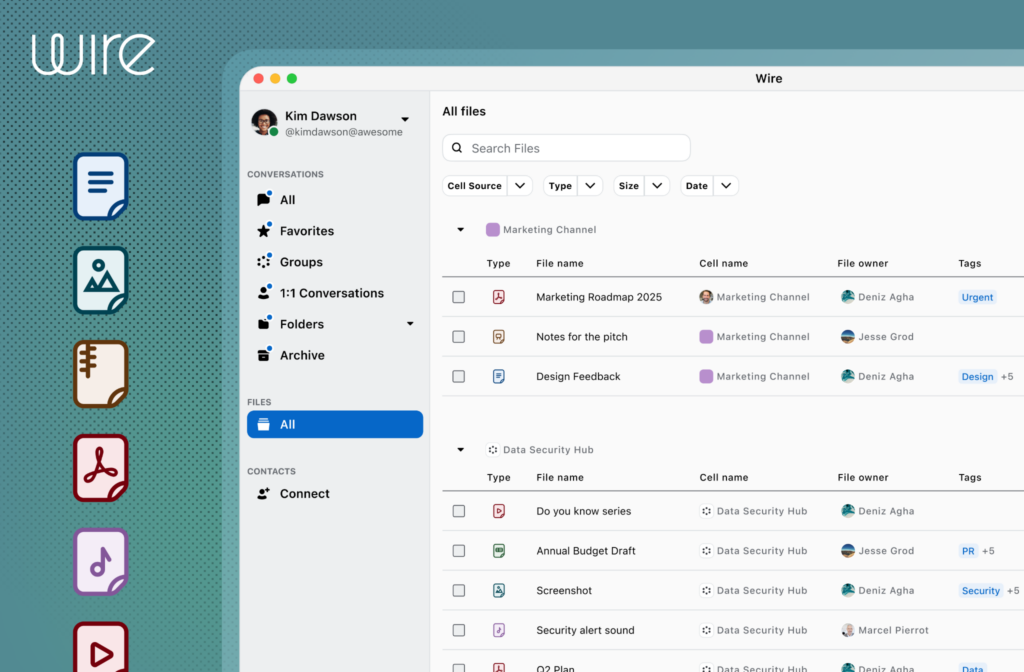
Wire is a collaboration platform built around end-to-end encryption for messaging, voice and video calls, and file sharing. It is the only platform fully secured by Messaging Layer Security (MLS), and messages, calls, and files are encrypted by default so that not even administrators or Wire can read them.
It can be deployed in the cloud, on-premises, or as a hybrid, and supports collaboration with external guests who join through a browser without an account.
Key features include:
- End-to-end encrypted messaging: Encrypts messages, calls, and files by default using MLS, with each message protected by its own key.
- Encrypted calls and conferencing: Supports audio and video conferencing across web, desktop, and mobile, with audio calls up to 100 participants and video up to 150.
- Guests and externals: Lets teams collaborate with externals and guests who have limited access rights and temporary conversation data, with guests joining via browser without an account.
- Self-deleting messages: Sets timers so texts, images, audio, video, links, and documents disappear from 1:1 and group conversations.
- SSO and SCIM: Supports SAML-based single sign-on, SCIM provisioning, domain registration, and role-based access control.
- Flexible deployment and federation: Runs in cloud, private cloud, or on-premises, with federation between separate Wire backends.
Limitations (as reported by users on G2):
- Limited integrations: Reviewers say the third-party integration ecosystem is limited.
- Basic collaboration features: Some describe features such as whiteboarding as simple, and large file previews as slow to load.
- Sync and notifications: Users note occasional device-sync issues and delayed notifications.
- File size limits: File sharing is capped at a per-file size limit.
Source: Wire
10. Slack
Best for: Channel-based team and external collaboration
Strengths: Broad integrations with enterprise-grade controls
Things to consider: Notification overload and paid-tier gating
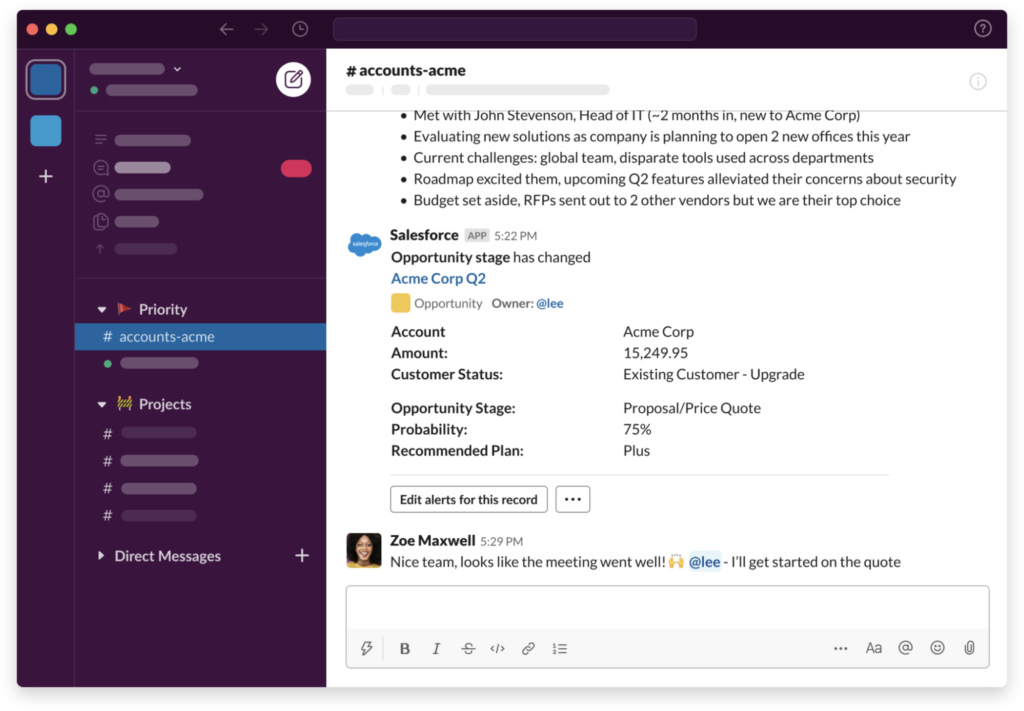
Slack is a messaging platform that organizes communication into channels for teams, projects, and topics. Slack Connect extends channels to external partners, and Huddles, Clips, Canvas, and messaging support both real-time and asynchronous work.
It integrates with more than 2,600 apps and includes Workflow Builder for no-code automation. Information is encrypted with enterprise-grade security, and Enterprise Key Management, DLP, and compliance controls are available on higher tiers.
Key features include:
- Channels and messaging: Organizes conversations into public and private channels, with searchable history and threads.
- Slack Connect: Extends channels to external partners, clients, and vendors, with security controls that carry over.
- Huddles and Clips: Provides audio and video Huddles and recorded audio and video Clips for lightweight communication.
- Integrations and Workflow Builder: Connects with over 2,600 apps such as Google Drive and Office 365, with no-code automation.
- AI features: Offers conversation and thread summaries, channel recaps, and AI-powered enterprise search on paid plans.
- Security and compliance: Includes enterprise-grade encryption, Enterprise Key Management, DLP, and admin controls on higher tiers.
Limitations (as reported by users on G2):
- Notification overload: Reviewers say many channels and notifications can become overwhelming, and important messages can be missed.
- Search of older messages: Some find locating older conversations less straightforward.
- Free-tier limits: The free plan caps message history and integrations, which drives upgrades.
- Cost and gated features: Per-user pricing rises at scale, and advanced automation, AI, SSO, and HIPAA compliance sit behind higher tiers.
Source: Slack
11. Microsoft Teams
Best for: Meetings, calling, and chat within Microsoft 365
Strengths: Integrated collaboration with meeting encryption
Things to consider: Can feel heavy; features gated to Premium
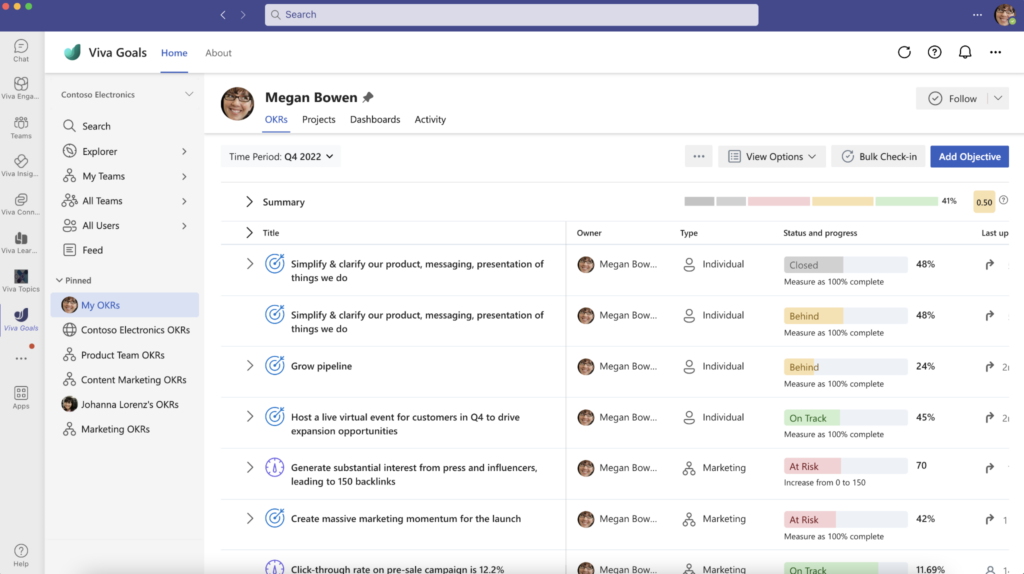
Microsoft Teams is a collaboration platform that combines chat, audio and video calling, online meetings, and file sharing, integrated with Microsoft 365 apps. It brings conversations, shared content, Loop and OneNote pages, and third-party apps into one place, with personalized views for chats and channels.
Meetings include AI-driven notes and actions, real-time translation, and built-in security controls with encryption to protect content. Advanced calling connects to external phone numbers, and Copilot and agents can assist across chats, meetings, and calls.
Key features include:
- Chat and channels: Brings conversations, shared content, Loop and OneNote pages, and apps into channels, with customizable views.
- Online meetings: Supports video meetings with AI-driven notes and actions, real-time translation, and branded events at scale.
- Calling: Provides advanced calling with connectivity to external phone numbers and collaborative call handling through the Queues app.
- Secure collaboration: Applies access controls and information protection to chats and channels, with built-in meeting encryption.
- Microsoft 365 integration: Works closely with Microsoft 365 apps and a broad ecosystem of Microsoft and partner apps.
- Copilot and agents: Uses Copilot and agents to summarize conversations and turn discussions into shared context and actions.
Limitations (as reported by users on G2):
- Resource use: Reviewers describe the app as resource-heavy and sometimes slow, especially with many active channels.
- Interface complexity: Because it does so much, the interface can feel cluttered in larger organizations.
- Licensing: Many advanced meeting and protection features require the Teams Premium add-on or specific Microsoft 365 licenses.
- Dependency on Microsoft 365: The experience is closely tied to the Microsoft 365 environment.
Source: Microsoft Teams
Secure Cloud Document and File Collaboration Services
12. Google Workspace
Best for: Cloud collaboration with admin security controls
Strengths: Real-time apps with zero trust and DLP controls
Things to consider: Advanced security gated to higher tiers
Google Workspace is a cloud productivity and collaboration suite that includes Gmail, Drive, Meet, Chat, Calendar, Docs, Sheets, and Slides. Teams collaborate on documents in real time, and files are stored in Google’s cloud infrastructure.
On the security side, it offers threat defenses against phishing and malware, zero trust access controls that verify users and devices, data loss prevention, and client-side encryption. Administrators manage devices across major operating systems and can apply controls over how data is stored and encrypted.
Key features include:
- Collaboration apps: Provides Gmail, Drive, Meet, Chat, Calendar, Docs, Sheets, and Slides with real-time co-editing and pooled storage.
- Threat protection: Applies automated defenses against phishing and malware with a secure-by-design architecture.
- Zero trust access: Enforces context-aware access that verifies each user and device before granting access to apps and data.
- Data loss prevention and classification: Identifies, classifies, and protects sensitive data with DLP controls and AI classification.
- Client-side encryption: Lets organizations encrypt data so third parties cannot access it, supporting data sovereignty requirements.
- Device and admin management: Manages devices across Android, ChromeOS, iOS, macOS, and Windows and monitors risks through the security center.
Limitations (as reported by users on G2):
- Feature depth: Reviewers say Docs and Sheets feel less powerful than desktop Microsoft Office for advanced formatting and data work.
- Offline access: Offline use requires manual setup in Chrome and is described as clunky.
- Admin granularity: Some find admin controls and permissions less granular for complex organizations.
- Gated security and storage: Advanced security controls sit in higher tiers, and lower tiers have tighter pooled-storage limits.
Source: Google Workspace
13. Proton Drive
Best for: End-to-end encrypted file storage and sharing
Strengths: Zero-access encryption under Swiss/EU privacy law
Things to consider: Slower transfers and lighter collaboration
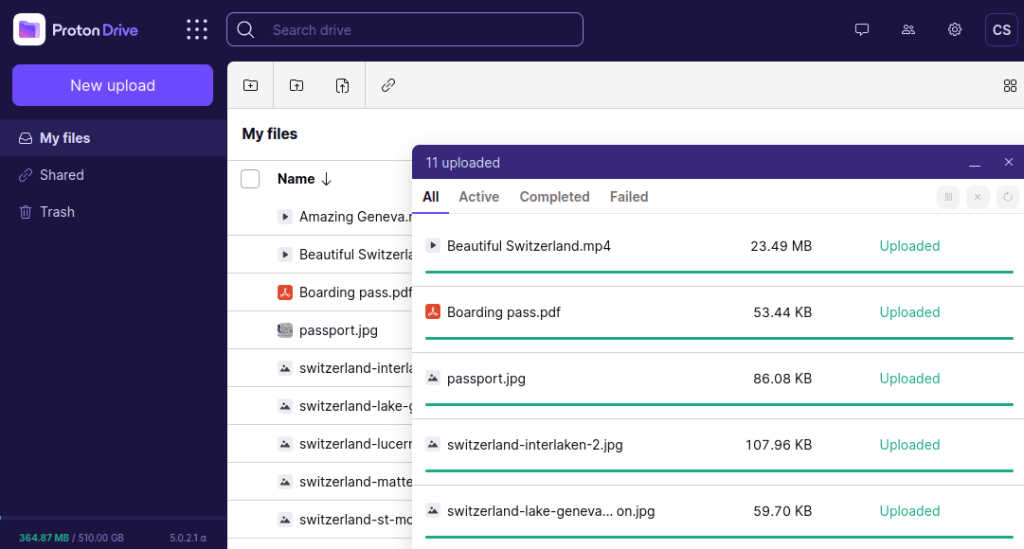
Proton Drive is an end-to-end encrypted cloud storage service from Proton, the maker of Proton Mail. Files, their names, and metadata are encrypted on the device before upload, so only the user and chosen recipients can access them, not even Proton.
It provides file storage, sharing with password protection and expiry dates, automatic photo backup, and desktop syncing across Windows, macOS, Android, iOS, and web. It also includes encrypted document and spreadsheet editors, and stores data on servers in Switzerland, Germany, and Norway under strict privacy laws.
Key features include:
- End-to-end encrypted storage: Encrypts files, filenames, and metadata on the device before upload, with zero-access encryption.
- Secure file sharing: Shares files and folders via links with password protection and expiry dates, and revocable access.
- Photo backup and albums: Backs up photos and videos automatically and organizes them into albums.
- Desktop syncing and access: Syncs folders between desktop and cloud and provides Windows, macOS, Android, iOS, and web apps.
- Encrypted editors: Includes Proton Docs and Proton Sheets for encrypted document and spreadsheet collaboration.
- Swiss and EU basis with open source: Stores data under Swiss and EU privacy laws, with independently audited, open-source code.
Limitations (based on publicly available sources):
- Transfer speed: Reviewers report slower upload and download speeds than some competitors.
- Collaboration depth: Collaboration features are described as more basic than Google or Microsoft equivalents.
- Storage-only value: For users who only need storage, pricing is considered higher than average.
- Mobile search and versioning: Encrypted file search on mobile is limited, and version-history management can be cumbersome.
Source: Proton Drive
14. ShareFile
Best for: Secure document workflows with client portals
Strengths: Encryption, permissions, e-signature, compliance
Things to consider: Permissions setup and pricing draw complaints
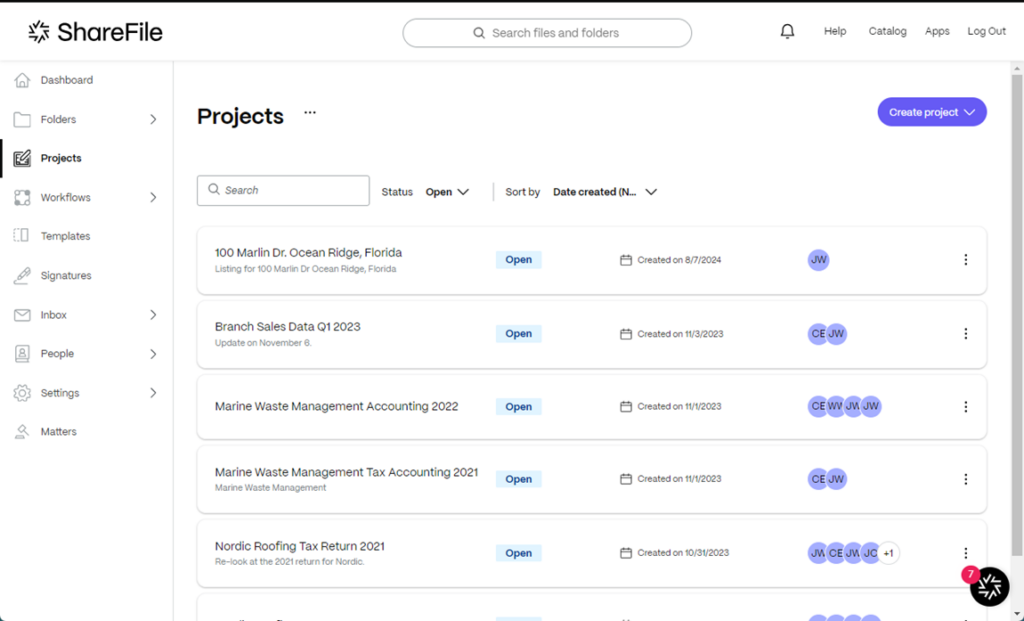
ShareFile, part of the Progress product portfolio, is a secure file-sharing and document-workflow platform for exchanging files, collecting signatures, requesting data, and managing tasks in one workspace. It encrypts files in transit and at rest, applies permission-based access and user activity monitoring, and supports client portals for external collaboration.
It is built to support compliance with HIPAA, SOC 2 Type II, FINRA, SEC, and GDPR, and adds AI-powered tagging and search for organizing documents.
Key features include:
- Secure file sharing: Shares and syncs files internally and externally with encryption in transit and at rest, replacing risky email attachments.
- Permission and access controls: Applies role-based, folder- and file-level permissions, sign-in requirements, expiration controls, and watermarking.
- Client portals: Provides branded client portals and structured requests for files, data, and to-dos.
- Integrated e-signature: Prepares, sends, signs, and manages documents with native e-signature.
- Compliance support: Supports HIPAA, SOC 2 Type II, FINRA, SEC, and GDPR through logging and access controls.
- AI tagging and search: Uses AI to tag files by content and speed up search, and scans uploads for malware.
Limitations (as reported by users on Capterra):
- Permission complexity: Reviewers say permissions can be confusing and shared links may be exposed if not configured carefully.
- Manual two-factor setup: Some note that two-factor setup is manual.
- Pricing: Several describe pricing as expensive, with contract and billing concerns.
- Storage and templates: Some users want more storage and reusable templates.
Source: ShareFile
Considerations for Choosing Secure Remote Access Providers
Choosing the right secure remote access tool involves more than evaluating feature lists. Organizations must assess their operational needs, security posture, and infrastructure constraints. Below are key factors to consider when selecting a tool to ensure both usability and robust protection:
- Security architecture compatibility: Ensure the tool aligns with your security model, whether perimeter-based, zero trust, or hybrid. Tools should integrate with existing identity providers, enforce least-privilege access, and support encryption, logging, and monitoring.
- User experience and accessibility: A solution that hinders productivity will struggle with adoption. Evaluate how easily users can connect, the need for client software, and cross-device support, especially for mobile and BYOD scenarios.
- Scalability and performance: Consider how the tool performs under load and how well it scales across distributed teams. Features like dynamic bandwidth management and session resiliency are important for maintaining performance in variable conditions.
- Granular access control: Look for tools that support detailed access policies—such as RBAC or context-aware access, allowing you to define who can access what, when, and under what conditions.
- Integration with security tools: Choose a solution that integrates with SIEMs, endpoint detection tools, MFA, and other components of your security stack. Centralized logging and alerting help in incident response and compliance audits.
- Deployment and maintenance requirements: Evaluate whether the solution is cloud-native, self-hosted, or hybrid. Consider the ongoing administrative effort, software updates, and infrastructure dependencies needed to keep the tool secure and available.
- Vendor support and community: Strong vendor support or an active open-source community can make a big difference in troubleshooting and long-term viability. Review update frequency, documentation quality, and support responsiveness.
- Regulatory and compliance fit: Ensure the tool helps meet regulatory requirements like HIPAA, GDPR, or ISO 27001. Features like session logging, encryption standards, and data residency controls may be critical depending on your industry.
Related content: Read our guide to secure remote access best practices
Conclusion
Secure remote access is no longer just about connectivity. It must also provide continuous security, adaptability, and control. The right solution balances strong protection with usability, enabling employees to work productively from any location while keeping corporate data safe. By focusing on principles like least-privilege access, encryption, and integration with broader security frameworks, organizations can support flexible work models without exposing themselves to unnecessary risk.