
Top Rated Platforms for Distributed Workforces: 12 Options in 2026


See Venn first in Google Search
Add as a preferred source on Google
TL;DR: Platforms for distributed workforces combine secure access, communication, and centralized management for teams working anywhere. Best for secure BYOD: Venn’s Blue Border; best for browser-based access: Parallels Secure Workspace; best for containerized workspaces: Kasm Workspaces; best for team messaging: Slack.
What Are Platforms for Distributed Workforces?
Managing a distributed workforce requires a specialized technology stack tailored to your exact operational needs. The top-rated platforms span different categories depending on your focus: Rippling for HR/payroll, Deel for international compliance, Monday.com for task management, and Slack for asynchronous communication.
Platforms for distributed workforces are software solutions designed to support employees who work from multiple locations, often outside a traditional office environment. These platforms combine tools for communication, collaboration, security, and workforce management, ensuring that teams remain productive and connected regardless of where individuals are located. They are tailored to address the unique challenges posed by geographic dispersion, varying time zones, and device diversity, providing a unified experience for both employers and employees.
Distributed workforce platforms are not limited to a single function. Instead, they integrate several capabilities, such as secure file sharing, project management, virtual meetings, and device access controls. These platforms enable organizations to manage remote teams efficiently, maintain data security, and streamline workflows. By centralizing essential functions, these tools reduce the need for employees to juggle multiple disconnected applications, which helps drive productivity and maintain consistency across the organization.
This is part of a series of articles about secure remote access
Free eBook:
Secure Remote Access that Doesn’t Drive Users Crazy!
Secure your entire extended workforce without issuing devices or VDI. Keep your organization agile, compliant, and secure.

In this article:
Platforms for Distributed Workforces at a Glance
The table below summarizes the key differences between these platforms across category, best fit, strengths, and trade-offs. We explore each one in more detail in the sections that follow.
| Category | Solution | Ratings | Best For | Key Strengths | Things to Consider |
| Secure Workspace & BYOD | Blue Border™ by Venn | 4.1/5 (11 reviews, G2) | Securing BYOD and contractor work on unmanaged PCs and Macs | Company-controlled secure enclave protects company data without VDI | Focused on desktop endpoints, with some mobile and reporting gaps |
| Secure Workspace & BYOD | Parallels Secure Workspace | 4.5/5 (21 reviews, Capterra) | Browser-based access to legacy, web, and SaaS apps on any device | Clientless HTML5 workspace with zero trust access and auditing | Full-desktop multi-monitor experience is limited, and initial setup takes effort |
| Secure Workspace & BYOD | Kasm Workspaces | 4.7/5 (47 reviews, G2) | Streaming containerized desktops, apps, and browsers to any device | Container isolation with web-native desktops and browser isolation | Occasional instability, and fewer operating system options than some rivals |
| Communication & Collaboration | Slack | 4.5/5 (39,000+ reviews, G2) | Channel-based team messaging and asynchronous collaboration | Deep integrations, searchable history, and no-code workflow automation | Notifications and channel sprawl can overwhelm, and some features are plan-limited |
| Communication & Collaboration | Microsoft Teams | 4.4/5 (17,000+ reviews, G2) | Chat, meetings, and calling inside the Microsoft 365 stack | Combines messaging, video, phone, and file collaboration in one app | It can feel heavy and resource-intensive on older devices |
| Communication & Collaboration | Zoom Workplace | 4.5/5 (55,000+ reviews, G2) | Reliable video meetings and an AI-first collaboration hub | Meetings, chat, phone, and productivity tools in a single platform | It can be resource-heavy in long meetings, and features are split across plans |
| Knowledge Management | Notion | 4.6/5 (11,900+ reviews, G2) | A connected workspace for docs, wikis, and team knowledge | Flexible docs, databases, and AI search in one workspace | Large or complex pages can lag, and initial setup takes time |
| Knowledge Management | Confluence | 4.1/5 (4,200+ reviews, G2) | Structured team documentation and a single source of truth | Spaces, pages, and deep Jira and Slack integrations | It can be slower with large pages and has a steeper learning curve |
| Knowledge Management | Guru | 4.7/5 (2,300+ reviews, G2) | A governed knowledge layer that feeds answers to people and AI | Verified, permission-aware knowledge delivered inside the workflow | Value depends on connecting and maintaining source content |
| Global Workforce Management | Rippling | 4.8/5 (11,600+ reviews, G2) | Running HR, IT, and payroll for a global workforce on one platform | Unified data across HR, IT, and finance with strong automation | Pricing is not transparent, and initial setup can be complex |
| Global Workforce Management | Deel | 4.8/5 (11,600+ reviews, G2) | Hiring, paying, and managing international workers compliantly | Global payroll and contractor management across 150+ countries | Withdrawal fees and slower support during peak times are reported |
| Global Workforce Management | Remote | 4.5/5 (3,700+ reviews, G2) | Employer of record and global payroll on owned infrastructure | In-house entities, payroll, and compliance in every market it operates in | Time tracking is basic, and some payment methods carry fees |
Related content: Read our article about secure remote access platforms
Why Distributed Workforces Need Dedicated Platforms
Distributed teams face challenges that traditional office tools were not designed to handle. Employees may work across different locations, time zones, networks, and devices. Dedicated platforms bring communication, access, security, and workforce management into a consistent environment.
- Consistent access to resources: Employees need reliable access to applications, files, and internal systems from any location. Dedicated platforms provide a standard access experience across managed, unmanaged, and personal devices.
- Stronger security controls: Remote work expands the number of devices, networks, and locations that can access company data. These platforms apply controls such as multi-factor authentication, encryption, data loss prevention, and role-based access.
- Support for asynchronous work: Teams in different time zones cannot depend only on live meetings. Shared workspaces, recorded updates, task tracking, and searchable discussions allow work to continue without requiring everyone to be online at the same time.
- Centralized communication and collaboration: Distributed employees often use several tools to exchange messages, edit documents, and manage projects. A dedicated platform connects these functions and reduces fragmented workflows.
- Simplified device management: Organizations may need to support company-owned hardware, personal devices, and contractor equipment. Distributed workforce platforms help enforce policies and protect work data without requiring full control of every device.
- Improved visibility and oversight: Managers need accurate information about project status, workload, attendance, and resource use. Centralized reporting helps them identify delays, capacity issues, and operational risks.
- Faster onboarding and offboarding: Remote employees need access to systems, policies, and training without visiting an office. Automated workflows can assign permissions, deliver resources, and revoke access when a worker leaves.
- Consistent compliance: Distributed work may involve employees in multiple legal jurisdictions. Dedicated platforms help organizations apply retention rules, access policies, audit logging, and local workforce requirements consistently.
Related content: Read our article about remote work security risks
Key Types of Platforms for Distributed Workforces
Secure Workspace and BYOD Platforms
Secure workspace and Bring Your Own Device (BYOD) platforms provide a controlled environment for employees to access corporate resources on personal or unmanaged devices. These solutions isolate work applications and data from personal content, ensuring company information remains secure without intruding on user privacy. Features like containerization, remote wipe, and encrypted data storage help organizations enforce security policies while enabling flexible device usage.
By supporting a wide range of device types and operating systems, these platforms allow organizations to extend their workforce without the cost of provisioning and managing company-owned hardware. They also simplify compliance with industry regulations by offering granular controls over data access and movement. This flexibility makes it easier to onboard contractors, freelancers, and full-time staff in any location, while maintaining a consistent level of security and user experience.
Key Capabilities:
- Secure work containers that separate business and personal data
- Support for personal, unmanaged, and company-owned devices
- Mobile device and application management
- Multi-factor authentication and conditional access
- Remote lock and selective remote wipe of business data
- Encryption for data at rest and in transit
- Compliance policy enforcement and device health checks
- Centralized device monitoring and reporting
Communication and Collaboration Platforms
Communication and collaboration platforms are essential for distributed teams to stay connected and work together efficiently. These tools include instant messaging, video conferencing, shared calendars, and real-time document editing. By centralizing these features, organizations ensure that team members can exchange information, hold meetings, and collaborate on projects without the friction of switching between multiple applications.
The best platforms are designed to overcome the barriers of distance and time zones, offering features like asynchronous messaging, presence indicators, and integrations with other business tools. This enables teams to maintain momentum even when members are spread across different regions. Reliable communication and collaboration tools also help build team cohesion, reduce misunderstandings, and accelerate project delivery in a distributed environment.
Key Capabilities:
- Instant messaging and team chat
- Video conferencing and voice calls
- Shared calendars and meeting scheduling
- Real-time document collaboration
- File sharing and version control
- Persistent channels and searchable conversation history
- Task management and workflow integrations
- Screen sharing, whiteboards, and meeting recordings
Knowledge Management Platforms
Knowledge management platforms provide a centralized repository for organizational knowledge, enabling distributed teams to access information, best practices, and resources whenever needed. These platforms typically include document storage, searchable databases, wikis, and integration with other business systems. By making institutional knowledge easily discoverable, they help reduce duplicate work and ensure consistency in processes and decision-making.
For distributed workforces, knowledge management tools are critical for onboarding new employees, supporting self-service problem solving, and capturing insights from across the organization. They enable asynchronous learning and collaboration, allowing team members in different time zones to contribute to and benefit from shared knowledge. This improves productivity and helps organizations retain valuable expertise even as team compositions change.
Key Capabilities:
- Centralized document and content repositories
- Full-text search and knowledge discovery
- Wikis and internal documentation
- Version control and content approval workflows
- Knowledge categorization and tagging
- Access controls and permission management
- Integration with collaboration and business applications
- Usage analytics and content lifecycle management
Global Workforce Management Platforms
Global workforce management platforms streamline the administration of employees across different regions and jurisdictions. These solutions handle tasks such as scheduling, payroll, compliance with local labor laws, and time tracking. By automating these processes, organizations can efficiently manage a geographically dispersed workforce and reduce the risk of errors or non-compliance.
Such platforms also provide analytics and reporting tools to help managers track performance, monitor resource allocation, and forecast staffing needs. For distributed teams, this means greater visibility into operations and the ability to respond quickly to changing business requirements. Ultimately, global workforce management platforms help organizations scale their distributed operations while maintaining control and oversight.
Key Capabilities:
- Employee scheduling and shift management
- Time tracking and attendance monitoring
- Global payroll administration
- Local labor law and regulatory compliance support
- Leave and absence management
- Workforce analytics and reporting dashboards
- Resource planning and staffing forecasts
- Automated onboarding and offboarding workflows
Notable Platforms for Distributed Workforces
How we selected these platforms: We shortlisted platforms for distributed workforces based on the capabilities that matter most for teams working anywhere: secure access on managed and unmanaged devices, communication and collaboration, centralized knowledge management, and global workforce administration. The list is organized into the platform categories used throughout this article.
Secure Workspace and BYOD Platforms
1. Blue Border™ by Venn

Best for: Securing remote and BYOD work on unmanaged PCs or Macs without VDI.
Strengths: A local Secure Enclave isolates work data while keeping personal use private.
Rated: 4.1 out of 5 across 11 reviews (G2).
Things to consider: Focused on desktop endpoints, with some mobile and reporting gaps.
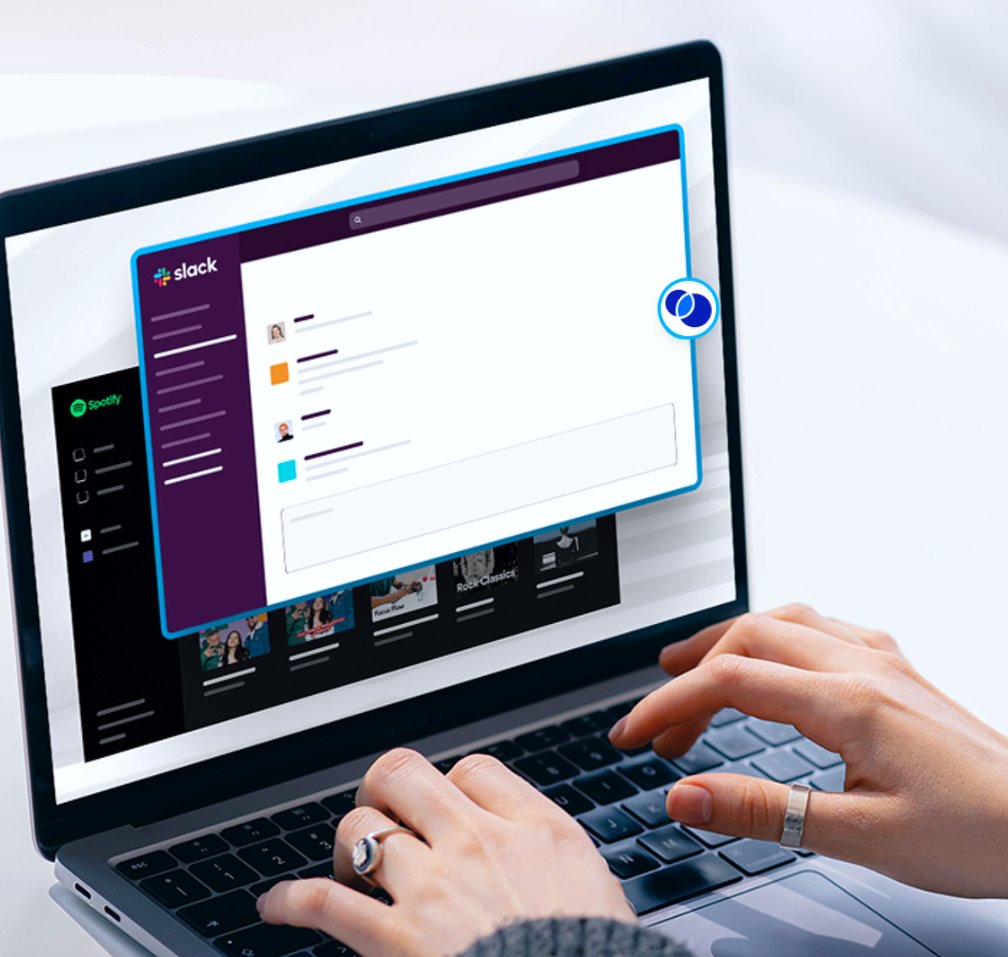
Venn’s Blue Border creates a company-controlled Secure Enclave on a user’s own PC or Mac. Work applications run locally inside that enclave, visually marked by a blue line around each application window. Company data is encrypted and governed by IT policy, while everything outside the enclave stays personal and is not tracked.
The approach works without VDI, virtualization, or fully managing the device, so contractors, offshore teams, and remote employees can be onboarded on any device. Set policy once and it applies across managed and unmanaged endpoints, including controls over which AI tools can touch company data.
Key features include:
- Secure Enclave on unmanaged devices: Work apps and data run locally inside a company-controlled enclave on any PC or Mac, isolated from personal activity on the same machine.
- Data loss prevention and clipboard control: Fine-tune policies for copy, paste, printing, downloads, screen capture, and screen sharing at the user level.
- AI governance: Controls which AI tools can interact with company applications and data, and what can be copied, pasted, uploaded, or entered into them, from inside the enclave.
- Compliance enforcement: Encryption and active policy enforcement to support SOC 2, HIPAA, SEC, FINRA, PCI, CMMC, and other standards.
- Centralized administration without backend infrastructure: Onboard and offboard remote workers and contractors in minutes, with real-time visibility into where, when, and from what device data was accessed.
- Native application performance: Work runs in locally installed apps such as Chrome, Microsoft Office, Adobe, Zoom, and Teams, avoiding the lag of virtual desktops.
- Built-in user privacy: Any activity outside Blue Border cannot be seen, tracked, or monitored by the company.
Limitations (as reported by users on G2):
- Occasional stability: Some users have noted intermittent stability issues that can affect performance.
- Mobile accessibility: A few users would like broader mobile device support.
- Reporting depth: Some users would like more detailed reporting features.
Source: Venn
2. Parallels Secure Workspace

Best for: Browser-based access to legacy, web, and SaaS apps on any device.
Strengths: A clientless HTML5 workspace with zero trust access and auditing.
Rated: 4.5 out of 5 across 21 reviews (Capterra).
Things to consider: The full-desktop multi-monitor experience is limited, and initial setup takes effort.
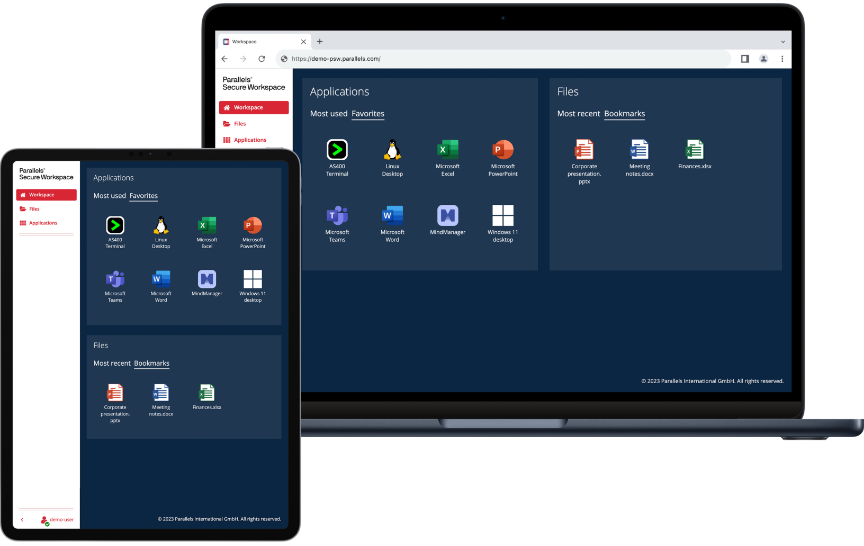
Parallels Secure Workspace (formerly Awingu) is a clientless, browser-based workspace that gives users secure access to legacy Windows and Linux applications, internal web apps, SaaS, and file shares from any browser on any device. It deploys as a virtual appliance on common hypervisors and connects to existing IT assets over standard protocols such as RDP, without installing agents on user devices.
It translates RDP streams to HTML5 and layers zero trust controls, multi-factor authentication, and auditing on top, positioning it as a VPN and jump-server alternative for remote work, BYOD, and contractor access.
Key features include:
- Clientless HTML5 workspace: Access Windows or Linux apps and desktops, web apps, SaaS, and file shares through any browser, with no local installation.
- RDP-to-HTML5 gateway: In-house technology translates RDP and xRDP streams to the browser without agents on user devices.
- Zero trust security: Built-in MFA (TOTP and HOTP), SSL encryption, and integration with identity providers such as Azure AD, Okta, and Google Identity via SAML or OpenID.
- Granular usage controls: Enable or disable printing, downloading, and session sharing per user or group, with context-aware access based on IP or geography.
- Session recording and auditing: Record application sessions and track logins, application use, and file activity, with SIEM integration such as Splunk and Elastic.
- Aggregation and file access: A unified view across file servers, SharePoint, and OneDrive, plus reverse-proxy access to internal websites.
- Collaboration: Live app-session sharing and built-in file sharing with permission and expiration controls.
Limitations (as reported by users on Capterra):
- Multi-monitor experience: The full-desktop experience across multiple monitors is limited; app-based access across browser tabs works better.
- Initial configuration: Setup and deployment can be a hassle at first, though documentation and support help.
- Troubleshooting resources: Some users note the troubleshooting experience and knowledge base could be stronger.
- Interface clarity: Icons and the interface within RDP sessions could be more self-explanatory.
Source: Parallels
3. Kasm Workspaces
Best for: Streaming containerized desktops, apps, and browsers to any device.
Strengths: Container isolation with web-native desktops and browser isolation.
Rated: 4.7 out of 5 across 47 reviews (G2).
Things to consider: Occasional instability, and fewer operating system options than some rivals.
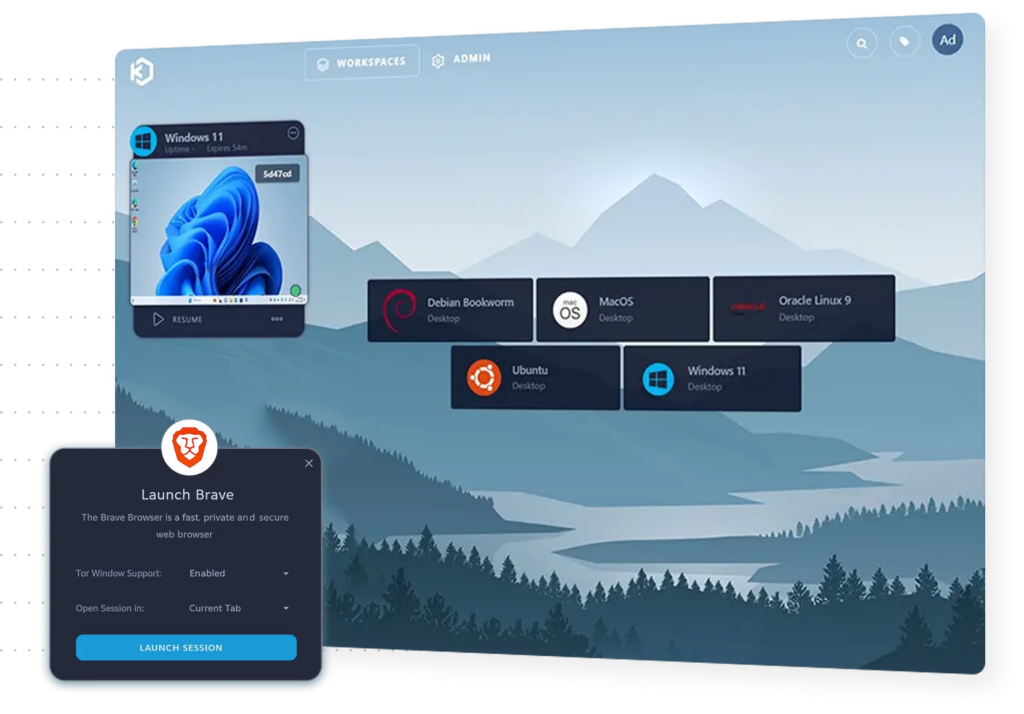
Kasm Workspaces is a container streaming platform that delivers desktops, applications, and browsers to a web browser on any device. It uses containerization and zero trust isolation to provide web-native Desktop as a Service, application streaming, and secure browser isolation, and it can be self-hosted on-premises or run in the cloud.
A library of open-source desktop, application, and browser images lets teams spin up isolated Linux, Windows, and other environments on demand, which suits secure browsing, remote work, contractor access, and security research.
Key features include:
- Containerized streaming: Stream Linux, Windows, and other desktops, apps, and browsers to the browser in seconds, with no local install.
- Browser isolation: A zero trust web intermediary keeps browsing secure, private, and non-attributable without risking the endpoint.
- App streaming: Deliver individual applications through the browser without installs or patches on the device.
- Zero trust architecture: Container isolation and compliance-ready controls for secure access.
- Flexible deployment: Self-host on-premises or run in the cloud, with open integration and no vendor lock-in.
- Open-source image library: A catalog of pre-built desktop, application, and browser images, plus a developer API to build custom streaming apps.
- Secure AI environments: Run private and agentic AI workloads with control over data, credentials, and execution.
Limitations (as reported by users on G2):
- System instability: Some users report instability that can affect performance during critical tasks or updates.
- Browser dependency: Browser-based access can occasionally cause responsiveness or compatibility issues.
- Operating system options: Some users would like more OS choices, particularly broader Windows support.
- Occasional slowness: A few users note slow performance or technical issues at times.
Source: Kasm
Communication and Collaboration Platforms
4. Slack
Best for: Channel-based team messaging and asynchronous collaboration.
Strengths: Deep integrations, searchable history, and no-code workflow automation.
Rated: 4.5 out of 5 across more than 39,000 reviews (G2).
Things to consider: Notifications and channel sprawl can overwhelm, and some features are plan-limited.
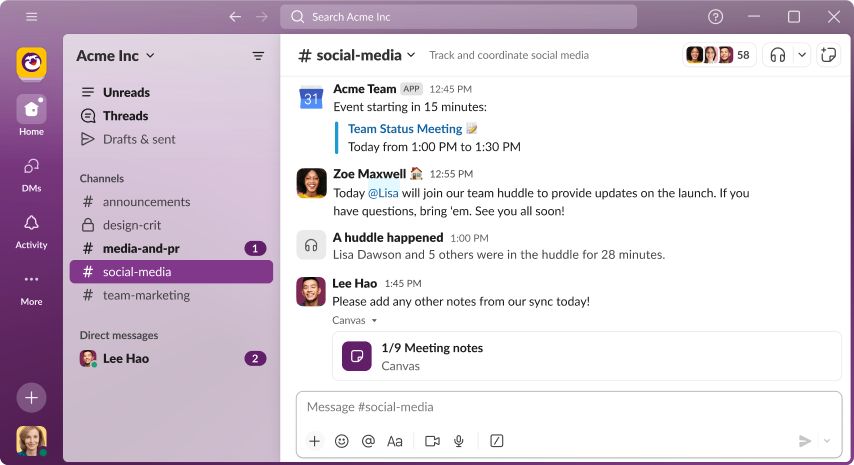
Slack organizes team communication into channels for projects, teams, and topics, alongside messaging, huddles for audio and video, and clips for recorded updates. It connects with over 2,600 apps and offers no-code automation through Workflow Builder.
Persistent, searchable history lets distributed and asynchronous teams catch up on conversations without needing everyone online at once, which helps teams spread across time zones stay aligned.
Key features include:
- Channels: Organize conversations by team, project, or topic, with easy joining and full history for new members.
- Huddles and clips: Start live audio and video huddles, or record and share short updates asynchronously.
- Slack Connect: Collaborate with external partners, clients, and vendors inside Slack instead of email.
- Apps, integrations, and Workflow Builder: Connect tools such as Google Drive and Office 365 and automate routine tasks without code.
- Enterprise search and AI: Summarize channels and threads and search across conversations and connected apps from one bar.
- Security and compliance: SOC 2, ISO/IEC 27001, and GDPR support, configurable HIPAA and FINRA compliance, and Enterprise Key Management.
Limitations (as reported by users on G2):
- Notification overload: Heavy notifications and a large number of channels can feel overwhelming.
- Messages get lost: Fast-moving channels make it easy to miss important messages.
- Plan-based limits: Message history and some capabilities are restricted on lower-tier plans.
Source: Slack
5. Microsoft Teams
Best for: Chat, meetings, and calling inside the Microsoft 365 stack.
Strengths: Combines messaging, video, phone, and file collaboration in one app.
Rated: 4.4 out of 5 across more than 17,000 reviews (G2).
Things to consider: It can feel heavy and resource-intensive on older devices.
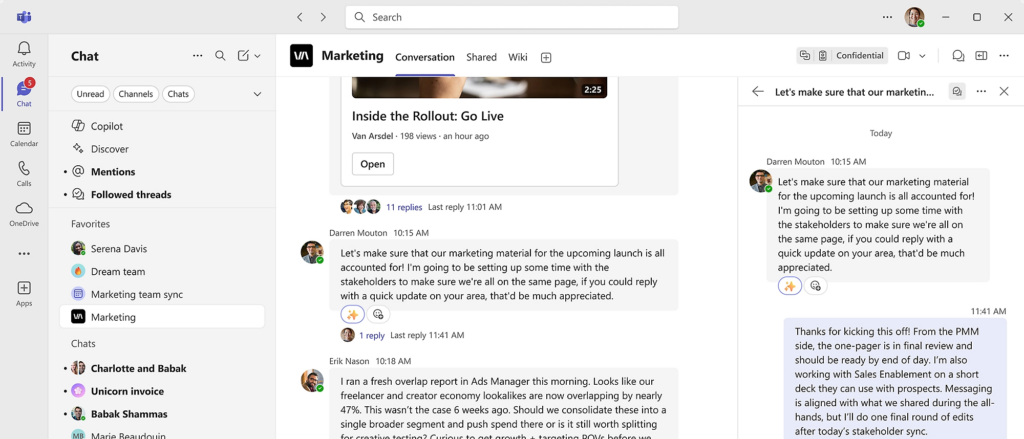
Microsoft Teams brings chat, channels, online meetings, calling, and file collaboration together in one application, integrated with Microsoft 365. Meetings support video conferencing, screen sharing, webinars, and real-time translation, while Teams Phone adds cloud-based calling.
Content from Microsoft Loop, OneNote, and third-party apps sits alongside conversations, and Copilot and agents can turn discussions into notes and actions, which suits organizations already invested in Microsoft 365.
Key features include:
- Chat and channels: Organize conversations with shared content, Loop and OneNote pages, and third-party apps in one place.
- Meetings and events: Video conferencing, screen sharing, custom backgrounds, webinars, and town halls with built-in encryption.
- Teams Phone: Cloud-based calling with VOIP and PBX features and connectivity to external phone numbers.
- Real-time translation: Translation and interpretation so participants can engage in their preferred language.
- Microsoft 365 integration: Works with Word, Excel, SharePoint, and PowerPoint Live, plus Copilot and agents for notes and actions.
- Management and security: Access controls, information protection, and workspace management across devices.
Limitations (as reported by users on G2):
- Resource usage: Can feel heavy and slow, especially when switching between chats, channels, and meetings on older devices.
- Notification overload: Busy teams generate many notifications, making messages easy to miss.
- File management: Files across chats and channels can become cluttered, and permissions can be confusing.
- Learning curve: The breadth of features can be overwhelming for new users.
Source: Microsoft
6. Zoom Workplace
Best for: Reliable video meetings and an AI-first collaboration hub.
Strengths: Meetings, chat, phone, and productivity tools in a single platform.
Rated: 4.5 out of 5 across more than 55,000 reviews (G2).
Things to consider: It can be resource-heavy in long meetings, and features are split across plans.
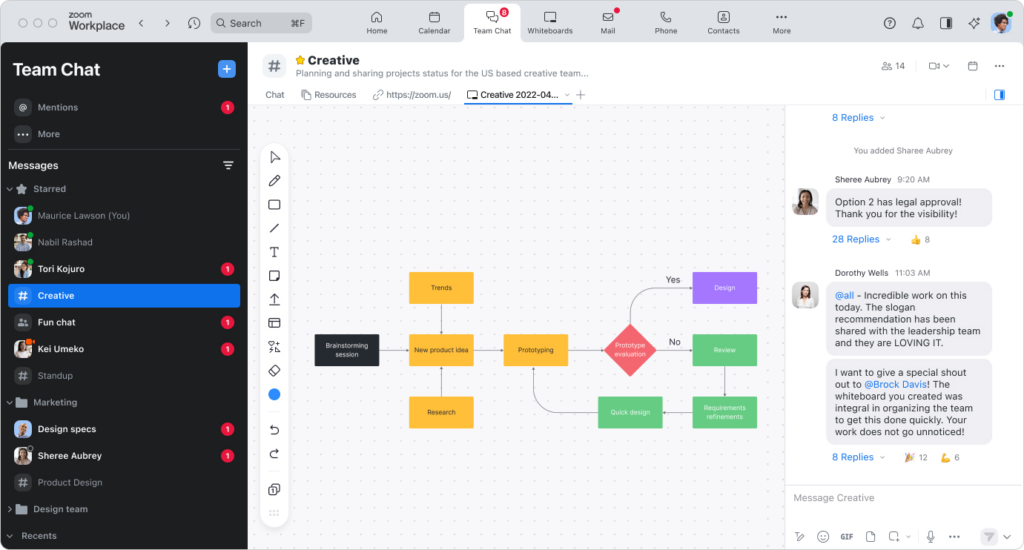
Zoom Workplace combines video meetings, team chat, a cloud phone system, mail and calendar, and productivity tools in one AI-first platform. Meetings include screen sharing, recording, and whiteboards, while ZoomMate and AI features handle notes, summaries, and action items.
Spaces tools such as Rooms, Workspace Reservation, and digital signage extend Zoom to hybrid offices, so distributed and in-office teams work in the same environment.
Key features include:
- Meetings: Online video conferencing with screen sharing, recording, and a built-in whiteboard.
- Team chat and phone: Integrated instant messaging and a cloud phone system inside one app.
- Mail, calendar, and scheduler: Work alongside existing email and calendar and book appointments with external contacts.
- AI productivity: ZoomMate and My Notes capture, summarize, and complete tasks, and AI docs, sheets, and slides build deliverables from meeting content.
- Rooms and spaces: Video conferencing for meeting rooms, workspace reservation, and digital signage for hybrid offices.
- Whiteboard and clips: A shared digital canvas with diagramming tools and short-form screen recordings.
Limitations (as reported by users on G2):
- Resource intensive: Long meetings can consume significant system resources and affect performance on older devices.
- Connectivity issues: Meeting lag or connection problems can occur on unstable networks.
- Plan-gated features: Some advanced features are locked to higher tiers, and free meetings have time limits.
- Interface clutter: As more tools are added, the interface can feel crowded.
Source: Zoom
Knowledge Management Platforms
7. Notion

Best for: A connected workspace for docs, wikis, and team knowledge.
Strengths: Flexible docs, databases, and AI search in one workspace.
Rated: 4.6 out of 5 across more than 11,900 reviews (G2).
Things to consider: Large or complex pages can lag, and initial setup takes time.
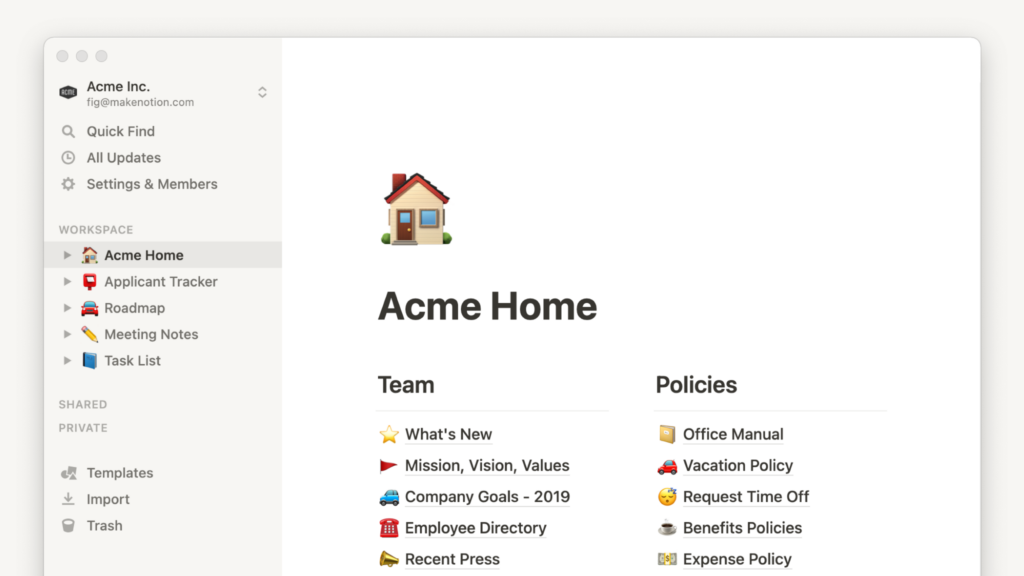
Notion is a connected workspace that combines documents, wikis, projects, and a knowledge base with built-in AI. Teams centralize documentation in a knowledge base, capture context, and use Enterprise Search to find answers across connected apps.
Custom agents and AI meeting notes automate repetitive work, and connections link tools such as Slack, Google Calendar, and Jira, so knowledge and work stay in one place for distributed teams.
Key features include:
- Docs and knowledge base: Create documents and a single source of truth for teams, with verification badges for reviewed pages.
- Databases and projects: Build flexible databases and manage projects with customizable structure.
- Enterprise Search: Search across Notion and connected third-party apps and data sources.
- Notion AI and custom agents: Automate reporting, task routing, and question answering using existing company knowledge.
- AI meeting notes: Capture and write up meeting notes automatically.
- Connections: Integrate with Slack, Google Calendar, Jira, and more to keep work in one workspace.
Limitations (as reported by users on G2):
- Performance at scale: Large databases or complex pages can lag.
- Learning curve: Structuring a flexible workspace takes time for new users.
- Project management depth: Not a full replacement for dedicated project tools when execution depth matters.
Source: Notion
8. Confluence

Best for: Structured team documentation and a single source of truth.
Strengths: Spaces, pages, and deep Jira and Slack integrations.
Rated: 4.1 out of 5 across more than 4,200 reviews (G2).
Things to consider: It can be slower with large pages and has a steeper learning curve.
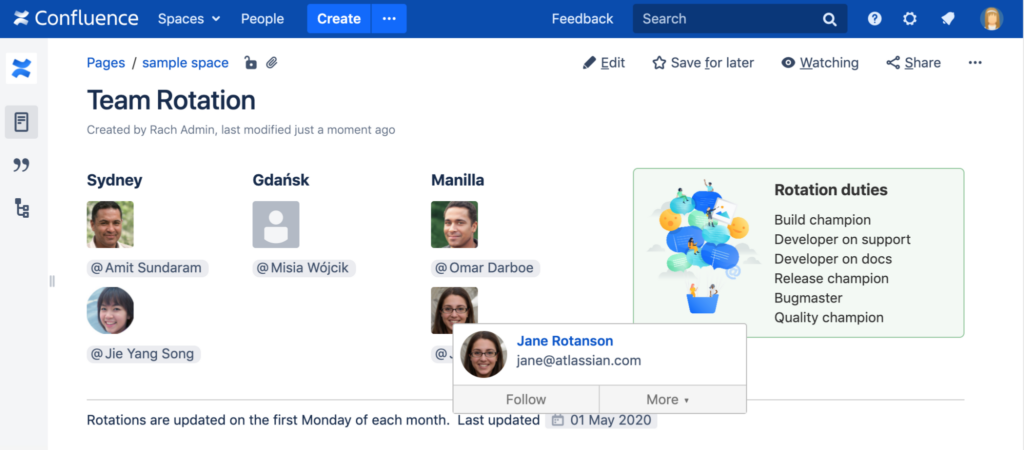
Confluence is Atlassian’s workspace for documentation, knowledge, and collaboration, organized into spaces and pages. Teams draft content with templates and AI, create live docs, whiteboards, databases, and videos, and use Rovo AI to search across connected tools and summarize pages.
It integrates closely with Jira and the wider Atlassian suite, which makes it a natural fit for teams already using those tools to manage distributed work.
Key features include:
- Spaces and pages: Organize documentation into structured spaces with pages, live docs, and version history.
- Rovo AI: Find answers across apps, summarize pages and comments, and generate audio briefings.
- Content types: Whiteboards, databases, videos, and slides alongside standard pages.
- Templates: Ready-to-use templates for product requirements, plans, briefs, and more.
- Integrations: Connect with Jira, Slack, and other tools, with Teamwork Graph linking work and goals.
- Permissions: Granular access controls for shared content.
Limitations (as reported by users on G2):
- Performance on heavy pages: Large pages with many images and tables can load slowly.
- Learning curve: Advanced features and the query language take time to master.
- Navigation and permissions: Many spaces and permission options can confuse new users.
- Search: Finding a specific page can be hard without precise keywords when there is a lot of content.
Source: Confluence
9. Guru
Best for: A governed knowledge layer that feeds answers to people and AI.
Strengths: Verified, permission-aware knowledge delivered inside the workflow.
Rated: 4.7 out of 5 across more than 2,300 reviews (G2).
Things to consider: Value depends on connecting and maintaining source content.
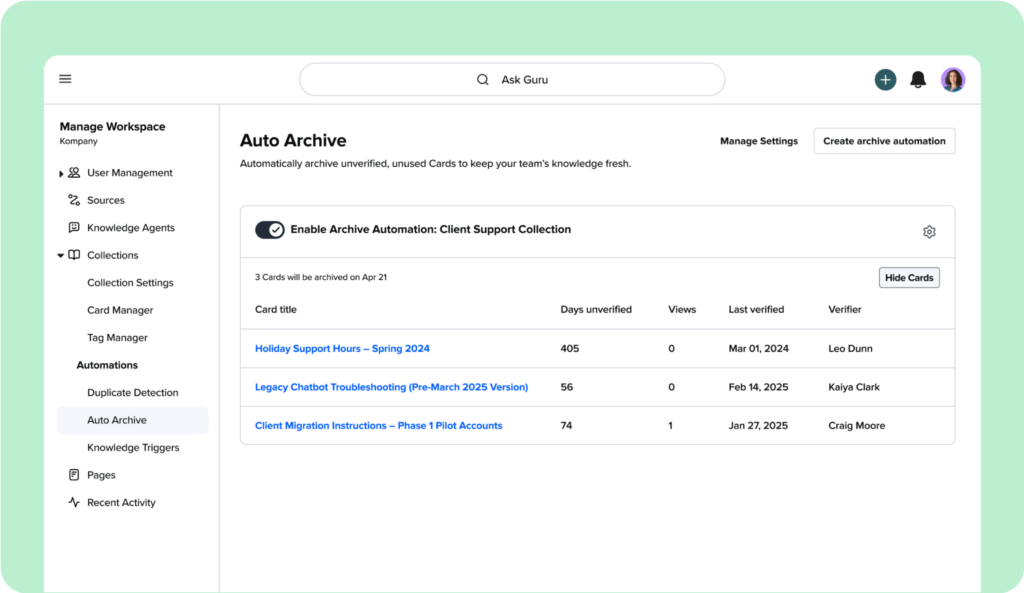
Guru structures and governs company knowledge so both employees and AI tools get answers they can trust. It verifies content, keeps it permission-aware, and continuously improves it by flagging duplicates, conflicts, stale pages, and knowledge gaps.
Answers are delivered inside tools such as Slack and Teams, with citations on every response, which helps distributed teams find consistent information without switching apps.
Key features include:
- Governed knowledge layer: Structure and centralize scattered knowledge into a verified single source of truth.
- Auto-verification: Automatically verify content as usage grows and unverify non-compliant or stale material.
- Permission-aware AI: Scope answers by role and enforce access controls, with full audit trails.
- In-workflow delivery: Surface answers and cited responses inside Slack, Teams, and other tools.
- Knowledge agents: Detect gaps, capture repeated questions, draft docs from threads, and route items to experts.
- Enterprise AI search: Query across company knowledge with citations on every answer.
Limitations (as reported by users on G2):
- Organizing large libraries: Managing a high volume of cards takes more planning and effort as teams grow.
- Search precision: Searches sometimes surface results only when exact keywords are used, rather than the exact card needed.
- Limited customization: Font and layout options are limited, which can affect readability and branding.
- Performance on large datasets: Some users would like better performance optimization for large content sets.
Source: Guru
Global Workforce Management Platforms
10. Rippling

Best for: Running HR, IT, and payroll for a global workforce on one platform.
Strengths: Unified data across HR, IT, and finance with strong automation.
Rated: 4.8 out of 5 across more than 11,600 reviews (G2).
Things to consider: Pricing is not transparent, and initial setup can be complex.
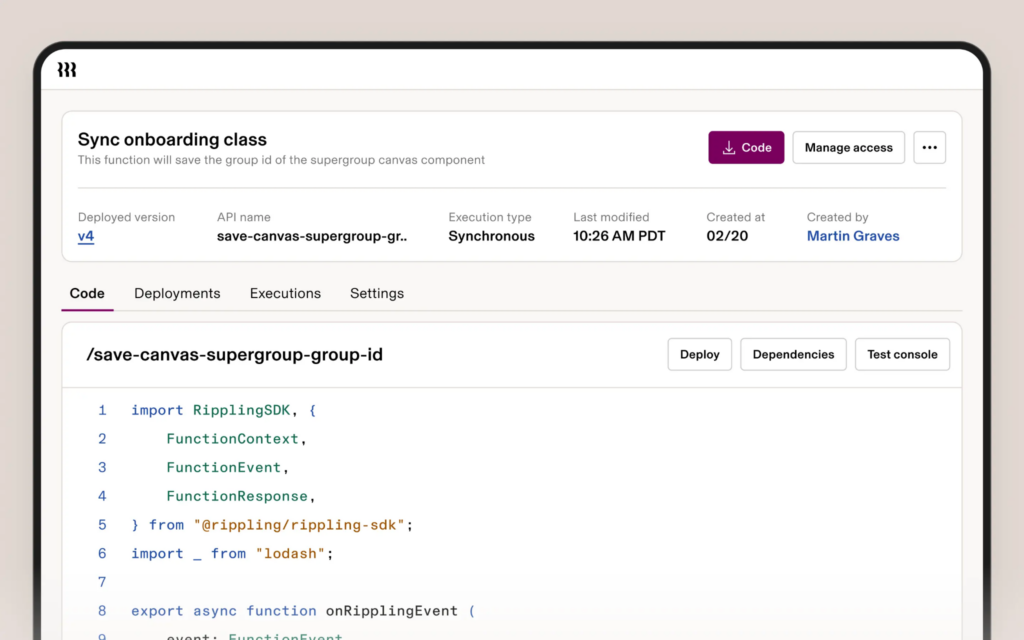
Rippling manages HR, IT, and finance on a single platform built on a shared data layer, so onboarding, payroll, device management, and access controls run from one system. It can onboard, pay, and manage employees and contractors around the world.
Permissions and approvals are role-based and enforced across every connected app, and reporting draws on workforce and business data in one place, which gives managers visibility across a distributed workforce.
Key features include:
- Unified HR, IT, and finance: Manage benefits, recruiting, performance, learning, identity, devices, corporate cards, and expenses on one platform.
- Global payroll: Run payroll for employees and contractors in multiple countries and currencies.
- Role-based permissions and access: Define rules once and enforce them dynamically across every app.
- Automated workflows: Onboard new hires, issue devices and cards, run payroll, and manage performance without switching systems.
- Enterprise reporting: Join and pivot workforce and business data, build calculated fields, and generate reports across departments.
- Device and identity management: Provision, secure, and track devices and enforce security and compliance policies.
Limitations (as reported by users on G2):
- Loading speed: Some users report slow loading at times.
- Leave and review processes: Certain processes, such as leave and reviews, can feel complicated.
- Pricing transparency: The actual cost depends on the modules selected and is not shown upfront.
- Implementation complexity: Configuring multiple modules at once can involve a learning curve.
Source: Rippling
11. Deel
Best for: Hiring, paying, and managing international workers compliantly.
Strengths: Global payroll and contractor management across 150+ countries.
Rated: 4.8 out of 5 across more than 11,600 reviews (G2).
Things to consider: Withdrawal fees and slower support during peak times are reported.
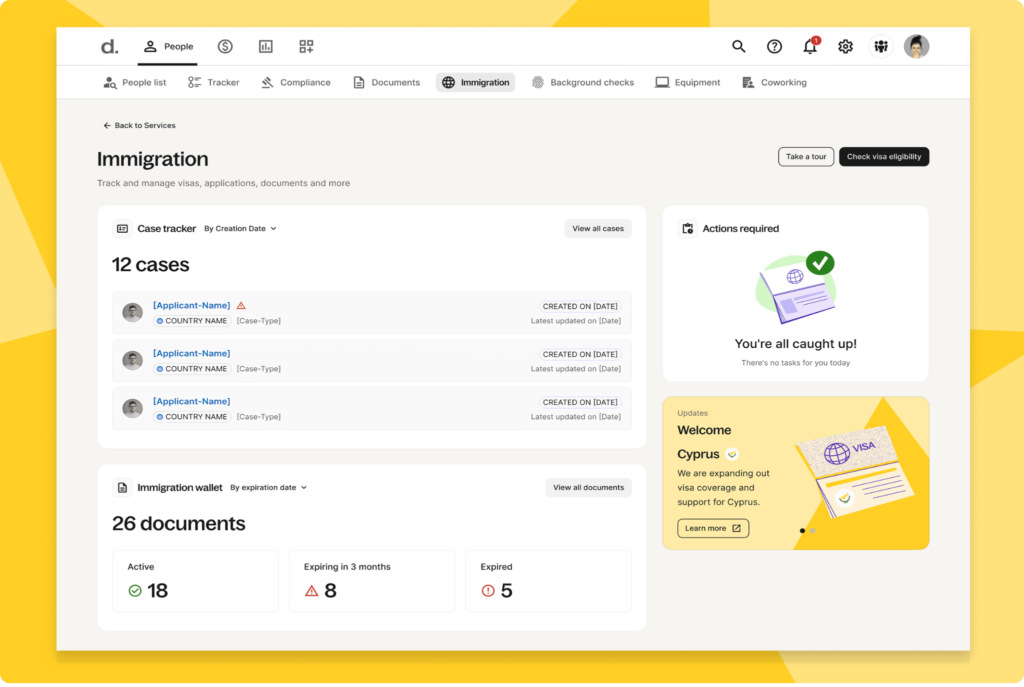
Deel is a global people platform for hiring, paying, and managing employees and contractors around the world. It combines global and local payroll, HR, IT, benefits, hiring, and visa support, with in-house compliance logic and local experts.
Payments are supported in 150+ currencies, and everything from contracts to payments is handled in one platform, which reduces the overhead of managing separate systems for a distributed and international workforce.
Key features include:
- Global and local payroll: Centralized, compliant payroll across many countries and 150+ currencies.
- Contractor and EOR hiring: Hire and onboard workers compliantly, with contracts and payments managed in one place.
- Deel HR: A single HR system for every worker, whether employee or contractor.
- Deel IT: Provision devices and provide support across locations.
- Benefits administration: Set up plans, handle enrollment, and sync deductions.
- Compliance support: In-house compliance logic combined with local experts across markets.
Limitations (as reported by users on G2):
- Withdrawal fees and delays: Some users cite withdrawal fees and occasional payment delays depending on the method.
- Exchange rates: Exchange rates offered are sometimes not the most favorable.
- Support at peak times: Customer support can be slow to respond during high-traffic periods.
- Interface changes: Frequent UI changes and some navigation steps can be confusing, and a few features are limited on mobile.
Source: Deel
12. Remote
Best for: Employer of record and global payroll on owned infrastructure.
Strengths: In-house entities, payroll, and compliance in every market it operates in.
Rated: 4.5 out of 5 across more than 3,700 reviews (G2).
Things to consider: Time tracking is basic, and some payment methods carry fees.
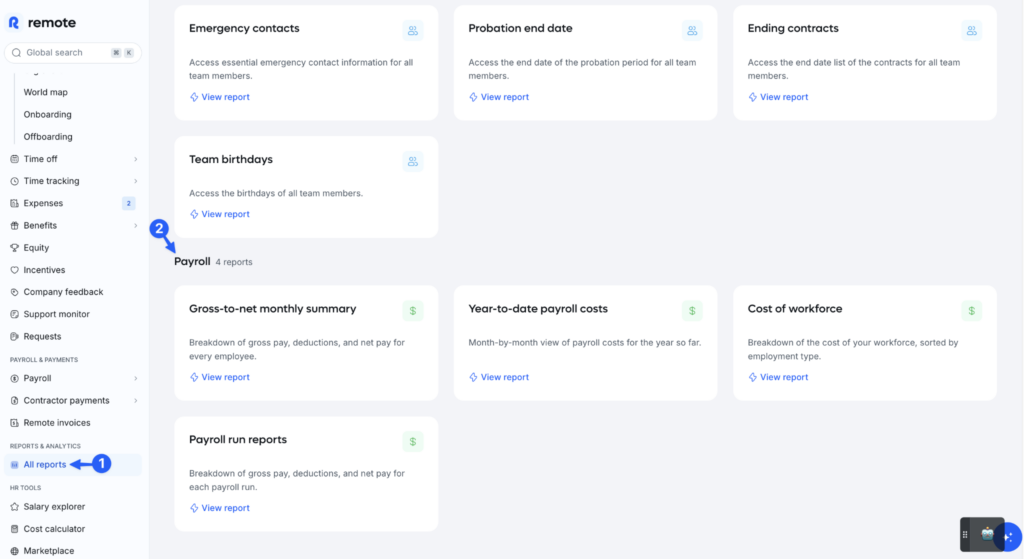
Remote provides global employment infrastructure, including employer of record, global payroll, contractor management, and PEO services, run on entities it owns rather than a partner network. Every employment record, contract, compliance document, and payroll run sits in one system.
It also offers an API, integrations, and MCP support to connect employment data with existing HR tools, which helps distributed teams keep global hiring and payroll consistent.
Key features include:
- Employer of Record (EOR): Hire anywhere without setting up local entities, with contracts, taxes, benefits, and compliance handled.
- Global payroll: Run compliant payroll in every country of operation through in-house teams.
- Contractor management and COR: Engage and pay international contractors compliantly, and convert them to employees.
- PEO: Handle US payroll, taxes, and benefits without the admin burden.
- Owned infrastructure: In-house legal, payroll, and compliance teams and owned entities in each market, with SOC 2 Type 2 and ISO 27001.
- Integrations, API, and MCP: Connect Remote with tools such as Workday, HiBob, and BambooHR, or build custom workflows.
Limitations (as reported by users on G2):
- Time tracking: Time tracking is cumbersome and does not integrate well for some teams.
- Payment methods: Some payment methods are manual or carry high fees, such as credit card payments.
- Leave automation: There is limited automation for leave approvals.
- Benefits availability: Some benefits, such as insurance options, can have limited availability windows.
Source: Remote
Conclusion
Selecting the right platform depends on balancing security needs, collaboration styles, and the specific mix of devices your team uses. By focusing on centralizing access and maintaining clear boundaries between work and personal data, organizations can foster a productive remote environment. Assessing your unique operational requirements against these key categories will ensure your workforce stays connected and secure.

Any worker. Any laptop. Any AI workflow. Fully secured.
Schedule a demo to see how Blue Border™ secures company data and apps without shipping laptops, running VDI, or managing personal endpoints.