
Best BYOD Management Solutions for Enterprises: Top 8 in 2026


See Venn first in Google Search
Add as a preferred source on Google
TL;DR: BYOD management solutions secure company apps and data on employee-owned devices. Best for secure work on personal laptops without VDI: Venn Blue Border; browser-based access on unmanaged devices: Parallels Secure Workspace; Microsoft-centric fleets: Microsoft Intune; Apple estates: Jamf Pro.
What Are BYOD Management Solutions?
BYOD management solutions are tools that help organizations manage employees’ personal devices when they are used to access company apps, networks, and data. BYOD stands for “bring your own device” and typically covers smartphones, tablets, and laptops owned by employees rather than the organization.
These solutions apply security policies without requiring the company to manage every aspect of a personal device. Depending on the approach, they can enforce authentication, encryption, screen locks, operating system requirements, and restrictions on how corporate data is stored or shared.
Key enterprise features to look for:
- Device-agnostic access: Supports consistent access controls across personal devices running different operating systems.
- Identity and access management integration: Connects BYOD access to existing user identities, roles, groups, and authentication policies.
- Multi-factor authentication: Requires additional identity verification beyond passwords to reduce the risk of compromised credentials.
- Conditional access: Controls access based on factors such as device compliance, user identity, location, application sensitivity, and risk.
- Corporate and personal data separation: Keeps business data isolated from personal files and applications using containers, work profiles, or managed apps.
- Data loss prevention: Restricts copying, downloading, sharing, or storing sensitive corporate information in unauthorized locations.
- Application access controls: Defines which business applications users can access and limits actions such as downloads, printing, and local storage.
- Device posture and risk checks: Verifies requirements such as encryption, operating system versions, screen locks, and device integrity before granting access.
- Centralized policy management: Provides one place to configure policies and review compliance, access decisions, violations, and administrative activity.
- Rapid onboarding and offboarding: Automates access provisioning and quickly revokes accounts, credentials, and corporate data when users leave or change roles.
- Remote corporate data removal: Selectively removes managed business data from personal devices without deleting employees’ personal content.
Get Your BYOD Security Toolkit
Unlock the 4 essential assets you need to secure company data on unmanaged laptops – without VDI
In this article:
Enterprise BYOD Management Solutions at a Glance
The table below summarizes the key differences between the BYOD management solutions covered in this article. We explore each one in more detail in the sections that follow.
| Category | Solution | Best For | Key Strengths | Things to Consider |
| Secure Workspace and Remote Access | Venn Blue Border | Securing work on personal Macs and PCs without VDI | Local secure enclave with encryption, DLP and remote wipe | Some users report slowness and app stability issues |
| Secure Workspace and Remote Access | Parallels Secure Workspace | Browser-based access to apps and files from unmanaged devices | HTML5 workspace with built-in MFA, auditing and granular controls | Limited USB peripheral and multi-monitor support |
| Secure Workspace and Remote Access | Citrix SecurAccess ZTNA | Application-level access for contractors and BYOD users | Agentless and agent-based access with device posture checks | Performance depends on stable connectivity; setup can be complex |
| UEM and MDM Platforms | Microsoft Intune | Organizations standardized on Microsoft 365 and Entra ID | Cloud endpoint management with conditional access and app policies | Steep learning curve and limited non-Microsoft app protection |
| UEM and MDM Platforms | Omnissa Workspace ONE UEM | Large multi-OS fleets mixing BYOD and corporate devices | Multi-tenant policy control, per-app VPN and orchestration | Complex initial setup and premium licensing costs |
| UEM and MDM Platforms | IBM MaaS360 | Mixed device estates needing containerization and threat defense | Encrypted container, compliance automation and AI risk insights | Dated interface, slow reporting and policy deployment |
| UEM and MDM Platforms | ManageEngine Mobile Device Manager Plus | Teams needing containerized BYOD with cloud or on-prem hosting | Self-enrollment, containerization, per-app VPN and selective wipe | Dated interface and thinner Apple platform coverage |
| UEM and MDM Platforms | Jamf Pro | Organizations running Apple devices in BYOD and mixed fleets | Zero-touch enrollment, declarative management, compliance baselines | Apple-centric scope, premium pricing and light reporting |
Why Do Large Enterprises Need BYOD Management Solutions?
Reduce Hardware and Device Costs
Allowing employees to use personal devices can reduce the number of laptops, smartphones, and tablets an organization needs to purchase and maintain. It can also lower costs related to hardware replacement, inventory management, and device provisioning.
How BYOD management solutions help: They allow organizations to achieve these savings without leaving personal devices unmanaged. IT teams can apply security and access policies to employee-owned devices while avoiding the cost of providing corporate hardware for every supported use case.
Improve Workforce Agility and Flexibility
BYOD lets employees access business applications and data from devices they already have available. This can make it easier to onboard contractors, support temporary workers, and give employees access when they are away from corporate-issued equipment.
How BYOD management solutions help: Management solutions provide a consistent way to configure these devices and control access to corporate resources. IT teams can distribute applications, apply policies, and change permissions remotely as workforce requirements change.
Deliver a Better Employee User Experience
Employees may prefer familiar personal devices because they already know their settings, interfaces, and workflows. Supporting these devices can reduce the need to switch between separate personal and corporate hardware for routine work.
How BYOD management solutions help: They can provide access to approved applications and business data while keeping management focused on corporate resources. Approaches such as work profiles and application-level management can separate business controls from personal content, reducing unnecessary IT access to employees’ private data.
Protect Corporate Data on Personal Devices
Employees may download files, open email attachments, or access business applications from personal devices. Without management controls, sensitive data can remain on a device after it is lost, stolen, shared, or no longer used for work.
How BYOD management solutions help: They can encrypt corporate data, restrict copying between managed and personal applications, and selectively remove business data. Access policies can also require authentication and block devices that do not meet security requirements.
Reduce BYOD Security Risks
Personal devices can introduce risks such as outdated operating systems, weak authentication, malicious applications, and insecure network connections. A compromised device can provide an entry point to corporate applications and data.
How BYOD management solutions help: These tools can enforce minimum operating system versions, screen locks, encryption, and other security policies. They can also detect noncompliant devices and limit or revoke their access until the problem is resolved.
Related content: Read our article about BYOD security risks.
Support Remote and Hybrid Work
Remote and hybrid employees need access to corporate resources from different locations and networks. Personal devices can provide that access without requiring organizations to issue hardware to every employee.
How BYOD management solutions help: They let IT teams configure access policies and distribute managed applications remotely. They can apply consistent controls regardless of where employees work while reducing the need for direct physical access to devices.
Meet Compliance Requirements
Organizations in regulated industries may need to control how sensitive information is accessed, stored, transferred, and deleted. Unmanaged personal devices make it harder to apply these controls consistently or demonstrate that required safeguards are in place.
How BYOD management solutions help: They can enforce security policies, maintain device and access records, and separate business data from personal content. These capabilities can support compliance efforts, although the required controls depend on the regulations, data involved, and organization’s obligations.
Related content: Read our guide to building a BYOD compliance strategy.
Key Features to Look for in a BYOD Management Solution
A BYOD management solution should protect corporate resources without requiring unnecessary control over employees’ personal devices. Key capabilities should cover access, identity, data protection, device security, and centralized administration.
Device-Agnostic Access
Employees may use Windows, macOS, Android, iOS, and other platforms to access company resources. A BYOD solution should provide consistent access controls across supported device types and operating systems. Device-agnostic access reduces the need for separate management processes for each platform. It also helps organizations apply comparable security requirements as their device environment changes.
Identity and Access Management Integration
BYOD controls should integrate with the organization’s identity and access management (IAM) system. This allows access decisions to use existing user identities, groups, roles, and authentication policies. Integration also simplifies onboarding and offboarding. When an account is disabled or its permissions change in the identity system, access from personal devices can be updated accordingly.
Multi-Factor Authentication
Multi-factor authentication (MFA) requires users to provide additional proof of identity beyond a password. This reduces the risk that stolen or reused credentials alone can provide access to corporate resources. A BYOD solution should support appropriate authentication factors and allow MFA requirements to vary by application, user, device, or risk level.
Conditional Access
Conditional access evaluates context before allowing a user to connect to an application or service. Policies can consider factors such as user identity, device compliance, location, application sensitivity, and detected risk. For example, an organization might allow access to email from a compliant personal device but block access to sensitive systems from an unmanaged or high-risk device.
Corporate and Personal Data Separation
A BYOD solution should keep corporate information separate from employees’ personal files and applications. This can be implemented through managed applications, containers, separate work profiles, or controls applied directly to business data. Separation limits accidental data sharing while protecting employee privacy. It also allows IT teams to remove corporate information without deleting personal photos, messages, or applications.
Data Loss Prevention (DLP)
Data loss prevention controls restrict how sensitive business information can be copied, downloaded, shared, or transferred. Policies can prevent actions such as copying content from a managed application into a personal application or saving corporate files to unauthorized storage. DLP policies should be configurable based on data sensitivity and business requirements. This provides stronger controls for sensitive information without applying unnecessary restrictions to all data.
Application Access Controls
Organizations need control over which applications personal devices can access and what users can do within them. Application-level policies can restrict downloads, local storage, sharing, printing, or access from unsupported applications. These controls are useful when full device enrollment is unnecessary or undesirable. They allow IT teams to protect business applications while minimizing management of the rest of the personal device.
Device Posture and Risk Checks
Device posture checks determine whether a personal device meets defined security requirements before access is granted. Checks can include operating system version, encryption status, screen-lock configuration, malware protection, and indicators of a rooted or jailbroken device. Risk checks can also identify compromised or suspicious devices. Access can then be blocked, limited, or subjected to additional authentication until the device meets policy requirements.
Centralized Policy Management
Administrators should be able to define and manage BYOD policies from a central console. Centralized management helps maintain consistent rules across users, applications, device platforms, and business units. The solution should also provide reporting and logs showing device compliance, access decisions, policy violations, and administrative actions. These records help security teams investigate incidents and verify that controls are operating as intended.
Rapid User Onboarding and Offboarding
A BYOD solution should let IT teams grant employees access to required applications and data without manually configuring each personal device. Integration with identity systems, automated enrollment, and policy-based application deployment can reduce setup time and ensure users receive the correct access. Offboarding should revoke access quickly when an employee or contractor leaves or changes roles. The solution should support disabling corporate accounts, removing managed credentials, and selectively deleting business data.
Remote Corporate Data Removal
Organizations need a way to remove business information when an employee leaves, a device is lost, or access is revoked. A BYOD solution should support selective removal of corporate accounts, application data, credentials, and managed files. Selective removal is particularly important for employee-owned devices. It allows the organization to protect its information without performing a full device wipe that could delete the employee’s personal data.
Notable BYOD Management Solutions
How we selected these solutions: We shortlisted BYOD management solutions based on their ability to separate corporate and personal data, enforce identity and device posture policies, protect business information with encryption and data loss prevention, and remove corporate data from employee-owned devices.
Secure Workspace and Remote Access Solutions
These solutions protect corporate applications and data on personal devices without enrolling or managing the whole endpoint. They rely on local isolation, browser-based delivery or application-level access rather than full device control.
1. Venn Blue Border

Best for: Securing work on personal Macs and PCs without VDI
Strengths: Local secure enclave with encryption, DLP and remote wipe
Things to consider: Some users report slowness and app stability issues
Installing Blue Border on a Mac or PC creates a company-controlled secure enclave directly on that device. Company data, applications, networking and AI workflows all run inside the enclave, where data is encrypted and access is governed by IT. Work applications run locally rather than being hosted or streamed from a data center.
Each work application window is wrapped by a blue line, giving users a visual marker for which activity is governed. Everything outside the enclave stays private, with no company visibility. Blue Border runs on company-issued, third-party and personal devices, whether managed or unmanaged.
Key features include:
- Company-controlled secure enclave: The enclave holds company data and applications on the user’s own device, with encryption and IT-governed access, without enrolling or managing the rest of the machine.
- Local application execution: Installed applications and browser-based applications both run locally inside the enclave rather than through a hosted or streamed session.
- Application-level data loss prevention: The blue line around each application acts as a virtual firewall and enforces DLP across copy and paste, download, upload, screenshot, print and AI use.
- Isolated work networking: Work traffic routes through Venn’s built-in VPN gateway or the organization’s existing private network.
- Work-scoped file storage: Users save only to work-sanctioned file systems inside Venn Disk, which are isolated, encrypted and remote wipeable.
- AI governance controls: Tenant restrictions block personal logins and allow company accounts only, shadow AI blocking allows only approved tools, and trusted-location access limits corporate AI to dedicated IPs. Claude, Cowork and Code are supported natively on the desktop.
- Privacy boundary outside the enclave: Personal browsing, applications and files outside Blue Border cannot be seen, tracked or monitored by the company or by Venn.
- Remote wipe at offboarding: A single remote wipe removes the enclave and all company data without touching personal files, with no device to reclaim.
- Compliance coverage: Supports compliance efforts across SOC 2 Type II, HIPAA, SEC, FINRA, PCI and CMMC.
Limitations (as reported by users on G2):
- Performance on some hardware: Several reviewers report the enclave feeling slow, including on devices that exceed the stated hardware requirements.
- Occasional application stability: A few reviewers describe stability problems in day-to-day use, particularly in combination with Microsoft Outlook.
- Customization scope: One reviewer notes that customization options are limited, while adding that the product still meets their organizational needs.
Source: Venn

2. Parallels Secure Workspace

Best for: Browser-based access to apps and files from unmanaged devices
Strengths: HTML5 workspace with built-in MFA, auditing and granular controls
Things to consider: Limited USB peripheral and multi-monitor support
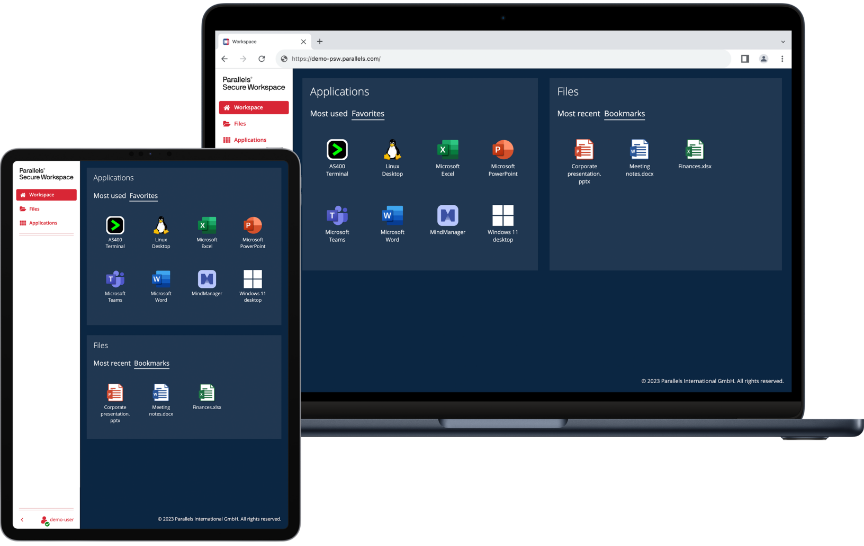
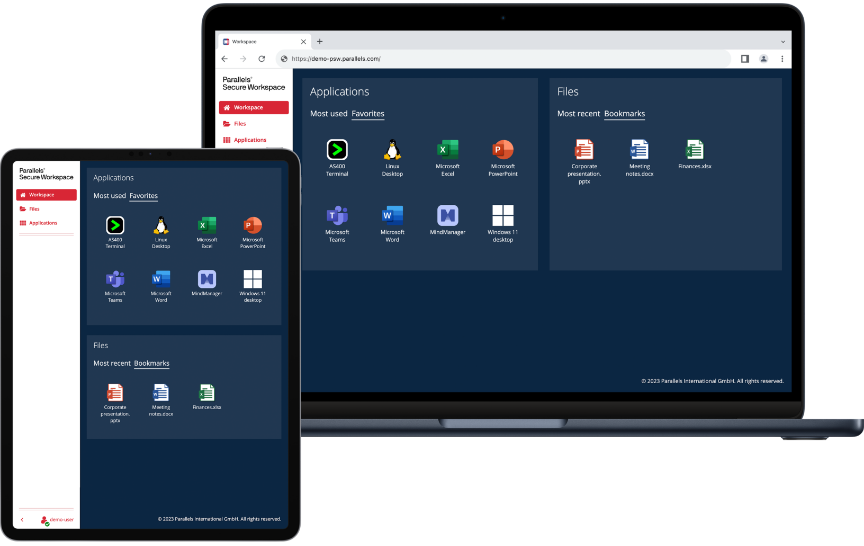
Parallels Secure Workspace is a browser-based workspace that provides access to server-based applications and desktops, internal web applications, SaaS and file shares. It is deployed as a virtual appliance on common hypervisors in private, public or hybrid cloud and connects to existing IT assets using standard protocols such as RDP and CIFS.
Because everything is delivered through the browser, it runs on any device with an HTML5 browser, including devices the organization does not control, and no agents or plug-ins are installed on the endpoint. Administrators define what each user or group can do inside the workspace.
Key features include:
- Agentless browser access: Users reach the workspace through Chrome, Safari, Firefox or any HTML5 browser on Macs, Windows PCs and other devices, with no local installation required.
- RDP to HTML5 gateway: In-house technology translates RDP and xRDP streams into HTML5, publishing Windows and Linux applications and desktops through the browser without RDP agents on the device.
- Built-in multi-factor authentication: Supports TOTP and HOTP with apps such as Microsoft and Google Authenticator, with MFA enforced by location or through a 30-day browser trust.
- Identity provider integration: Connects to external identity providers including Azure AD, Okta and Google Identity over SAML or OpenID, extending single sign-on and geofencing.
- Granular usage controls: Administrators enable or disable features such as printing, downloading and session sharing for individual users or groups.
- Context-aware access: Geographic or IP-based zones define where access is permitted, with MFA enforced or access blocked outside those zones.
- Usage auditing and anomaly detection: Tracks login activity, application usage and file interactions, and forwards audit data to SIEM platforms such as Splunk or Elastic Search.
- Session recording: Application sessions can be recorded to monitor platform activity, including work carried out by external contractors.
- Unified file access: A web-based file manager provides a single view across shared drives, SharePoint and OneDrive with drag and drop, sharing and navigation.
Limitations (as reported by users on Capterra):
- Peripheral device support: Reviewers describe limited support for USB devices, with card readers and PDF printers covered but scanners and similar hardware requiring additional development.
- Multi-monitor experience: One reviewer notes that the full-desktop experience falls short in multi-monitor setups, and that app-based access across browser tabs works better.
- Specialized workloads: A reviewer reports that use cases such as 3D drawing and some USB devices are not supported.
- Deployment effort: Several reviewers describe configuration and deployment as involved, though they credit the documentation and vendor support for getting them through it.
- Appliance model: One reviewer notes that the black box appliance approach can be restrictive in some environments.
Source: Parallels
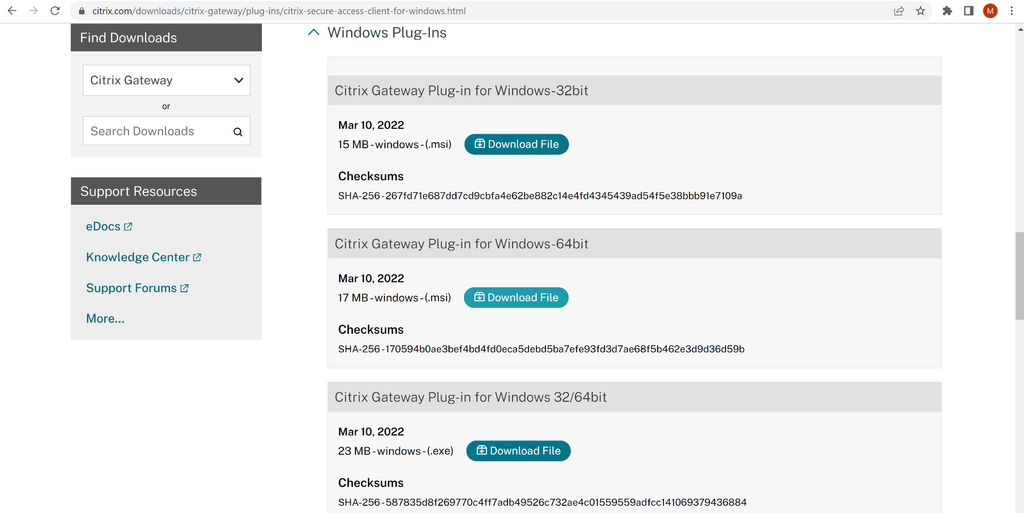
3. Citrix Secure Access ZTNA

Best for: Application-level access for contractors and BYOD users
Strengths: Agentless and agent-based access with device posture checks
Things to consider: Performance depends on stable connectivity; setup can be complex
Citrix Secure Access ZTNA connects users to specified applications rather than extending trust across the network. Access decisions draw on user identity, device posture, location and network context, and cover private, web, SaaS, virtual and client-server applications. Policies are re-evaluated as context changes during a session.
For BYOD programs, agentless browser-based access lets employees, contractors and third parties on unmanaged devices reach approved applications without installing software or placing their devices on the corporate network. An agent-based option is available where deeper endpoint controls are needed.
Key features include:
- Application-level access control: Access is granted to named applications defined by FQDN, IP, port, protocol, IP range, CIDR block or domain name, instead of opening the wider network.
- Device posture assessment: Evaluates security and compliance signals such as OS status and endpoint security before and during access, with generic and vendor-specific checks plus CrowdStrike and Intune integration.
- Agentless and agent-based modes: Browser-based access suits unmanaged devices, contractors and temporary access; the agent covers TCP and UDP applications with secure tunneling and encryption.
- Adaptive authentication: Identity-aware authentication including MFA, with requirements that adapt based on risk and the sensitivity of the application being accessed.
- Identity provider integration: Authenticates users across Microsoft Entra ID, Okta, Google Identity, Active Directory, SAML 2.0 providers, Cisco Duo and Ping, with SSO support.
- Continuous policy enforcement: Monitors sessions after login and can restrict access, require additional verification or revoke access dynamically as risk changes.
- Location and network context controls: Adjusts policy by geographic location and applies additional controls or blocks access from unknown or untrusted networks.
- Automated application discovery: Discovers and publishes applications, with an intuitive rule builder for policy definitions.
- Logging and monitoring: Detailed logging supports regulatory requirements, with end-to-end visibility through Citrix Director and Citrix uberAgent.
Limitations (as reported by users on G2):
- Dependence on connectivity: Reviewers report degraded performance when the internet connection fluctuates, and lag when reconnecting after network interruptions.
- Session handling: Reviewers describe sessions ending after short periods and credential prompts that occasionally require closing and reopening the client.
- Configuration complexity: Reviewers note that implementing and configuring the solution can be involved depending on organizational requirements, with a learning curve for the virtualized environment.
- Interface and support: Some reviewers ask for a more modern interface and for faster, more accountable support responses.
Source: Citrix
Unified Endpoint Management and MDM Platforms
These platforms enroll devices, apply configuration and security policies, and manage applications across operating systems. For BYOD they typically rely on work profiles, containers or application-level policies so IT controls business data without taking over the personal side of the device.
4. Microsoft Intune
Best for: Organizations standardized on Microsoft 365 and Entra ID
Strengths: Cloud endpoint management with conditional access and app policies
Things to consider: Steep learning curve and limited non-Microsoft app protection
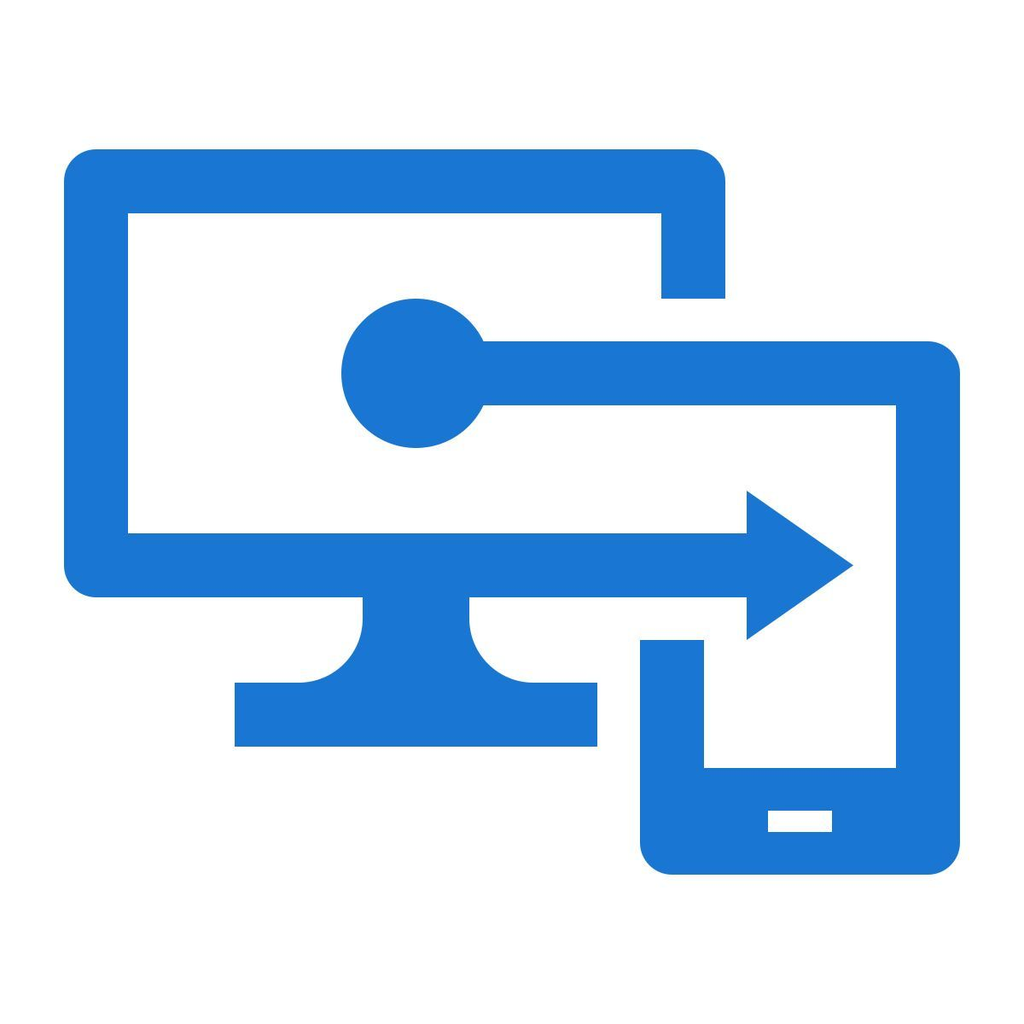
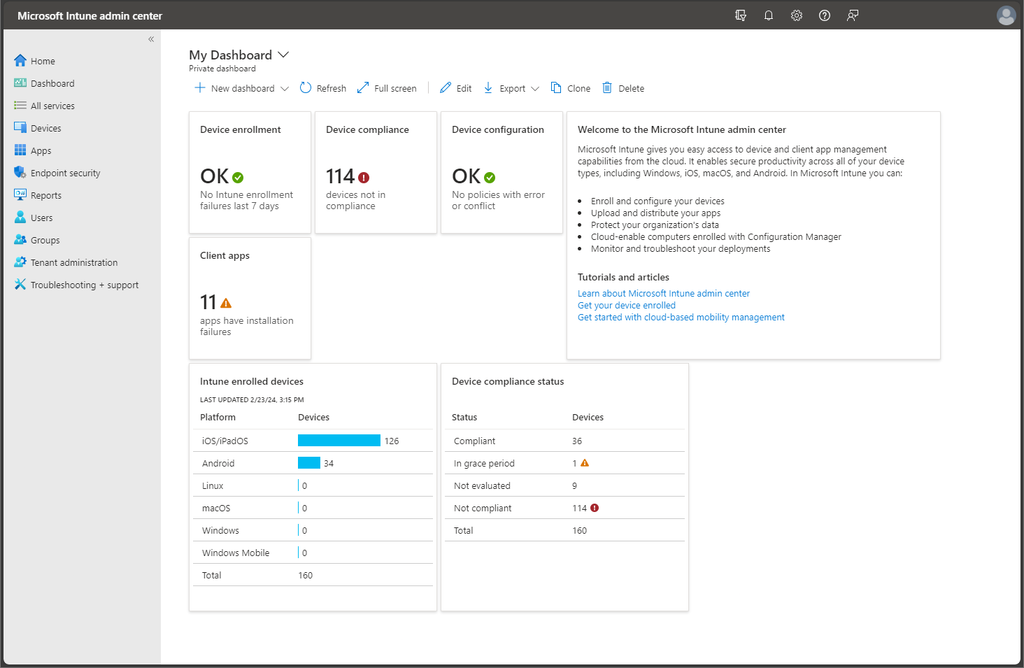
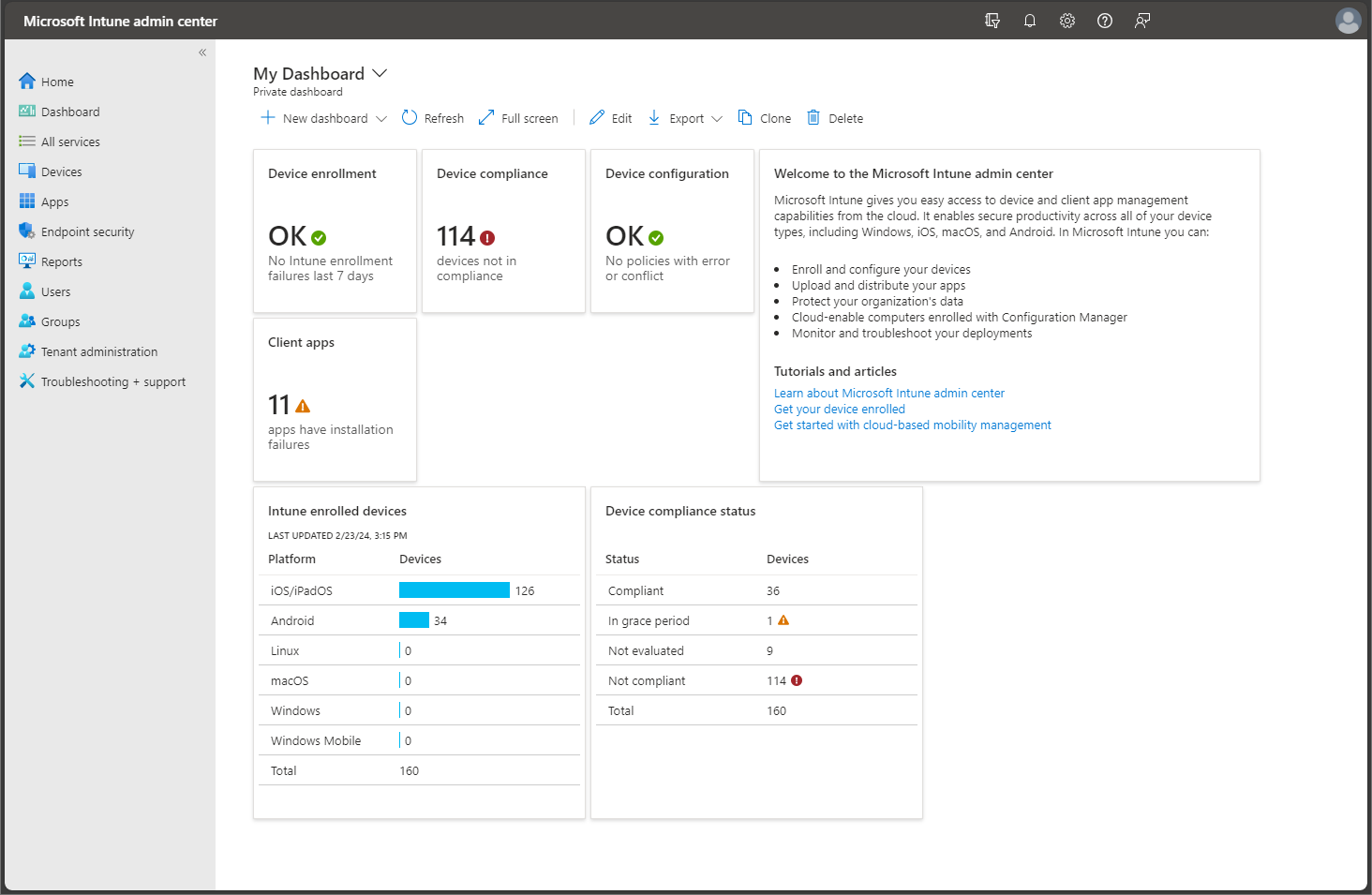
Microsoft Intune is a cloud-based unified endpoint management platform that manages devices, applications and access from one place. It helps IT reduce device risk, verify compliance and keep applications and devices up to date, and it supports a Zero Trust approach by checking device compliance before users reach company resources.
Intune relies on Microsoft Entra ID for identity and conditional access, so compliance outcomes feed into sign-in decisions. Organizations running Microsoft Configuration Manager can use co-management while shifting workloads to the cloud.
Key features include:
- Compliance verification with conditional access: Device compliance is continuously verified, and Entra ID conditional access uses those results to decide whether access to company resources is allowed.
- Cross-platform endpoint management: Intune Plan 1 manages and protects cloud-connected endpoints across Windows, Android, macOS, iOS and Linux from a single cloud console.
- Application deployment and updates: Enterprise Application Management deploys and manages applications, while patching keeps apps and devices current to reduce vulnerability exposure.
- Endpoint privilege management: Standard users can perform only IT-approved tasks, limiting what runs with elevated rights on a device.
- Certificate management: Microsoft Cloud PKI simplifies and automates cloud certificate management for authentication.
- App-based VPN and specialty device controls: Advanced mobility management covers app-based VPN access controls, firmware-over-the-air updates and specialty devices.
- Provisioning and enrollment: Windows Autopilot supports zero-touch provisioning for new or reset Windows devices, and automated enrollment and provisioning are available for macOS.
- Endpoint health analytics: Advanced Analytics provides endpoint health visibility across the fleet with device query capabilities.
- Remote assistance: Remote Help enables secure, cloud-based helpdesk-to-user connections.
- Co-management path: Configuration Manager handles on-premises endpoints, letting organizations move workloads to Intune gradually.
Limitations (as reported by users on G2):
- Setup and learning curve: Reviewers repeatedly describe complex initial configuration and a steep learning curve, particularly for app protection policies, conditional access and role-based access assignment.
- Troubleshooting visibility: Reviewers report vague error messages, fragmented logs and limited diagnostic detail, which slows down resolving policy and deployment problems.
- Third-party application protection: Several reviewers note that app protection policies primarily cover Microsoft apps and a limited set of third-party apps, leaving other business-critical applications less protected.
- Cross-platform consistency: Reviewers describe weaker capability on macOS and Linux and inconsistent feature behavior across platforms.
- Policy propagation delays: Reviewers mention that policy updates, app deployments and device syncs can take time to apply and to report accurate status.
- Licensing complexity: Reviewers find the licensing structure difficult to follow, which can lead to feature gaps discovered after purchase.
Source: Microsoft
5. Omnissa Workspace ONE UEM
Best for: Large multi-OS fleets mixing BYOD and corporate devices
Strengths: Multi-tenant policy control, per-app VPN and orchestration
Things to consider: Complex initial setup and premium licensing costs
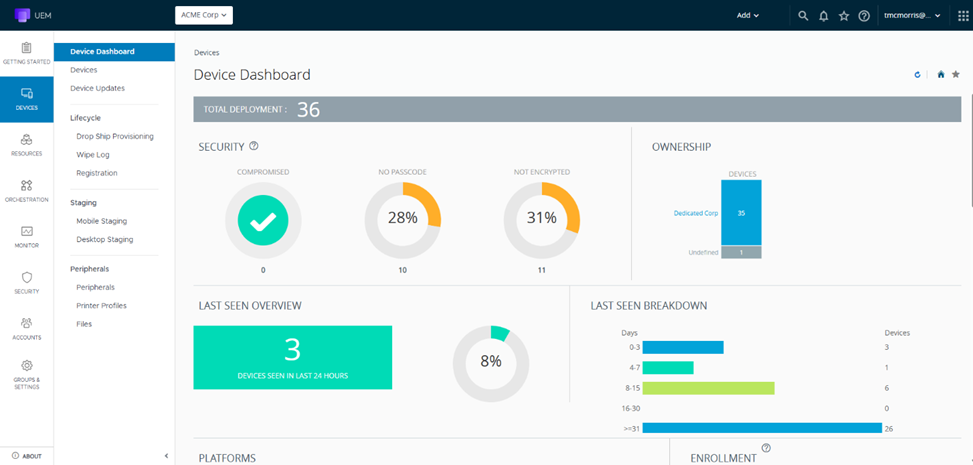
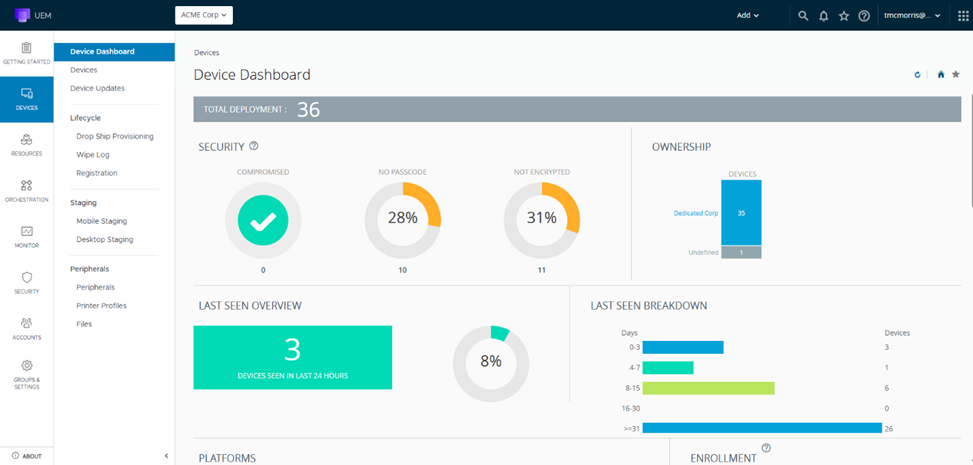
Workspace ONE UEM is a cloud-native unified endpoint management platform that manages desktops, mobile devices, rugged hardware, servers and specialty devices across Windows, macOS, iOS, Android, Linux and ChromeOS from a single console. It covers bring-your-own, corporate-owned, shared and specialty endpoints.
Administration is built on a multi-tenant structure, so policy and access can be localized across business units or geographies while governance stays centralized. Enrollment, application deployment and remediation can be automated with low-code and no-code workflows.
Key features include:
- Multi-tenant organization groups: Policy and access are localized by business unit or geography with granular controls, allowing administration to be delegated while governance is maintained at scale.
- Conditional access and compliance policies: Dynamic access controls use device state, user role and risk signals to block noncompliant endpoints and trigger remediation actions.
- Device posture checks at onboarding: Posture checks and policy enforcement apply from the first connection, restricting access so only compliant devices reach corporate resources.
- Per-app VPN through Workspace ONE Tunnel: Restricts sensitive data flows to authorized applications and encrypts data in transit so only approved apps reach internal systems.
- Automated patch management: Automates OS and application updates across Windows, macOS and mobile platforms with visibility and control over deployment.
- Application lifecycle management: Workspace ONE Intelligent Hub provides a unified self-service application catalog with SSO across applications including Office 365.
- Low-touch remote onboarding: Devices are provisioned remotely without manual imaging, and employees can self-enroll and receive configurations instantly.
- IT orchestration: Freestyle Orchestrator automates onboarding, app deployment and remediation tasks using low-code and no-code workflows.
- Role-based access control: Administrative permissions are granted by user or group so access aligns with job function.
- Identity integration through Omnissa Access: Extends single sign-on to web, mobile, SaaS and legacy applications.
Limitations (as reported by users on PeerSpot):
- Initial setup effort: Reviewers describe the initial setup phase as complex and dependent on getting enrollment and group design right up front.
- Console usability: Several reviewers find the dashboard and administrative portal confusing to navigate.
- Documentation depth: Reviewers say the documentation is less comprehensive than for comparable platforms, making it harder to connect the steps.
- Support quality: Reviewers raise concerns about support responsiveness and note a perceived reduction in service levels.
- Pricing and licensing: Reviewers describe pricing and licensing fees as high and ask for a simpler model.
- Cross-OS policy consistency: Reviewers ask for common settings and restrictions to apply consistently across multiple operating systems.
Source: Omnissa
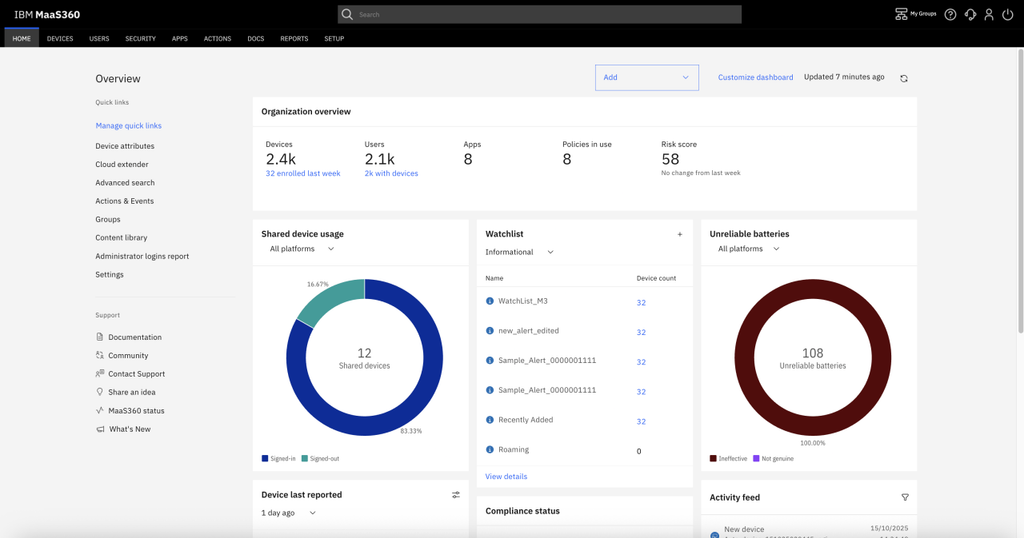
6. IBM MaaS360
Best for: Mixed device estates needing containerization and threat defense
Strengths: Encrypted container, compliance automation and AI risk insights
Things to consider: Dated interface, slow reporting and policy deployment
IBM MaaS360 is a unified endpoint management platform for managing employee-owned smartphones, tablets, laptops and wearables that access enterprise data. Business, productivity and messaging applications are placed in an encrypted container, which separates personal data from corporate data on the same device.
Mobile device management forms the base of the platform, with API-based policies, automation, compliance rules and application distribution across iOS, Android, iPadOS and ChromeOS. Endpoint security sits in the same console rather than running as a separate product.
Key features include:
- Containerization for BYOD: Business, productivity and messaging apps are held in an encrypted container that protects against data leakage and lets employees keep personal information intact when they leave.
- Policy and compliance automation: API-based policies, compliance rules and automated compliance checks apply across mobile operating systems including iOS, Android, iPadOS and ChromeOS.
- Multi-factor authentication: Administrators can require MFA so devices connecting over company networks or public Wi-Fi are verified before reaching corporate resources.
- Mobile threat defense: Protects users, devices, applications and data against threats including malware, man-in-the-middle and phishing attacks, using zero-touch automated protection.
- Native on-device security: Identifies and responds to threats in near real time through on-device protection, analytics and full visibility.
- AI-driven analytics: Built-in Watson AI identifies mobile threats and surfaces insights for endpoint security and management decisions.
- Application distribution: Distributes, configures and tracks applications across corporate and employee-owned devices from a single console.
- Endpoint management across form factors: Automates management of both mobile devices and laptops from one console for hybrid and frontline workforces.
- Tiered containerization options: Deluxe adds email and chat containerization, while Premier adds content management, an enterprise browser, application security and an enterprise container.
Limitations (as reported by users on G2):
- Interface age: Reviewers describe the console and mobile app as dated and clunky, with new users often needing extra training to navigate efficiently.
- Reporting performance and flexibility: Reviewers report that detailed reports can be slow to load and that reporting options are less flexible than in other solutions.
- Policy deployment speed: Some reviewers say policy deployment is slow, and that changing groups and the resulting policies is cumbersome.
- Console constraints: One reviewer notes that the portal cannot be used with two windows open at the same time.
- Third-party integration effort: Reviewers say integrating certain third-party systems can be time-consuming.
Source: IBM

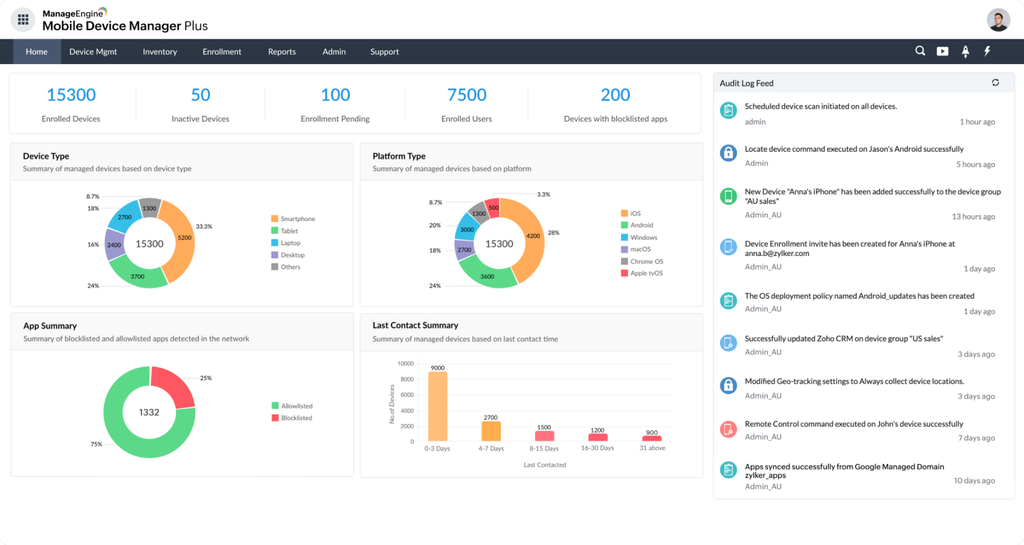
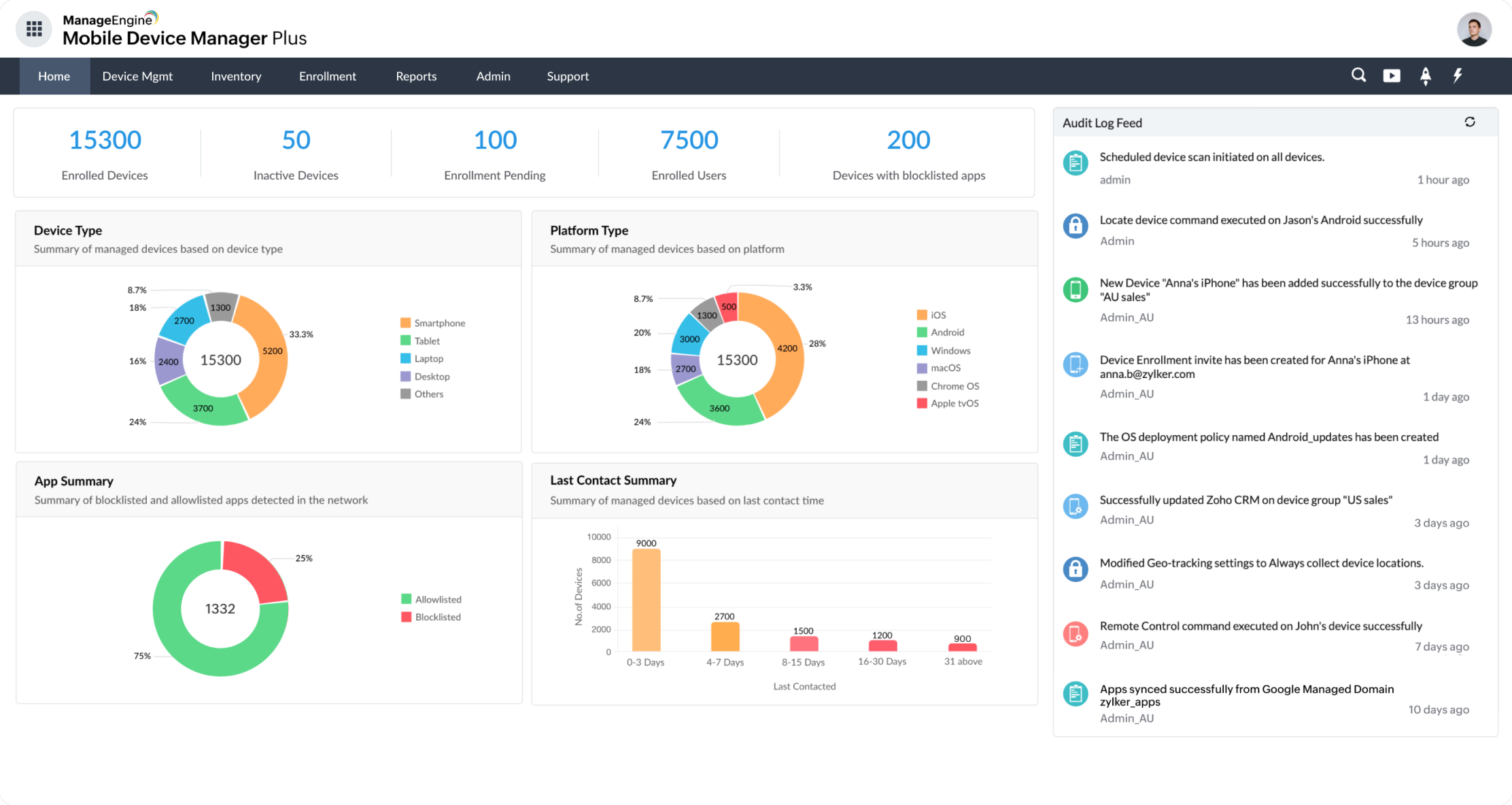
7. ManageEngine Mobile Device Manager Plus

Best for: Teams needing containerized BYOD with cloud or on-prem hosting
Strengths: Self-enrollment, containerization, per-app VPN and selective wipe
Things to consider: Dated interface and thinner Apple platform coverage
ManageEngine Mobile Device Manager Plus covers the full BYOD lifecycle: onboarding, configuration, security and retirement. Employees enroll their own devices after two-factor authentication using OTP and directory credentials or a Managed Apple ID, and devices are grouped by type, user grouping and enrollment method so the right settings, apps, content and network profiles apply.
Corporate data is containerized so administrators hold management rights only over the work container, leaving personal preferences unmodified. The product is available as a cloud service or on-premises, with a free edition for up to 25 devices.
Key features include:
- Self-service enrollment: Employees enroll their own devices after OTP and directory-credential authentication, and Android Enterprise devices can be enrolled and managed without installing a client app.
- Containerization with transfer restrictions: Work data is separated and encrypted, and unauthorized sharing between the managed corporate space and the unmanaged personal space is blocked, including clipboard copy and paste.
- Data loss prevention policies: Password policies apply, and sharing via clipboards, screenshots, cloud backups, unmanaged apps, USB and wireless network protocols can be restricted.
- Conditional access and zero trust: Access to business apps on unmanaged devices can be audited and revoked, with conditional access rules withholding frictionless access from noncompliant devices.
- Per-app VPN: A VPN can be configured for work apps only, so users connect to it when accessing corporate apps and websites without routing personal traffic.
- Privacy policy controls: Data collection options for phone numbers, location and other attributes are customizable, the policy is communicated at enrollment, and work notifications can be hidden after hours.
- Compliance monitoring: Scheduled device scans detect policy violations and trigger remediation such as deactivating the workspace, with Google Play Protect scans for malware in apps.
- Selective wipe and retirement: Corporate data is erased remotely while personal files stay intact, and jailbroken or rooted devices are detected and removed from management.
- Multi-platform support: Covers iOS and iPadOS, Android, macOS, Windows, Chrome and Samsung Knox from one console.
- Asset tracking and reporting: Tracks device inventory, network details, installed apps, security posture, compliance status and location for audits and incident response.
Limitations (as reported by users on G2):
- Interface age: Reviewers describe the UI as dated compared with newer tools and the dashboard layout as harder to pick up for administrators onboarding for the first time.
- Apple platform coverage: Reviewers report that Apple and iOS support is thinner than for other platforms, and that macOS and Linux management features are less developed.
- Occasional bugs: Reviewers mention intermittent bugs and an interface that can be confusing on tablets.
- Feature and integration gaps: Reviewers note some missing functions, including factory reset, along with gaps in integrations.
- Setup investment: Reviewers say the initial setup and advanced features take significant time to master, and that support response times can vary.
Source: ManageEngine
8. Jamf Pro

Best for: Organizations running Apple devices in BYOD and mixed fleets
Strengths: Zero-touch enrollment, declarative management, compliance baselines
Things to consider: Apple-centric scope, premium pricing and light reporting
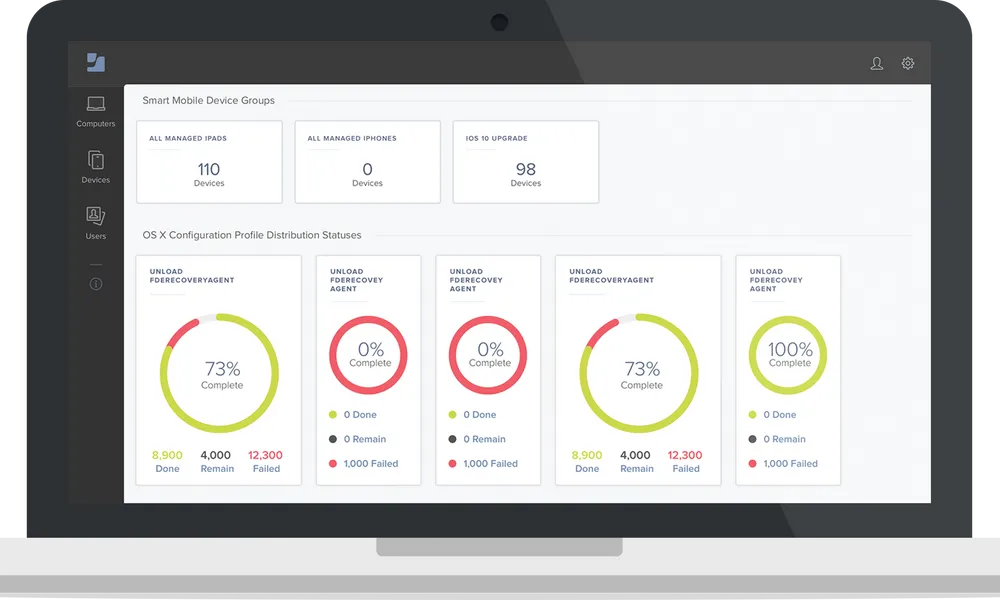
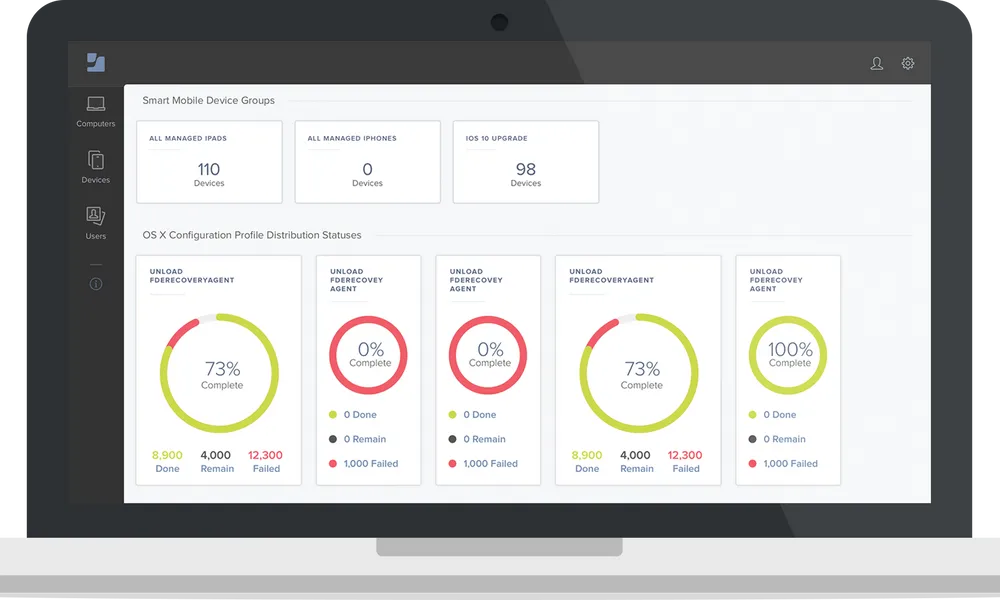
Jamf Pro manages and secures Apple devices from anywhere, covering Mac, iPhone, iPad and Apple TV. It goes beyond configuration profiles with policies and scripts that customize devices, and it automates configuration, protection and patching using native Apple features without requiring user interaction.
Zero-touch deployment provisions devices hands-free, including BYOD devices, so a device can be prepared for its user without IT handling it. Jamf Pro also fits into existing stacks through integrations with Microsoft, Google and Okta.
Key features include:
- Zero-touch deployment: Provisions Mac, iPhone, iPad and Apple TV hands-free for users, including BYOD devices.
- Blueprints and declarative device management: Manages device settings, commands, application installations and restrictions across Apple devices using Declarative Device Management.
- Smart Groups: Creates dynamic device and user groups for targeting policies, with an AI Assistant to help navigate them.
- Inventory management: Automatically collects hardware, software and security configuration details from Apple devices.
- App lifecycle management: Delivers applications to users through automated and secured application management.
- Self Service+: Lets users install applications, update software and maintain their own devices without contacting IT.
- Compliance benchmarks: Applies automated configurations that use device security baselines based on industry benchmarks.
- Remote security commands: Manages device settings and configurations, restricts malicious software and patches Apple devices without user interaction.
- Identity and security integrations: Works with Microsoft Entra, Power BI, Security Copilot and Sentinel; Google Workspace, Cloud Identity and Chrome Enterprise; and Okta Identity Cloud and Identity Threat Protection.
Limitations (as reported by users on G2):
- Apple-centric scope: Reviewers note that Jamf is built around Apple platforms and ask for cross-platform coverage of Windows devices under the same MDM.
- Pricing: Reviewers repeatedly describe pricing as premium, particularly when additional Jamf products or features are layered on top of Jamf Pro.
- Interface consistency: Reviewers describe a dated interface in places and inconsistency between modernized and older areas of the console.
- Reporting depth: Reviewers say the reporting and analytics shown in the console are basic, with API scripts needed to pull detailed device usage data.
- Session timeouts: Reviewers describe a short web session inactivity timer that can log administrators out of work in progress.
- Learning curve: Reviewers report that policy configuration and advanced setup take time, especially for administrators without Mac sysadmin or scripting experience.
- Update completion: Some reviewers report that OS updates and upgrades do not always complete reliably through native tools, leading them to add scripting.
Source: Jamf
Enterprise Browsers and Browser Security Solutions
These solutions apply security controls directly inside the browser itself, rather than at the device or network layer. This makes them a natural fit for BYOD and contractor access: the browser can enforce policy, isolate risky content, and log activity without requiring device enrollment or agent installation on personal hardware.
9. Island Enterprise Browser

Best for: Securing SaaS and web app access on managed and unmanaged devices
Strengths: Granular in-browser policy controls, familiar Chromium-based experience, strong audit visibility
Things to consider: Console search and RDP client feel incomplete; policy troubleshooting can be opaque
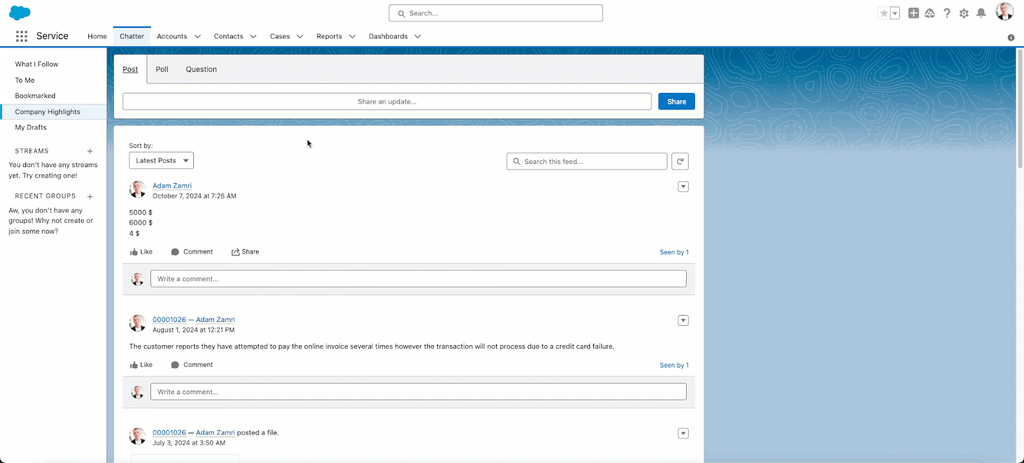
Island’s Enterprise Browser embeds IT, security, and data-loss-prevention controls directly into a Chromium-based browser rather than relying on a hosted desktop or endpoint agent. Because the security perimeter sits at the browser layer, employees, contractors, and BYOD users get the same familiar browsing experience while IT gains policy-based control over copy/paste, downloads, uploads, printing, and application access, without needing to manage the underlying device.
Key features include:
- Granular, identity-aware policy control: Creates rules by user, group, application, and browser action rather than relying only on network- or endpoint-level controls.
- Data loss prevention at the browser layer: Governs copy/paste, downloads, uploads, printing, and screenshots to reduce the risk of sensitive data leaving approved applications.
- Built-in RDP client: Provides remote access to legacy Windows applications directly inside the browser, without a separate remote desktop client.
- Administrative visibility and audit logging: Gives IT and security teams insight into browser-level activity to support compliance and investigation needs.
- Cross-platform, Chromium-based experience: Deploys across operating systems while preserving the browsing experience users already expect, reducing training overhead.
Limitations (as reported by users on G2):
- Incomplete RDP feature parity: The built-in remote desktop client lacks some capabilities available in Microsoft’s native RDP client.
- Performance during heavy use: Users report occasional sluggishness when switching between tabs or during general browsing on lower-powered hardware.
- Limited console search and filtering: The admin console’s search functionality is described as limited, and the user activity map lacks advanced filtering or time-based views.
- Opaque policy violation messaging: When a user action is blocked by policy, the system often returns a generic error message without detailed reasoning, and priority-based rule ordering across similar policies can complicate troubleshooting.
Source: Island

10. Palo Alto Networks Prisma Access Browser

Best for: Enterprises already standardized on Palo Alto Networks SASE wanting BYOD covered under the same policies
Strengths: Cloud-isolated browsing sessions, 1,000+ built-in DLP data classifiers, native integration with Panorama and Strata Cloud Manager
Things to consider: Complex initial setup; strict default policies can interfere with normal workflows until tuned
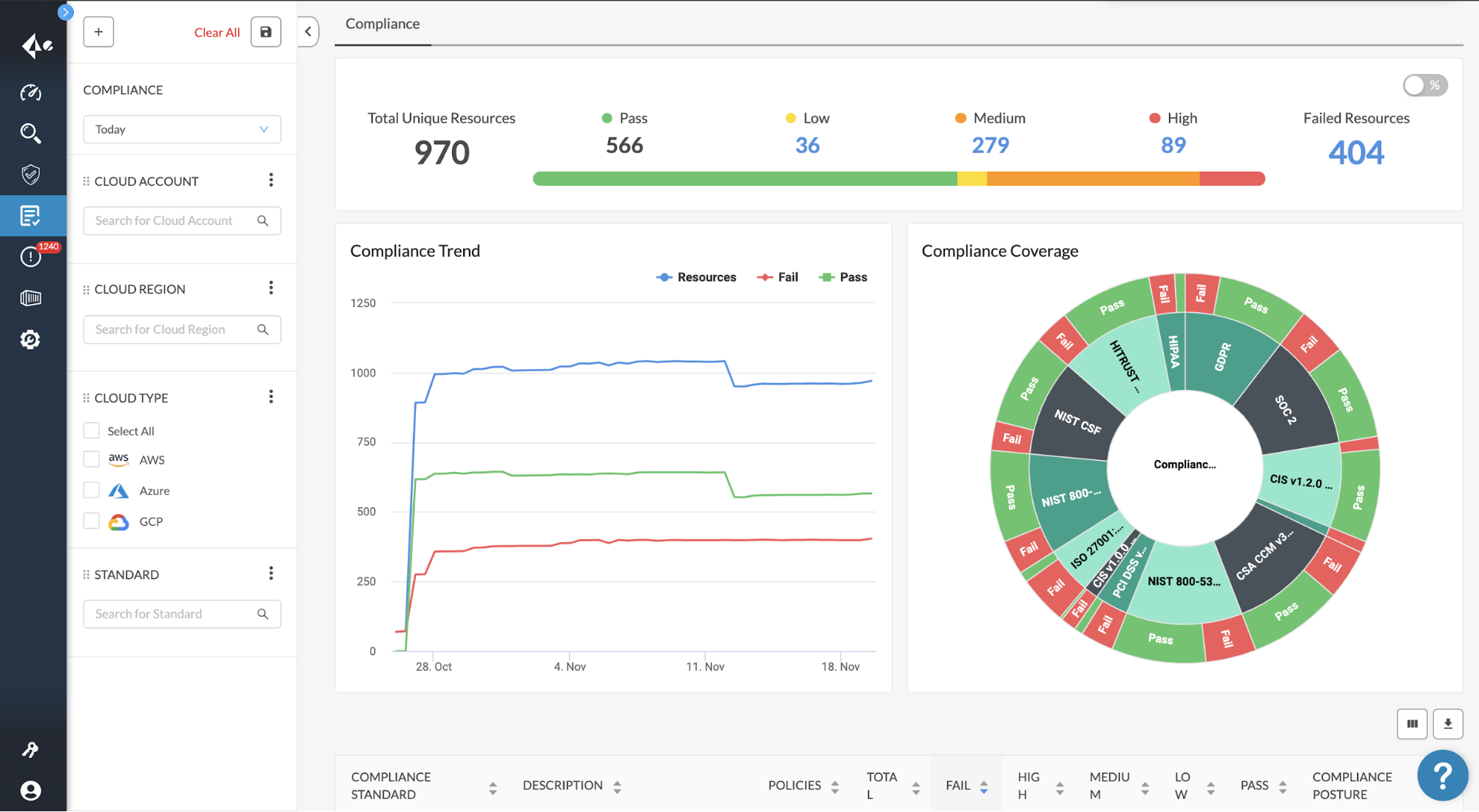
Prisma Access Browser (recently rebranded Prisma Browser) is a purpose-built, SASE-native secure browser from Palo Alto Networks that isolates browsing sessions in the cloud rather than on the local device, eliminating the need to install agents or manage endpoint security on unmanaged and BYOD hardware. It extends the same zero trust policies, threat intelligence, and DLP engine used across the rest of Palo Alto’s Prisma Access platform down to the browser itself, managed from the same Panorama or Strata Cloud Manager console security teams already use.
Positioned specifically for BYOD and third-party access, the browser enables rapid onboarding and offboarding of personal devices, with granular security policies that can be tailored to job functions, and every session logged for compliance with frameworks such as SOX, HIPAA, PCI-DSS, and GDPR.
Key features include:
- Cloud-isolated browsing: Isolates risky browsing sessions in the cloud, preventing malware and data leaks from reaching the local device without installing endpoint agents.
- Enterprise DLP with 1,000+ classifiers: Applies built-in data classifiers to enforce last-mile data controls directly in the browser, protecting sensitive information from unauthorized exposure.
- PrecisionAI-powered threat detection: Detects and blocks an average of 2.3 million new and unique attacks daily, guarding against advanced web-based threats, malicious extensions, and compromised devices.
- Agentless BYOD and contractor access: Deploys in minutes without admin privileges, requiring no endpoint agent or MDM enrollment on personal or third-party devices.
- Native Palo Alto ecosystem integration: Managed from the same console, policies, and threat intelligence as the broader Prisma Access SASE platform, avoiding a separate management silo.
- Session recording and audit logging: Every browser session can be recorded and logged to support regulatory compliance and incident investigation.
Limitations (as reported by users on G2):
- Initial setup complexity: Setting up the browser can be time-consuming for organizations without prior experience in the Palo Alto ecosystem, with policy tuning and legacy-system integration often requiring skilled administrators.
- Strict default policies: The browser ships with highly restrictive security controls out of the box (such as blocking copy/paste, limiting downloads, and disabling WebGL) that can interfere with normal workflows until customized.
- Performance overhead on complex apps: The cloud-based architecture and deep inspection mechanisms can introduce latency, particularly during high traffic or when using resource-heavy web applications.
- Internal app compatibility during rollout: Reviewers describe a tuning period where some internal web apps didn’t work as expected until policies were adjusted.

Source: Prisma Access
11. Menlo Security
Best for: Organizations wanting proven browser isolation with strong zero-day threat prevention for BYOD and third-party users
Strengths: Cloud-based isolation with local Secure Extension, AI-driven zero-day detection, high marks for ease of administration
Things to consider: Occasional latency on complex or high-traffic sites; posture signals not exhaustively documented publicly
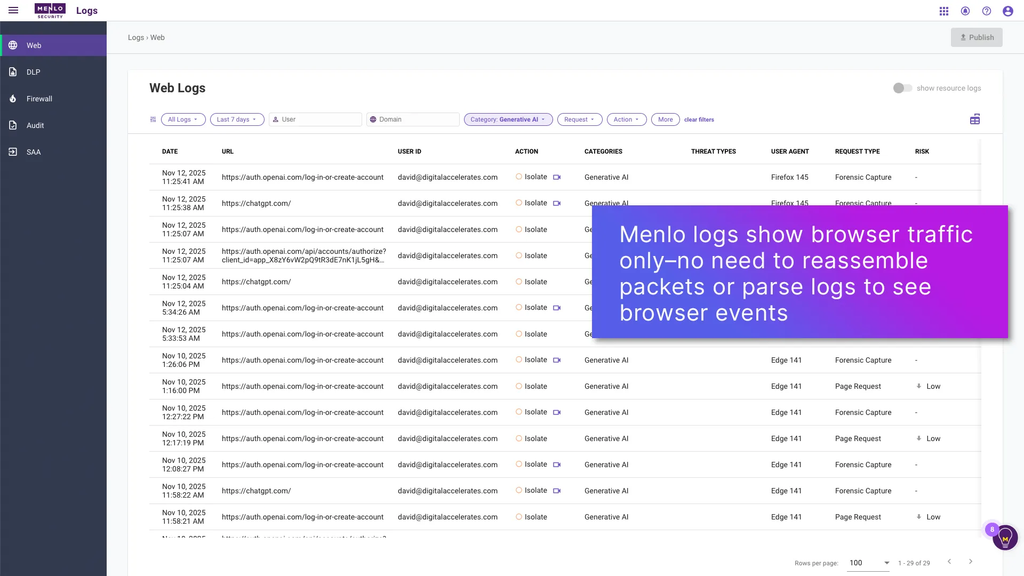
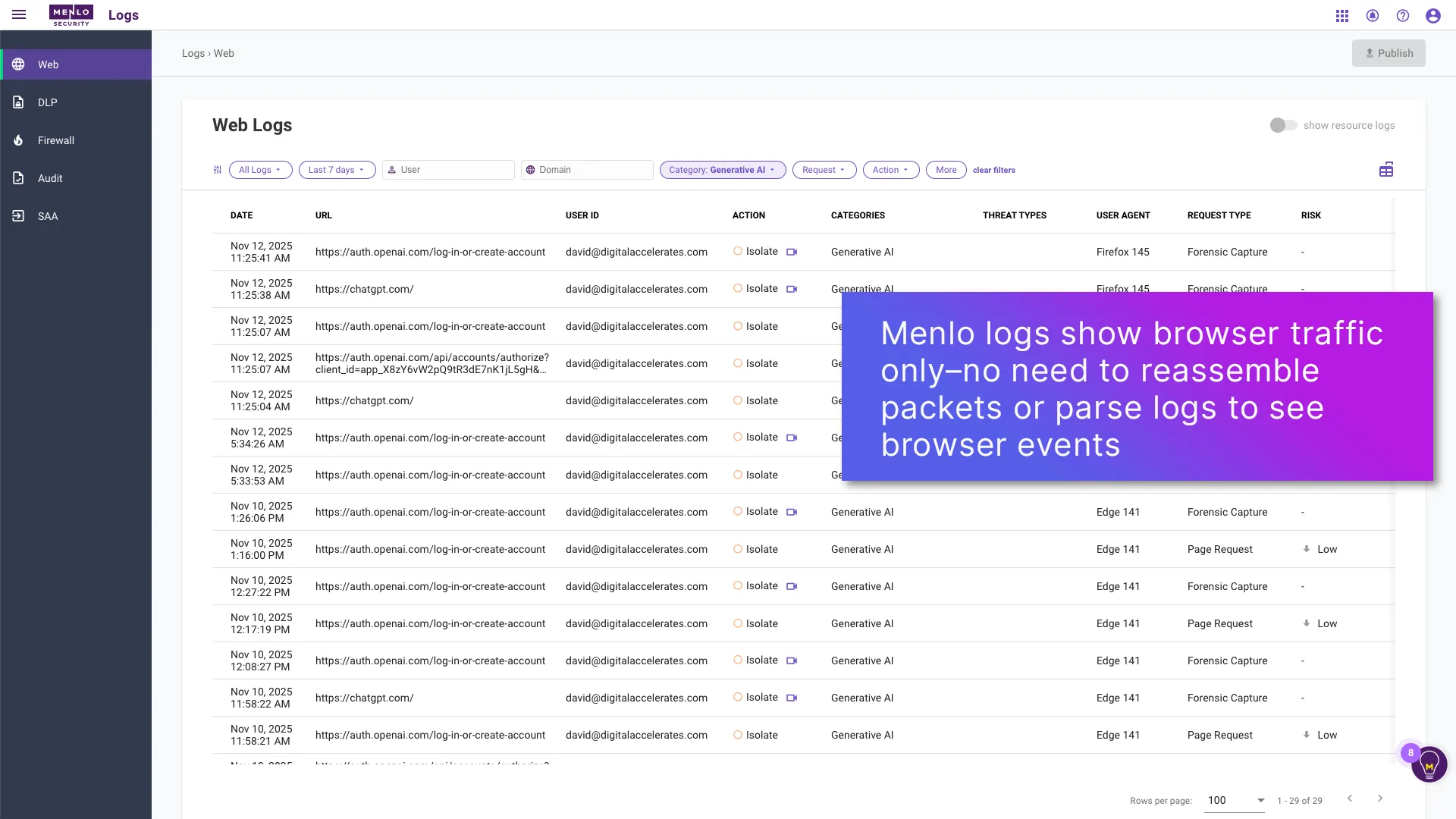
Menlo Security’s Secure Enterprise Browser Platform protects users on managed, BYOD, and unmanaged devices by combining Menlo Cloud, which fully isolates risky traffic and sites, with a lightweight Secure Extension that delivers visibility and DLP controls for trusted sites on the local endpoint. High-risk browsing activity is automatically routed to Menlo’s isolated cloud environment, while everyday trusted browsing stays fast and local.
The platform applies AI-driven threat prevention to stop zero-day exploits that have no known signatures, and its AI Adaptive DLP automatically masks sensitive data in real time so users can keep working with it safely, including guarding against data loss to web-based generative AI tools.
Key features include:
- Hybrid isolation architecture: Combines full cloud isolation (Menlo Cloud) for risky traffic with a local Secure Extension for visibility and control on trusted sites, balancing security with performance.
- AI-driven zero-day threat prevention: Detects and stops threats without relying on known signatures or indicators of compromise, including identifying malicious sites before they deliver a payload.
- AI Adaptive DLP: Automatically masks sensitive and proprietary data in real time, letting users continue working with it safely without blocking the workflow entirely.
- Browser DLP controls: Governs copy/paste, upload/download, and other data movement to prevent data loss to web-based GenAI portals and other unauthorized destinations.
- Device posture awareness: Enforces policy based on endpoint health, managed state, and risk signals before granting access, supporting unmanaged and BYOD scenarios with contextual enforcement.
- Secure BYOD access: Treats every device as untrusted until fully validated, safely enabling access from unmanaged or high-risk personal devices while keeping corporate data protected.
Limitations (as reported by users on G2 and Gartner Peer Insights):
- Occasional latency: Some users note latency issues that can affect browsing speed, particularly on complex or high-traffic web applications.
- Adjacent to, not a replacement for, endpoint security: Reviewers note the device posture awareness capability complements rather than replaces dedicated endpoint security tooling, and that supported posture signals are not exhaustively documented in public materials.
- Enterprise-segment concentration: The bulk of reviews come from enterprise-segment companies, so smaller organizations have less peer feedback to draw on when evaluating fit.
- CASB scope limitations: In cloud app security broker use cases specifically, reviewers rate the platform somewhat lower (4.2/5), noting it’s strongest for browser-native isolation and visibility rather than broader CASB functionality.
Source: Menlo Security
12. Seraphic Security

Best for: Organizations wanting browser-agnostic security without forcing a browser switch
Strengths: Works inside existing browsers (Chrome, Safari, Edge, Firefox) rather than requiring replacement, zero-day exploit prevention, mobile browser coverage
Things to consider: Addresses browser-layer risk specifically, so it complements rather than replaces network-level controls
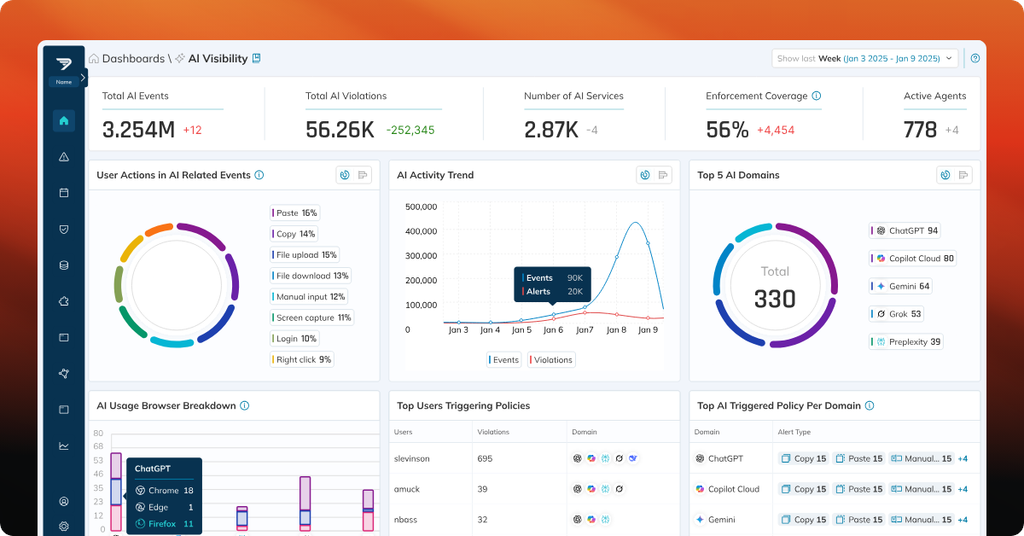
Seraphic takes a different architectural approach than most enterprise browser vendors: rather than requiring users to adopt a new, dedicated browser, its patent-based technology injects a lightweight, policy-driven JavaScript Agent (JSA) into existing browsers (Chrome, Safari, Edge, and Firefox) turning any of them into a fully managed enterprise browser. This lets organizations secure corporate-owned, personal, and third-party devices without asking employees or contractors to change their browsing habits.
The platform protects against vulnerability exploitation (including zero-days), phishing, session/token theft, and in-session data exfiltration, and extends the same policy enforcement to mobile through the Seraphic Mobile Browser on iOS and Android, giving BYOD programs consistent browser-layer security whether work happens on a laptop or a phone.
Key features include:
- Browser-agnostic protection: Injects security controls into a user’s existing browser (Chrome, Safari, Edge, Firefox) rather than requiring a replacement browser, minimizing workflow disruption.
- Native JavaScript Agent enforcement: Operates in the page context to instrument and govern web APIs and data paths in real time, enabling prevention rather than after-the-fact detection.
- Zero and n-day exploit prevention: Stops vulnerability exploitation, advanced phishing, and token/session theft before they succeed, without requiring known signatures.
- BYOD and third-party access without VDI or VPN: Enables secure, monitored access to corporate applications from personal or third-party devices without the complexity and cost of traditional VDI and VPN infrastructure.
- Mobile browser coverage: Extends the same enterprise-grade browser security and data protection to iOS and Android through the Seraphic Mobile Browser, aligned with desktop policies.
- Centralized policy management: Applies granular policy enforcement and real-time threat monitoring across all users, devices, and locations from one console.
Limitations (as reported by users on G2):
- Browser-scope only: Reviewers note the product addresses risks inside the browser specifically and does not cover other network attack vectors, so it’s deployed alongside rather than in place of broader network security controls.
- Visibility gaps in mixed environments: Managed service providers running the product across varied client environments report situations where additional cross-stack visibility would have helped during security investigations.
- Policy message tuning required: Reviewers advise budgeting time to customize the messages users see when an action is blocked, since default messaging requires configuration work to feel clear to end users.
- Limited critical review volume: Published reviews skew strongly positive with few detailed critiques, which is useful context but means prospective buyers have less documented downside to weigh compared with more heavily reviewed competitors.
Source: Seraphic Security
Conclusion
Selecting the right BYOD management approach comes down to how much control an organization needs over the device itself versus the applications and data users touch on it. Some approaches isolate corporate work in a local enclave or container, others manage the whole device through a unified endpoint platform, and others move enforcement into the browser itself so no agent or enrollment is needed at all.

Any worker. Any laptop. Any AI workflow. Fully secured.
Schedule a demo to see how Blue Border® secures company data and apps without shipping laptops, running VDI, or managing personal endpoints.