
Best Enterprise BYOD Platforms for Remote Teams: Top 8 in 2026


See Venn first in Google Search
Add as a preferred source on Google
TL;DR: Enterprise BYOD platforms protect company data and applications on personal devices without taking over the hardware. Venn is best for BYOD laptops without VDI, Island and Prisma Browser fit browser-based work, and Microsoft Intune fits enrolled fleets already running on Microsoft 365.
What Are Enterprise BYOD Platforms and Why Are They Important for Remote Teams?
Enterprise Bring Your Own Device (BYOD) platforms allow remote teams to work securely on personal computers and mobile devices without requiring full device control. They apply security policies to smartphones, tablets, and laptops without requiring the organization to own the hardware.
These platforms typically use mobile device management (MDM), mobile application management (MAM), or unified endpoint management (UEM). Administrators can enforce requirements such as device encryption, screen locks, operating system versions, and access controls. They can also restrict how corporate data is copied, stored, or shared.
Why remote teams need enterprise BYOD platforms:
- Protect corporate data on personal devices: Separate business and personal content, control data sharing, and selectively remove corporate data.
- Secure access from unmanaged and remote devices: Check device compliance and enforce authentication before granting access to corporate resources.
- Support distributed and hybrid workforces: Enable remote enrollment and centralized management to apply consistent security policies across locations.
- Maintain employee privacy: Manage work applications and data without unnecessary visibility into personal content.
- Optimize IT budgets: Reduce hardware and logistics expenses while standardizing device management to control support costs.
- Maximize operational efficiency: Automate configuration, policy updates, and access changes to streamline onboarding and offboarding.
Get Your BYOD Security Toolkit
Unlock the 4 essential assets you need to secure company data on unmanaged laptops – without VDI
In this article:
- What Are Enterprise BYOD Platforms and Why Are They Important for Remote Teams?
- Enterprise BYOD Platforms at a Glance
- Why Remote Teams Need Enterprise BYOD Platforms
- Enterprise BYOD Use Cases for Remote Teams
- Key Features to Look for in an Enterprise BYOD Platform
- Notable Enterprise BYOD Platforms for Remote Teams
- Conclusion
Enterprise BYOD Platforms at a Glance
The table below summarizes the key differences between the platforms covered in this guide. Each one is examined in more detail in the sections that follow.
| Category | Solution | Best For | Key Strengths | Things to Consider |
| Secure workspace and isolation platforms | Venn | Securing work on unmanaged BYOD Macs and PCs without VDI | Company-controlled enclave, apps run locally at native speed | Reported slowness and stability issues on some machines |
| Secure workspace and isolation platforms | Island | Governing SaaS and web app access from unmanaged devices | In-browser conditional access and last-mile DLP controls | Reported lag, limited extensions, RDP client gaps |
| Secure workspace and isolation platforms | Prisma Browser | Extending SASE controls to browser work on any device | Native enterprise DLP, threat prevention, AI governance | Setup complexity, cost, slowdowns under heavy load |
| Secure workspace and isolation platforms | Citrix DaaS | Delivering virtual apps and desktops to unmanaged endpoints | Hybrid multi-cloud delivery with HDX session optimization | Licensing cost, bandwidth dependence, upgrade effort |
| Unified endpoint management platforms | Microsoft Intune | Managing enrolled and BYOD endpoints in Microsoft 365 estates | Compliance checks tied to conditional access and Autopilot | Weaker Mac and Linux control, sync delays, add-on costs |
| Unified endpoint management platforms | Omnissa Workspace ONE UEM | Managing mixed BYOD and corporate fleets from one console | Conditional access, per-app VPN, multi-tenant policy control | Complex setup, licensing cost, support concerns |
| Unified endpoint management platforms | IBM MaaS360 | Multi-OS device management with containerized corporate data | Mobile threat defense, compliance automation, containers | Dated interface, sync issues, per-device cost |
| Unified endpoint management platforms | ManageEngine Mobile Device Manager Plus | Multi-OS mobile management with work-profile separation | Containerization, conditional email access, kiosk lockdown | Setup complexity, limited customization and reporting |
Related content: Read our guide to the best BYOD software
Why Remote Teams Need Enterprise BYOD Platforms
Protect Corporate Data on Personal Devices
Corporate files can be downloaded, copied, cached, or shared through applications on a personal device. BYOD platforms reduce this risk by separating managed business data from personal content. Administrators can:
- Require encryption
- Control file sharing
- Prevent copying data into unmanaged applications
- Restrict local storage
These controls also help when a device is lost, stolen, or no longer used for work. IT can revoke access and selectively remove managed applications, accounts, and corporate data. This avoids a full device wipe that could also delete the employee’s personal information.
Related content: Read our article about the top BYOD security risks
Secure Access from Unmanaged and Remote Devices
Remote employees commonly connect through home networks, public Wi-Fi, and other infrastructure outside the organization’s control. A BYOD platform can check whether a device meets defined security requirements before allowing it to access company applications and data.
These checks can work with identity and access management systems to enforce multifactor authentication and conditional access. For example, access can be blocked when a device is:
- Rooted
- Running an outdated operating system
- Missing required security controls
Policies can also restrict access to specific applications rather than granting broad network access.
Support Distributed and Hybrid Workforces
IT teams cannot rely on employees bringing devices into an office for configuration or troubleshooting. BYOD platforms support remote enrollment and centralized policy management, allowing administrators to perform the following actions without physically handling the device:
- Configure work applications
- Deploy certificates
- Update settings
- Revoke access
Centralized management also makes policies easier to apply consistently across locations. Employees in different offices or working entirely remotely can follow the same baseline security requirements. Automated configuration reduces manual setup and helps IT teams manage larger device populations without a corresponding increase in administrative work.
Maintain Employee Privacy
Managing personal devices creates a different privacy requirement than managing company-owned hardware. Employees generally need IT to secure business resources without gaining unnecessary visibility into their:
- Personal applications
- Messages
- Photos
- Browsing activity
- Files
BYOD platforms can address this through work profiles, application-level management, and containerization. These approaches give administrators control over corporate accounts and data while leaving personal content outside the management boundary. Clear separation also allows IT to remove work data when employment ends without resetting the entire device.
Optimize IT Budgets
BYOD platforms can reduce hardware costs by allowing employees to use supported personal devices instead of requiring company-owned equipment for every role. Especially for geographically distributed teams, organizations can also reduce expenses related to:
- Device procurement
- Shipping
- Replacement
- Inventory management
Centralized management helps control support costs as the BYOD program grows. IT can standardize enrollment, application deployment, security policies, and access removal across device types. This reduces repetitive administrative work while preserving the controls needed to protect corporate resources.
Maximize Operational Efficiency
BYOD platforms automate routine device and access management tasks that would otherwise require manual IT intervention. Administrators can push the following from a central console:
- Application configurations
- Certificates
- Security settings
- Policy updates
Employees can often enroll devices through self-service workflows without waiting for IT to configure them. Automation also speeds up onboarding, role changes, and offboarding. Access policies can be applied based on identity, device compliance, or user group, then updated when those conditions change. This helps remote employees receive the resources they need while reducing configuration errors and support requests.
Enterprise BYOD Use Cases for Remote Teams
Remote Employees Using Personal Laptops
Remote employees may use personal laptops to access email, cloud applications, internal portals, source code, and company files. These devices often fall outside traditional endpoint management and may not follow the organization’s standard configuration.
A BYOD platform can verify device security before granting access. It can require encryption, supported operating system versions, endpoint protection, and other controls. Application-level policies can also restrict downloading, copying, or storing sensitive corporate data on the personal device.
Contractors and Third-Party Workers
Contractors, consultants, suppliers, and other third parties often need access to a limited set of corporate applications without receiving company-owned devices. Their hardware may also be managed by another organization, making full device enrollment impractical.
BYOD platforms can provide access based on identity, device status, and application requirements. IT teams can limit contractors to specific resources and revoke access when a project ends. Application-level management can protect corporate data without requiring control over the entire device.
Hybrid Employees Working Across Multiple Locations
Hybrid employees move between corporate offices, homes, customer sites, and public locations. Their devices therefore connect through networks with different levels of trust and security.
A BYOD platform can apply consistent access policies regardless of location. Conditional access can adjust requirements according to factors such as device compliance, user identity, application sensitivity, or connection risk. This reduces dependence on the corporate network as the primary security boundary.
Temporary and Seasonal Workers
Organizations may add large numbers of temporary workers during seasonal demand, events, projects, or other short-term periods. Issuing and configuring corporate hardware for every temporary employee can create additional provisioning and recovery work.
BYOD platforms allow approved personal devices to be enrolled or authorized remotely. IT can provide access only to the applications required for the worker’s role and set access to expire when the assignment ends. Corporate accounts, credentials, and managed data can then be removed without wiping personal content.
Call Center, BPO, and Offshore Teams
Call center, business process outsourcing (BPO), and offshore teams may use personal or partner-managed devices to access customer records, communication tools, and internal applications. These environments can involve large device populations and users working outside the organization’s direct network and physical security controls.
BYOD platforms can enforce device and application policies before workers access sensitive systems. Controls can restrict local downloads, clipboard use, file transfers, and data sharing between managed and unmanaged applications. Centralized access management also lets IT quickly provision workers, change permissions, and revoke access when contracts or assignments end.
Key Features to Look for in an Enterprise BYOD Platform
1. Device-Agnostic Access
Employees may use Windows, macOS, iOS, Android, ChromeOS, and other platforms. Device-agnostic access lets users reach approved resources without requiring a specific type of corporate hardware. The platform should support consistent policies across these operating systems while accounting for their different security capabilities. Browser-based or application-level controls can also provide secure access when installing a management agent is not practical.
2. Identity and Access Management Integration
BYOD security should connect device access to a verified user identity. Integration with identity and access management systems lets organizations use existing accounts, groups, roles, and authentication policies when controlling access. Support for standards such as SAML and OpenID Connect can simplify integration with identity providers and cloud applications. Centralized identity management also makes it easier to disable access when a user changes roles or leaves the organization.
3. Multi-Factor Authentication
Passwords alone provide limited protection when credentials are stolen through phishing, malware, or password reuse. Multi-factor authentication requires an additional verification factor before granting access to protected resources. A BYOD platform should integrate with methods such as authenticator applications, hardware security keys, and passkeys. Organizations can then require stronger authentication for sensitive applications or higher-risk access attempts.
4. Conditional Access
Conditional access evaluates context before granting or denying access. Policies can consider factors such as user identity, device compliance, operating system version, application, location, and authentication strength. For example, a compliant personal laptop might receive normal access, while an unknown device could be limited to browser-only access. A device that fails required security checks can be blocked entirely or asked to meet additional requirements.
5. Zero Trust Network Access
Zero trust network access (ZTNA) provides access to specific applications rather than placing a remote device broadly on the corporate network. Access decisions are based on identity and policy instead of assuming that a connection is trusted because it comes through a VPN. This approach is useful for BYOD because personal devices often require only a small set of internal resources. Limiting connectivity reduces exposure of internal systems and makes it harder for a compromised endpoint to move laterally across the network.
6. Data Loss Prevention
Data loss prevention (DLP) controls how corporate information can move between applications, devices, and external services. Policies can restrict actions such as downloading sensitive files, copying text into personal applications, uploading data to unapproved cloud storage, or printing documents. Effective DLP should distinguish between managed and unmanaged destinations. This allows employees to work with corporate information while reducing the chance that sensitive data remains permanently stored on a personal device.
7. Browser and Session Security
Many remote employees access corporate resources through a web browser. Browser and session security provides controls without requiring the organization to manage the entire endpoint. Depending on the platform, controls can restrict downloads, clipboard operations, printing, file uploads, and other browser actions. Session monitoring and authentication policies can also respond when access conditions change, such as when a session becomes risky or a device no longer meets policy requirements.
8. Remote Corporate Data Removal
Organizations need a reliable way to remove business information when a device is lost, access is revoked, or an employee leaves. On personal devices, deleting all device content is usually unnecessary and can remove information that belongs to the employee. Selective removal allows IT to delete managed applications, accounts, credentials, certificates, and corporate data while leaving personal content intact. The platform should also revoke active sessions and access tokens so previously authorized devices cannot continue connecting to company resources.
Notable Enterprise BYOD Platforms for Remote Teams
How we selected these platforms: We shortlisted enterprise BYOD platforms based on their ability to protect corporate data on devices the organization does not own, apply identity-based conditional access, enforce data loss prevention across work applications, and remove company data without wiping personal content.
Secure Workspace and Isolation Platforms
1. Venn

Best for: Securing work on unmanaged BYOD Macs and PCs without VDI
Strengths: Company-controlled enclave, apps run locally at native speed
Things to consider: Reported slowness and stability issues on some machines
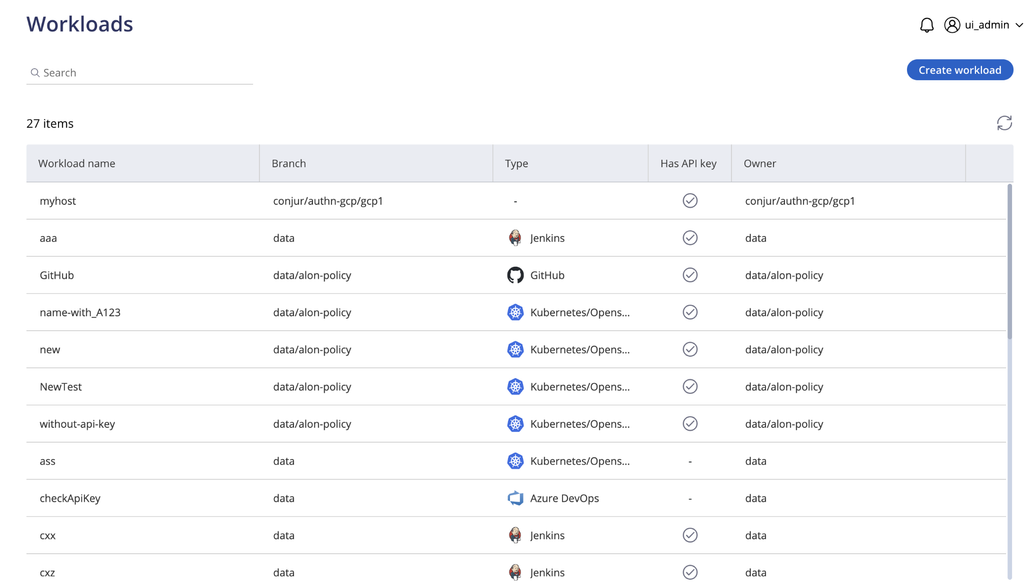
Venn’s Blue Border installs on a user’s Mac or PC and creates a company-controlled secure enclave on that device. Work happens inside the enclave, where company data is encrypted and access is governed by IT. Business activity inside the enclave is isolated from any other use of the same computer.
Work applications run locally rather than being streamed or virtualized, and the application windows are marked with a blue line so users can see what is inside the governed boundary. The platform is used by full-time employees, contractors, offshore teams, and BPO staff on company-issued, third-party, or personal devices, whether managed or unmanaged.
Key features include:
- Secure enclave on the endpoint: A company-controlled enclave is created directly on the user’s Mac or PC. Company data, applications, networking, and AI workflows inside it are protected and isolated from other use of the device.
- Local application execution: Work applications run locally with no hosting, streaming, or virtualization. Both browser-based and locally installed applications are covered, including Chrome, Office, Slack, Zoom, Teams, Salesforce, SAP, CAD tools, and custom line-of-business applications.
- Device-agnostic deployment: Blue Border runs on Mac and PC across company-issued, third-party, and personal devices, and does not require the endpoint to be enrolled or fully managed.
- AI governance controls: Browser-based and desktop AI tools are governed at the application and data layer. Controls cover which AI tools can be used, tenant restrictions that block personal account sign-ins, shadow AI blocking by category, and access to corporate AI limited to dedicated IP addresses. Claude, Claude Cowork, and Claude Code are natively supported inside the enclave.
- Separation of personal activity: Only activity inside Blue Border is governed. Personal applications, files, and browsing outside the enclave are not tracked or monitored by the company or by Venn.
- Compliance coverage: The platform supports compliance efforts across SOC 2 Type II, HIPAA, SEC, FINRA, PCI, and CMMC, with scope and controls to be confirmed with an auditor or QSA.
Limitations (as reported by users on G2):
- Performance on some hardware: Several reviewers describe the enclave feeling slow on certain machines, including devices above the stated hardware requirements.
- Application stability: Some administrators report intermittent stability issues, particularly in combination with Microsoft Outlook.
- Support scheduling: Time cannot be booked with a named support engineer. Users call in with a ticket number and are connected to the next available team member.
Source: Venn

2. Island

Best for: Governing SaaS and web app access from unmanaged devices
Strengths: In-browser conditional access and last-mile DLP controls
Things to consider: Reported lag, limited extensions, RDP client gaps
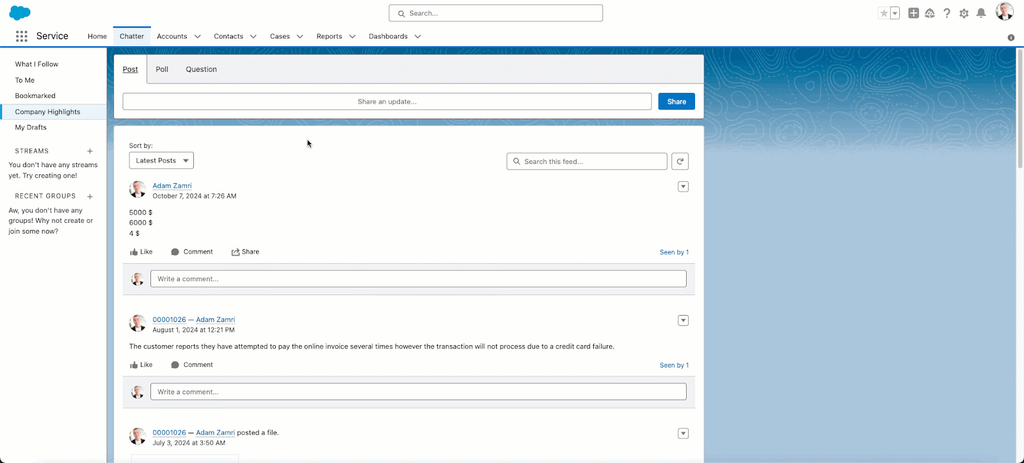
Island is a Chromium-based enterprise browser that moves access control, data protection, and monitoring into the browser itself. Conditional access rules assess identity, device, network, location, and application before granting access to corporate resources, and the same policies apply across devices the organization does not manage.
Beyond browsing, Island assesses device posture against policy requirements and extends policy controls to applications outside the browser, including Zoom, Slack, Teams, and WhatsApp. It is delivered as a full browser, a browser extension, a desktop client, and mobile applications.
Key features include:
- Conditional application access: Access rules evaluate identity, device, network, location, and application entirely within the browser, so policies apply consistently on any device.
- Last-mile data controls: Context-based policies allow data to move between sanctioned enterprise applications while restricting print, downloads, screenshots, and copy and paste, including outside the browser.
- Zero trust network access: Private applications are reached through browser-delivered ZTNA without deploying separate agents, which removes a dependency on VPN clients for contractor and BYOD access.
- Web threat defense: Built-in protections cover malware, phishing, session hijacking, man-in-the-browser attacks, and other browser exploits.
- Activity visibility with privacy separation: Work activity is captured in high fidelity and can be shared with a SIEM, while personal browsing stays private. An on-screen indicator tells users when they are in a monitored work environment.
- Privileged session control: Access to administrative consoles and backend systems can be protected with enforced posture and authentication, with full session detail captured including user, device, and specific actions.
- Platform coverage: The browser runs on Windows, macOS, Linux, ChromeOS, and IGEL OS, with mobile applications for iOS, iPadOS, and Android and an extension for Chrome, Edge, Safari, Firefox, and other Chromium browsers.
Limitations (as reported by users on G2):
- Performance under daily use: Reviewers report noticeable lag, slow tab switching, and occasional compatibility issues that affect responsiveness.
- Extension support: The browser supports fewer extensions than Chrome or Edge, which makes a full transition harder for some teams.
- Policy management at scale: Rules are prioritized by order, and near-identical conflicting policies can be difficult to untangle. Administrators also ask for bulk actions to reduce repetitive clicks.
- Restriction friction: End users describe controls on copy and paste, screen sharing, and data transfers as restrictive without role-based flexibility.
- Component dependency: Island Desktop requires the Island Browser to be installed, and reviewers note gaps between the Island RDP client and the Microsoft desktop RDP client.
Source: Island

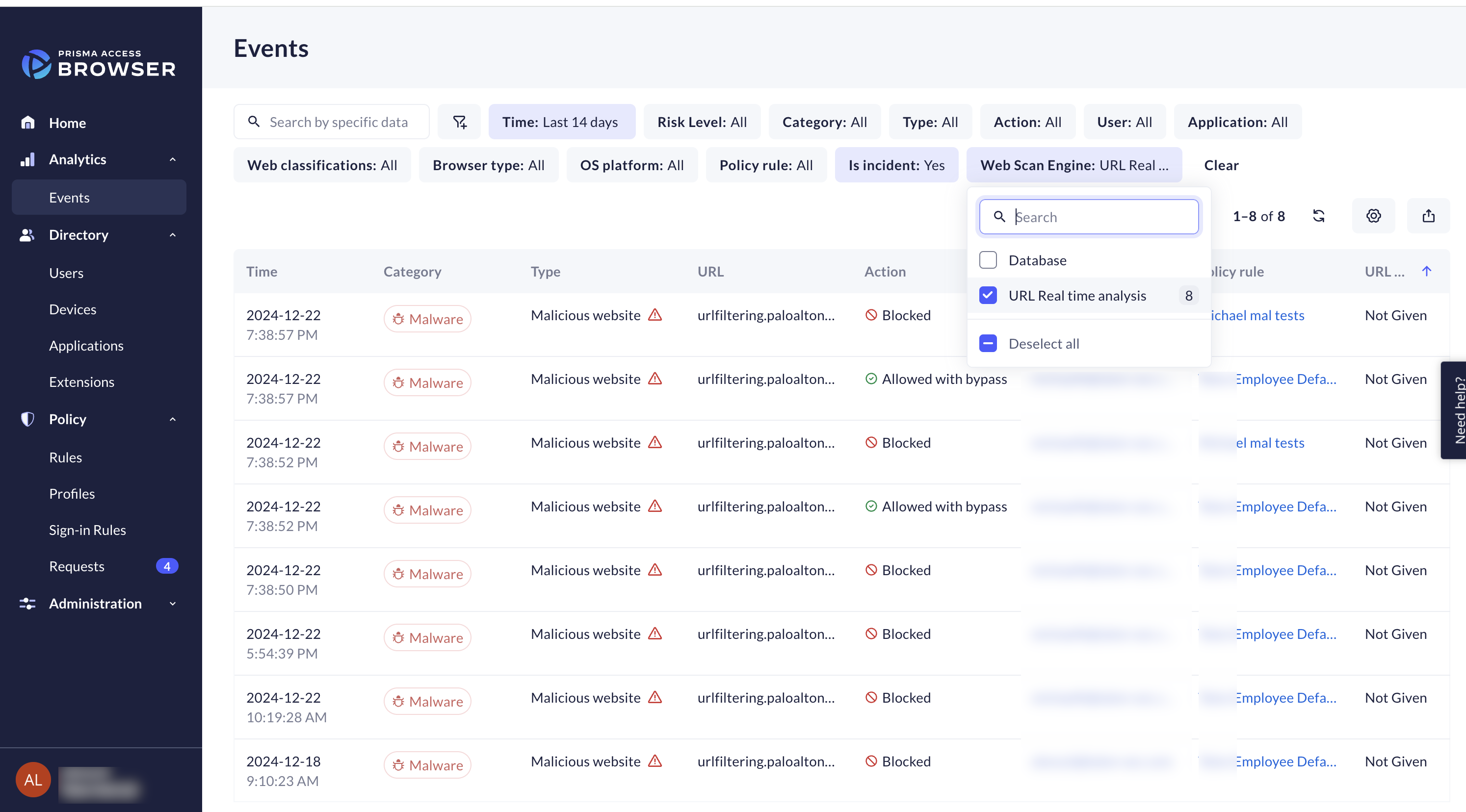
3. Prisma Browser

Best for: Extending SASE controls to browser work on any device
Strengths: Native enterprise DLP, threat prevention, AI governance
Things to consider: Setup complexity, cost, slowdowns under heavy load
Prisma Browser from Palo Alto Networks is an enterprise browser tied into the Palo Alto’s security engines. It is available as a dedicated desktop browser, an extension for existing consumer browsers, and a mobile application, and it isolates enterprise applications from the underlying endpoint so work can run on devices the organization does not manage.
Deployment can be done through an emailed link without administrator privileges on the device. The extension form factor is not recommended for unmanaged devices, where the full browser provides the isolation boundary.
Key features include:
- Enterprise DLP with broad classification: More than 1,000 data classifiers and 22 or more compliance profiles, including HIPAA and GDPR, support granular last-mile controls. Directional policies block transfers from sanctioned corporate applications into personal accounts.
- OS-level action controls: Policies can block screenshots, printing, and unauthorized file saving, and can apply step-up authentication or just-in-time approvals for higher-risk activities such as exports.
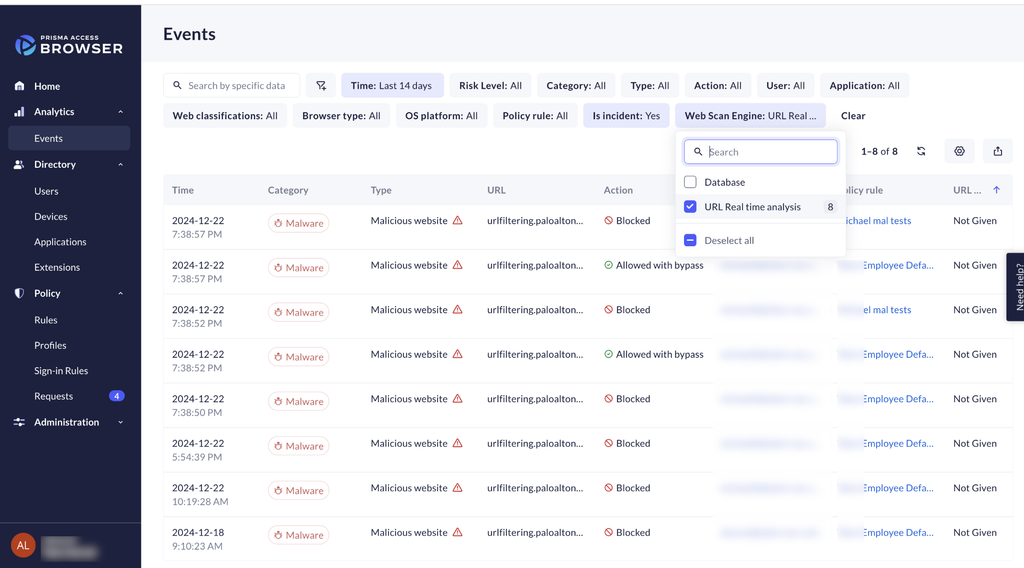
- Threat prevention in the browser: Web pages are scanned in real time, and sandboxing neutralizes web-borne threats and malicious downloads before they reach the operating system.
- Extension governance: Extensions in use are discovered and continuously monitored, and risky or over-permissioned extensions can be blocked.
- GenAI controls: Sensitive data in prompts can be redacted before leaving the environment, and actions such as copy and paste or file uploads to unsanctioned AI applications can be restricted.
- Encrypted traffic coverage: Security is enforced at the browser level, covering encrypted channels without traditional decryption, including applications that remain encrypted for privacy or compliance reasons.
- Application access: The browser provides a single workspace for web, SaaS, and private applications, including those using SSL certificate pinning, and integrates with identity providers.
Limitations (as reported by users on G2):
- Performance under load: Reviewers report latency and slower page loads during heavy traffic or with resource-intensive web applications, and higher memory and CPU use than standard browsers.
- Setup and policy tuning: Initial configuration is described as complex and easier for teams already familiar with the Palo Alto ecosystem. Legacy internal applications often require trial and error during policy tuning.
- Restrictive defaults: Blocking of copy and paste, file downloads, and certain browser components can interfere with normal workflows until policies are adjusted.
- Cost: Multiple reviewers describe pricing as high relative to competing products, with maintenance, support, and add-on licences increasing the total.
- Documentation and support: Reviewers ask for more detailed documentation on complex integrations and report inconsistent support response times.
Source: Palo Alto Networks
4. Citrix DaaS
Best for: Delivering virtual apps and desktops to unmanaged endpoints
Strengths: Hybrid multi-cloud delivery with HDX session optimization
Things to consider: Licensing cost, bandwidth dependence, upgrade effort
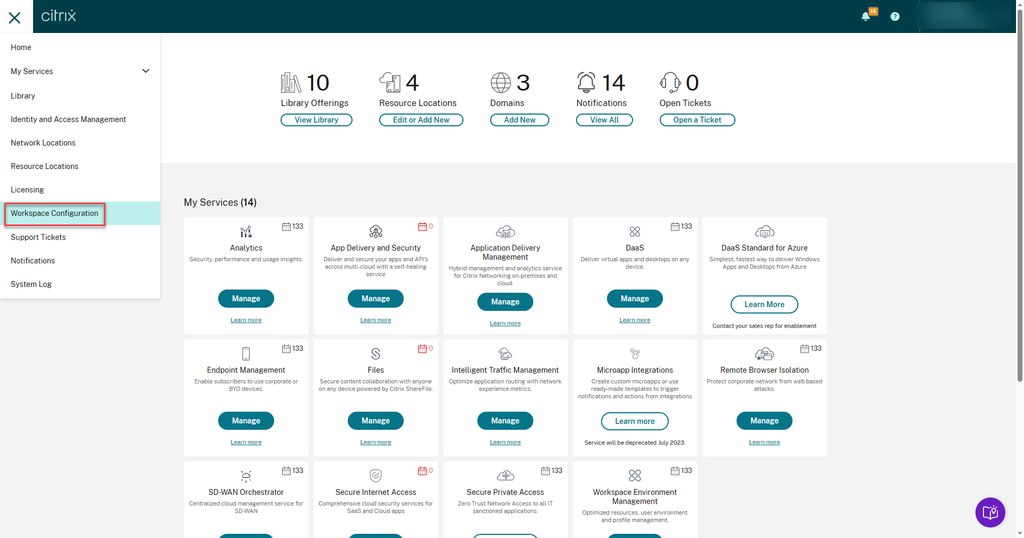
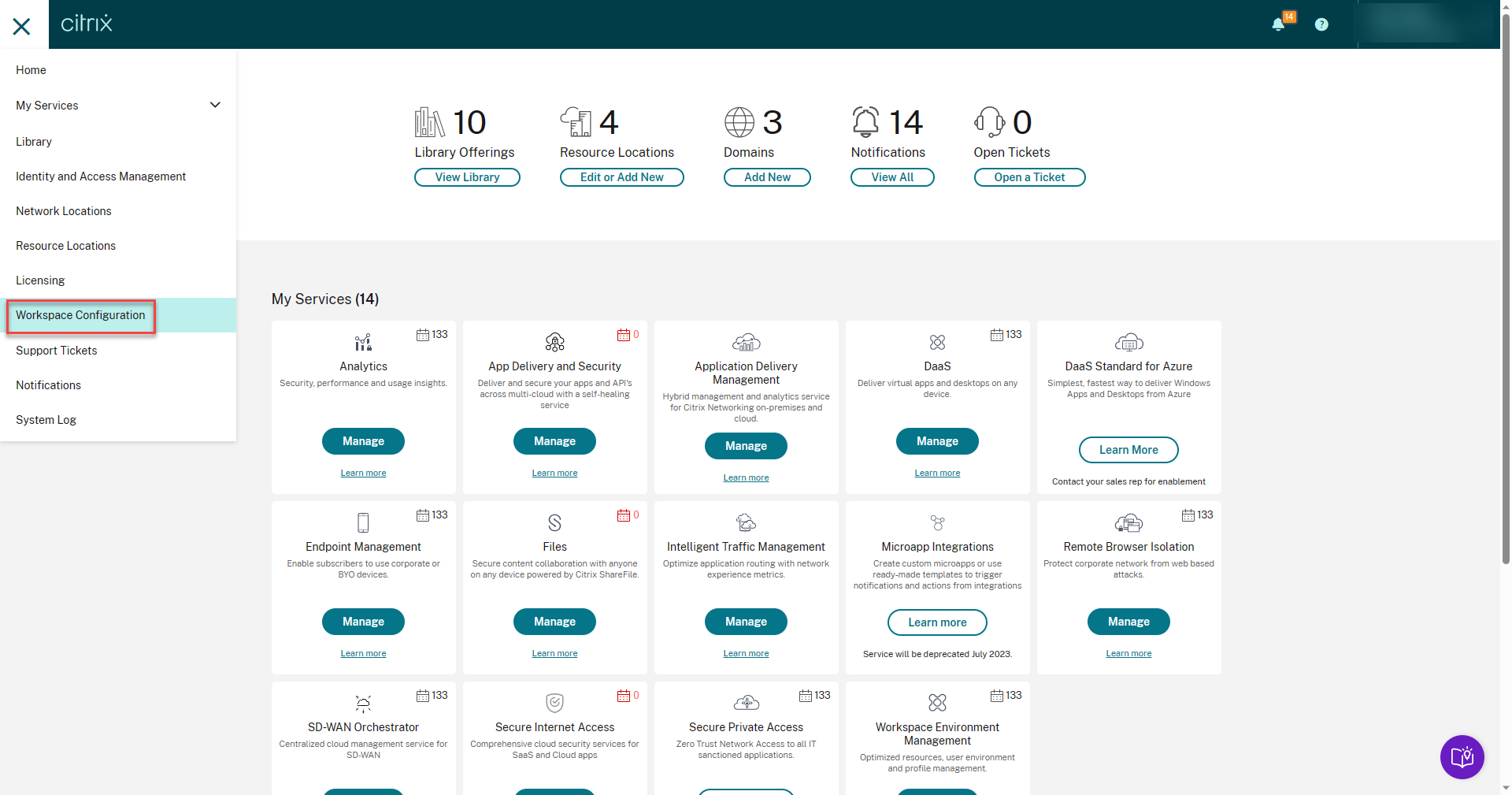
Citrix DaaS delivers virtual applications and full desktops to endpoints rather than placing corporate data on the device itself. It is offered as Citrix DaaS Cloud and Citrix DaaS Local, so organizations can choose where virtual resources are managed, monitored, and secured.
For BYOD programs, this keeps applications and data in the data center or cloud while the personal device runs a client or browser session. Security controls are aimed at protecting unmanaged endpoints, applying granular restrictions, and recording user sessions.
Key features include:
- Security controls for unmanaged endpoints: The platform includes controls for protecting unmanaged endpoints, setting granular restrictions, and recording user sessions.
- HDX optimization: Session optimization targets low-bandwidth conditions, unified communications tools, and graphics-intensive applications.
- Hybrid and multi-cloud placement: Workloads can be stored in Microsoft Azure, Google Cloud Platform, or AWS and managed alongside on-premises resources.
- Centralized application and desktop management: Applications are managed centrally and delivered to any device, which supports distributed workforces without configuring each endpoint.
- Onboarding and offboarding control: IT resources can be deployed rapidly and access revoked when a worker leaves or a contract ends.
- User environment management: A single lightweight component accelerates logins, improves server scalability, and enhances application response times.
- Related access products: Citrix SecurAccess ZTNA delivers zero trust application access to sanctioned applications without a VPN, and Citrix Experience Insights provides visibility into performance across physical and virtual endpoints.
Limitations (as reported by users on G2):
- Licensing cost: Reviewers repeatedly describe subscription and licensing costs as higher than alternative VDI and DaaS options, with smaller organizations facing ROI questions.
- Network dependence: Sessions require strong, stable connectivity. Users report latency, slowness, and disconnects when bandwidth is limited.
- Upgrade and troubleshooting effort: Large estates face time-consuming upgrades across thousands of components, and reviewers mention defects surfacing after version changes.
- Integration and analytics gaps: Some administrators want better integration with other vendor platforms and simpler filtering in the analytics tooling.
- Collaboration tool experience: Audio and video quality for conferencing tools inside virtual sessions is cited as an area needing improvement.
Source: Citrix
Unified Endpoint Management Platforms
5. Microsoft Intune
Best for: Managing enrolled and BYOD endpoints in Microsoft 365 estates
Strengths: Compliance checks tied to conditional access and Autopilot
Things to consider: Weaker Mac and Linux control, sync delays, add-on costs
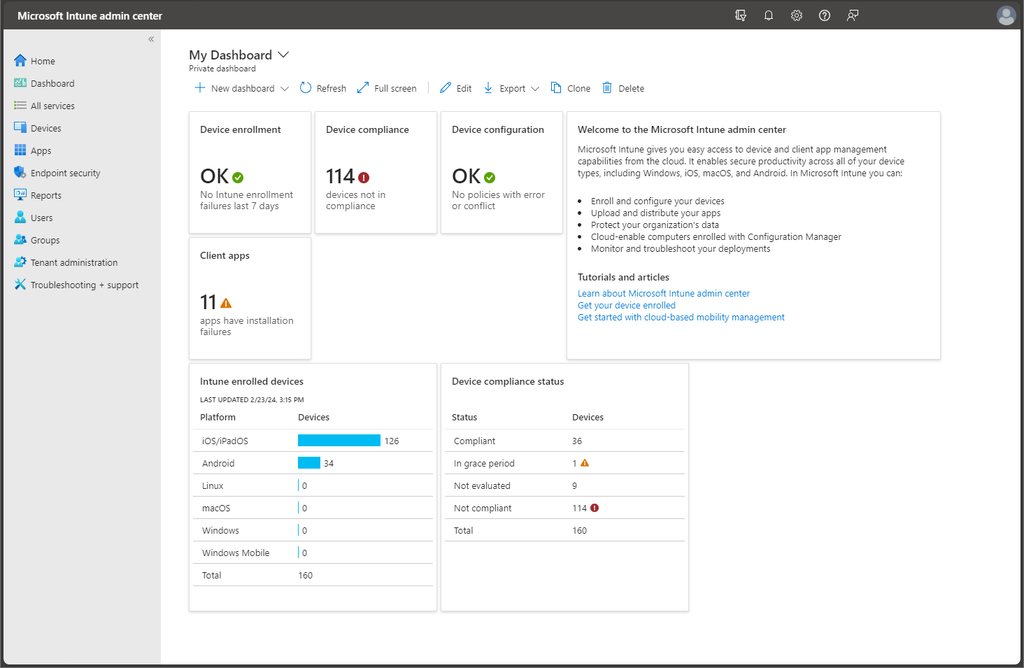
Microsoft Intune is a cloud-based unified endpoint management platform that manages devices, applications, and access from a single console. It applies Zero Trust principles by continuously verifying device compliance before corporate resources can be reached, and it relies on Microsoft Entra ID for identity and conditional access.
Intune Plan 1 covers cloud-connected endpoints across Windows, Android, macOS, iOS, and Linux. Microsoft Configuration Manager handles on-premises endpoints such as Windows PCs and servers, and co-management allows organizations to move workloads gradually from Configuration Manager to Intune.
Key features include:
- Compliance and conditional access: Device compliance is continuously verified, and access to company resources depends on that posture, which is the mechanism most BYOD programs rely on.
- Cloud enrollment and provisioning: Devices are enrolled, policies applied, applications deployed, and updates managed from the cloud. Windows Autopilot supports zero-touch provisioning, and automated enrollment and provisioning are available for macOS.
- Endpoint Privilege Management: Standard users can perform only IT-approved tasks, which limits the need to grant local administrator rights on shared or personal hardware.
- Advanced mobility management: Capabilities include app-based VPN access controls, firmware over-the-air updates, and management of specialty devices.
- Enterprise Application Management: Applications are deployed and managed centrally, with Microsoft maintaining packaging and updates for common third-party applications.
- Microsoft Cloud PKI: Certificate management is automated in the cloud, which supports certificate-based authentication for enrolled and BYOD devices.
- Advanced Analytics and Remote Help: Device query capabilities provide endpoint health visibility across the fleet, and Remote Help enables cloud-based helpdesk-to-user connections.
Limitations (as reported by users on PeerSpot):
- Uneven platform coverage: Reviewers describe Windows control as far more complete than Mac and Linux control, with policies available on Windows that cannot be applied elsewhere. Server management is largely outside its scope.
- Policy sync delays: Changes are not always reflected immediately on devices, and reviewers report delayed application deployment and reporting mismatches, particularly at scale.
- Troubleshooting visibility: Error messages when a policy or deployment fails are described as generic, so administrators check logs across multiple portals to find root causes.
- Reporting depth: Built-in reports are considered adequate for day-to-day monitoring but limited for granular or custom analysis, leading teams to export data or add tools.
- Licensing complexity: Advanced capabilities sit behind add-ons or higher tiers, and reviewers describe the range of plans and bundles as difficult to compare.
- Console usability: The admin portal is described as fragmented, with some configurations opening in separate sections or older interfaces.
Source: Microsoft
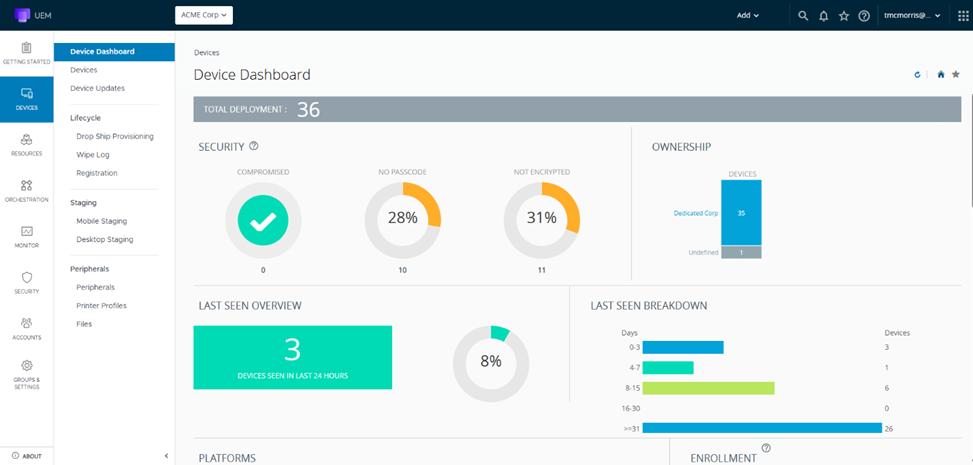
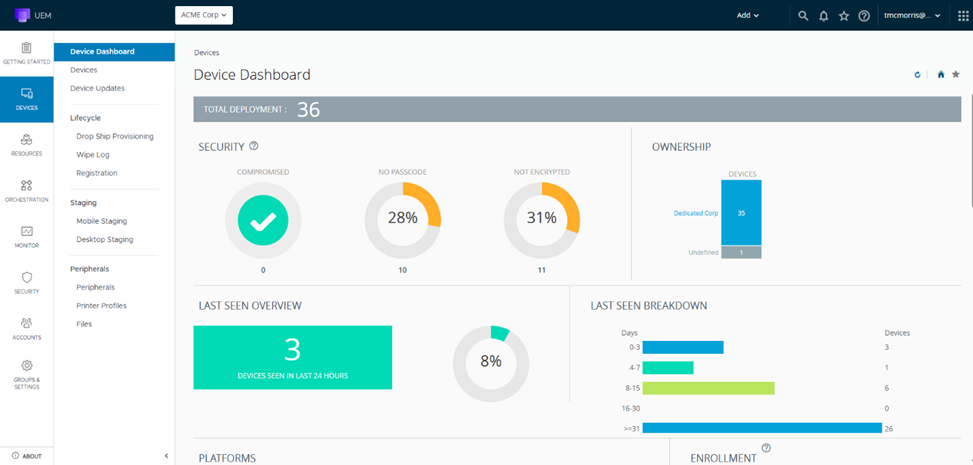
6. Omnissa Workspace ONE UEM
Best for: Managing mixed BYOD and corporate fleets from one console
Strengths: Conditional access, per-app VPN, multi-tenant policy control
Things to consider: Complex setup, licensing cost, support concerns
Workspace ONE UEM is a cloud-native unified endpoint management platform that manages desktops, mobile devices, rugged hardware, servers, and specialty endpoints across Windows, macOS, iOS, Android, Linux, and ChromeOS from a single console. It supports bring-your-own, corporate-owned, shared, and specialty ownership models.
Security is applied from the first connection, with device posture checks and policy enforcement built into onboarding workflows so only compliant devices reach corporate resources. Editions range from mobile-only or desktop-only packages up to enterprise and platinum tiers that add analytics, rugged device management, and advanced MFA.
Key features include:
- Conditional access and compliance policies: Dynamic access controls are defined by device state, user role, and risk signals. Non-compliant endpoints can be blocked and remediation actions triggered automatically.
- Per-app VPN through Workspace ONE Tunnel: Connectivity is scoped to approved applications rather than the whole device, so data in transit is encrypted and only authorized applications reach internal systems.
- Multi-tenant organization groups: Policy and access can be localized by business unit or geography with granular controls, which allows administration to be delegated while governance is maintained centrally.
- Low-touch remote onboarding: Devices are provisioned remotely without manual imaging. Employees self-enroll and receive configurations, which suits distributed and hybrid programs.
- Automated patch management: OS and application updates are automated, with visibility and control over update deployment for Windows, macOS, and mobile platforms.
- Application lifecycle management: The Intelligent Hub provides a unified self-service application catalog with single sign-on across applications including Office 365.
- Freestyle Orchestrator automation: Low-code and no-code workflows automate onboarding, application deployment, compliance checks, and remediation tasks.
Limitations (as reported by users on PeerSpot):
- Initial setup complexity: Reviewers describe the deployment phase as complex, with configuration work needed before the platform is usable at scale.
- Pricing and licensing: Licensing fees are described as high and the structure as more complicated than it needs to be.
- Support quality: Several reviewers raise concerns about the level of support available and about the handling of upgrades.
- Console usability: The dashboard and portal are described as confusing and not user-friendly for new administrators.
- Documentation gaps: Reviewers say the documentation is less comprehensive than for comparable platforms, which slows down configuration work.
- Integration requests: Users ask for improved integration with Microsoft and other third-party solutions, and for DLP integration at the application level.
Source: Omnissa
7. IBM MaaS360
Best for: Multi-OS device management with containerized corporate data
Strengths: Mobile threat defense, compliance automation, containers
Things to consider: Dated interface, sync issues, per-device cost
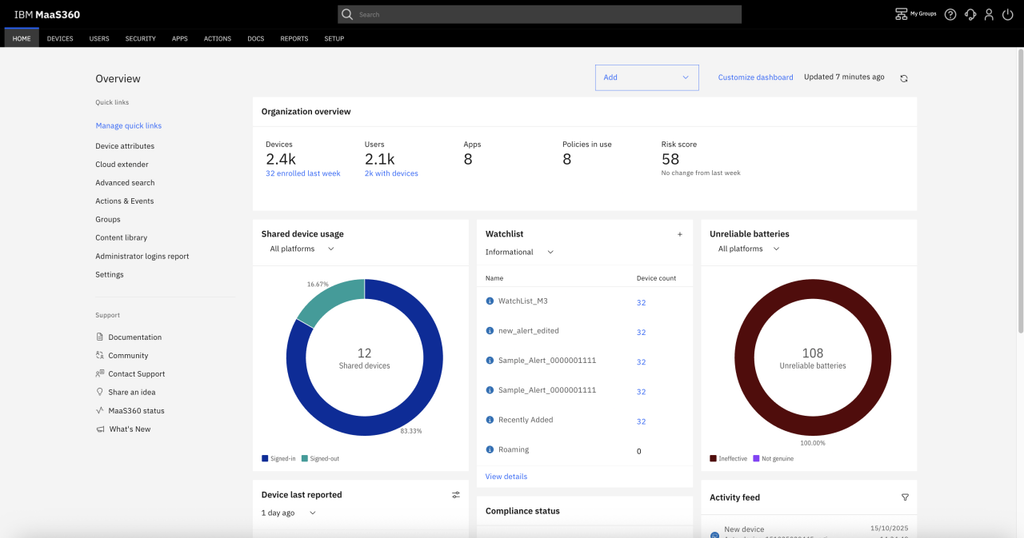
IBM MaaS360 is a unified endpoint management platform that manages mobile devices and laptops across multiple operating systems from a single console. It combines device management with built-in threat detection and automated compliance, with AI analytics provided through Watson.
Containerization features are packaged in the higher tiers, which is the part most relevant to BYOD programs. These include an enterprise container, a secure mail and browser environment, and gateway access to documents and internal applications without full device control.
Key features include:
- Mobile threat defense: Users, devices, applications, and data are protected against malware, man-in-the-middle attacks, and phishing through zero-touch automated protection.
- Enterprise container and secure workplace apps: Higher tiers add an enterprise container, a secure enterprise browser, OS VPN, content management, and gateway access to browser, document, and application resources.
- Endpoint management across form factors: Mobile devices and laptops are managed from a single console, which supports hybrid and frontline workforces under one set of policies.
- Native on-device security: Threats are identified and responded to in near real time using on-device protection combined with analytics and fleet visibility.
- Compliance and patch controls: Plans include granular patch management, a policy recommendation engine, and user risk management for ongoing compliance enforcement.
- Application security and patching: Application security controls and application patching are available in the Premier and Enterprise tiers, along with mobile document editing and sync.
- Integrations: MaaS360 connects with security and productivity applications to simplify updates and synchronize data without migrating platforms.
Limitations (as reported by users on PeerSpot):
- Device resource use: Reviewers report faster battery drain on smartphones running the agent, and contact list duplication that increases memory consumption.
- Reporting flexibility: Custom reports with graphics are not available, which limits how teams present compliance and device data.
- Migration tooling: There is no export and import of environment configuration, so migrations require manual rebuilding.
- Interface and usability: The administrative interface is described as basic, and new administrators often need assistance to work through it.
- Breadth for mixed fleets: Some reviewers moved to alternatives after finding coverage insufficient for managing every category of equipment in their estate.
- Support responsiveness: Technical support is rated as average, with slow responses on more complex cases and limited local support in some regions.
Source: IBM

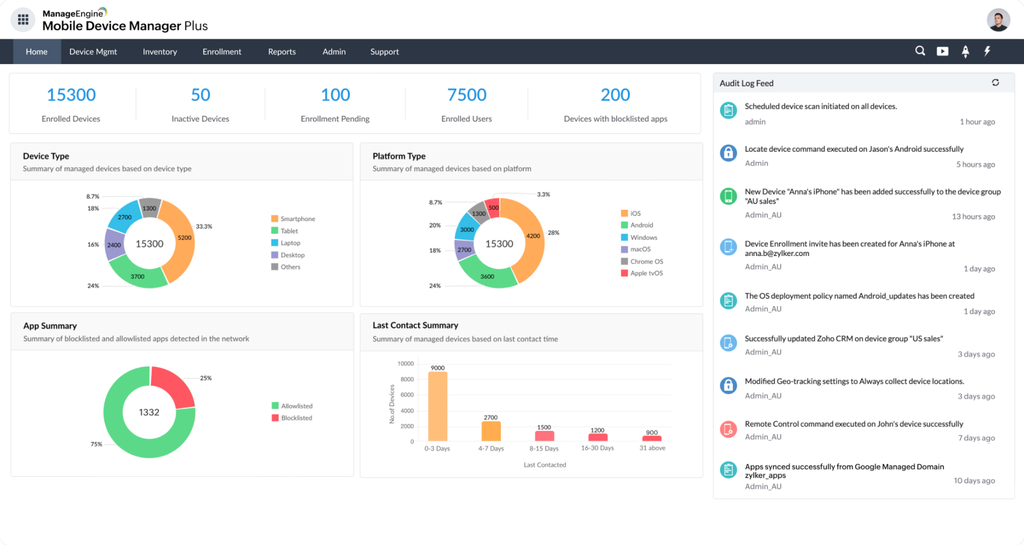
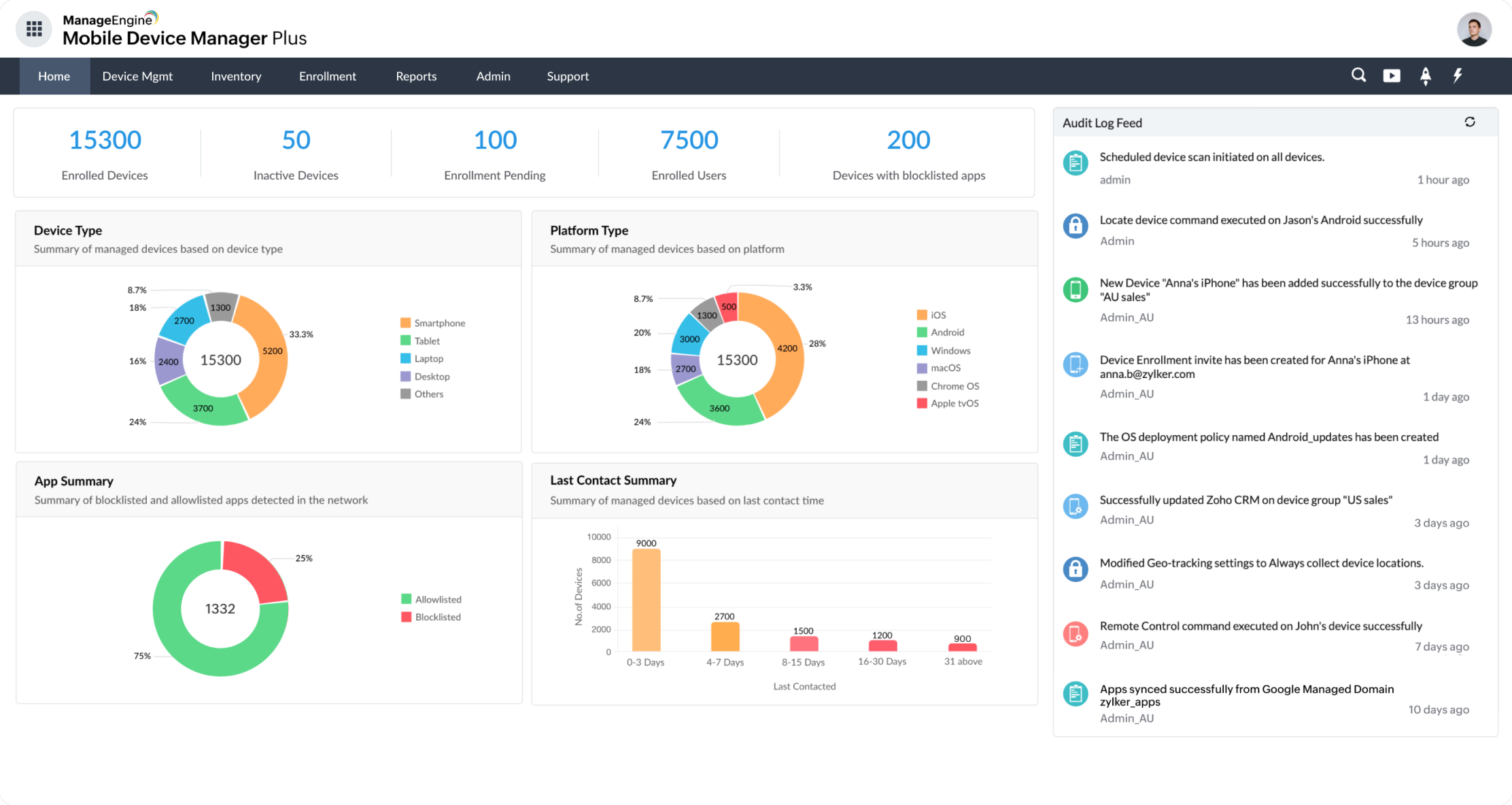
8. ManageEngine Mobile Device Manager Plus

Best for: Multi-OS mobile management with work-profile separation
Strengths: Containerization, conditional email access, kiosk lockdown
Things to consider: Setup complexity, limited customization and reporting
ManageEngine Mobile Device Manager Plus manages smartphones, tablets, laptops, desktops, TVs, and rugged devices across Android, iOS, iPadOS, tvOS, macOS, Windows, and Chrome OS. It covers the device lifecycle from onboarding to retirement and is also available within the broader Endpoint Central platform.
For BYOD, the platform separates corporate work profiles from personal profiles and stores enterprise data in an encrypted container. Enrollment and authentication paths are provided for both employee-owned and corporate devices.
Key features include:
- Containerization of corporate data: Corporate and personal information are separated on each device, with enterprise data held in an encrypted container and access provisioned selectively to corporate accounts.
- Conditional email access: Corporate email is configured, secured, and managed in line with Conditional Exchange Access, and email attachments can be restricted so they open only through managed applications.
- Security policy enforcement: Administrators can execute remote lock and wipe commands from the server or the admin application, and jailbroken or rooted devices in the network can be detected and reported.
- Profile-based configuration: Profiles enact policies for Wi-Fi, VPN, and other parameters, so devices are brought into a compliant state without manual setup.
- Application management and kiosk mode: In-house and store applications are distributed across iOS, Android, macOS, Chrome OS, and Windows, with kiosk mode locking devices to a single application or defined set, plus application inventory and licence tracking.
- Content distribution controls: Documents are distributed remotely across more than ten formats, update automatically when new versions are published, and can be blocked from third-party cloud backup.
- Remote troubleshooting: Devices can be remotely controlled and viewed to resolve issues without physical access to the hardware.
Limitations (as reported by users on G2):
- Customization options: Reviewers describe the platform as limited in customization and flexibility compared to what they expected.
- Setup effort: Initial deployment is described as difficult, with manual adjustments and issues surfacing during rollout.
- Update and device management issues: Users report problems with device updates and with resolving them through support.
- Automation and integration gaps: Reviewers cite room for improvement in automatic actions and in support for third-party application integration.
- Reporting and interface depth: The volume of settings can feel overwhelming for new administrators, and dashboard and reporting customization is described as less flexible than in competing platforms.
Source: ManageEngine
Conclusion
Enterprise BYOD platforms help remote teams use personal devices without giving the organization unnecessary control over the entire endpoint. The right approach depends on whether security needs to be enforced at the device, application, browser, or virtual workspace layer. Organizations should compare platform coverage, identity integration, conditional access, DLP, privacy separation, remote data removal, and administrative overhead so they can protect corporate resources without creating excessive friction for users.

Any worker. Any laptop. Any AI workflow. Fully secured.
Schedule a demo to see how Blue Border® secures company data and apps without shipping laptops, running VDI, or managing personal endpoints.