
Secure Multi-Device Remote Access Platforms: Top 8 Compared


See Venn first in Google Search
Add as a preferred source on Google
TL;DR: Secure multi-device remote access platforms give users policy-controlled access to corporate apps and data from managed, personal, and unmanaged devices. Best for: Venn for BYOD and contractor laptops without VDI, Zscaler Private Access for VPN replacement, Island for browser-based access, and TeamViewer Tensor for enterprise remote support.
What Are Secure Multi-Device Remote Access Platforms?
Secure multi-device remote access platforms let you connect to, control, and manage computers and mobile devices from nearly any other device (Windows, Mac, Linux, iOS, or Android). These platforms support remote and hybrid work by providing consistent access controls and data protection across company-owned, personally owned (BYOD), and unmanaged devices. They help organizations maintain security without restricting employees to a single office, network, or endpoint.
Unlike traditional remote access solutions that primarily focus on establishing network connectivity, modern secure multi-device remote access platforms combine identity-based authentication, encrypted communications, endpoint security, and data loss prevention (DLP). Depending on the architecture, they may use VPNs, Zero Trust Network Access (ZTNA), virtual desktop infrastructure (VDI), or secure workspace isolation to protect corporate resources.
Core security features to look for:
- Cross-device compatibility: Supports Windows, macOS, and other authorized devices with a consistent user experience.
- Application security: Protects browser-based and locally installed business applications.
- Zero trust access controls: Enforces identity-based authentication, MFA, and least-privilege permissions.
- Secure workspace isolation: Separates corporate and personal environments with encryption and data loss prevention controls.
- Application allowlisting: Restricts corporate access to approved applications and processes.
- Centralized management and monitoring: Provides consistent security policies, activity logs, and audit capabilities across devices.
This is part of a series of articles about secure remote access
Free eBook:
Secure Remote Access that Doesn’t Drive Users Crazy!
Secure your entire extended workforce without issuing devices or VDI. Keep your organization agile, compliant, and secure.
In this article:
- What Are Secure Multi-Device Remote Access Platforms?
- Secure Multi-Device Remote Access Platforms at a Glance
- How Secure Multi-Device Remote Access Platforms Work
- Common Use Cases for Secure Multi-Device Remote Access Platforms
- Key Features to Look for in Secure Multi-Device Remote Access Platforms
- Notable Secure Multi-Device Remote Access Platforms
- Conclusion
Secure Multi-Device Remote Access Platforms at a Glance
The table below summarizes the key differences between the secure multi-device remote access platforms covered in this guide. We explore each platform in more detail in the next section.
| Category | Solution | Best For | Key Strengths | Things to Consider |
| Secure Workspace and Zero Trust Access Platforms | Venn Blue Border | BYOD and unmanaged PCs and Macs | Local secure enclave, DLP, per-app VPN, AI governance | Limited customization options |
| Secure Workspace and Zero Trust Access Platforms | Zscaler Private Access | Replacing VPNs with app-level access | User-to-app segmentation, inline inspection, browser access | Disconnections and slowdowns on some networks |
| Secure Workspace and Zero Trust Access Platforms | Island Enterprise Browser | SaaS and web app access through a managed browser | Browser-level DLP, conditional access, built-in ZTNA | Strict controls can slow tasks; RDP client gaps |
| Secure Workspace and Zero Trust Access Platforms | Citrix DaaS | Virtual apps and desktops on any device | Hybrid multi-cloud hosting, HDX optimization | Latency and administrative overhead |
| Secure Remote Desktop and Remote Support Platforms | TeamViewer Tensor | Enterprise support across IT, mobile, and OT | Conditional access, SSO, E2EE, audit logs | Occasional lag; licensing cost |
| Secure Remote Desktop and Remote Support Platforms | Splashtop Enterprise | Remote access and IT support in one platform | SSO/SAML, granular access, session recording | Slow or dropped file transfers |
| Secure Remote Desktop and Remote Support Platforms | BeyondTrust Remote Support | Audited IT support in regulated enterprises | Session auditing, vaulted credentials, least privilege | Pricing and learning curve |
| Secure Remote Desktop and Remote Support Platforms | RealVNC Connect | Simple remote access and support | E2EE, self-expiring access codes, session recording | Slow support; occasional connection drops |
Related content: Read our guide to the best secure remote access tools.
How Secure Multi-Device Remote Access Platforms Work
Authenticating Users and Authorizing Access Across Devices
Secure multi-device remote access platforms begin by verifying the identity of users before granting access to corporate resources. They typically integrate with enterprise identity providers and support authentication mechanisms such as single sign-on (SSO) and multi-factor authentication (MFA). These controls help ensure that employees and contractors can access corporate applications only after successfully verifying their identities.
After authentication, platforms enforce authorization policies based on factors such as user identity, organizational role, device security posture, and the sensitivity of requested resources. Zero trust access controls follow a deny-by-default approach, granting users access only to explicitly authorized applications and data. For example, an organization might permit a contractor to access a project management application while restricting access to internal financial systems.
Establishing Encrypted Connections to Corporate Applications and Data
Once a user is authenticated and authorized, the platform establishes secure communication between the endpoint and corporate resources. Encryption protects sensitive information transmitted between devices, cloud services, and internal applications, reducing the risk of interception when employees connect through home networks, public Wi-Fi, or other untrusted environments.
Different remote access architectures handle connectivity differently. Traditional VPNs create encrypted tunnels to corporate networks, while ZTNA solutions establish access to individual applications rather than exposing broader network resources. Secure workspace platforms can also route corporate application traffic through dedicated encrypted gateways while keeping personal internet activity separate. Modern platforms should support secure connectivity to both browser-based SaaS applications and locally installed business software.
Enforcing Consistent Security Policies Across Multiple Devices
Secure multi-device remote access platforms enable IT administrators to define and enforce centralized security policies across different endpoints, users, and locations. Rather than configuring every device independently, organizations can establish common rules governing application access, data handling, network connectivity, and interactions between corporate and personal environments.
These policies often incorporate data loss prevention (DLP) controls that restrict how sensitive information moves between applications, storage locations, and external services. Depending on the platform, administrators can define rules for copying and pasting information, transferring files, uploading documents, printing, capturing screenshots, and sharing screens. Application-level policy enforcement is important in BYOD environments because it allows organizations to protect corporate data without controlling employees’ devices.
Isolating Corporate Workspaces from Personal Environments
Secure workspace isolation separates business applications, files, and activities from personal resources on the same endpoint. Instead of treating the entire device as a corporate asset, these platforms establish a protected environment where corporate data remains subject to organizational security controls. This reduces the risk of accidental data leakage between work and personal applications while preserving user privacy.
Different technologies implement isolation through virtual desktops, application containers, browser isolation, or locally installed secure enclaves. Secure enclave-based approaches allow corporate applications to run locally on an employee’s computer while maintaining a logical security boundary between business and personal activities. This supports familiar application workflows and avoids the need to stream every application from remote infrastructure.
Common Use Cases for Secure Multi-Device Remote Access Platforms
Enabling Secure Remote and Hybrid Work Across Employee Devices
Remote and hybrid employees frequently access corporate resources from different locations, including:
- Home offices
- Shared workspaces
- Corporate facilities
They may also use multiple devices throughout the workday, such as company-issued laptops and personal computers. Secure multi-device remote access platforms provide consistent authentication, application access, and data protection policies across these environments.
These platforms allow employees to securely connect to cloud-based applications, internal systems, and locally installed business software without relying exclusively on traditional VPNs or virtual desktops. Depending on the solution, employees can work directly within a protected corporate workspace while maintaining access to the applications and workflows they use every day.
Centralized security policies help organizations maintain consistent protection regardless of where employees work or which authorized device they use. IT teams can enforce identity-based access controls, restrict sensitive data transfers, and revoke corporate access when necessary without disrupting employees’ personal activities.
Related content: Read our article about remote work security risks.
Providing Secure Corporate Access from Personal BYOD Devices
Bring Your Own Device (BYOD) policies allow employees to use personally owned laptops and computers for business activities, reducing hardware costs and providing greater flexibility. However, personal devices may lack:
- Corporate endpoint management
- Standardized security configurations
- Controls that prevent sensitive information from moving into personal applications or storage
Secure multi-device remote access platforms address these challenges by establishing protected environments for corporate applications and data. Workspace isolation separates business activities from personal files, applications, and browsing sessions, enabling organizations to enforce security policies without taking control of the entire device. Depending on the platform, administrators can restrict copying and pasting, file downloads, uploads, printing, and other actions that could expose sensitive corporate information.
For example, an employee can access corporate email, collaboration tools, and business applications through an isolated workspace while continuing to use personal applications outside that environment. This approach helps organizations support BYOD programs while maintaining employee privacy and reducing the need for full mobile device management (MDM).
Securing Third-Party Contractor and Temporary Worker Access
Organizations frequently rely on contractors, consultants, freelancers, and temporary workers who require access to corporate applications and information. These users often work from personally owned or third-party-managed devices that fall outside the organization’s traditional endpoint management infrastructure, creating challenges for:
- Access control
- Data protection
- Offboarding
Secure multi-device remote access platforms enable organizations to provide these users with access to corporate resources based on their roles and responsibilities. Identity-based authorization, MFA, and zero trust policies help limit access to approved applications, while DLP controls restrict unauthorized movement of sensitive information outside the corporate environment.
Secure workspace isolation is especially useful for third-party access because organizations can protect corporate data without requiring contractors to enroll their personal devices in enterprise management systems. When a contract ends, administrators can revoke application access and, where supported, remotely remove corporate data from the protected workspace without affecting the contractor’s personal files or applications.
Protecting Corporate Applications and Data on Unmanaged Endpoints
Unmanaged endpoints are devices that are not directly controlled through an organization’s endpoint management infrastructure. These may include employee-owned computers, contractor devices, and other endpoints that cannot be enrolled in corporate management systems. Because IT teams have limited visibility into their configurations and security posture, unmanaged devices can create additional risks involving:
- Malware
- Unauthorized applications
- Corporate data leakage
Secure multi-device remote access platforms help reduce these risks by applying security controls to corporate activities rather than depending entirely on device-level management. Depending on the architecture, these controls may include application isolation, encrypted corporate storage, identity-based access restrictions, and DLP policies governing interactions with personal applications and external services.
Platforms that isolate corporate workspaces can enforce protection directly around business applications and data, even when the underlying endpoint is not fully managed. For example, an organization can restrict employees from saving confidential files to personal cloud storage, copying sensitive information into unapproved applications, or transferring documents outside authorized environments. Administrators can also revoke access and remotely wipe protected corporate data when a device is lost, stolen, or no longer authorized.
Key Features to Look for in Secure Multi-Device Remote Access Platforms
Cross-Device Compatibility and Consistent User Experience
Secure multi-device remote access platforms should support the operating systems and device types employees use for business activities, including company-issued laptops, personal computers, and other authorized endpoints. Compatibility with operating systems such as Windows and macOS is particularly important for organizations with mixed-device environments, while mobile support may also be necessary depending on workforce requirements.
A consistent user experience across devices helps employees remain productive without learning different workflows or relying on complicated remote access procedures. Users should be able to authenticate, launch approved applications, and access corporate resources through familiar interfaces, regardless of whether they are working remotely or in the office.
Secure Access to Browser-Based and Locally Installed Applications
Modern employees rely on a combination of browser-based SaaS platforms, internal web applications, and locally installed desktop software. Secure multi-device remote access platforms should protect access to all these application types without forcing organizations to redesign existing workflows or migrate applications to cloud-based environments.
Support for both browser-based and locally installed applications is especially valuable for organizations seeking alternatives to traditional VDI or browser-only security solutions. Platforms that secure applications running locally can preserve native application functionality and responsiveness while enforcing corporate data protection policies.
Zero Trust Security and Identity-Based Access Controls
Zero trust security is a foundational capability of secure multi-device remote access platforms. Rather than assuming that users or devices are trustworthy because they are connected to a corporate network, zero trust follows a deny-by-default model in which access must be explicitly authorized based on verified identity and applicable security policies.
Identity-based access controls should enforce least privilege, ensuring that employees and contractors receive only the permissions required for their responsibilities. For example, a contractor may be authorized to use a collaboration platform without gaining access to internal financial applications or confidential customer databases.
Secure Workspace Isolation Between Corporate and Personal Environments
Secure workspace isolation establishes a protected boundary between corporate activities and personal environments on the same endpoint. This capability is particularly important for BYOD and unmanaged devices, where organizations need to secure business applications and data without monitoring or controlling employees’ personal files, applications, and browsing activities.
Different solutions implement isolation through virtual desktops, application containers, secure browsers, or locally installed secure enclaves. Secure enclave-based approaches can isolate corporate applications and data while allowing approved software to execute directly on the endpoint. This architecture helps preserve application performance and familiar user workflows without requiring the entire desktop to be hosted remotely.
Application Allowlisting and Restrictions on Unauthorized Software
Application allowlisting enables organizations to define which applications are permitted to operate within the corporate environment. Rather than allowing any installed software to interact with sensitive business information, administrators can restrict corporate workspace access to explicitly approved applications and processes.
A deny-by-default application policy helps reduce the risk of unauthorized software accessing corporate data or introducing malicious functionality into protected workflows. For example, an organization might permit approved browsers, productivity suites, and communication tools while preventing unapproved file-sharing utilities or applications from interacting with sensitive corporate resources.
Centralized Policy Management, Monitoring, and Audit Logs
Secure multi-device remote access platforms should provide a centralized administrative interface for configuring security policies, managing user access, and maintaining visibility into corporate activities across distributed endpoints. Centralized management reduces the operational burden of configuring devices individually and helps organizations apply consistent controls across remote employees, contractors, and BYOD users.
Administrators should be able to define policies for authentication, application access, workspace isolation, and data loss prevention (DLP). Granular policy management allows organizations to tailor restrictions to users, groups, applications, or data-handling requirements rather than enforcing identical controls across every endpoint. For example, an organization might apply stricter file transfer restrictions to employees working with confidential financial information.
Notable Secure Multi-Device Remote Access Platforms
How we selected these platforms: We shortlisted secure multi-device remote access platforms based on cross-device support, identity-based access controls, encryption, data loss prevention, workspace isolation, and session auditing.
Secure Workspace and Zero Trust Access Platforms
1. Venn Blue Border

Best for: Securing work apps and data on BYOD and unmanaged PCs and Macs
Strengths: Local secure enclave with DLP, per-app VPN, and AI tool governance
Things to consider: Some users report limited customization options
Venn’s Blue Border is a secure workspace that installs a company-controlled, encrypted enclave on a Mac or PC. Work applications, files, network traffic, and AI tools run locally inside the enclave under IT policy and DLP, and each application window running in the enclave is marked with a blue border so users can see when they are in a work context.
Blue Border works on company-issued, third-party, and personal devices, whether managed or unmanaged, without VDI or full device management. Activity outside the enclave, including personal apps, files, and browsing, is not visible to the company or to Venn. Organizations use it for full-time employees, contractors, offshore teams, and BPO staff.
Key features include:
- Secure enclave on the endpoint: Blue Border creates an isolated area on the user’s device where work apps run locally, separate from the rest of the computer. There is no hosting, streaming, or virtualization involved.
- Support for local and browser-based apps: Installed and web applications run inside the enclave, including Chrome, Microsoft Office, Slack, Zoom, Teams, Salesforce, SAP, CAD tools, and custom line-of-business software.
- DLP and data movement controls: Administrators set policies that restrict copy/paste, file transfers, and screenshots between the enclave and the rest of the device. Company data inside the enclave is encrypted.
- Per-app VPN and private gateway: Traffic from work apps is routed through a per-app VPN to a private gateway managed through Blue Border, which keeps work traffic separate from personal internet use.
- Dedicated work storage: Work data is kept in dedicated storage, either on the device in Venn Disk or in the organization’s chosen cloud storage.
- AI tool governance: IT can approve AI tools and company tenants, block AI tools by category, limit corporate AI access to dedicated IPs, and apply DLP to prompts, uploads, and copy/paste. Desktop AI tools such as Claude are covered.
- Onboarding, offboarding, and integrations: No backend infrastructure is required, so access can be granted and revoked quickly. Blue Border integrates with existing SIEM, VPN, and endpoint protection tools.
Limitations (as reported by users on G2):
- Limited customization: Some users note that customization options are limited.
- Support routing: Support calls are routed to the next available team member, and users cannot schedule time with a specific support contact.
- Occasional performance slowdowns: Some users report that work inside the enclave can feel slower at times, particularly when bandwidth is constrained.
2. Zscaler Private Access
Best for: Replacing VPNs with app-level zero trust access to private apps
Strengths: User-to-app segmentation, inline inspection, and browser access
Things to consider: Users report disconnections and slowdowns on some networks
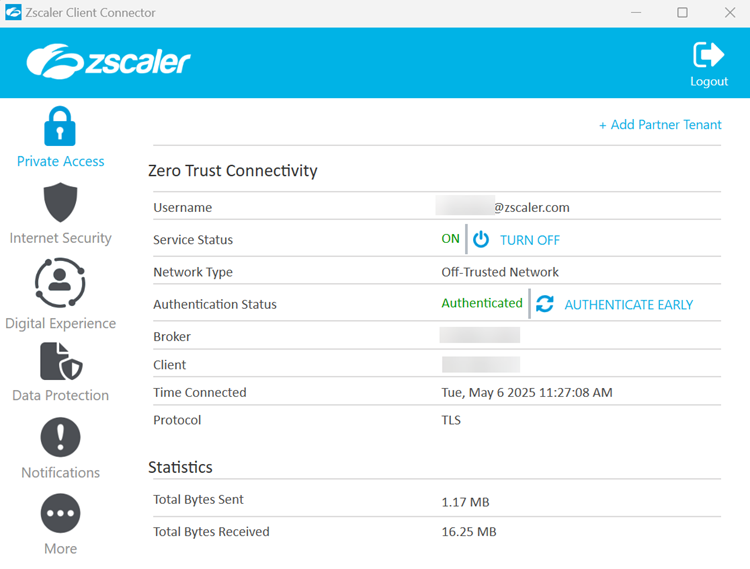
Zscaler Private Access (ZPA) is a zero trust network access (ZTNA) service delivered from the Zscaler Zero Trust Exchange cloud. It brokers one-to-one connections between authorized users and private applications, so users never connect to the corporate network and applications are not exposed to the public internet.
ZPA covers remote employees, users in headquarters and branch offices, and third parties such as suppliers and contractors. It supports agent-based connections as well as browser-based access for BYOD and unmanaged devices, and it can be deployed as a VPN replacement and as an alternative to VDI for some use cases.
Key features include:
- Application segmentation: ZPA discovers applications automatically and uses AI-generated recommendations to define app segments and access policies, which limits lateral movement.
- Browser access for unmanaged devices: Users can reach private apps through a browser without installing an agent, which supports BYOD and third-party access.
- Privileged remote access: Remote workers and third parties get clientless access to RDP, SSH, and VNC production systems.
- Inline inspection and app protection: Private app traffic is inspected inline in a cloud proxy architecture, with Layer 7 inspection to protect apps from web and identity attacks.
- Data protection: Web DLP uses exact data match, indexed document match, and machine learning. Endpoint DLP controls removable media and BYOD data loss, and browser isolation renders private apps in isolated sessions.
- Private Service Edge and business continuity: On-premises users get the same user-to-app access through a Private Service Edge, and policy-enforced access continues during connectivity outages.
Limitations (as reported by users on G2):
- Connection drops and re-authentication: Users report random disconnections, frequent sign-outs, and problems when switching networks.
- Slow performance: Some users experience slower loading times and latency when accessing apps and sites, especially when network conditions are poor.
- Pricing: Smaller organizations in particular find the cost high compared with traditional VPNs.
- Administrative complexity: Users mention a learning curve, difficult configuration, and the need to use separate admin consoles for different Zscaler products.
Source: Zscaler
3. Island Enterprise Browser
Best for: Securing SaaS and web app access through a managed enterprise browser
Strengths: Browser-level DLP, conditional access, and built-in ZTNA
Things to consider: Strict controls can slow tasks; RDP client lacks some features
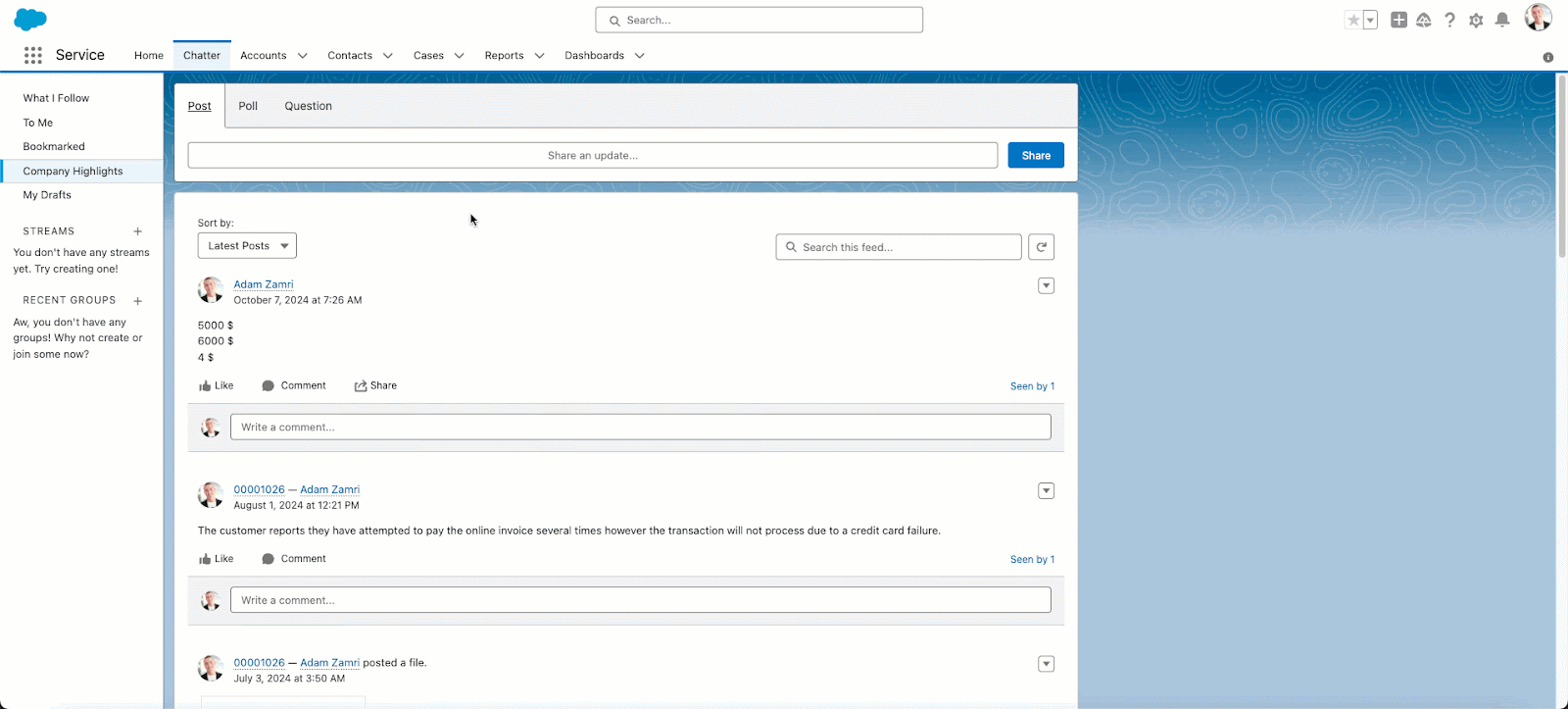
Island Enterprise Browser is a Chromium-based browser for business use, with access controls, data protection, and management built into the browser itself. Policies apply to work sites and applications, while personal browsing is kept separate, and on-screen indicators show users when they are in a monitored work context.
Island runs on Windows, macOS, Linux, ChromeOS, IGEL OS, iOS, iPadOS, and Android. It is also available as an extension for Chrome, Edge, Safari, Firefox, and other Chromium-based browsers, and the extension supports most capabilities of the full browser. A desktop product for macOS and Windows is also offered.
Key features include:
- Conditional access: Policies evaluate identity, device, network, location, and application before granting access, and they are enforced inside the browser.
- Device posture checks: Island checks that devices meet policy requirements and extends policy controls to some apps outside the browser, such as Zoom, Slack, Teams, and WhatsApp.
- Last-mile data controls: Context-based policies govern printing, downloads, uploads, screenshots, and copy/paste, including some actions outside the browser.
- Zero trust network access: Island provides ZTNA to private apps without requiring a separate agent.
- Privileged access protections: For admin consoles and backend systems, Island enforces device posture and user authentication and captures session details, including the user, device, and actions taken.
- Activity visibility and threat protection: Administrators can review work activity and send analytics to a SIEM. The browser includes protection against malware, phishing, session hijacking, and man-in-the-browser attacks.
- Application automation: Administrators can add automations to SaaS and web applications without changing source code or relying on proprietary APIs.
Limitations (as reported by users on G2):
- Restrictive day-to-day controls: Some users find that restrictions on copy/paste, screen sharing, and data transfers slow down routine work, and would prefer more flexible, role-based options.
- RDP client gaps: Users note that the built-in RDP client lacks some features available in the Microsoft desktop RDP client.
- Policy management: When several similar policies overlap, priority is determined by order, which can make conflicting rules harder to manage.
- Extensions and performance: Some users report fewer supported extensions than Chrome or Edge, along with occasional lag and slower tab switching.
- Frequent authentication: Users mention having to authenticate several times during the workday.
Source: Island
4. Citrix DaaS
Best for: Delivering virtual Windows and Linux apps and desktops to any device
Strengths: Hybrid multi-cloud hosting, HDX optimization, and granular controls
Things to consider: Virtualized delivery can add latency and admin overhead
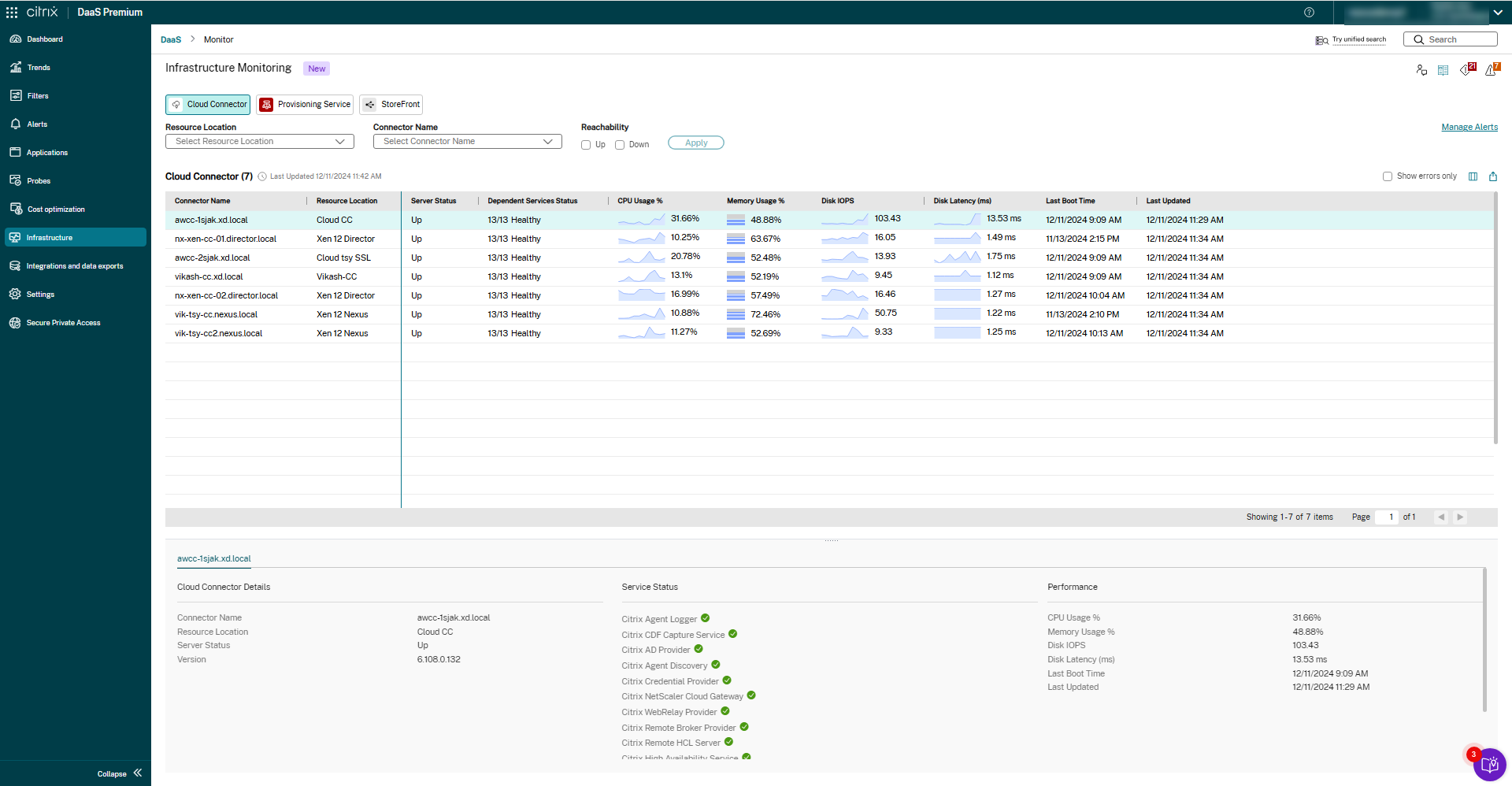
Citrix DaaS delivers virtual applications and desktops from public clouds, on-premises data centers, or a hybrid of both. Applications run on centrally managed infrastructure, and users connect from their own devices through the Citrix Workspace app or a browser, so business applications are hosted centrally rather than running on the endpoint.
The service combines Citrix DaaS Cloud and Citrix DaaS Local. Workloads can run on Microsoft Azure, Google Cloud Platform, AWS, and on-premises resources that are managed side by side. Organizations use it for hybrid workforces, onboarding and offboarding, and access from unmanaged endpoints.
Key features include:
- Hybrid multi-cloud deployment: Workloads can be hosted in Azure, Google Cloud Platform, AWS, or on-premises infrastructure and managed together.
- Security controls for unmanaged endpoints: Administrators can apply security features to protect unmanaged endpoints, set granular controls, and record user sessions.
- HDX optimization: HDX technology optimizes delivery over low-bandwidth connections, with targeted optimizations for unified communications tools and graphics-intensive applications.
- Centralized app and desktop management: IT manages applications and desktops centrally and delivers them to any device used by a distributed workforce.
- User environment management: A lightweight management layer accelerates logins, improves server scalability, and improves app response times.
- Onboarding and offboarding: IT can deploy resources to new users and revoke access as needed. A related product, Citrix SecurAccess ZTNA, adds zero trust access to IT-sanctioned apps without a VPN.
Limitations (as reported by users on G2):
- Latency and disconnects: Users report latency, slow application launches, and unexpected disconnects.
- Setup and administration: Setup, troubleshooting, and administration can be complex, with limited visibility into changes and issues.
- File handling between environments: Moving files and copying content between local and virtual desktops is less convenient.
- Support experience: Some users report slow support responses and difficult troubleshooting.
Source: Citrix
Secure Remote Desktop and Remote Support Platforms
5. TeamViewer Tensor
Best for: Enterprise remote support and access across IT, mobile, and OT devices
Strengths: Conditional access, SSO and MFA, end-to-end encryption, audit logs
Things to consider: Users report occasional lag and high licensing costs
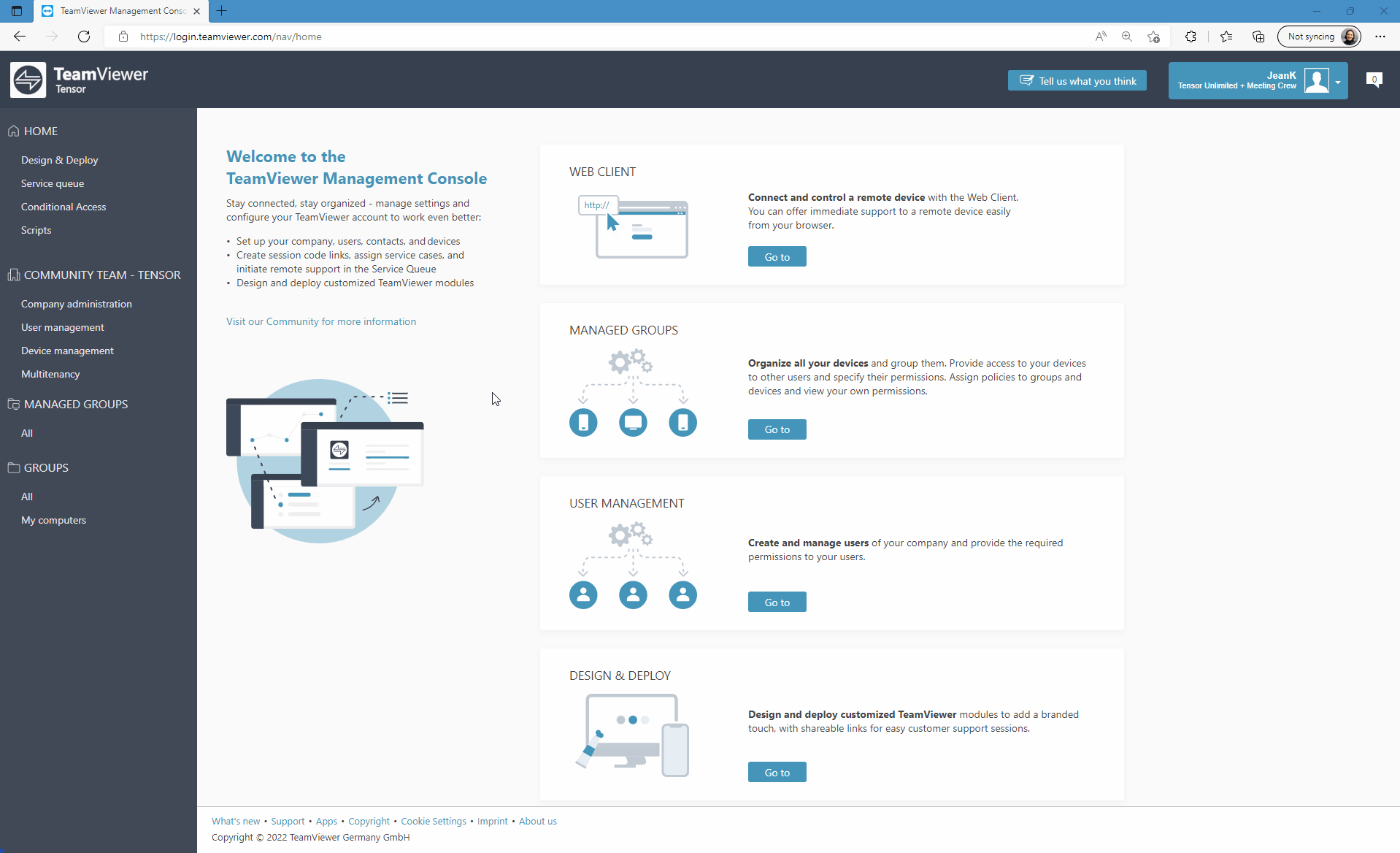
TeamViewer Tensor is the enterprise edition of TeamViewer’s remote connectivity software. It provides remote access, remote support, and device management for traditional IT endpoints, mobile devices, point-of-sale systems, embedded devices, and operational technology. It is cloud-based and can be deployed across operating systems at large scale.
Tensor integrates with identity, service management, and monitoring tools, including Microsoft Entra ID, Okta, ServiceNow, Salesforce, Microsoft Teams, and Intune. It supports ad hoc support sessions for employees as well as unattended access to devices, and TeamViewer AI adds troubleshooting assistance and session documentation.
Key features include:
- Conditional access: Rule-based permissions for users, groups, and devices control incoming and outgoing connections, file transfers, and script execution. Time-based and expiration rules restrict session windows for contractors and temporary staff.
- SSO, MFA, and user provisioning: SAML 2.0 single sign-on works with providers such as Microsoft Entra ID, Okta, OneLogin, ADFS, and Google Workspace, along with two-factor authentication and SCIM-based provisioning and deprovisioning.
- End-to-end encryption: Sessions use RSA-4096 key exchange and AES-256 encryption. Newer versions add mutually authenticated TLS 1.3, Perfect Forward Secrecy, and private keys that stay on the device.
- Bring Your Own Certificate (BYOC): Organizations can secure remote connections with their own TLS certificates.
- Auditability and Security Center: Audit trails and session logs record activity, and Security Center provides centralized monitoring, policy enforcement, and risk detection.
- Agentless access: Remote connectivity without installing software, used for industrial and closed devices.
- Windows LAPS integration and multitenancy: Just-in-time use of Windows LAPS credentials during sessions, and isolated environments for subsidiaries, departments, or clients under consolidated oversight.
Limitations (as reported by users on G2):
- Connection stability: Users report lag and unstable connections, especially on poor networks.
- Licensing cost: Some users describe licensing as expensive compared with other remote access tools.
- Add-on costs and reporting: Additional add-ons and integrations require extra payment, and reporting can be complex.
- Documentation: Some users find the documentation complex.
Source: TeamViewer
6. Splashtop Enterprise
Best for: Remote access to work computers and IT support in one platform
Strengths: SSO/SAML, granular access controls, session recording, SIEM
Things to consider: Users report slow or dropped file transfers
Splashtop Enterprise combines remote access for employees and contractors with remote support for IT teams. Remote Access licenses let users connect to their own work computers, while Remote Support licenses let technicians support and manage devices. The platform is available as a cloud service or as an on-premises deployment.
Unattended access covers Windows, Mac, Linux, and Android physical and virtual machines, and users can connect from any device. Remote Access licenses are per named user and cover up to 10 computers each, while Remote Support licenses are per concurrent technician and cover up to 300 endpoints each.
Key features include:
- SSO/SAML integration: Users authenticate through Okta, Azure AD, OneLogin, JumpCloud, Workspace ONE, Google Workspace, and other identity providers.
- Security and access controls: Two-factor authentication, endpoint MFA, end-to-end encryption, IP allowlisting, flexible user roles, group-based permissions, and scheduled access policies.
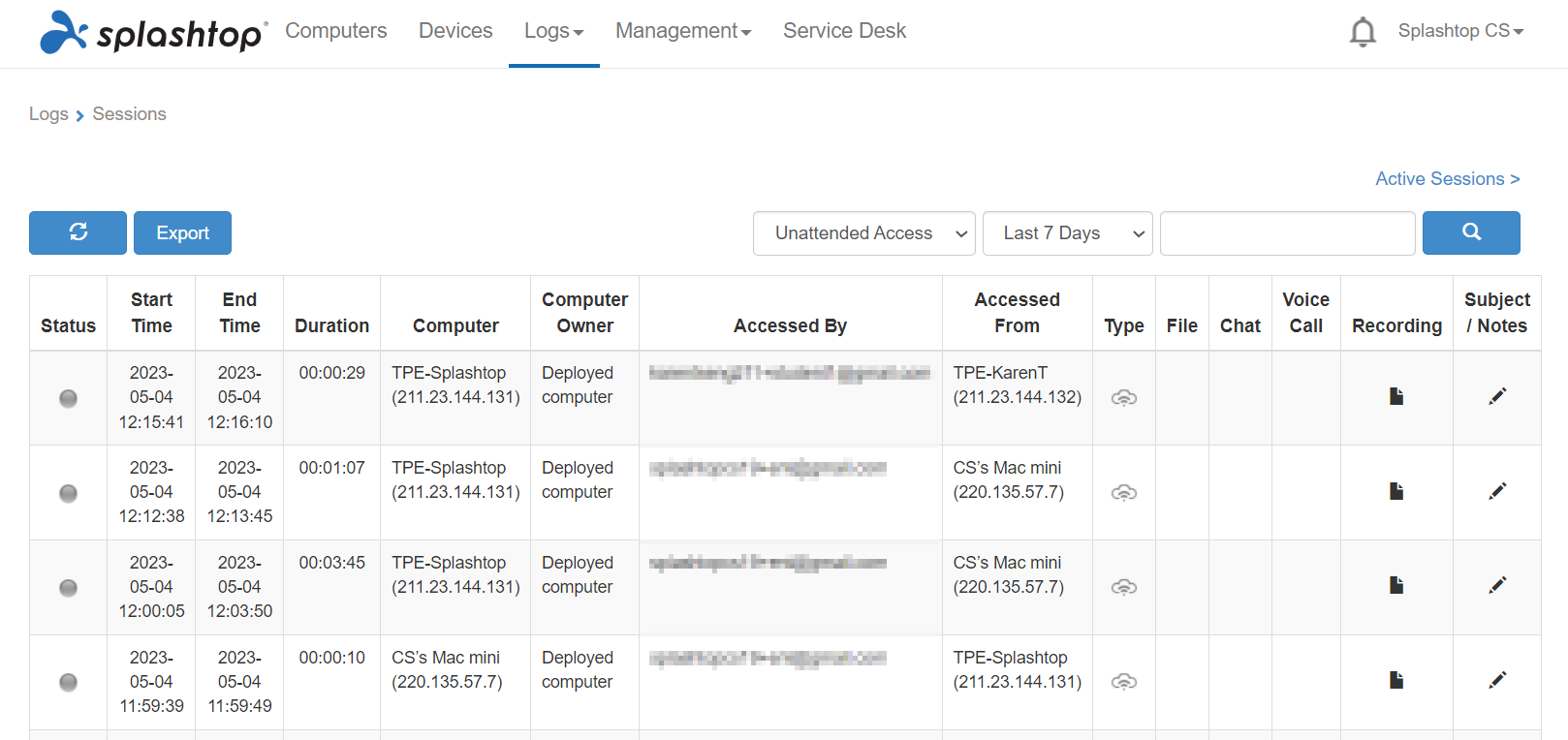
- Session recording and SIEM integration: Cloud session recording, session audit logging, and SIEM integration support real-time monitoring.
- Remote session controls: Sessions support 4K streaming at up to 60 frames per second, 4:4:4 color mode, redirection of USB devices such as smart cards and security keys, and local microphone input.
- On-demand support: Technicians start ad hoc sessions on computers and mobile devices with a session code, without a pre-installed agent, and can use background tools such as task manager and registry editor.
- Splashtop Connector: RDP, VNC, and SSH connections to computers and servers without a VPN or a remote access agent.
- Android and IoT access: Access and management of Android and IoT devices, including unattended access on supported models.
Limitations (as reported by users on TrustRadius):
- Connection interruptions: Users report occasional disconnects and speed issues, sometimes requiring several sessions to complete a single support call.
- File transfer reliability: File transfers can be slow or drop during sessions, and some users need to restart the connection.
- Mobile app usability: Selecting and moving multiple files in the mobile app can be difficult.
- Technical support: Some users report poor experiences with technical support.
Source: Splashtop
7. BeyondTrust Remote Support
Best for: Secure attended and unattended IT support for regulated enterprises
Strengths: Session auditing, vaulted credentials, least-privilege controls
Things to consider: Higher pricing and a learning curve for new users
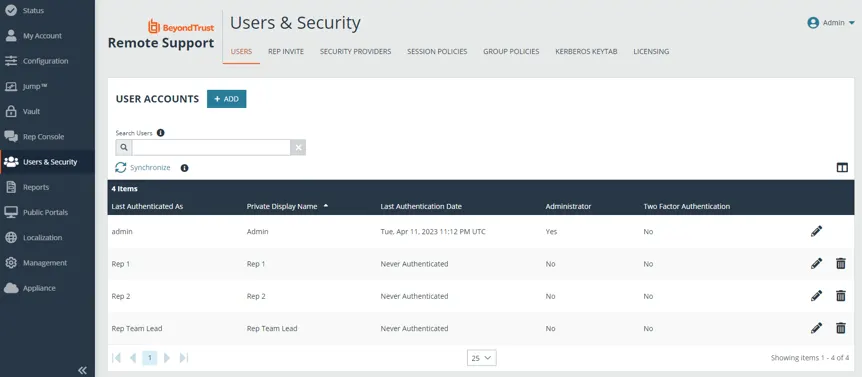
BeyondTrust Remote Support is a service desk tool for accessing, diagnosing, and fixing devices on or off the corporate network. It supports attended and unattended access to servers, workstations, network devices, kiosks, and other systems, and it is part of the BeyondTrust Pathfinder Platform for identity security.
Supported platforms include Windows, Linux, macOS, ChromeOS, iOS, and Android. Technicians work through a thick client, a browser-based console, or mobile access, and the product provides remote access without a VPN, with every session audited.
Key features include:
- Least-privilege controls: Advanced authentication, least-privilege permission controls, remote session logging and forensics, and architecture segmentation.
- Vaulted credentials: The Vault discovers, stores, rotates, and injects up to 100,000 credentials for service desk use.
- Jump Clients: Mass-deployable clients provide unattended and just-in-time access to systems.
- Auditing and compliance: All session activity is logged, with real-time reporting and video session recordings.
- Real-time dashboard: Supervisors see sessions, representatives, and agent status, and can transfer or take over sessions and monitor representatives’ desktops.
- Integrations and API: Out-of-the-box integrations with ITSM, CRM, SIEM, Active Directory, LDAP, and SAML, including two-way sync with ServiceNow, plus an open API for custom integrations.
- Automation at scale: Automated script execution, mass installers, and escalation features support large deployments.
Limitations (as reported by users on G2):
- Pricing: Users find it expensive compared with competing remote support products.
- Learning curve: New users find the product complex and time-consuming to learn.
- Dated interface: Some users describe the UI as outdated.
- Session elevation issues: Users report occasional problems with elevated sessions, for example after a device has been powered off for a few minutes.
Source: BeyondTrust
8. RealVNC Connect

Best for: Simple, secure remote access and support across desktop and mobile
Strengths: E2E encryption, self-expiring access codes, session recording
Things to consider: Users report slow support and occasional connection drops
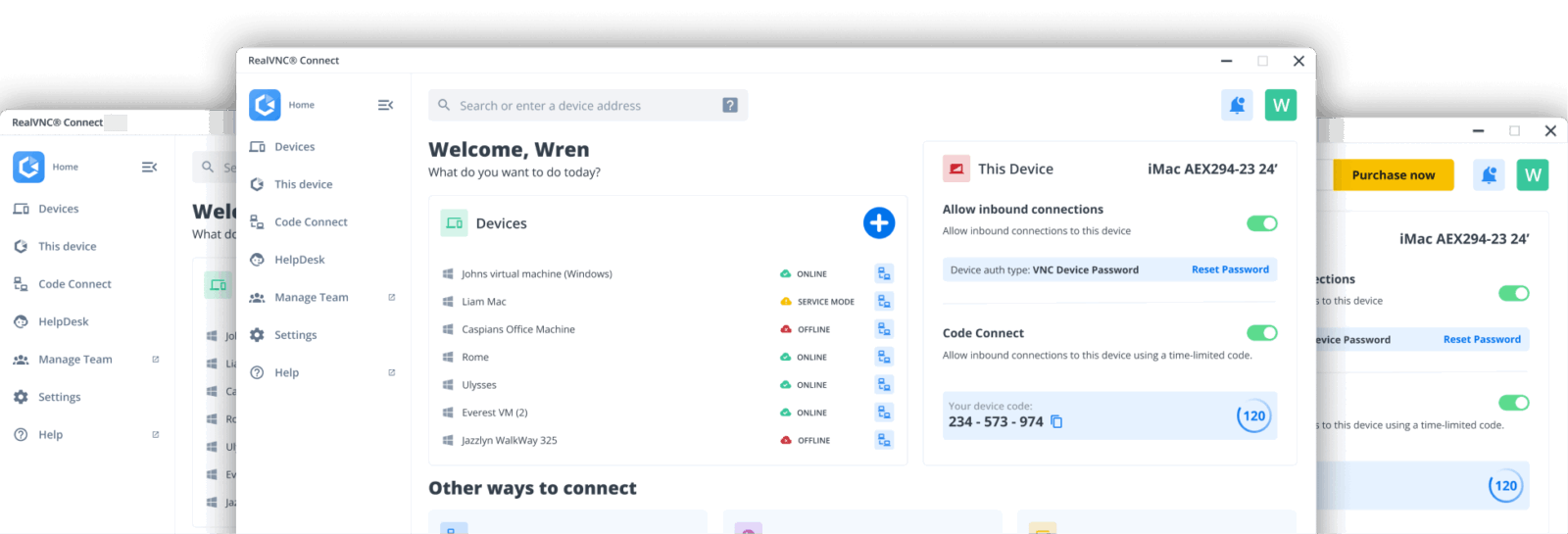
RealVNC Connect is remote access and remote support software from RealVNC, the company that created VNC technology. Version 8 combines RealVNC Viewer and Server into a single desktop application that covers device access for teams and on-demand support through the HelpDesk product.
RealVNC Connect works across Windows, macOS, Linux, iOS, and Android. The company reports compliance with frameworks including ISO 27001, SOC 2, HIPAA, and CCPA.
Key features include:
- Encryption and authentication: Every connection is end-to-end encrypted, with multiple authentication methods and customizable permission settings.
- Code Connect: Guest users request access with a session code that is replaced every two minutes. Guests must have their own RealVNC Connect account, and devices cannot be discovered without a code.
- On-Demand Assist: Technicians start support sessions with users who do not have the Connect app installed or admin rights. Users run a no-install app and enter a code, and sessions support recording, resume-on-reboot, and permissions escalation.
- Session recording: Sessions are recorded locally, and administrators can require recording for all sessions.
- In-session tools: Dual-pane file transfer, two-way chat, multi-monitor support with a separate window per remote monitor, and real-time annotations for drawing on the remote screen.
- Device management: Presence status indicators, multi-level device lists, favorites, and advanced filtering for working with large numbers of devices.
Limitations (as reported by users on G2):
- Support responsiveness: Some users report slow or unresponsive technical support.
- Connection reliability: Users describe short outages, failed connections, and slow reconnects, particularly over satellite connections.
- Update entitlement: Continued feature updates and support require renewing the support and updates entitlement.
- Authentication steps: Some users find the login authentication code process cumbersome.
Source: RealVNC
Conclusion
Choosing a secure multi-device remote access platform requires balancing security, device compatibility, application support, and ease of management. Organizations should evaluate whether they need secure access to corporate applications, isolated workspaces for BYOD users, or remote desktop control and IT support capabilities. Key considerations include identity-based access controls, encryption, data loss prevention, centralized policy enforcement, and session auditing. The right approach should protect corporate resources across managed and unmanaged devices while maintaining employee productivity, supporting existing workflows, and minimizing administrative complexity.

Any worker. Any laptop. Any AI workflow. Fully secured.
Schedule a demo to see how Blue Border® secures company data and apps without shipping laptops, running VDI, or managing personal endpoints.