
Top 8 Secure Remote Access Tools for Businesses In 2027


See Venn first in Google Search
Add as a preferred source on Google
TL;DR: Secure remote access tools let employees and contractors reach business apps and data from anywhere under identity, device, and data controls. Best for BYOD security: Venn Blue Border; for enterprise browser control: Island; for zero trust access to private apps: Zscaler Private Access; for simple VPN replacement: Twingate.
What Are Secure Remote Access Tools for Businesses?
When choosing a secure remote access tool for your business, the right choice depends on your team size, security requirements, and whether you need day-to-day work-from-home access or IT helpdesk support. These tools allow employees, contractors, and third-party users to access corporate applications, systems, and data from outside the traditional office environment.
Traditional remote access solutions, such as virtual private networks (VPNs) and virtual desktop infrastructure (VDI), typically provide network connectivity or access to centrally hosted desktops. Modern alternatives, including zero trust network access (ZTNA) and secure workspace solutions, focus on granting access to authorized resources while limiting unnecessary exposure of corporate systems and sensitive information.
Key security features to look for:
- Zero trust access controls: Enforces identity-based authorization, least-privilege permissions, and device security requirements.
- MFA and SSO: Strengthens authentication and simplifies access through centralized identity providers.
- Secure workspace isolation: Separates corporate applications and data from personal environments on shared devices.
- Data loss prevention: Restricts unauthorized copy/paste, downloads, uploads, file transfers, and screen captures.
- Application compatibility: Protects browser-based and locally installed business applications.
- Encrypted storage and remote wipe: Secures corporate files and enables selective removal of business data.
- BYOD and unmanaged device support: Protects corporate resources without requiring full device management.
- Application allowlisting: Prevents unauthorized software, browser extensions, and AI tools from accessing corporate data.
Free eBook:
Secure Remote Access that Doesn’t Drive Users Crazy!
Secure your entire extended workforce without issuing devices or VDI. Keep your organization agile, compliant, and secure.
In this article:
Secure Remote Access Tools for Businesses at a Glance
The table below summarizes the key differences between the secure remote access tools covered in this article. We explore each solution in more detail in the sections that follow.
| Category | Solution | Best For | Key Strengths | Things to Consider |
| Secure Workspace and Desktop Delivery | Venn Blue Border | BYOD and contractor laptops without VDI or full device management | Local secure enclave with DLP, app isolation, and AI governance | Some users report limited customization options |
| Secure Workspace and Desktop Delivery | Island Enterprise Browser | SaaS and web app access on managed and unmanaged devices | Browser-native last-mile DLP, conditional access, built-in ZTNA | Occasional lag and limited browser extension support |
| Secure Workspace and Desktop Delivery | Citrix DaaS | Hosted virtual apps and desktops across clouds and on-prem | HDX optimization, session recording, hybrid multi-cloud hosting | Needs strong connectivity; latency and licensing cost |
| Secure Workspace and Desktop Delivery | Windows 365 | Cloud PCs for remote, temporary, and frontline workers | Full Windows desktop in the cloud with Intune and Entra integration | Licensing costs and frequent re-authentication prompts |
| Zero Trust Network Access (ZTNA) | Zscaler Private Access (ZPA) | Replacing VPNs with app-level access to private apps | AI-driven app segmentation, inline inspection, integrated DLP | Disconnections, confusing error messages, high cost |
| Zero Trust Network Access (ZTNA) | Cloudflare Access | Identity-based access to self-hosted, SaaS, and non-web apps | Global edge network, clientless options, device posture checks | Policy management at scale; some settings are manual |
| Zero Trust Network Access (ZTNA) | Twingate | VPN replacement for cloud and on-prem resources | Fast deployment, IaC automation, device-based access controls | Complex policy setup; cost rises with seat count |
| Zero Trust Network Access (ZTNA) | Prisma Access | Consolidating ZTNA, SWG, and CASB in one SASE service | Cloud-delivered ZTNA, SWG, CASB, RBI, and FWaaS | Complex setup requiring Palo Alto expertise; high cost |
Why Businesses Need Secure Remote Access Tools
Remote and Hybrid Workforces Expand the Corporate Attack Surface
Remote and hybrid work arrangements allow employees to access corporate resources from home networks, public Wi-Fi connections, and geographically distributed locations. This flexibility increases the number of potential entry points into business systems, making traditional perimeter-based security controls less effective at protecting sensitive information.
Employees also rely on cloud applications, collaboration platforms, and locally installed software to perform their daily tasks. Without consistent access restrictions and data protection policies, compromised credentials, insecure connections, and unauthorized applications can expose corporate resources to attackers.
Secure remote access tools address these risks through identity verification, encrypted connections, least-privilege access, and continuous policy enforcement. Advanced solutions also protect corporate data at the endpoint, helping organizations maintain security regardless of where employees work.
Related content: Read our article about remote work security risks
BYOD and Unmanaged Devices Introduce Security Risks
Bring your own device (BYOD) policies allow employees to use personal computers for work, reducing hardware costs and improving flexibility. However, these devices may lack enterprise security configurations, endpoint monitoring, regular software updates, and other protections typically enforced on company-managed hardware.
Personal devices also create opportunities for corporate data to move into unmanaged applications, personal cloud storage, and unauthorized AI tools. For example, employees might copy sensitive information from a business application into a personal messaging platform or upload confidential documents to an unapproved AI service.
Secure remote access solutions can mitigate these risks by enforcing access policies and restricting how corporate information is handled. Secure workspace technologies provide additional protection by isolating business applications and data from personal environments, enabling organizations to implement DLP controls without taking full administrative control of employees’ devices.
Third-Party Contractors Require Secure Access to Business Resources
Businesses frequently collaborate with external contractors, consultants, service providers, and business process outsourcing (BPO) teams that require access to internal applications and sensitive information. These users often work on devices that the organization does not own or manage, creating challenges for consistent security enforcement.
Providing contractors with unrestricted network access or distributing company-managed hardware can introduce unnecessary security risks, operational overhead, and onboarding delays. Organizations must also ensure that external users cannot access resources beyond their assigned responsibilities or retain corporate information after their engagements end.
Secure remote access tools enable businesses to provide granular, identity-based access to approved applications and resources while enforcing restrictions on data transfers, downloads, and other activities. Secure workspace solutions can further separate corporate data from contractors’ personal environments, simplifying onboarding and offboarding without requiring full device enrollment.
Traditional VPNs and Remote Desktops Create Security and Usability Challenges
Traditional VPNs establish encrypted connections between remote devices and corporate networks, but some configurations provide broader network access than individual users require. If an attacker compromises a connected device or user account, excessive network permissions can increase the risk of unauthorized access and lateral movement.
Remote desktop and VDI solutions provide another approach by hosting applications and desktops on centralized infrastructure. Although these technologies can help keep sensitive data off local endpoints, they may introduce infrastructure costs, administrative complexity, and performance issues related to network latency and connectivity.
Modern secure remote access alternatives address these limitations through application-specific access, zero trust policies, and endpoint-level data protection. Secure workspace solutions allow authorized applications to run locally within an isolated corporate environment, reducing reliance on remote desktop infrastructure while maintaining separation between business and personal data.
Related content: Read our article about remote access protocols
Key Features to Look for in Secure Remote Access Tools
Zero Trust Security and Identity-Based Access Controls
Secure remote access tools should follow zero trust principles, requiring users and devices to meet explicit security requirements before accessing corporate resources. Rather than automatically trusting users connected to an internal network, these solutions should enforce deny-by-default policies and grant access only to authorized applications and data.
Identity-based access controls allow administrators to define permissions based on:
- User roles
- Group memberships
- Device security posture
- Other contextual factors
Organizations should prioritize solutions that support least-privilege access, preventing employees and contractors from accessing resources beyond their responsibilities.
Multi-Factor Authentication (MFA) and Single Sign-On (SSO)
Multi-factor authentication adds an additional verification step beyond passwords, reducing the likelihood that stolen credentials alone will provide unauthorized access to corporate systems. Secure remote access tools should integrate with existing identity providers and support authentication methods such as:
- Authenticator applications
- Hardware security keys
- Phishing-resistant MFA
Single sign-on simplifies access by allowing employees to authenticate through a centralized identity provider rather than managing separate credentials for every application. Integration with platforms such as Microsoft Entra ID and Okta can also help organizations enforce consistent authentication policies and streamline user provisioning and deprovisioning.
Secure Workspace Isolation Between Corporate and Personal Environments
Secure workspace isolation separates business applications, files, and activities from personal environments on the same endpoint. This is especially important for BYOD and contractor devices, where organizations need to protect corporate information without taking full administrative control of the computer.
Solutions that use secure enclaves can establish a company-controlled environment in which authorized applications run locally while remaining isolated from personal applications and files. Security teams can enforce policies within this environment without monitoring employees’ personal activities, balancing corporate security requirements with user privacy.
Data Loss Prevention (DLP) for Copy/Paste, Downloads, Uploads, and File Transfers
Data loss prevention capabilities help organizations control how sensitive information moves between corporate applications, personal environments, and external services. Secure remote access tools should allow administrators to restrict high-risk actions, including:
- Copying corporate data into personal applications
- Downloading confidential files
- Uploading sensitive documents to unauthorized websites
Granular DLP policies should also cover drag-and-drop operations, printing, screen capture, and file transfers between applications. Ideally, these restrictions can be configured according to user roles, applications, and business requirements, allowing legitimate workflows while reducing the risk of accidental or intentional data exposure.
Secure Access to Browser-Based and Locally Installed Applications
Modern employees rely on both browser-based SaaS platforms and locally installed applications to perform their work. Secure remote access tools should protect access to cloud services, collaboration platforms, productivity software, and specialized desktop applications without introducing unnecessary workflow disruptions.
Organizations should prioritize solutions that enforce consistent security policies across both application types. Secure workspace technologies can allow browser-based and desktop applications to run locally within an isolated environment, preserving native application performance while applying access restrictions and DLP controls. This can reduce dependence on virtual desktop infrastructure for everyday business applications.
Encrypted Corporate File Storage and Remote Wipe Capabilities
Secure remote access solutions should protect corporate files through encryption and controlled storage environments. Data stored locally on employee or contractor devices should remain separate from personal files, with access restricted to authorized users and applications.
Remote wipe capabilities provide an additional layer of protection when devices are lost, stolen, or no longer authorized to access corporate resources. Organizations should look for solutions that can selectively remove corporate applications, files, and workspace data without deleting personal information. This enables secure employee offboarding and contractor access termination without requiring physical access to the device.
BYOD and Unmanaged Device Support Without Full Device Management
Businesses increasingly need to provide secure access to employees and contractors using personal or third-party devices. Traditional mobile device management (MDM) and endpoint management solutions may require:
- Extensive administrative permissions
- Device enrollment
- Restrictions that users are unwilling or unable to accept
Secure remote access tools should support unmanaged devices while allowing IT teams to enforce corporate security policies. Secure workspace solutions achieve this by creating an isolated, company-controlled environment on the endpoint rather than managing the entire device. This approach can simplify deployment, reduce hardware provisioning costs, and protect employee privacy while maintaining control over business data.
Application Allowlisting and Restrictions on Unauthorized Software
Application allowlisting allows organizations to define which applications are authorized to operate within the corporate environment. Instead of relying exclusively on blocklists of known threats, allowlisting follows a deny-by-default approach that restricts unapproved software from accessing protected business resources.
Secure remote access tools should enable administrators to approve applications based on organizational requirements and enforce restrictions on:
- Unauthorized software
- Unauthorized browser extensions
- Unapproved AI tools
Within secure workspaces, these controls can prevent unapproved applications from accessing corporate data while allowing employees to continue using personal software outside the protected environment.
Notable Secure Remote Access Tools for Businesses
How we selected these tools: We shortlisted secure remote access tools for businesses based on identity-based access controls, data loss prevention, support for unmanaged and BYOD devices, and protection for browser-based and locally installed applications.
Secure Workspace and Desktop Delivery Solutions
1. Venn Blue Border

Best for: BYOD and contractor laptops without VDI or full device management
Strengths: Local secure enclave with DLP, app isolation, and AI governance
Things to consider: Some users report limited customization options
Venn’s Blue Border is a secure workspace that installs a company-controlled, encrypted enclave on a Mac or PC. Work applications, files, network traffic, and AI tools run locally inside the enclave under IT policy and DLP controls. Everything outside the enclave stays private to the user.
Blue Border supports full-time employees, contractors, offshore teams, and BPO staff on company-issued, third-party, or personal devices, whether managed or unmanaged. It does not stream desktops or virtualize applications, and IT manages only the contents of the enclave rather than the entire device.
Key features include:
- Company-controlled secure enclave: Creates an isolated, encrypted workspace directly on the endpoint. Business activity inside the enclave is separated from all other use of the computer, and work application windows are marked with a blue border.
- Local execution of installed and web apps: Runs locally installed and browser-based applications natively inside the enclave, including Chrome, Office, Slack, Zoom, Teams, Salesforce, SAP, CAD tools, and custom line-of-business apps, without VDI.
- Data loss prevention: Applies DLP and clipboard controls to work data inside the enclave, including copy/paste, uploads, and prompts entered into AI tools.
- AI governance: Lets IT approve specific AI tools and company tenants, block unapproved AI by tool or category, and restrict corporate AI access to dedicated IPs. Browser AI and desktop AI apps such as Claude, Cowork, and Claude Code are governed the same way.
- BYOD support without device management: Leaves device configurations and personal activity untouched. Management and data removal apply only to the contents of the enclave.
- User privacy: Personal apps, files, and browsing outside the enclave cannot be seen, tracked, or monitored by the company or by Venn.
- Onboarding, offboarding, and compliance: Gives workers access in minutes and revokes it instantly. Provides audit logs and visibility into enclave activity, with controls that support HIPAA, FINRA, PCI, and SOC 2 requirements.
Limitations (as reported by users on G2):
- Limited customization: Some users note that customization options are limited, although they report it does not affect day-to-day use.
- Support scheduling: Support calls are routed to the next available team member, so users cannot book time with a specific support contact.
- Occasional application stability: Some users report intermittent stability issues with specific applications, such as Microsoft Outlook.
2. Island Enterprise Browser

Best for: SaaS and web app access on managed and unmanaged devices
Strengths: Browser-native last-mile DLP, conditional access, and built-in ZTNA
Things to consider: Users report occasional lag and limited extension support
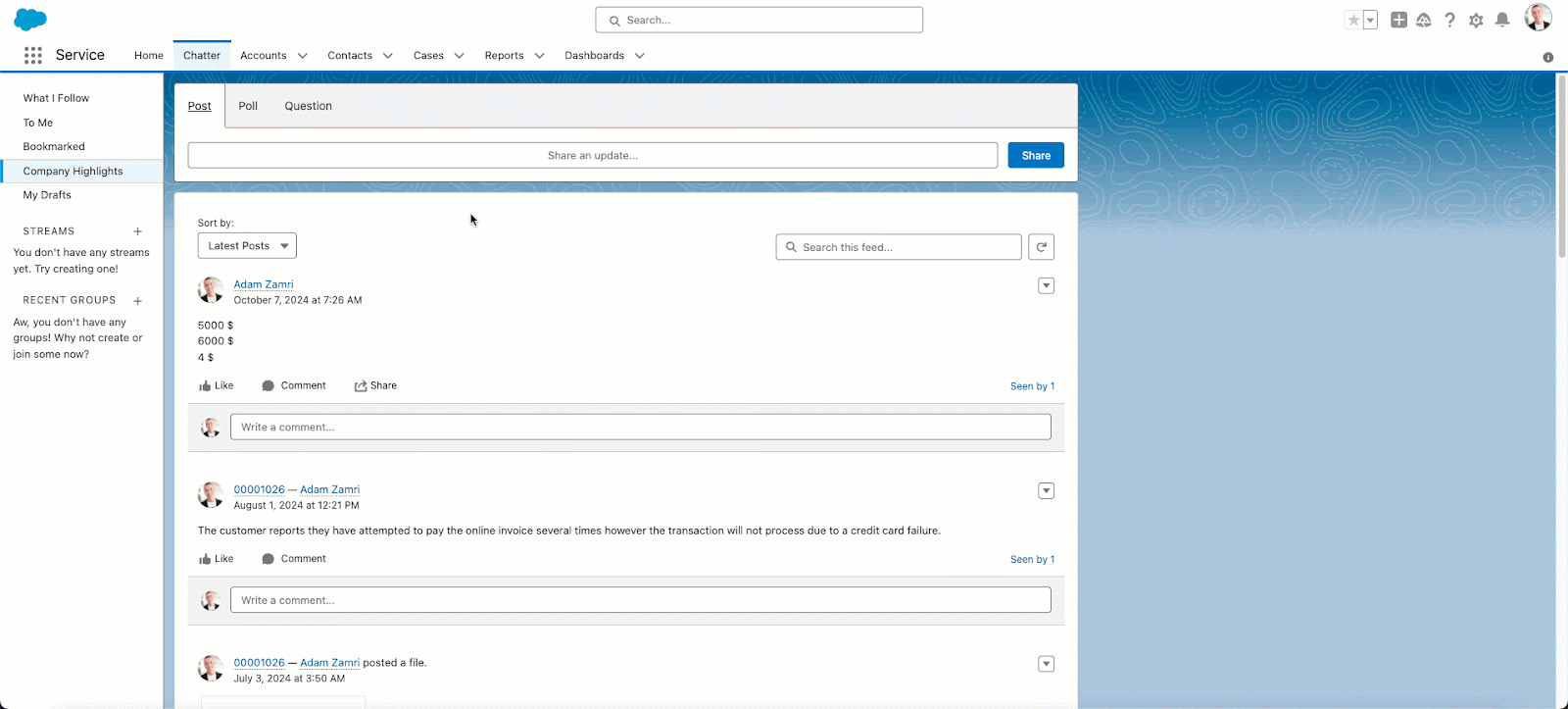
Island Enterprise Browser is a Chromium-based browser with access, security, and management controls built into it. Administrators set policies in the browser that determine which applications users can reach and what they can do with data inside those applications.
Island is available as a full browser for Windows, macOS, Linux, and ChromeOS, as a mobile app for iOS, iPadOS, and Android, and as an extension for Chrome, Edge, Safari, and Firefox. Work and personal browsing are separated, and a privacy indicator shows users when their activity is monitored.
Key features include:
- Conditional application access: Evaluates identity, device, network, location, and application context inside the browser before granting access to an application.
- Device posture assessment: Checks whether devices meet policy requirements and extends policy controls to some applications outside the browser, such as Zoom, Slack, Teams, and WhatsApp.
- Last-mile data protection: Applies context-based policies to print, download, screenshot, and copy/paste actions, including some actions outside the browser, while allowing data to move between approved enterprise apps.
- Zero trust network access: Provides ZTNA to private applications from within the browser, without a separate agent.
- Web threat protection: Blocks malware, phishing, session hijacking, man-in-the-browser attacks, and other browser exploits.
- Activity logging and privileged access: Records work activity in detail and shares analytics with SIEM tools. For admin consoles and backend systems, it enforces posture and authentication checks and captures full session details.
- Application automation: Modifies web application behavior and automates workflows without changes to application source code.
Limitations (as reported by users on G2):
- Restrictive daily workflows: Some users find restrictions on copy/paste, screen sharing, and data transfers inconvenient and would like more flexible, role-based options.
- Performance: Users report occasional lag, slow tab switching, and compatibility issues.
- Limited extensions: Some users note that Island supports fewer extensions than Chrome or Edge.
- Policy management: Conflicting policies can be hard to manage because rule priority is based on rule order.
- RDP client gaps: Users note that the built-in RDP client lacks some features available in the Microsoft desktop RDP client.
- Component dependencies: Island Desktop requires Island Browser to be installed.
Source: Island
3. Citrix DaaS
Best for: Delivering hosted virtual apps and desktops across clouds and on-prem
Strengths: HDX optimization, session recording, and hybrid multi-cloud hosting
Things to consider: Needs strong connectivity; users cite latency and licensing cost
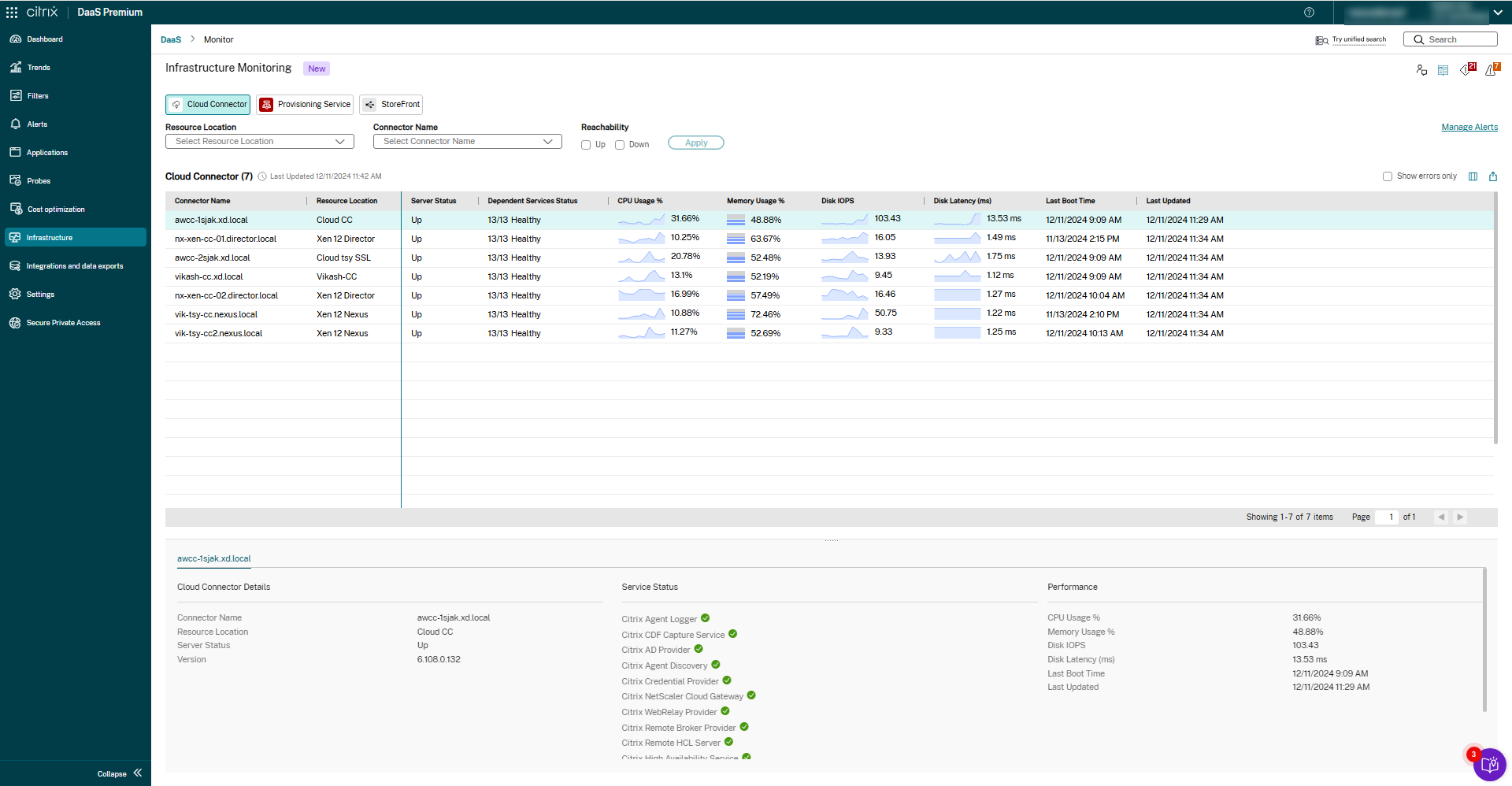
Citrix DaaS delivers virtual applications and desktops from cloud, on-premises, or hybrid infrastructure. Applications and data run on centrally hosted resources, and users connect to them from their own devices through the Citrix Workspace app client.
Citrix DaaS combines Citrix DaaS Cloud and Citrix DaaS Local. It is part of the broader Citrix platform, which also includes Citrix DaaS Flex, Citrix SecurAccess ZTNA, and Citrix Experience Insights.
Key features include:
- Hybrid multi-cloud hosting: Hosts virtual app and desktop workloads on Microsoft Azure, Google Cloud Platform, AWS, or on-premises infrastructure, and manages cloud and on-premises resources together.
- Endpoint and session security: Provides security controls for unmanaged endpoints, granular access policies, and session recording.
- HDX optimization: Optimizes the session experience over low bandwidth, with specific optimizations for unified communications tools and graphics-intensive applications.
- Centralized app and desktop management: Manages applications and desktops centrally for distributed users on any device, with a user environment management component that speeds up logins and application response times.
- Onboarding and offboarding: Deploys IT resources to new users and revokes access when needed.
- Security analytics: Uses analytics to monitor and protect users, the IT environment, and content.
Limitations (as reported by users on G2):
- Connectivity dependence: Users note that the service requires a constant, strong internet connection.
- Latency: Some users report slowness and latency, particularly when network bandwidth is insufficient.
- Licensing cost: Several reviewers describe licensing as more expensive than other VDI solutions.
- Collaboration app performance: Some users report that HDX optimization for Teams audio and video calls inside virtual desktops could be improved.
- Fit for smaller organizations: Some reviewers consider the solution less suited to small businesses.
Source: Citrix
4. Windows 365

Best for: Providing cloud PCs for remote, temporary, and frontline workers
Strengths: Full Windows desktop in the cloud with Intune and Entra integration
Things to consider: Users cite licensing costs and frequent re-authentication prompts
Windows 365 is Microsoft’s Cloud PC service. It hosts a full Windows desktop in the cloud, and users connect to it from Windows, Mac, iOS, or Android devices. IT teams deploy and manage Cloud PCs with the same tools they use for physical PCs.
Windows 365 is offered in several editions: Business for up to 300 users, Enterprise for larger organizations managed through Microsoft Intune, Flex for part-time or shift-based use, Reserve for temporary Cloud PCs, Government, and a plan for running AI agents.
Key features include:
- Cloud PCs on any device: Streams a full Windows experience to the user’s device of choice, so corporate applications and data run in the cloud rather than on the endpoint.
- Zero trust security model: Provides Cloud PCs designed to follow zero trust principles, with built-in data protection and compliance controls.
- Intune and Entra ID management: Configures, deploys, and manages Enterprise and Flex Cloud PCs with Microsoft Intune, with Windows Enterprise, Intune, and Microsoft Entra ID as prerequisites. Business Cloud PCs can be managed from the Microsoft 365 admin center or the Windows App.
- Shared and part-time licensing: Flex supports up to three dedicated Cloud PCs per license with one active at a time, or a shared Cloud PC used by one active user at a time.
- Scalable compute options: Offers Cloud PCs with up to 32 vCPUs, 128 GB RAM, and 2 TB storage, plus GPU-enabled Cloud PCs for graphics-intensive workloads.
- Contractor and BYOD scenarios: Provides secure Cloud PCs for onboarding temporary workers and contractors, and for BYOD users whose identity, access, and data need protection.
Limitations (as reported by users on Gartner Peer Insights):
- Licensing cost: Several reviewers describe licensing as costly.
- Disruptive updates: Some users report that system updates changed the user experience and triggered forced restarts, reducing productivity.
- Re-authentication prompts: Users report frequent prompts to sign in again during the day.
- Integrations and management: Some reviewers would like more integrations with their technology stack and more organization and management capabilities.
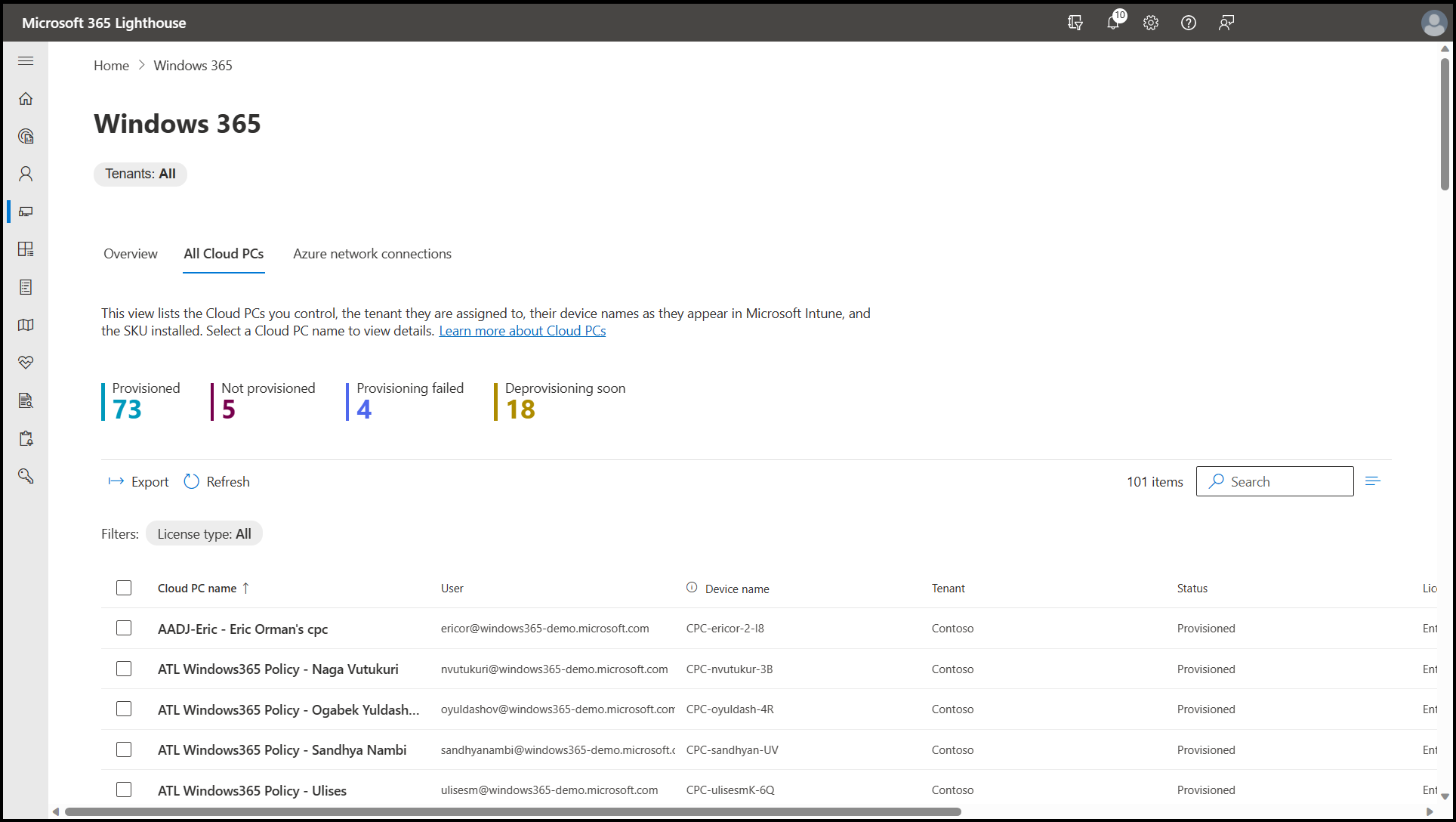
Source: Microsoft
Zero Trust Network Access (ZTNA) Solutions
5. Zscaler Private Access (ZPA)
Best for: Replacing VPNs with app-level zero trust access to private apps
Strengths: AI-driven app segmentation, inline inspection, and integrated DLP
Things to consider: Users report disconnections, confusing errors, and high cost
Zscaler Private Access (ZPA) is a ZTNA service delivered through the Zscaler Zero Trust Exchange cloud platform. It creates one-to-one connections between authorized users and specific applications, so users never join the corporate network and applications are not exposed to the public internet.
ZPA covers private applications, cloud workloads, and OT systems. It supports remote users, office users, and third parties on managed devices, as well as BYOD and unmanaged devices through agentless access.
Key features include:
- AI-powered app segmentation: Discovers applications automatically and uses AI-generated recommendations to define app segments and access policies that limit lateral movement.
- Privileged remote access: Provides clientless remote access to RDP, SSH, and VNC production systems for remote workers and third parties.
- Browser access for unmanaged devices: Connects users to applications through browser-based access, including agentless access for BYOD and contractor devices.
- Inline inspection and AppProtection: Inspects all private app traffic in a cloud proxy architecture, with Layer 7 inspection against web and identity attacks.
- Data protection: Includes web DLP with exact and indexed data matching, endpoint DLP with removable media controls, and browser isolation that runs private app sessions in isolated web sessions.
- Business continuity: Maintains policy-enforced access to critical applications during connectivity outages.
- Private service edge: Applies the same direct, least-privilege user-to-app access to users in on-premises locations.
Limitations (as reported by users on G2):
- Connection issues: Users report random disconnections, unexpected logouts, and problems when switching networks.
- Error handling: Some users find error messages unclear, which makes troubleshooting connectivity problems harder.
- Cost: Several reviewers describe ZPA as expensive, particularly for smaller organizations.
- Learning curve: Users note that initial configuration and administration take time and effort.
- Performance: Some users report slow loading times when accessing sites and applications.
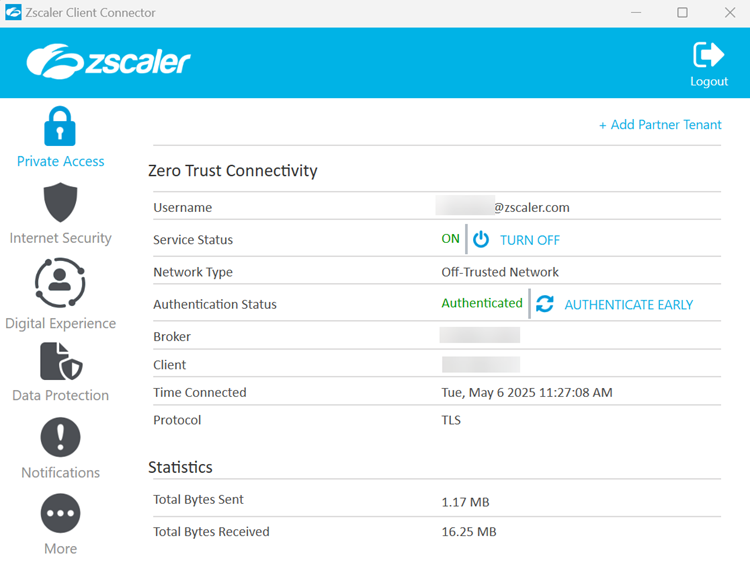
Source: Zscaler
6. Cloudflare Access
Best for: Identity-based access to self-hosted, SaaS, and non-web apps
Strengths: Global edge network, clientless options, and device posture checks
Things to consider: Policy management at scale and some settings require manual work
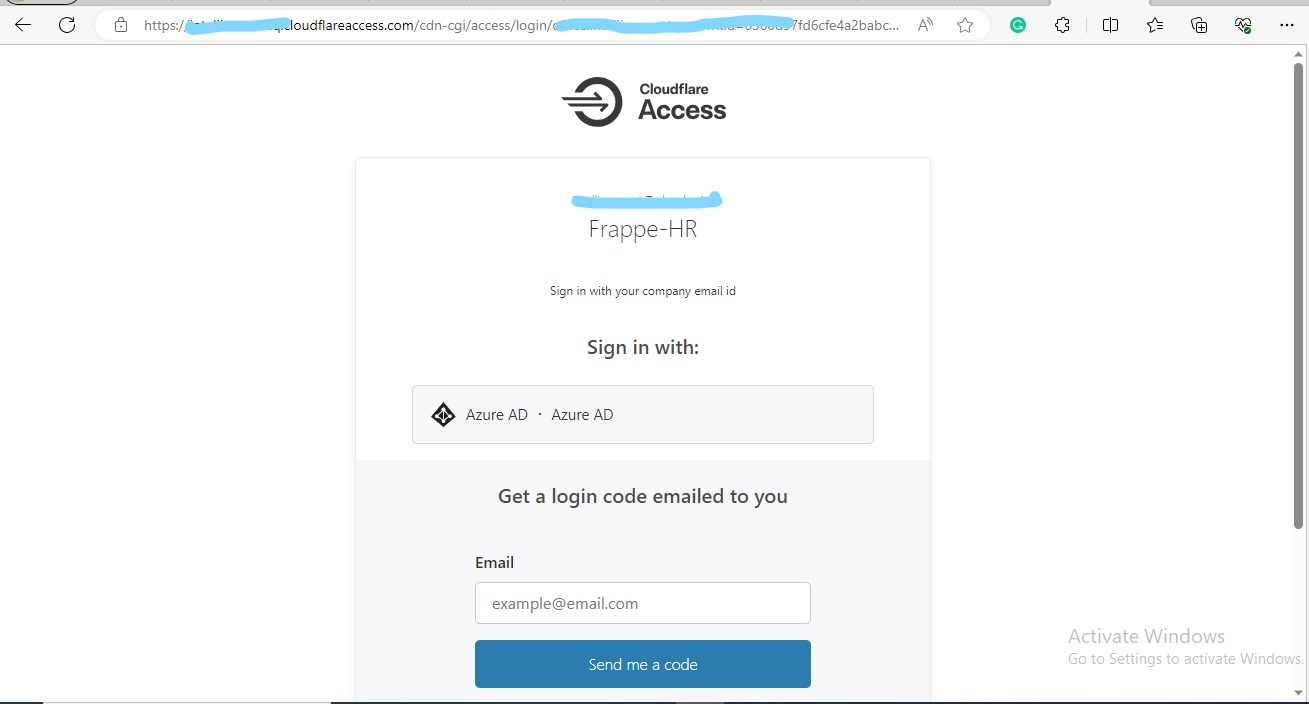
Cloudflare Access is the ZTNA component of Cloudflare One, Cloudflare’s SASE platform. It verifies identity and device context on every request to self-hosted, SaaS, and non-web applications, including AI tools and MCP servers, and replaces VPN connections to internal resources.
Access runs on Cloudflare’s global network, which spans 330 cities in 125 countries. It is available in a free plan for up to 50 users, a pay-as-you-go plan, and contract plans for full SSE or SASE deployments.
Key features include:
- Context-based access policies: Grants access based on identity provider groups, geolocation, device posture, session duration, and external APIs, with support for temporary authentication and purpose justification.
- Identity provider integration: Authenticates users through enterprise and social identity providers, including several at once, as well as generic SAML and OIDC connectors.
- Clientless access: Provides access to web applications and browser-based SSH and VNC without a device client, which can be used for contractors and other third parties.
- Device client and app connectors: Offers a device client for Windows, Mac, iOS, Android, Linux, and ChromeOS, and connectors that link internal resources to Cloudflare without a publicly routable IP address.
- Data controls: Adds DLP inspection, SaaS tenant controls, file upload and download controls, and optional remote browser isolation that restricts copy/paste, downloads, uploads, and printing in isolated sessions.
- Logging and visibility: Records access and authentication logs, application connector logs, and full SSH command logs.
Limitations (as reported by users on Gartner Peer Insights):
- Dashboard visibility: Some users note that the dashboard does not show certain details technical teams need, such as on-ramp connection and device profile assignment.
- Manual configuration: Users report that some settings, such as routes and split tunneling, must be configured manually.
- Policy management at scale: Some reviewers find the policy dashboard difficult to manage in large organizations.
- Device client issues: Users report that the device client can cause issues for individual users across the organization.
- Add-on costs: Some reviewers note that dedicated egress IPs must be purchased separately.
Source: Cloudflare
7. Twingate
Best for: VPN replacement for teams accessing cloud and on-prem resources
Strengths: Fast deployment, IaC automation, and device-based access controls
Things to consider: Policy and group setup can be complex; cost rises with seat count
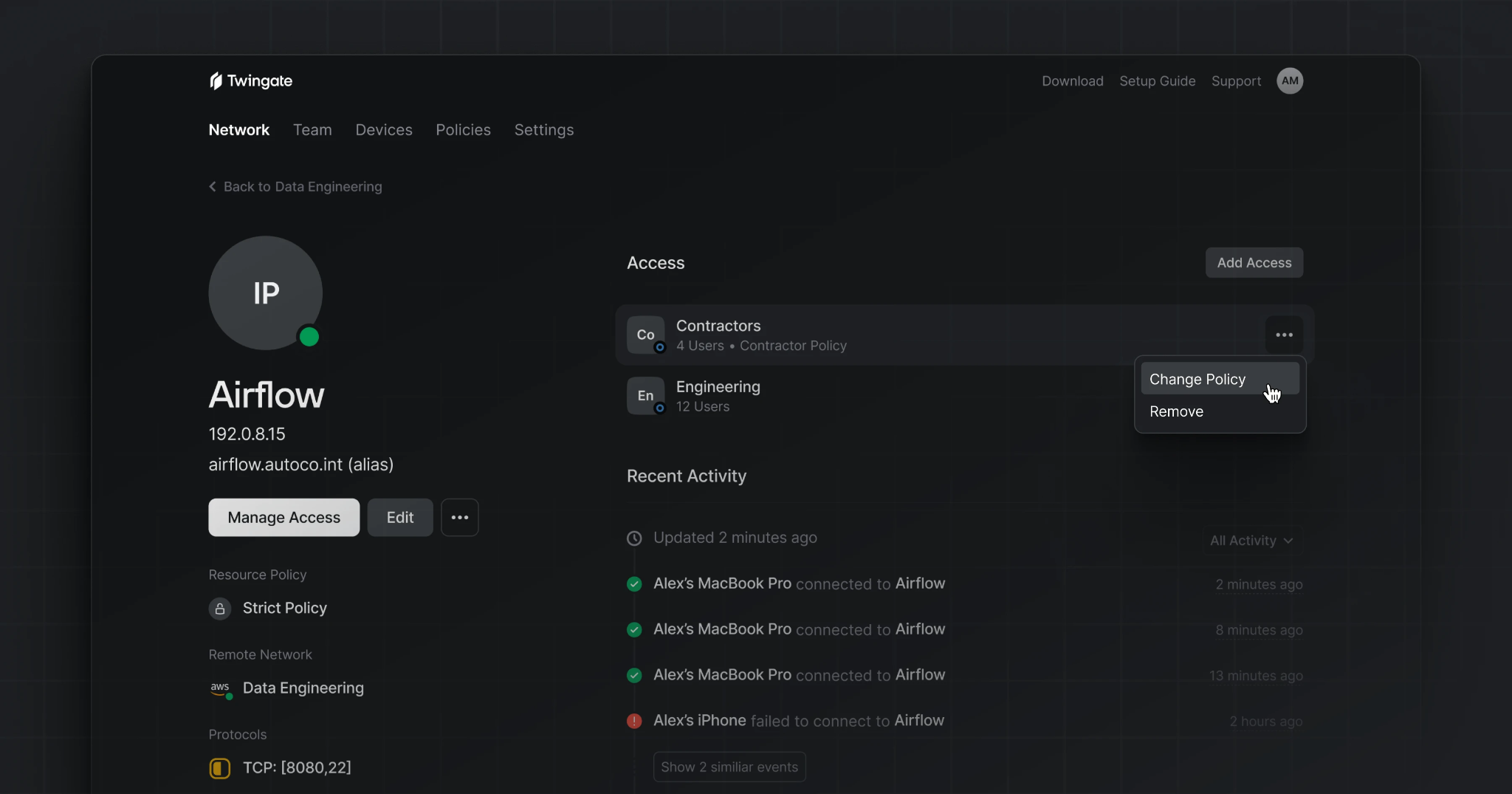
Twingate is a zero trust access platform that provides identity-based access to private resources for users, services, and AI agents. It connects users directly to individual resources without central tunnels and works across cloud and on-premises environments.
Alongside private access, Twingate includes internet security features such as DNS and content filtering. Clients are available for macOS, Windows, Linux, ChromeOS, iOS, and Android.
Key features include:
- VPN replacement: Provides remote access to office networks, cloud VPCs, and other private resources without a traditional VPN.
- Least privilege access: Applies automated access controls at the network layer, so users reach only the resources assigned to them.
- Device controls: Grants or blocks access based on specific device requirements, with device verification through integrations such as CrowdStrike, Microsoft Intune, Jamf, and Iru.
- Identity integrations: Syncs users and groups from Microsoft Entra ID, Okta, Google Workspace, OneLogin, KeyCloak, and JumpCloud.
- Identity firewall: Enforces least-privilege access at the resource, database, and application level for both users and AI agents, with detailed per-user activity logs.
- DNS and content filtering: Detects and blocks malicious and unwanted web domains using threat intelligence feeds and filtering rules.
- Zero trust as code: Deploys and manages configurations with Terraform, Pulumi, or the Twingate API.
Limitations (as reported by users on G2):
- Policy configuration: Users report that policy and group configuration can be convoluted to set up.
- Temporary external access: Some users find managing temporary access for external users challenging.
- Pricing at scale: Some reviewers note that pricing could become an issue with large numbers of seats.
- Client behavior: Some users dislike that the client always runs in the system tray, including after reboot.
- Client reliability: Users report occasional issues with client installation and network stability for globally distributed users.
Source: Twingate
8. Prisma Access
Best for: Enterprises consolidating ZTNA, SWG, and CASB in one SASE service
Strengths: Cloud-delivered ZTNA, SWG, CASB, RBI, and FWaaS in one platform
Things to consider: Complex setup that often requires Palo Alto expertise; high cost
Prisma Access is Palo Alto Networks’ cloud-delivered security service and part of the Prisma SASE platform. It combines ZTNA, secure web gateway, CASB, remote browser isolation, and firewall as a service to protect remote users, branch offices, applications, and data.
Prisma Access uses Palo Alto’s Precision AI for threat prevention. Networking and security policies are managed from a single unified console.
Key features include:
- Zero trust network access: Provides least-privileged access to applications without a traditional VPN, removing implicit trust and limiting the attack surface.
- Secure web gateway: Protects users’ web access with real-time inspection that blocks web-based threats.
- Cloud access security broker: Provides visibility and control over applications through SaaS security posture management, inline and API-based controls, and contextual policies for sensitive data.
- Prisma Agent: Connects users across SASE and on-premises firewall deployments through a single unified endpoint agent.
- Remote browser isolation: Runs browsing sessions in remote browsers so malware and web-based threats do not reach endpoint devices.
- Firewall as a service: Delivers cloud-native network security with threat prevention, application control, and zero trust policies.
- Service resilience: Offers a 99.999% uptime SLA and allows organizations to temporarily exceed purchased mobile user licenses during emergencies.
Limitations (as reported by users on G2):
- Complex setup: Users report that initial deployment and configuration are time-consuming and often require in-depth knowledge of the Palo Alto Networks ecosystem.
- Cost: Several reviewers describe pricing and licensing as high compared to competing solutions.
- Vendor lock-in: Some users note that deep integration with other Palo Alto products can make a future move to another vendor resource-intensive.
- Interface and documentation: Some users find the user interface hard to navigate and would like better documentation and tutorials.
- Support experience: Some reviewers report difficulty resolving issues through customer support.
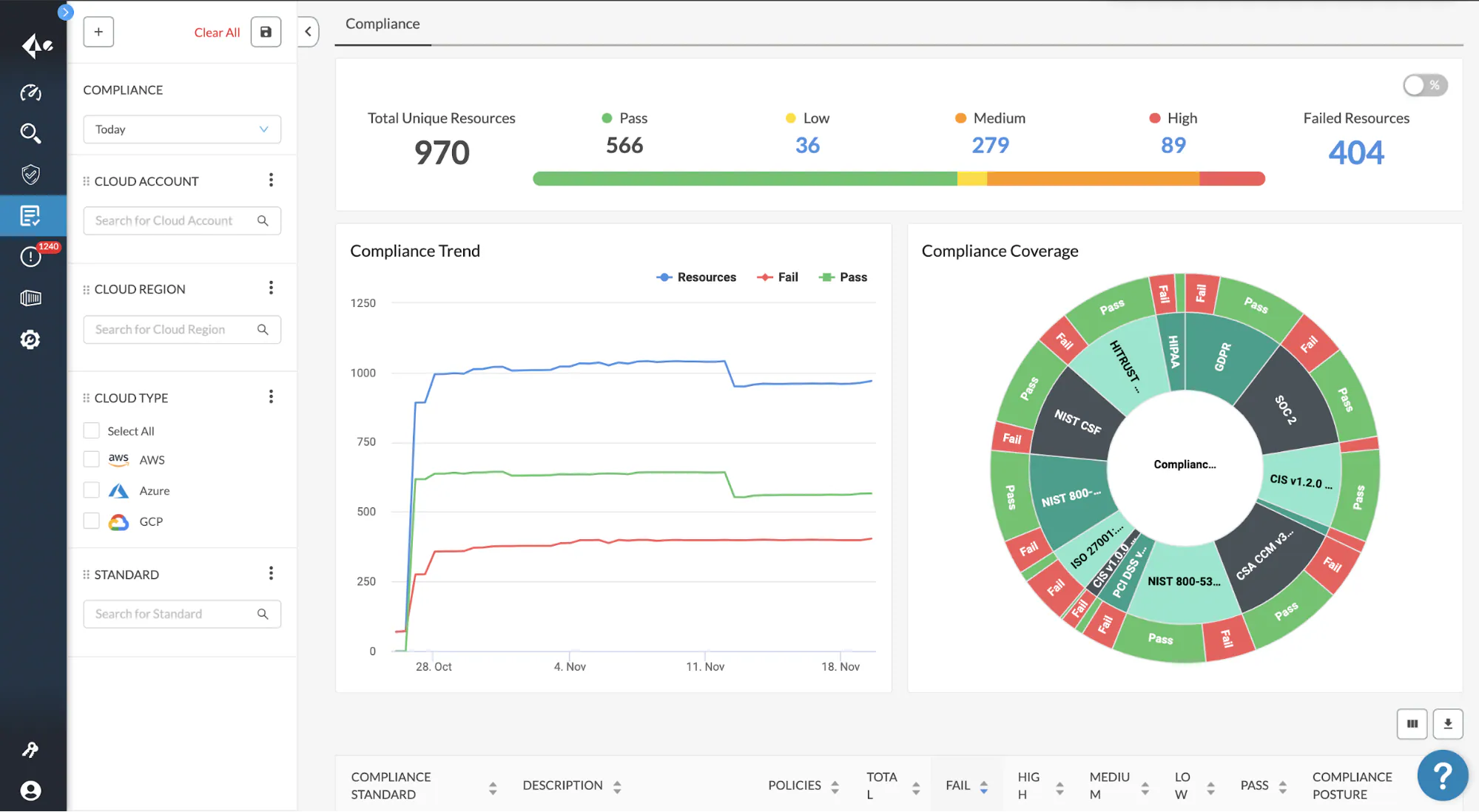
Source: Palo Alto Networks
Conclusion
Choosing a secure remote access tool requires evaluating how employees and contractors connect to corporate resources, which applications they use, and whether their devices are managed or personally owned. Traditional remote desktop solutions provide centralized application delivery, while zero trust access platforms restrict connections to authorized resources and secure workspace solutions protect corporate data directly on endpoints. Organizations should prioritize identity-based authentication, least-privilege access, data loss prevention, application compatibility, and secure offboarding.

Any worker. Any laptop. Any AI workflow. Fully secured.
Schedule a demo to see how Blue Border® secures company data and apps without shipping laptops, running VDI, or managing personal endpoints.