
Most Reliable Remote Access Tools for Employees: Top 8 In 2027

See Venn first in Google Search
Add as a preferred source on Google
TL;DR: Reliable remote access tools for employees give staff secure, consistent access to business apps and data from any location and device. Venn is best for securing work on BYOD and unmanaged laptops, Citrix DaaS for enterprise virtual desktops, Zscaler Private Access for replacing VPNs with ZTNA, and Windows 365 for Microsoft Cloud PCs.
What Are Reliable Remote Access Tools for Employees?
Reliable remote access tools let employees connect to office computers, run applications, and collaborate safely from anywhere. These tools support remote and hybrid work by allowing employees to connect to business resources from company-managed laptops, personal devices, and other authorized endpoints without compromising security or productivity.
While traditional approaches often provide network-level access or stream applications from centralized environments, modern solutions can enforce identity-based access controls, isolate corporate data from personal environments, and apply security policies directly to business applications.
Key features to look for:
- Stable connectivity and performance: Maintains responsive application access across different networks and working environments.
- Application compatibility: Secures both browser-based and locally installed business applications.
- Zero trust access controls: Enforces identity-based authorization, least-privilege permissions, and conditional access policies.
- MFA and SSO: Strengthens authentication while simplifying access to approved applications.
- Secure workspace isolation: Separates corporate applications and data from personal environments.
- Data loss prevention: Controls copy/paste, downloads, uploads, file transfers, screenshots, and printing.
- Encrypted storage and remote wipe: Protects corporate files and enables selective removal of business data.
- BYOD and unmanaged device support: Secures work on personal devices without requiring full device management.
This is part of a series of articles about secure remote access
Free eBook:
Secure Remote Access that Doesn’t Drive Users Crazy!
Secure your entire extended workforce without issuing devices or VDI. Keep your organization agile, compliant, and secure.
In this article:
- What Are Reliable Remote Access Tools for Employees?
- Reliable Remote Access Tools for Employees at a Glance
- Why Employees Need Reliable Remote Access Tools
- Reliable Remote Access Tools vs. Traditional VPN and VDI Solutions
- Key Features to Look for in Reliable Remote Access Tools for Employees
- Notable Reliable Remote Access Tools for Employees
- Conclusion
Reliable Remote Access Tools for Employees at a Glance
The table below summarizes the key differences between the remote access tools covered in this article. We explore each solution in more detail in the sections that follow.
| Category | Solution | Best For | Key Strengths | Things to Consider |
| Secure Workspace and Virtual Desktop Solutions | Venn Blue Border | Securing remote work on managed, unmanaged, and BYOD PCs and Macs | Local apps in an encrypted enclave, DLP, AI governance | Limited customization; older laptops may need upgrades |
| Secure Workspace and Virtual Desktop Solutions | Citrix DaaS | Enterprises delivering virtual apps and desktops | HDX optimization, multi-cloud hosting, session recording | Needs strong connectivity; higher licensing cost |
| Secure Workspace and Virtual Desktop Solutions | Microsoft Windows 365 | Microsoft-centric organizations deploying Cloud PCs | Cloud PCs on any device, Intune management, Flex and GPU options | Requires internet; performance varies with network |
| Secure Workspace and Virtual Desktop Solutions | Amazon WorkSpaces | AWS customers needing persistent cloud desktops | Wide OS, compute, and GPU options; monthly or hourly pricing | Latency on slow links; slow support responses |
| Zero Trust Network Access (ZTNA) Solutions | Zscaler Private Access (ZPA) | Replacing VPNs with app-level access to private apps | User-to-app segmentation, inline inspection, DLP | Reported disconnects, complex troubleshooting, cost |
| Zero Trust Network Access (ZTNA) Solutions | Cloudflare Access | Identity-based access to self-hosted, SaaS, and non-web apps | Clientless access, device posture checks, multi-IdP auth | Learning curve; complex initial policy setup |
| Zero Trust Network Access (ZTNA) Solutions | Palo Alto Networks Prisma Access | Palo Alto customers consolidating remote access and SASE | ZTNA, web security, browser isolation, unified management | Complex setup, learning curve, high pricing |
| Zero Trust Network Access (ZTNA) Solutions | Netskope One Private Access | Unified ZTNA across remote, campus, IoT, and OT | AI policy recommendations, Local Broker, built-in DLP | Tricky interface for new users; complex initial setup |
Why Employees Need Reliable Remote Access Tools
Employees Need Secure Access to Both Cloud and Locally Installed Applications
Modern employees rely on a combination of cloud-based services, SaaS platforms, internal business applications, and software installed directly on their devices. While browser-based tools such as CRM systems, collaboration platforms, and cloud storage are accessible over the internet, employees may also need locally installed applications for document processing, financial operations, development, or other specialized workflows.
Remote access tools must accommodate these different application types without creating security gaps or disrupting established workflows. Solutions that protect only browser activity may leave locally installed applications outside the same security controls, while traditional remote desktop technologies can introduce additional infrastructure requirements and performance dependencies.
IT Teams Must Balance Security, Employee Productivity, and Privacy
IT departments must protect corporate resources without introducing excessive friction into employees’ daily activities. Traditional security approaches may require full device enrollment, complex VPN configurations, or restrictive endpoint policies. These measures can be difficult to implement on personal devices and may create privacy concerns when employees are required to grant their employers extensive control over their devices.
Reliable remote access solutions should apply security controls to corporate activities while minimizing interference with personal applications and data. Workspace isolation technologies, for example, can separate business applications and files from the personal environment, enabling organizations to enforce DLP policies and access restrictions without managing the entire endpoint.
Related content: Read our article about remote work security best practices
Remote and Hybrid Work Require Consistent Access to Corporate Resources
Remote and hybrid employees regularly switch between home offices, corporate locations, coworking spaces, and other environments. Their ability to work effectively depends on reliable access to applications, documents, and internal systems regardless of location. Inconsistent connectivity, complicated authentication processes, and access restrictions tied to specific networks can interrupt workflows and delay business operations.
Consistent access should also extend across managed, unmanaged, and personal devices where organizational policies permit. Solutions that support multiple device ownership models allow businesses to accommodate flexible working arrangements while maintaining appropriate data protection controls.
Related content: Read our article about building a secure remote workforce
Reliable Remote Access Tools vs. Traditional VPN and VDI Solutions
Traditional virtual private networks (VPNs) and virtual desktop infrastructure (VDI) have long been used to provide employees with remote access to corporate resources. VPNs establish encrypted connections to private networks, while VDI delivers centrally hosted desktop environments to remote devices. Although both approaches remain useful, they can introduce challenges related to infrastructure complexity, performance, security management, and employee experience.
Modern remote access solutions, including zero trust network access (ZTNA) and secure workspace technologies, offer alternative approaches that prioritize granular access controls, application-level security, and support for unmanaged devices. Secure workspace solutions can allow employees to run business applications locally while keeping corporate data isolated from personal activities, reducing reliance on remote desktop streaming or full-device management.
The following table compares these approaches:
| Aspect | Modern Secure Workspace Solutions | Traditional VPN | Traditional VDI |
| Access model | Protected local workspace with application-level policies | Encrypted connection to corporate networks | Centrally hosted virtual desktops |
| Security controls | Workspace isolation, DLP, and identity-based access | Network encryption and access controls | Centralized desktop and data controls |
| Employee experience | Native application performance with reduced streaming dependencies | Local application use, dependent on network connectivity | Remote desktop experience sensitive to latency |
| BYOD support | Corporate data protection without full-device management | May require endpoint software and security controls | Supports unmanaged endpoints through remote desktop access |
The main difference is where applications run and how corporate data is protected. VPNs primarily secure network connectivity, while VDI centralizes application execution and data within hosted environments. Secure workspace solutions protect business applications and data on the employee’s device, allowing organizations to enforce granular security policies without necessarily controlling the entire endpoint.
Key Features to Look for in Reliable Remote Access Tools for Employees
Stable Connectivity and High Application Performance
Reliable remote access tools should maintain consistent application performance across different networks and working environments. Employees need responsive applications, uninterrupted access to business resources, and predictable performance when working from home, traveling, or connecting through public networks. Solutions that depend heavily on remote desktop streaming may experience latency, display delays, or reduced responsiveness when network conditions deteriorate.
Look for solutions that minimize unnecessary network dependencies and allow applications to run locally when appropriate. Secure workspace technologies can provide native application performance without requiring every user interaction to be transmitted to a remote desktop server. Organizations should also evaluate connection reliability, bandwidth requirements, reconnection capabilities, and support for latency-sensitive applications.
Secure Access to Browser-Based and Locally Installed Applications
Employees frequently switch between SaaS platforms, internal web applications, and locally installed software throughout their workday. Remote access solutions that protect only browser sessions may leave desktop applications and locally stored files outside their security boundaries. Conversely, approaches that require all applications to run in remote virtual environments can introduce infrastructure costs and compatibility challenges.
Reliable remote access tools should support both browser-based and locally installed business applications under consistent security policies. This includes controlling application access, protecting sensitive data, and restricting unauthorized interactions between corporate and personal environments. Secure workspace solutions can isolate supported desktop applications and browsers within a protected environment while allowing employees to use familiar software without relying on virtual desktop infrastructure.
Zero Trust Security and Identity-Based Access Controls
Zero trust security assumes that users and devices should not receive access to corporate resources simply because they are connected to a trusted network. Instead, access decisions are based on verified identity, device security posture, organizational policies, and other contextual factors. This approach is particularly important for distributed workforces, where employees connect from different locations and devices with varying levels of security management.
Look for remote access solutions that enforce deny-by-default policies and grant only the minimum access necessary for each employee’s responsibilities. Important capabilities include role-based access control (RBAC), device compliance checks, conditional access policies, and restrictions based on location or device characteristics. Organizations should also be able to revoke permissions promptly and apply consistent access policies across protected applications and resources.
Multi-Factor Authentication (MFA) and Single Sign-On (SSO)
Authentication mechanisms help prevent unauthorized access to corporate applications, particularly when employee credentials are compromised. Multi-factor authentication (MFA) requires users to provide additional verification beyond their passwords, reducing the likelihood that stolen credentials alone can be used to access sensitive systems. Single sign-on (SSO) allows employees to authenticate through a centralized identity provider and access multiple authorized applications without repeatedly entering credentials.
Reliable remote access tools should integrate with enterprise identity providers and support phishing-resistant MFA methods where possible. Compatibility with platforms such as Microsoft Entra ID, Okta, and other identity management systems enables organizations to apply consistent authentication and access policies. Features such as conditional authentication, session timeouts, and centralized access revocation provide additional protection while minimizing login friction for employees.
Secure Workspace Isolation Between Corporate and Personal Environments
Remote employees and contractors may use the same device for both professional and personal activities, creating opportunities for corporate data to move into unauthorized applications, storage locations, or user accounts. Without effective isolation, employees might accidentally save confidential documents to personal folders, transfer information through unapproved applications, or expose sensitive business data to personal cloud services.
Secure workspace isolation creates a logical separation between corporate applications, files, and personal device activities. Organizations can enforce security policies within the protected workspace while leaving personal applications and data outside the scope of corporate management. Solutions should provide clear boundaries for data movement, restrict unauthorized interactions between environments, and preserve employee privacy without requiring full control over the operating system.
Data Loss Prevention (DLP) for Copy/Paste, Downloads, Uploads, and File Transfers
Data loss prevention (DLP) capabilities help organizations control how sensitive business information moves between applications, devices, and external destinations. Remote employees regularly copy information between applications, download documents, upload files to cloud services, and share content with colleagues. Without appropriate restrictions, these everyday activities can lead to accidental data exposure or deliberate exfiltration.
Look for remote access tools with granular, policy-based DLP controls across supported applications and data transfer channels. Important capabilities include:
- Copy/paste restrictions: Prevent sensitive information from being copied from protected corporate applications into unauthorized personal applications or environments.
- Download controls: Restrict where corporate documents can be saved and prevent sensitive files from being downloaded to unprotected locations.
- Upload restrictions: Block unauthorized transfers of corporate files to personal cloud storage, external websites, or unapproved AI applications.
- File transfer controls: Govern how files move between corporate and personal environments, including restrictions on drag-and-drop operations and removable storage.
- Screen capture and printing controls: Limit screenshots, screen sharing, and printing of sensitive information when required by organizational policies.
- Centralized policy enforcement: Allow administrators to configure restrictions consistently across users, applications, and supported devices.
DLP policies should be configurable according to employee roles, application requirements, and data sensitivity. This allows organizations to protect confidential information while permitting legitimate business workflows.
Encrypted Corporate File Storage and Remote Wipe Capabilities
Corporate files stored on remote devices can be exposed if a laptop is lost, stolen, compromised, or used by someone without authorization. Reliable remote access solutions should protect business information both while it is transmitted across networks and when it is stored locally. Encryption helps ensure that sensitive files remain protected against unauthorized access, while centralized controls enable IT teams to manage access throughout the employee lifecycle.
Look for encrypted corporate storage that remains logically separated from personal files, along with selective remote wipe capabilities. Secure workspace solutions may provide encrypted local storage that can only be accessed through an authenticated corporate environment. Administrators should also be able to revoke access, remove corporate files and cached credentials, and disable protected workspaces when employees leave the organization or a device becomes compromised.
BYOD and Unmanaged Device Support Without Full Device Management
Bring your own device (BYOD) programs allow employees to use personally owned computers for work, but traditional endpoint management approaches may require organizations to enroll and control the entire device. This can introduce privacy concerns, additional IT administration, and friction during onboarding. External contractors and temporary workers may also be unwilling or unable to install full mobile device management (MDM) or endpoint management software on their personal computers.
Reliable remote access tools should support authorized BYOD and unmanaged devices while maintaining appropriate control over corporate applications and data. Secure workspace technologies can establish protected environments on personal devices without requiring organizations to manage personal applications, browser activity, or files outside the corporate workspace.
Notable Reliable Remote Access Tools for Employees
How we selected these tools: We shortlisted remote access tools based on secure access controls, support for remote and BYOD devices, application performance, data loss prevention, and centralized management.
Secure Workspace and Virtual Desktop Solutions
1. Venn Blue Border

Best for: Securing remote work on managed, unmanaged, and BYOD PCs and Macs
Strengths: Local app execution in an encrypted enclave with DLP and AI governance
Things to consider: Limited customization options; older laptops may need upgrades
Venn’s Blue Border is a secure workspace for remote work that installs a company-controlled, encrypted secure enclave on a Mac or PC. Work applications, files, network traffic, and AI tools run locally inside the enclave under IT policies and DLP controls, and their windows are marked with a blue border so users can see when they are working in the protected environment.
Blue Border supports full-time employees, contractors, offshore teams, and BPO staff on company-issued, third-party, and personal devices. It secures both locally installed and browser-based applications without VDI or full device management. Activity outside the enclave, including personal apps, files, and browsing, is not visible to the company or to Venn.
Key features include:
- Secure enclave on the endpoint: Creates a company-controlled, encrypted area on the user’s computer where business applications and data run in isolation from any other use of the same device. IT governs access to company data inside the enclave.
- Local application execution: Runs locally installed and browser-based applications, such as Chrome, Office, Slack, Zoom, Teams, Salesforce, SAP, CAD tools, and custom line-of-business apps, natively on the device with no streaming from a remote server.
- Data loss prevention: Applies DLP policies to copy/paste, uploads, and AI prompts inside the enclave, with clipboard controls that govern how data moves between work and personal environments.
- AI governance: Controls which browser-based and desktop AI tools can access company data, with tenant restrictions that block personal logins, category-level blocking of unapproved AI tools, and trusted-location access for corporate AI. Desktop AI tools such as Claude, Cowork, and Code run with DLP coverage.
- Remote wipe and offboarding: Removes all company data from the enclave when a worker leaves, without touching device configurations, personal files, or applications outside Blue Border.
- Centralized policy and audit logs: Lets IT set security policies once and apply them across every worker’s device, managed or unmanaged, with audit logs and visibility into activity inside the enclave.
- Compliance support: Uses encryption, DLP, and work/personal isolation to support requirements such as HIPAA, PCI, SOC 2, SEC, FINRA, NAIC, and GDPR on devices the company does not own.
Limitations (as reported by users on G2):
- Limited customization: Some users mention that customization options are limited, while noting that the product still meets their organizational needs.
- Occasional slowdowns: A few users report that the secure enclave can feel slower at times, particularly when accessing hosted applications.
- Hardware considerations: Some users note that older laptops may need to be upgraded to run Blue Border reliably.
2. Citrix DaaS
Best for: Enterprises delivering virtual apps and desktops from cloud or on-prem
Strengths: HDX optimization, hybrid multi-cloud hosting, session recording
Things to consider: Needs strong connectivity; higher licensing cost than some options
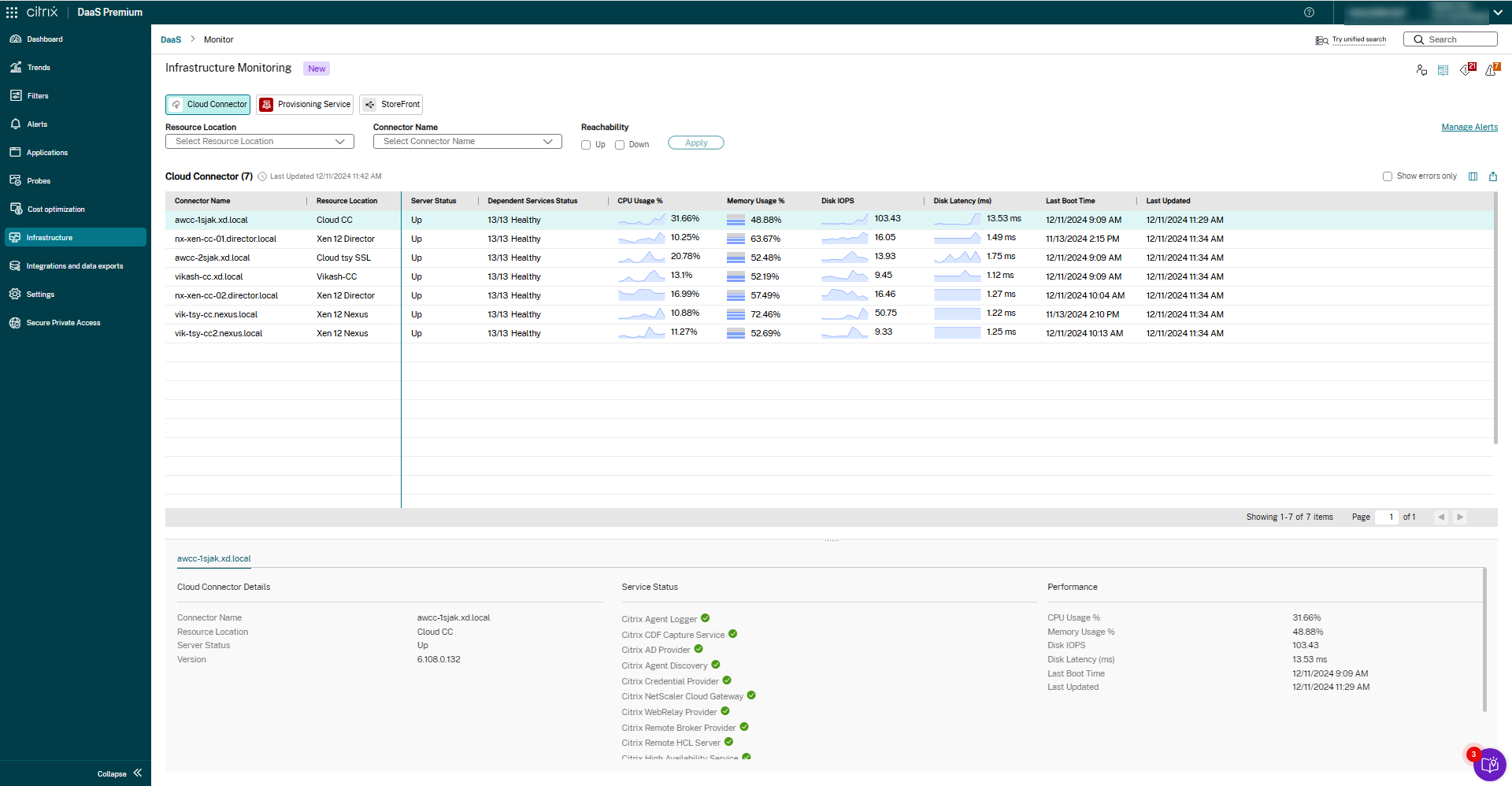
Citrix DaaS delivers virtual applications and desktops, including VDI and desktop as a service (DaaS) options, from any cloud, on-premises, or hybrid infrastructure. Applications and desktops run on centrally hosted resources that employees access from their own devices, while IT manages, monitors, and secures those virtual resources from one platform.
The service combines Citrix DaaS Cloud and Citrix DaaS Local, and includes security controls for unmanaged endpoints, granular access settings, and session recording. Workloads can be hosted in Microsoft Azure, Google Cloud Platform, AWS, or on-premises data centers, and managed together.
Key features include:
- Hybrid multi-cloud deployment: Hosts workloads in Microsoft Azure, Google Cloud Platform, or AWS and manages them alongside on-premises resources from the same platform.
- Security controls for unmanaged endpoints: Provides a range of security features to protect unmanaged endpoints, set granular controls over user sessions, and record user sessions.
- HDX optimization technology: Applies targeted optimizations for unified communications tools and graphics-intensive applications to maintain responsiveness when bandwidth is low.
- Centralized app and desktop management: Centralizes management of applications delivered to any device, so IT can deploy resources quickly and revoke employee access when needed.
- User environment management: Includes a lightweight user environment management solution that speeds up logins, improves server scalability, and shortens application response times.
- Analytics: Uses analytics to monitor and secure employees, the IT environment, and content across virtual resources.
Limitations (as reported by users on G2):
- Network dependency: Users report that a strong network connection is required for smooth operation, especially with high-resolution applications.
- System requirements: Some users note that cloud operations can slow down the system and that specific system configurations are needed to run smoothly.
- Audio quality in calls: Users mention audio issues during Microsoft Teams calls inside virtual sessions.
- Licensing cost: Some users find Citrix DaaS licensing more expensive than comparable solutions.
- Analytics usability: Users would like Citrix Analytics to offer simpler options and more filters for extracting the data they need.
Source: Citrix
3. Microsoft Windows 365

Best for: Microsoft-centric organizations deploying full Windows Cloud PCs
Strengths: Cloud PCs on any device, Intune management, Flex and GPU options
Things to consider: Requires internet; performance varies with network quality
Windows 365 delivers Cloud PCs, which are full Windows desktops hosted in the Microsoft cloud. Employees access them from Windows, Mac, iOS, or Android devices, and IT deploys and manages Cloud PCs much like physical PCs, scaling capacity up or down without issuing new hardware.
Windows 365 Business supports up to 300 users with no licensing prerequisites, while Windows 365 Enterprise has no user limit and requires Windows Enterprise, Microsoft Intune, and Microsoft Entra ID. Other plans include Windows 365 Flex for part-time or shift-based use, Windows 365 Government, Windows 365 Reserve for temporary Cloud PCs, and Windows 365 for Agents.
Key features include:
- Cross-device access: Lets users connect to their Cloud PC from Windows, Mac, iOS, or Android devices, including personal devices under a BYOD program.
- Edition options for different work patterns: Offers dedicated Cloud PCs for full-time users, plus Windows 365 Flex with a dedicated mode (up to 3 Cloud PCs per license, one active at a time) and a shared mode (one shared Cloud PC per license, one active user at a time).
- Configurable compute: Provides Cloud PCs with up to 16 vCPUs, 64 GB RAM, and 1 TB storage in Business, and up to 32 vCPUs, 128 GB RAM, and 2 TB storage in Enterprise, with GPU Cloud PCs for graphics-intensive work.
- Centralized management: Manages Cloud PCs through the Microsoft 365 admin center, the Windows App, or Microsoft Intune, with Enterprise Cloud PCs configured and deployed through Intune.
- Zero trust-aligned security: Applies zero trust principles to Cloud PCs and protects identity, access, and data for employees connecting from personal devices.
- Temporary and contractor access: Provisions secure Cloud PCs for short-term team members and contractors, and Windows 365 Reserve provides a temporary Cloud PC when an employee’s physical device is unavailable.
- Windows 365 Link: Offers a purpose-built device that connects directly to Windows 365 for desk-based and frontline workers in shared workspaces.
Limitations (based on publicly available sources):
- Internet dependency: Cloud PCs require an internet connection, so users cannot access their desktop, files, or applications offline.
- Performance compared with local hardware: Some users report that Cloud PCs feel slower than their local computers, even on higher-tier plans.
- Network-sensitive experience: The user experience varies with network quality and routing, which can affect latency-sensitive work.
- Image customization: Windows 365 offers less control over underlying desktop image customization than self-managed VDI.
- Enterprise prerequisites: Windows 365 Enterprise requires Windows Enterprise, Microsoft Intune, and Microsoft Entra ID licensing.
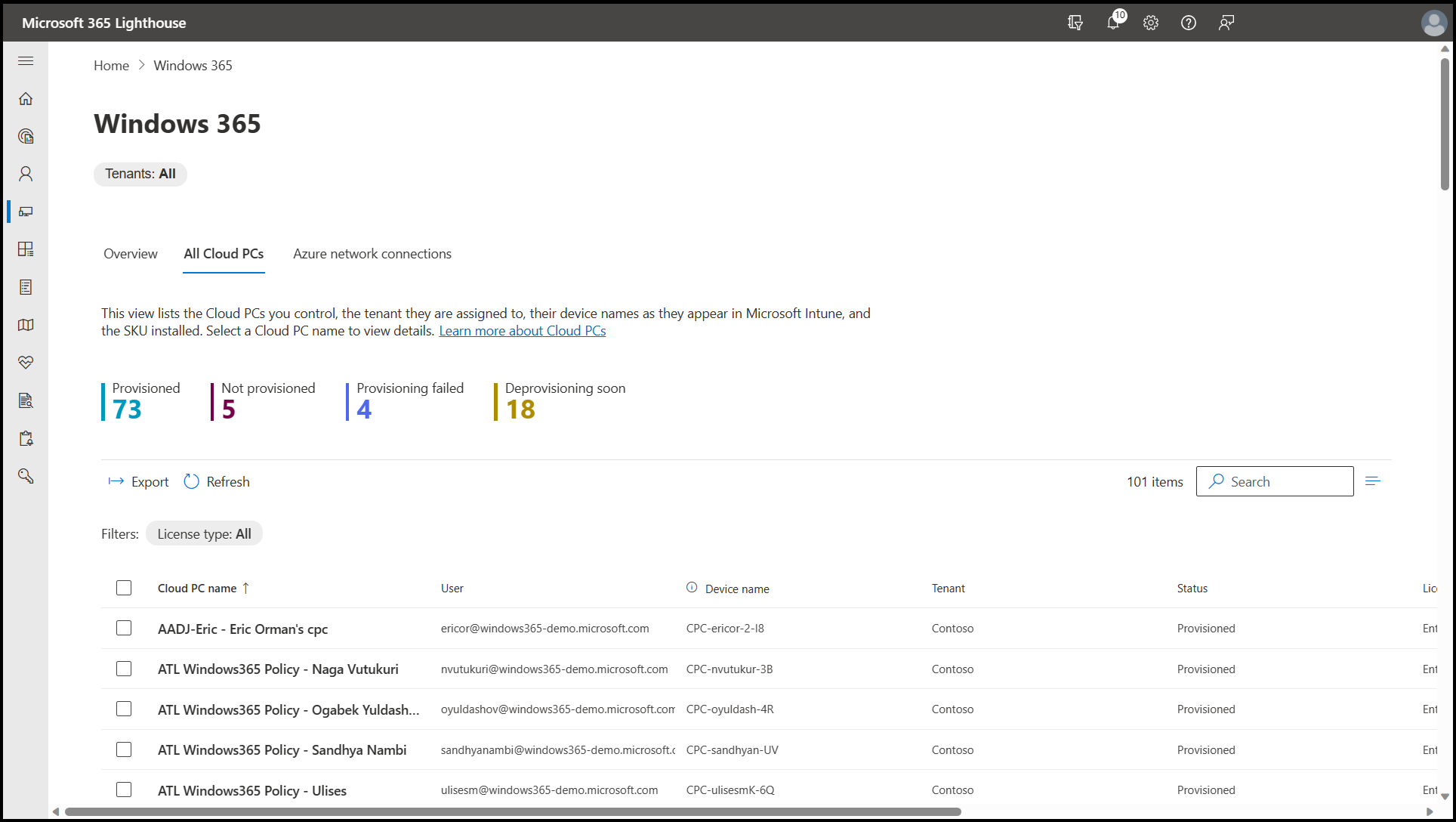
Source: Microsoft
4. Amazon WorkSpaces
Best for: AWS customers needing persistent Windows or Linux cloud desktops
Strengths: Wide OS, compute and GPU options with monthly or hourly pricing
Things to consider: Latency on slow links; support responses can be slow
Amazon WorkSpaces is a fully managed DaaS from AWS that provides cloud-based virtual desktops employees can access from any device. Organizations can deploy Windows or Linux desktops and scale them globally without maintaining traditional desktop infrastructure.
WorkSpaces provides dedicated, persistent desktops where users keep their individual settings, data, and file storage, and can install and run applications. IT manages all virtual desktops centrally through the AWS Management Console, and non-persistent desktops are available through Amazon WorkSpaces applications.
Key features include:
- Range of desktop configurations: Offers multiple operating systems, applications, compute and storage options, and streaming protocols, from general purpose instances for contractors to GPU-enabled Graphics families for design work.
- Persistent personalized desktops: Gives each user a dedicated virtual desktop that retains settings, data, files, and installed applications between sessions.
- Centralized management: Manages all virtual desktops from the AWS Management Console.
- Flexible pricing and scaling: Supports monthly subscriptions or hourly metering, with demand-based scaling policies, pay-per-use consumption, and customizable storage and desktop configurations.
- Thin client and older device support: Works with the WorkSpaces thin client, and lets organizations install Google ChromeOS Flex or IGEL OS on aging devices to access Windows 11 on WorkSpaces.
- Use case configurations: Supports auto-scaling for contact center agents, standardized desktops for training, protected desktops for HR, finance, and payroll teams, and high-performance developer workstations.
Limitations (as reported by users on G2):
- Connection requirements: Users report that a fast internet connection is needed to avoid latency during sessions.
- Regional latency: Some users experience latency when accessing WorkSpaces from certain regions.
- Support responsiveness: Some users find it difficult to reach support by phone or chat, with email responses taking up to a day.
- Pricing: Some users consider pricing a drawback.
- Client requirement: Users note that access requires the WorkSpaces client application rather than a standard Windows RDP environment.
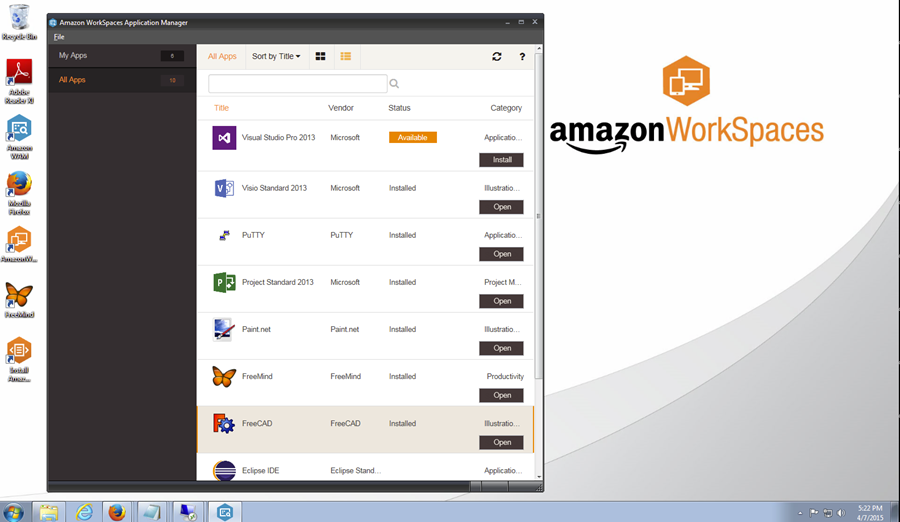
Source: Amazon
Zero Trust Network Access (ZTNA) Solutions
5. Zscaler Private Access (ZPA)
Best for: Replacing VPNs with app-level zero trust access to private apps
Strengths: User-to-app segmentation, inline inspection, DLP, browser access
Things to consider: Reported disconnects, complex troubleshooting, higher cost
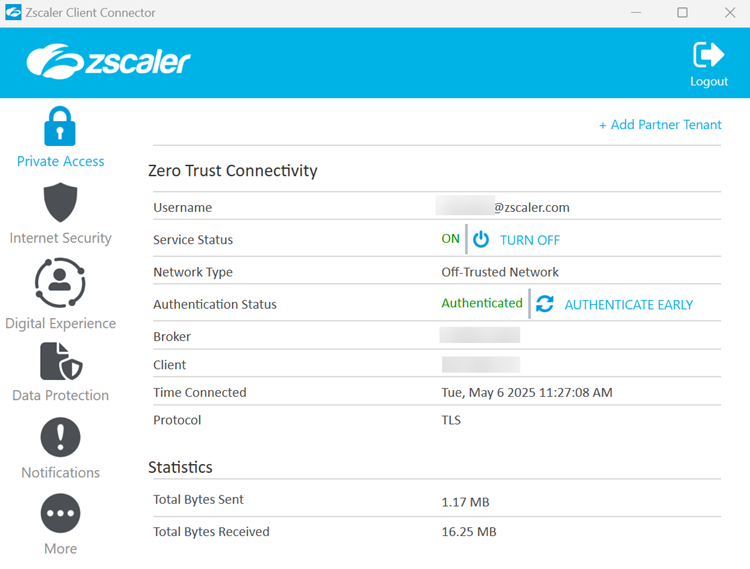
Zscaler Private Access (ZPA) is a ZTNA service that brokers direct, one-to-one connections between authorized users and specific private applications. Unlike a VPN, users never connect to the corporate network, and applications are not exposed to the public internet.
ZPA runs on the Zscaler Zero Trust Exchange and applies context-aware policies with AI-powered user-to-app segmentation. It covers private apps, workloads, and OT systems for remote users, office and branch users, and third parties, and is intended as a replacement for VPN and VDI access.
Key features include:
- AI-powered app segmentation: Discovers applications automatically and generates recommendations for app segments and access policies to limit lateral movement.
- Agent and browser-based access: Connects users to apps through lightweight, infrastructure-agnostic client software, with browser access options for users without the client.
- Privileged remote access: Gives remote workers and third parties clientless access to RDP, SSH, and VNC production systems.
- Inline inspection and threat protection: Inspects private app traffic with Layer 7 inspection and applies ransomware, zero-day, and unknown malware prevention.
- Data loss prevention: Inspects data in motion with Exact Data Match (EDM), Indexed Data Match (IDM), and machine learning, and adds endpoint DLP controls for removable media and BYOD data loss.
- Browser isolation for unmanaged devices: Provides access to private applications in isolated, near-native web sessions to limit data exposure on unmanaged endpoints.
- Business continuity: Maintains policy-enforced access to critical applications during connectivity outages.
- Digital experience monitoring: Detects application, network, and device issues affecting user connectivity.
Limitations (as reported by users on G2):
- Connection stability: Users report random disconnections, repeated sign-ins, and problems when switching between networks.
- Performance in poor network conditions: Some users experience slow loading and delays accessing apps when network conditions are not optimal.
- Troubleshooting: Users note that when issues occur, it is not always clear whether the cause is connectivity, policy, or the client.
- Learning curve: Some users find configuration and administration complex.
- Cost: Some users, particularly smaller businesses, consider ZPA expensive compared with traditional VPNs.
Source: Zscaler
6. Cloudflare Access
Best for: Identity-based access to self-hosted, SaaS, and non-web applications
Strengths: Clientless access, device posture checks, multi-IdP authentication
Things to consider: Learning curve and initial policy setup can be complex
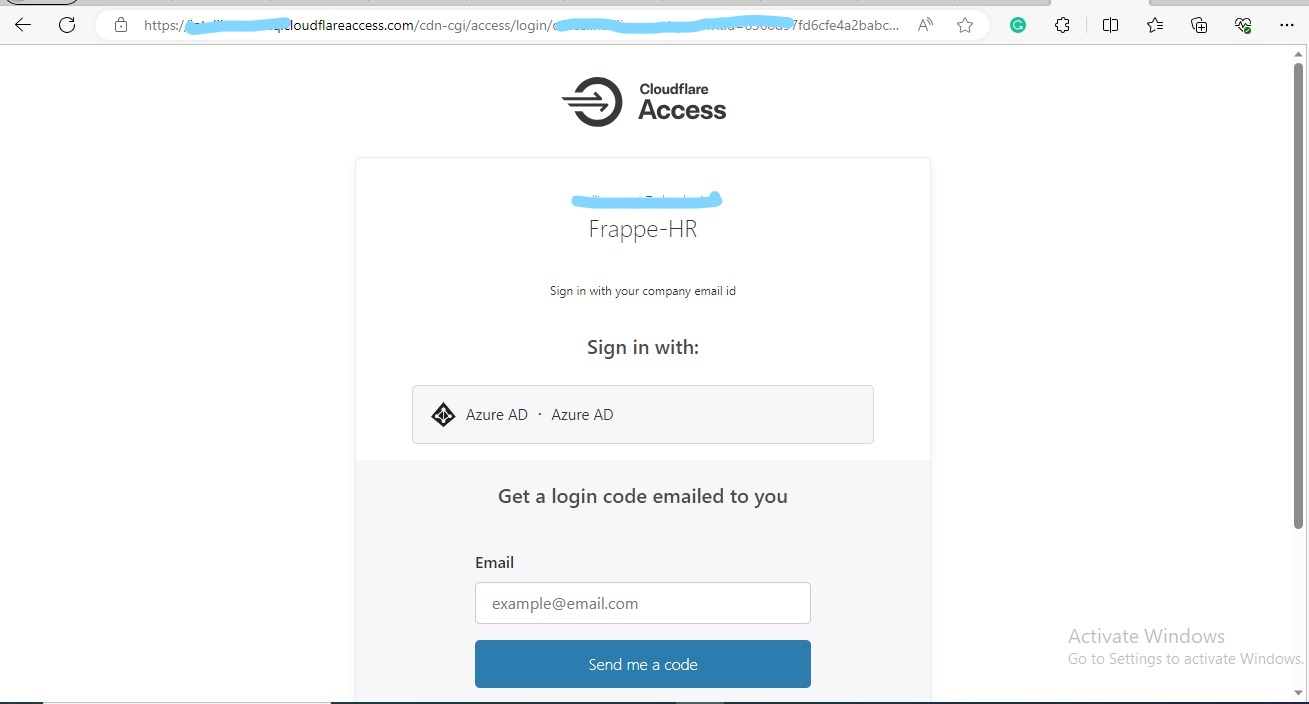
Cloudflare Access is the ZTNA component of Cloudflare One, Cloudflare’s SASE platform. It verifies and secures employee and third-party access to self-hosted, SaaS, and non-web applications, including AI tools and MCP servers, and checks identity and device posture for every request.
Access protects internal IPs and hostnames as well as arbitrary L4 to L7 TCP or UDP traffic. Resources connect to Cloudflare through a connector that does not require a publicly routable IP address, and plans range from a free tier for small teams to enterprise contract plans.
Key features include:
- Broad application coverage: Protects self-hosted, SaaS, and non-web applications such as SSH, VNC, and RDP, along with private networks and internal hostnames.
- Identity provider integration: Authenticates users through enterprise and social identity providers, including multiple IdPs at once, plus generic SAML and OIDC connectors.
- Contextual access policies: Builds policies on IdP groups, geolocation, device posture, session duration, and external APIs, with support for temporary authentication and purpose justification.
- Device posture checks: Verifies device posture through integrations with third-party endpoint protection providers.
- Clientless and client-based access: Offers clientless access to web apps and browser-based SSH or VNC, and a device client for Windows, Mac, iOS, Android, Linux, and ChromeOS with split tunneling.
- Data controls through the platform: Restricts downloads, uploads, copy/paste, keyboard input, and printing within isolated web pages through remote browser isolation, and inspects traffic for sensitive data with DLP.
- Logging and auditing: Stores authentication logs for up to six months, supports exporting logs to a SIEM, and records full replays of commands run during SSH sessions.
Limitations (as reported by users on G2):
- Learning curve: Users find the transition from traditional network security to zero trust concepts challenging.
- Initial configuration: Some users report complexity when configuring policies and integrating with existing systems.
- Feature maturity: Some users note that certain features feel newer and less mature than those of long-established competitors.
- Dashboard navigation: Users mention that the dashboard can be confusing while learning the platform.
- Pricing: Some users consider the platform expensive.
Source: Cloudflare
7. Palo Alto Networks Prisma Access
Best for: Palo Alto Networks customers consolidating remote access and SASE
Strengths: Cloud-delivered ZTNA, web security, browser isolation, unified management
Things to consider: Complex initial setup, steep learning curve, and high pricing
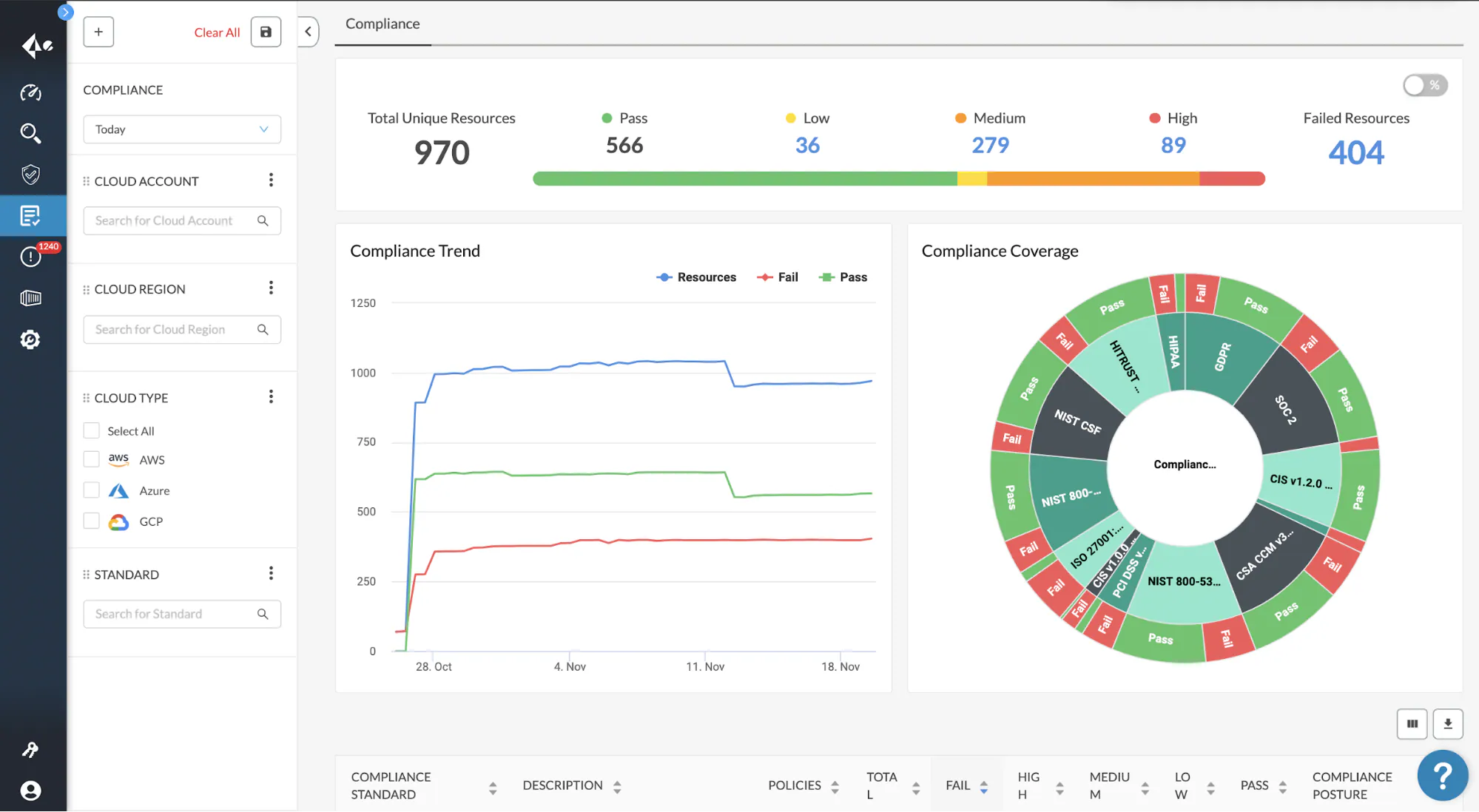
Prisma Access is a cloud-delivered security solution from Palo Alto Networks that protects remote and branch users, applications, devices, and data regardless of location. It enforces least-privileged access to applications and removes implicit trust without the complexity of traditional VPNs.
Prisma Access combines zero trust access, secure web access, SaaS application controls, remote browser isolation, and cloud-delivered network security. Users connect through the Prisma Agent, and the service is managed together with the rest of the network from a single console.
Key features include:
- Zero trust network access: Provides least-privileged access to all applications and reduces the attack surface compared with VPN-based access.
- Secure web access: Applies real-time protection powered by Precision AI to web traffic for all users.
- Application and data visibility: Uses SaaS Security Posture Management, inline and API-based controls, and contextual policies to protect sensitive data across applications.
- Prisma Agent: Connects users through a unified agent that works across SASE and next-generation firewall deployments.
- Remote browser isolation: Creates an isolation channel between users and remote browsers to keep web-based threats away from endpoint devices.
- Remote network protection: Deploys firewalls in the cloud to protect remote networks, with application control and zero trust policies.
- Resilience: Operates with a 99.999% uptime SLA and allows customers to exceed their purchased mobile user licenses during temporary emergencies.
Limitations (as reported by users on G2):
- Complex setup: Users find initial setup and implementation time-consuming, especially without a dedicated network or security team.
- Learning curve: Some users report a steep learning curve, particularly for those new to the Palo Alto Networks ecosystem.
- Cost: Users frequently mention pricing as a drawback.
- Documentation and support: Some users report gaps in documentation and difficulty resolving issues with support.
- Vendor lock-in: Some users note dependence on the Palo Alto Networks ecosystem.
Source: Palo Alto Networks
8. Netskope One Private Access
Best for: Unified ZTNA across remote, campus, IoT, and OT environments
Strengths: AI policy recommendations, Local Broker, built-in DLP and posture checks
Things to consider: Interface can be tricky for new users; complex initial setup
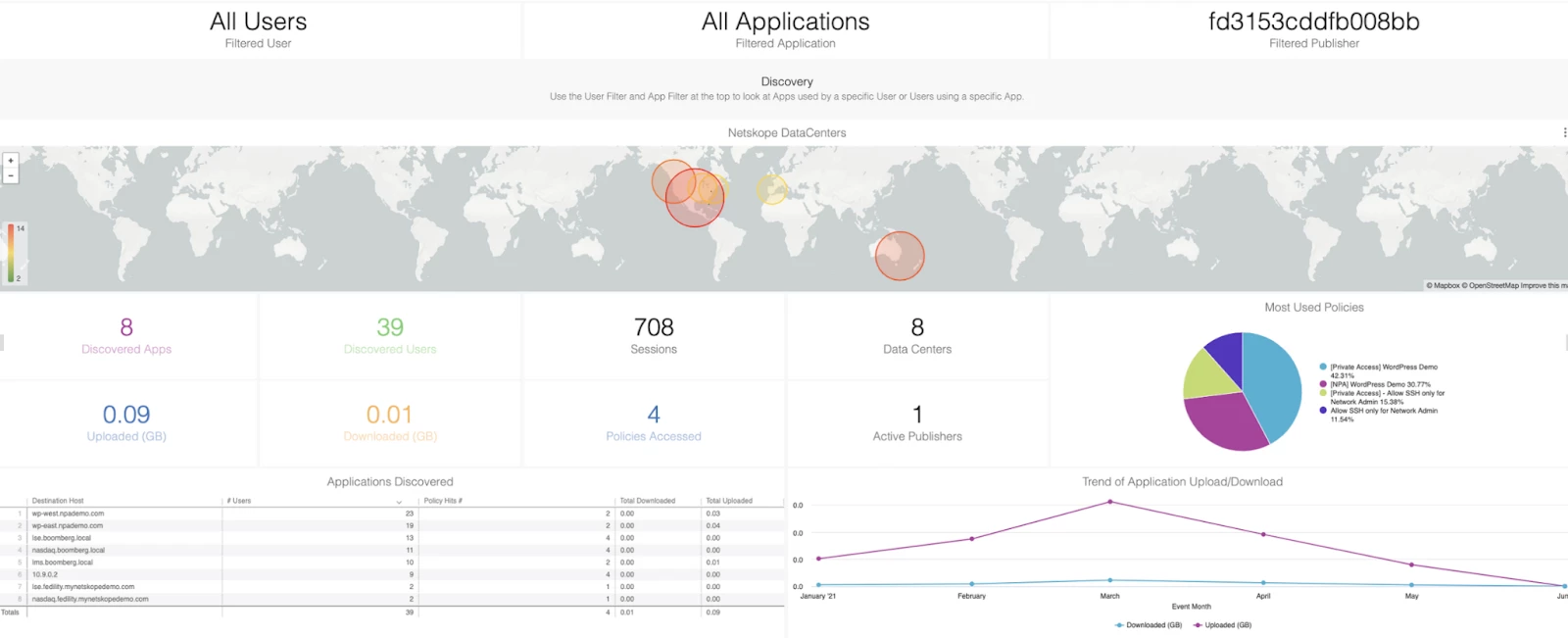
Netskope One Private Access is the foundation of Netskope’s Universal ZTNA. It connects users only to specific authorized private applications rather than the whole network, and keeps those applications hidden from the public internet until the user’s identity and device health are verified.
A single client combines ZTNA with bi-directional access for legacy applications. Traffic can be routed through the cloud with automatic failover and shortest-latency paths, or through local brokers for on-premises and OT environments. Access decisions continuously evaluate identity, posture, location, behavior, threat intelligence, and data risk.
Key features include:
- AI-driven policy optimization: Recommends granular app segments and least-privilege policies for new deployments, and refines existing policies by replacing broad destinations and removing unused rules.
- Agent and browser-based access: Provides an always-on client connection for managed devices and clientless, browser-based access for unmanaged or third-party devices, including through Netskope One Enterprise Browser.
- Local Broker: Extends ZTNA to on-premises users and OT environments with local traffic steering, avoiding cloud hairpinning and maintaining access if cloud connectivity is lost.
- Built-in threat and data protection: Applies threat detection and DLP to access from managed and unmanaged devices, including IoT and OT devices.
- Continuous device posture assessment: Checks for disk encryption, active firewalls, and corporate certificates, and blocks or limits access when a device is at risk.
- Broad protocol support: Supports SSH and RDP, as well as server-initiated traffic such as VoIP and Microsoft System Center Configuration Manager (SCCM).
- Digital experience monitoring: Provides path-level metrics for private app performance to speed up troubleshooting.
Limitations (as reported by users on AWS Marketplace):
- Interface navigation: Users find the interface tricky for new users, and navigating to the correct destination can be challenging.
- Initial configuration: Some users report that configuration was complex at the beginning and that the UI and UX could be improved.
- Network checks: Some users would like the client to assess Wi-Fi security before granting access on public networks.
Source: Netskope
Conclusion
Choosing reliable remote access tools for employees requires balancing security, application performance, connectivity, and ease of management. Traditional VPN and VDI solutions remain useful for specific workloads, while zero trust access and secure workspace approaches provide more granular controls over applications and corporate data. Organizations should evaluate support for browser-based and locally installed applications, MFA and SSO, data loss prevention, and compatibility with managed and BYOD devices. The right solution should provide consistent access to business resources while protecting sensitive information, preserving employee privacy, and minimizing IT overhead.

Any worker. Any laptop. Any AI workflow. Fully secured.
Schedule a demo to see how Blue Border® secures company data and apps without shipping laptops, running VDI, or managing personal endpoints.